Content Item Enrollment History
Content items in iSpring LMS are periodically reassigned to users. This is accomplished either by reassigning courses they relate to using the reenrollments feature or canceling and adding enrollments again.
After the content item has been reassigned, a user will start taking it from scratch. However, the administrator may want to see how the learner progressed through the content item each time it was taken. For example, you will be able to track down which mistakes were made repeatedly and work on them with the learner.
iSpring LMS maintains a history of all enrollments, including those that were canceled. No matter how many times the content item was reassigned to a user, the Content Item History and Learner's Content Item History reports record each time that it is taken.
Content Item History Report
Go to the Reports section and click Content items.
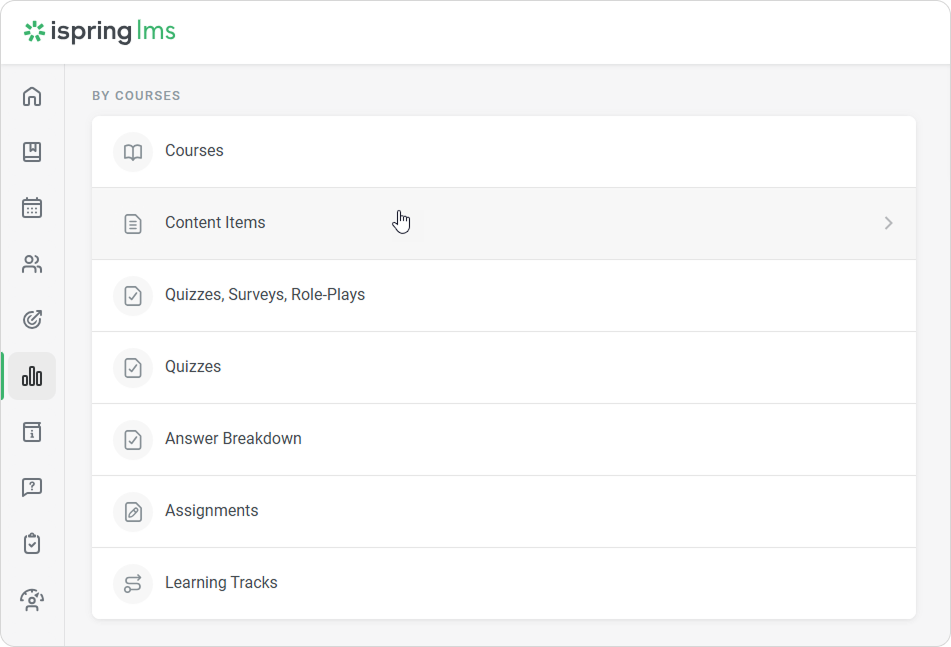
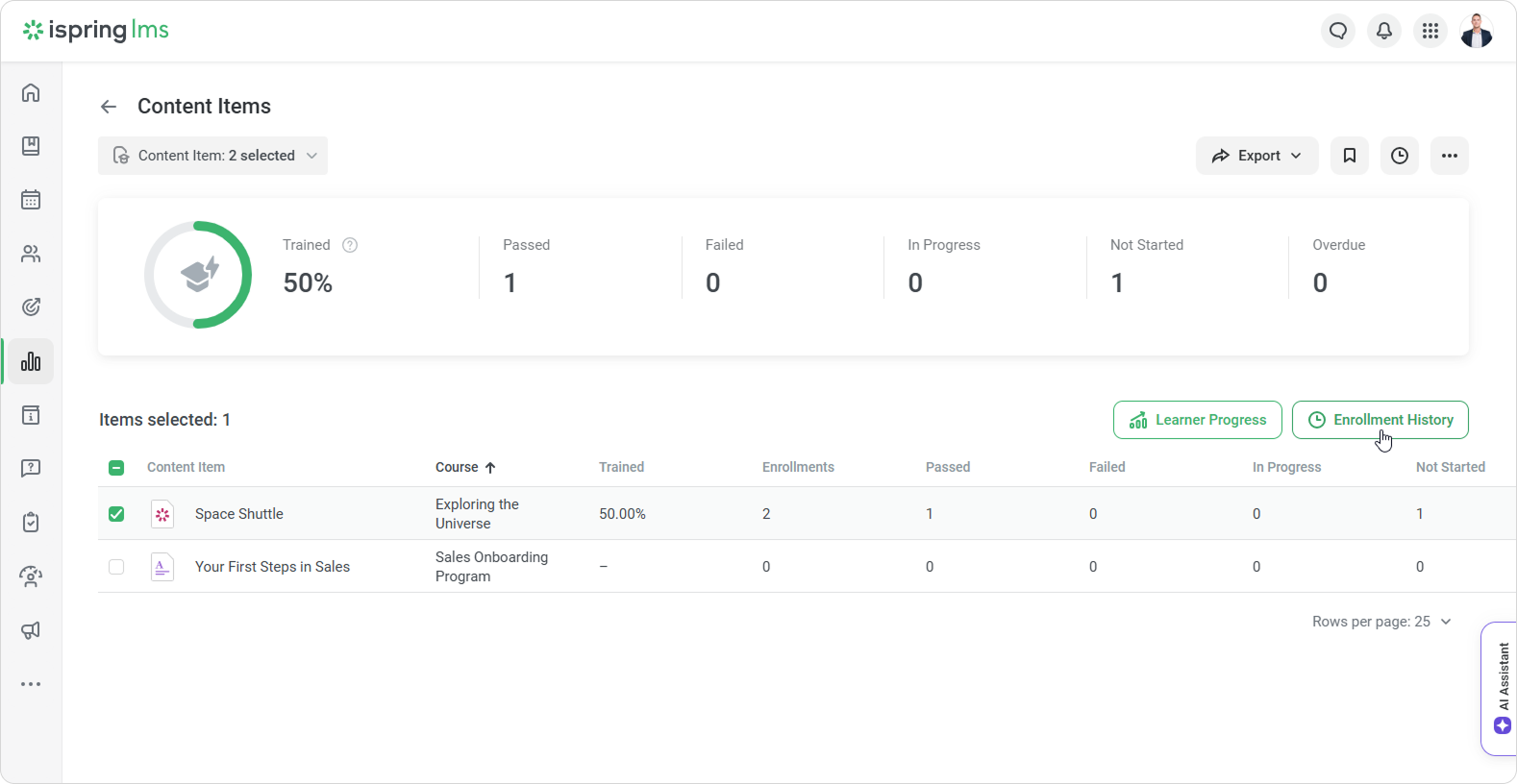
Next, in the Content Items report, select a content item and click the Enrollment History button.
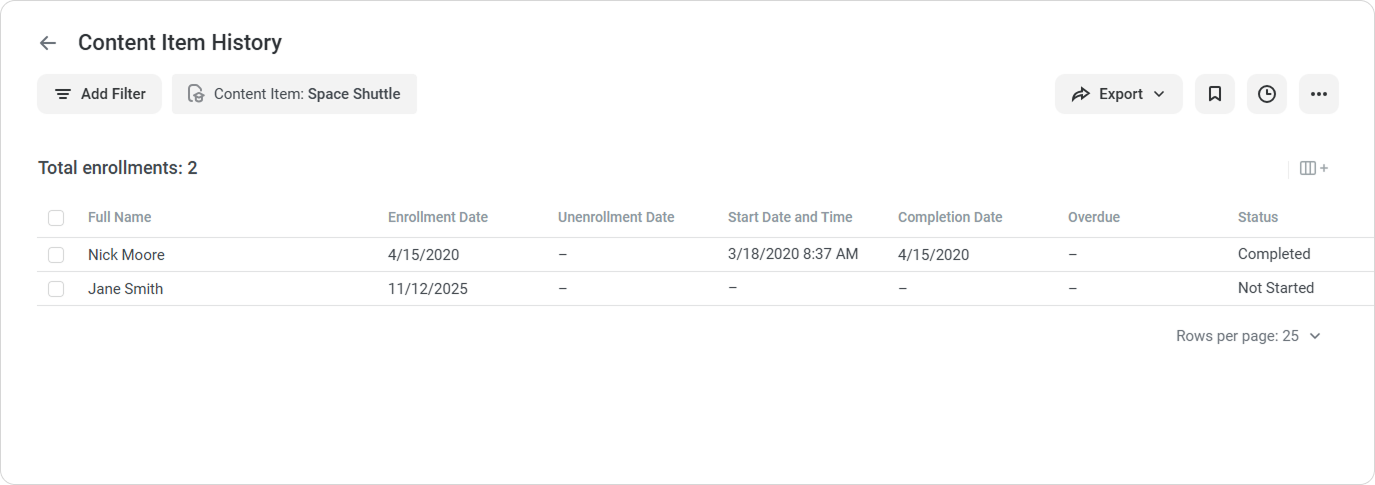
The opened Content Item History report will show all the enrollments assigned to this user, both current and canceled.
Learner's Content Item History
Go to the Reports section and click Content Items.
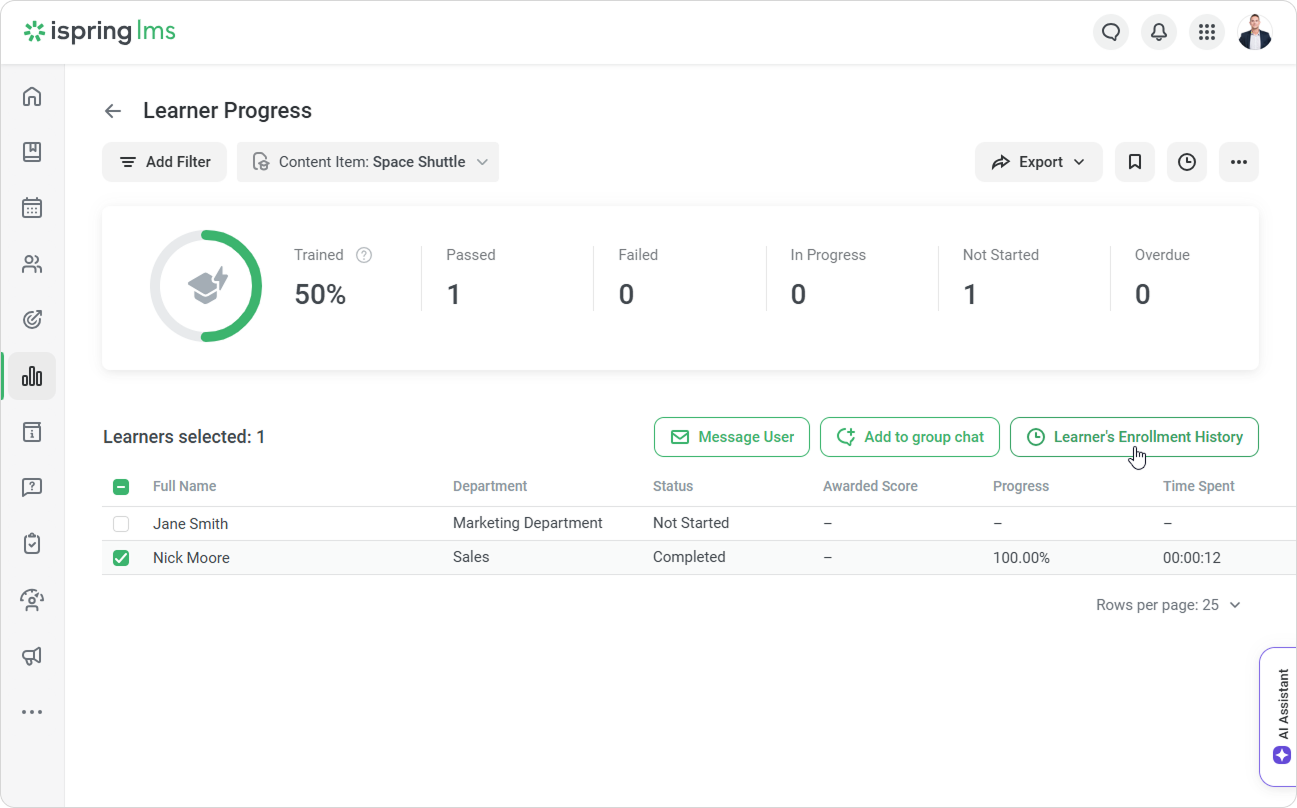
Next, in the Content Items report, select a content item and click the Learner Progress button.
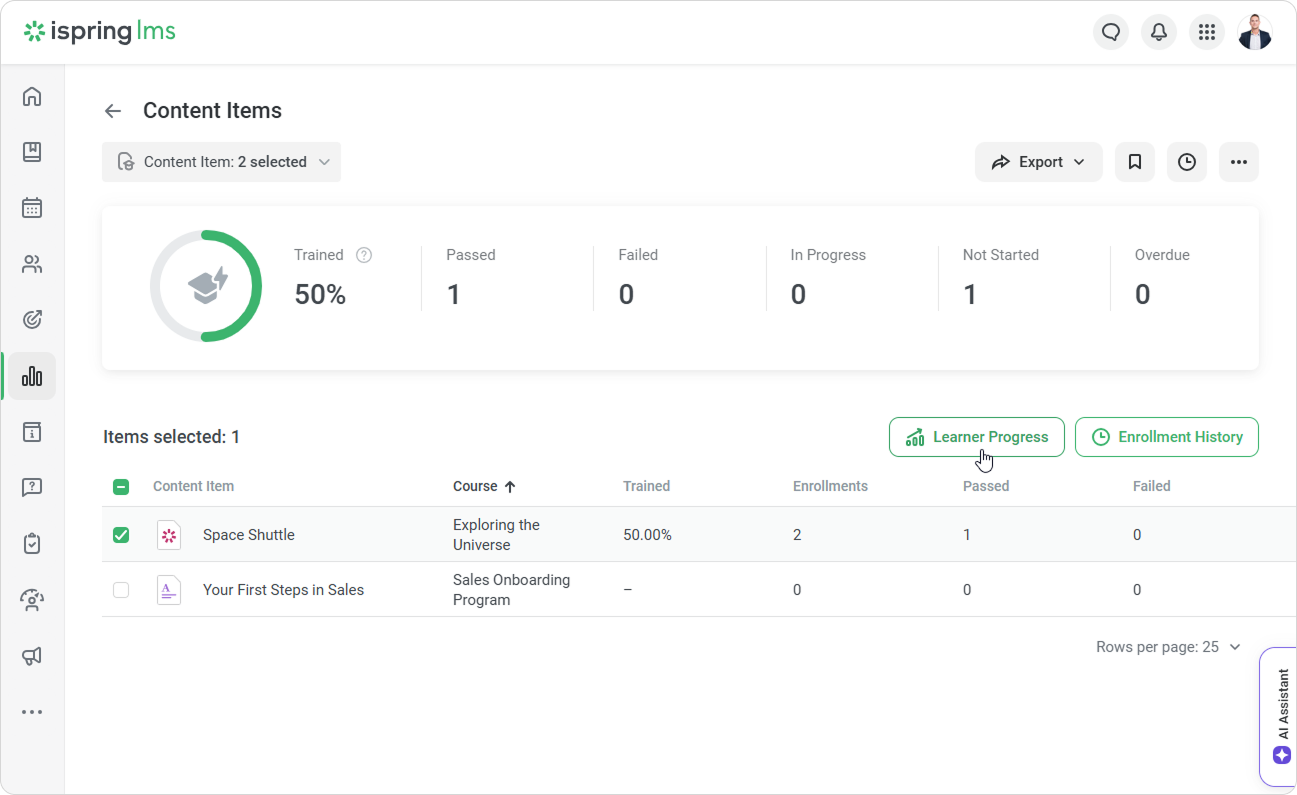
In the Learner Progress in Content Items report, click the Learner's Enrollment History button to see all the content items that have been assigned to the user.
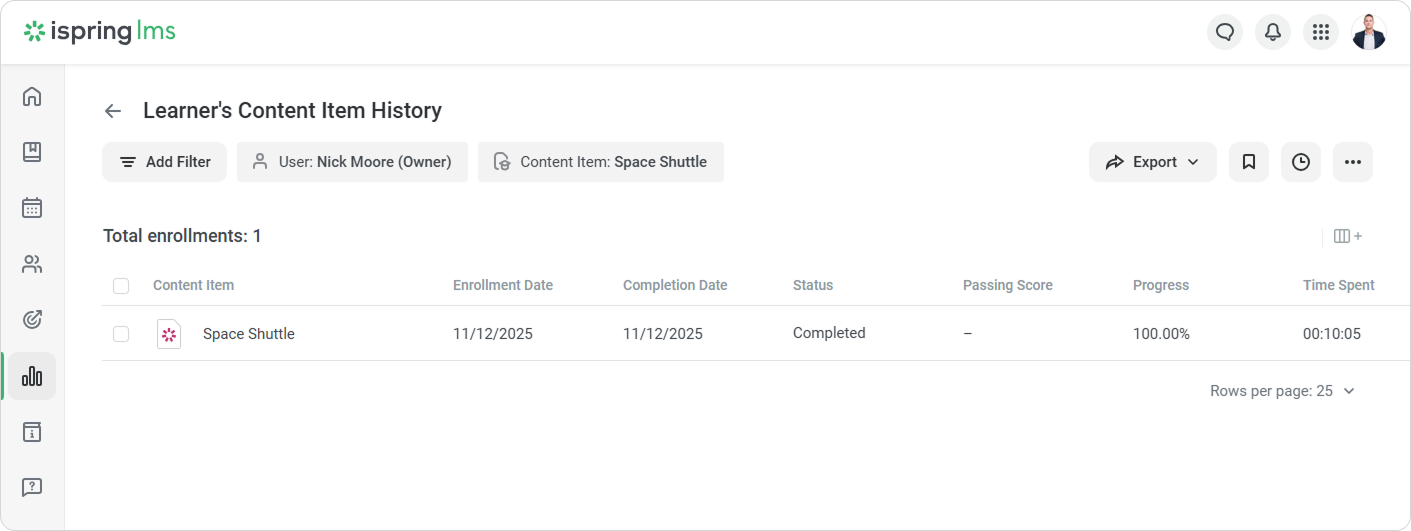
The Learner's Content Item History report on a particular user will open up. It will show all content item enrollments related to the chosen learner.
Notes:
The report contains only content items included in courses. Quizzes, dialog simulations, interactions, videos inserted in iSpring Suite-created presentations as well as standalone content items aren't available in the report.
If an enrollment was canceled, the Unenrollment Date column will be populated with data. For current enrollments (those that weren't canceled), there's a dash in the Unenrollment Date column.
If a user or a content item was deleted, enrollments related to them won't be included in the report.
The report shows only the enrollments assigned to active users. To add data on blocked users to the report, select the User Status filter and select Inactive.
This filter is available only for the Content Item History report.Department Administrator, Course Author, and users with a custom role will see data on users belonging to the departments they manage and their sub-departments.
Recommended articles: