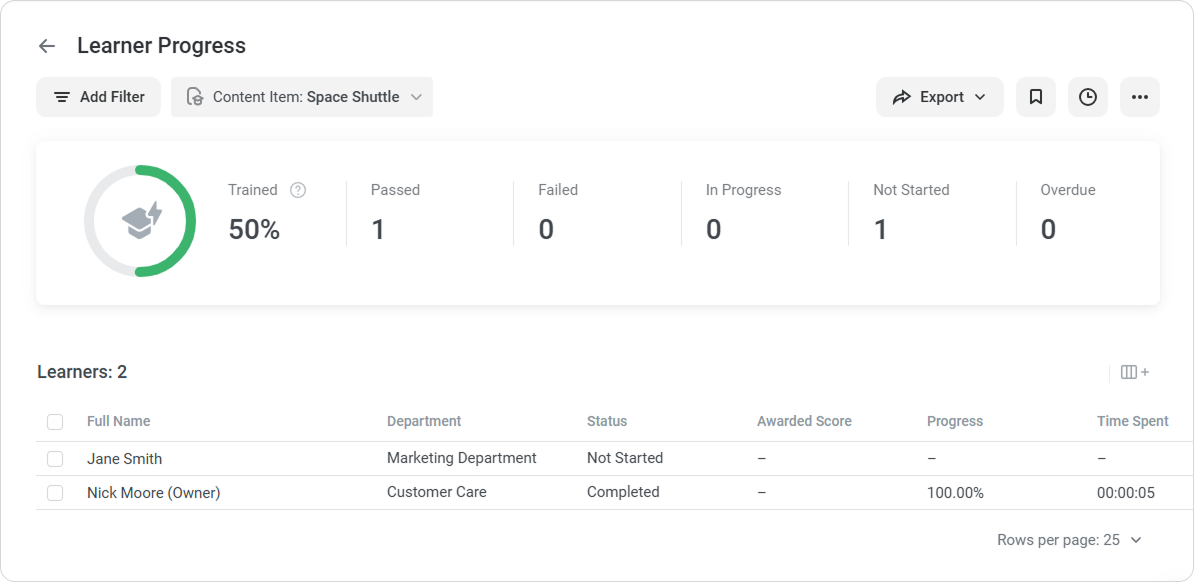
See how your account users are advancing through specific content items. 

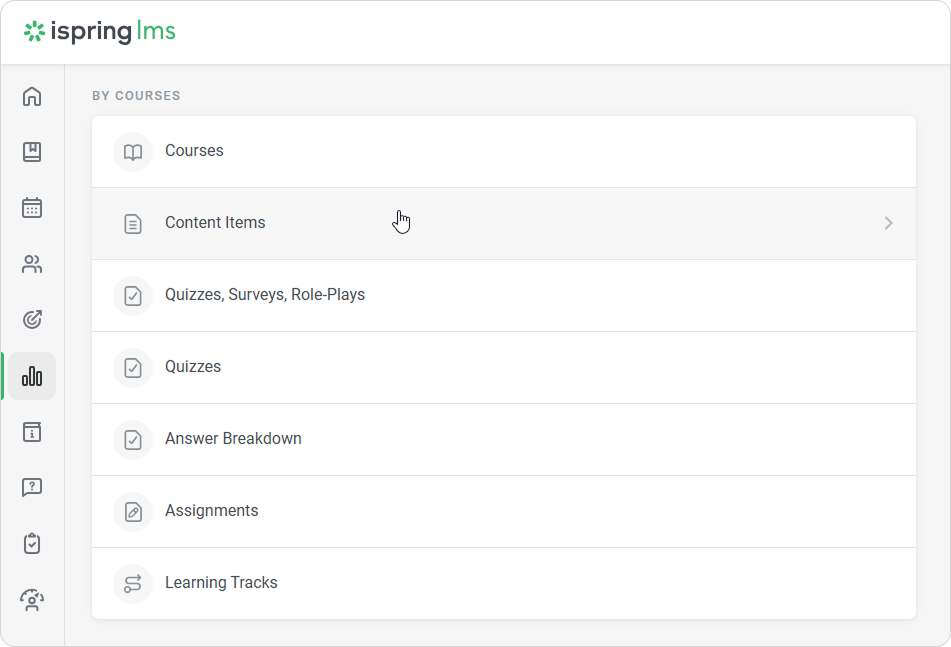
  1. Open the Reports section and click Content Items.


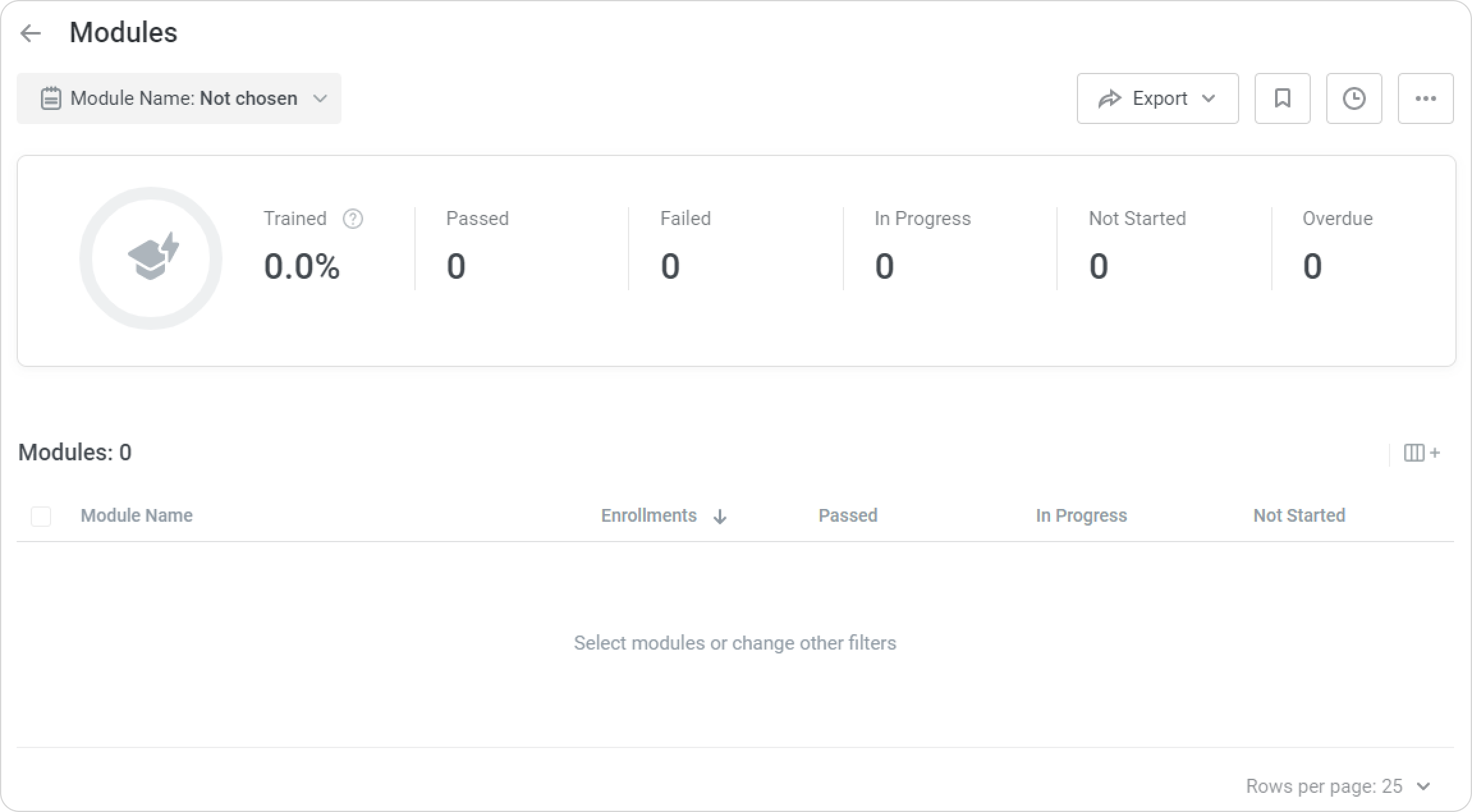
  2. The Content Items report will be opened but is empty, so select the content items that you want to run the report on.


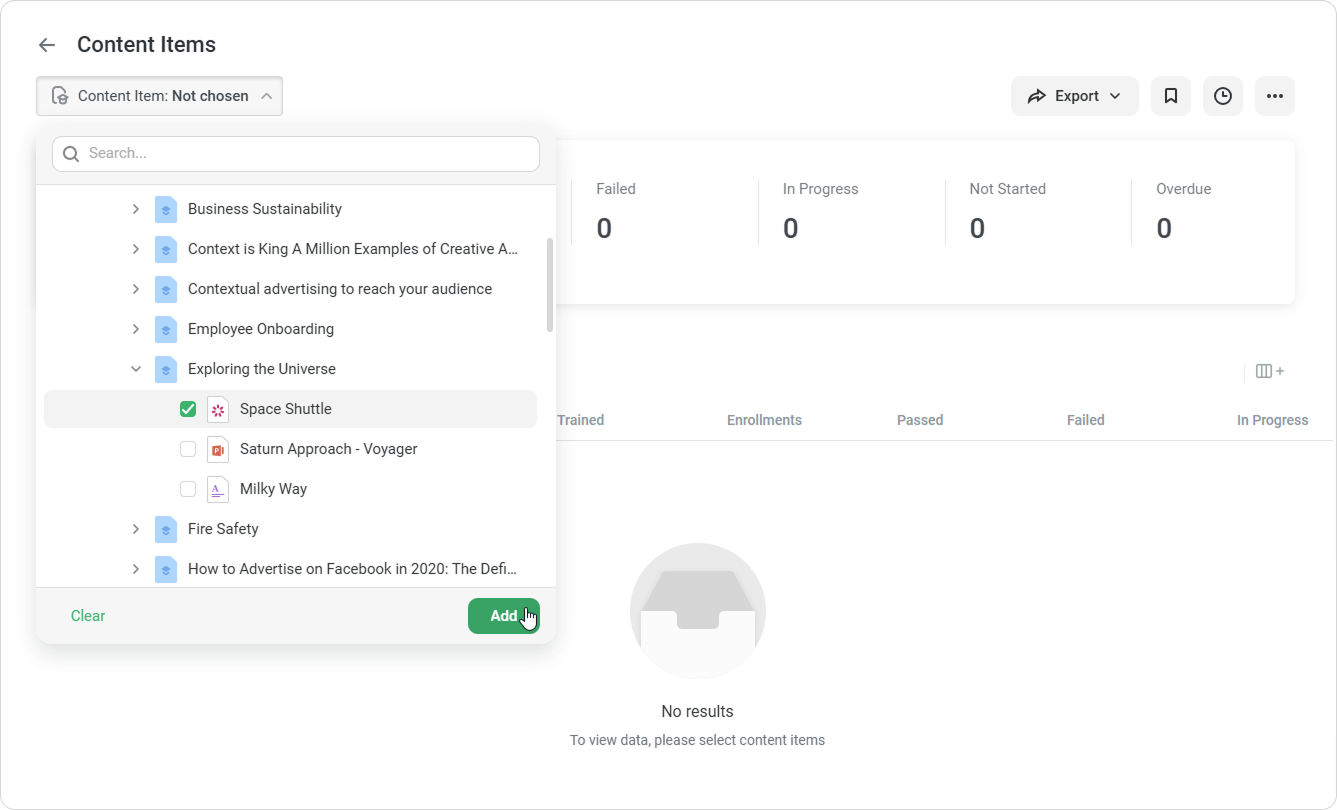
  3. Open the Content Item name filter (it cannot be removed, but can be edited) and select the content items that are included in courses. Then, click Add.


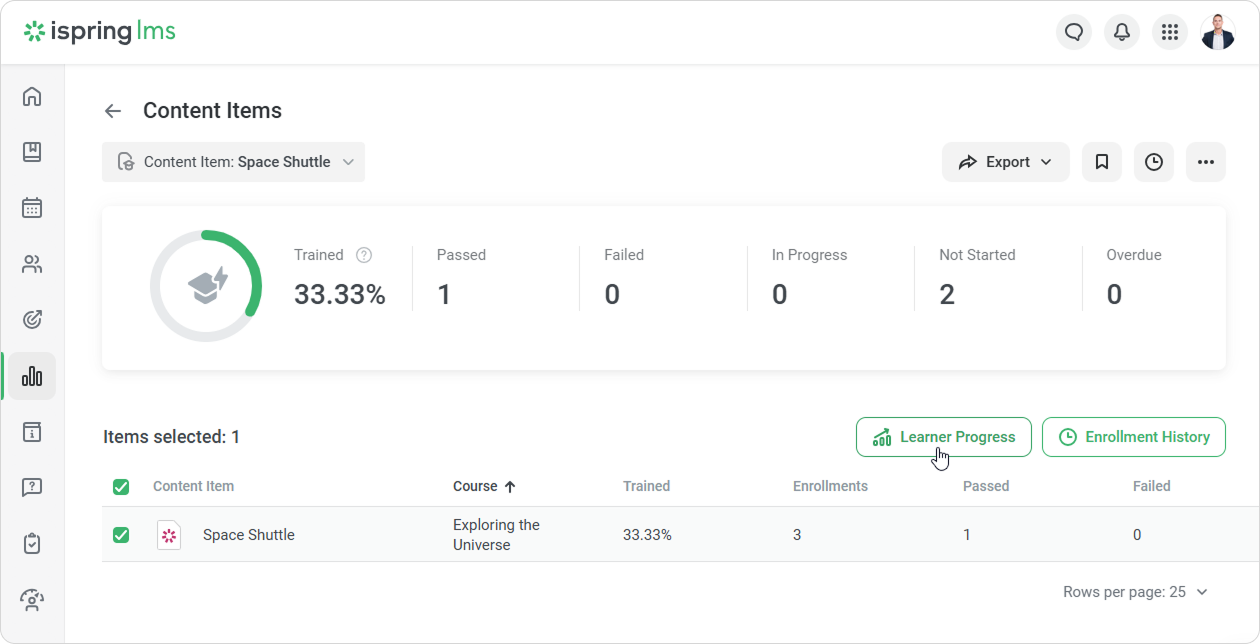
  4. In the opened report, select one or multiple content items and click the Learner Progress button.


  5. In the Learner Progress in Content Item report, you will see how users were studying the selected content item or content items.

    Trained

    Level of students' training. To calculate this value, you need to divide the number of completed content items by the total number of assigned content items

    CompletedThe total number of completed content items.
    In ProgressThe total number of content items that users have started, but haven't completed.
    Not StartedThe total number of content items that learners have not yet started.
    OverdueThe total number of courses whose due dates have already expired. 


Notes:

  1.  In the Content Item name filter, you can select up to 10 content items from all available courses.

  2. If the selected content item wasn't assigned to anyone, it won't be included in the report.

    Let's say you selected 5 content items in the Content Item name filter, but two of them were not assigned to anyone. The report will then only contain data on the 3 content items with enrolled users.

  3. You can only choose content items that are included in courses. To find out how users are progressing through surveys, quizzes, and dialogs that are included in iSpring Suite-created presentations, run the Quizzes report.

  4. For the Start Date, Completion Date, Due Date, Last Login, and User Creation Date filters, you can choose up to a 740-day-long time range (~2 years).

  5. If you run the report on two or more content items, add and remove columns for the content item summary and for each content item individually.

Recommended articles: