Importing Users from an Excel File
To save time, you can add a list of users from an Excel file. This option will come in handy if you want to bulk upload your user database exported from your accounting system or when you need to transfer many users to another group or department.
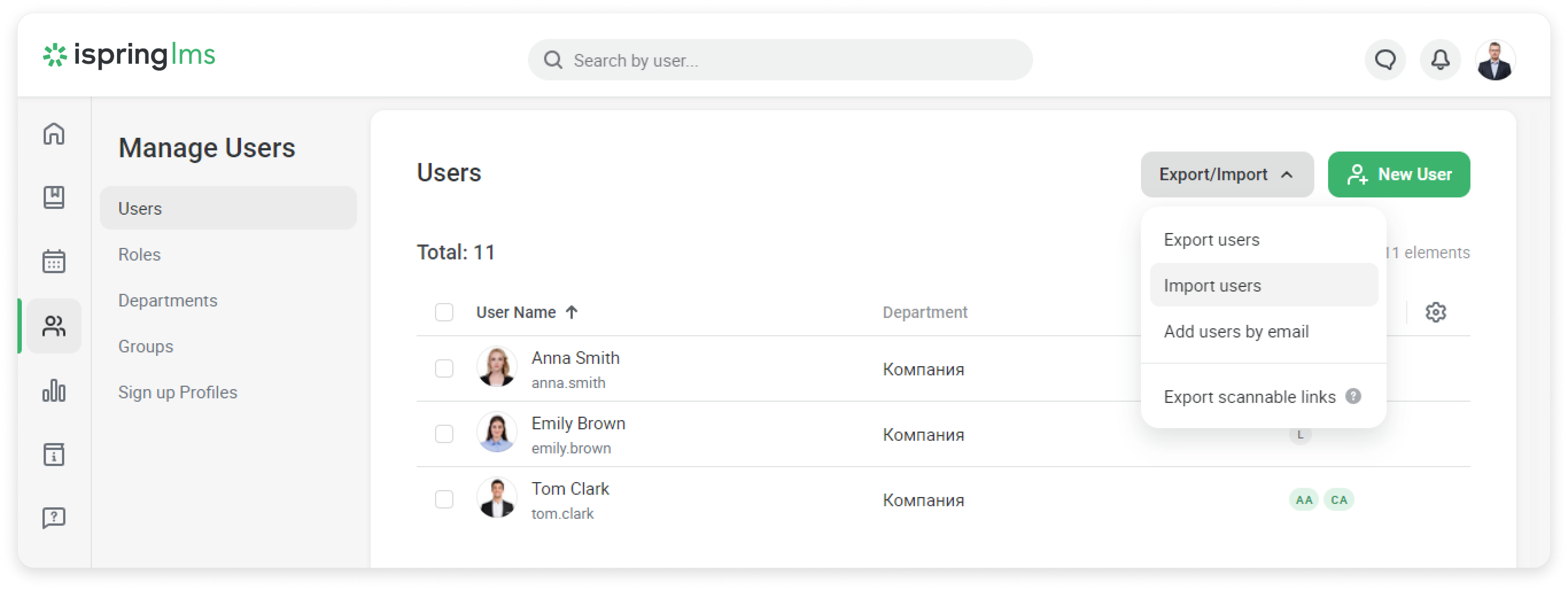
- In the Users section, open the Export/Import menu and select Import Users.
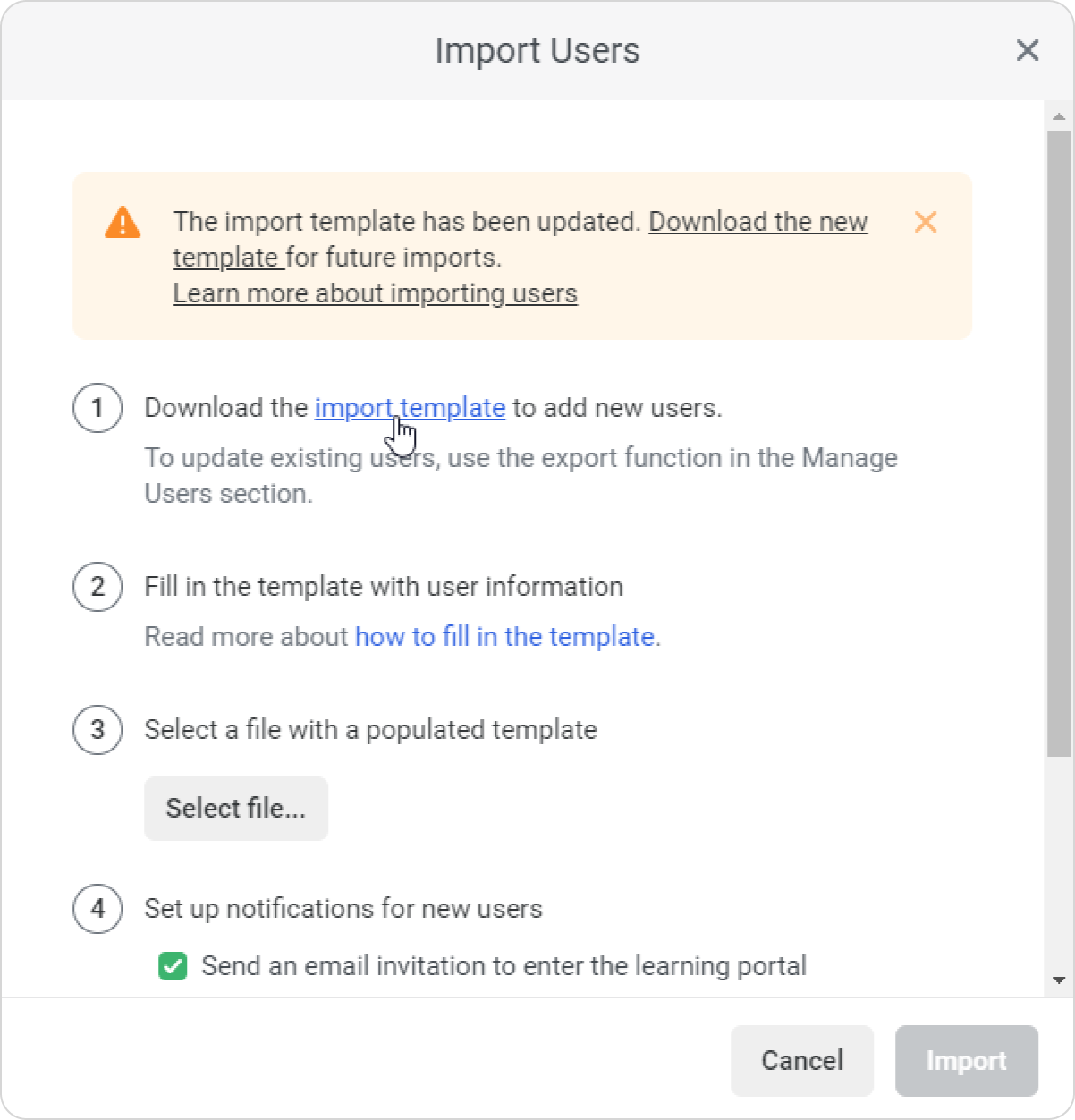
In the Import Users window, download an import template. To do this, click on the link and save the file to your computer.
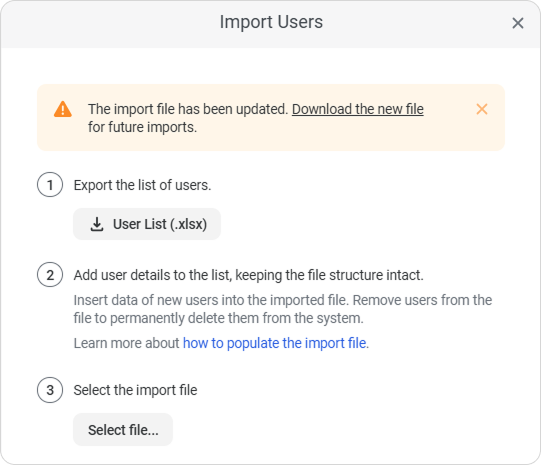
 If Delete users while importing from XLSX is enabled
If Delete users while importing from XLSX is enabled, download the User List instead. Add new users or update existing users in this file. All account users who aren't included in the file will be deleted. The Account Owner will not be deleted.
Add user information to the file. To make the import feature function correctly, keep the original file structure intact.
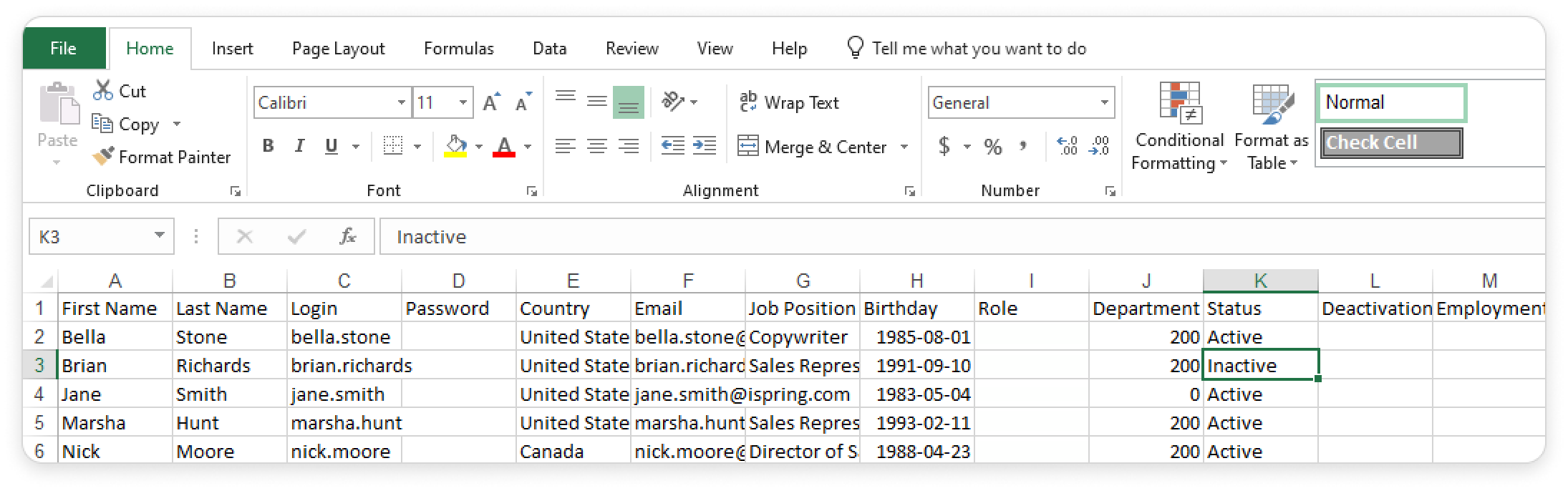 How to fill out the import file
For a new user, enter their Login, Department ID, and all required profile fields. Required profile fields depend on the account settings.
For an existing user, enter their Login and the data you want to update.
If a field is of the List type, enter one of the values from the list.
The file may contain additional columns, such as Phone and Birthdate. These columns appear if the corresponding fields are added to the user profile settings.
Column Required What to enter Notes First Name Depends on settings User's first name Last Name Depends on settings User's last name Middle Name Depends on settings User's middle name Login Yes User's unique login Don't leave any cells empty. If at least one user doesn't have a login, the file won't be imported. An existing user's login cannot be changed during import. Password No User's password The password must meet the requirements specified in Settings. If you don't enter a password, a new user can set one using the link in the invitation email. Email Depends on settings User's email address The Email column appears in the template if the field is required in the profile settings. Enter an email address if you want to send the user an invitation after import. Job Title Depends on settings User's job title City Depends on settings User's city Country Depends on settings User's country Role No Leave the field blank New users are assigned the Learner role. Existing users keep their current role. You can change user roles after import. Department ID Required for new users User's department ID For an existing user, enter the ID if you want to change their department. You can view and copy the ID when editing a department. Status No User's status Enter one of the following values: Active, Inactive, or Employment ended. Absence No User's absence status Enter one of the available absence statuses. Start Date No Absence start date Use the
YYYY-MM-DDformat — for example,2026-10-10.If you leave the cell blank, the import date will be used as the absence start date.
End Date No Absence end date Use the
YYYY-MM-DDformat — for example,2026-11-10.You can leave the field blank.
Deactivation Date No Leave the field blank To schedule deactivation, use Scheduled Deactivation Date. Employment End Date No Leave the field blank To schedule the end of employment, use Scheduled Employment End Date. Employee supervisor No Supervisor's login, No, or leave the cell blank Leave this cell blank to assign the department supervisor. Enter No to assign no supervisor. Enter a login to assign a specific user. Employee functional manager No Manager's login, No, or leave the cell blank Leave this cell blank to assign the department supervisor. Enter No to assign no manager. Enter a login to assign a specific user. Group No Group name Use a separate Group column for each group. See How to add users to groups below. Last Login No Leave the field blank This field is added when users are exported and doesn't affect the import. Date Added No Leave the field blank This field is added when users are exported and doesn't affect the import. Scheduled Deactivation Date No Date when the user should be deactivated Use the YYYY-MM-DDformat — for example,2026-10-10.Scheduled Employment End Date No Date when the user's employment should end Use the YYYY-MM-DDformat — for example,2026-10-10.Birthdate No User's date of birth Use the
YYYY-MM-DDformat — for example,1996-10-05.Make sure Birthdays are enabled in the account settings.
Phone No User's phone number Enter the phone number starting with +. See How to enter a phone number below. How to enter dates
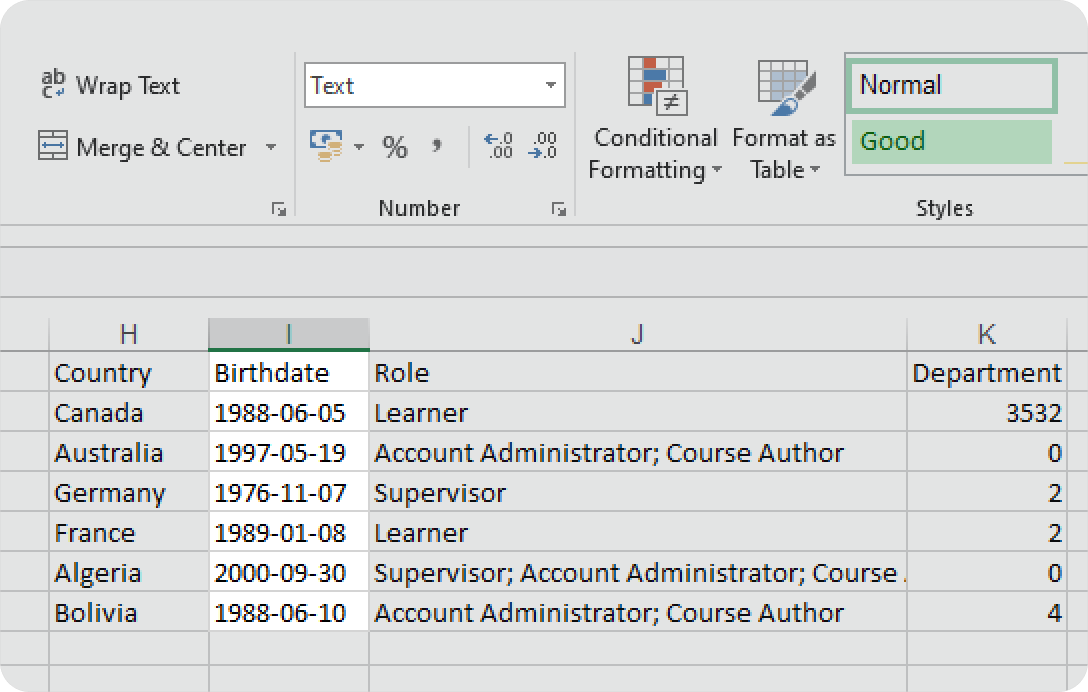
Use the
YYYY-MM-DDformat for all dates — for example,2026-09-10.Before entering dates, set the cells to the Text format. Otherwise, Excel may automatically change a value such as
2026-09-10to10.09.2026, and the date might be imported incorrectly.- Select the cells with dates.
- In the Number section on the toolbar, select Text.
- Enter the date.
How to add users to groups
To add a user to multiple groups, use a separate Group column for each group.
- If the user already exists in the account, their groups will be updated according to the import file. If all Group columns are empty, the user will be removed from all groups.
- To add a user to a group and keep their current groups, remove all Group columns from the file and add an Add to Group column.
- Don't use Group and Add to Group in the same file. Otherwise, the file won't be imported.
- If a specified group doesn't exist in the account, it will be created automatically during import.
- In the Group and Add to Group columns, enter only standard groups. Users imported from Excel will not be added to smart groups, although the import itself will be completed successfully.
How to enter a phone number
If the Phone field is added to the user profile settings, the Phone column appears in the import file. Enter the phone number starting with +.
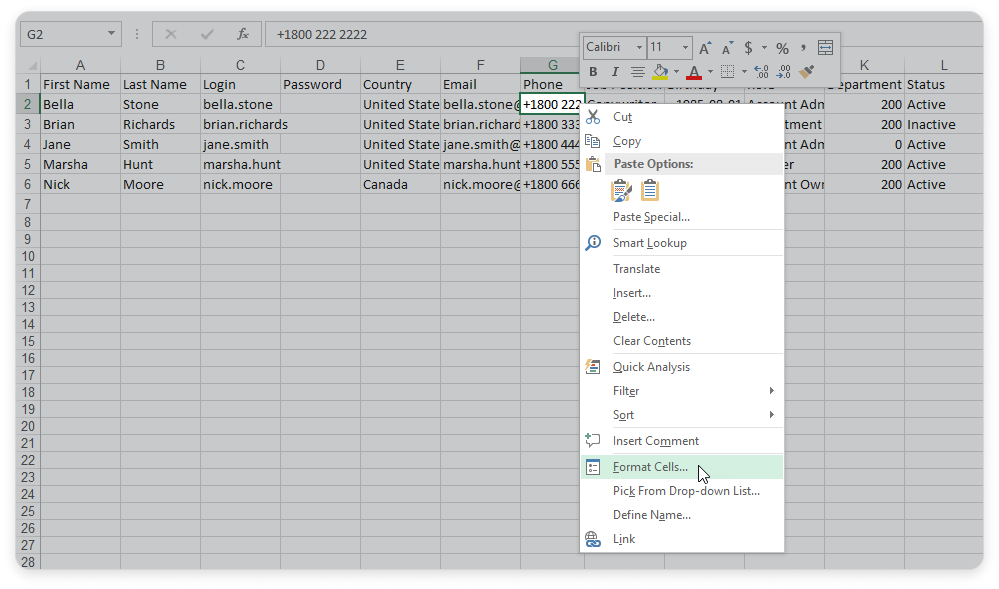
How to add "+" in a cellSelect the cells and right-click on them.
Select Format Cells.
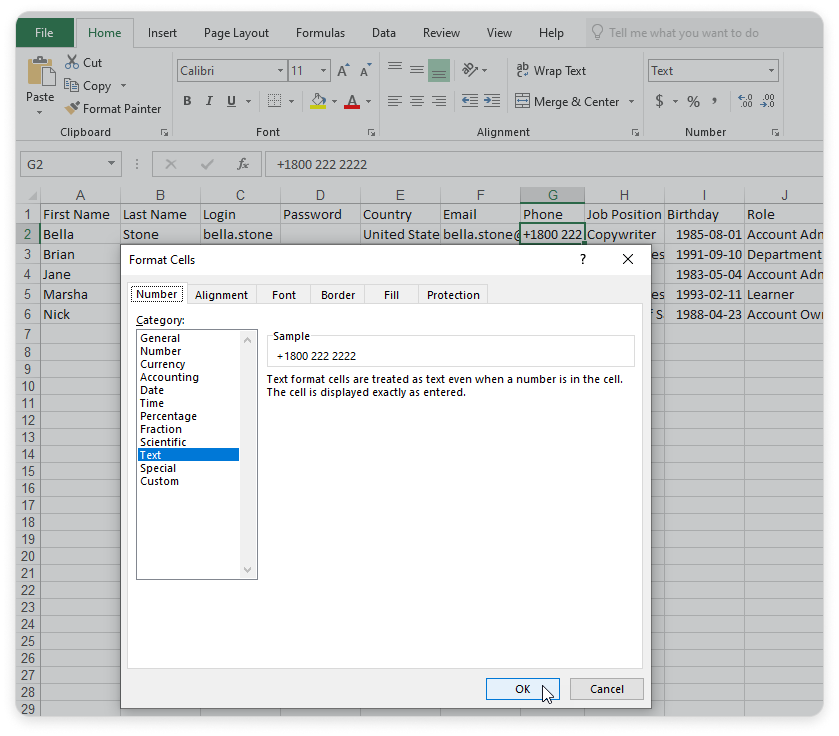
In the Format Cells dialog box, open the Number tab and select Text.
Click OK.
Enter
+at the beginning of the phone number.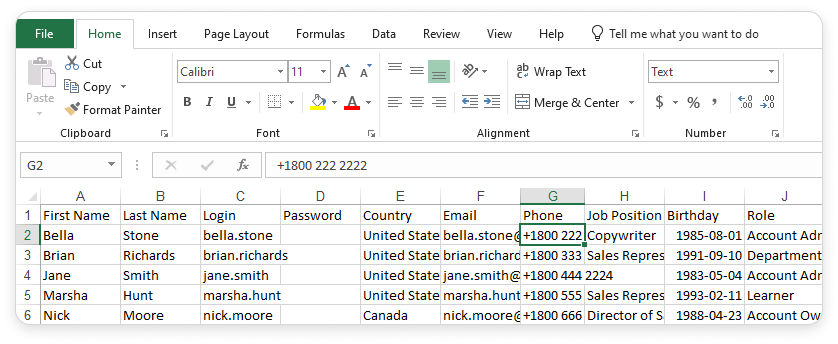
- Upload the file with the user list. To do this, click Select file, choose the file on your computer and click Open.
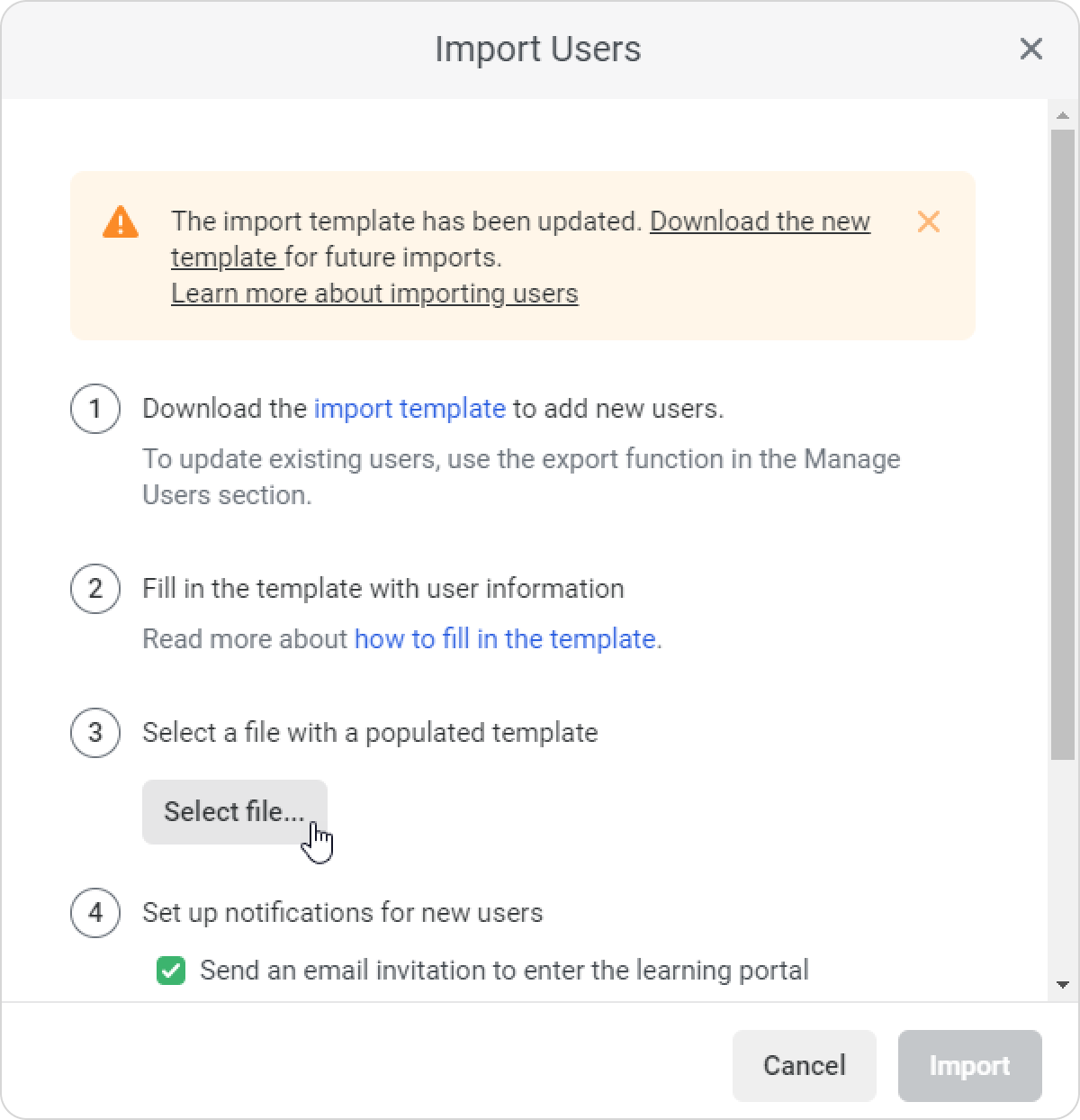
- Add an invitation for the new users. To do this, select Send an email invitation to enter the learning portal and edit the invitation text if needed.
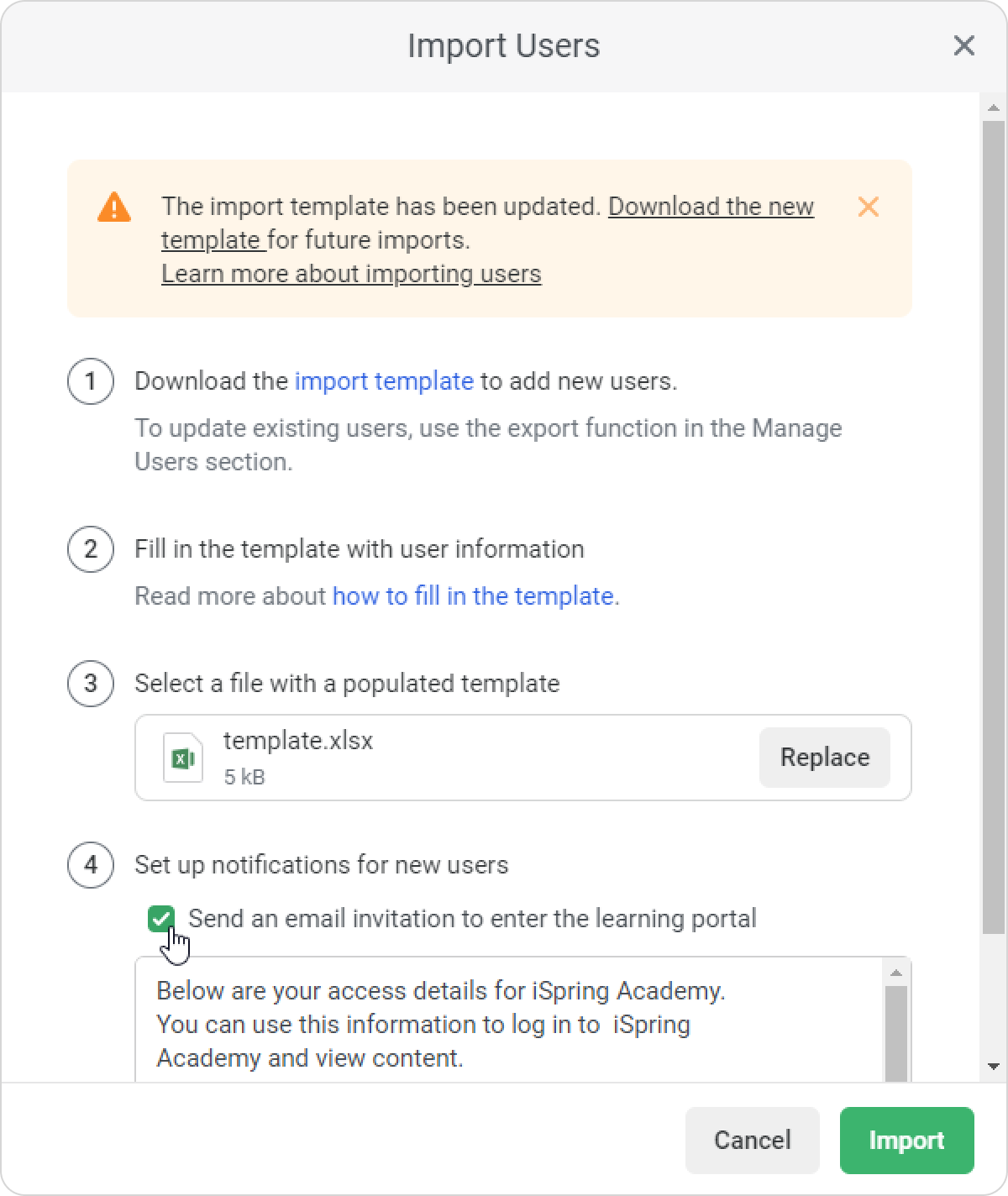
- Click on Import.
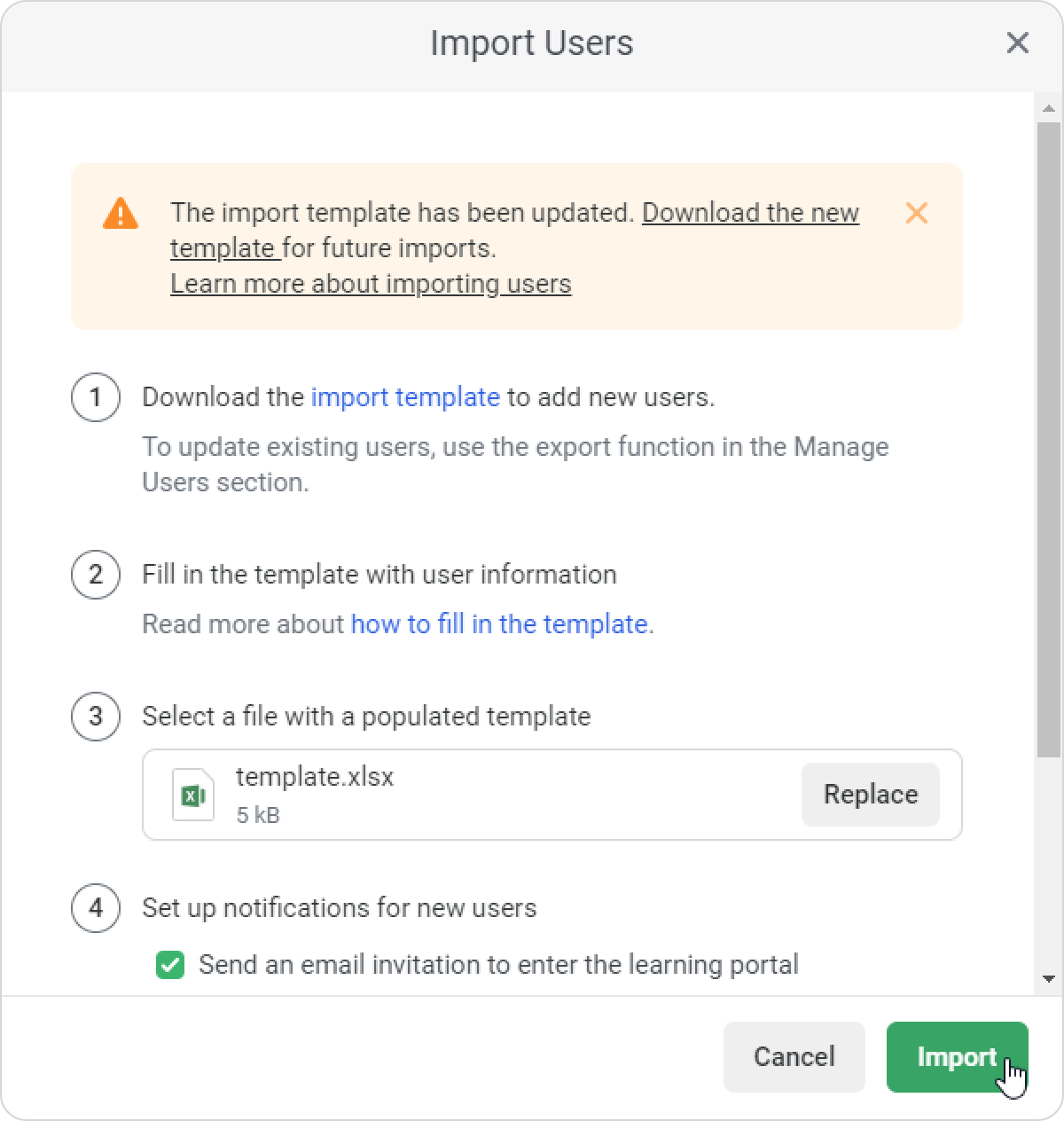
- If the Delete users while importing from XLSX option is enabled, you will be asked to confirm that you are ready to update your user list fully. Only users included in the file will remain in the account. All other users, except the Account Owner, will be deleted.
- When the import is complete, you'll see a window with the results. You can copy information about any errors and send it to iSpring Support. Click on Done to go to the user list.
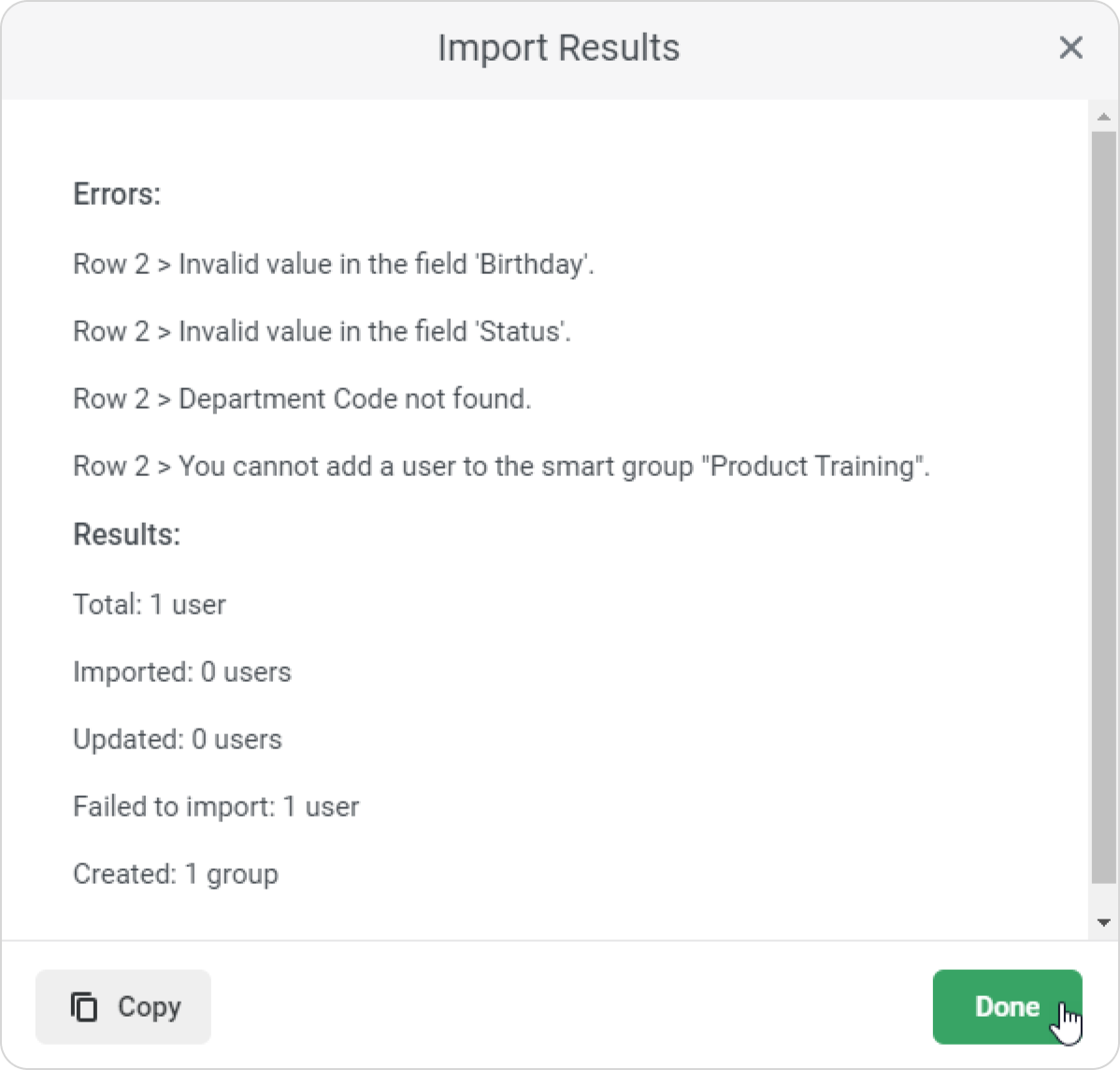
On the Manage Users page, make sure all new users have been added to the account.