To add a new field:

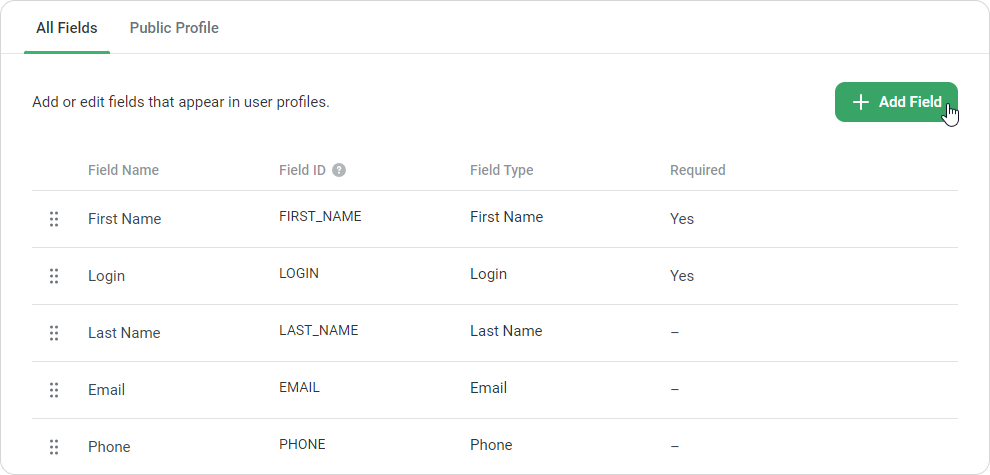
  1. Click on the Add Field button.


    1. A field ID can be used as a variable in certificates and emails. It is automatically replaced with the variable value.

    2. For each added custom field, a default ID is auto-populated. For example: USER_DEFINED_FIELD2.

    3. You can add a custom ID of your own. For example: EDUCATION.

    4. Don't add the following IDs for custom fields:

      CERTIFICATE_ID
      NAME
      COURSE_NAME
      DURATION
      COURSE_DURATION
      DATE
      TIME_ONLY
      EXPIRATION_DATE
      AWARDED_SCORE
      PASSING_SCORE
      DATE_EN

      These IDs are used for personalization fields in a dynamic certificate. If you use them for custom fields, personalization fields won't be populated with data and the information will be missing.

      Type a name and an ID for the new field. Next, click Enter on the keyboard.

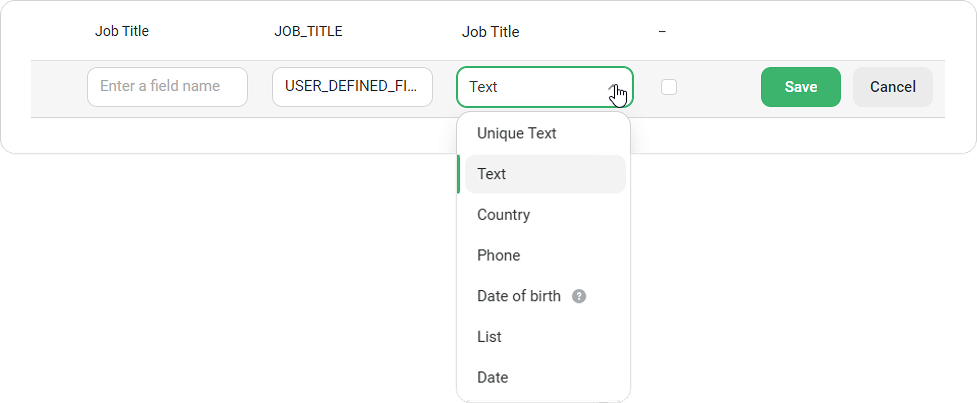
  2. Choose a field type from the drop-down menu.


    Unique TextUsers can enter only a unique value in the field. 
    Text Users enter in the field any text they like.
    CountryUsers select a country from the list. 
    Phone

    Users type their phone number in the +1XXXXXXXXXX format.

    Date of birth

    Users enter their date of birth.

    List

    Users select a value from the list.

    Date

    Users enter a date in the YYYY-MM-DD format.

    +

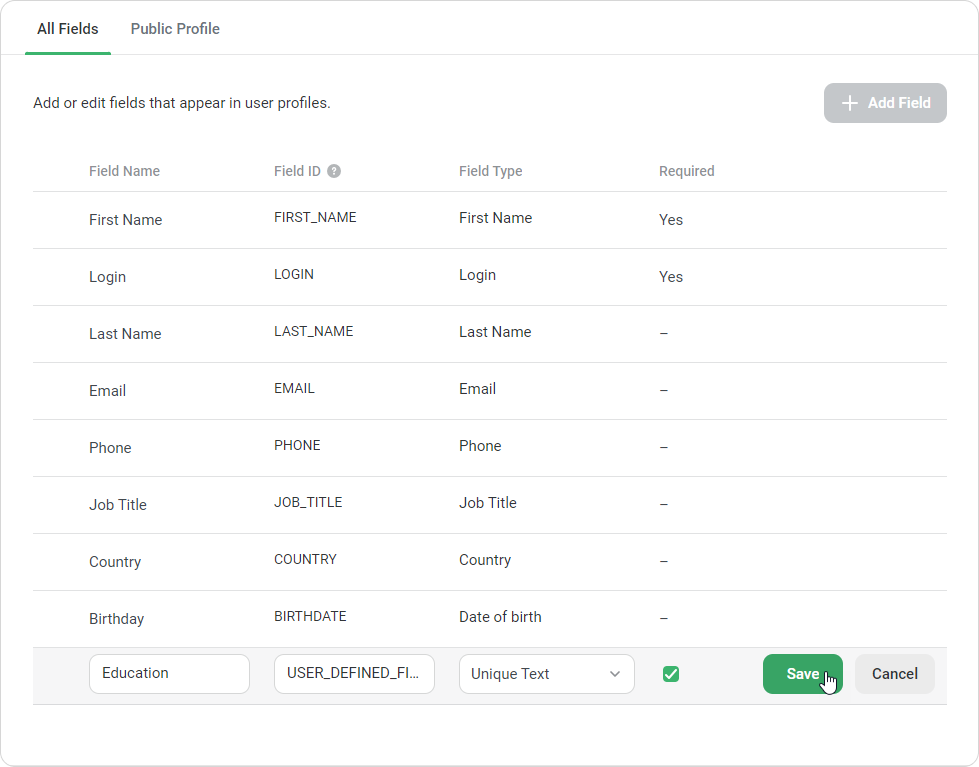
  3. Select the checkbox in the Required column if you want to make this field required to fill out.
  4. Finally, click Save.