Security
You can set up the following settings for your iSpring LMS account:
Authentication method
In the Security section select the way that users will sign in to their accounts.
- To protect the account from spammers and bots, select via login and password using CAPTCHA and click Save.
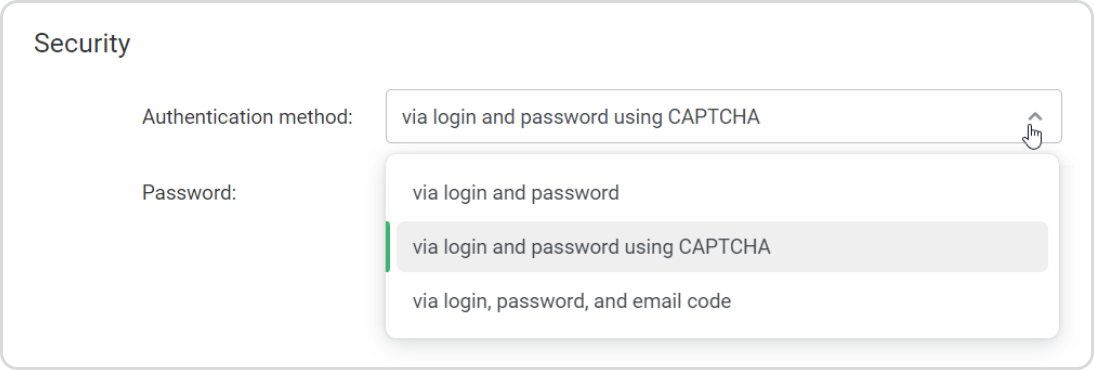
This will help to determine if the user attempting to access the system is a human or a program. If CAPTCHA is enabled in your account, users will have to pass through the 'I'm not a robot' test every time they sign in. When you choose via login and password, users won't need to take this test.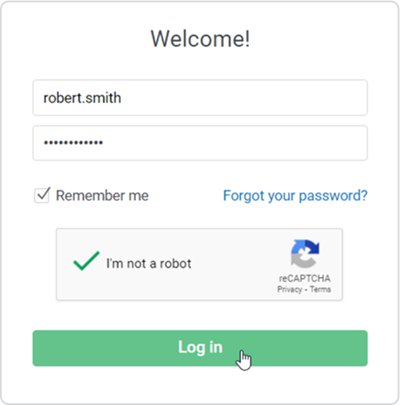
Select the via login, password, and email code authentication method, to make it harder for attackers to gain access to a person's accounts even if they know the password and login.
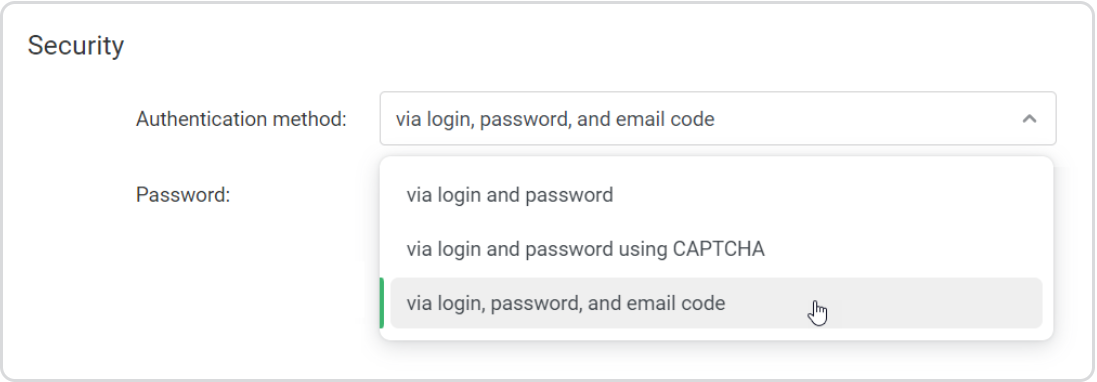
Employees will receive a confirmation code by email and then enter it to log in.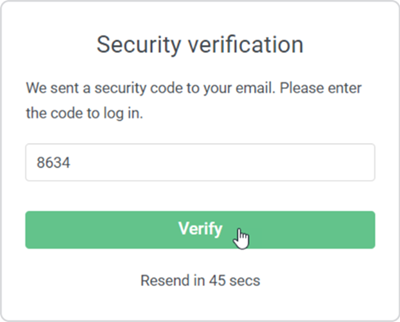
Make sure all of your users’ emails are in their profiles. Otherwise, they will not be able to receive the verification code and log in to the account.
Password
In the Password menu, select the type of password the employees will use: simple, strong, or custom.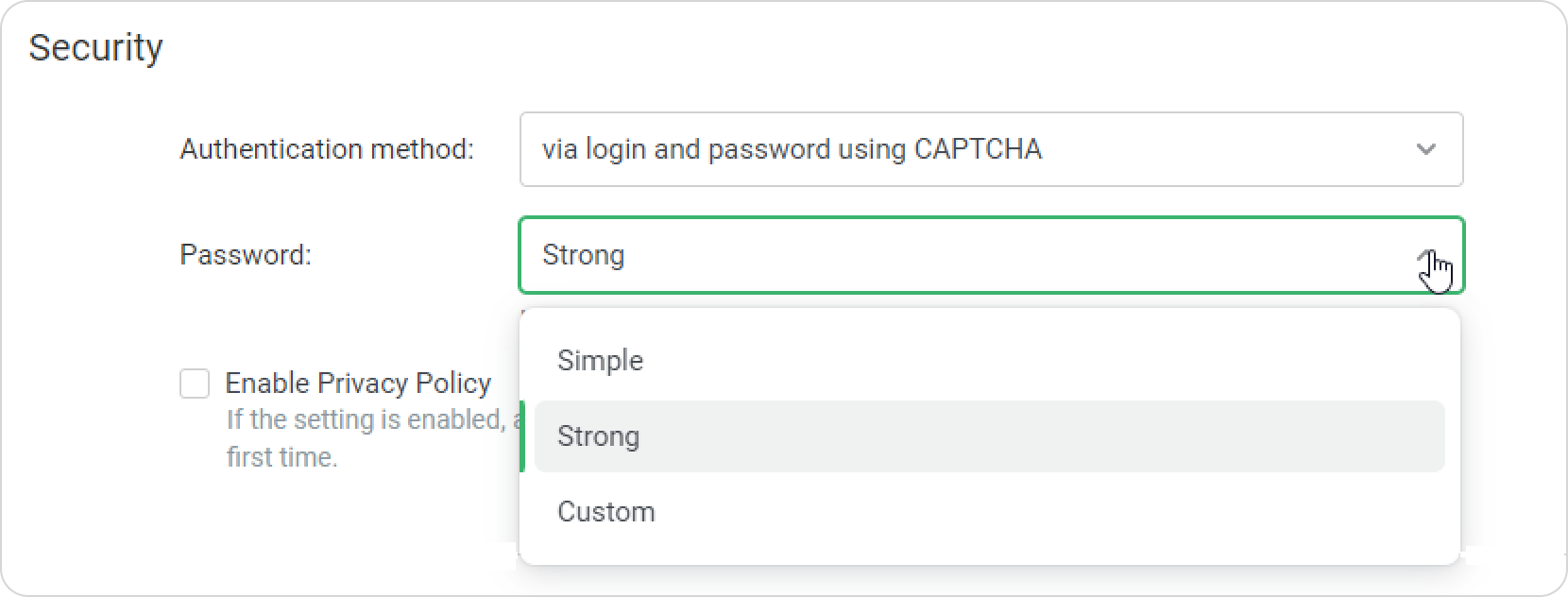
A simple password consists of 8 or more characters and should contain at least one digit (0–9).
A strong password:
Should consist of Latin letters (a–z, A–Z)
Should contain at least one capital letter letter (A–Z) and one digit (0–9)
Should contain at least one special character (!, @, #, $, %, ^, &, *, …)
Its length should be 6 characters and more
A custom password should be 8 to 20 characters long.
To create a custom password:
- Select the Custom password in the Password menu.
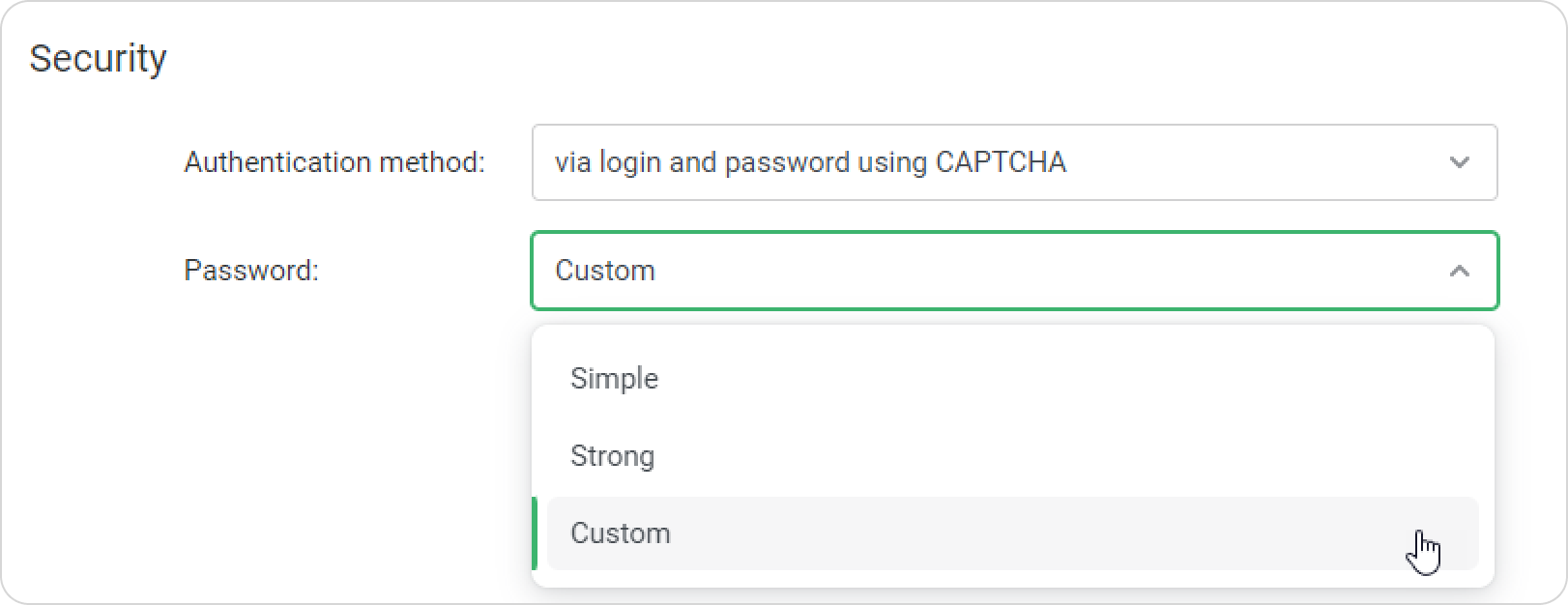
- Additional settings will appear.
Choose what characteristics the password should meet.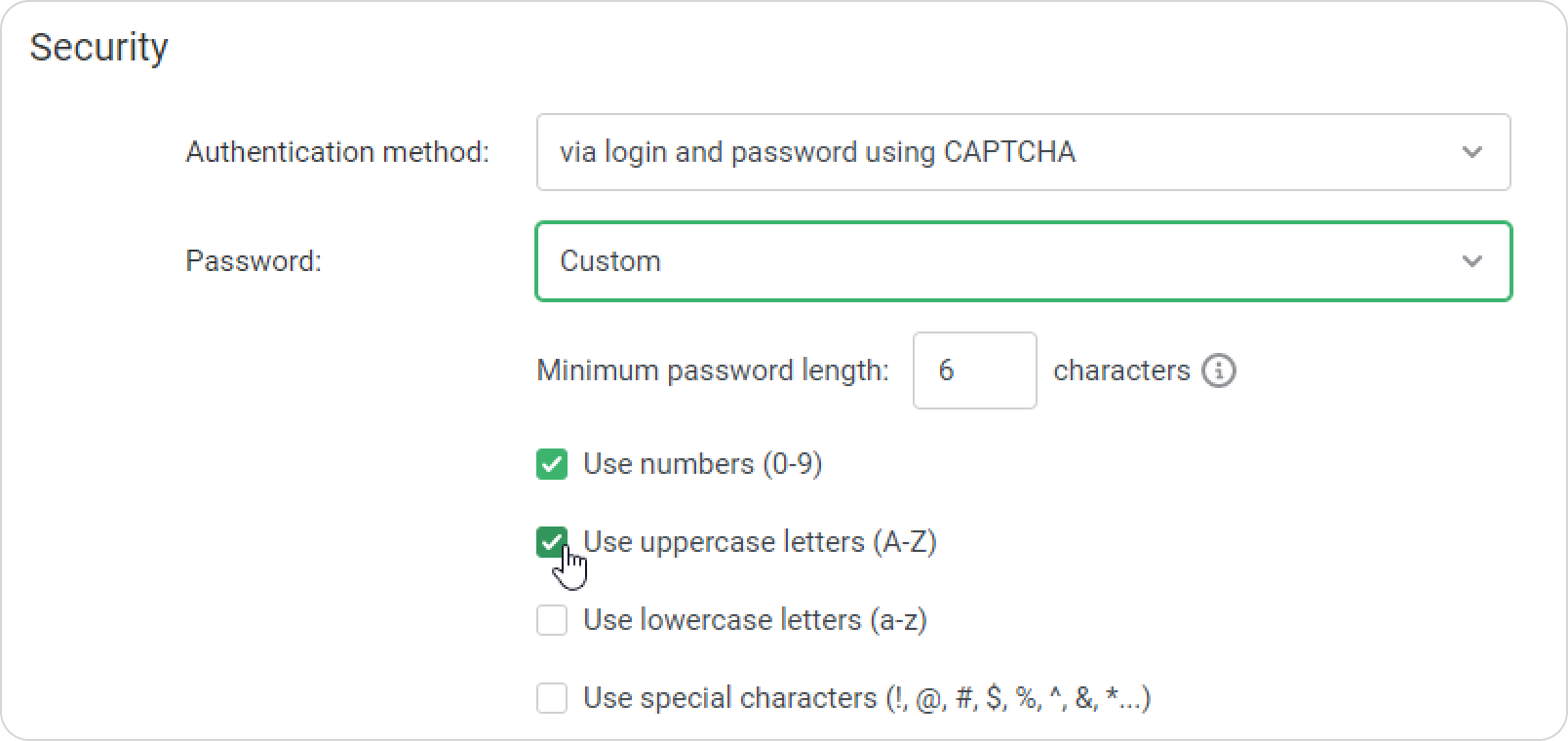
- Finally, click Save.
Done! The password now meets your company's security standards.
Privacy and consent
To comply with the General Data Protection Regulation (GDPR), users need to review and acknowledge the documents related to personal data processing before they can continue using the platform.
Users agree to each document separately:
Your company's Privacy Policy
The iSpring Privacy Policy
The iSpring Web Services Subscription Agreement
Account Owners and Administrators cannot disable the iSpring Privacy Policy or the iSpring Web Services Subscription Agreement in cloud-based accounts.
iSpring documents are disabled only in:
On-premise installations
White-label accounts
Branded mobile applications
How to set up privacy documents
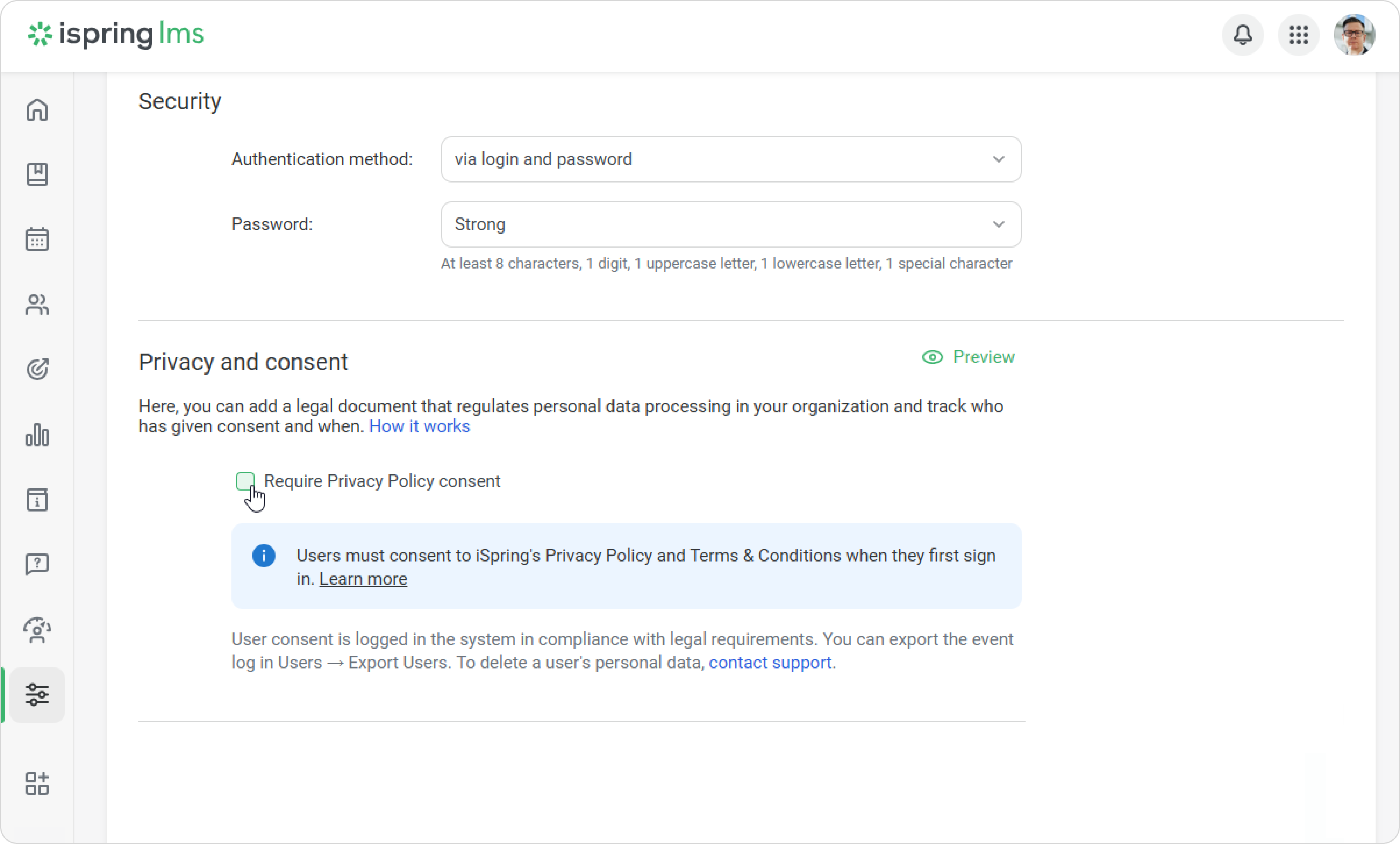
Go to Settings > Main > Privacy and consent.
Enable the Require Privacy Policy Consent option and add your company's Privacy Policy.
 The text editor is not supported in Internet Explorer 11. Use a different browser, such as Google Chrome or Safari.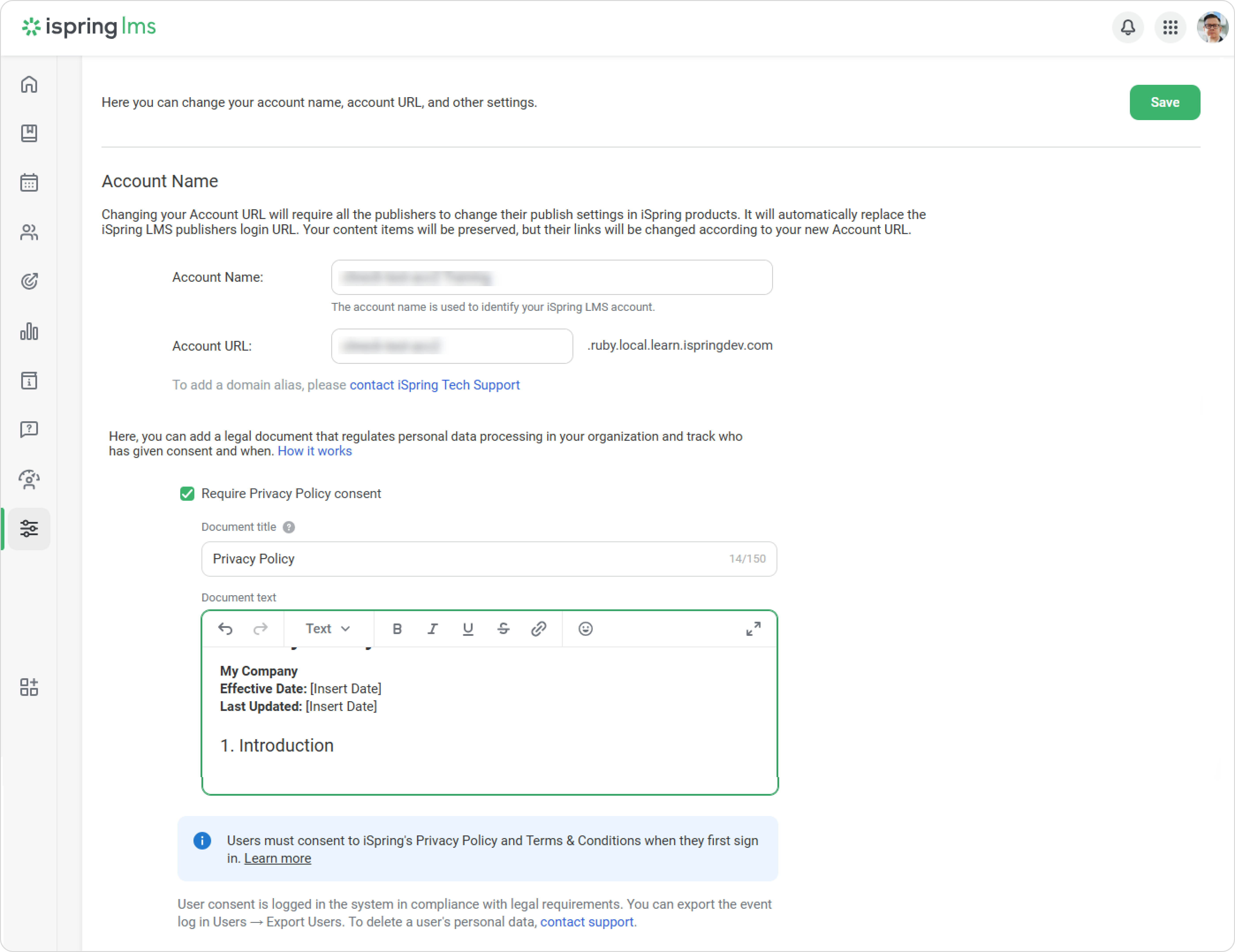
- Click on Preview to see how the consent form will appear to users.
Click Save.
Done! Users will be asked to review and accept the required policies and agreements.
Users can check which data processing terms they have agreed to at any time.
Open your profile in the User Portal.
At the bottom of the page, click on the document’s name.
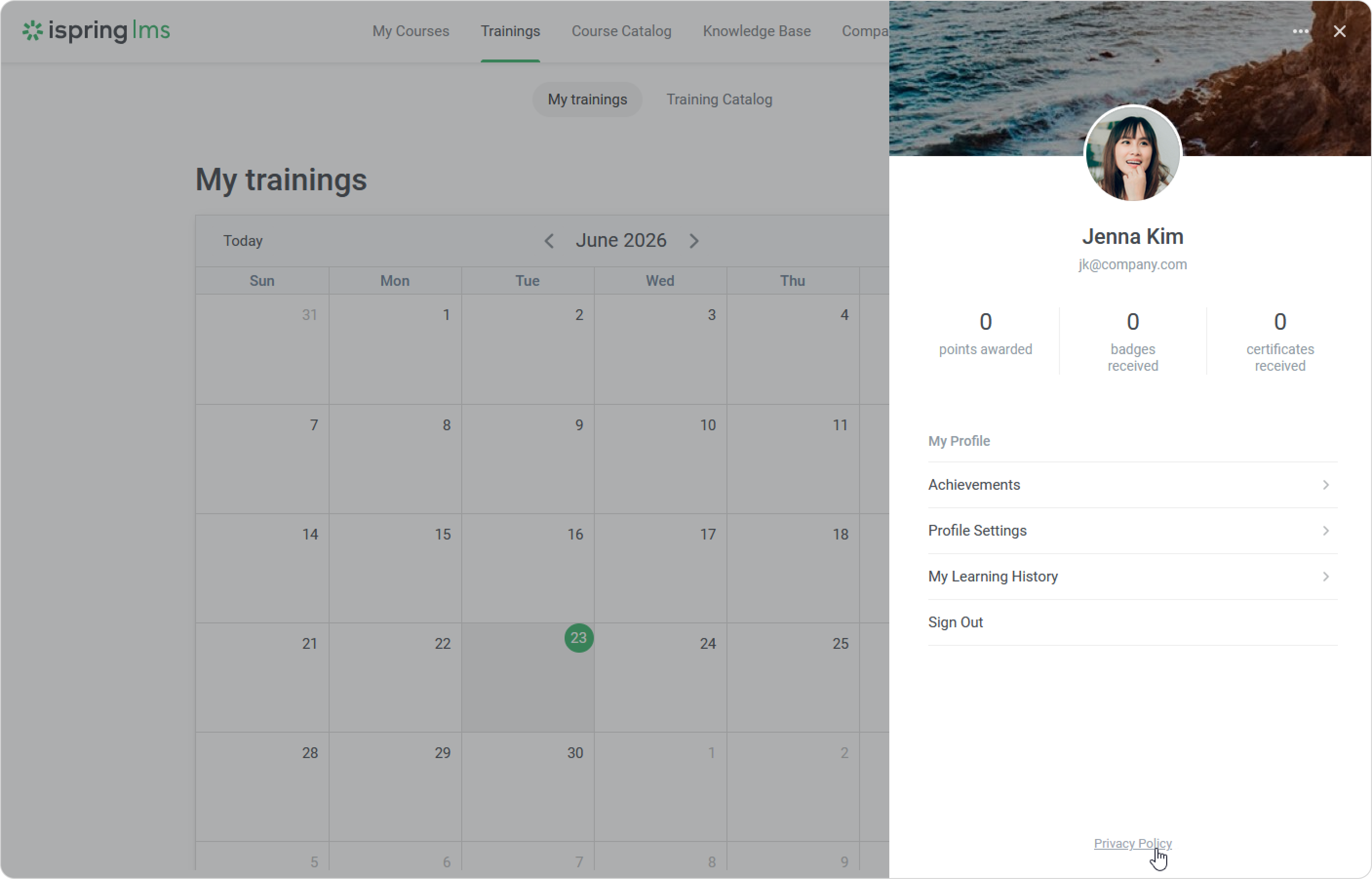
The document opens.
How to disable the company privacy policy requirement
Administrators can disable the requirement for users to acknowledge their company's Privacy Policy. In this case, users will only acknowledge the iSpring documents.
Go to Settings > Main > Privacy and consent.
Clear the checkbox next to your company's Privacy Policy.
Click Save.
Click Disable to confirm.
That's it! If you enable the requirement again later, users will need to acknowledge your company's Privacy Policy again.
- If a user refuses to accept the documents, they won't be able to log in to the account. The same is true if users had already logged in to their accounts and even taken courses.
- If you added a user in the Admin Portal, they will be counted as active in your plan, even if they didn't accept your Privacy Policy and couldn't log in to the account.
- Open the employee profile to see which versions of the document they have agreed to.
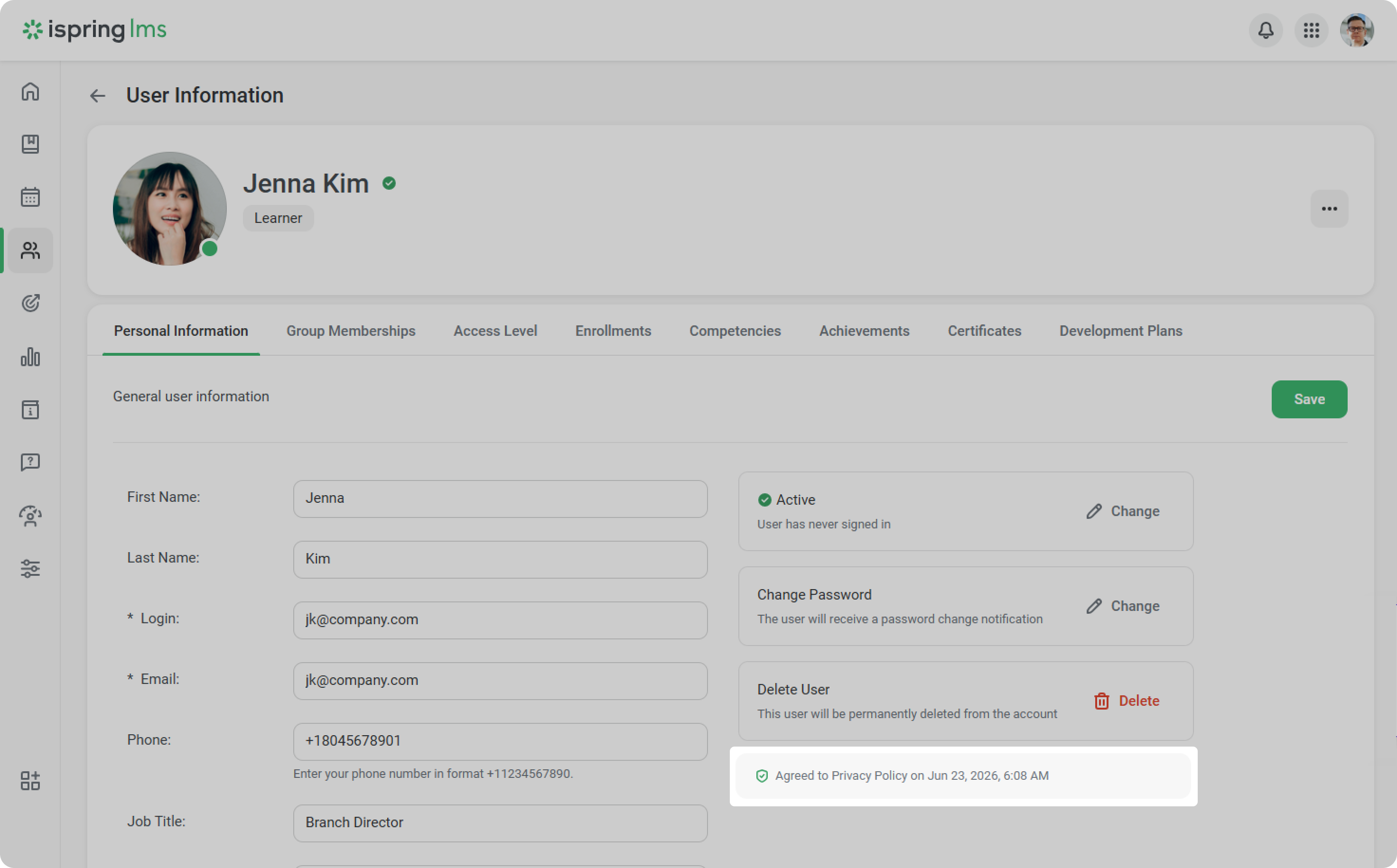
- Check if all users have accepted the policies and find out when they did so. To do this, go to the Users section and click the Export/Import menu. Next, select Export Users.
- If you disable the company's Privacy Policy in your iSpring LMS account, data about its acceptance will be removed from users' profiles in the Users section of the Admin Portal.
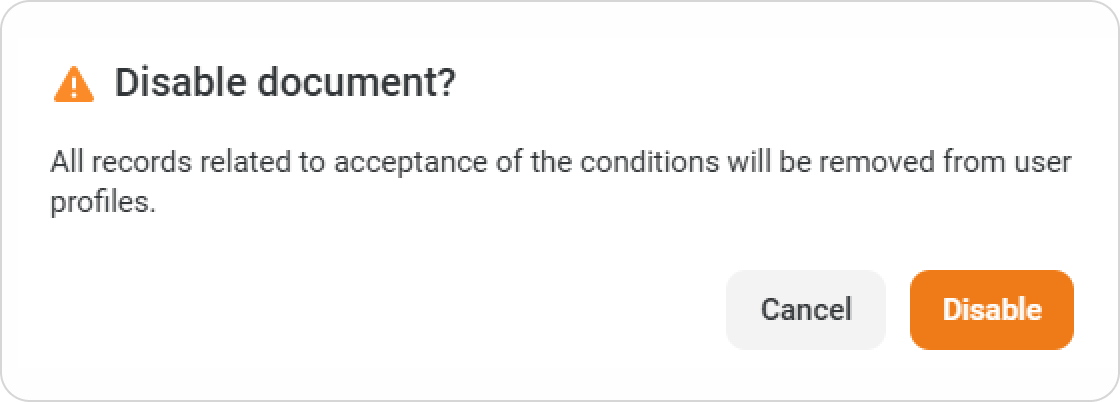
If you decide to reenable the company's Privacy Policy, users will need to accept it again. - If you edit the company's Privacy Policy text, iSpring LMS will notify users. They will need to accept the updated privacy policy again.