If your computer is disconnected from the Internet or online publishing doesn't complete because of an antivirus program or a proxy server error, you can upload the interaction to iSpring Cloud manually.
- Go to the Account menu and select Switch to offline mode.
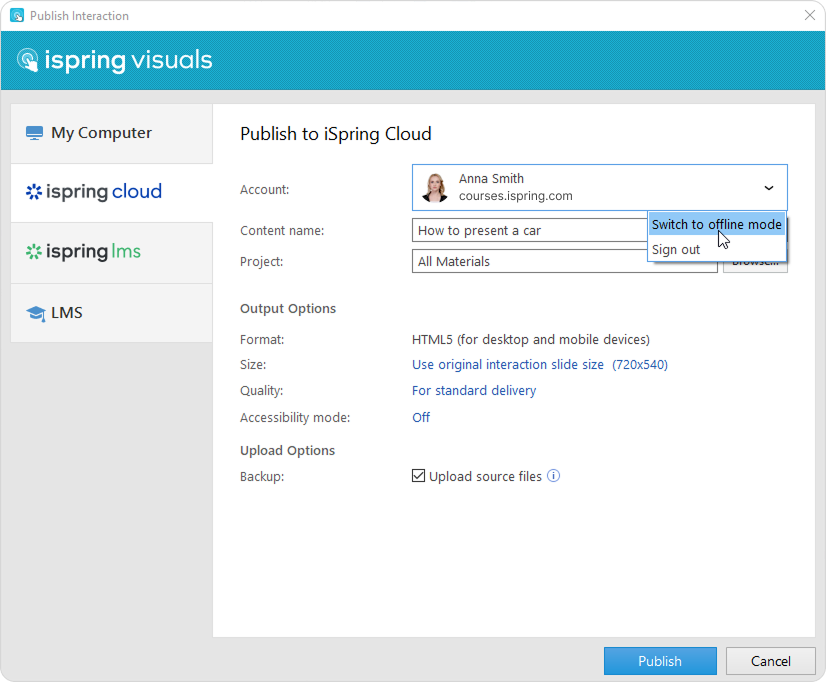
- In the Content name field, enter a title. By default, the title is the same as that of the interaction.
- Specify the local or network folder in which the interaction will be saved in the Folder field. To do this, click the Browse... button on the right.
- Then, set up output options:
• Specify how the interaction behaves in a browser
• Select the quality level of images, audio, and video files
• Publish slides in the accessible mode
- Next, specify the upload options.
In the Backup field, select Upload source files so that you and your teammates could download source files of the interaction in iSpring Cloud.
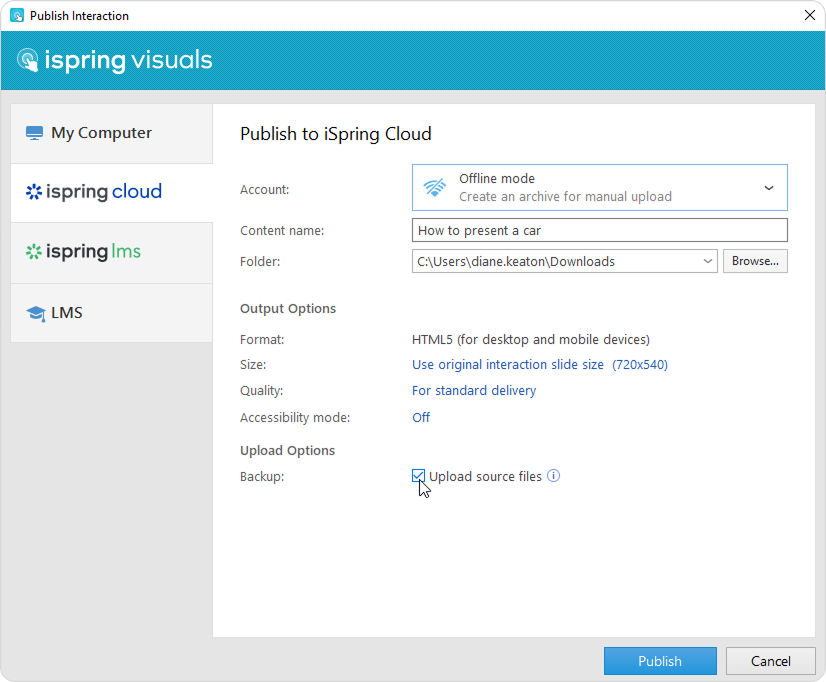
- Click Publish.
- After publishing, click the Open Folder button.
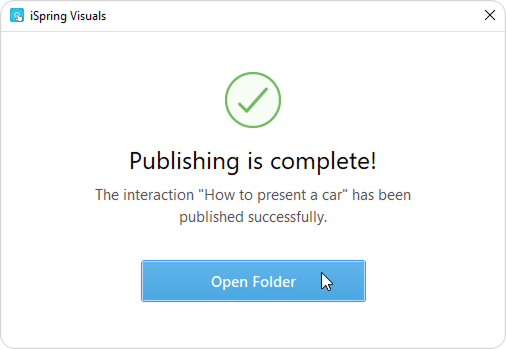
In the folder, you will see a package that is ready for offline upload.