How to Keep Track of Employee Progress with Courses
For administrators
In the Assigned Plans section, you can see how employees are progressing through courses. Course statistics are also included in the exported report.
How to see which development plans include a course
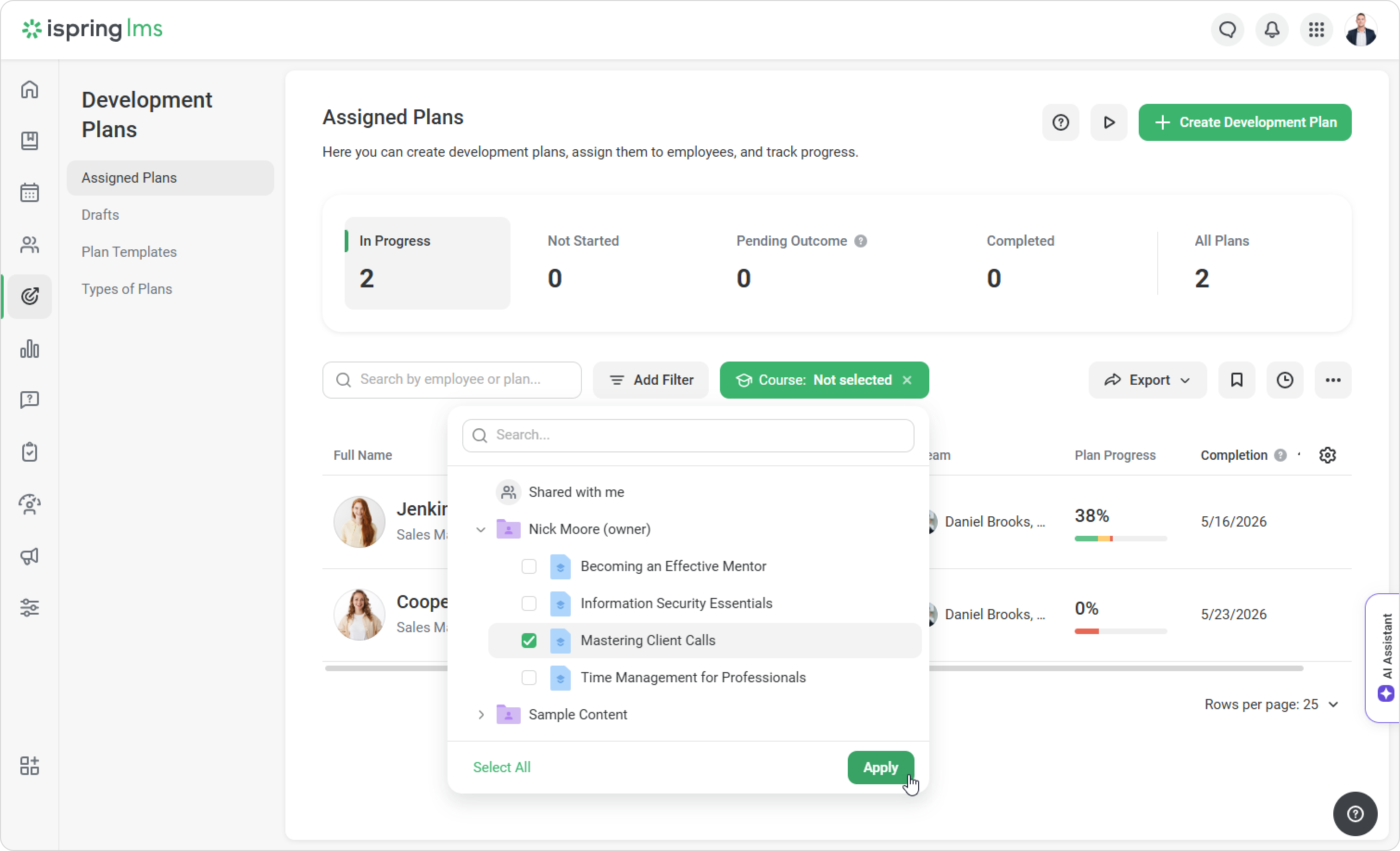
Add the Course filter to Assigned Plans. It will show all development plans that include the selected course.
How to view courses in a plan
In the detailed report, you can see all courses that are included in an employee’s development plan.
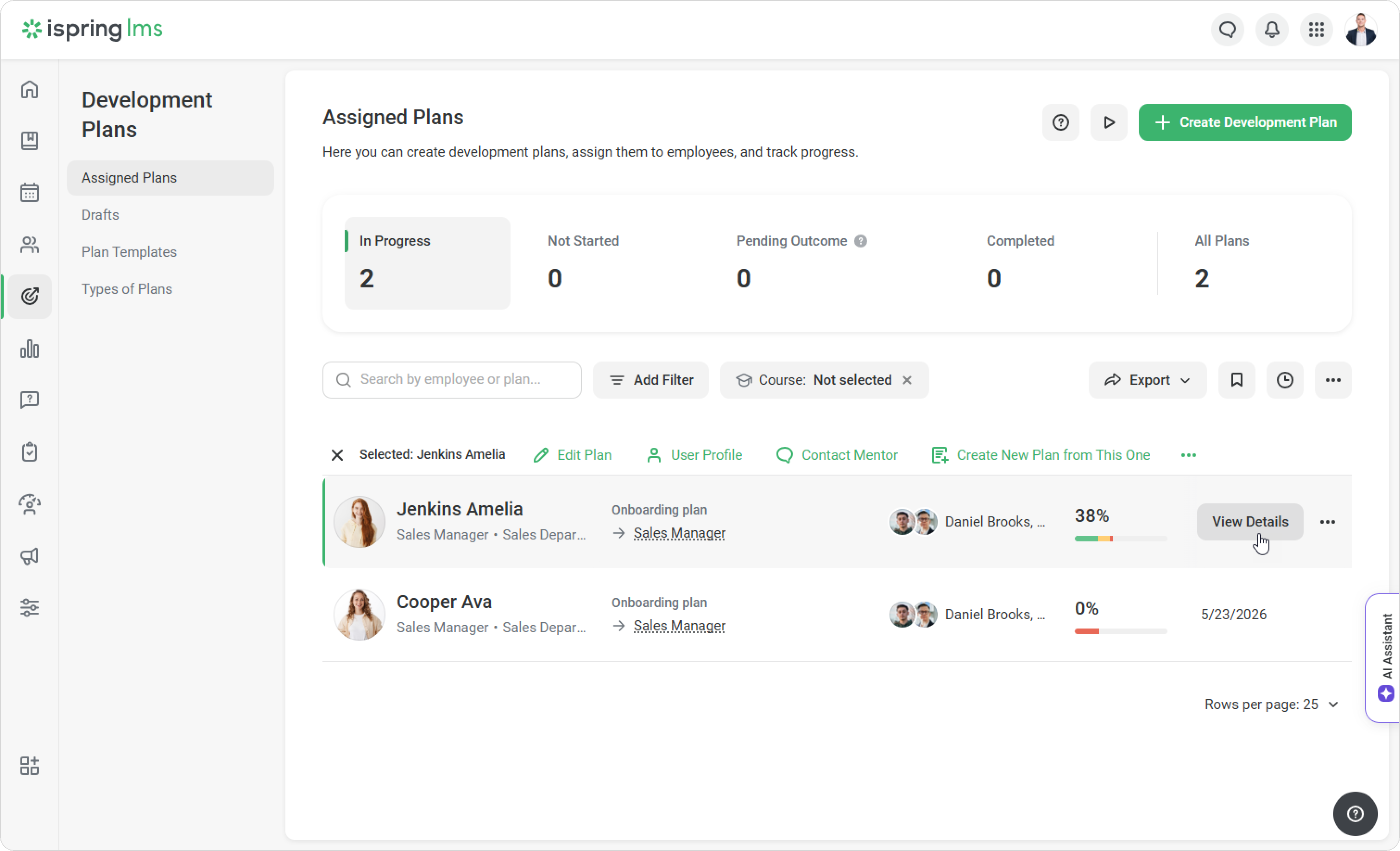
- Go to the Assigned Plans tab.
- Hover over a development plan and click on View Details.
Open the Courses tab.
You can see the completion percentage only if the course status is set to Passed / Failed (X% earned).
If the status is set to Complete / Incomplete, the percentage is not displayed for the tasks.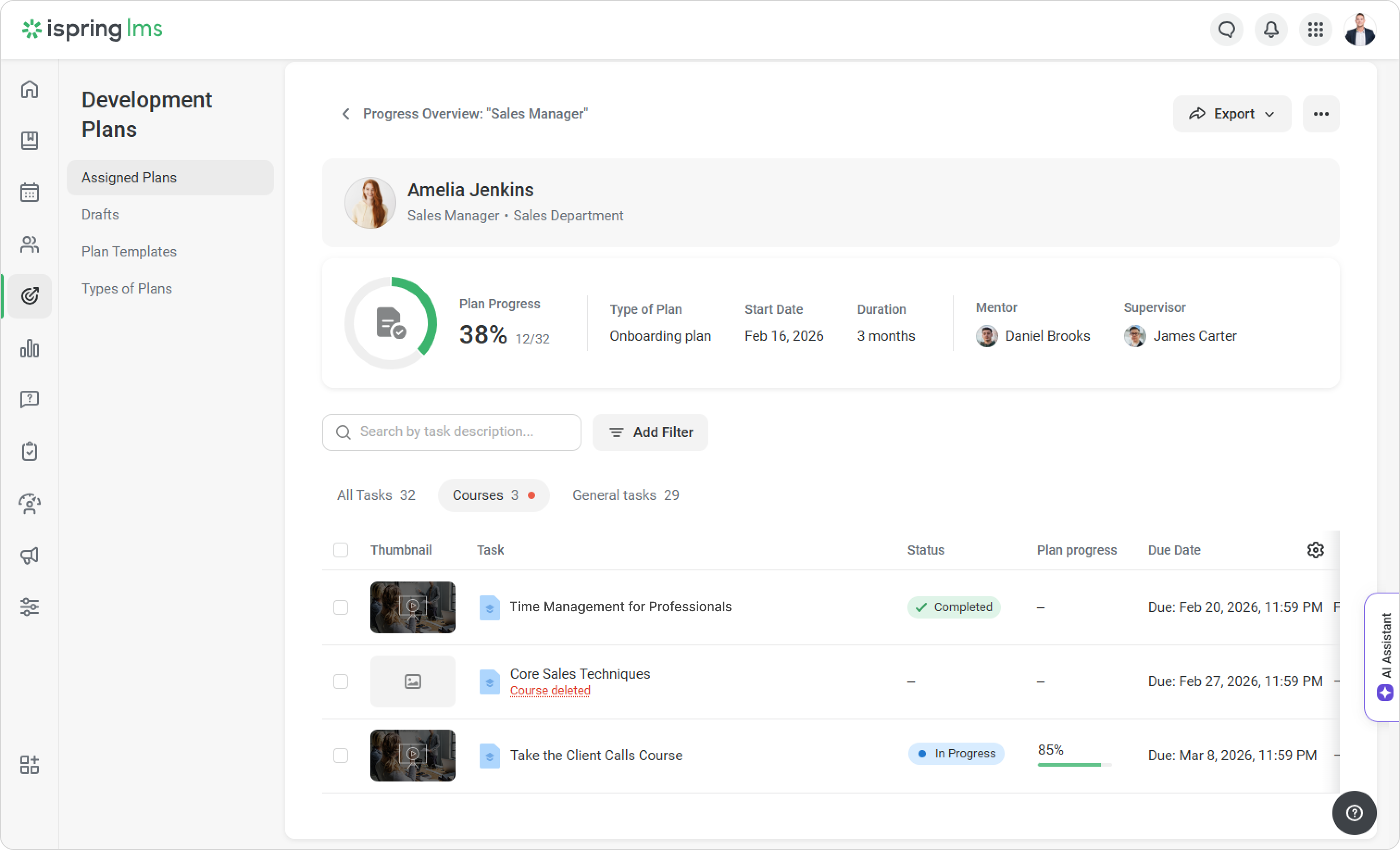
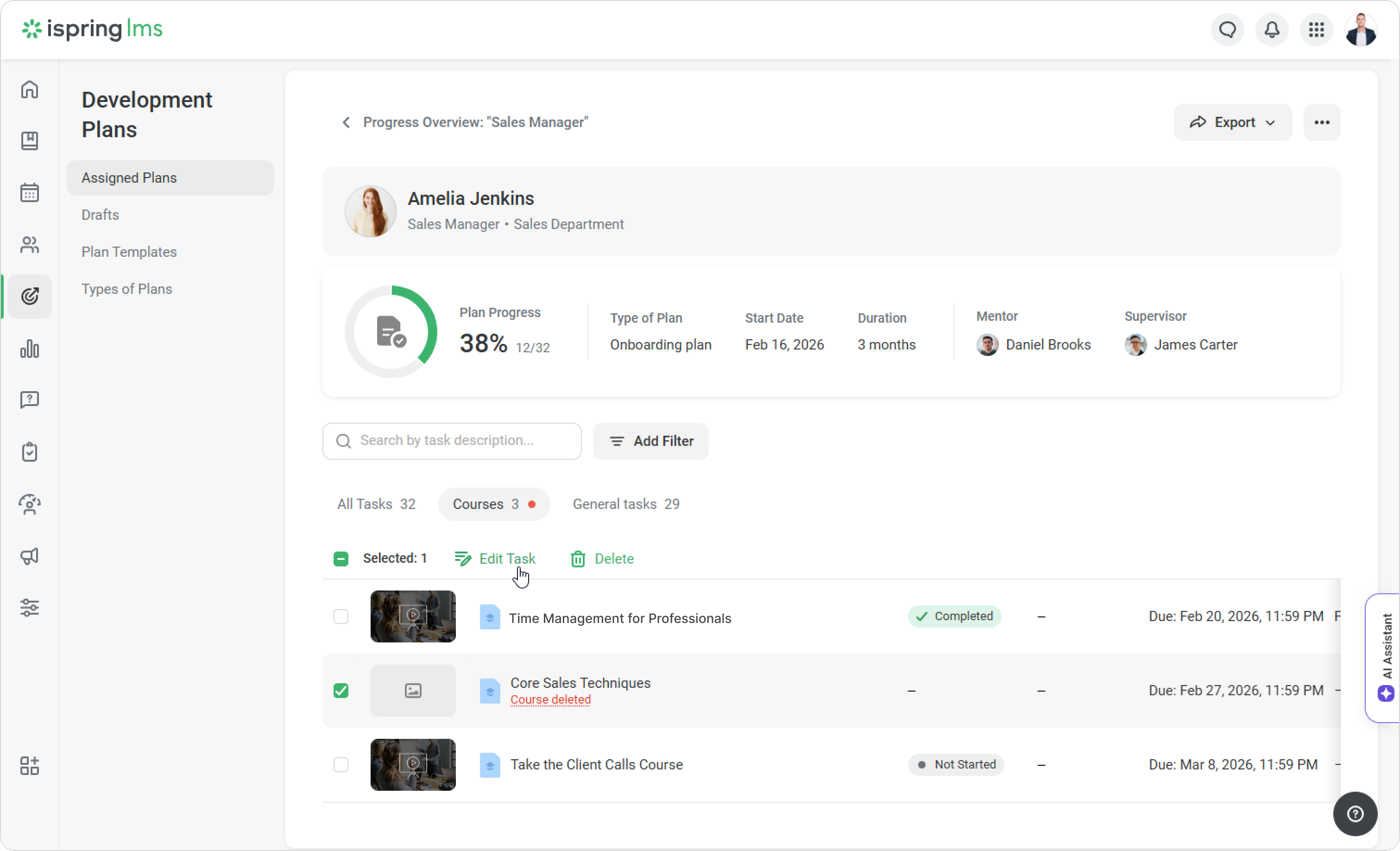
- Here, you can also replace a course or delete a task. Select a task and click on Edit Task or Delete.
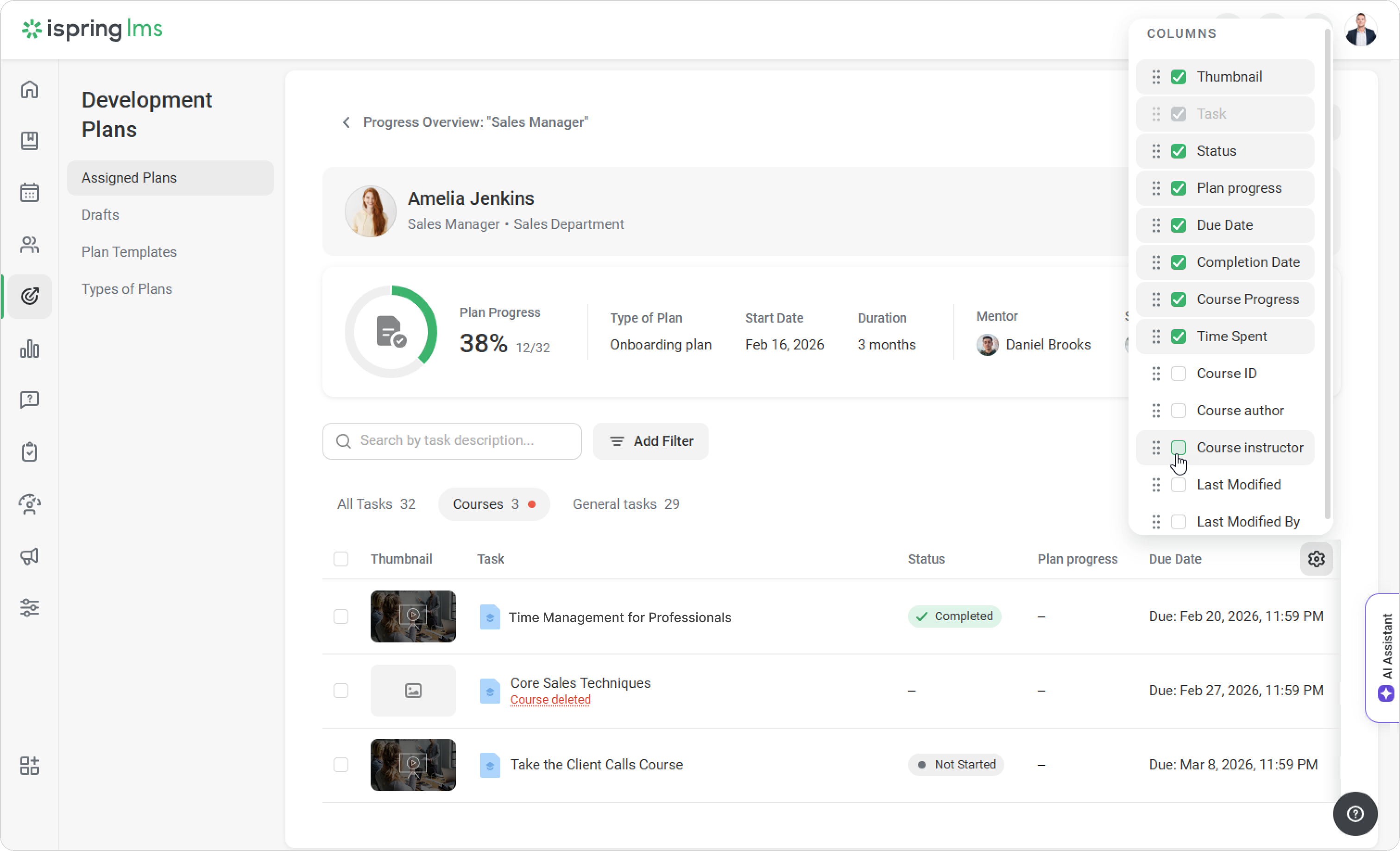
- To see more course details, add additional columns:
- Course ID
- Course author
- Course instructor
- Last Modified
- Last Modified By
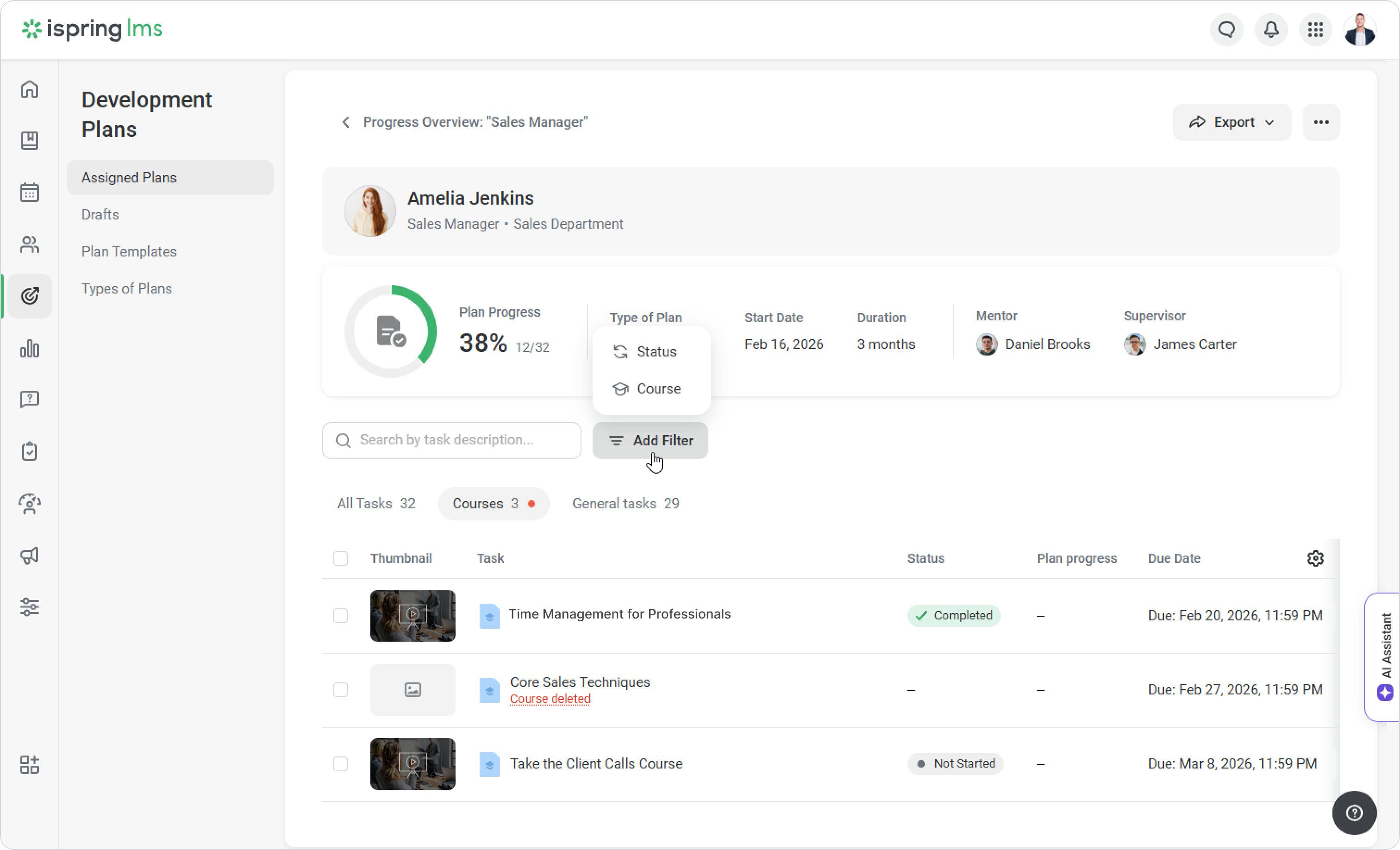
- You can use filters to quickly find results for a specific course.
- If there are many courses, filter them by name.
- To track progress, apply the status filter.
How to view course results
- Go to View Details > Courses.
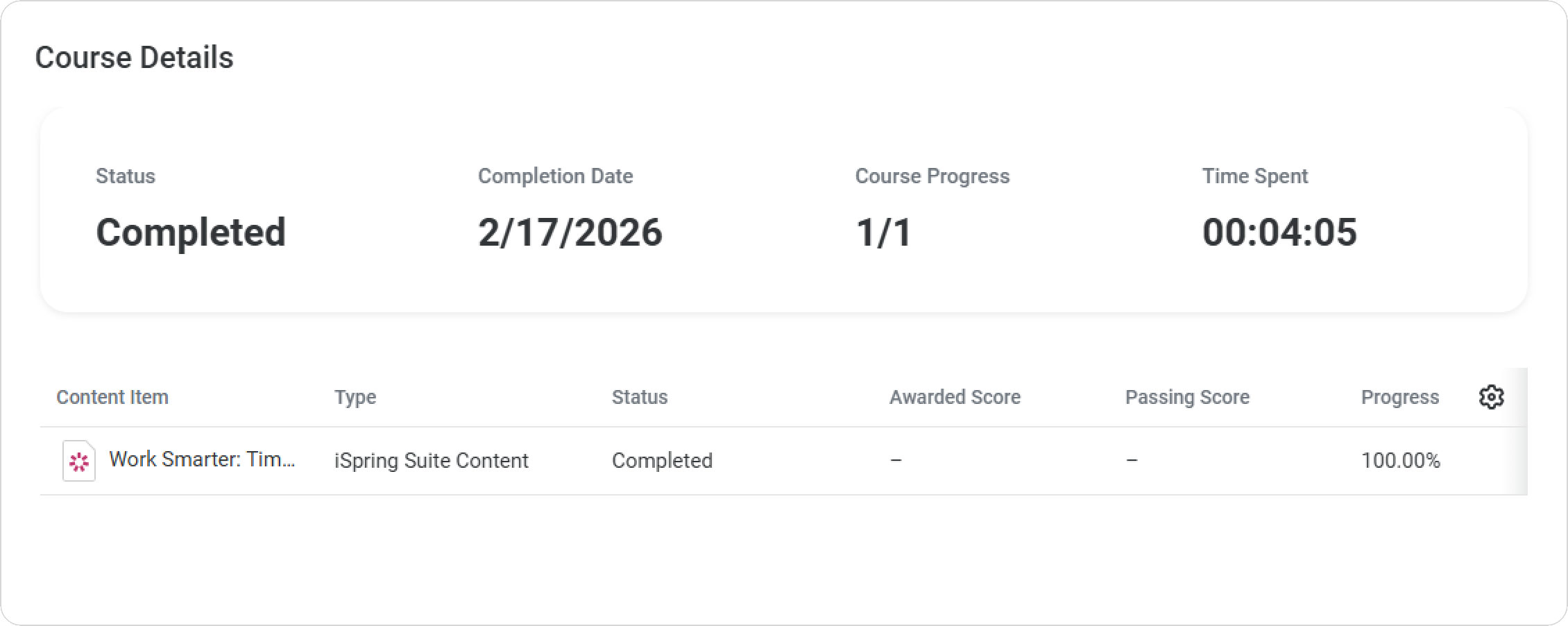
- Select a course and click on Completion Details.
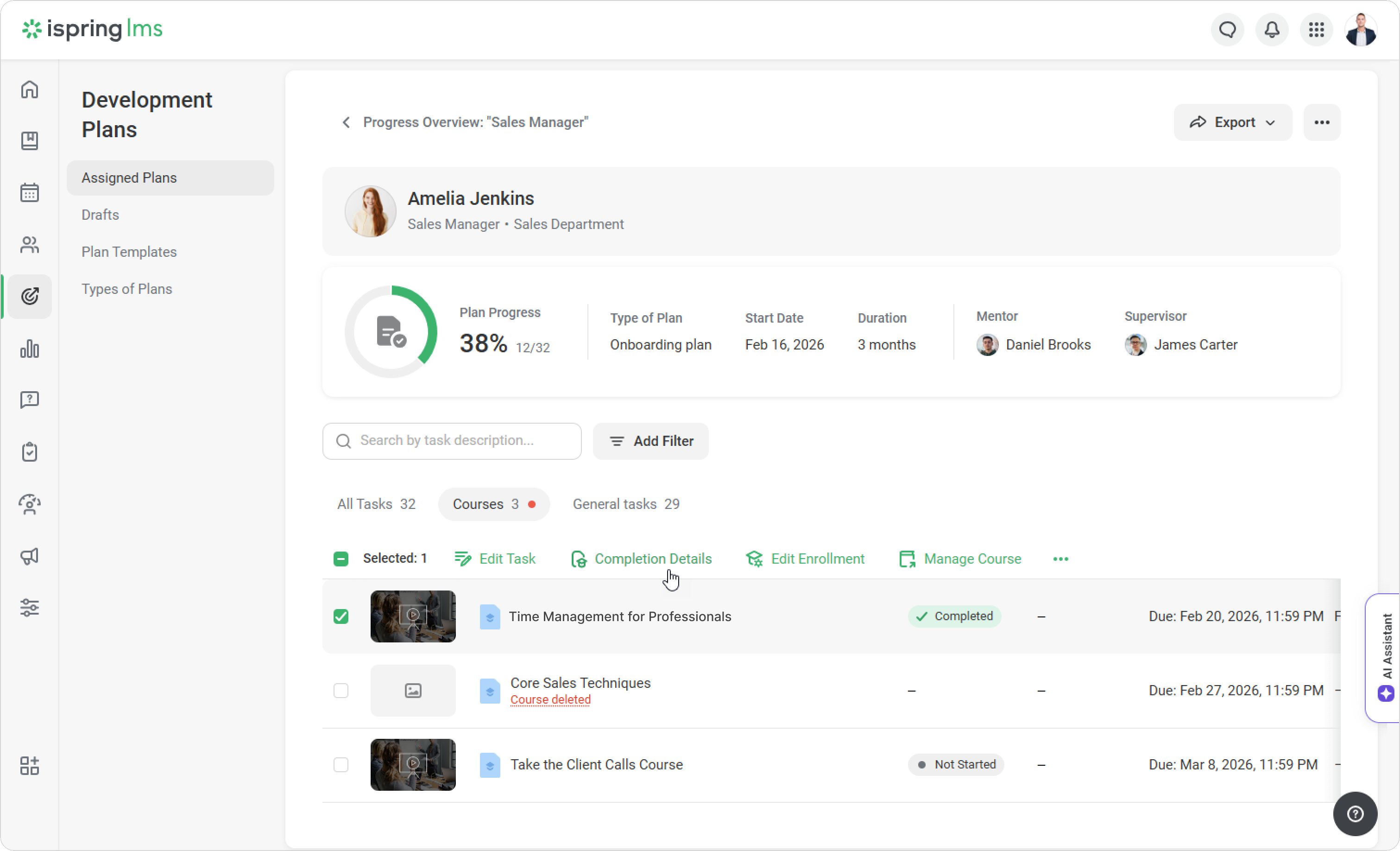
- A new window will open showing the statistics for the completed content.
How to view all assigned training
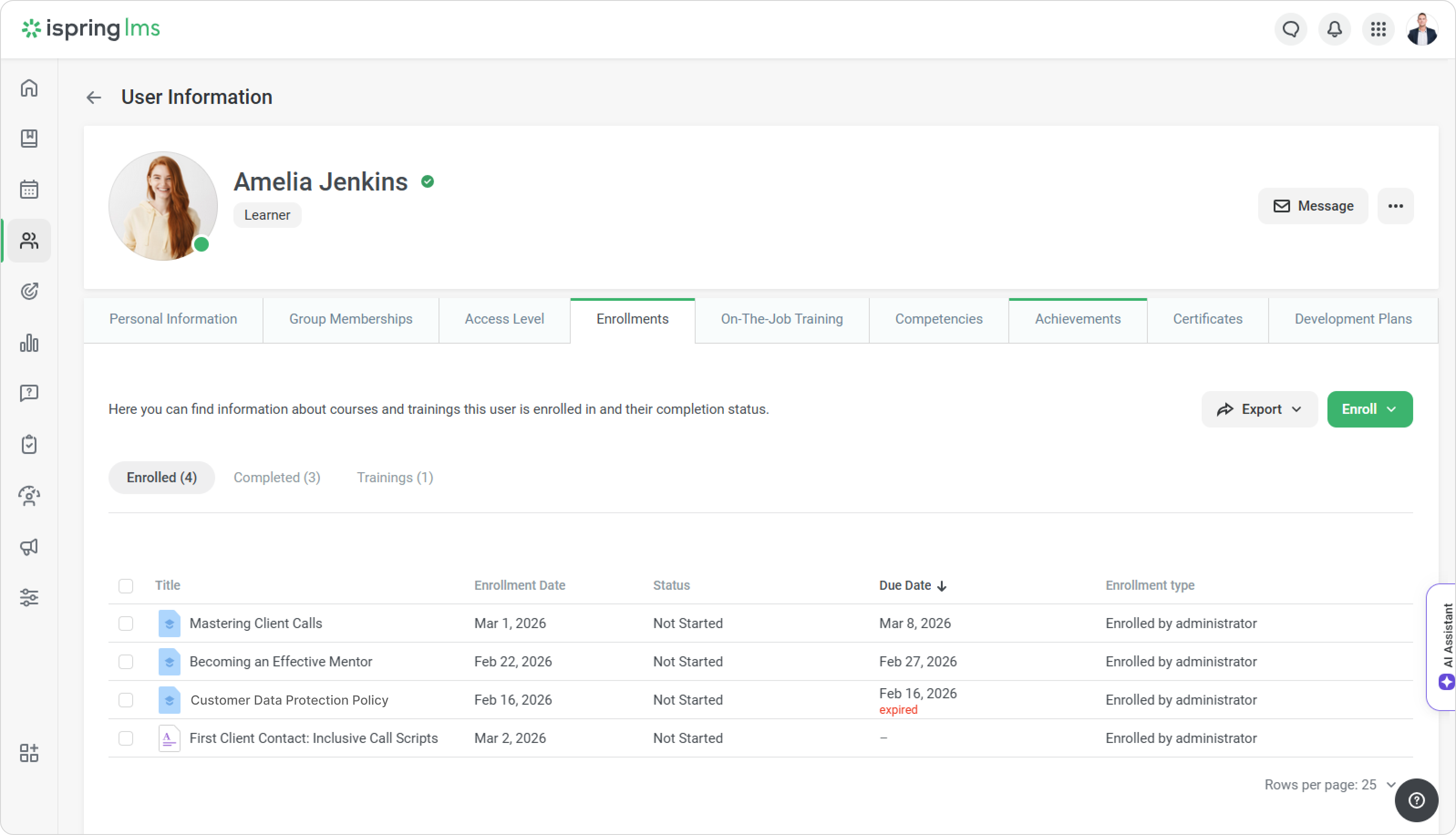
You can also see all training that an employee has completed during their time at the company.
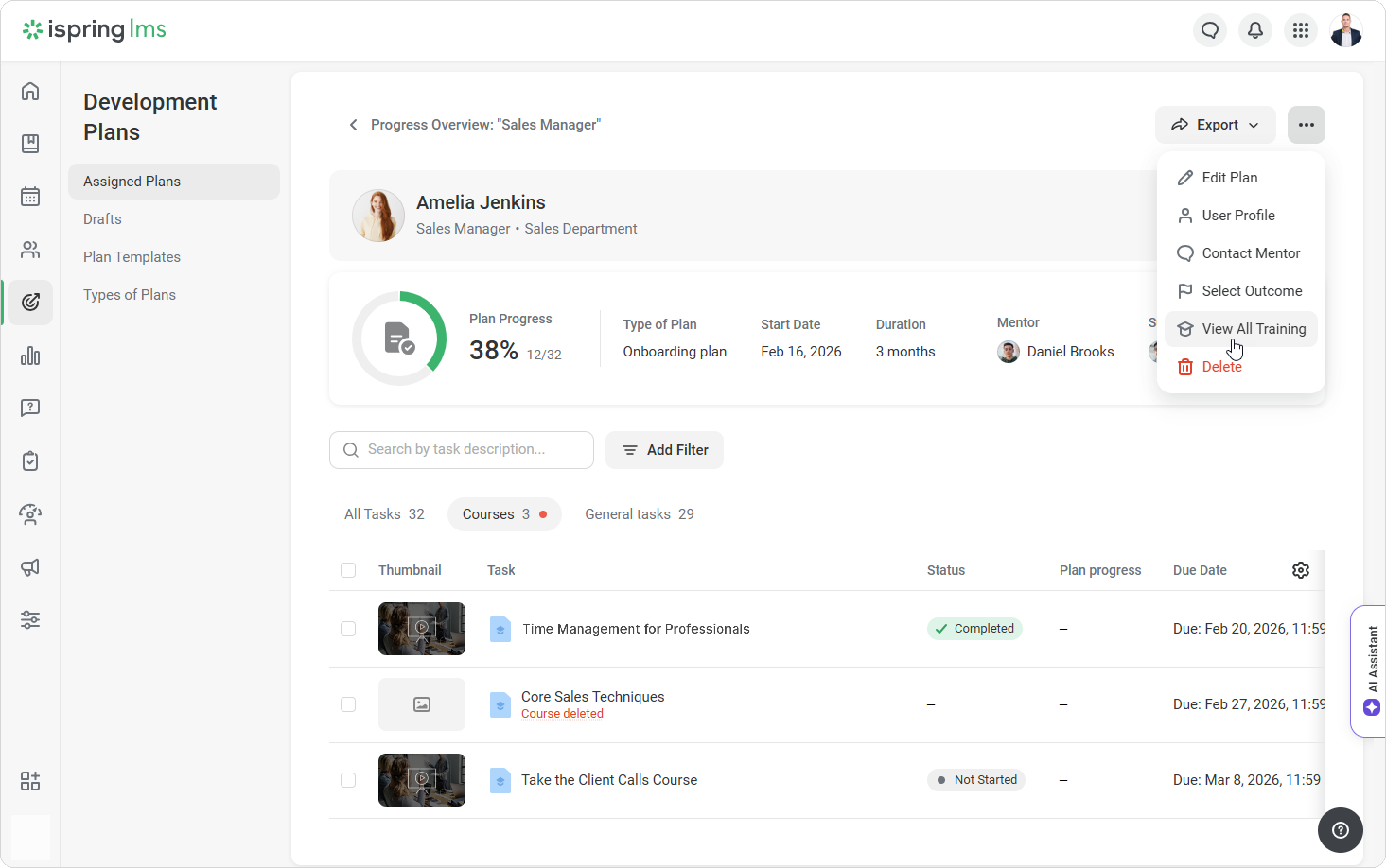
- Open View Details.
- Click on ••• > View All Training.
- In the employee profile, you’ll see all the courses and trainings that have been assigned to them.
For supervisors and mentors
In the User Portal, supervisors and mentors can track how employees progress through courses that have been added to a development plan.
- Go to Development Plans > Team Development and select a plan.
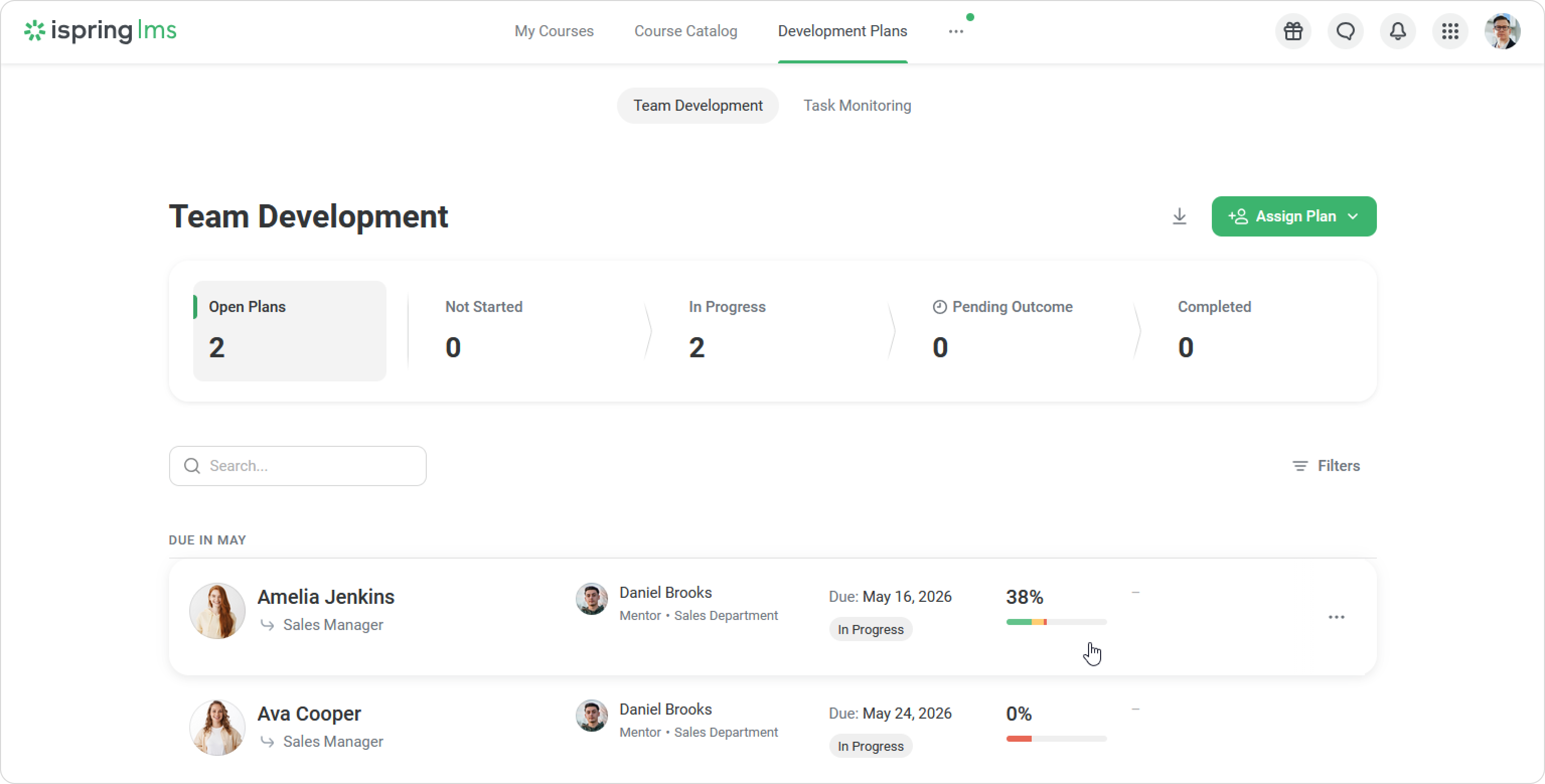
- On the Development Plan Progress page, you’ll see how many tasks have been completed and which ones need your attention. Click on a course task to view more details.
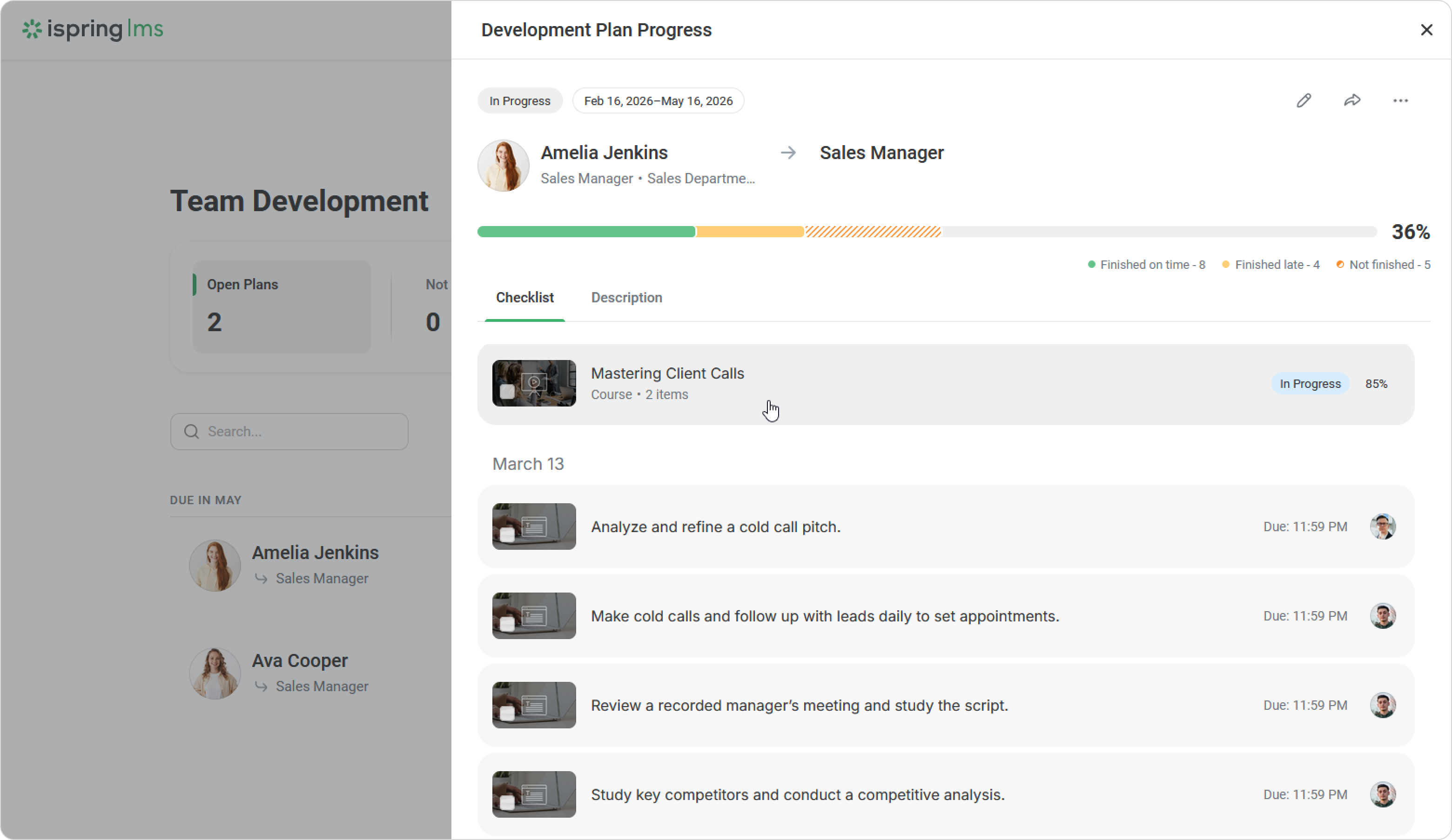
- Click on the course to learn more about it.
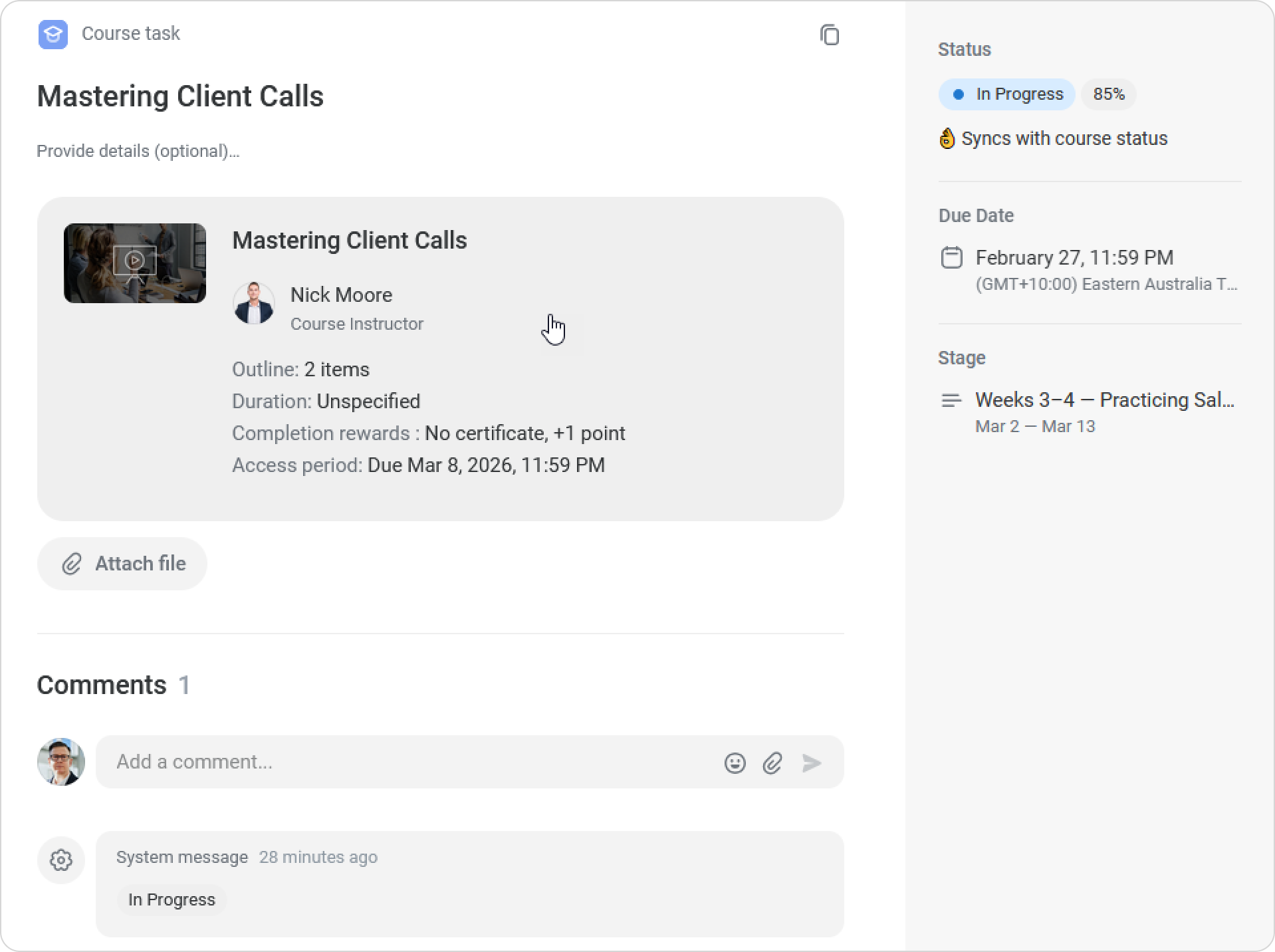
- Now you can go back to the Development Plan Progress page.
How to export a detailed plan report
You can download a report with detailed information on how employees complete plan tasks and progress through courses.
Open Development Plan Progress.
Click on Export to XLSX.
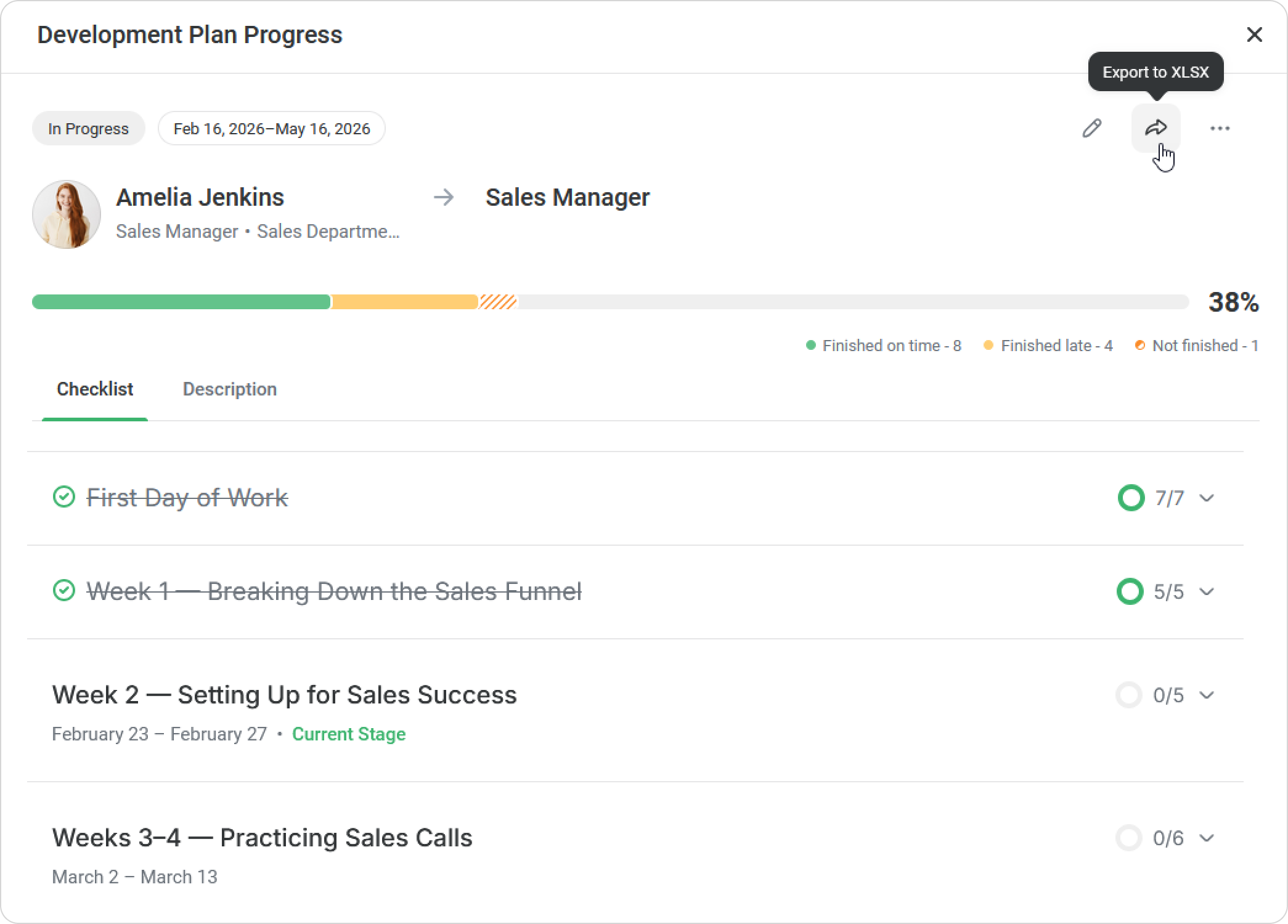
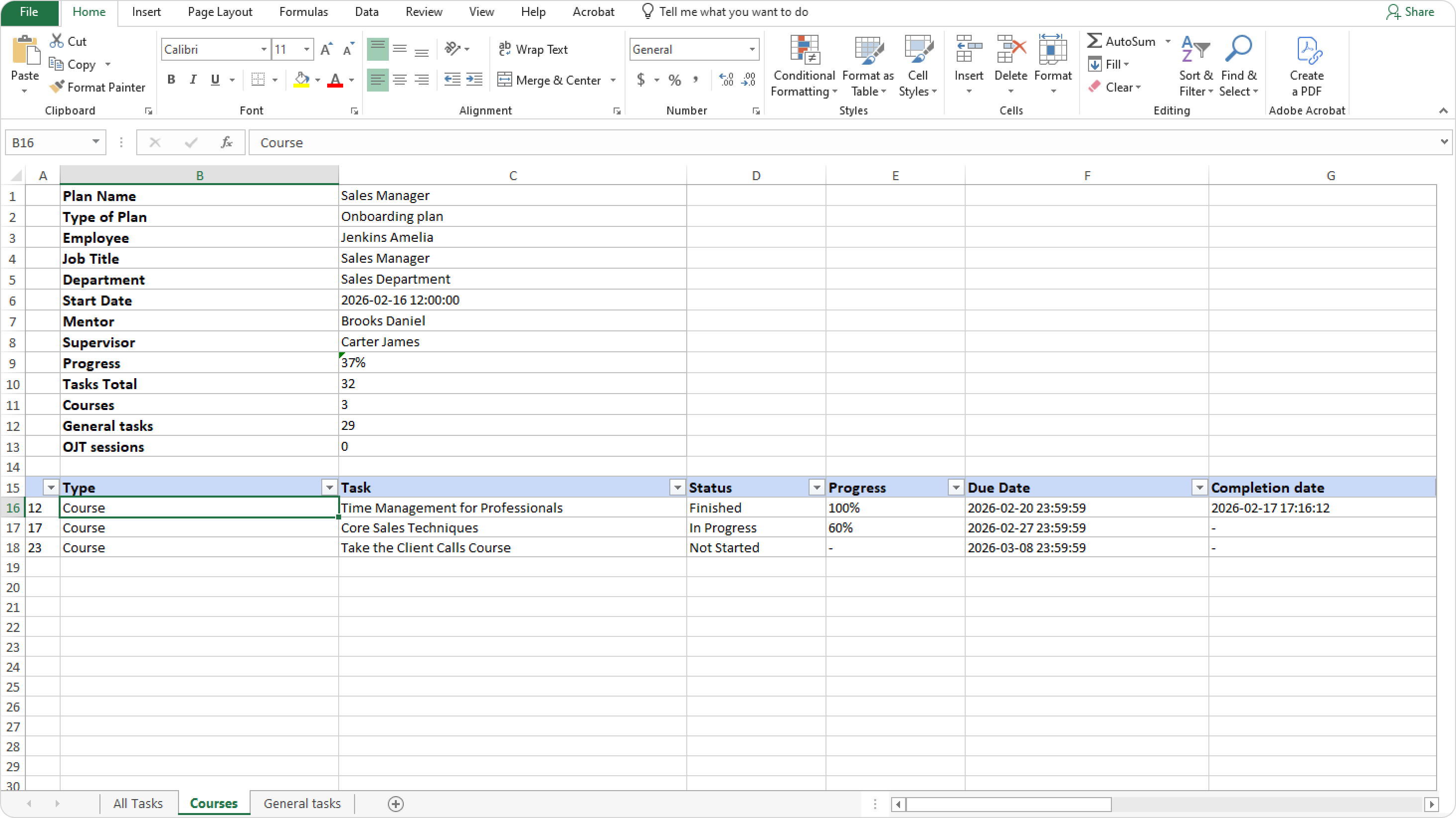
Open the report. The report includes a complete list of all tasks with their statuses, as well as the number of course tasks.
You can find progress statistics, time spent on each course, and other details on the Courses tab.