If your computer is disconnected from the Internet or online publishing doesn't complete because of an antivirus program or a proxy server error, you can upload the course to iSpring Cloud manually.

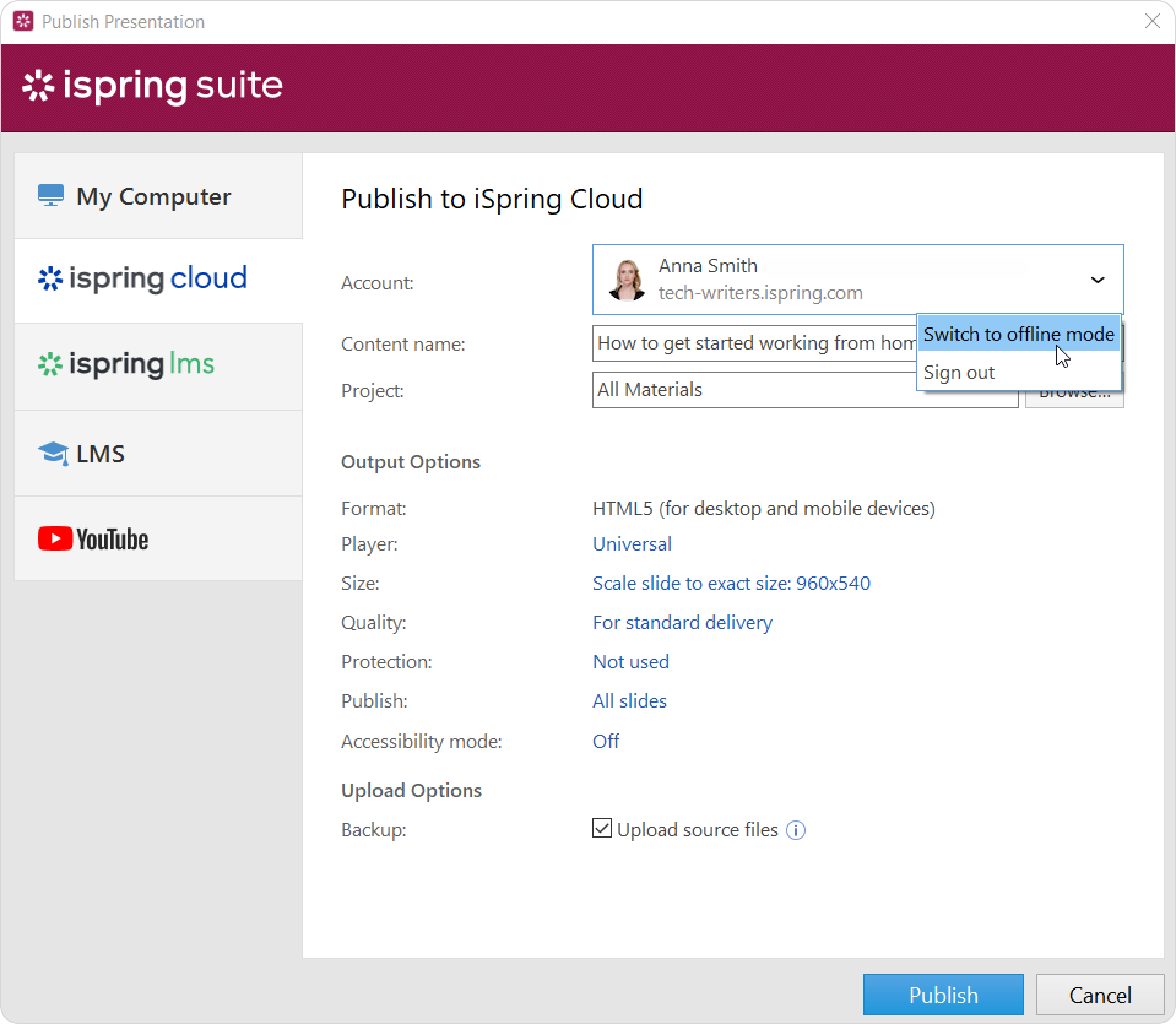
  1. Go to the Account menu and select Switch to offline mode.


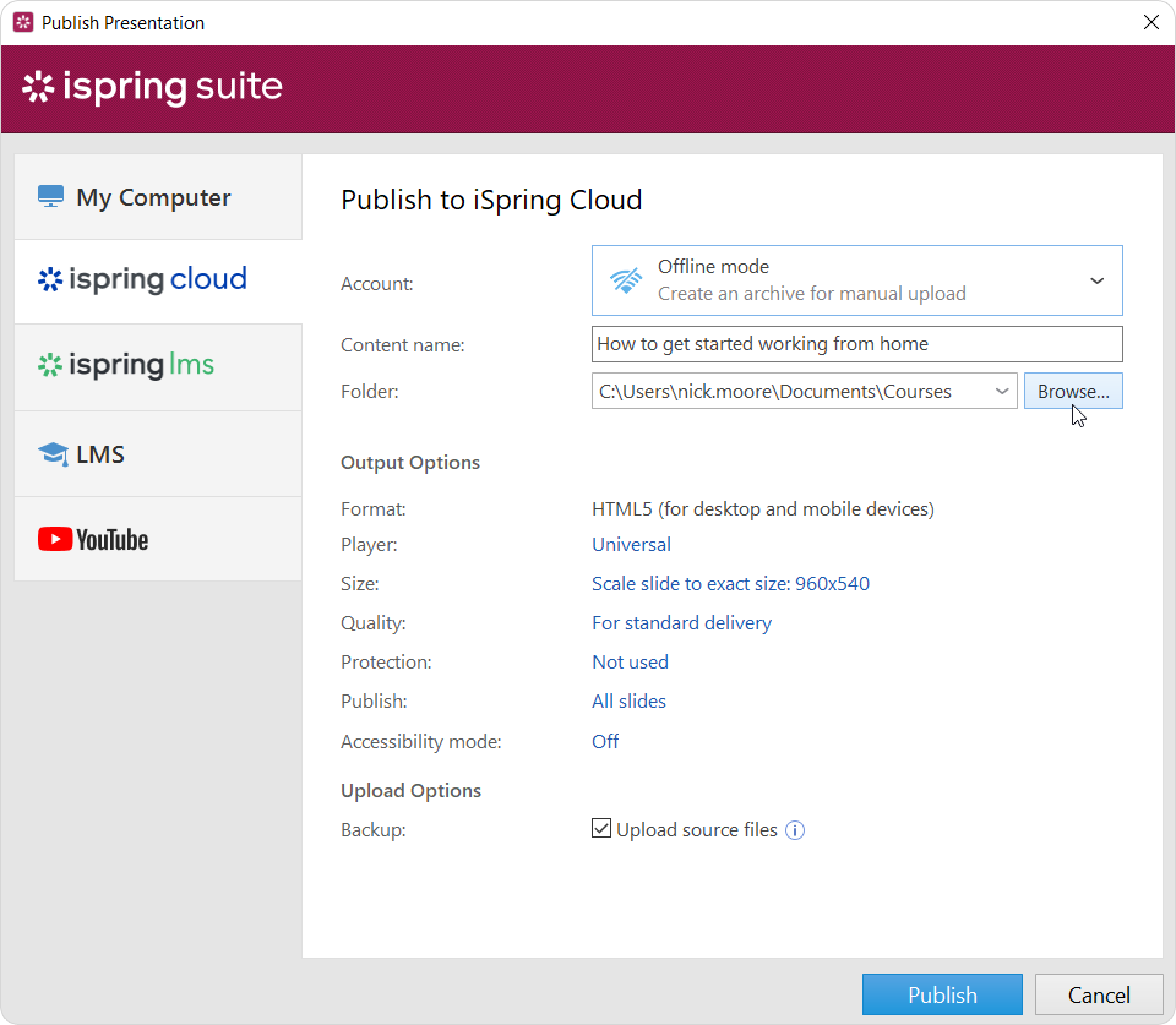
  2. Enter a title in the Content name field. By default, the title is the same as that of the PowerPoint presentation.

  3. In the Folder field, specify where to save the course. You can select a local or network folder. Click Browse..., find the folder, and click Select Folder.


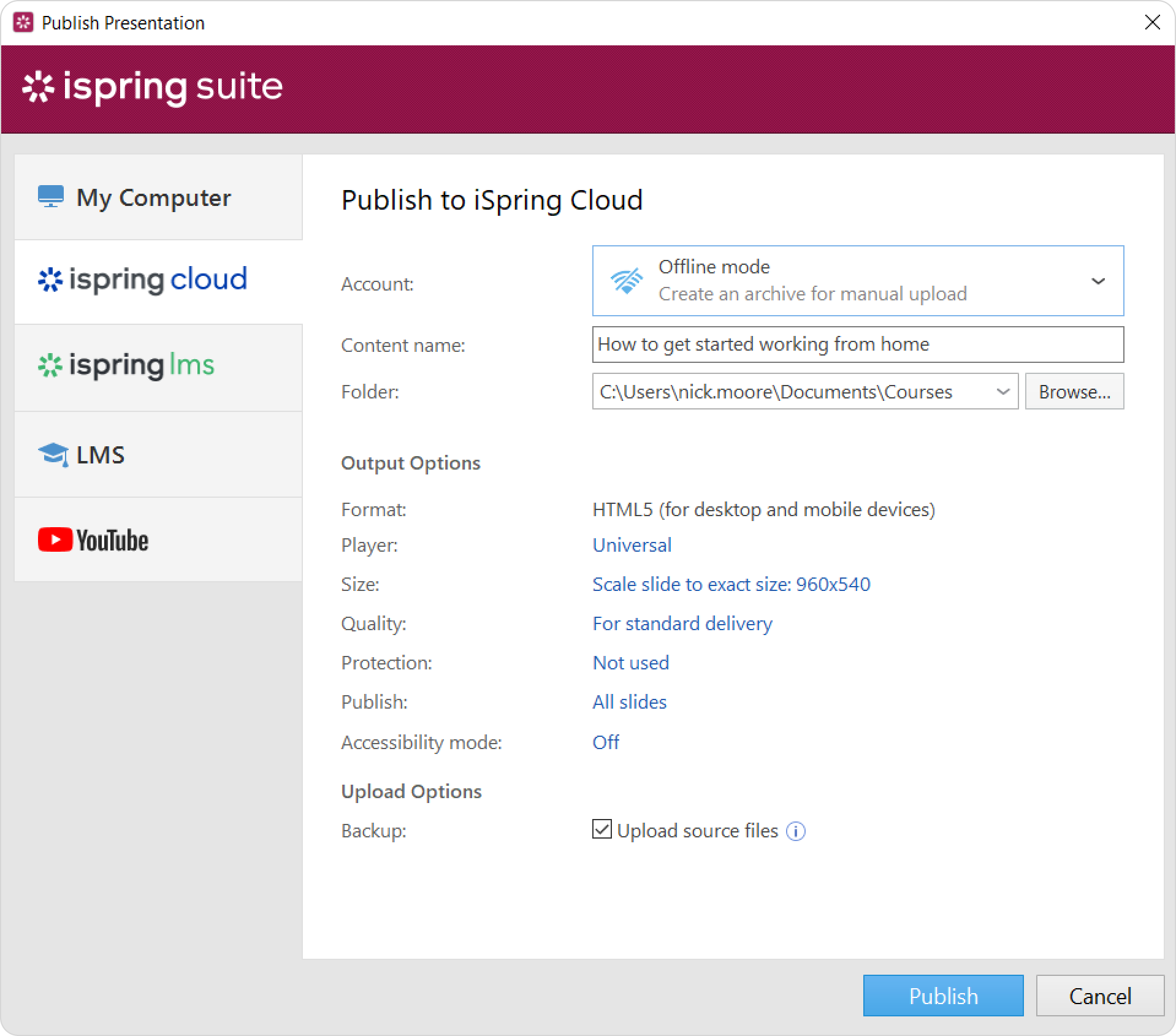
  4. Then, set up output options: 
  5. In the Backup field, select Upload source files if you want to save your course distribution files in iSpring Cloud. Use this option to collaborate with your team or create a backup.

  6. Click Publish.

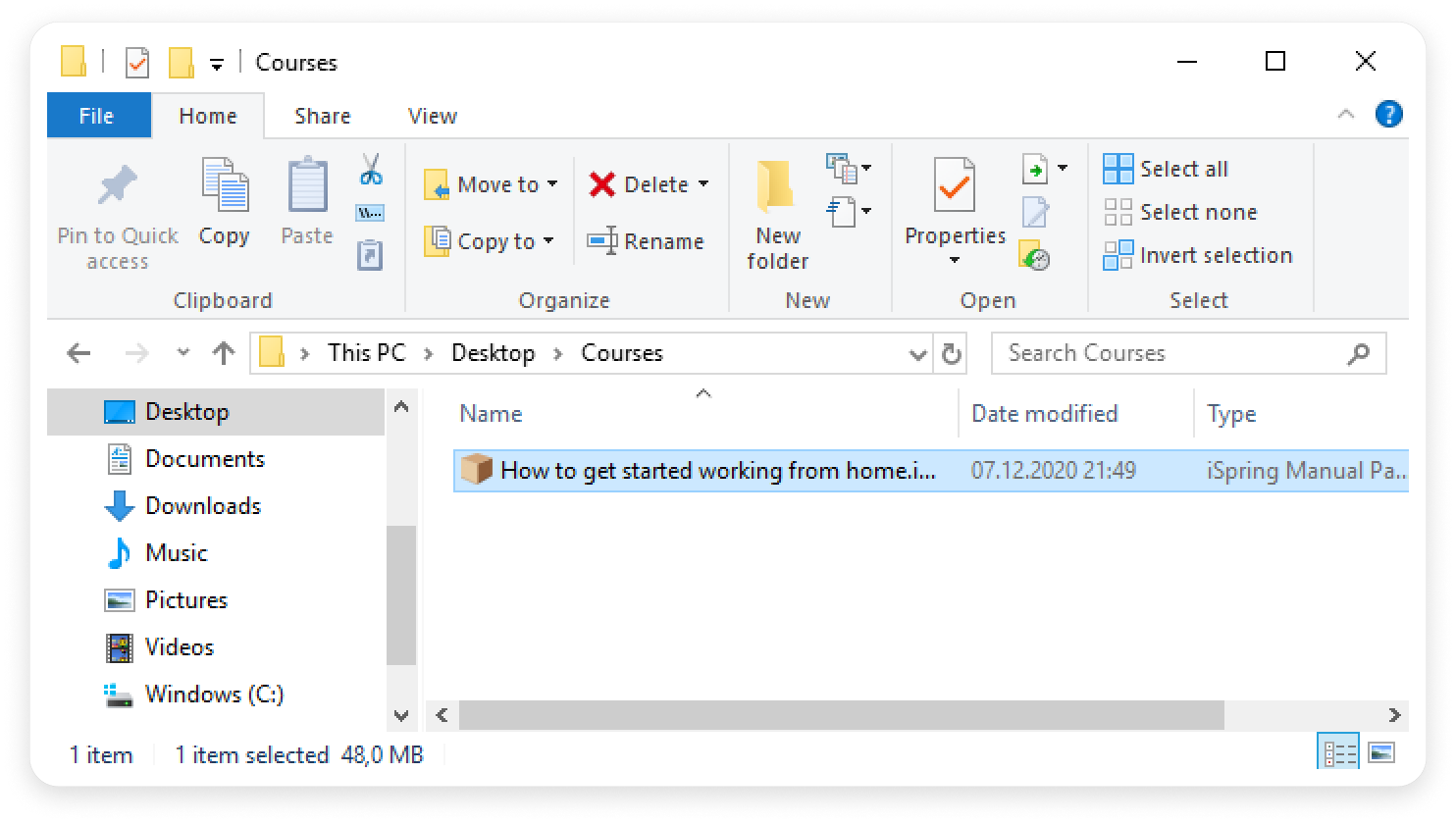
  7. After publishing, click Open Folder. You'll see the course package in the folder. Upload it through the iSpring Cloud interface.

Please Note:

If your presentation includes quizzes, surveys, or role-plays and you need their statistics in iSpring LMS, publish the presentation on the iSpring LMS tab.

If you publish the presentation in offline mode on the iSpring Cloud tab and then manually upload the resulting package to iSpring LMS, the LMS will identify the content item as a presentation. In this case, statistics for quizzes, surveys, and role-plays within the presentation won't be available in the "‎Progress Achievement," "Quizzes, Surveys, Role-Plays," and "Answer Breakdown" reports.