Explore how easy employee training can be with the iSpring LMS trial—launch courses, track progress, and create personalized development plans.
How to get your iSpring LMS trial account
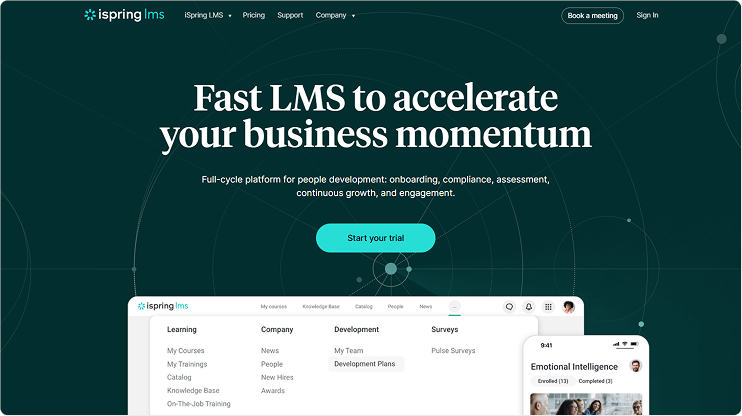
- Visit the iSpring LMS website and click on Start your trial.
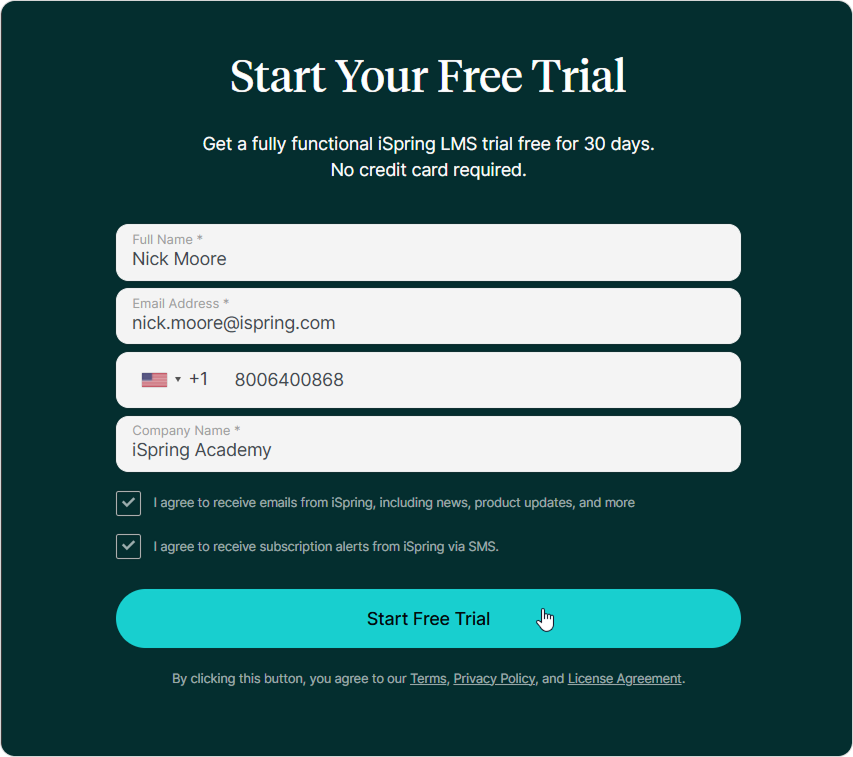
- Enter your name, email, phone number, and company name, and click on Start Free Trial.
- Wait while your account is being created. Your account credentials will be sent to the email address associated with your account.
Congrats! Your iSpring LMS account has been created. Your free trial is valid for 30 days.
What employees see in the User Portal
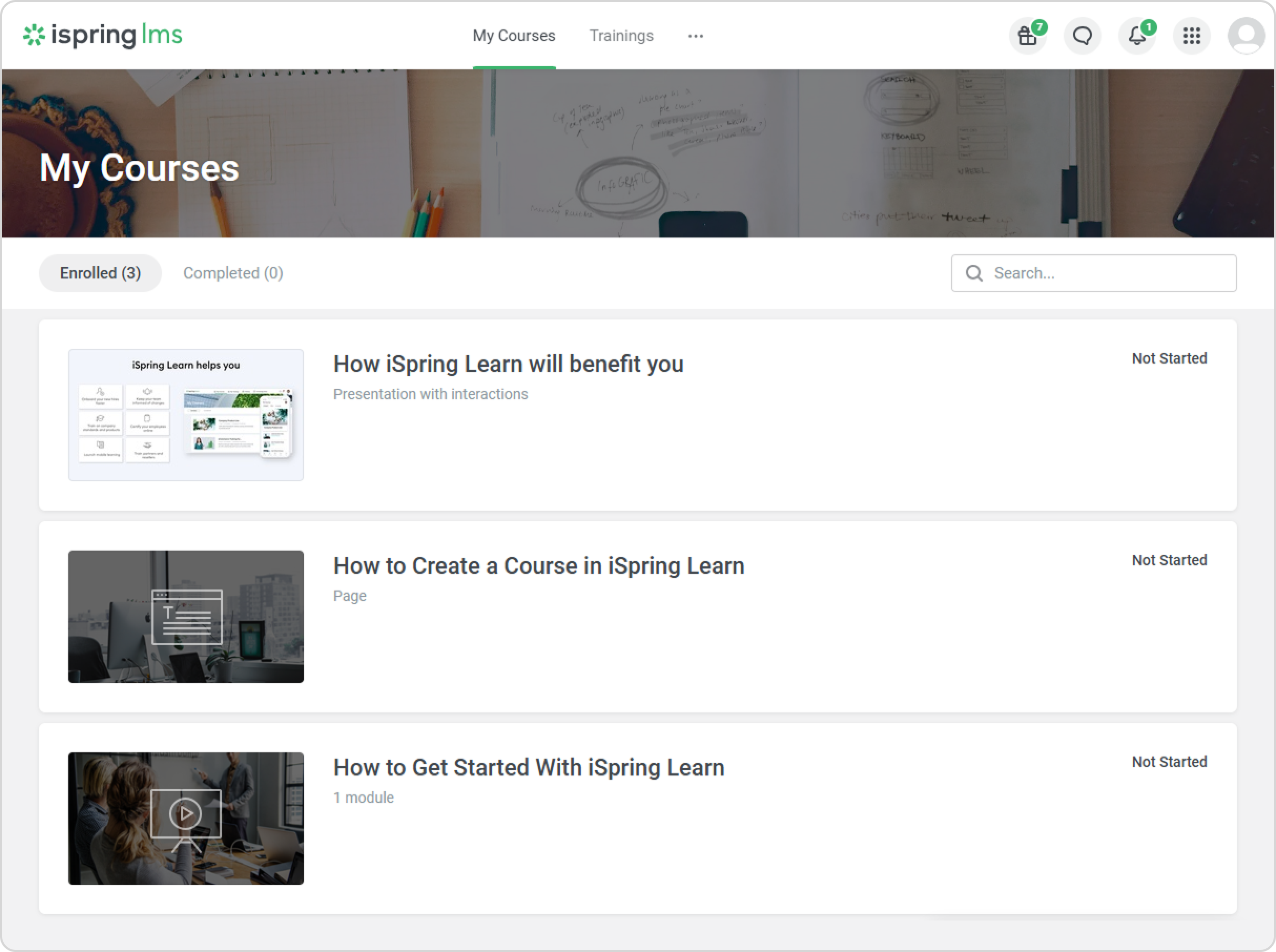
Once your account has been set up, you’ll access the iSpring LMS User Portal. This is exactly what your employees will see, with the following sections available for them to explore:
- My Courses
Employees can view all courses and learning content they are enrolled in.
- Trainings
This section shows the webinars and training sessions employees are registered for.
- Course Catalog
Employees can browse available courses and enroll in the ones they want to take.
- Knowledge Base
The Knowledge Base allows employees to quickly find and download helpful articles, guides, and instructions, keeping essential information always within reach.
- News
Employees can stay up to date with company news, leave reactions, and post comments.
- Company
Your team can learn more about colleagues, understand roles and responsibilities, find the right specialist, and view the current organizational structure.
- Development Plans
Users can easily manage onboarding programs and professional growth plans.
How to add employees and enroll them in their first course
Now, all that’s left is to add employees to iSpring LMS and enroll them in their first course.
- In the User Portal, click on your avatar > Administrator Portal.
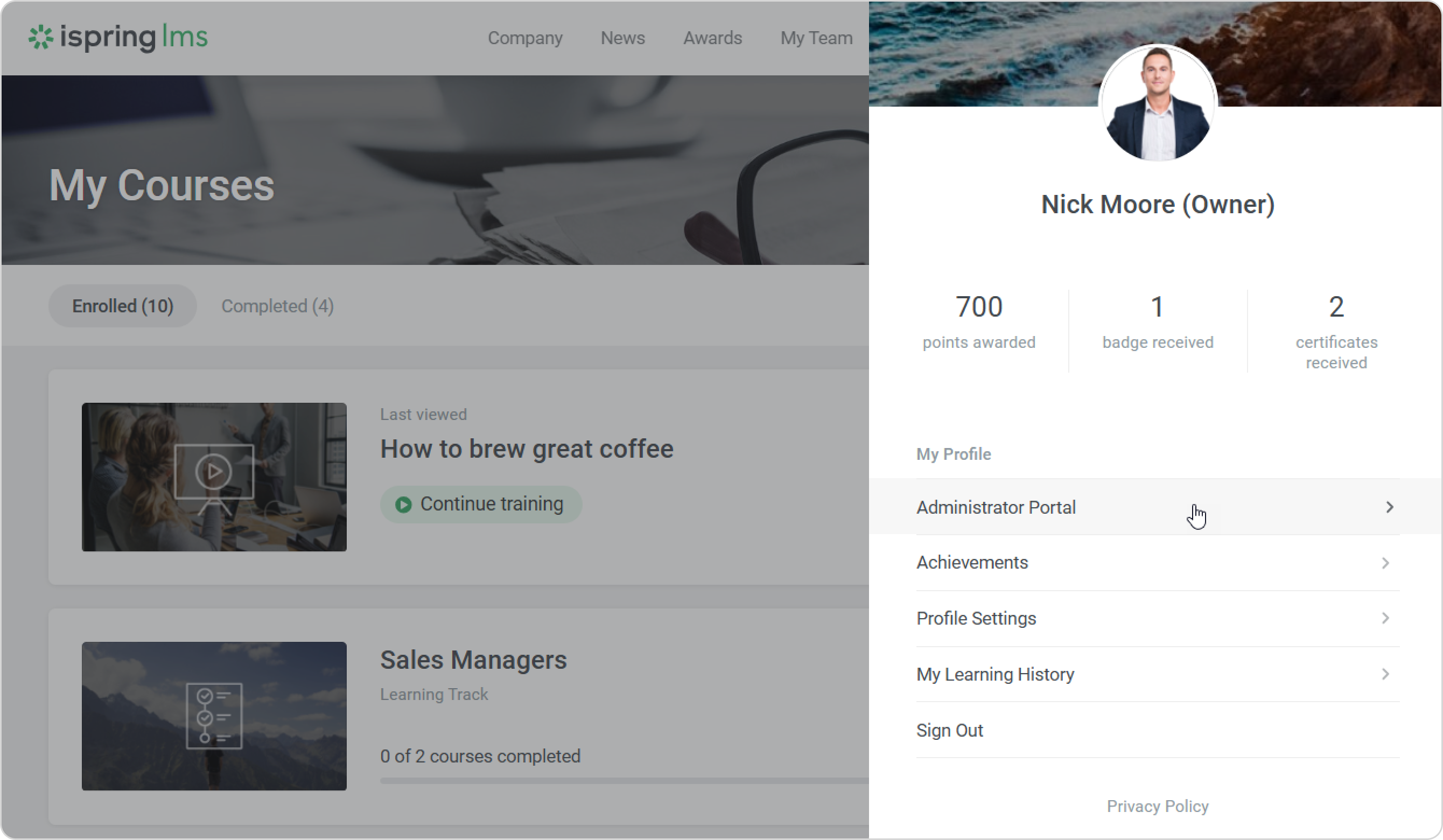
- Once the Administrator Portal opens, go to Users and add your employees.
- Then navigate to Learning Content, create a course, and enroll your team in it.
That’s it! You can now monitor their learning progress and view results—with no extra setup or complicated steps.