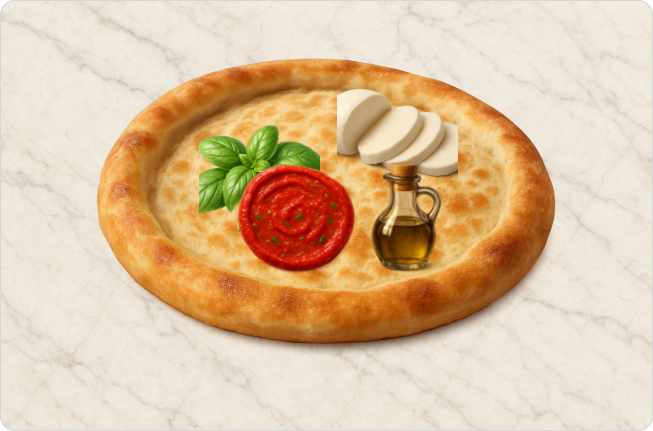
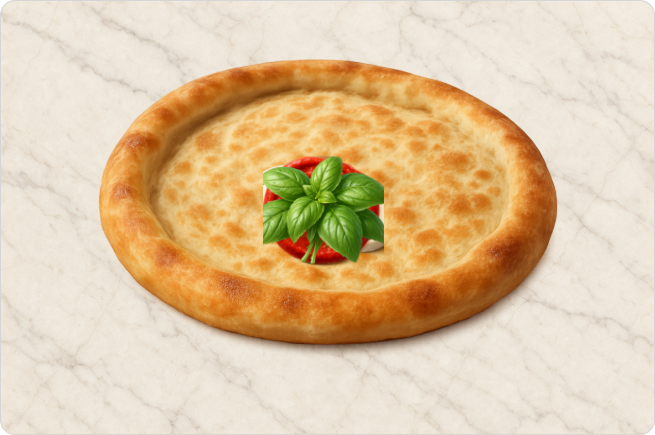
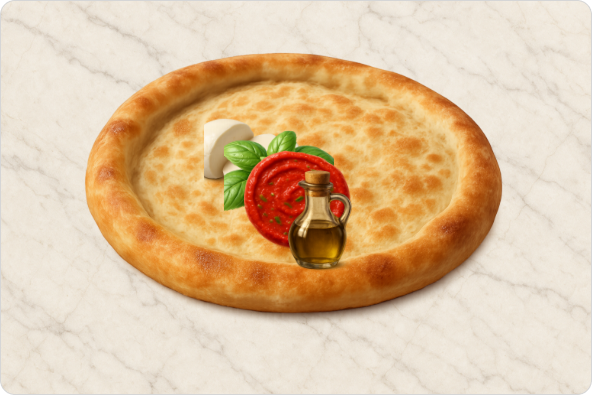
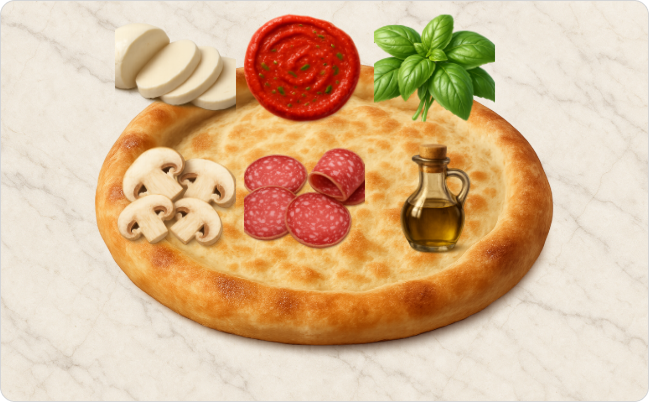
You can customize the background image and the item panel to make the question look just the way you want.
- Click the gear icon in the top-right corner.
- Set the Background Image.
- Layout: Standard or Expanded.
- Padding color: Blur or solid color The padding appears only if the background image doesn’t fully cover the player.
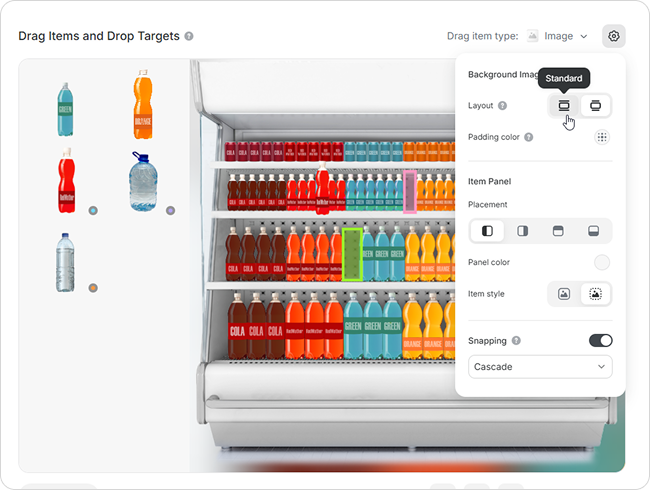
- Set the Item Panel.
- Placement: left, right, top, or bottom
- Panel color
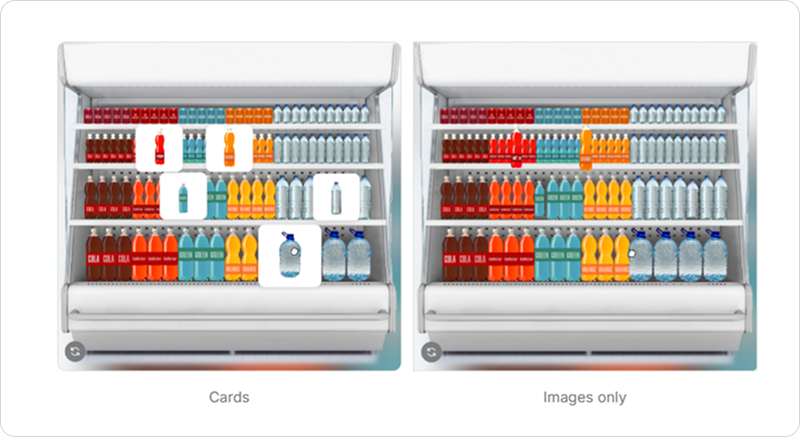
- Item style. Choose how items will appear: as cards with a background or as images without a background.
If you choose Cards, you can customize the card color.
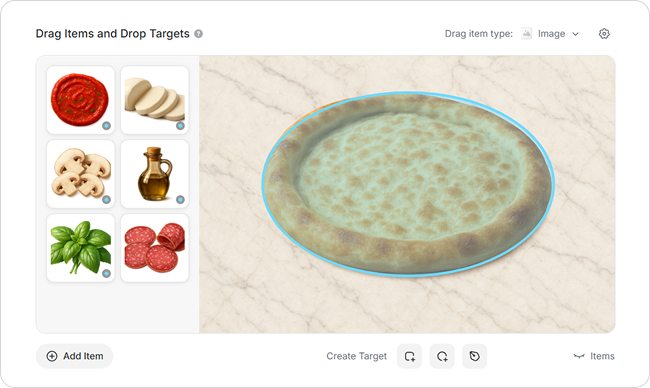
Snapping
Enable snapping when learners need to drop items onto a specific target.
With snapping on, if the item is dropped inside the target, it sticks to it. If the learner misses the target, the item returns automatically to the panel.
Item Arrangement Inside a Target
Choose how items are positioned within a target:
Layout | Description | Example |
|---|
No alignment | Items can be placed anywhere within the target. | |
Center | Items stack in the center. | |
Cascade | Items stack diagonally. | |
Tile | Items are arranged in rows from left to right, top to bottom. Text items are displayed as a centered vertical list. | |