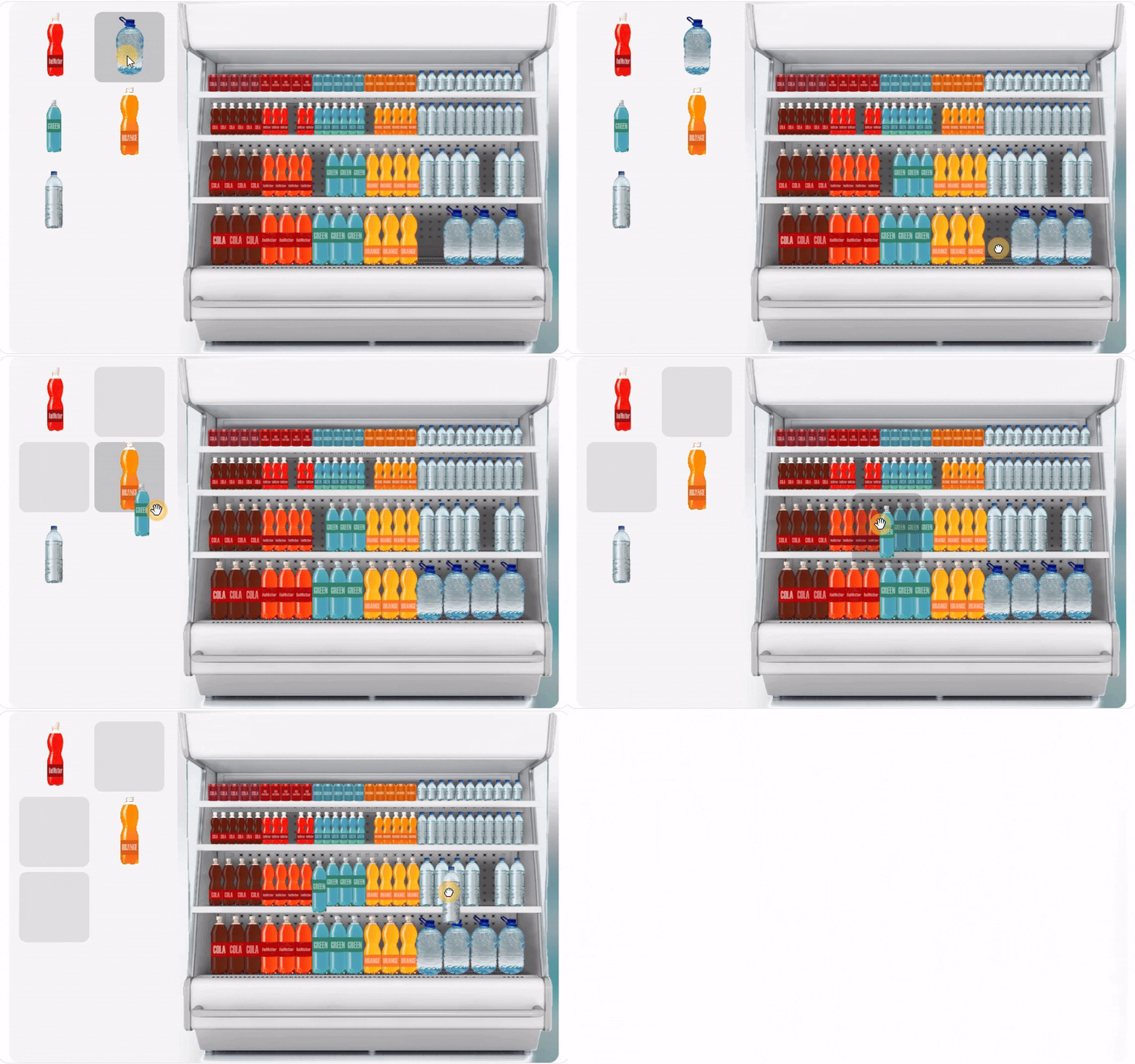
Drag and drop questions create a more visual and interactive learning experience. To answer the question, learners drag text or image Items and place them onto Targets.
How to Create a Drag and Drop Question
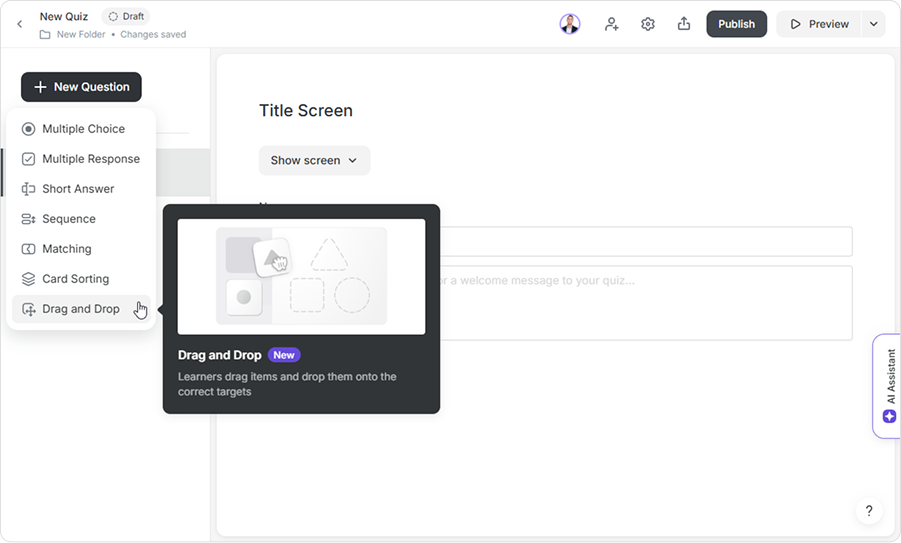
- Open your quiz or exercise and click New Question > Drag and Drop.
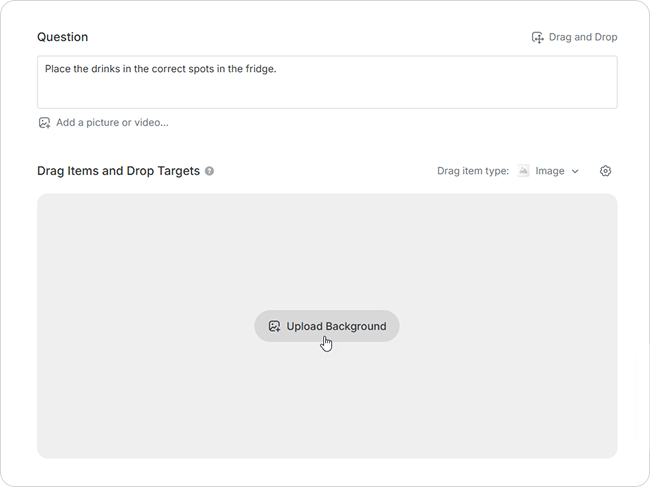
- In the question field, add a question or a prompt for learners.
- Next, click Upload Background. The background is the space where you will create your targets.
In the top-right corner of the image, you can also crop or replace it.
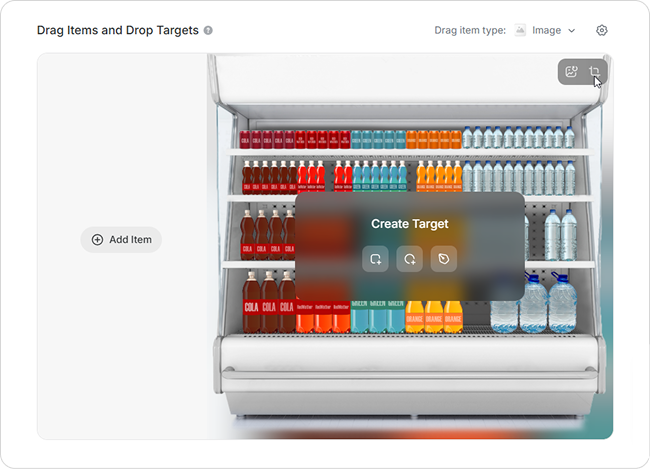
- To add a draggable item, first choose Text or Image in the top-right corner and on the left, click Add Item. You’ll upload each item one at a time.
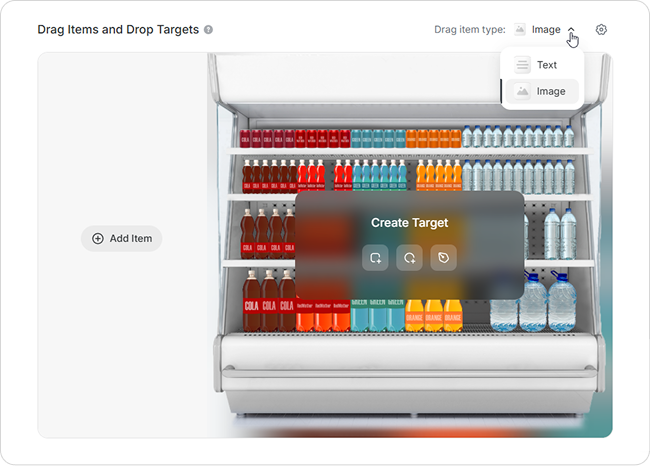
To delete an item, hover over it and click the trash icon that pops up.
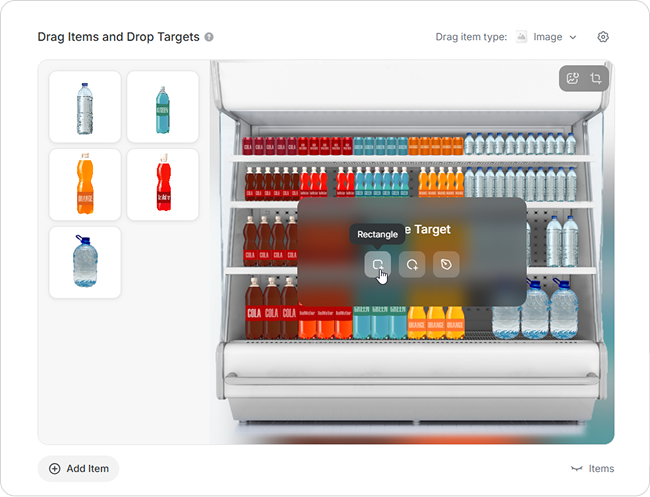
- To add a target, choose a shape from the menu in the center: rectangle, oval, or freeform. Each target will show up with different color borders to make matching easier. Position the target on the background and adjust its size if needed.
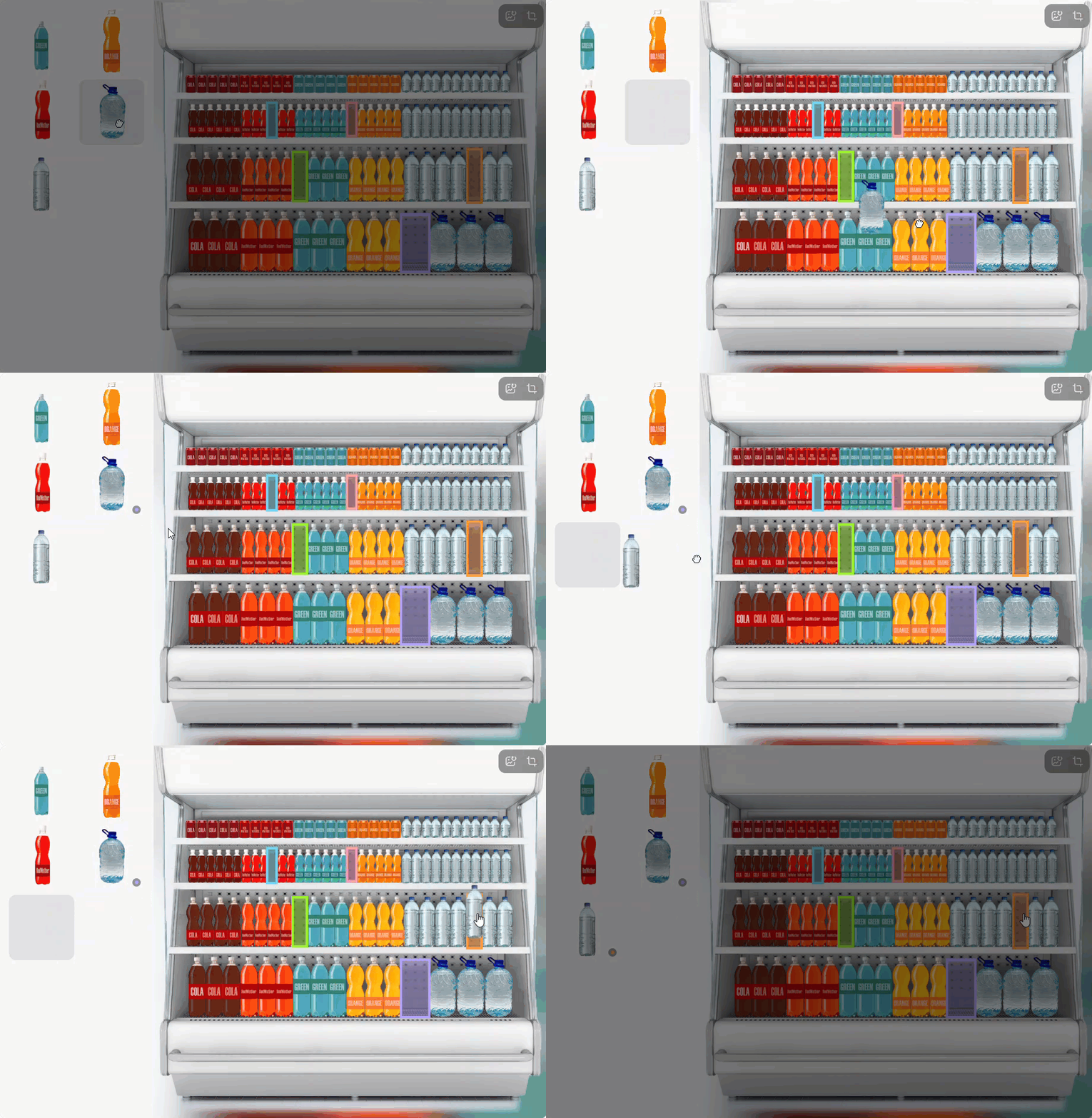
- To match items to target areas, drag an item on the left onto a target and it will be set as the correct answer. You’ll see a colored dot next to the item that matches the target color.
You can also match items to their correct targets in the Correct Matches section. Click the arrow next to an item and select a target from the list. In this example, the water bottle is linked to the orange target.
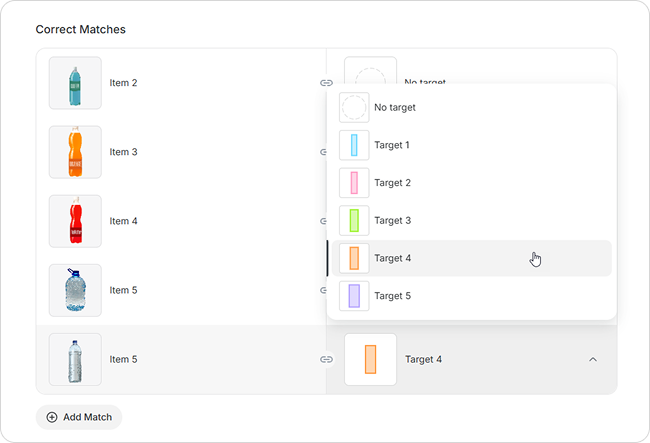
One item can be linked to multiple targets. If you make a mistake, hover over the pair and click the trash icon.
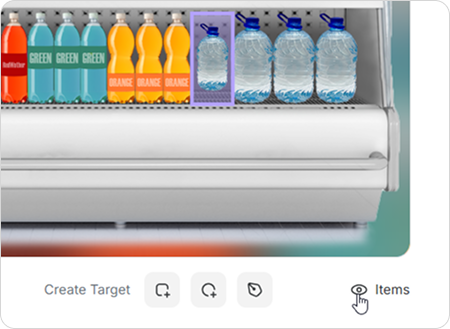
To preview all matches, click the eye icon — items will appear on the background image.
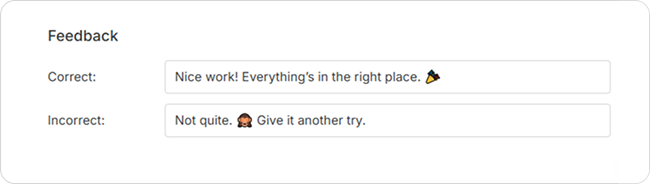
- Add feedback if needed.
Done! You can now customize the question design.