How to Add a Course to a Development Plan
- You can add a course to:
- a new or existing plan
- a plan template
- a draft
- You can create tasks only with the Course content type.

A course can include a presentation, page, flipbook, quiz, video, or even a training session, such as an instructor-led session, webinar, or workshop. - Keep in mind that a course in a task is the same course as in Learning Content, with the same settings, deadlines, and statistics.
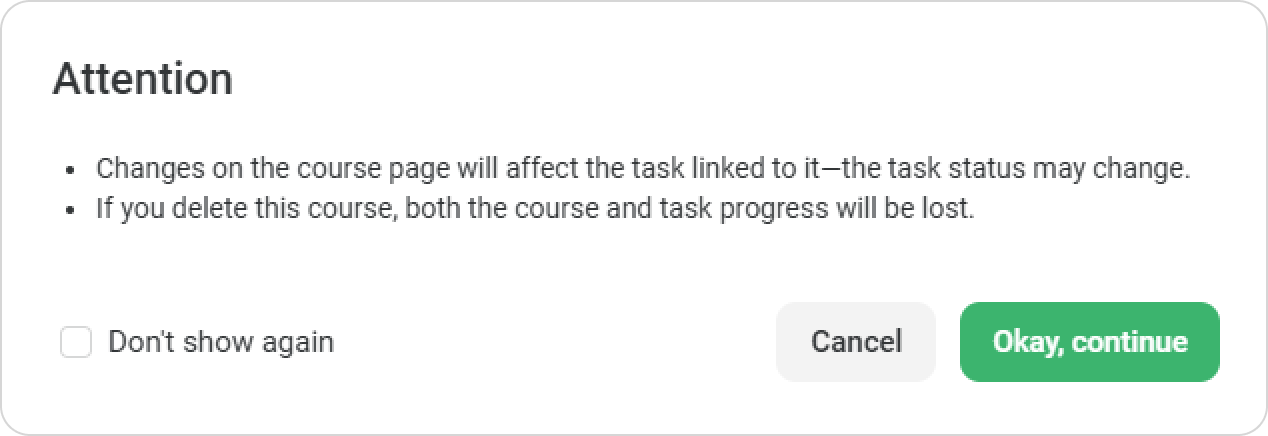
If a course is deleted from Learning Content, it will also be deleted from the task.
If an employee has already completed the course, the task will automatically be marked as completed.
Users with the following roles can add courses to development plans:
- Account Owner
- Account Administrator
- Roles that have the View users and enroll them in training and Create and assign development plans permissions.
- To add courses to plan templates, users need permission to View users and enroll them in training and Manage template library and types of plans.
- Supervisors and mentors can add stages with courses from a template — no additional permissions are required.
By default, supervisors and mentors cannot create course tasks directly. To add or replace courses in tasks, they need a separate role and access to the project containing the courses.
How to create a course task
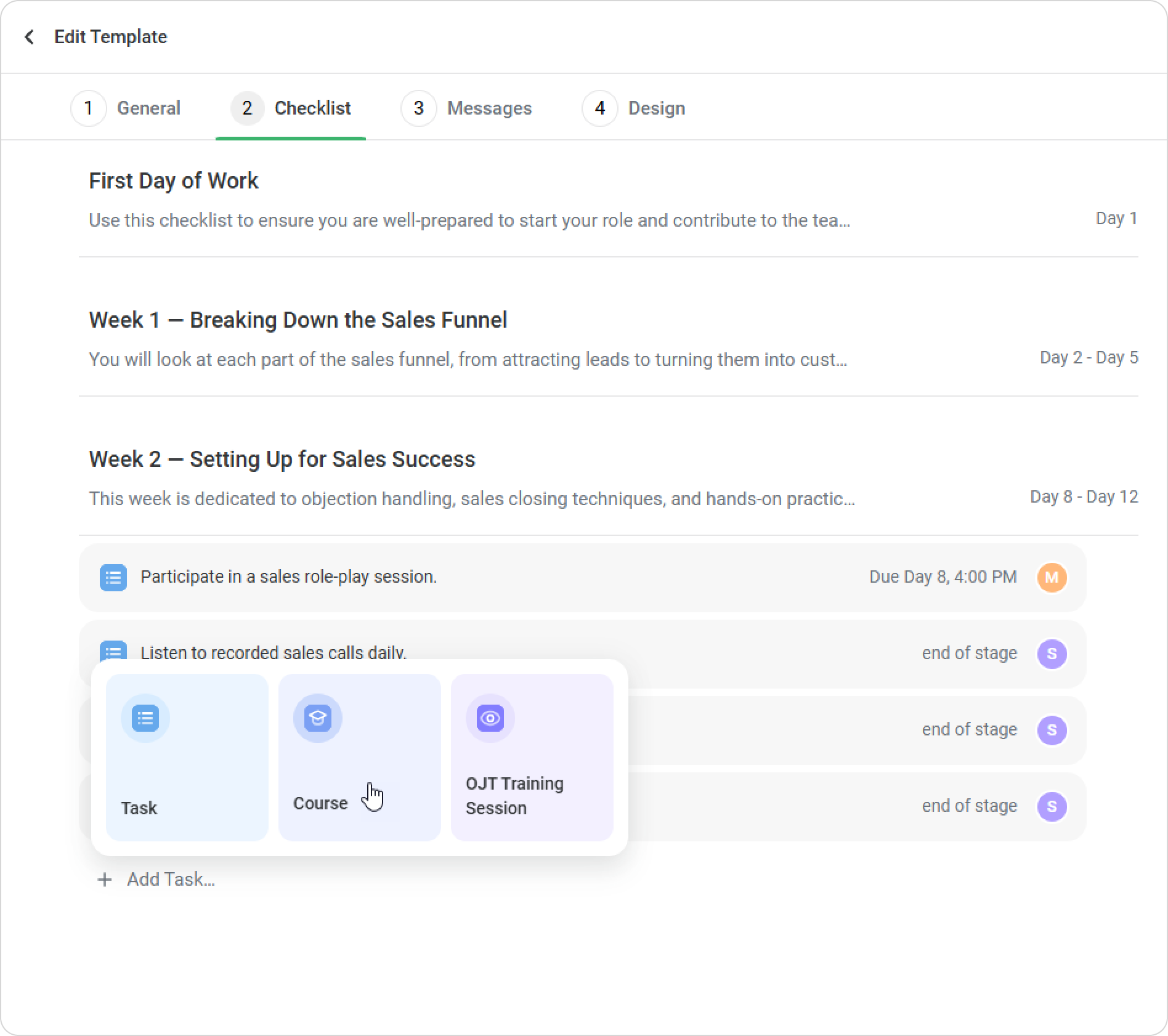
- In the Checklist tab, click on Add Task > Course.
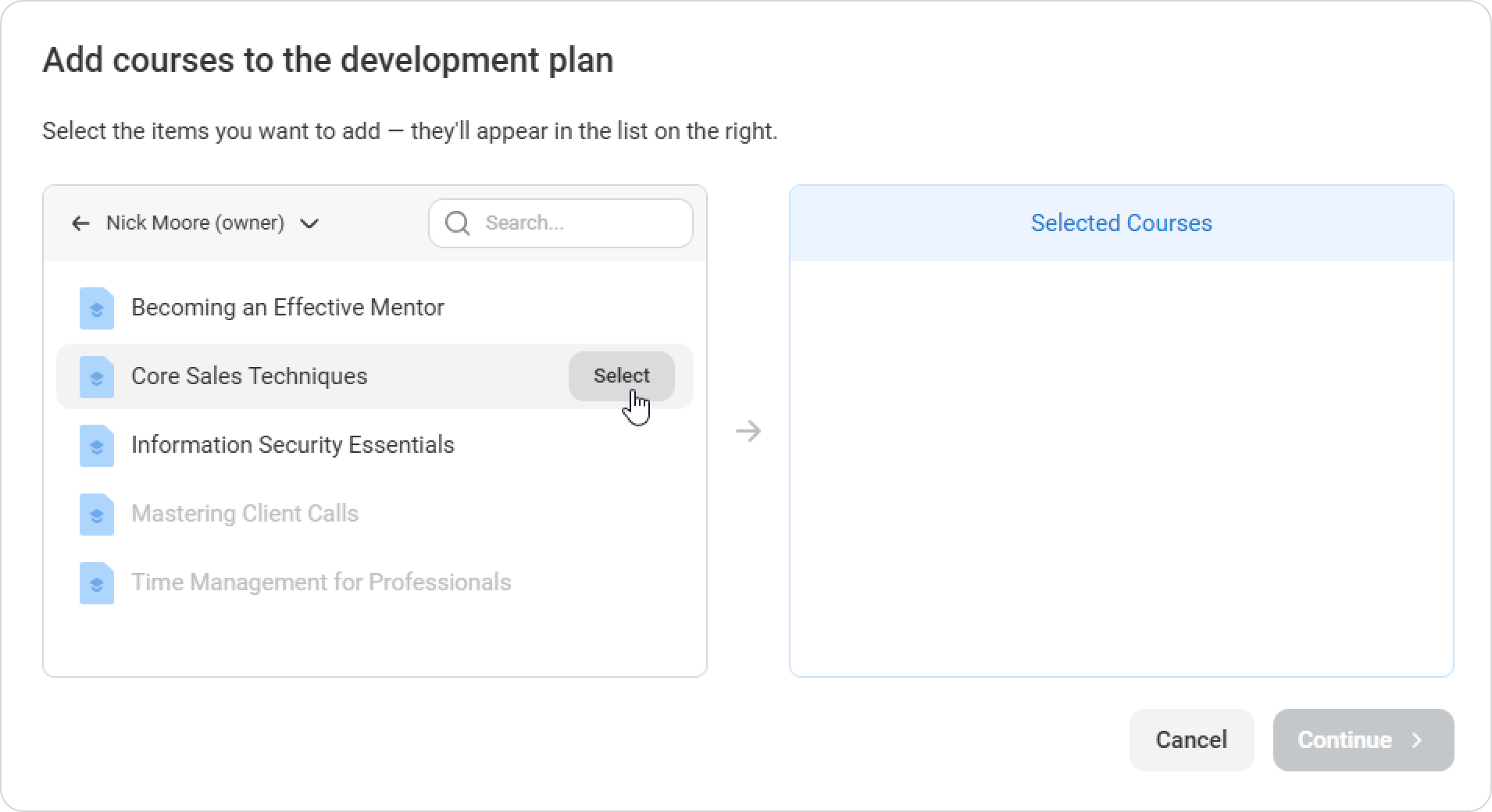
- Select the course(s) and click on Continue. Each course will create a separate task within the stage.
The task name will be the same as the course title. You can edit it and add instructions for the employee below. - You can set a due date for the task. By default, the task is due by the end of the stage it belongs to.
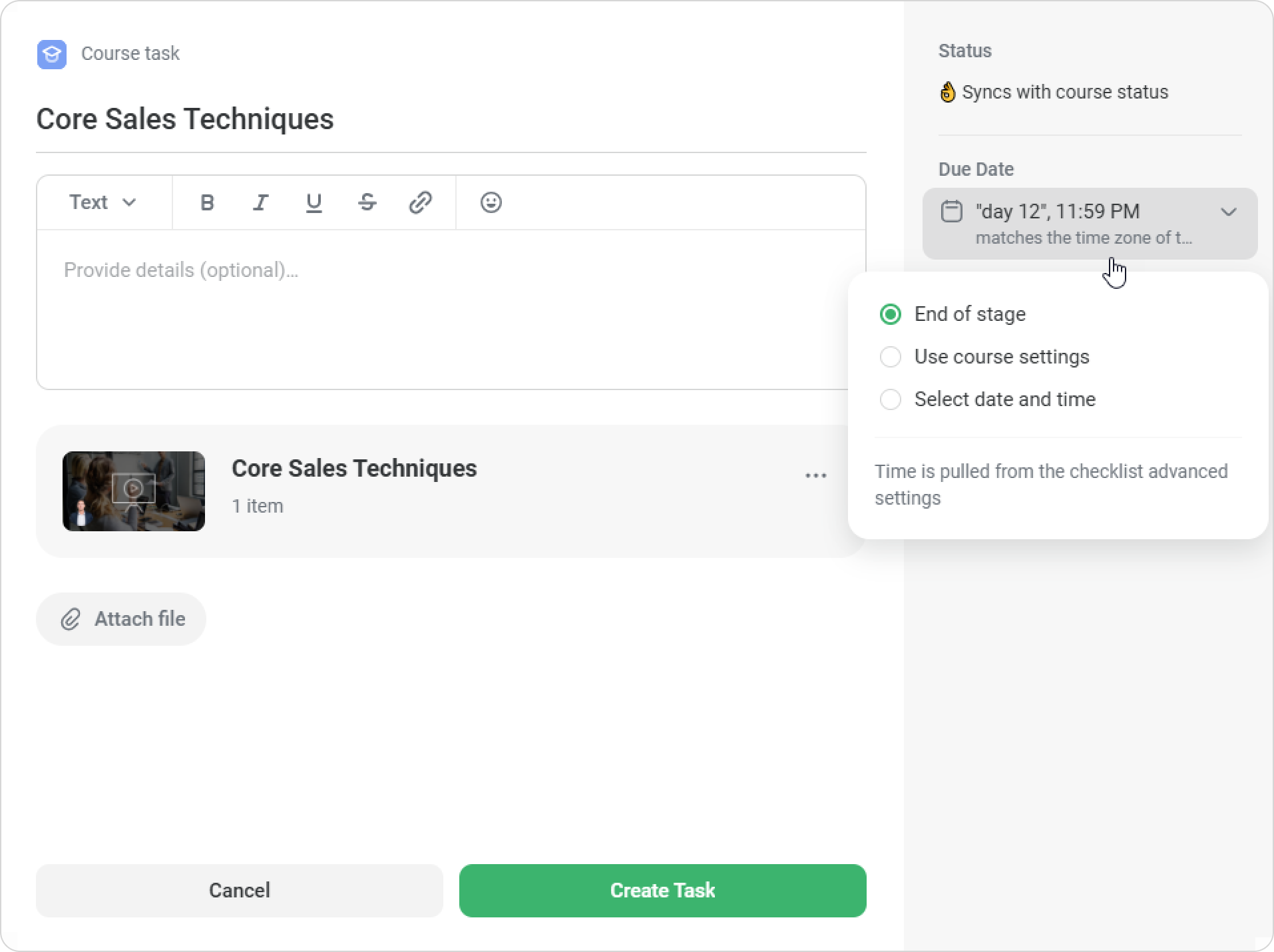
If the course has a due date, that date will automatically be applied to the task.
If the course has no due date, the task must be completed by the end of the stage.
For tasks in templates, the deadline can be set the same way: by the end of the stage, from the course settings, or to a specific date.
- Click on ••• > Edit Course to adjust settings or edit the course.
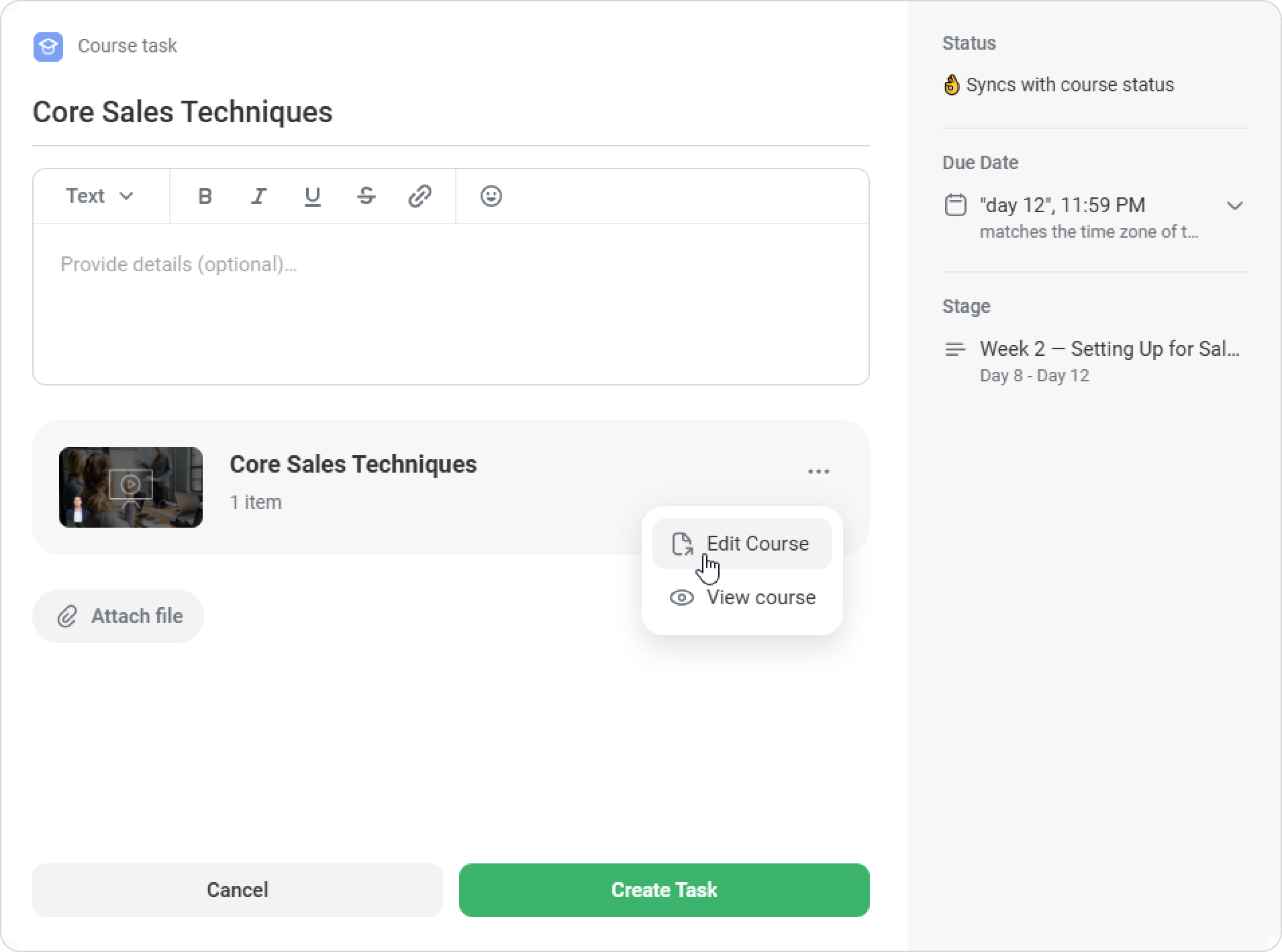
To preview the course, click on View Course. - When ready, click on Create Task.
The task will be added to the end of the stage.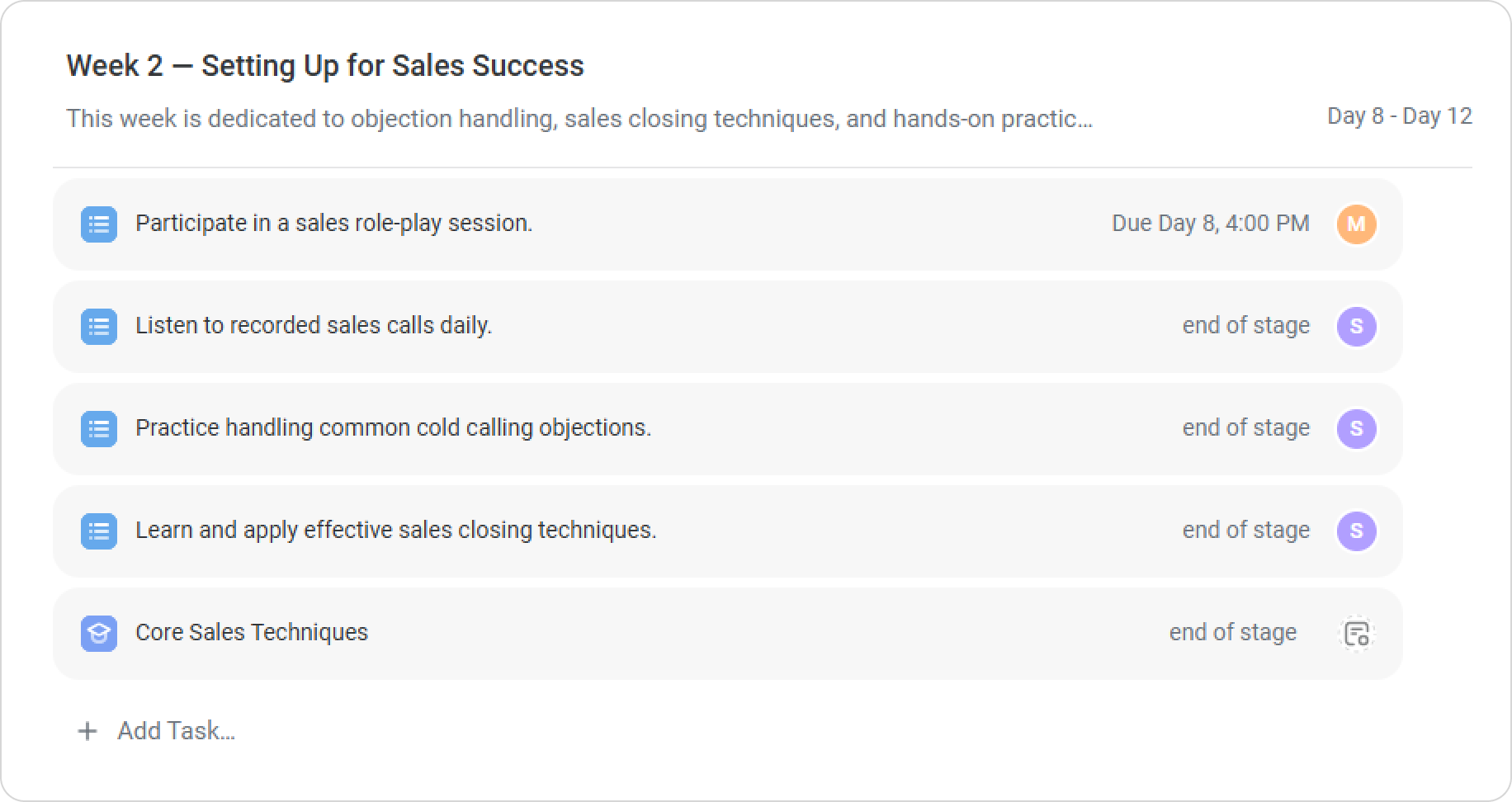
1. The same course cannot be added to the plan twice.
2. The course is assigned at the same time as the plan, but it will only appear in My Courses on the first day of the stage.
3. If a course has a due date and access is restricted afterwards, the task will retain the same due date, and the course cannot be completed after that date.
4. If the course is not completed by the deadline, the task will be marked as overdue.
Editing a course
To make changes to a course within a task:
- Open the task in the plan.
- Click on ••• > Edit Course.
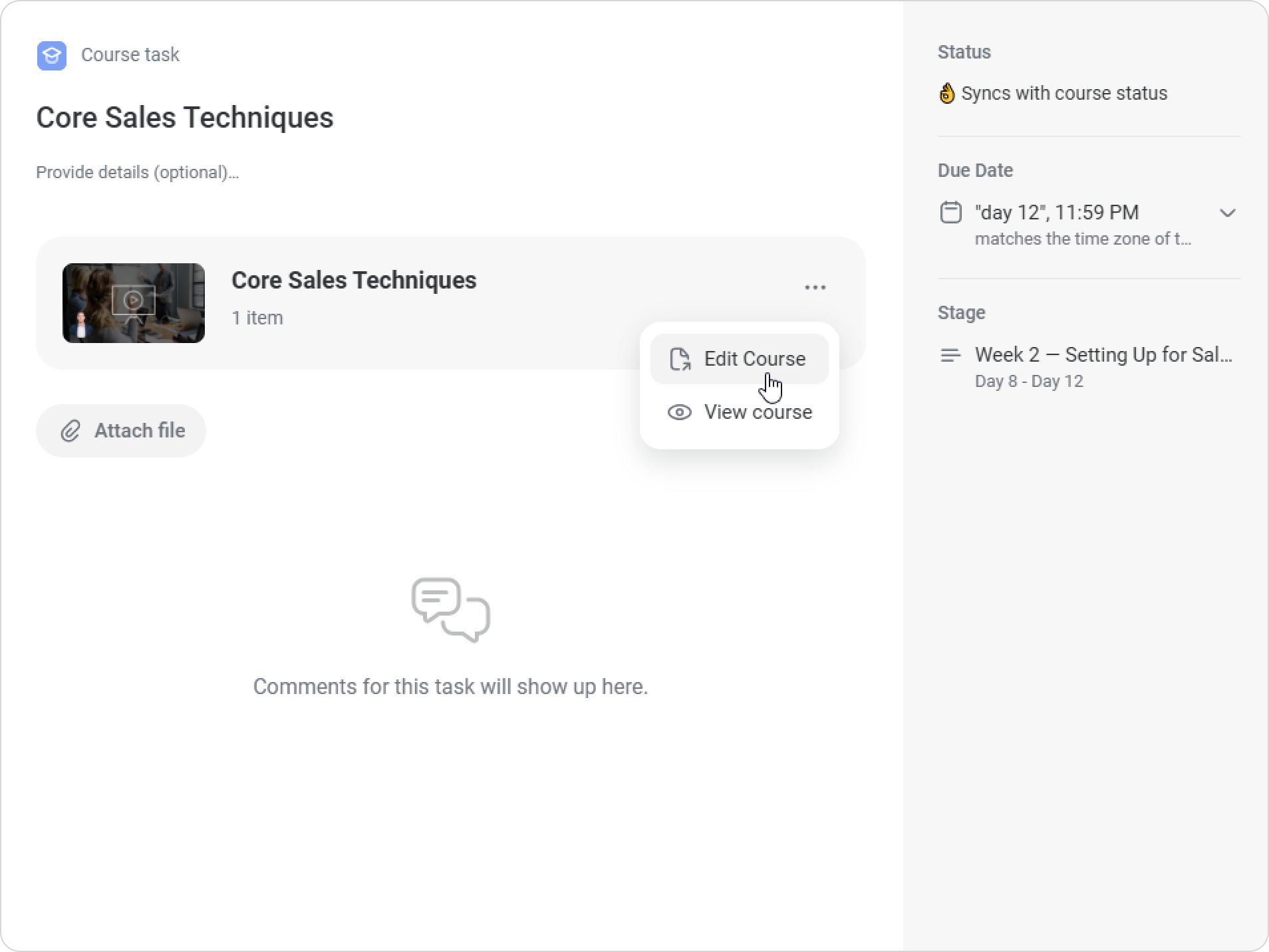
- Make the necessary changes — for example, update the instructor or extend the course’s due date.
Keep in mind: if you change the course structure, it will affect the task.
If you add new learning content, the employee’s progress on the task will be reduced.