Only Owners and Account Administrators can add users by email.
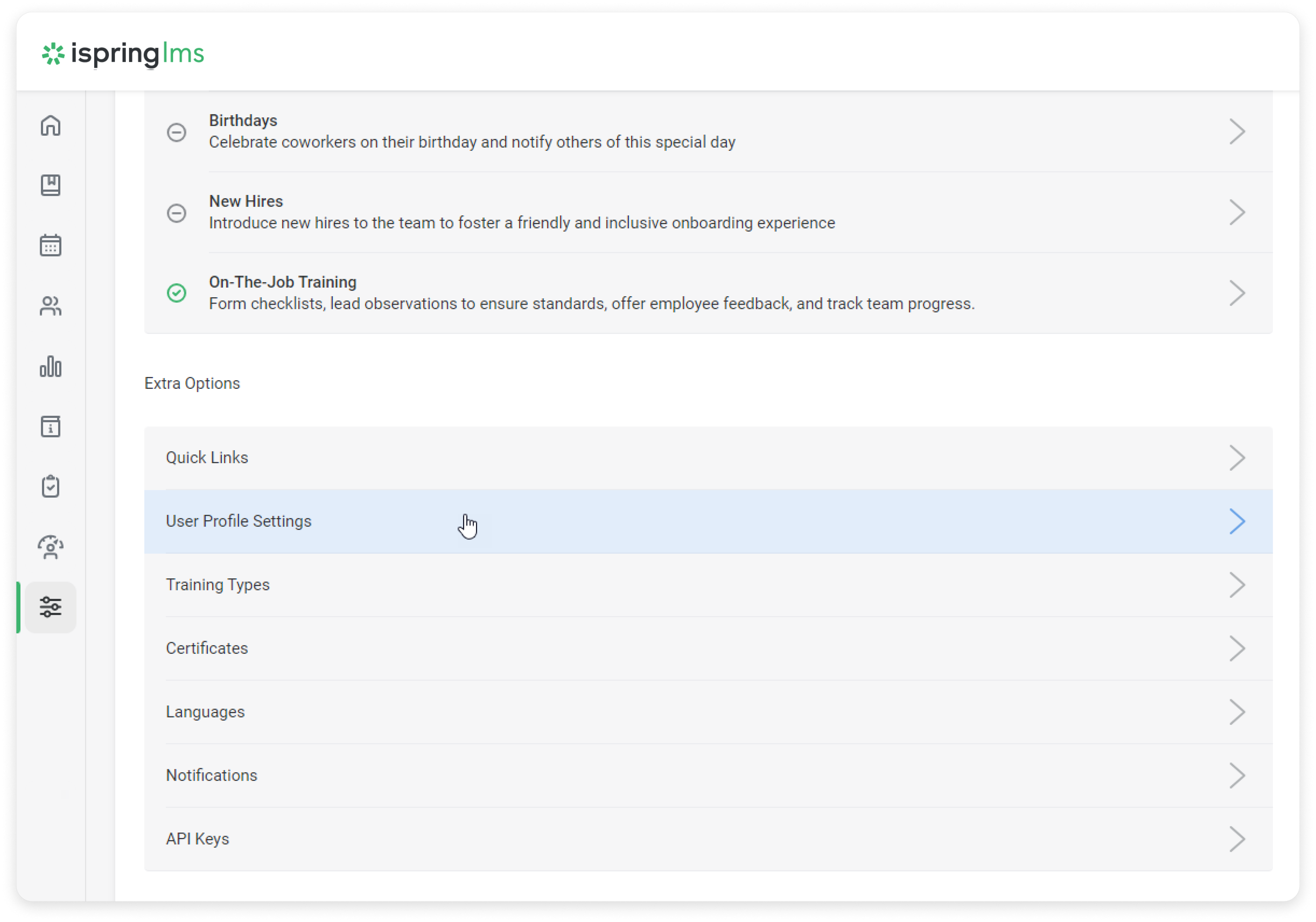
- Go to Settings > Additional Options > Extra Options > User Profile Settings.
- Next, add fields that appear in the user's profile during registration. For example, let's set it up so that new users fill in their first name, last name, phone number, job position, country, and date of birth. Make the First and Last Name fields required.
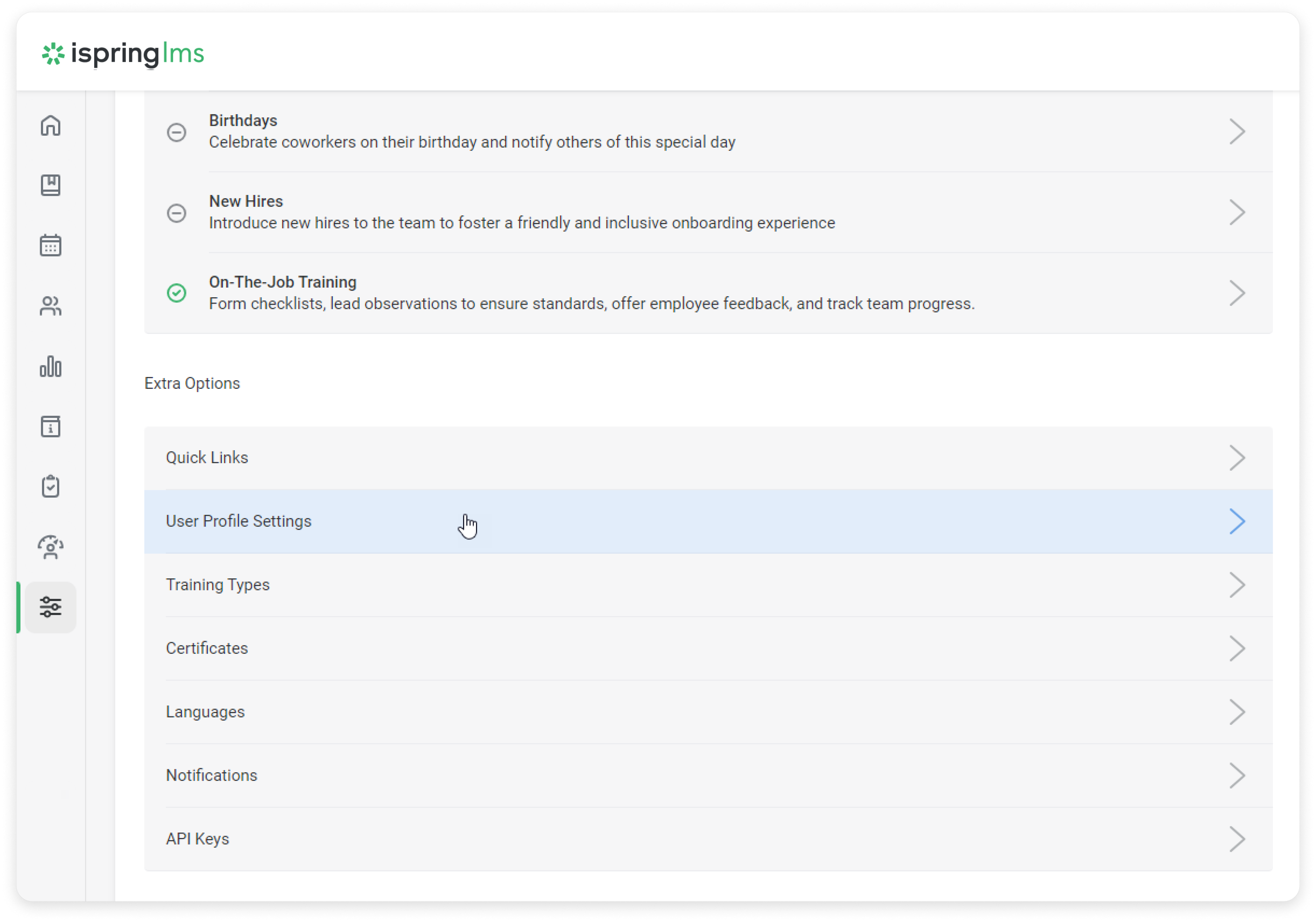
- Then, go to the Users section and click Export/Import > Add users by email.
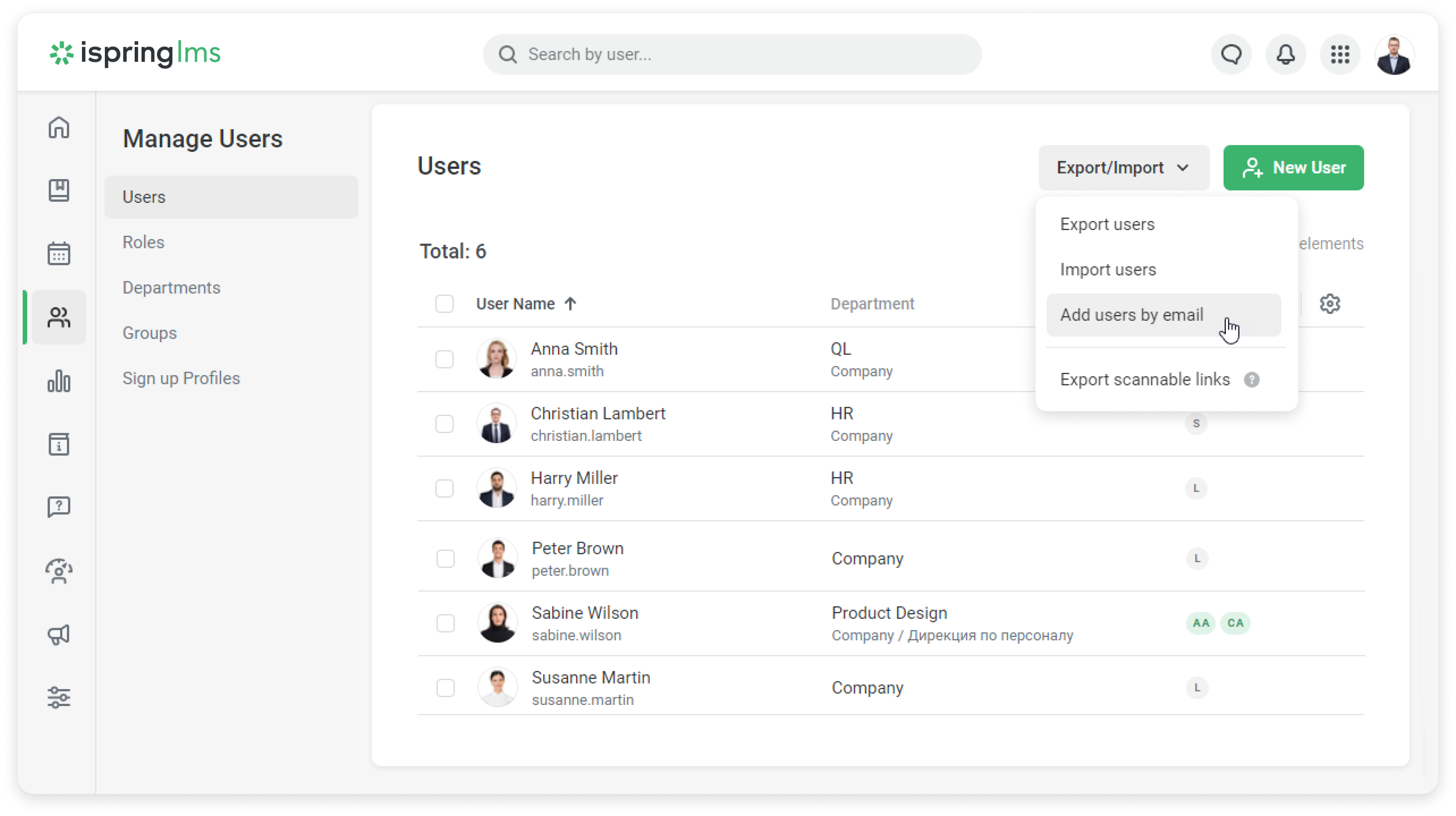
Enter each user’s email address and add their department and group. Here, you can configure the notification that users receive.
To let employees fill out information about themselves, check Allow new users to add their own information to their user profiles and click Add.
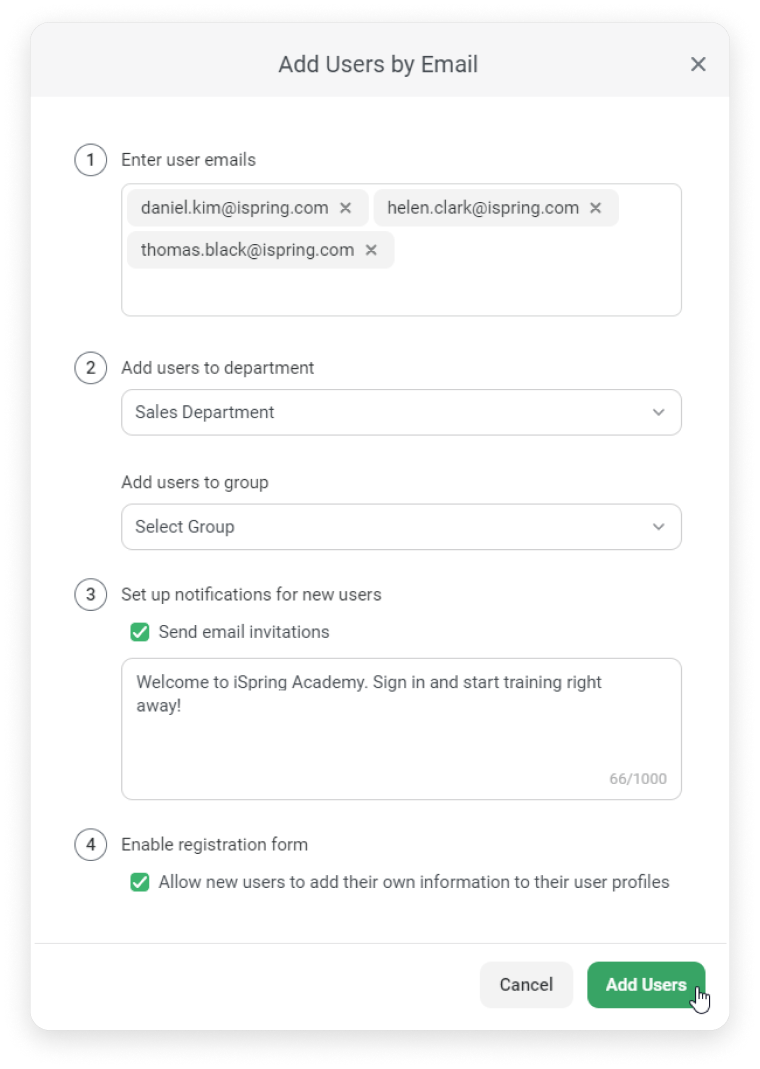
Done! Users will receive a notification by email and will be able to fill out information about themselves.
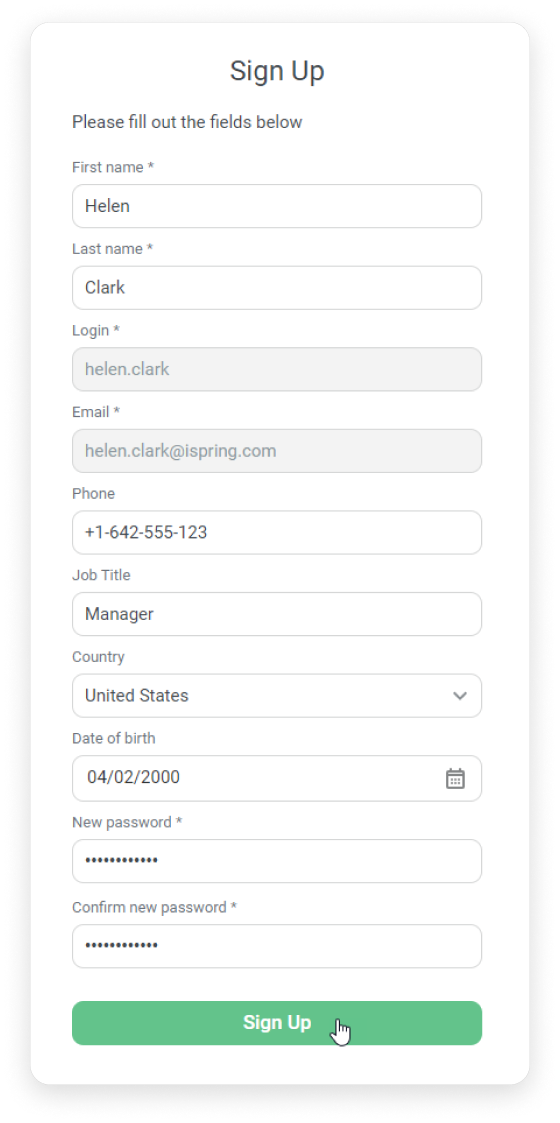
Perfect! The administrator no longer needs to fill out employee information manually.
- You can enter up to 50 emails.
- If you enter the email of an employee who is already in the LMS, they will be added to the specified group but won't change departments.
- The department should be selected.
- If you want users to be assigned to smart groups as soon as they sign in to iSpring LMS, create the smart groups before sending invitation emails.
If courses are assigned automatically by group, specify the user’s group. Otherwise, the user will be added to the system, but no courses will be assigned.
If courses are assigned automatically by department, make sure users are added to the correct department.