If your computer is disconnected from the Internet or online publishing doesn't complete because of an antivirus program or a proxy server error, you can upload the role-play to iSpring Space manually.
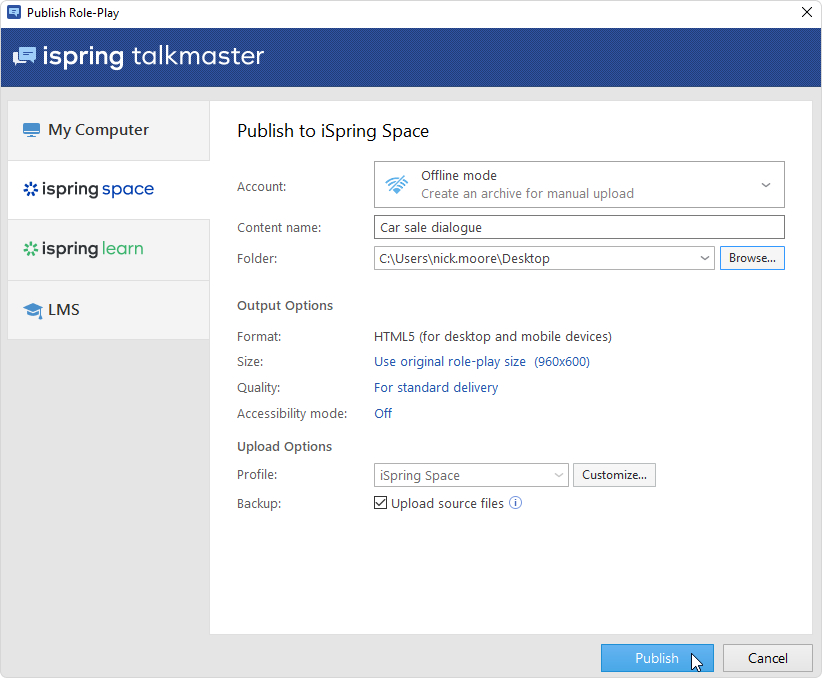
- Go to the Account menu and select Switch to offline mode.
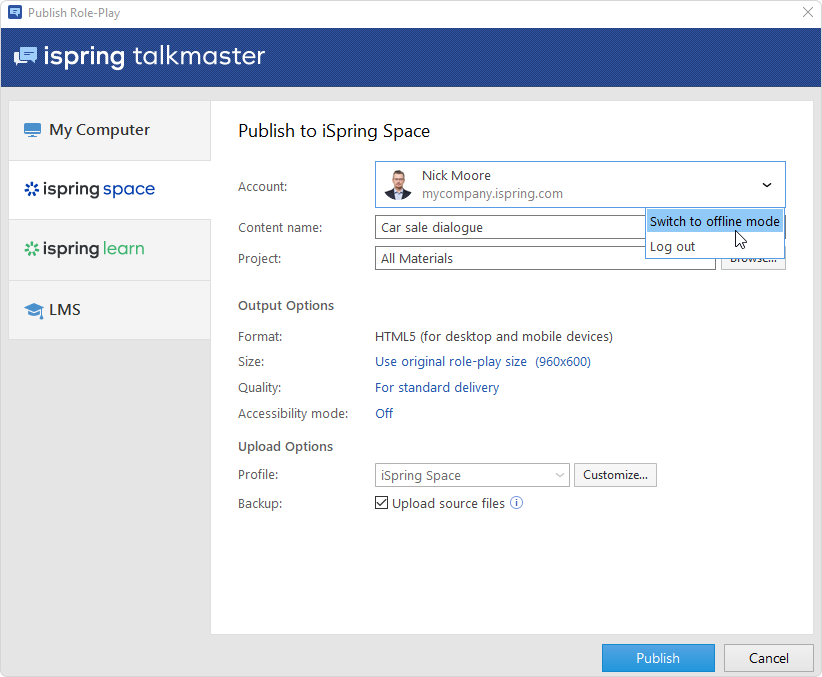
- Enter a title in the Content name field. By default, the title is the same as that of the role-play.
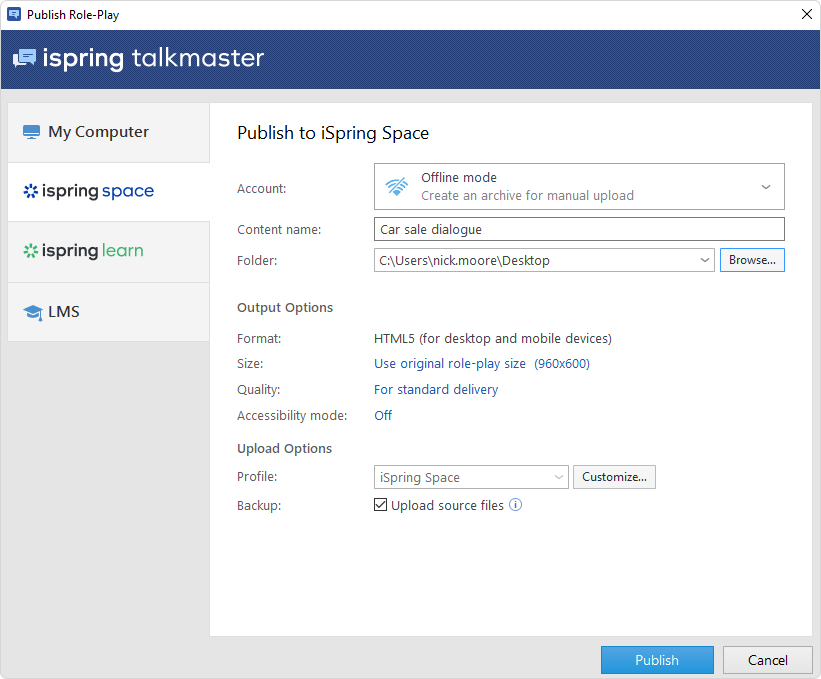
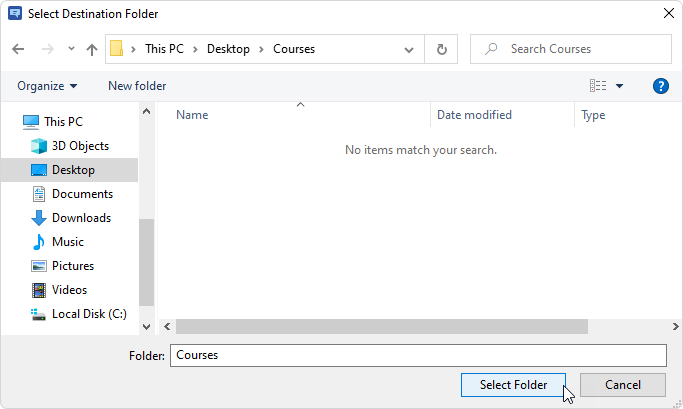
- Specify the local or network folder in which the role-play will be saved in the Folder field. To do this, click the Browse... button on the right.
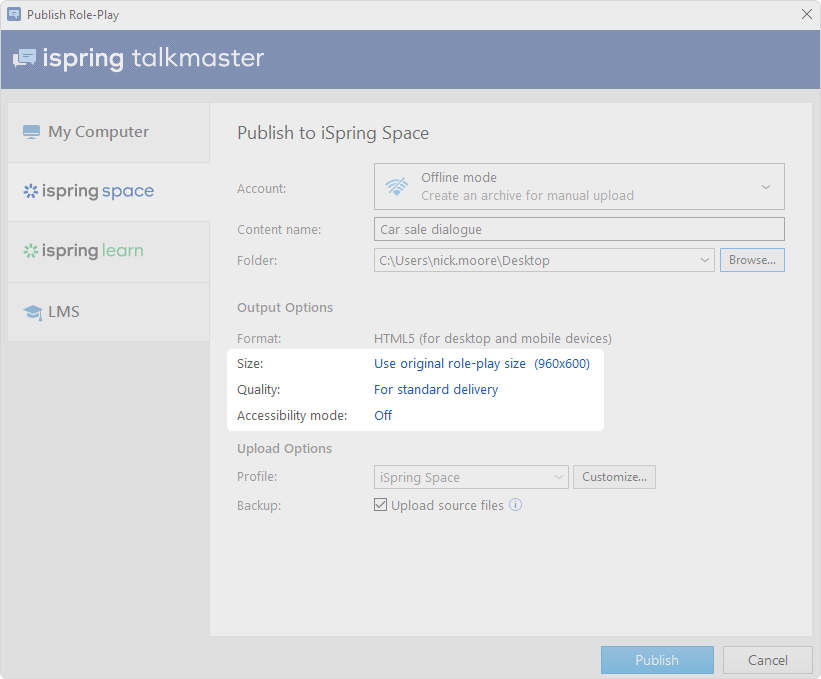
- Then, set up output options:
• Specify how the role-play behaves in a browser
• Select the quality level of images, audio, and video files
• Change Accessibility Mode
- Next, specify the upload options.
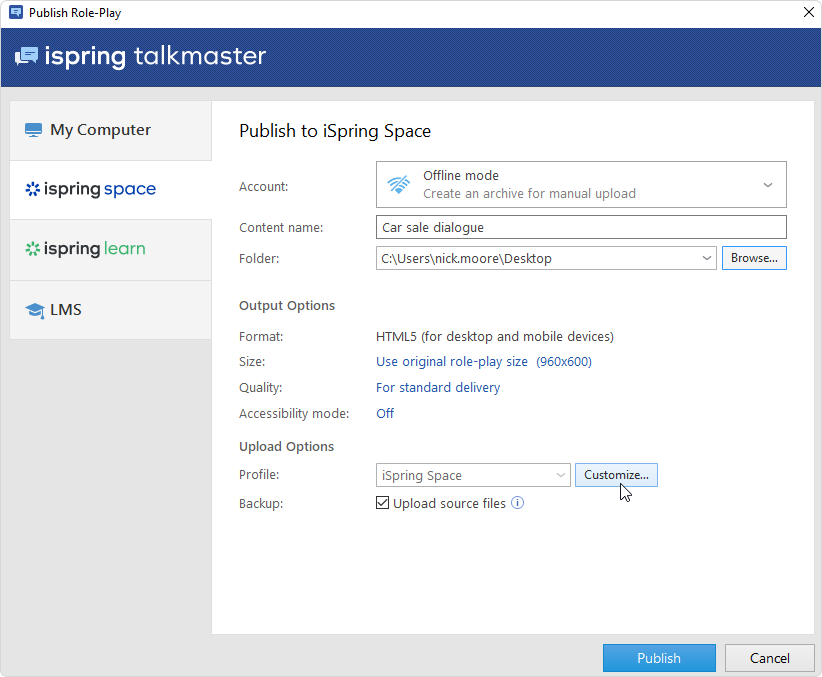
• Click the Customize button next to the Profile menu in which iSpring Space is selected as the default.
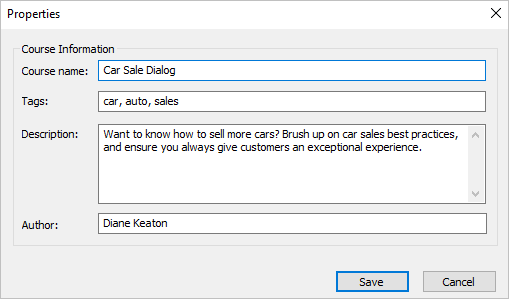
In the opened window, add tags, description, and the role-play author, and set up progress and completion parameters.
• In the Backup field, select Upload source files so that you and your teammates could download source files of the role-play in iSpring Space.
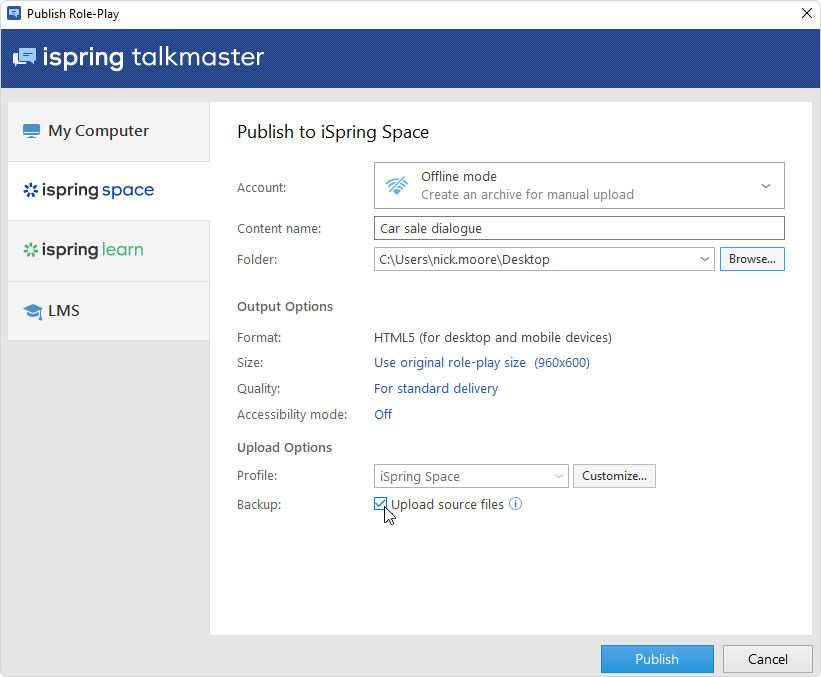
- Click the Publish button.
- After publishing, click the Open Folder button.
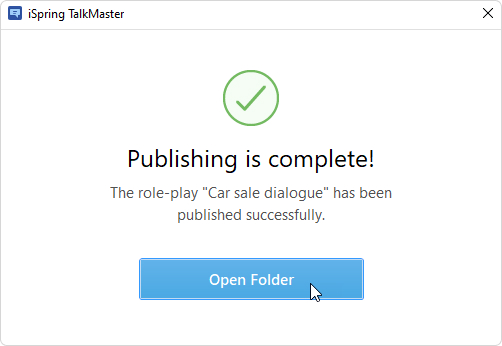
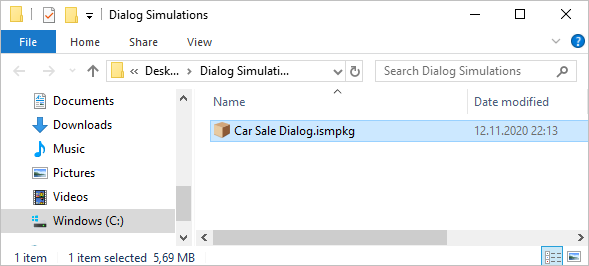
- In the folder, you will see a package that is ready for offline upload.