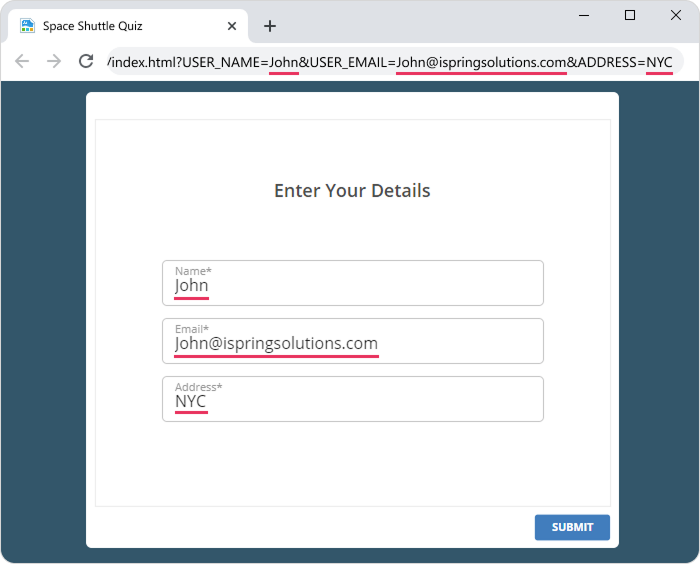
With iSpring QuizMaker, you can collect users' learning results with no need to upload your quizzes to an LMS. Results can be emailed to one or more individuals (instructors and users) and to your server. However, when you host your quizzes on a regular website, the quiz needs to know who is taking it to personalize results. There are two login types for non-LMS websites:

  • Manual. If your website doesn’t have a login procedure, learners can use the built-in quiz login window.
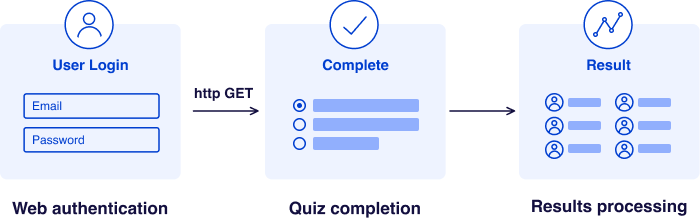
  • Automatic. If your website has a login window, you can automatically pass quiz-taker information from session variables to an iSpring quiz. See the picture below.

You can apply a single sign-on (SSO) feature for all quizzes available on your website.

Single Sign On (SSO)

User information can be passed to the iSpring quiz through an HTTP GET request using URL variables.

Usage:
http://www.mywebsite.com/presentation/index.html?USER_NAME=John&USER_EMAIL=john@ispringsolutions.com&ADDRESS=NYC

It will pass the following parameters to a quiz: 
USER_NAME = John 
USER_EMAIL = john@ispringsolutions.com
ADDRESS = NYC
How to add a User Info form and customize variables 

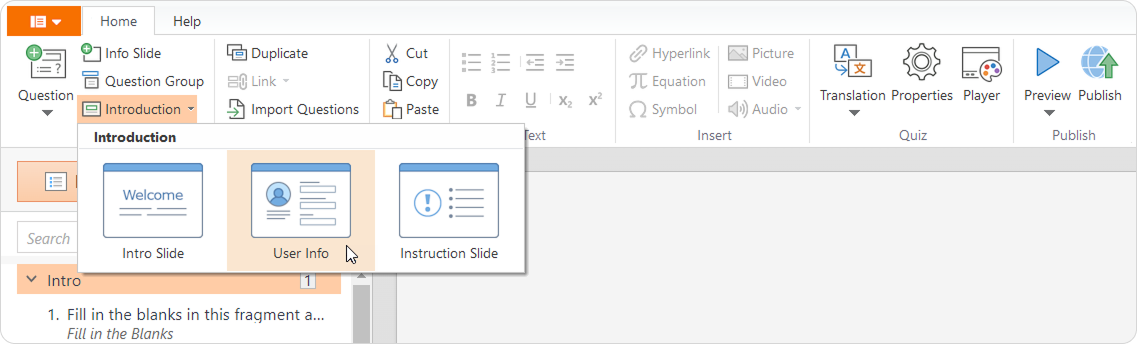
  1. Click on Introduction on the toolbar and add a User Info slide to your quiz.


    The slide with the User Info Form will be added to the list of slides in the Intro Group.

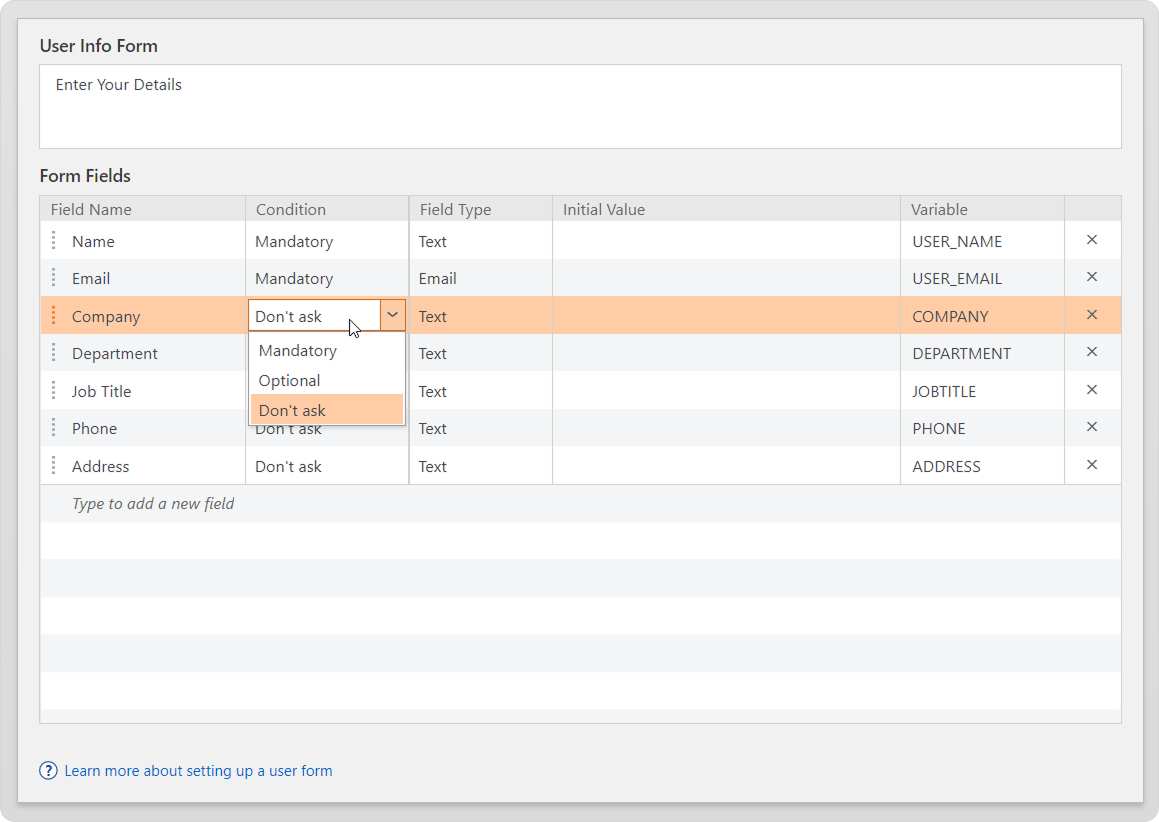
    This slide lets you collect users' information, such as email addresses, before they start the quiz. You can customize the form and choose which fields will be included.


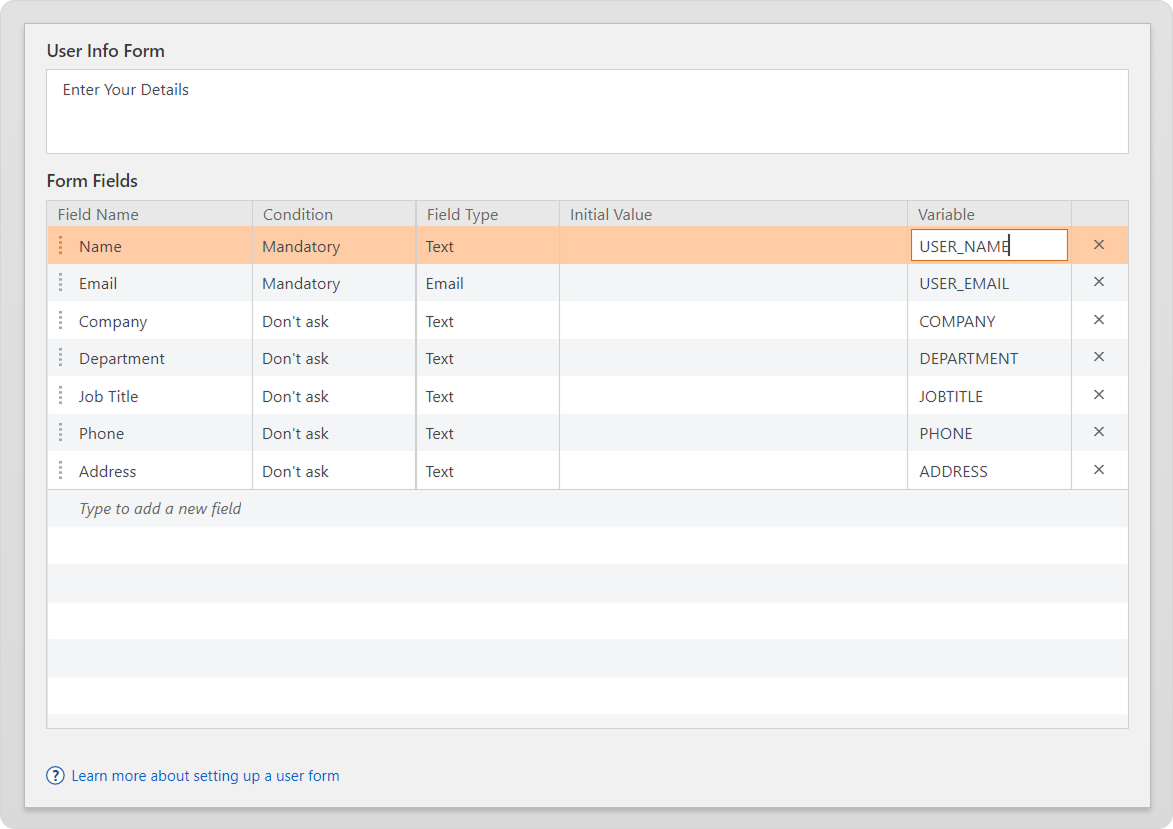
  2. Add or customize existing Variables, and make them mandatory or optional.


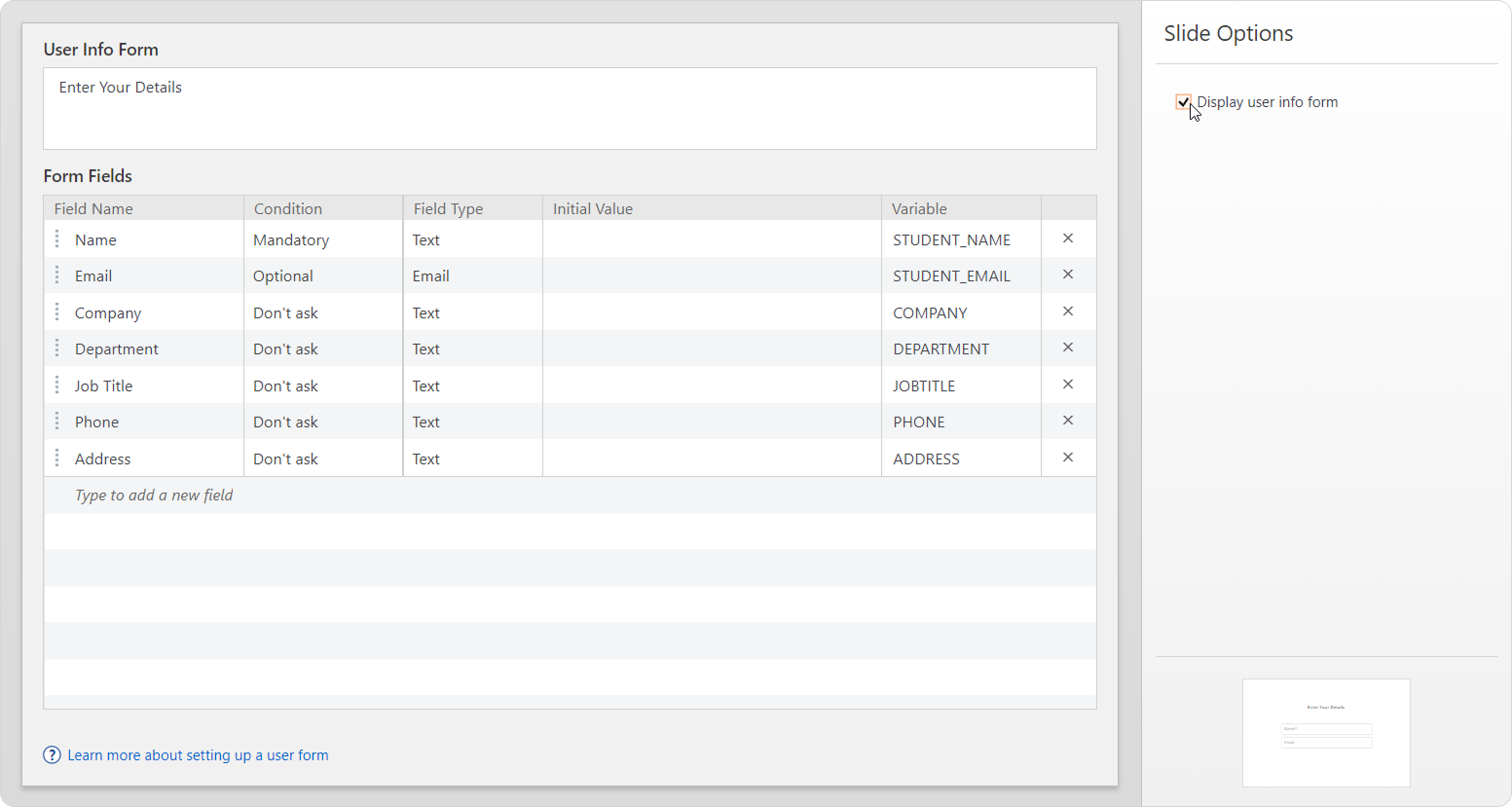
  3. Uncheck the Display user info form box. Although the quiz login window will be hidden, customized user variables can still be used in GET variables.


  4. If you want to let users change their details before taking the quiz, leave the Display user info form box checked. GET variables will be passed to the login form and can be altered by users.


    Done!

    • If you have an iSpring course with quizzes, GET user variables will be automatically passed to each quiz.

    • After that, you can start developing your tracking system using the advanced data interfaces provided by iSpring. If you're looking for an easy-to-use solution, we invite you to iSpring LMS to automate the process completely.