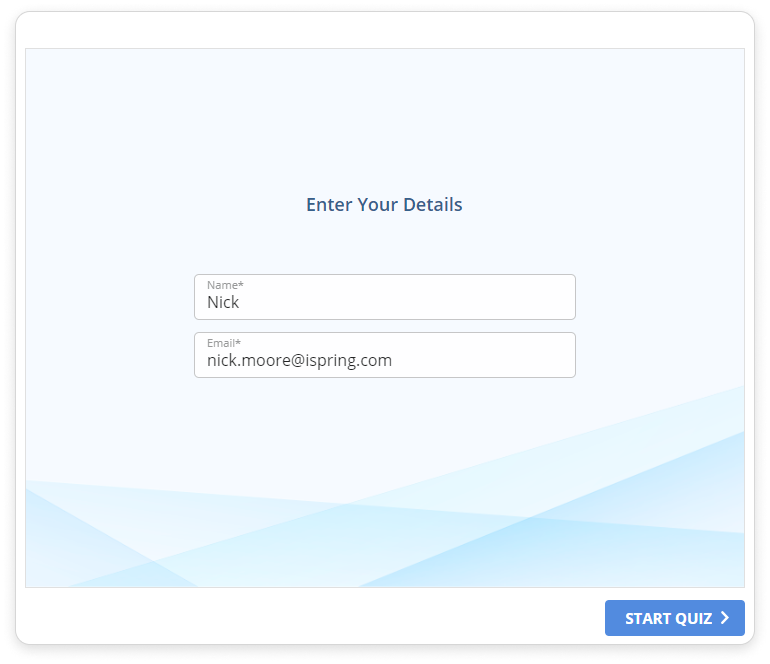
The User Info Form collects information about the user before the quiz begins. Later, this data will be displayed in the email with the results that the instructor and users receive, if results are sent in the Quiz Properties. You can also use this data to make your quizzes personalized. To do this, add variables to your questions.
How to Add a User Info Form
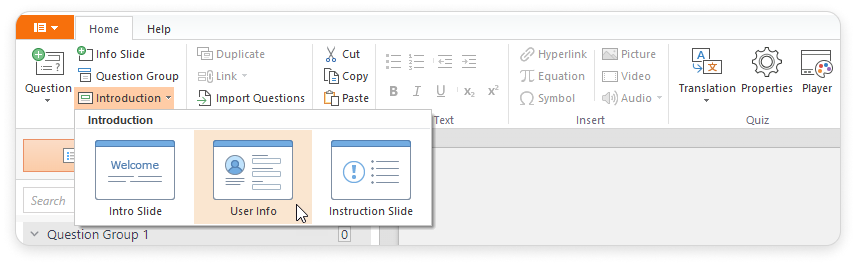
Click Introductionon the toolbar, and select User Info.
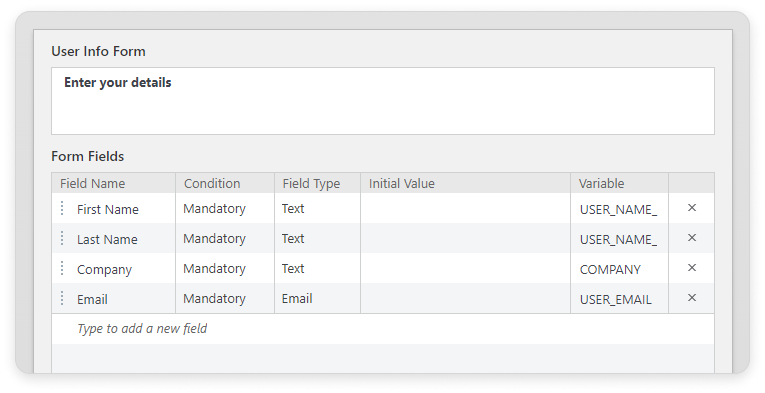
In theUser Info Formfield, you can enter a message that users will see.
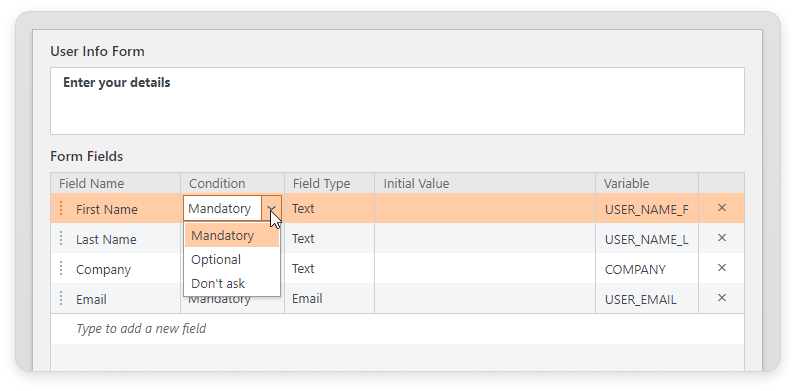
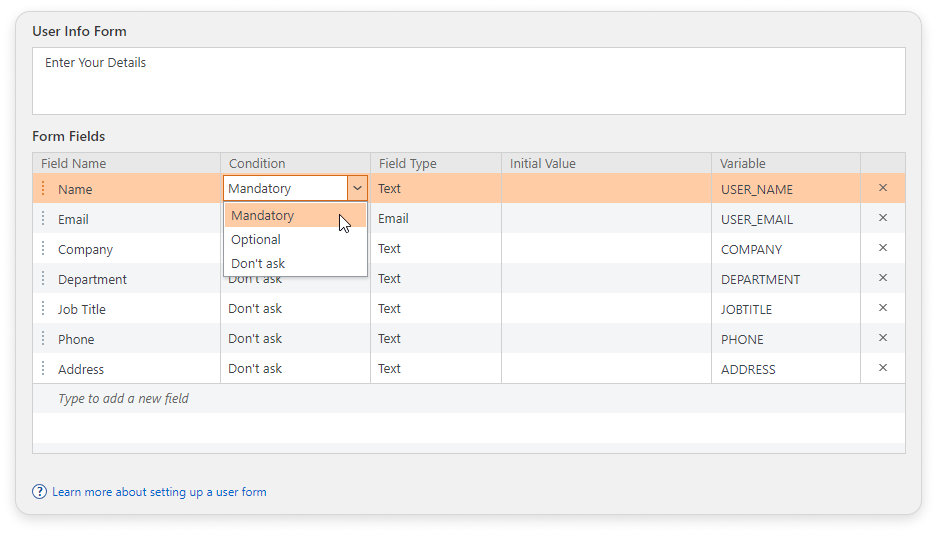
TheForm Fields section contains the fields to be filled in by the users. By default, two fields,NameandEmail, are required. To add a new field, clickType to add a new field. For each field, you must set theConditionfor its response:
Mandatory
Optional
Don't ask
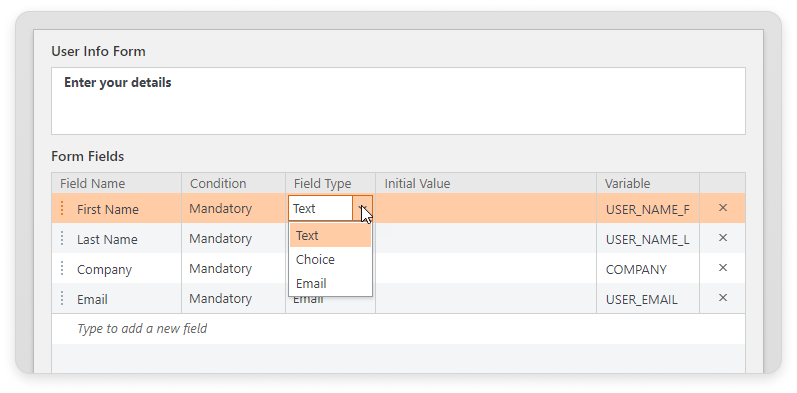
Each field can have an initial value, which will be displayed when the form is opened. You can set it in theInitial Valuecolumn. For each field, you can select theField Type:
Text
This field allows the user to enter any text.
Email
The email entered by the user will be checked for correctness.
Choice
The user can select only one of the suggested options entered by the quiz creator.
Done! You've added a User Info Form at the beginning of the quiz. When users start taking the quiz, they will see the form and fill it in with their data.
How to Use Variables
Each field corresponds with a certain variable. The variable name can’t be empty and should contain only Latin letters, numbers, and underscores.
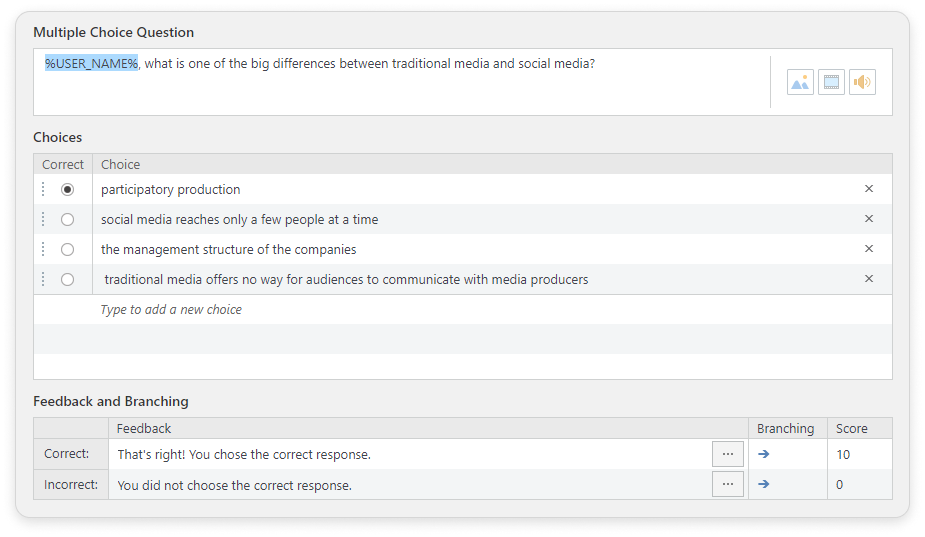
The info the user enters before the start of the quiz will be saved in the corresponding variables. You can use these variables both in the questions and in the report. For example, to use the user name in questions:
Select Mandatory in the Condition column.
Enter the variable name with percent sign both before and after the variable name (%USER_NAME%).
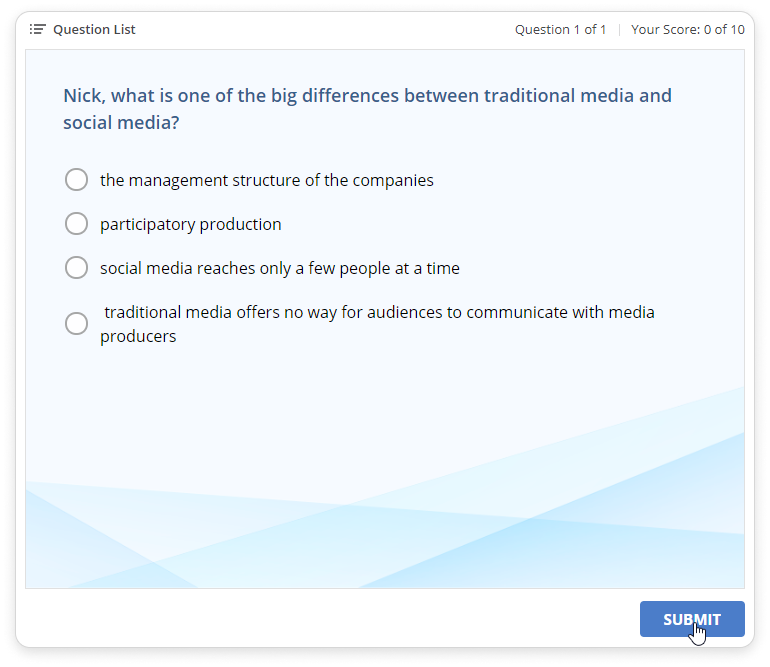
iSpring QuizMaker will replace %USER_NAME% with the name that was entered by the user. The user's name will auto-populate in the question.
You can use the other variables in the same way or add your own ones. This not only helps you get your users' personal data, but it also makes your courses appear personalized.
The data from the User Info Formfields are not transferred to the iSpring Learn LMS.