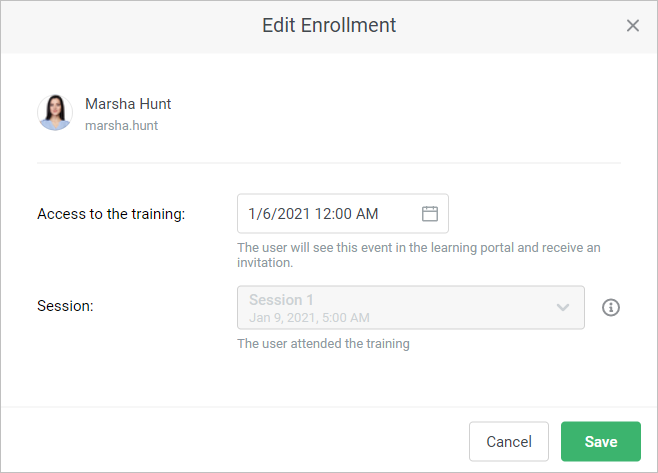
Proceed to edit a training enrollment to change the access date or choose another session.
This can be done in one of two ways:
On the Edit Training Page
Locate the desired training on the calendar and click Go to training.
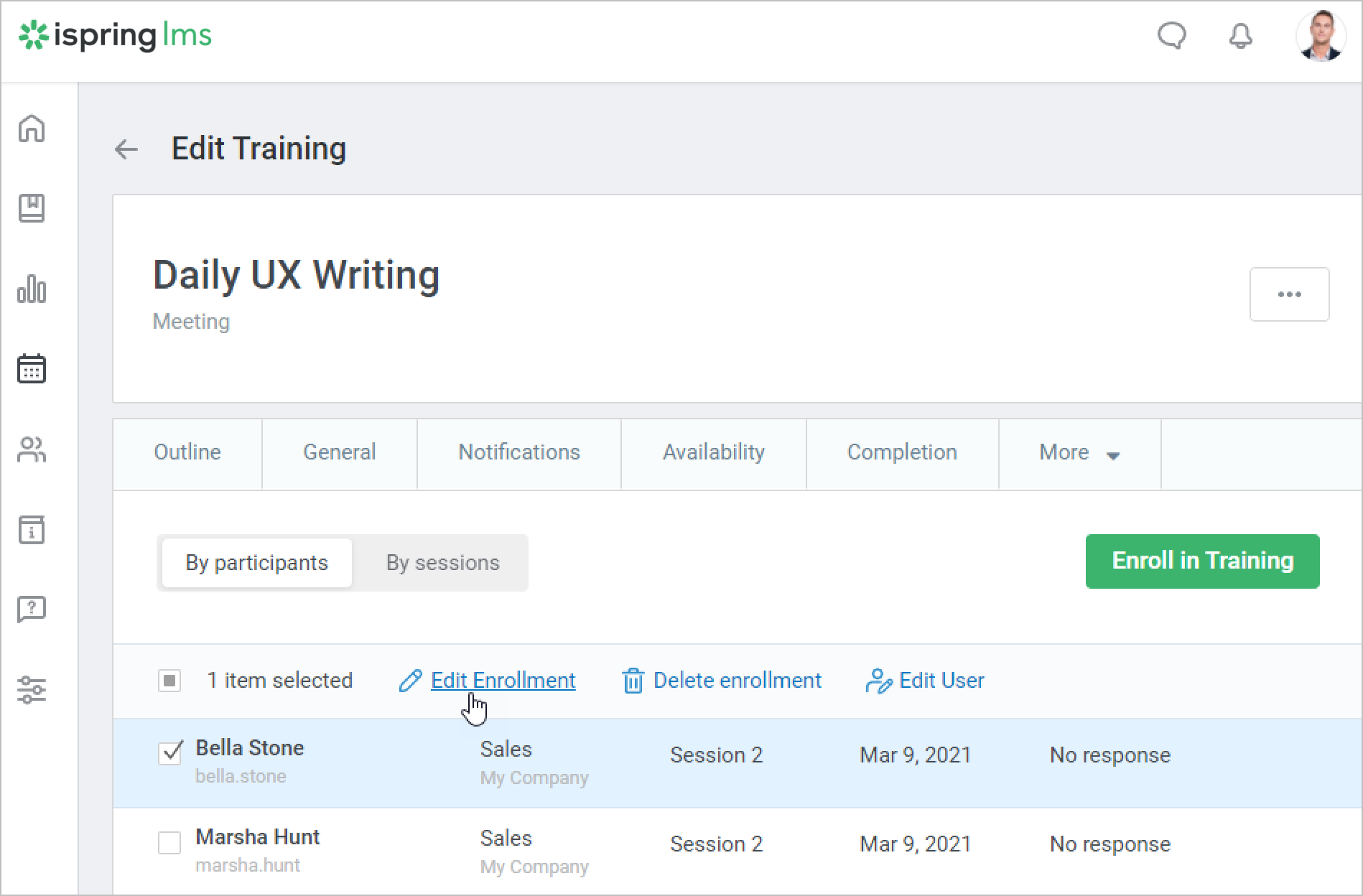
Open the Participants tab on the Edit Training page. Here you will see all users who are enrolled in the training.
Select one or more users for whom you would like to change enrollment parameters and click on the Edit Enrollment link in the menu at the top.
On the Edit User Page
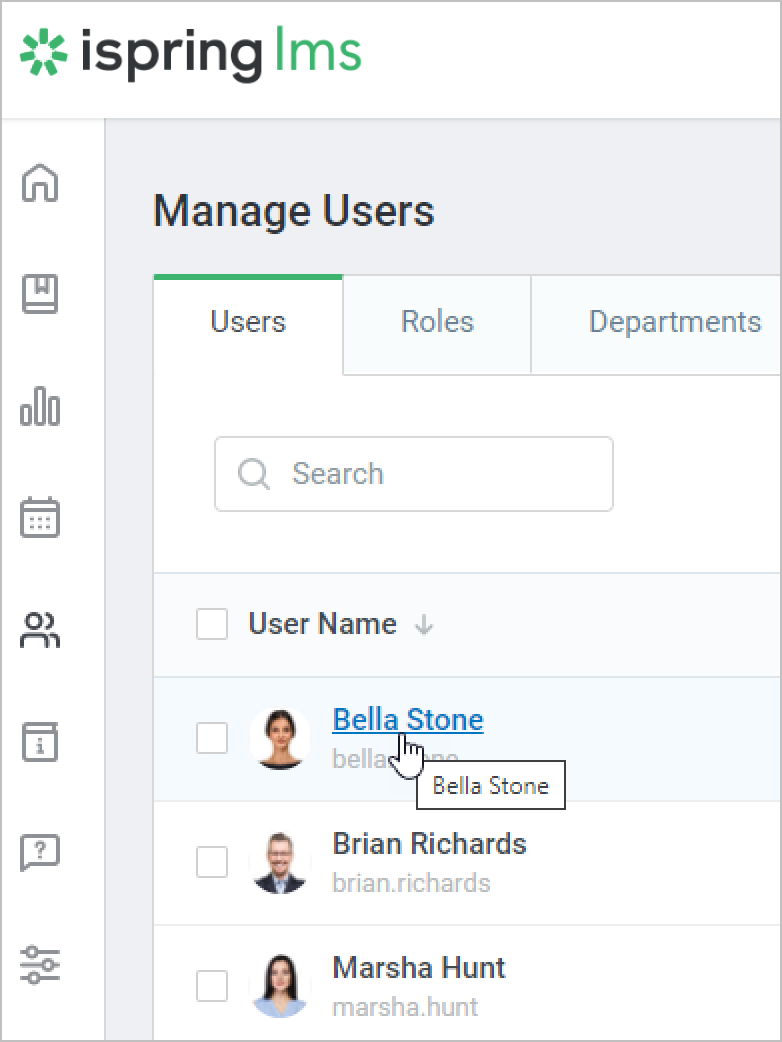
Go to the Users section and click on the user's name.
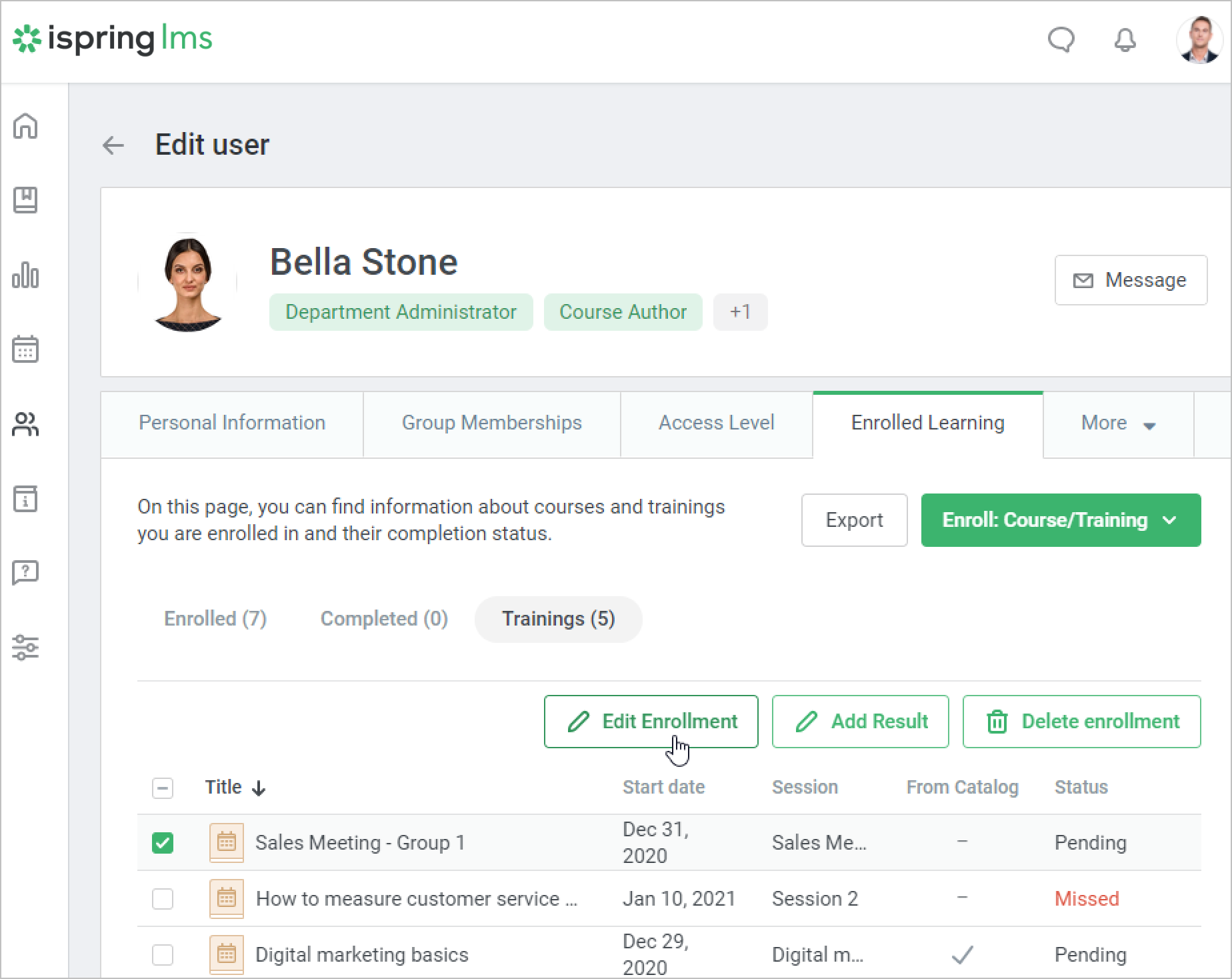
- On the Edit user page, open the Enrolled Learning tab and go to the Trainings section.
- Next, select a training and click Edit Enrollment.
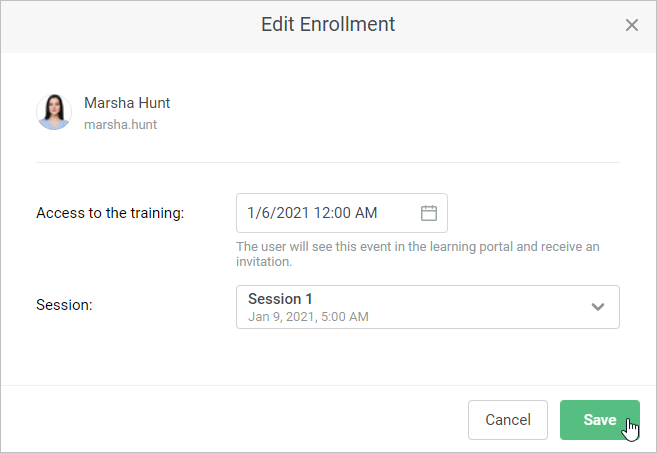
- In the Edit Enrollment window, change the access date and/or select another session. Next, click Save.
Note:
- If you added a user's result and they received points or a certificate, you won't be able to enroll them in another session.