Change the font size and style in role-plays to make them clearer and easier for learners to read. For example, you can make character sentences larger or underline important words to draw attention to them.

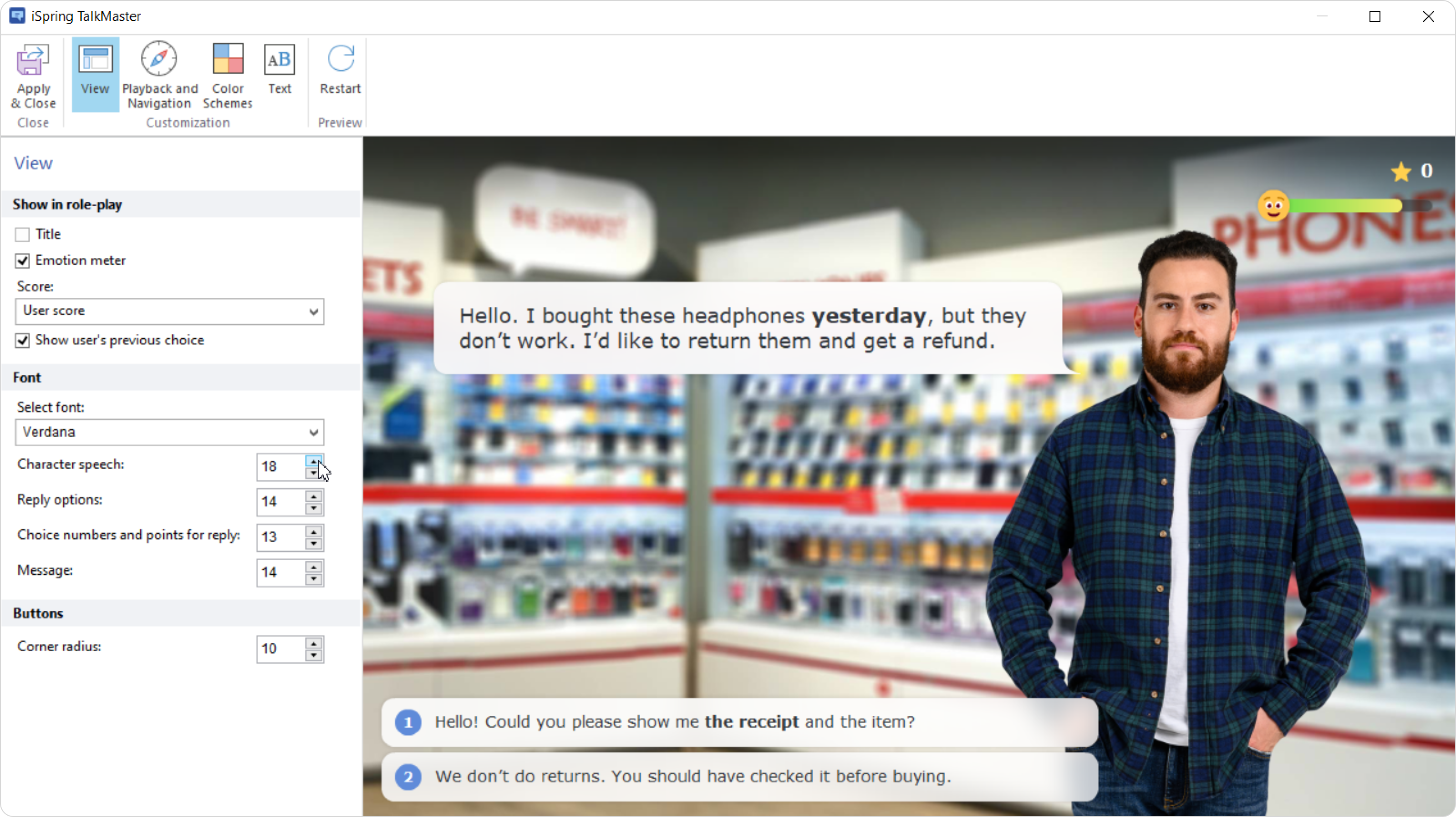
You can adjust the font size for the following elements:
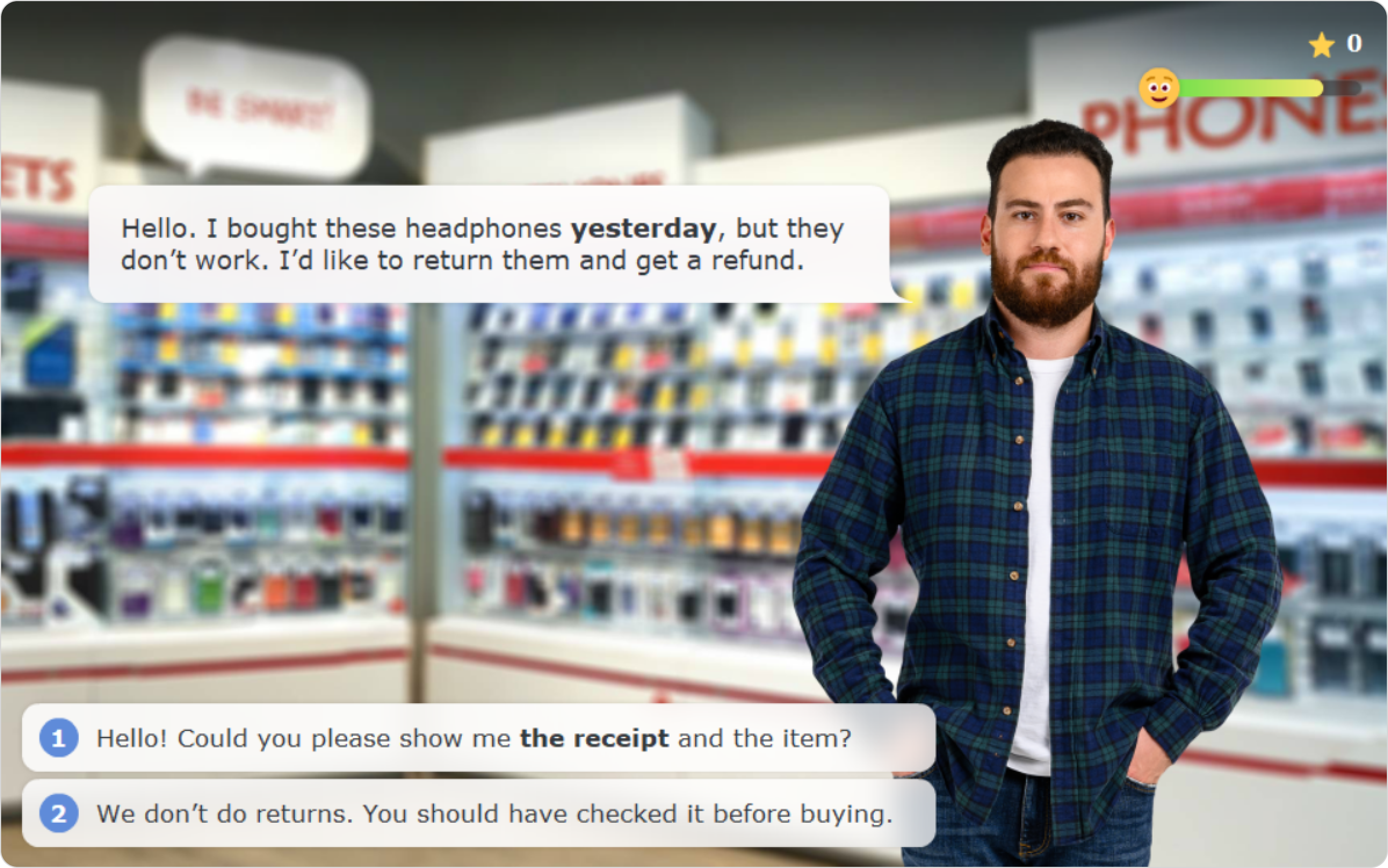
  • Character speech
  • Reply options
  • Choice numbers and points for a reply
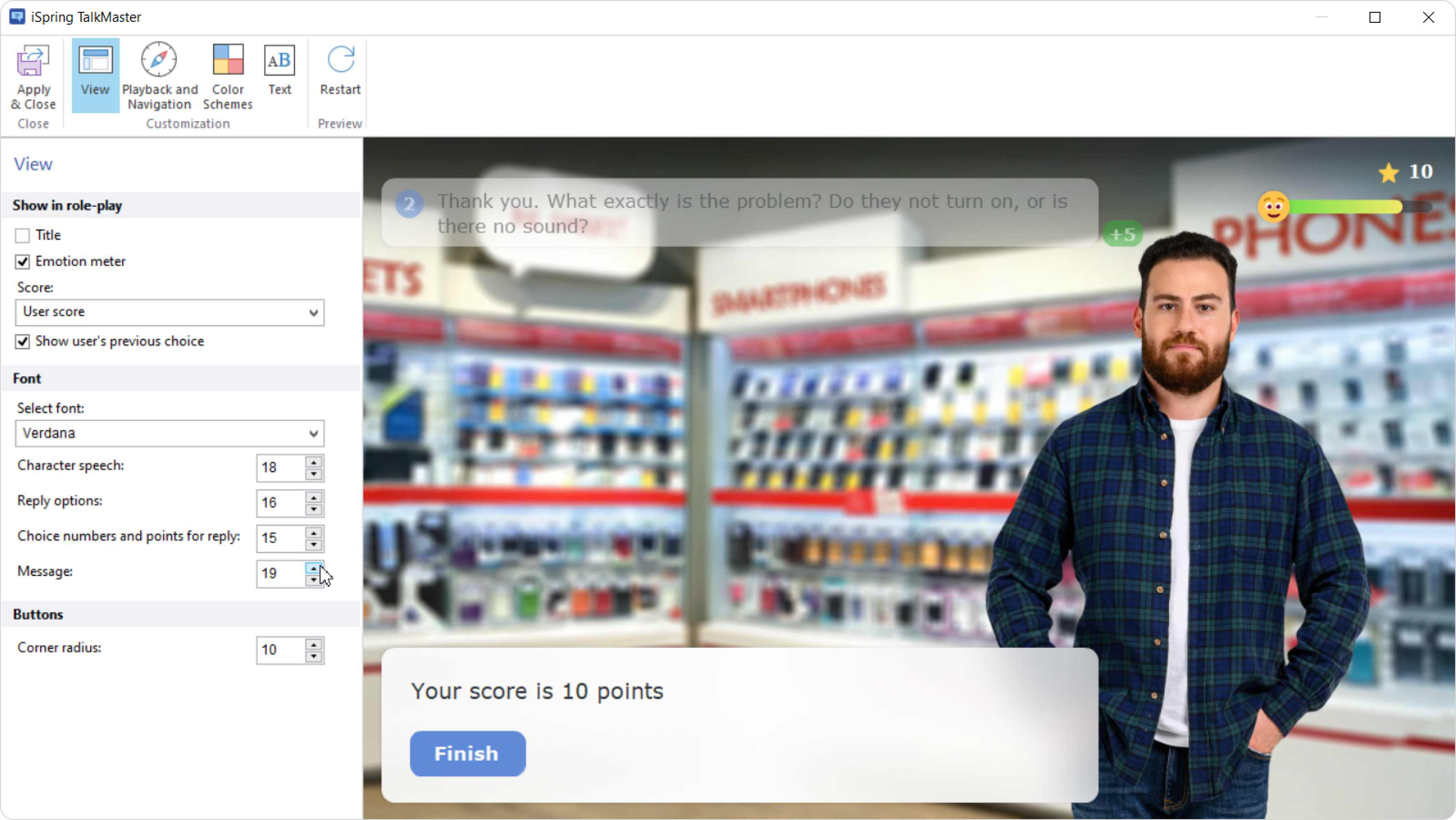
  • Final score message

Text styles are included in the Quizzes, Surveys, and Role-plays report to see how these design elements can affect outcomes.

How to change the text style

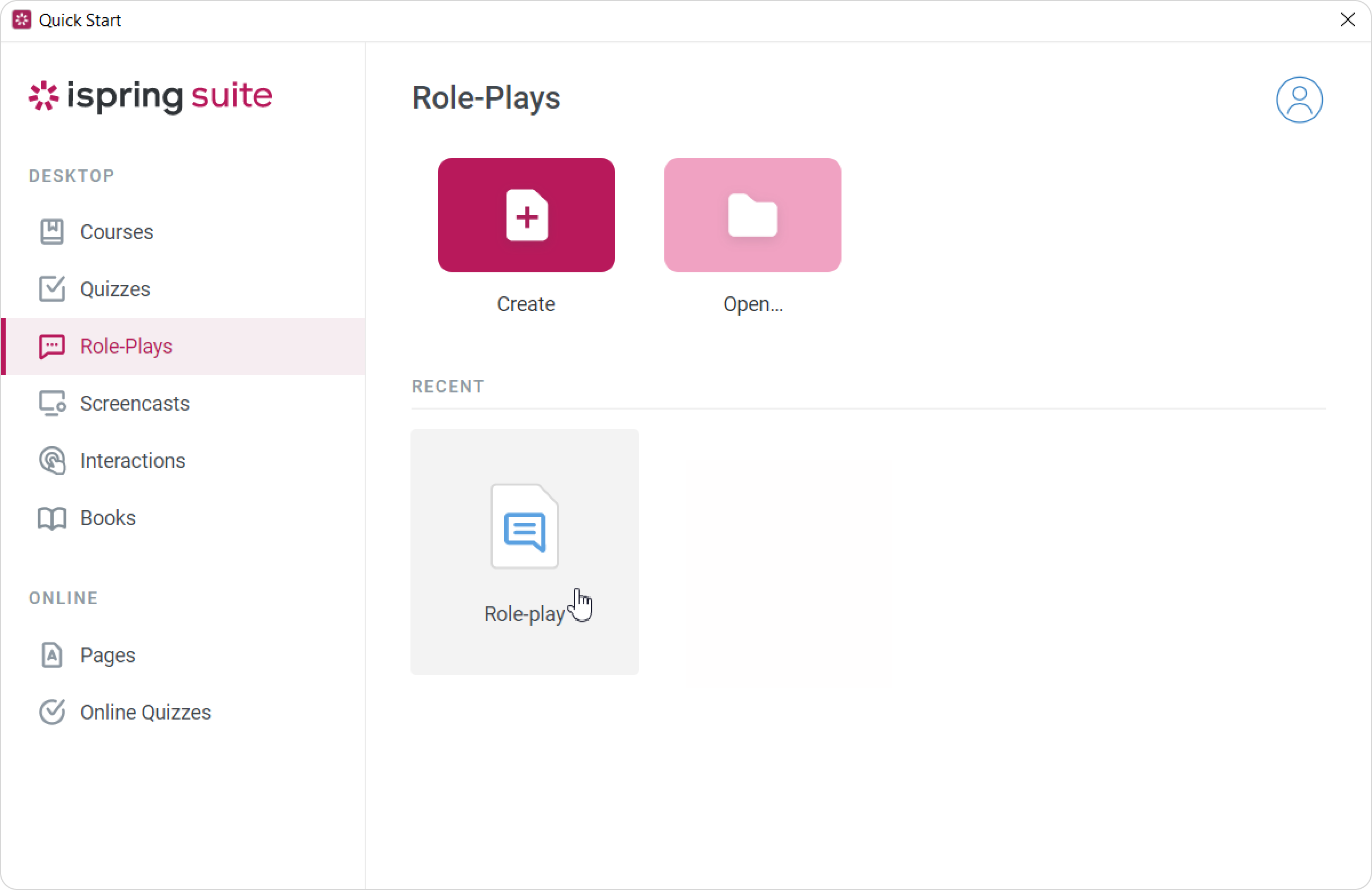
  1. Create or open a role-play.


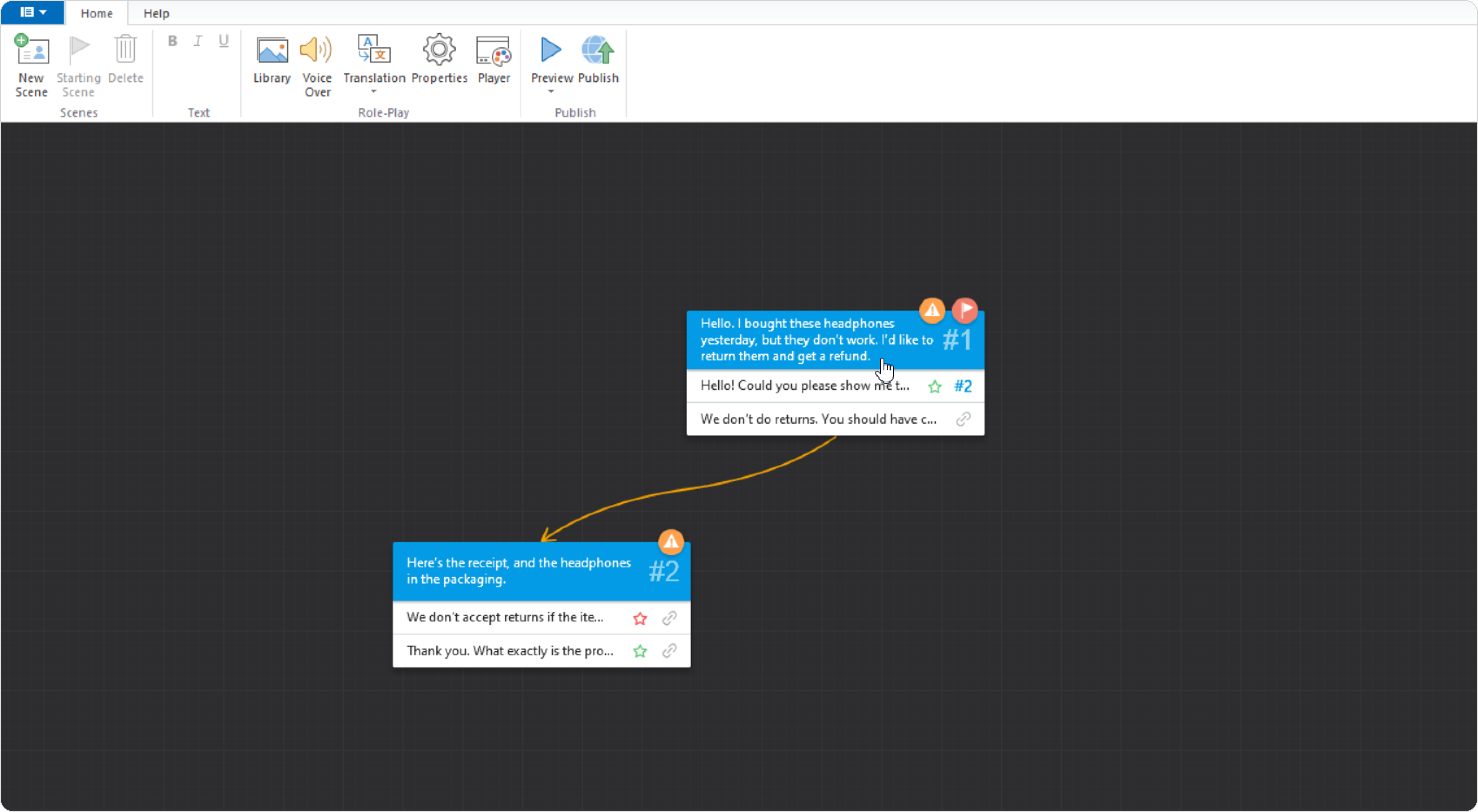
  2. Select the scene you want to edit.


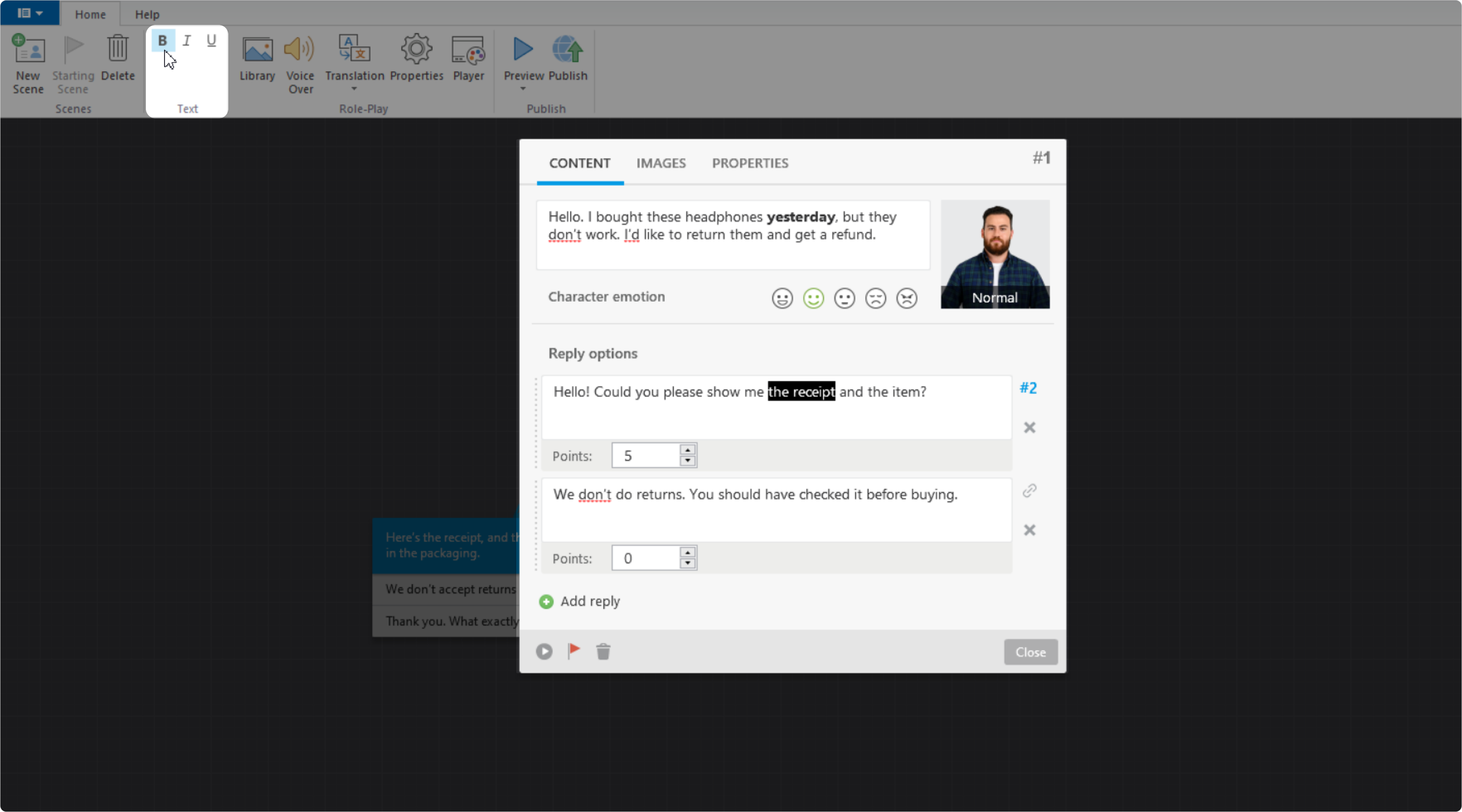
  3. Highlight a word or phrase to apply bold, italic, or underline formatting. Then, choose the style from the Text tab.


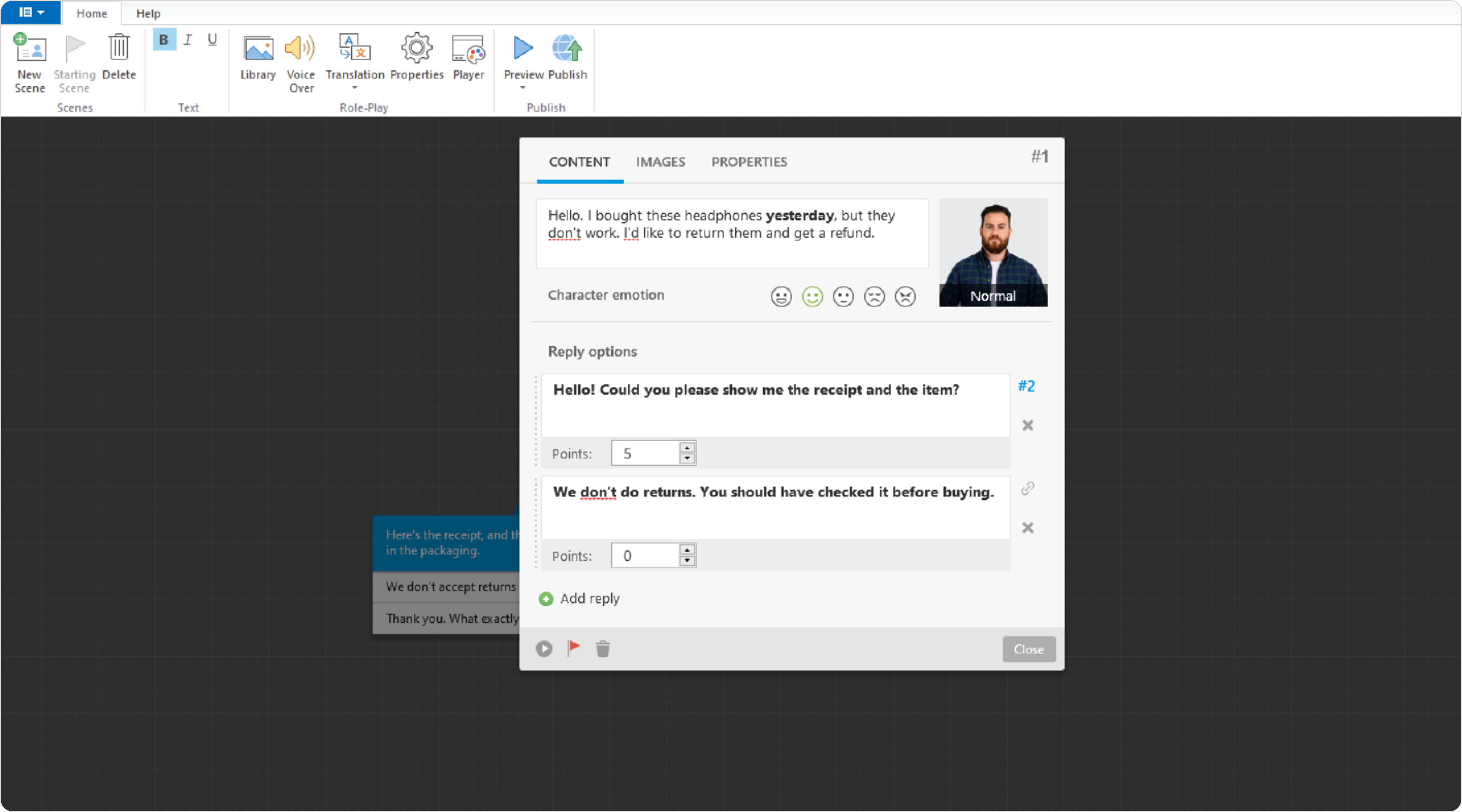
    You can apply styles to entire sentences if desired.


  4. Click on Close when you're done. To preview what the role-play will look like to learners, click on Preview.

How to change the font size in a role-play

  1. Create or open a role play.

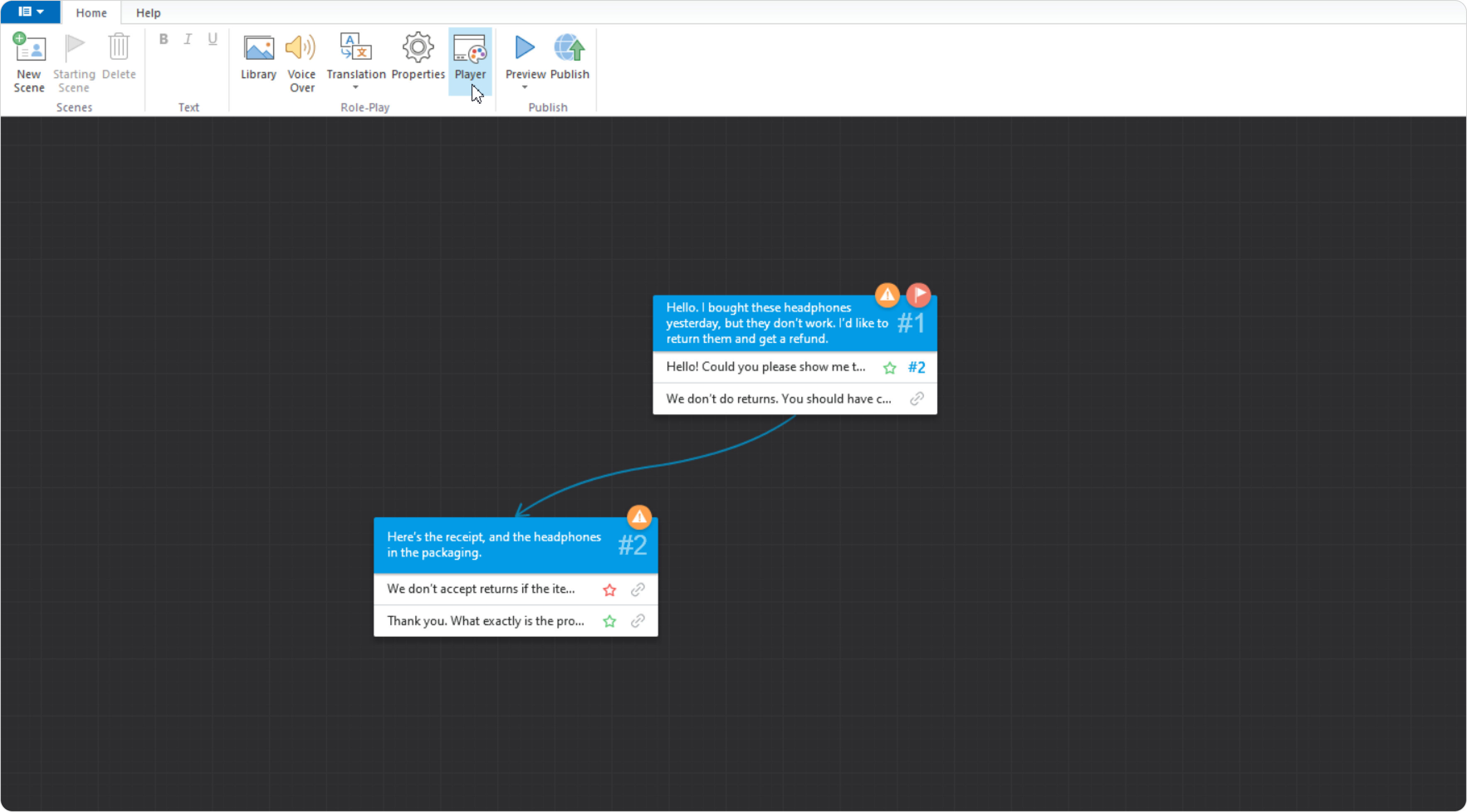
  2. Go to Player > View.


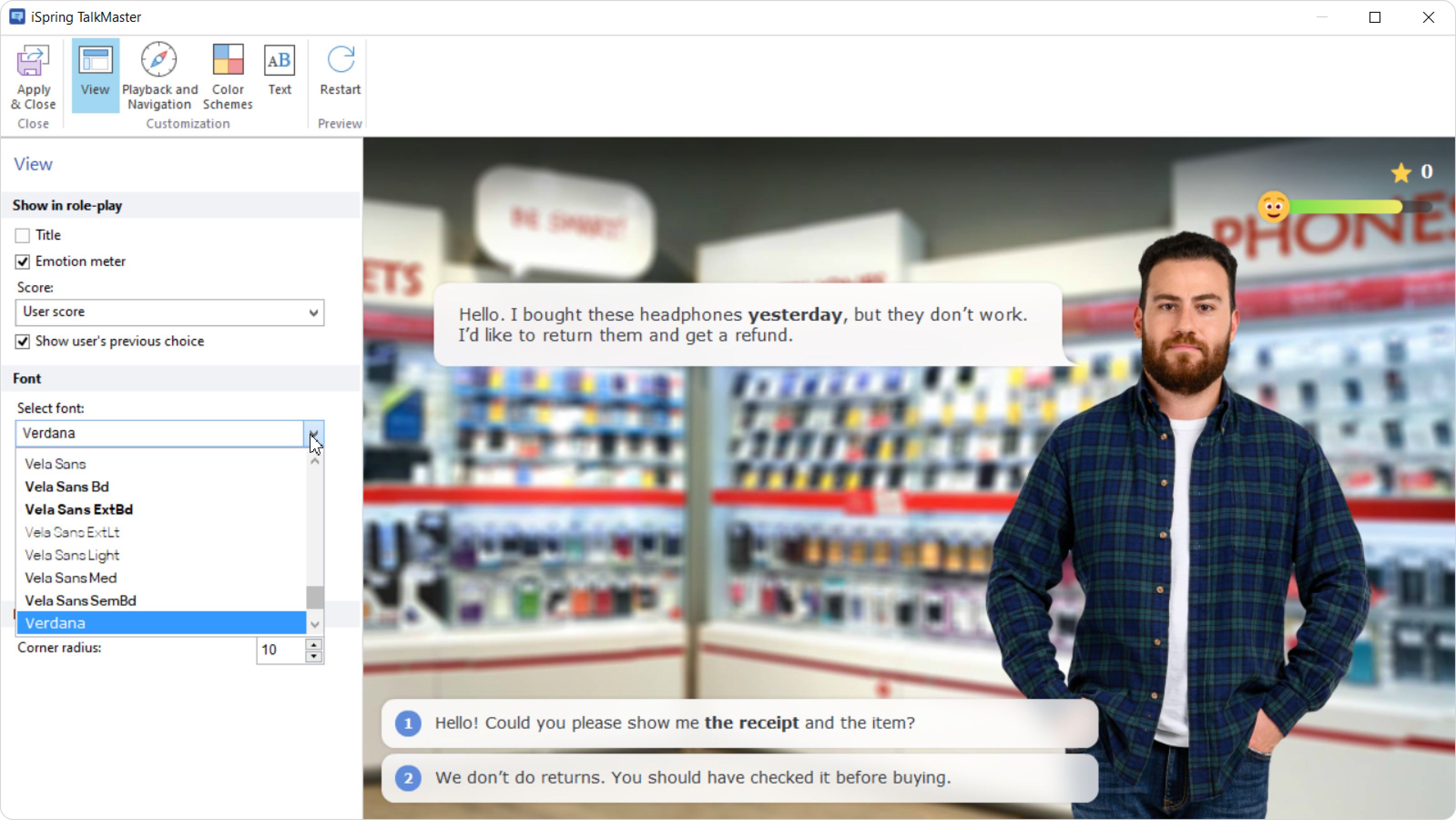
  3. Select a font.


  4. Use the and arrows to change the size. Your changes will appear on the screen immediately.


  5. Finish the role-play to display the results screen and adjust the font size in the final message.


    That’s it! Your role plays are now clearer and easier to read.