When you open the Narration Editor, the timeline will be scaled so that all slides fit it without scrolling. When you edit the timeline, you may need to zoom to a specific part of the presentation.
To scale a timeline:
- Mouse over the timeline.
- Scroll the mouse wheel to change the timeline scale.
or
Click on Plus or Minus in the bottom right corner to adjust the scale.
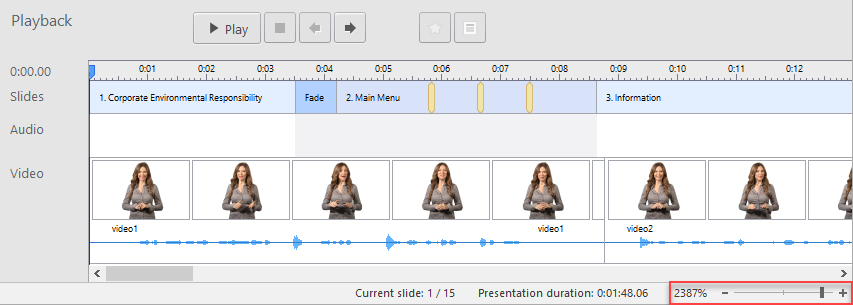
Zoom Options
There is also a quick way to scale the timeline to maximize a selected slide and to zoom out to show the entire presentation.
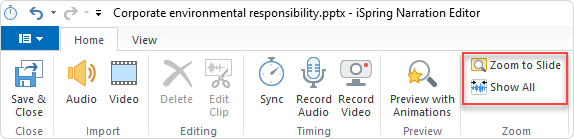
To zoom in to a selected slide:
- Select the slide that you want to zoom into.
- Click the Zoom to Slide button.
To zoom out to show the entire presentation:
- Click the Show all button.