Once your course structure is ready, customize the course design. Choose colors and fonts, and preview the result. You can also select the language AI will use to generate the course draft.
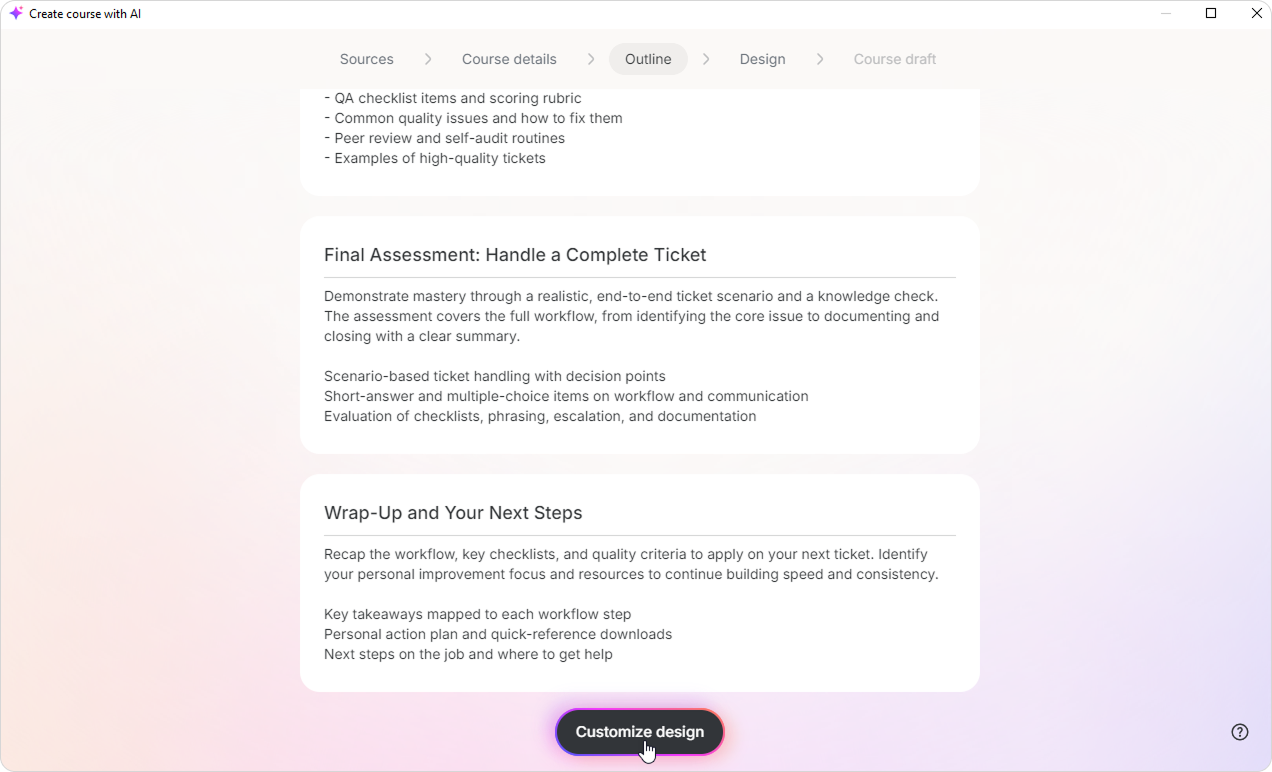
When the course structure is ready, click Customize design.
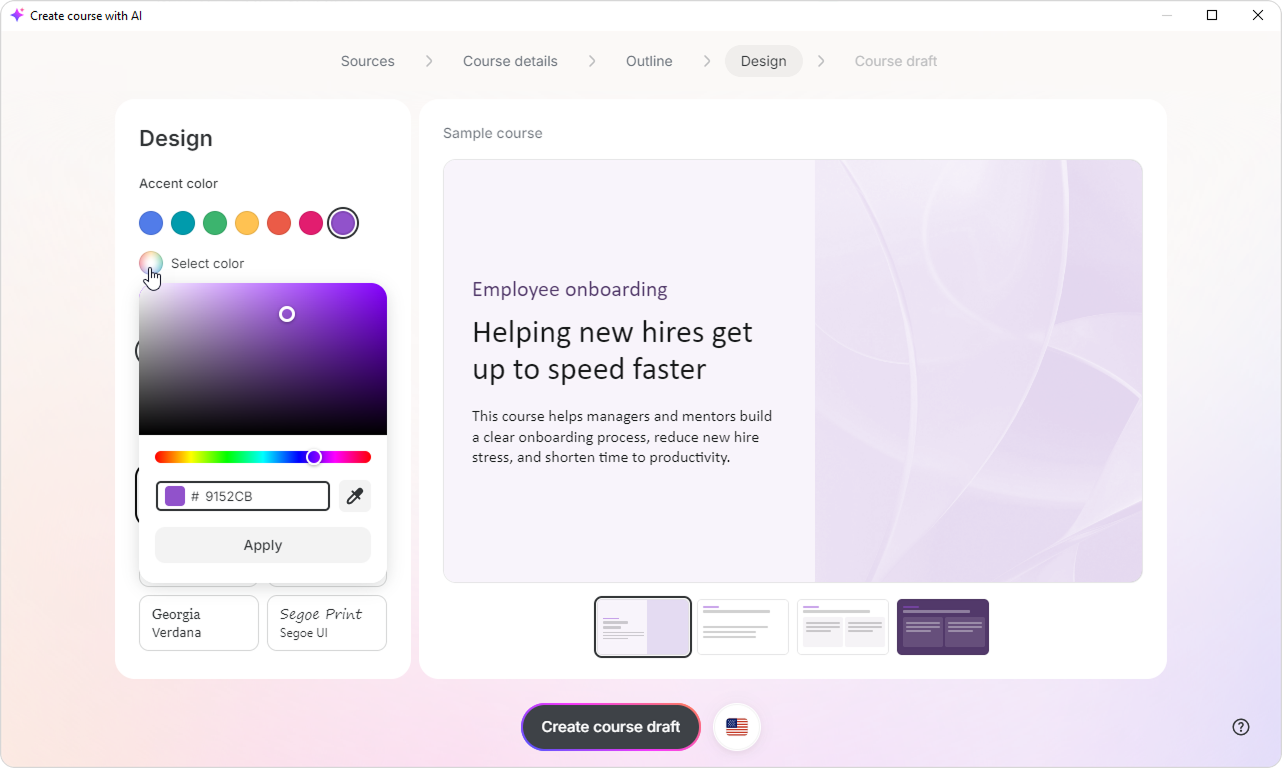
Under Accent color, choose one of the options.
To use a custom color, click Select color and pick the color you want.
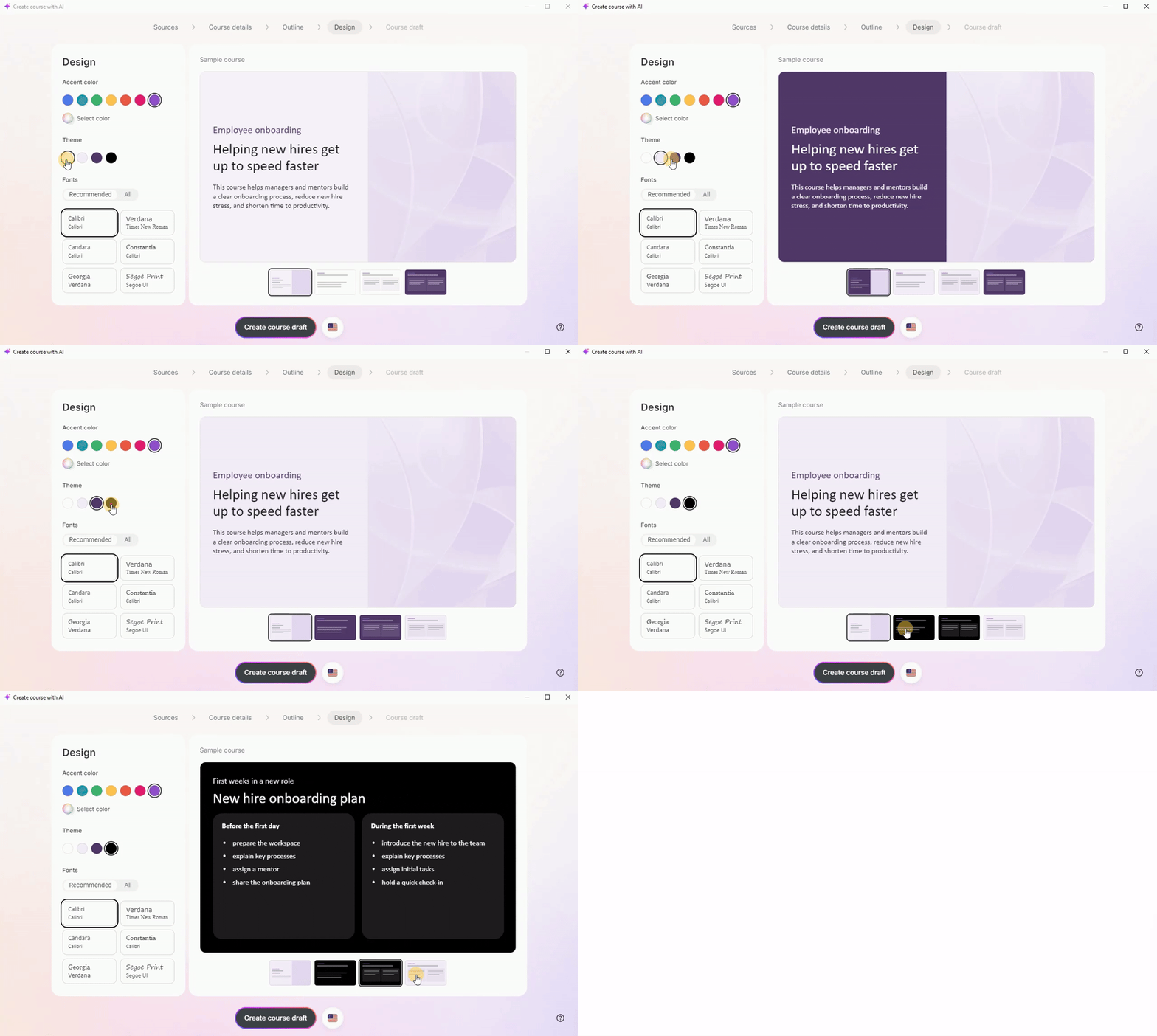
Select one of the four themes. The theme is applied to the slides and affects how light and dark layouts are used in the course.
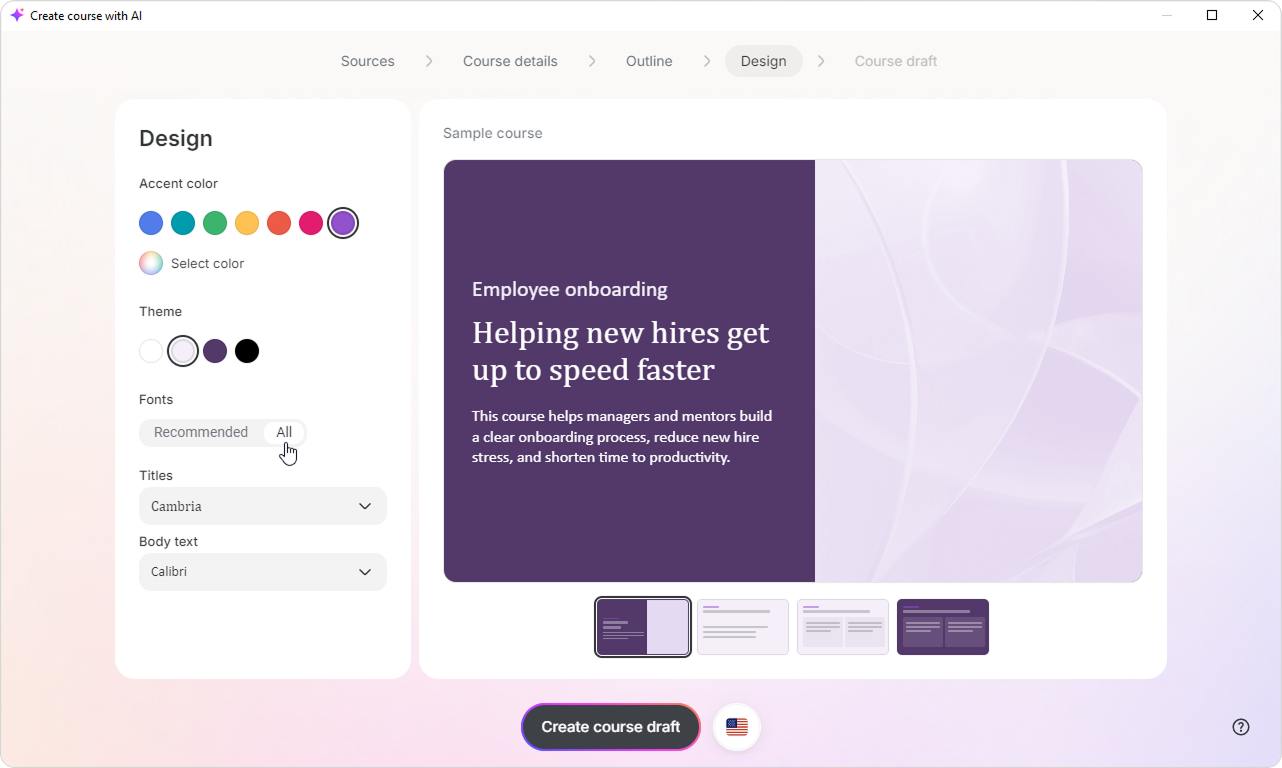
Under Fonts, choose a font combination for titles and body text.
The Recommended tab includes ready-made font combinations. To choose the fonts separately, switch to the All tab.
To create the course in another language, click on the flag at the bottom of the screen. AI will generate the draft in that language. The text in the preview will remain unchanged.
Once the design is ready, click Create course draft.
AI will generate the slides using the selected design.
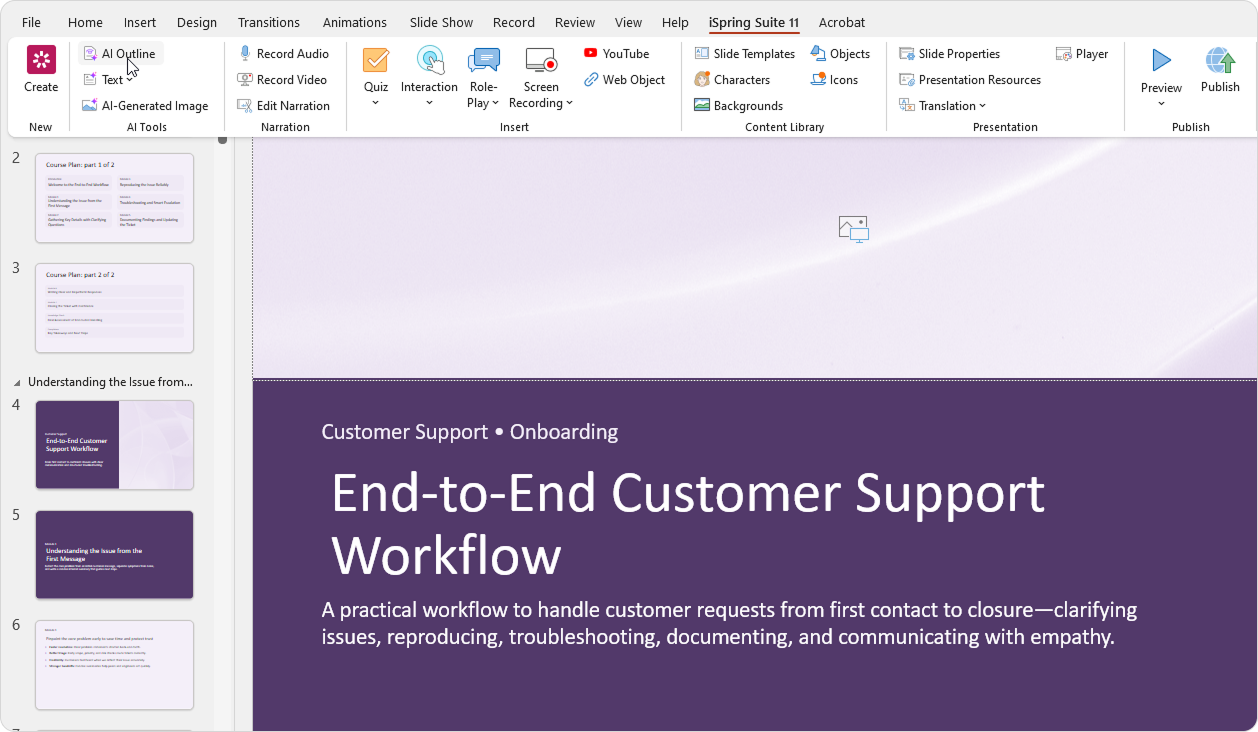
You can change the design after generating the course. Open the AI Outline in PowerPoint and return to the design settings.
Player design
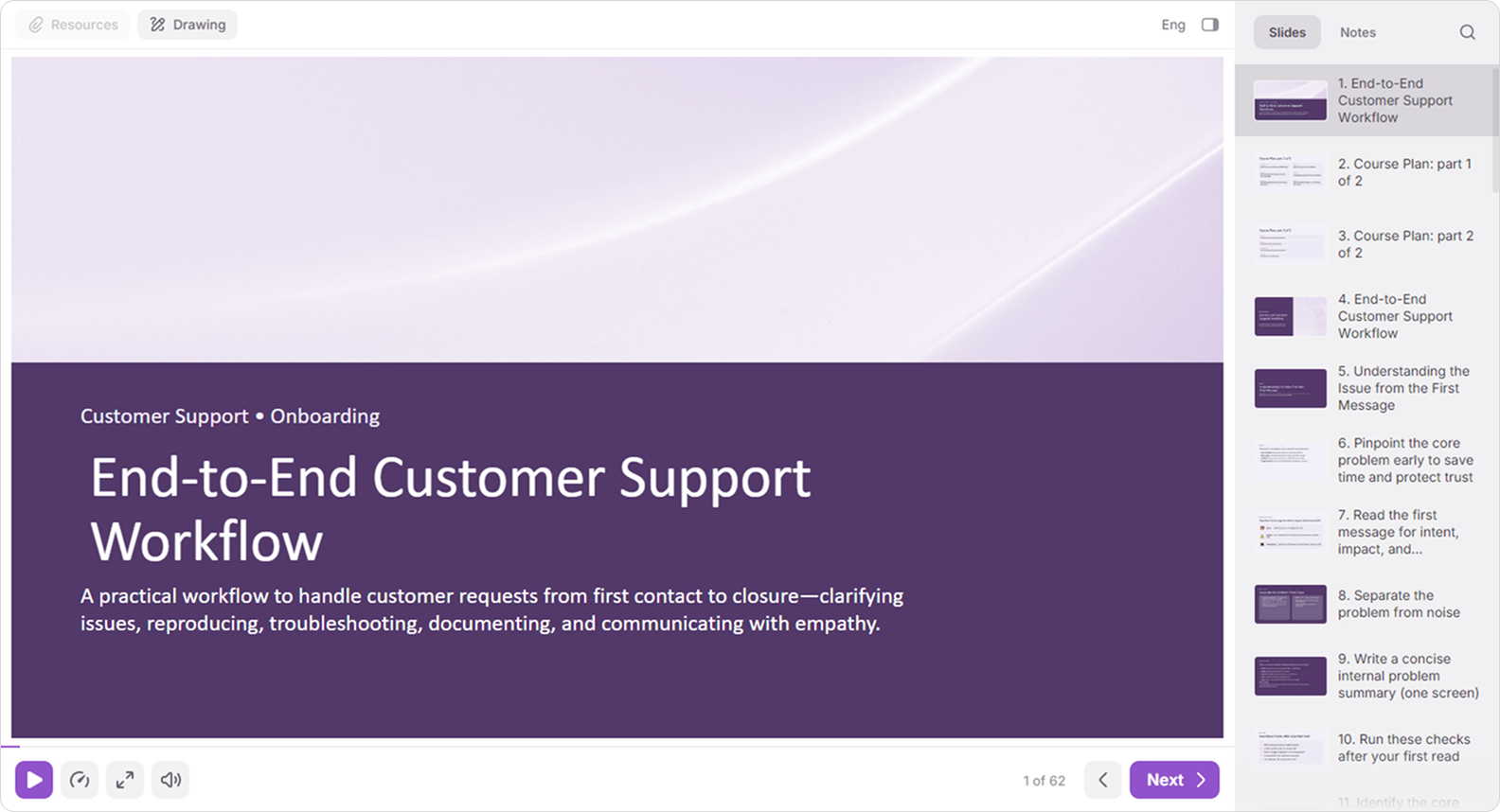
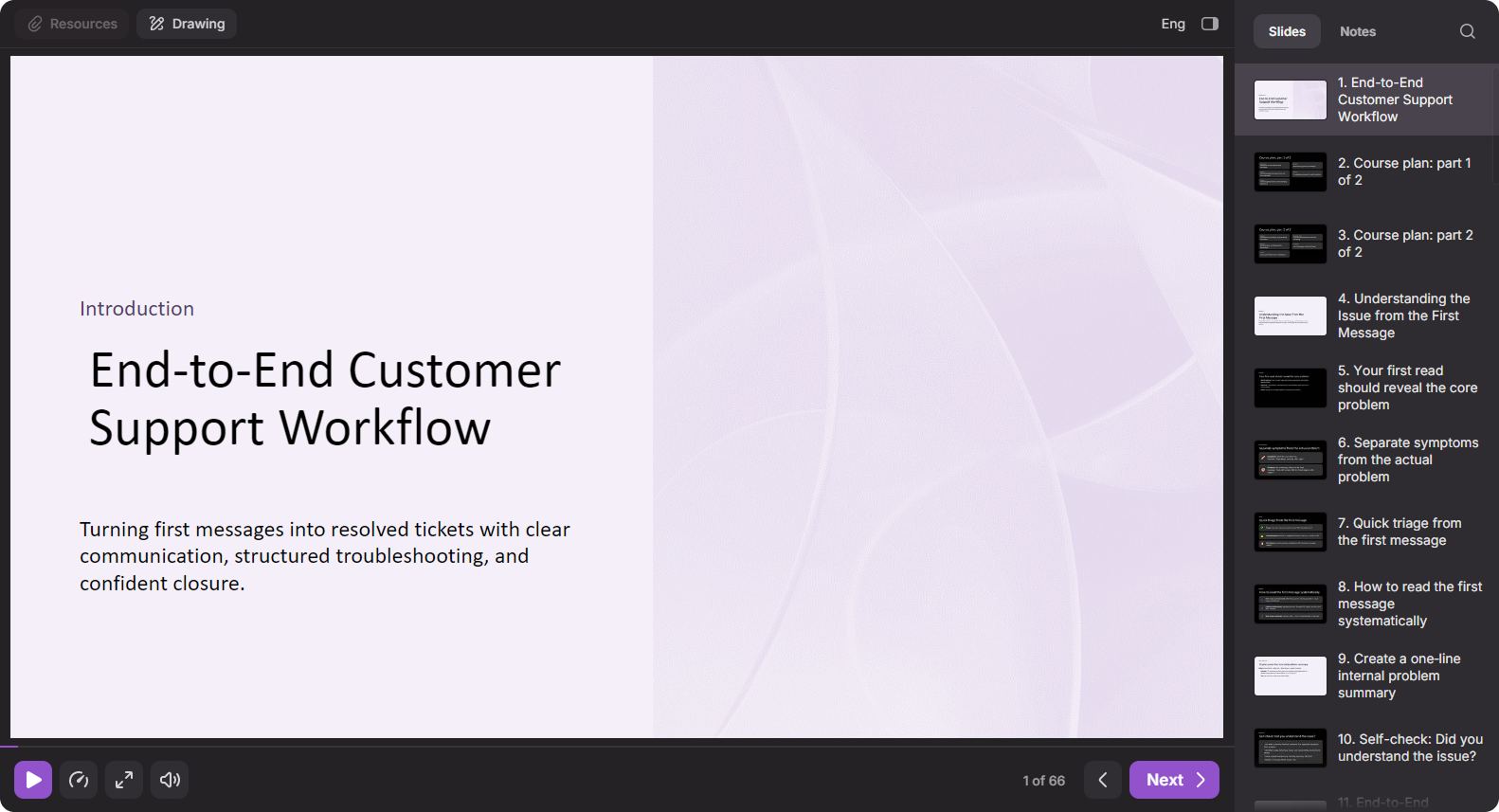
The player automatically adapts to the course design.
For light themes, the player background and panels are light.
For dark themes, they are dark.
Button colors are based on the selected accent color.