After customizing the course design and selecting the course language, generate the slides.
- Click on Create course draft.
- Save the PowerPoint presentation.
AI will generate the slides automatically. When the process is complete, click on Open in PowerPoint.
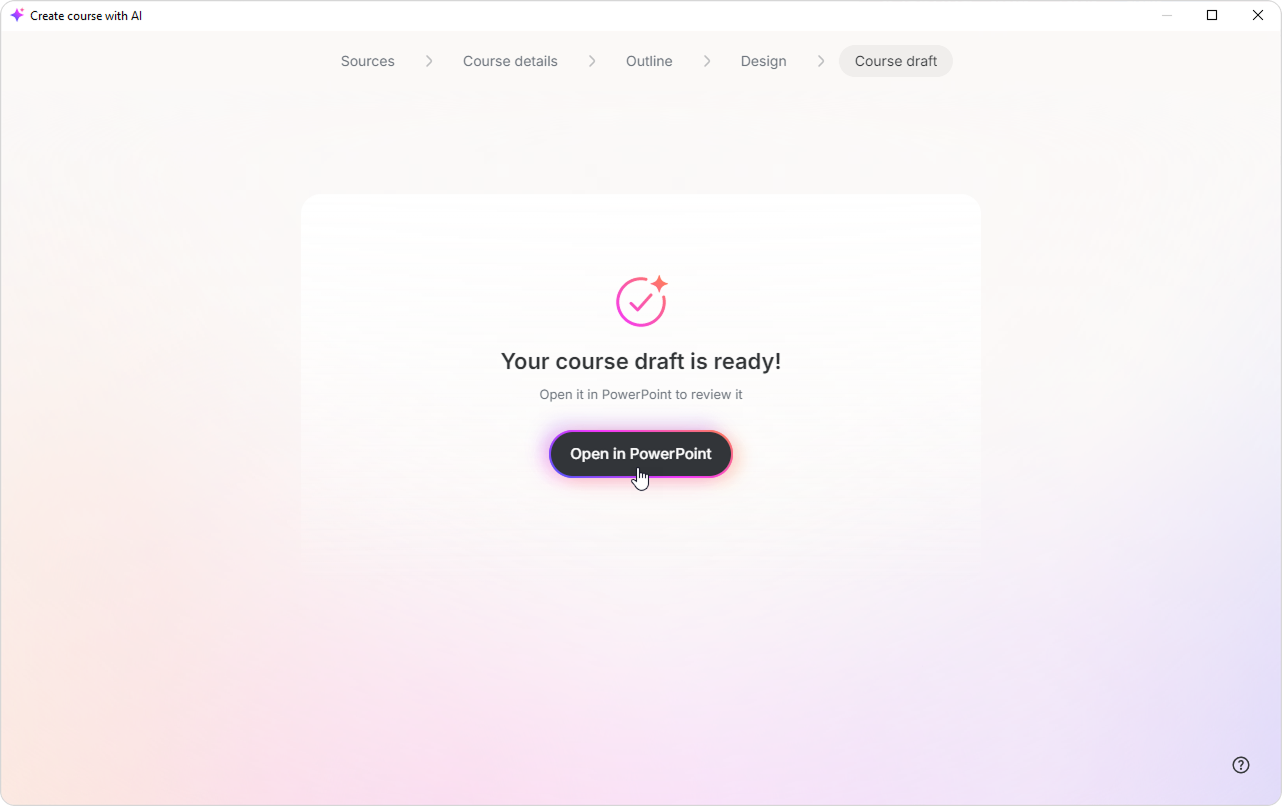
Done! The course draft is now ready.
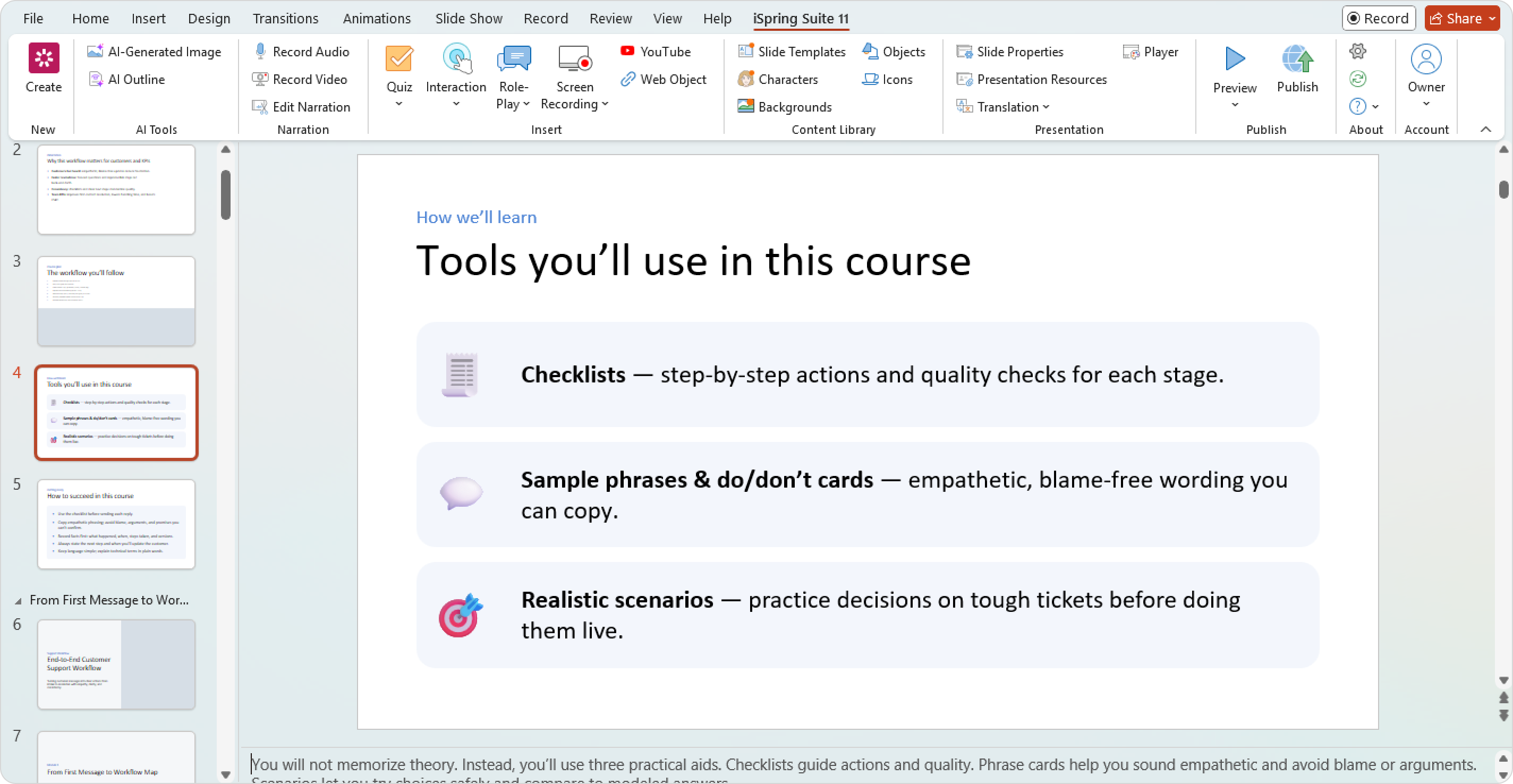
AI generates a draft, not a finished course. Before publishing it, review the slides and make any necessary changes. Add images, interactions, quizzes, and other elements, and adjust the design as needed.
How to edit the AI outline after creating a course
- Open the course and go to the iSpring Suite tab.
- In the AI Tools group, click on AI Outline.
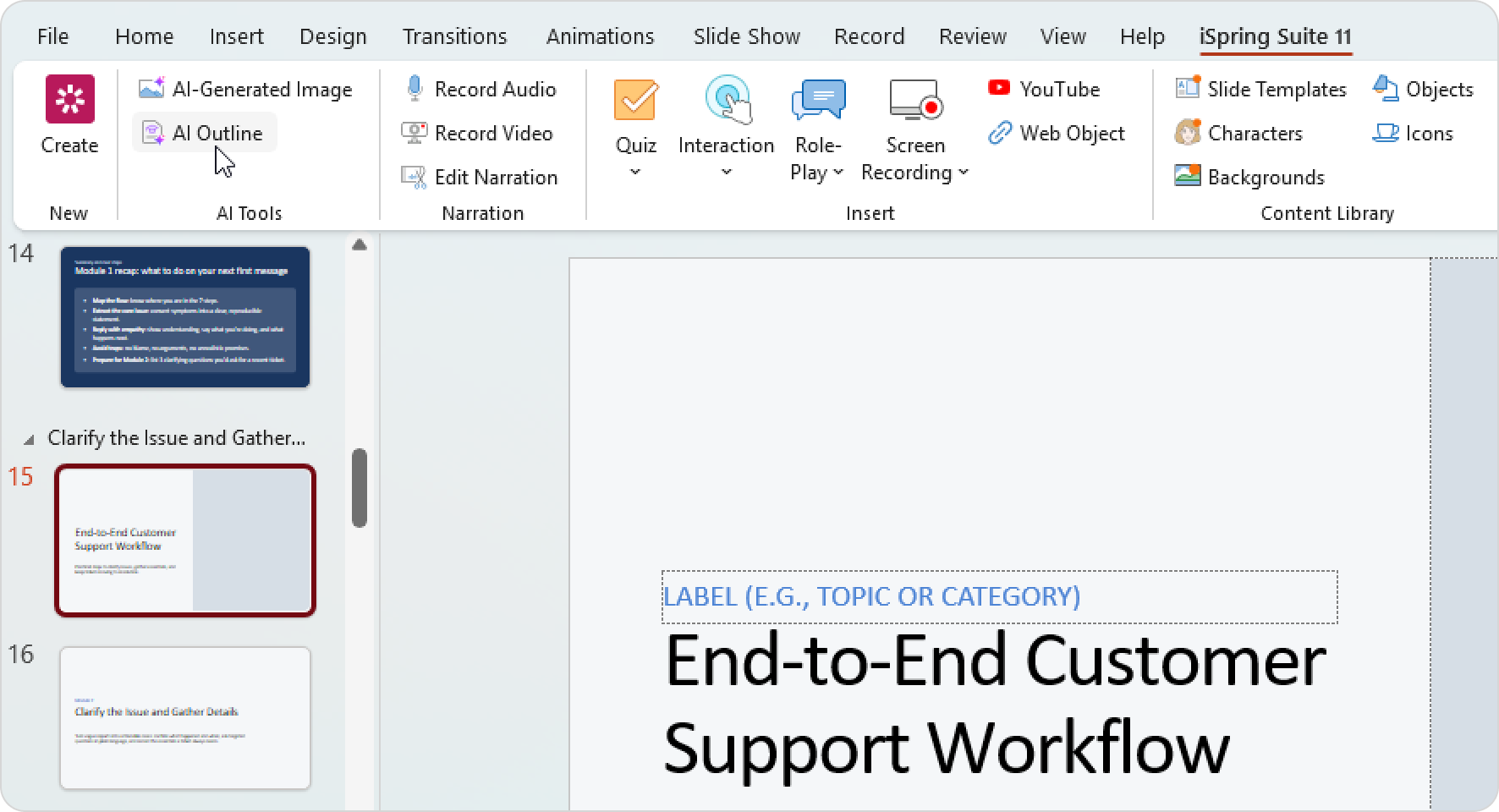
- You can then update:
- The course description and source content
- The course settings
- The course outline
All changes will be applied the next time you generate a course draft.
How to replace the existing slides
You can create multiple versions of your course and compare the results.
- Open AI Outline and make the necessary changes.
- Click on Create course draft.
- Then choose one of the following options.
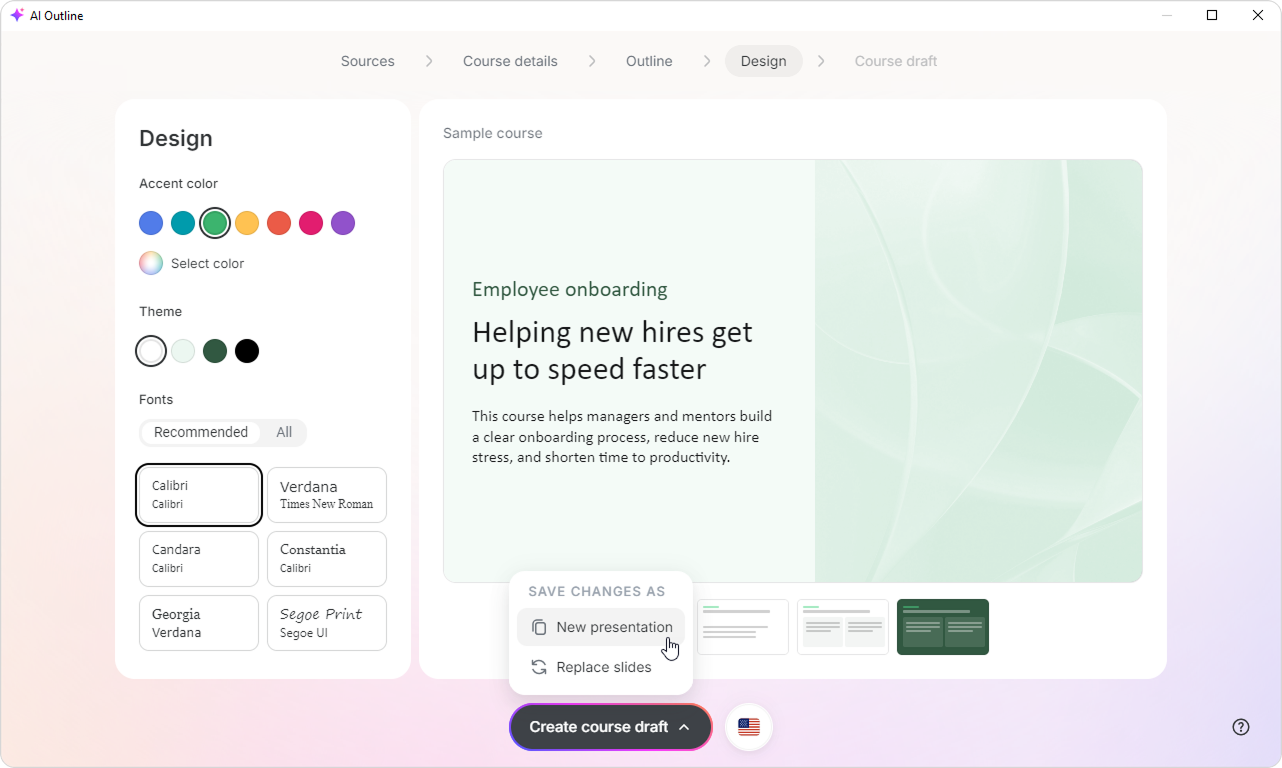
- To update the current slides, click on Replace slides. After you confirm the action, AI regenerates all slides and replaces the existing ones.
- To keep the previous version of the course, click on New presentation.