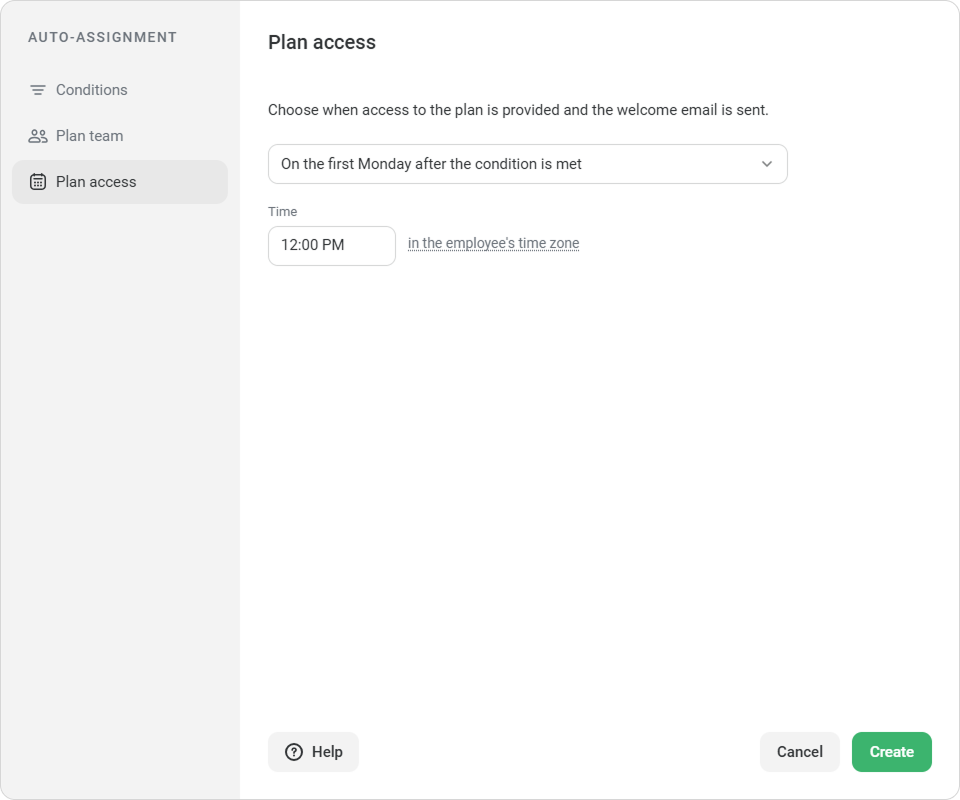
Here, you set when employees will get access to the plan.
Select when the plan will be assigned:
On the first Monday after the condition is met The plan will be assigned on the next Monday after the employee meets the condition.
N days after the condition is met The plan will be assigned after the selected number of days, for example, after 3 or 7 days.
Then set the time. The time is based on the employee’s time zone.
If the employee hasn’t selected a time zone, the supervisor’s time zone will be used. If the supervisor doesn’t have a time zone either, the account time zone will be used.
Click Create.
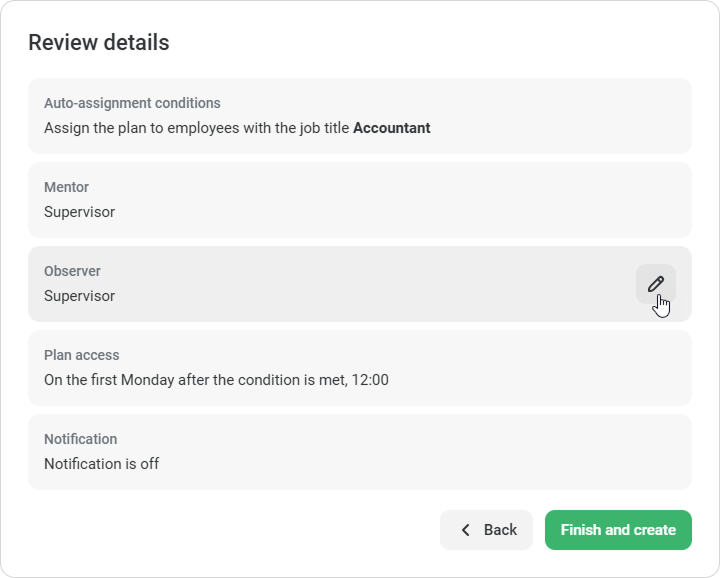
In the Review details window, verify that everything is correct: the conditions, plan team, plan access date, and notification. If you need to change anything, click the pencil icon.
When everything is ready, click Finish and create. Done! Auto-assignment has been set up for this template.
Notifications
On the first day of the plan, iSpring LMS will send notifications to:
The employee
The mentor, supervisor, and observer
Notifications appear on the platform, are sent by email, and show up as push notifications in the mobile app.