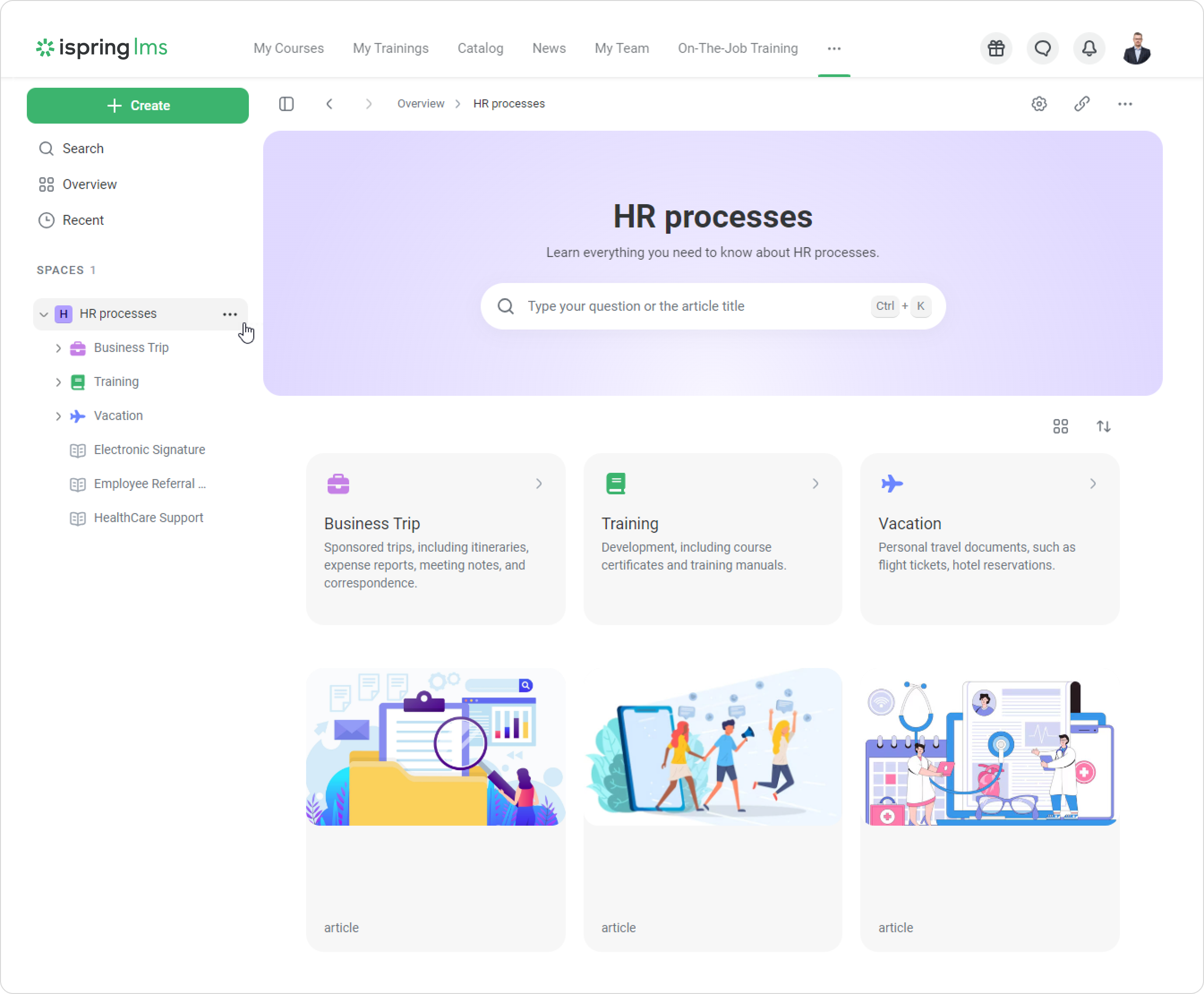
You can tailor the visual design of folders and content items to align with your company's brand and style. Add meaningful icons and labels to folders, transforming your Knowledge Base into a visually appealing and intuitive resource directory.
How to Set up Content Display in Knowledge Base
Only Administrator and Account Owner have access to folder and content display settings.
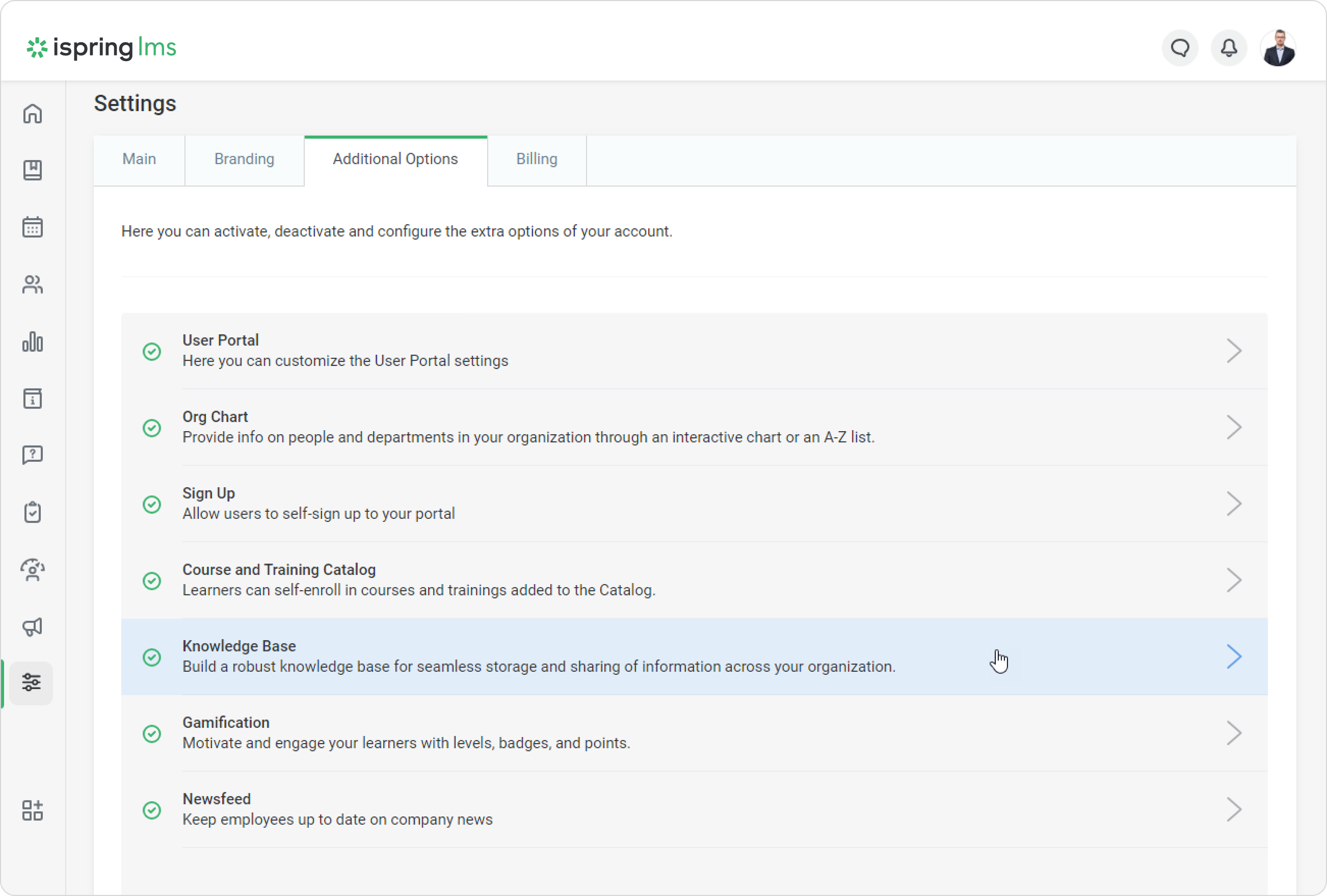
Open Settings > Additional Options > Knowledge Base.
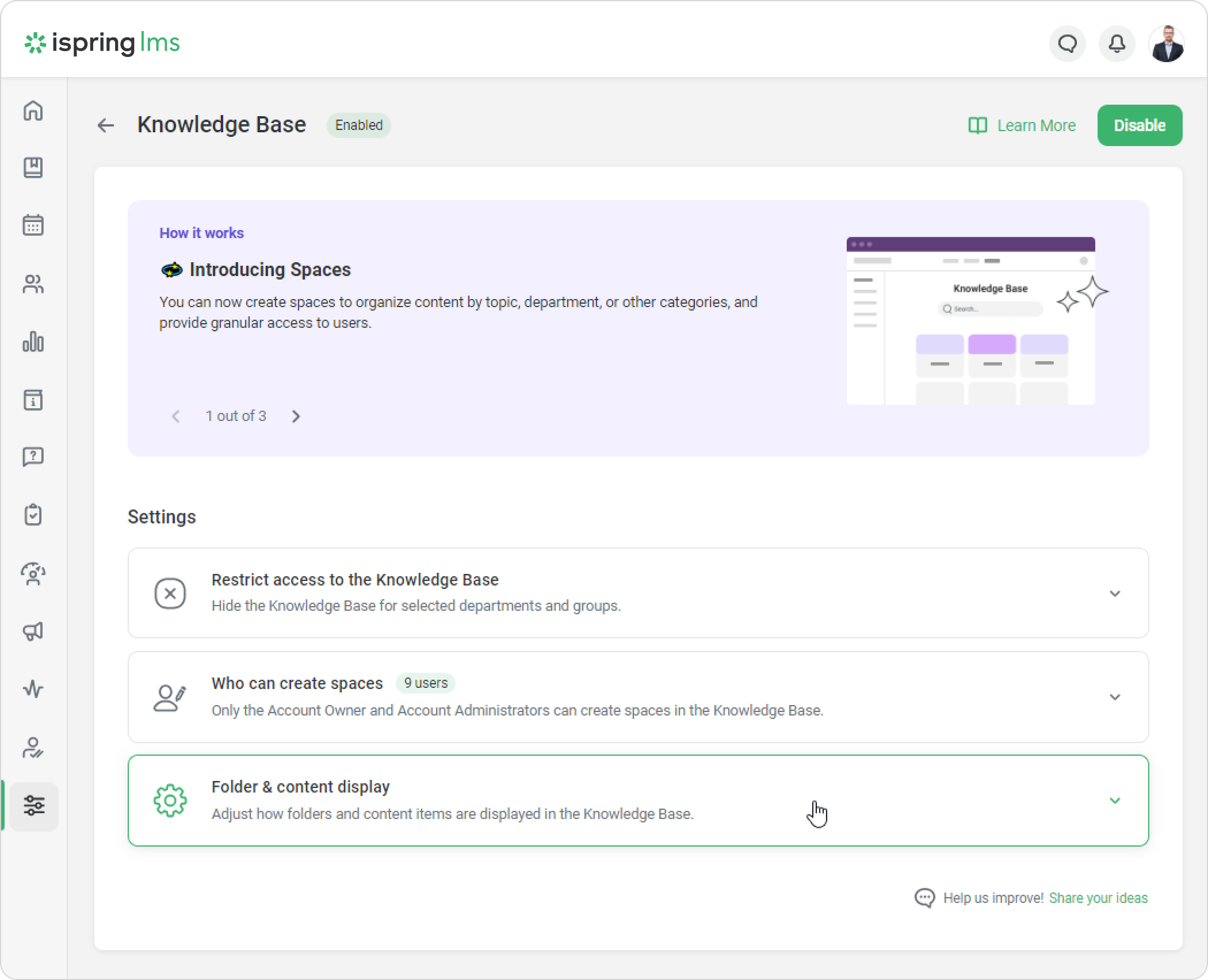
Then, go to the Folder & content display tab.
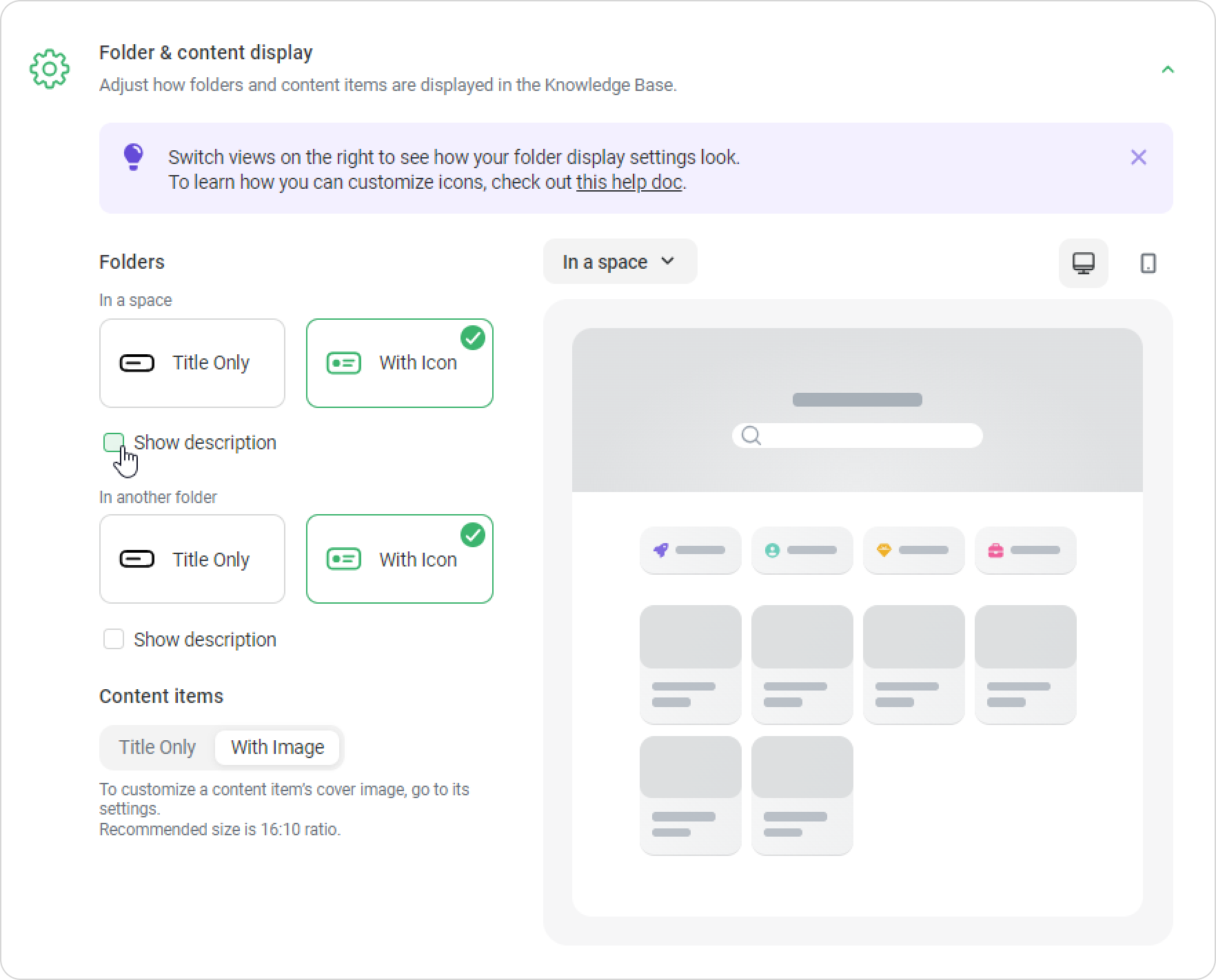
Next, customize the design of folders on the main and internal pages of the space. For example, select the With Icon style so that you can choose a unique icon for each folder.
If you want to add a description to the folder, place a checkmark in the box next to Show description.
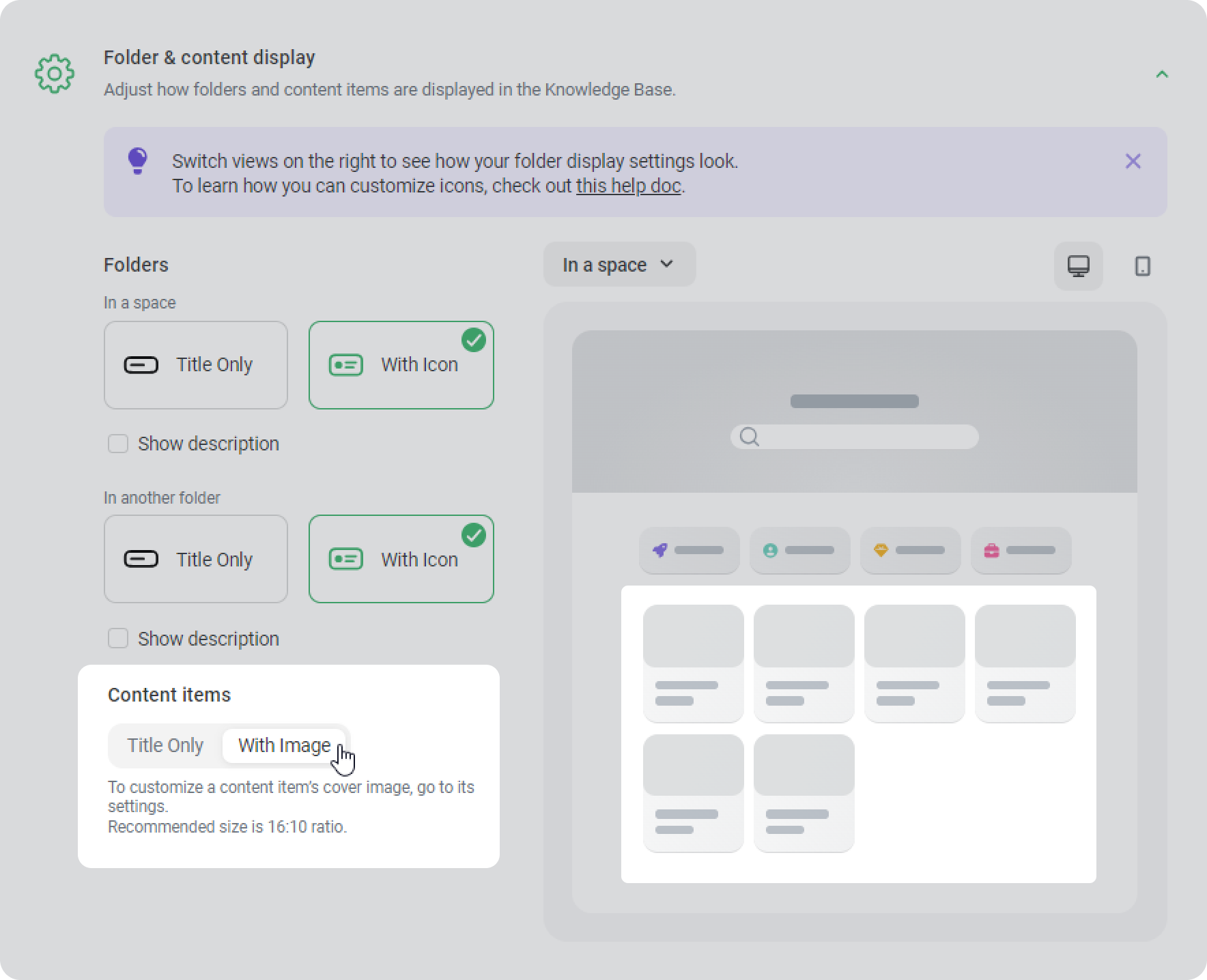
Next, decide whether your content will have covers by selecting Title Only or With Image.
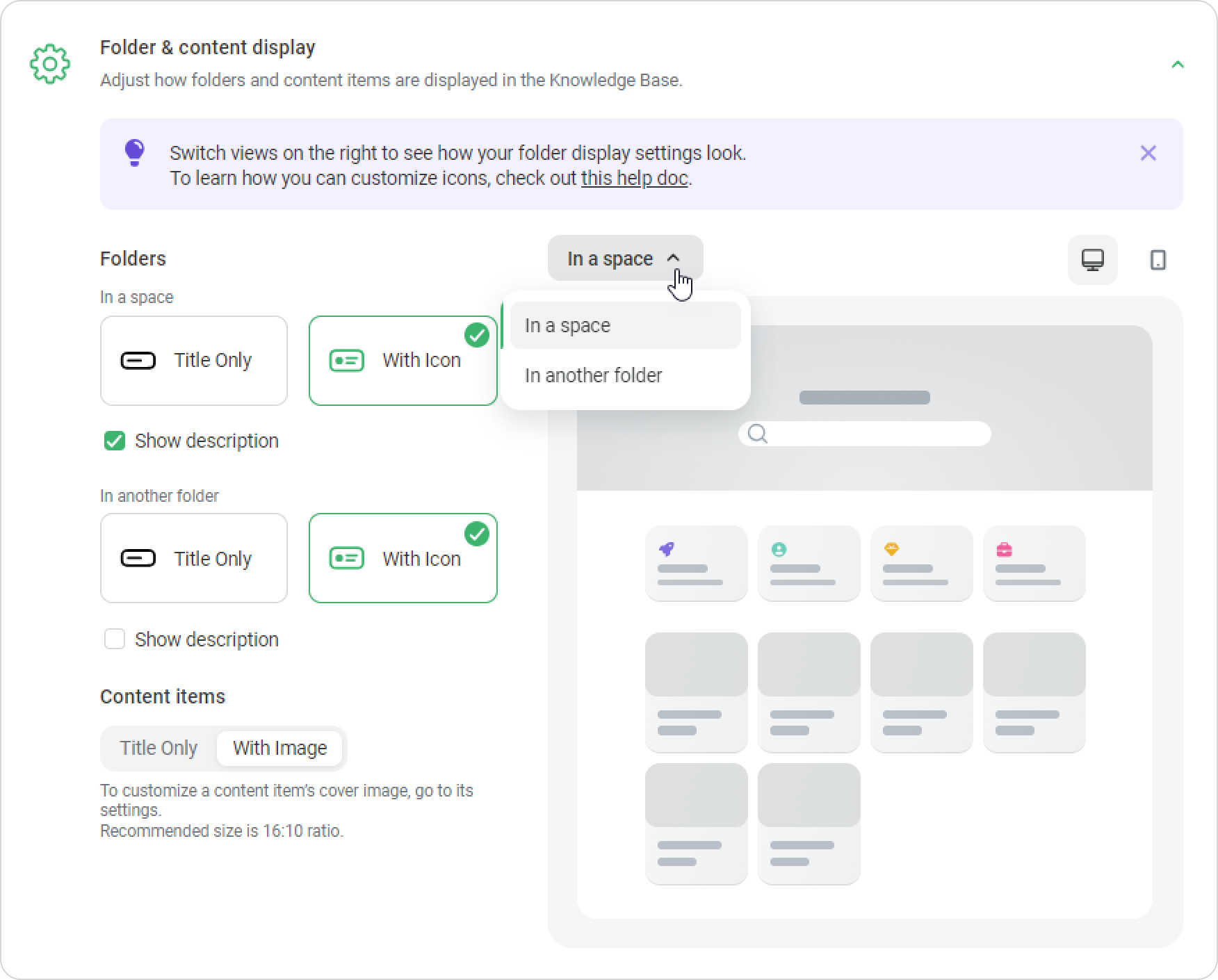
Switch the space view by selecting In a space or In another folder to see how your content will look.
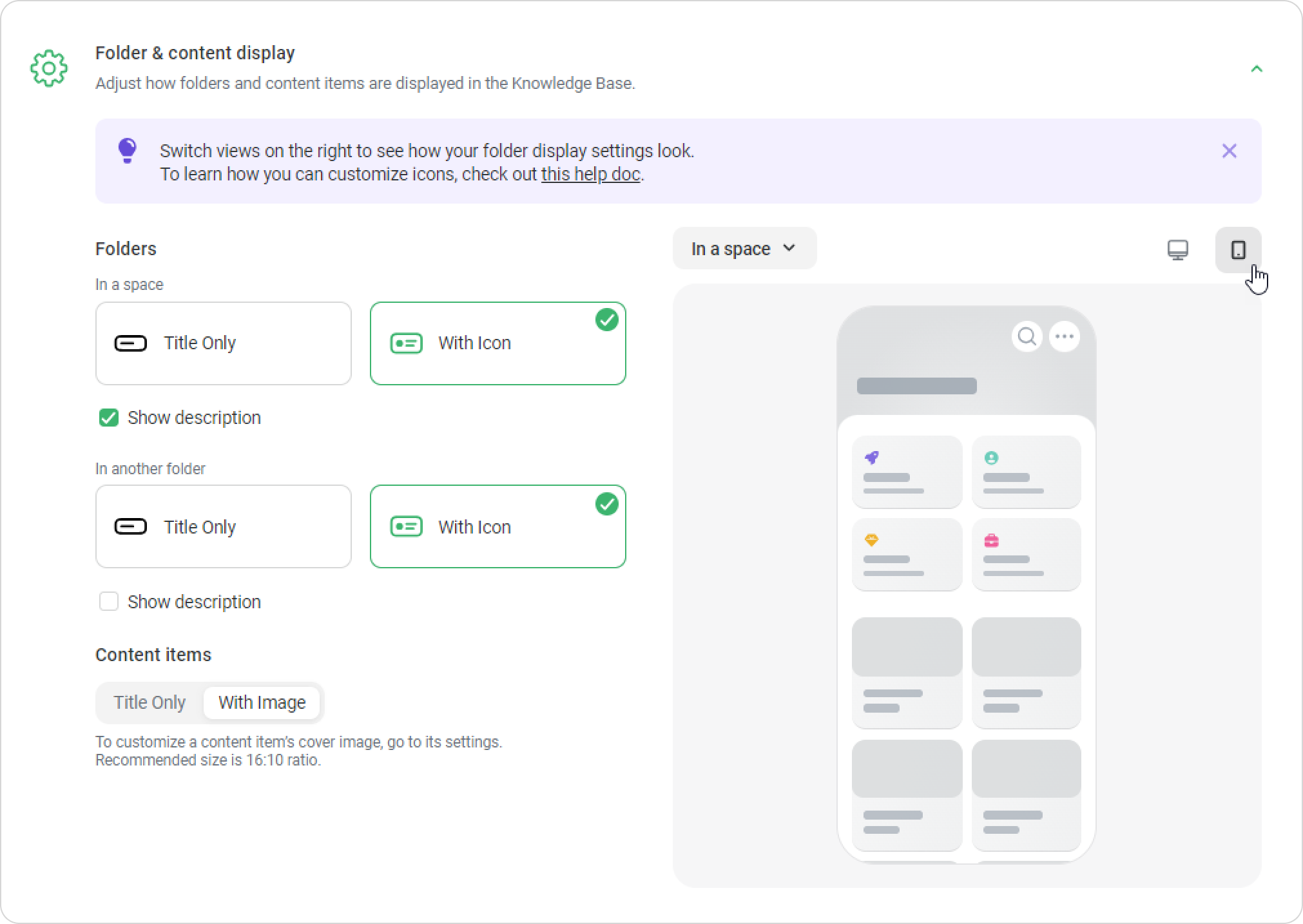
To see how the content looks on mobile devices, click on the smartphone icon.
That's it! You've set up the design of the spaces.
Now let's find out how to design individual content items.
How to Add an Icon to a Folder
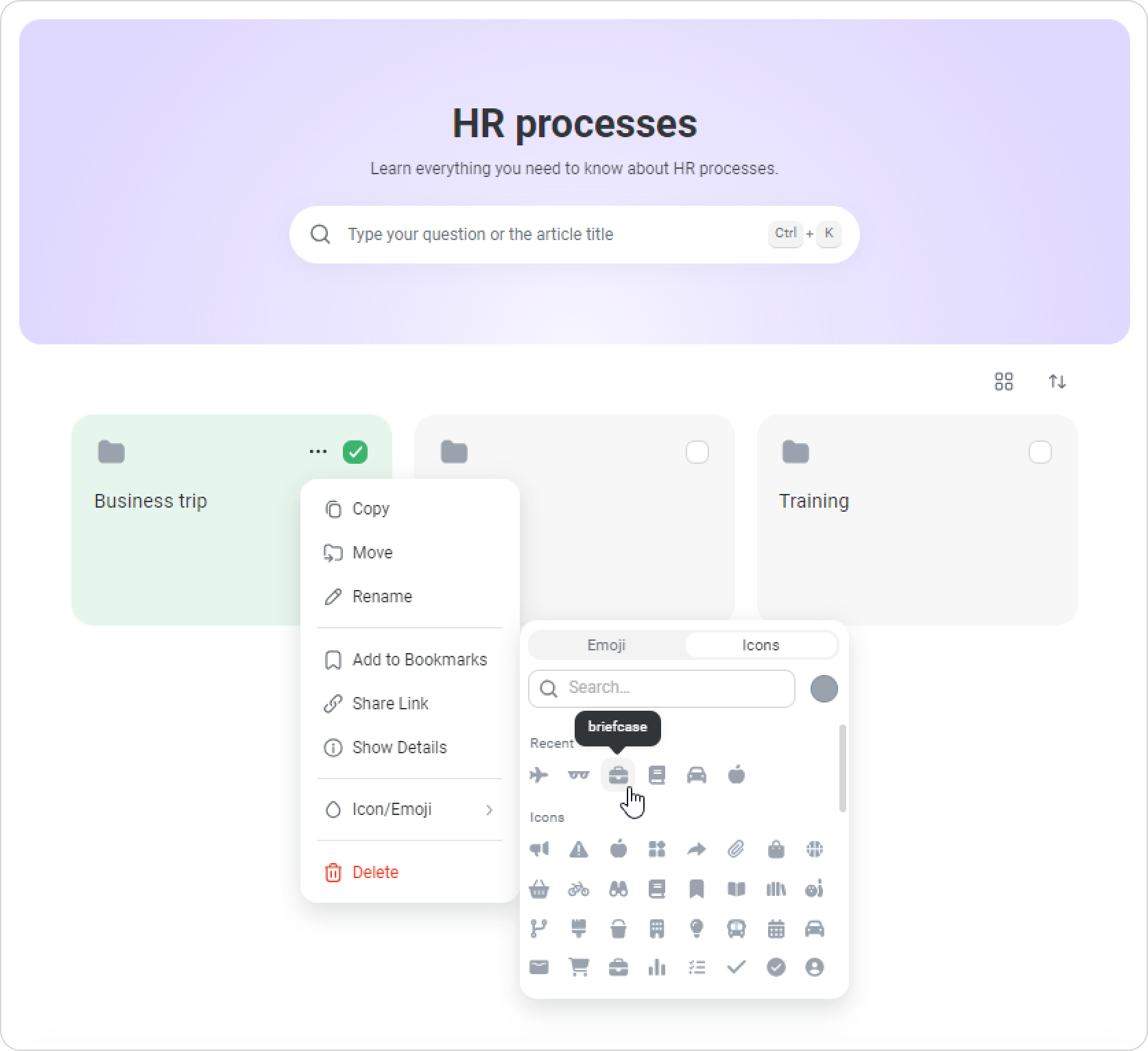
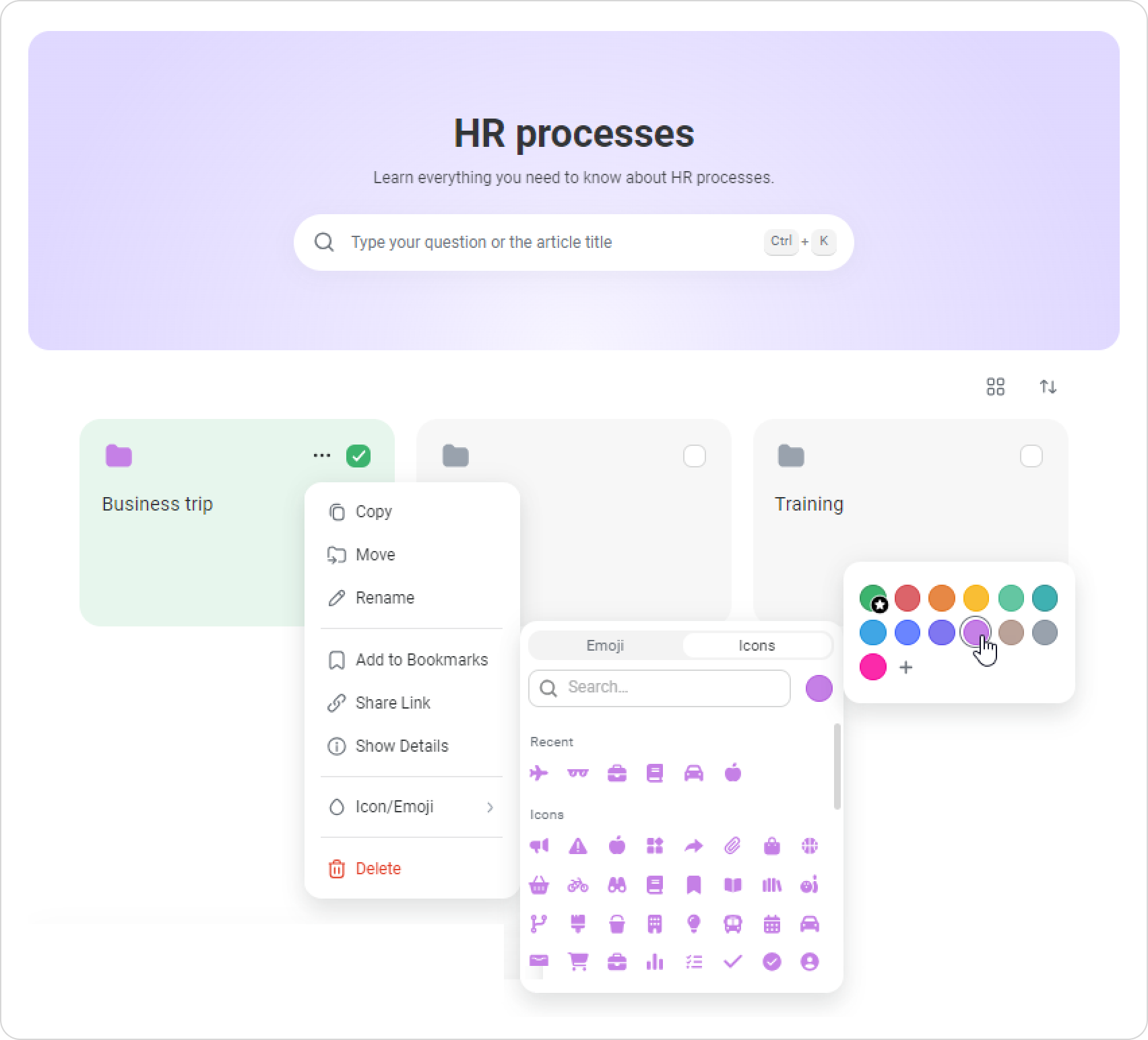
Select a folder, and click on the three dots >Icon/Emoji > Icons.
Next, select a color for the icon.
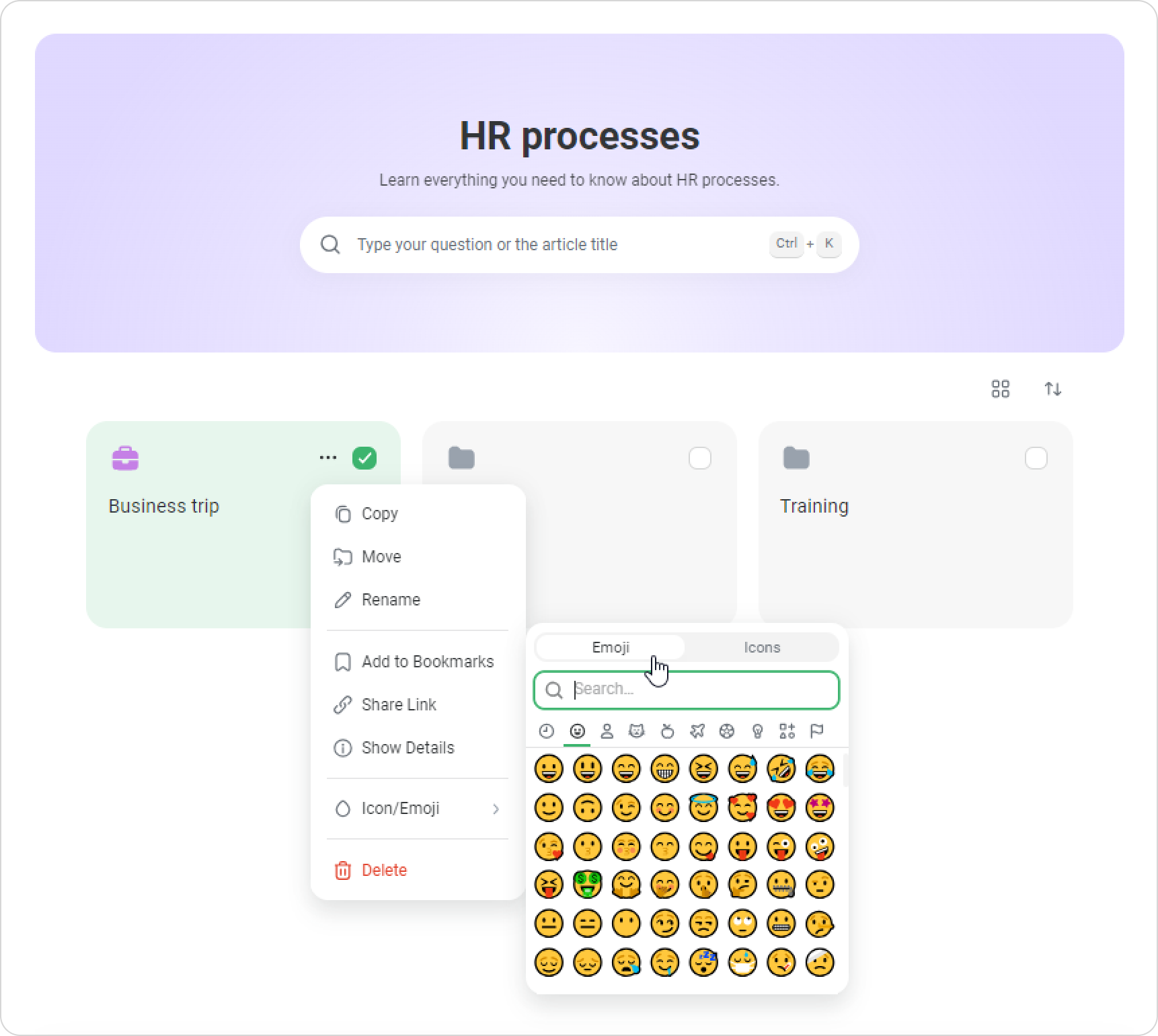
You can select an emoji in the same manner.
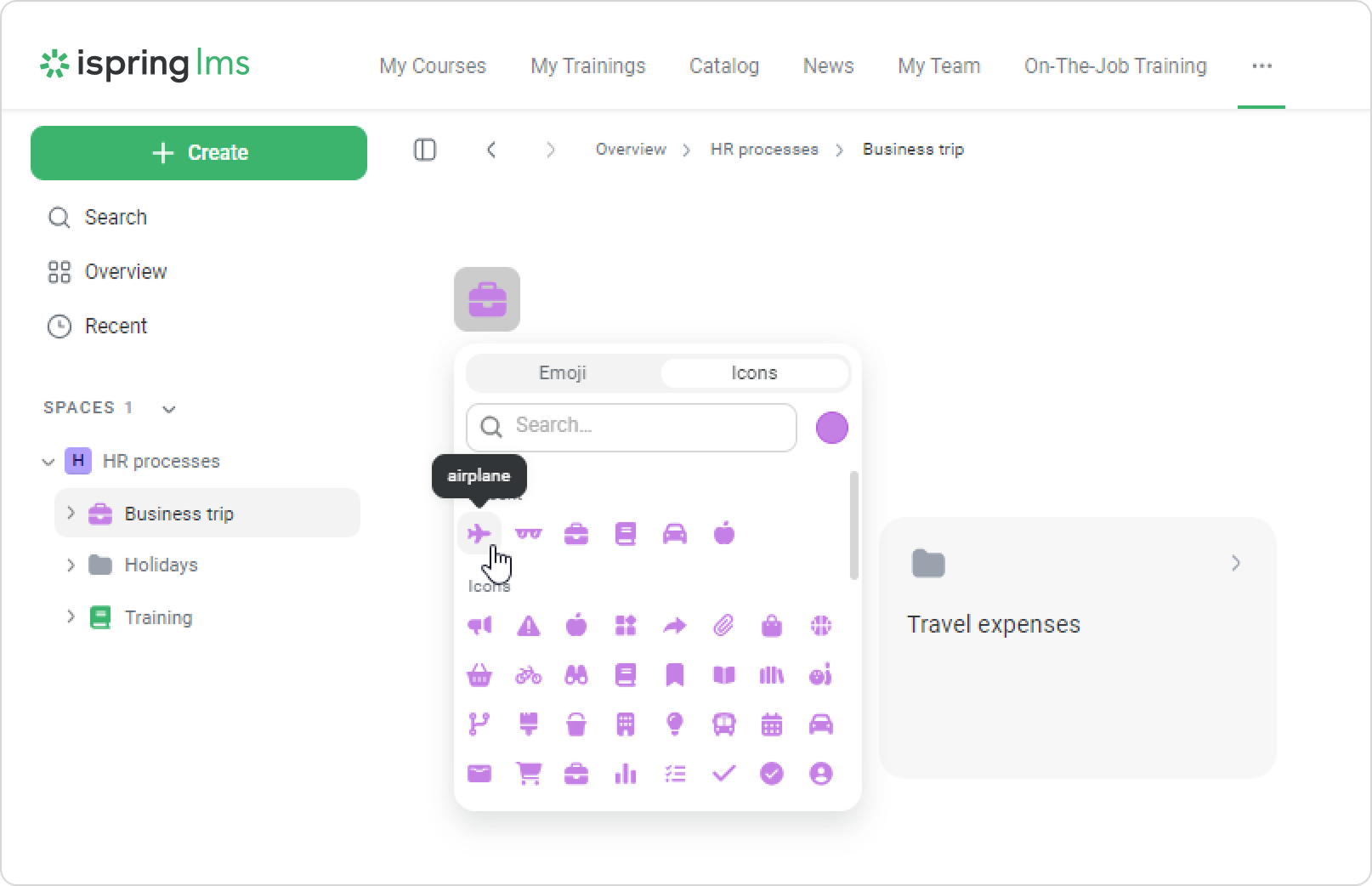
You can add and edit an icon inside the folder. Hover over it and change the icon.
Done! Now the folder is easy to find in a space.
How to Add a Description to a Folder
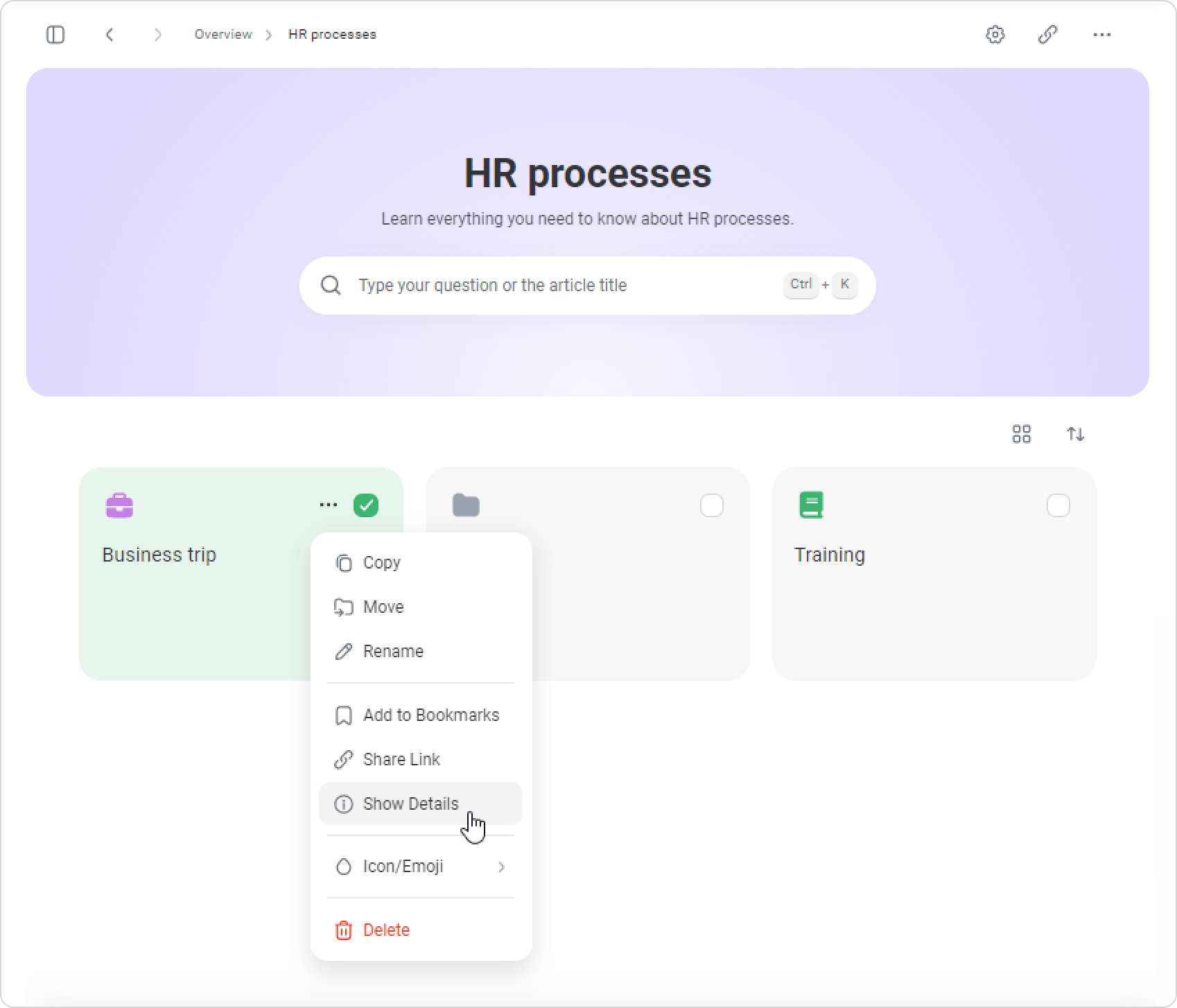
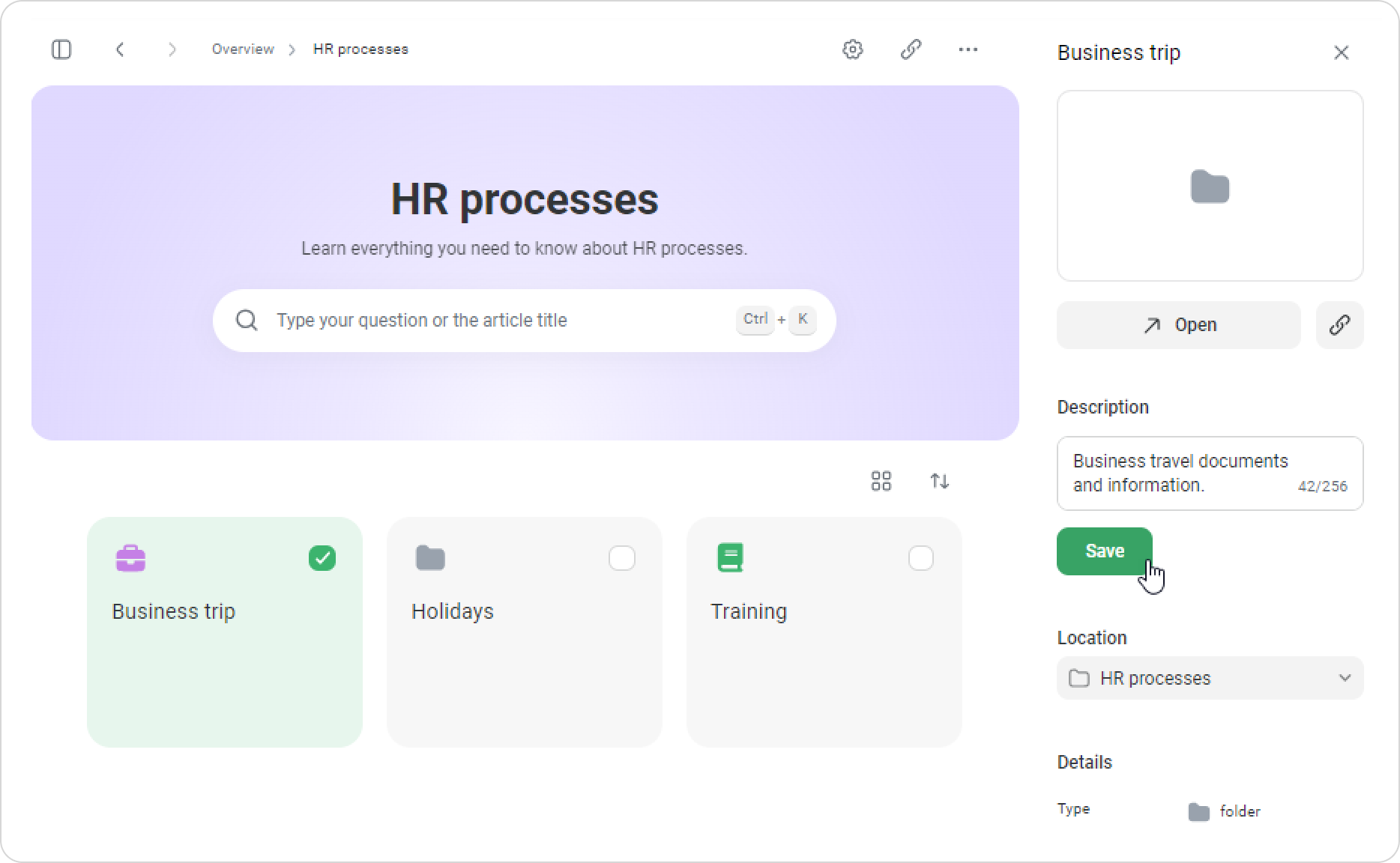
Go to the folder, click on the three dots, and select Show details.
Then, add a description to the folder and click on Save.
How to Add Cover Image
There are several ways to add a cover to your content:
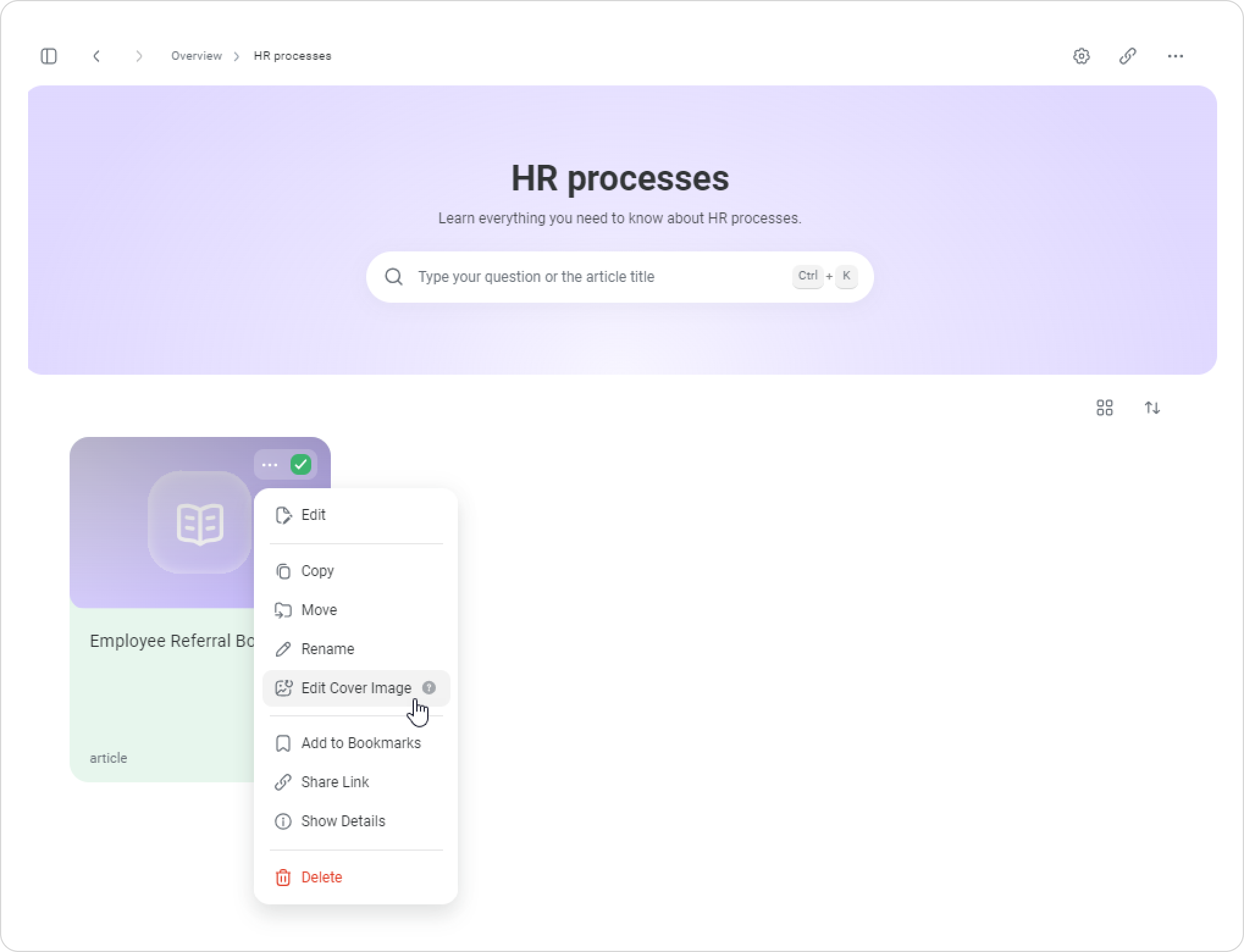
Select content in the space, click on the three dots, and then click on Edit Cover Image. Then, select the image and upload it.
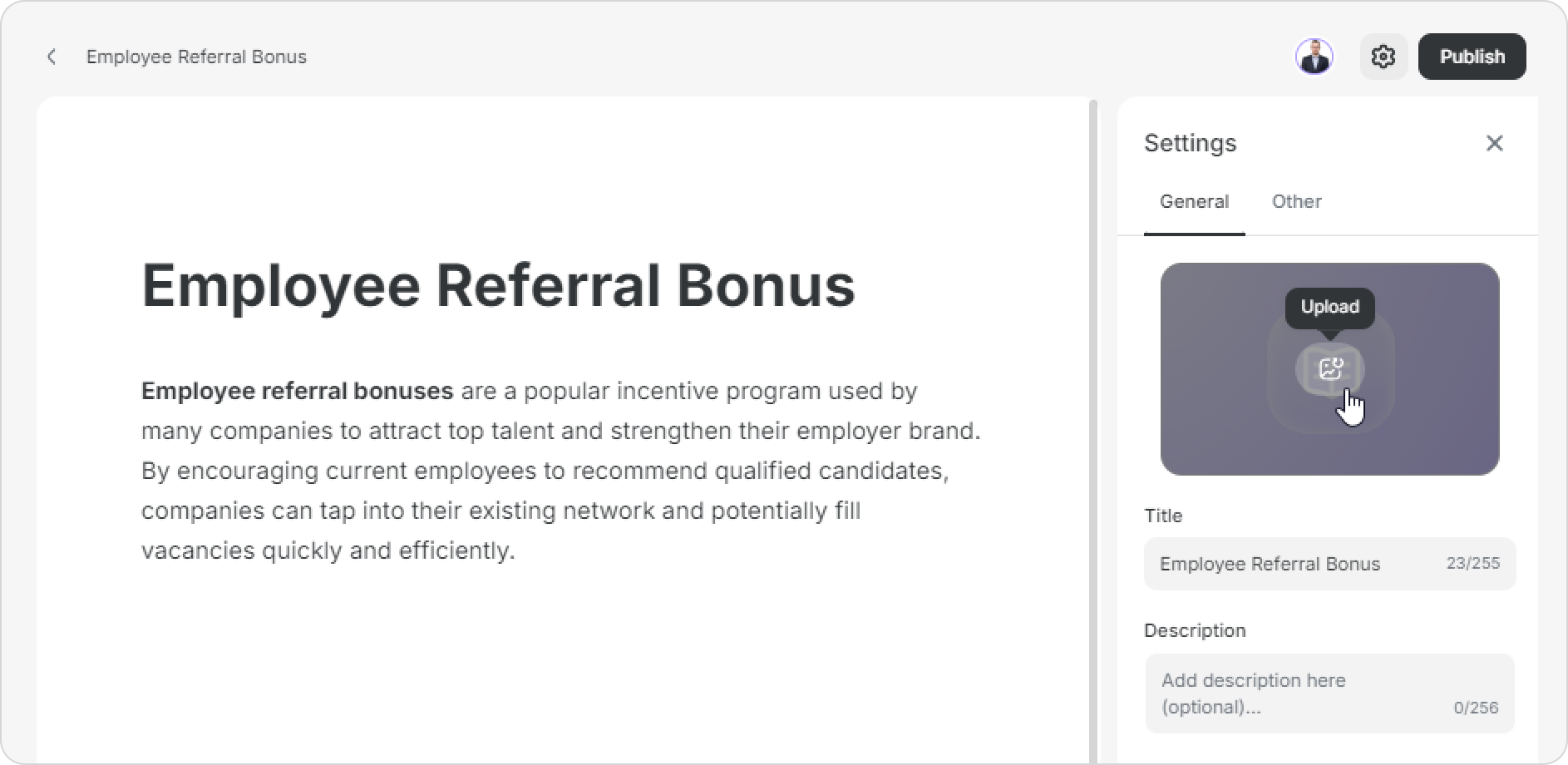
You can also add a cover in article editing mode.
Recommended image proportions are 16:10. The file size should not exceed 10 MB.
Displaying Content in Knowledge Base Space
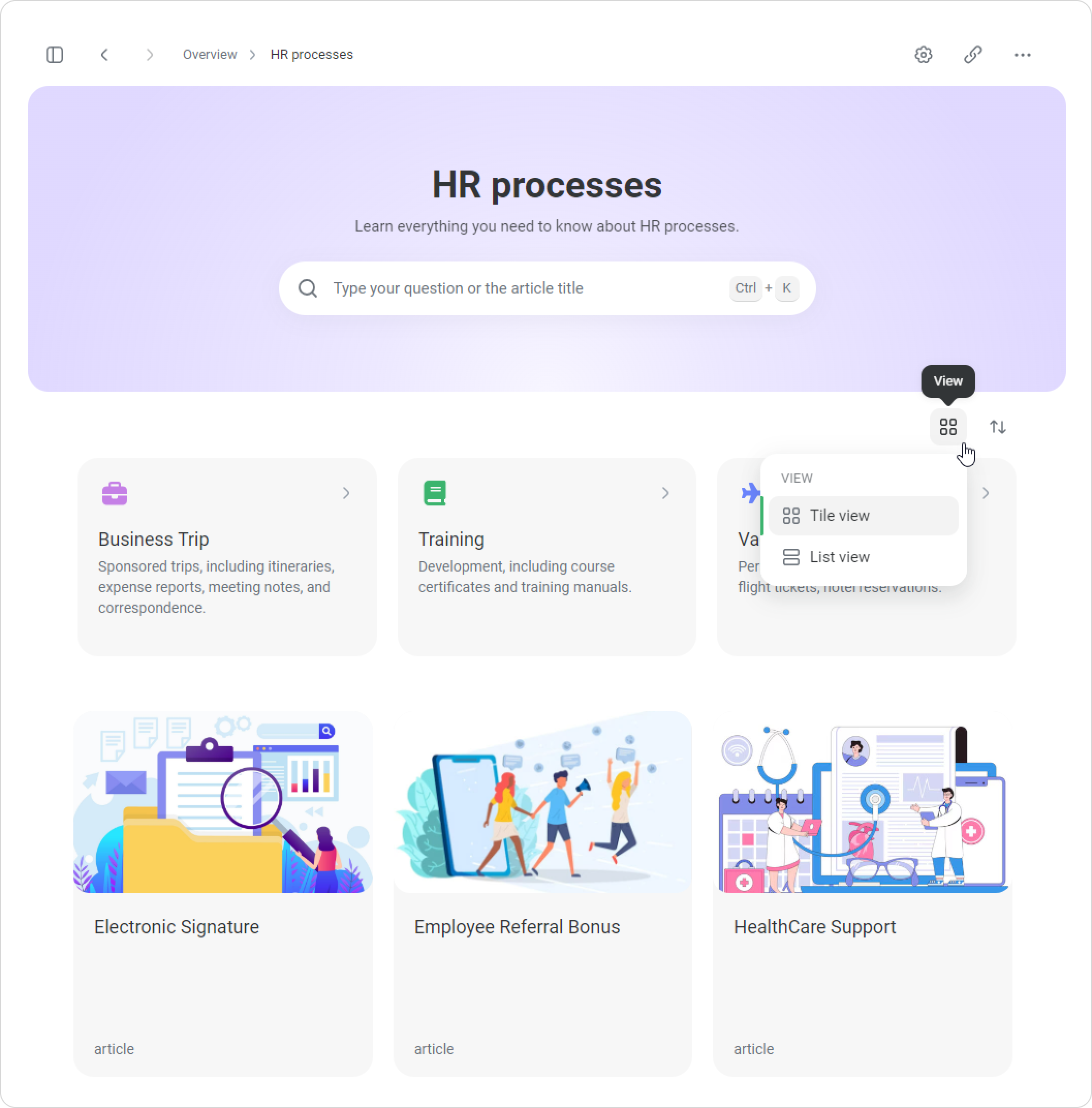
Choose a convenient format for displaying content: a classic list or visual tiles.