Imagine a company where sales managers are required to complete training and earn 50 learning credits each year to meet CPD requirements and stay up to date. This can include online courses, webinars, internal training, or industry events.
This can be done by creating a learning goal in iSpring LMS.
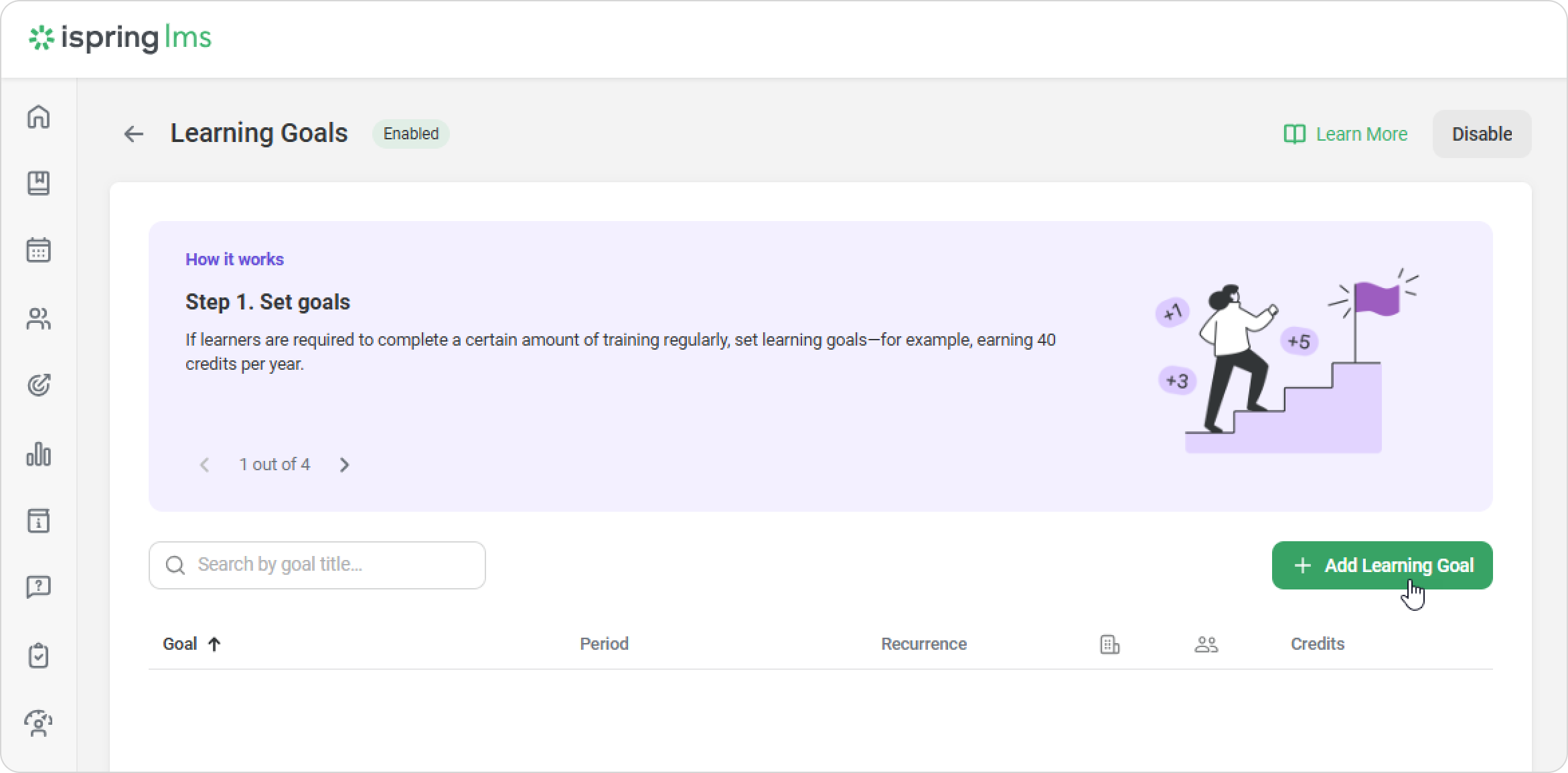
In the Learning Goals section, click on Add Learning Goal.
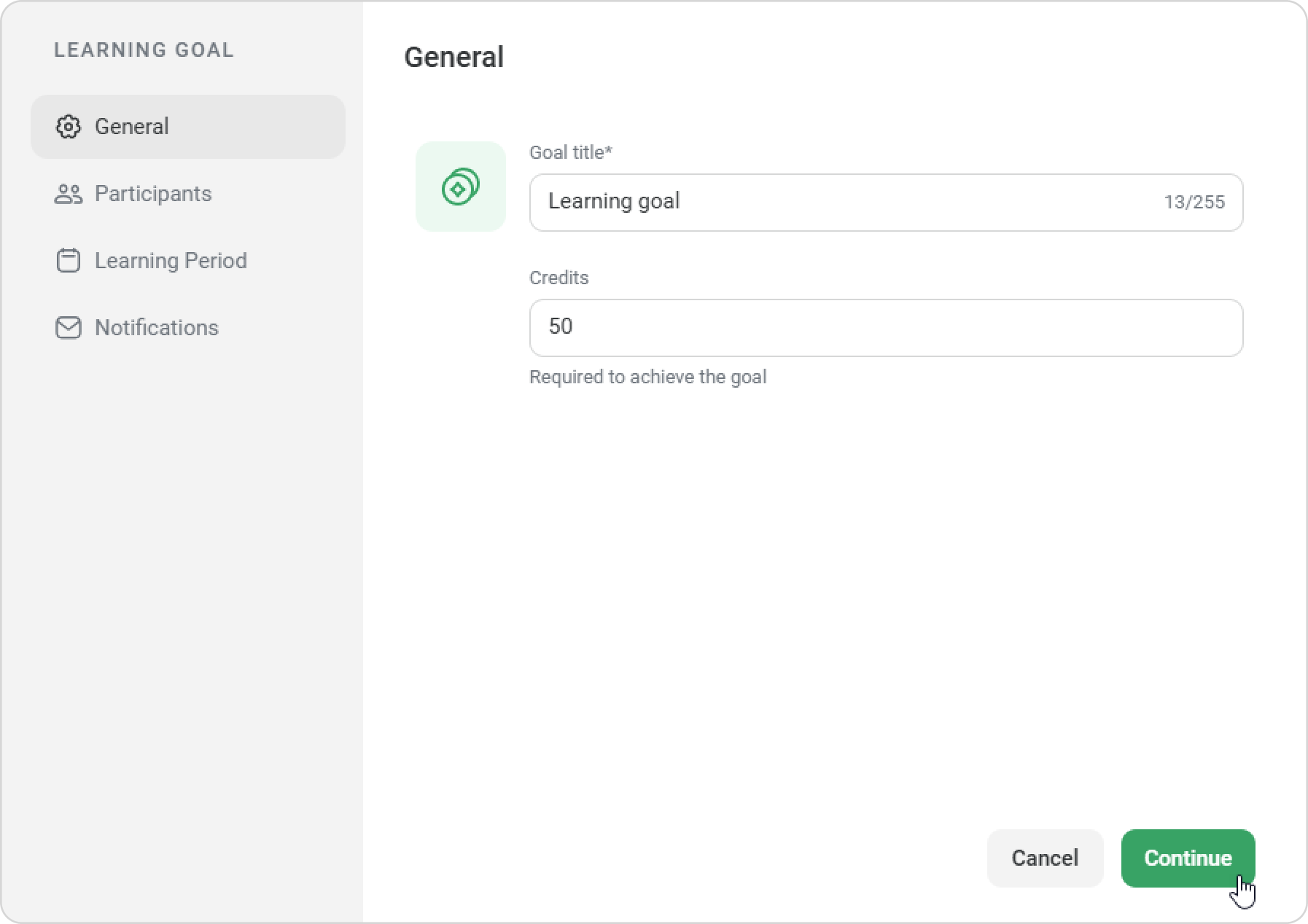
On the General page, enter the goal title and the number of credits required to achieve the goal. Then, click on Continue.
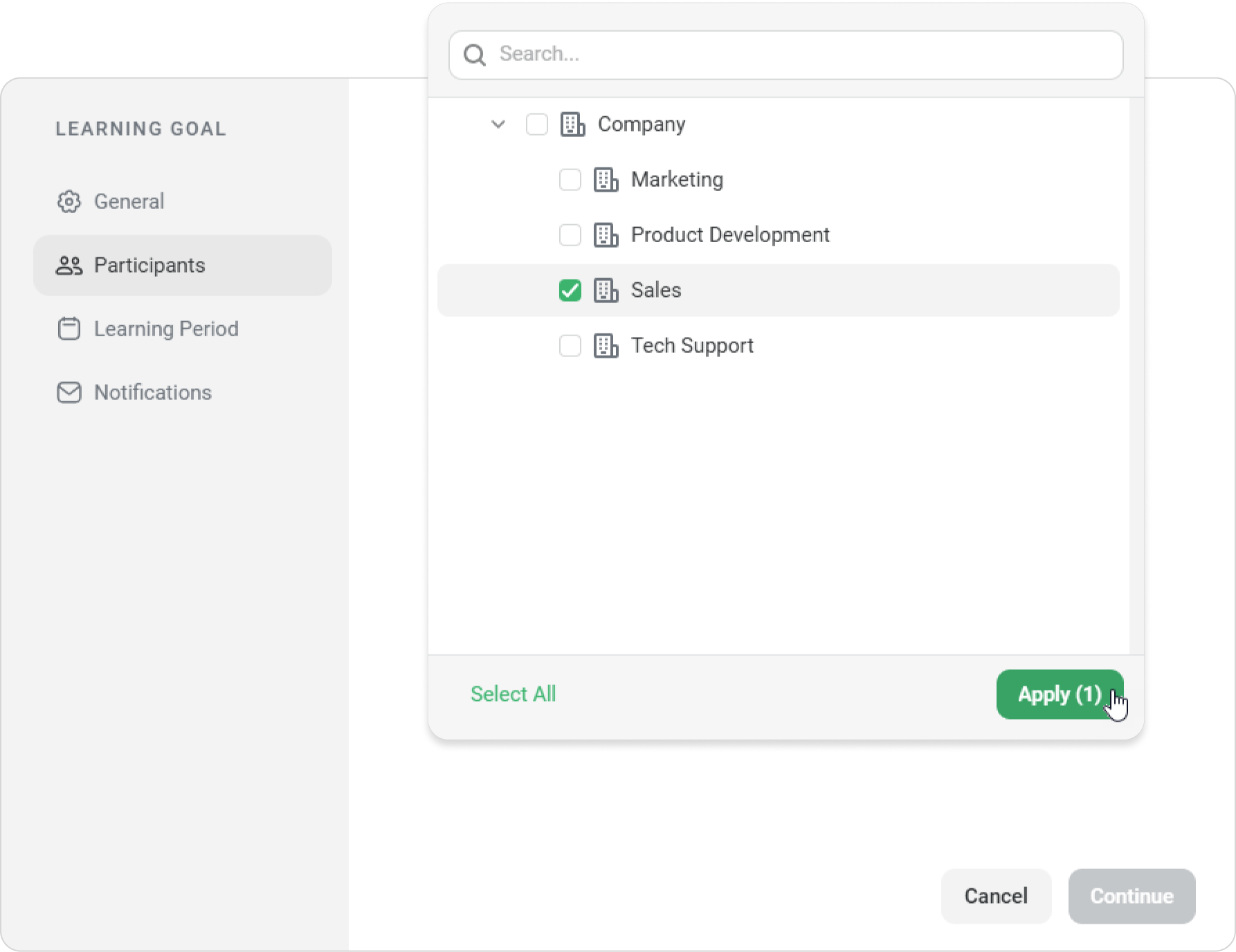
Next on the Participants page, add the departments and groups required to achieve this goal.
For example, select the Sales department, then click on Apply > Continue.
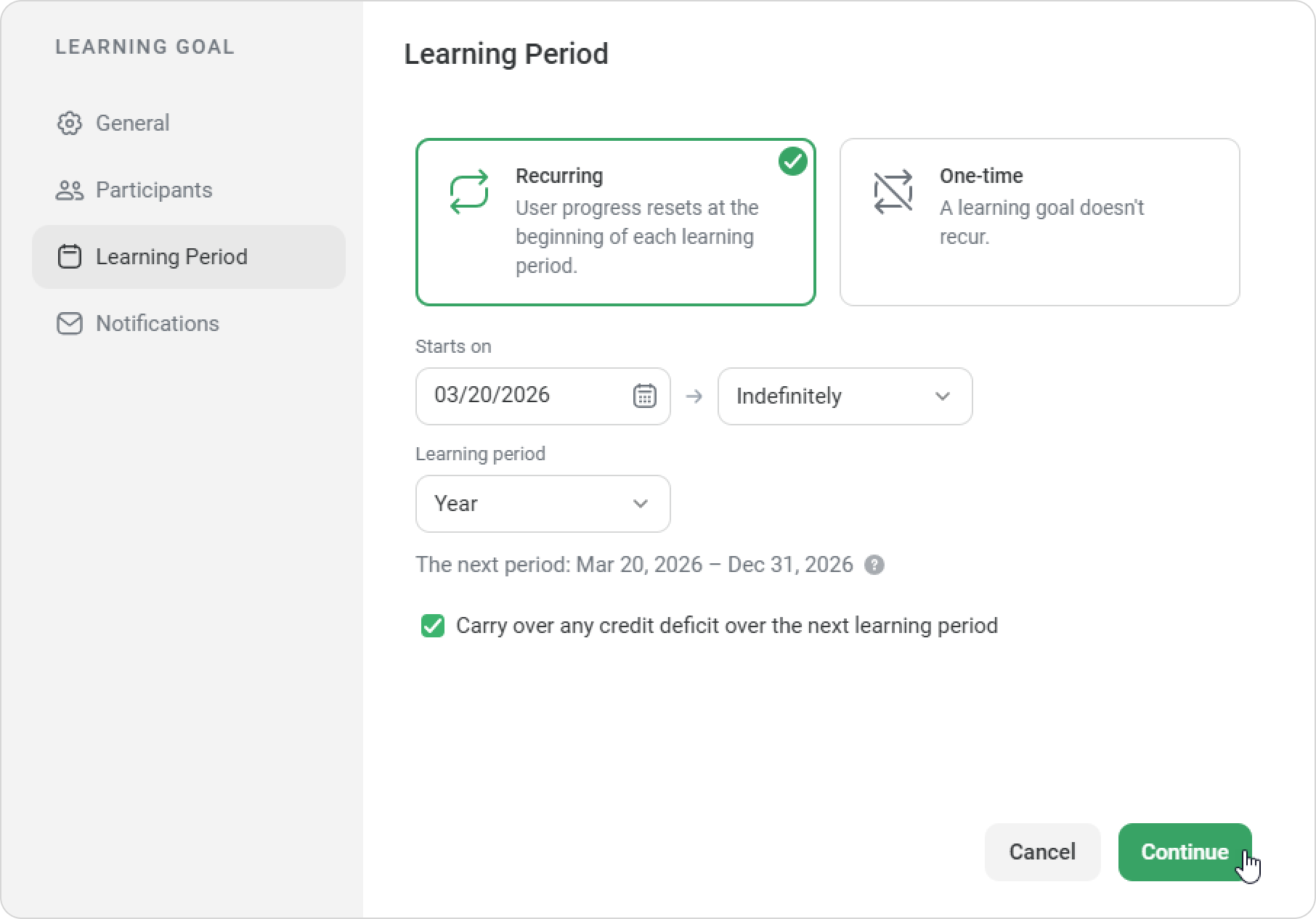
On the Learning Period page, choose whether the goal is recurring or one-time:
Recurring: User progress resets at the beginning of each learning period.
One-time: The goal only needs to be completed once. When achieved, it is considered complete.
In our example, we’ll select a recurring goal. Then, we’ll select the date when the goal should recur and set a deadline: either indefinitely or until a specific date.
Next, choose the learning period for earning credits, e.g., every month, quarter, half-year, or year.
You can enable the Carry over any credit deficit to the next learning period option. If an employee doesn’t earn enough credits, iSpring LMS will carry the remaining credits into the next period.
Then, on the Notifications page, select when the employee receives notifications:
New goal assigned
Goal achieved
Credits awarded
Learning goal reminder
You can customize the message and frequency for the Learning goalreminder notification. Finally, click on Create Goal.
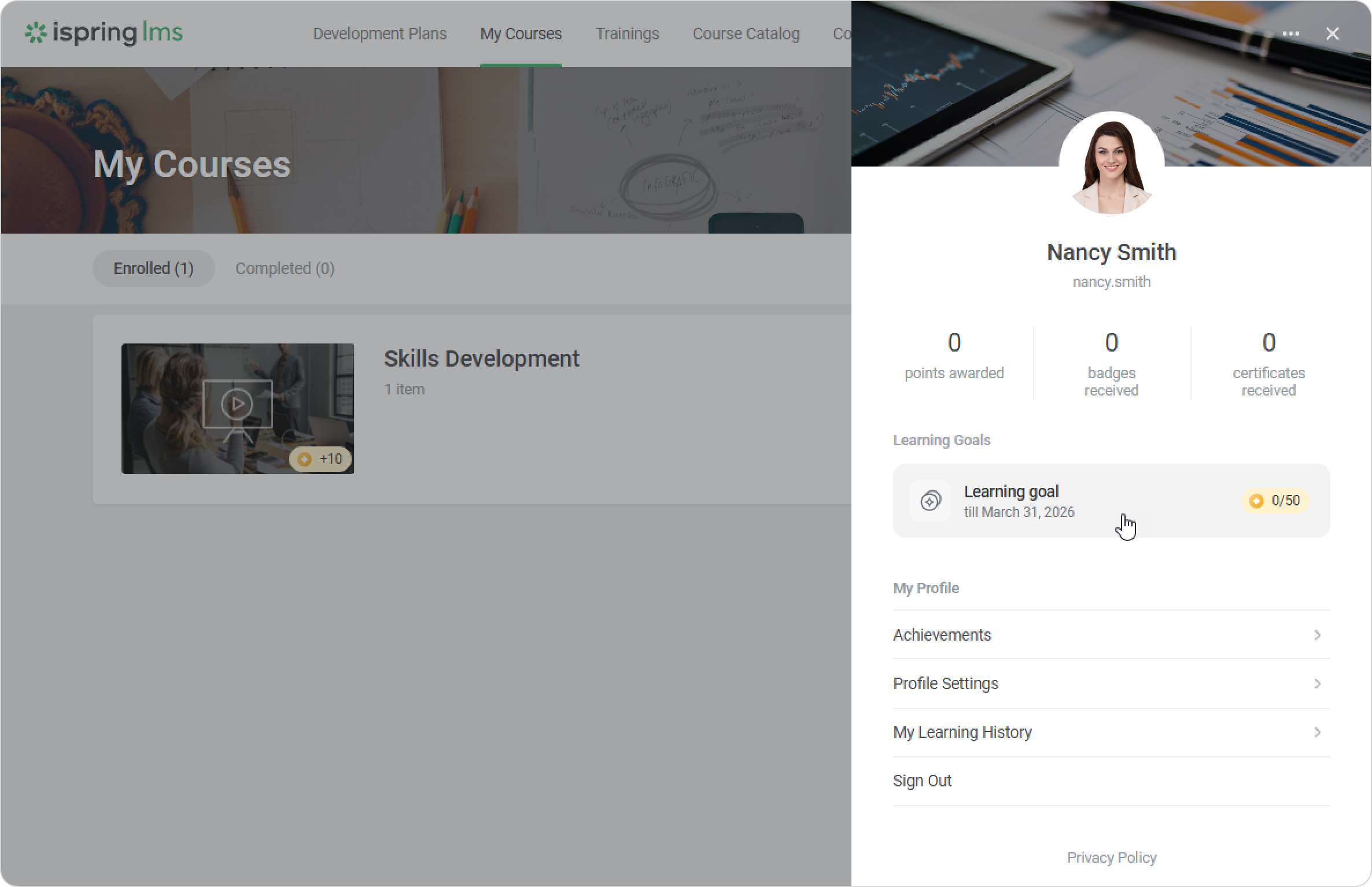
Done! Your first learning goal has been created. You can edit or delete it at any time. Once the goal is active, employees will see it in the User Portal.
The next step is to add learning credits to courses and training programs so employees can achieve their learning goals.