User Synchronization

When iSpring LMS syncs with Microsoft Entra ID, it looks at the UserPrincipalName—this is the same as your iSpring LMS login. Any changes you make to user data in Microsoft Entra ID will automatically show up in iSpring LMS after synchronization.

Microsoft Entra IDiSpring LMS
userPrincipalNameLogin
givenNameFirst Name
surnameLast Name
mailEmail

.

Please note that only the following fields can be synced: Login, Email, First Name, and Last Name.

To ensure successful synchronization, make sure that no other fields aside from Login, Email, First Name, and Last Name are set as “required” in the User Profile Settings on iSpring LMS.
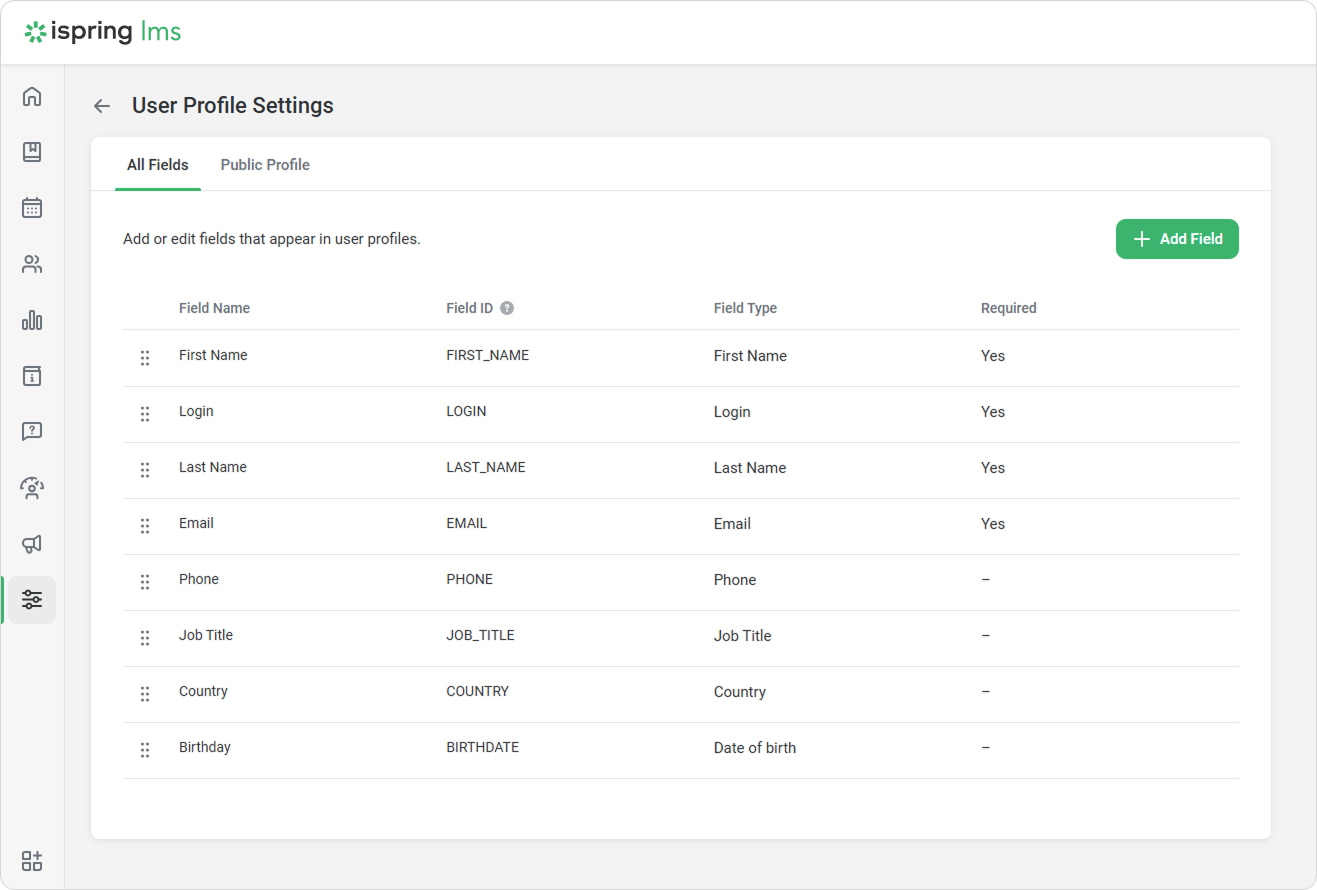


If you try to set other fields like Phone or Job Title as “required,” you'll run into an error during synchronization. As a result, users won't be created in iSpring LMS.

Department Synchronization

First synchronization

The system compares the groups in Microsoft Entra ID (Azure AD) with the departments in iSpring LMS by their names.

  • If a department is found, iSpring LMS returns its data to Microsoft Entra ID (Azure AD), including the department ID.

  • If a department is not found, it creates the missing department in iSpring LMS and retrieves its ID.

Subsequent synchronizations

During later synchronizations, if the departments have already been created, Microsoft Entra ID (Azure AD) will search for the department in iSpring LMS using its ID. If the department cannot be found by its ID, then Microsoft Entra ID (Azure AD) will attempt to find it using its name.