Deleted Courses and Enrollments
How to replace a deleted course
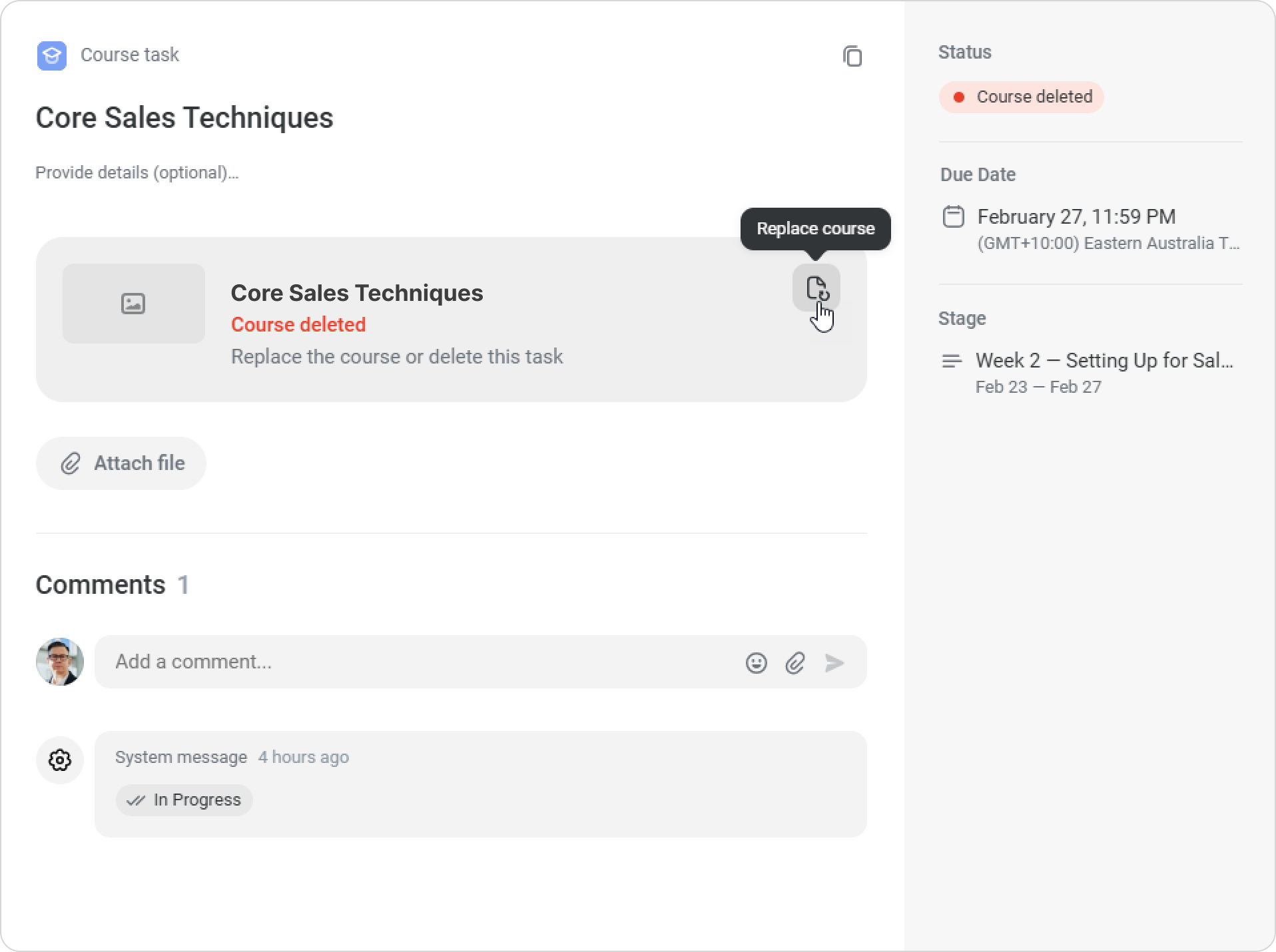
If a course has been removed from the platform, the employee will not be able to complete the task. To allow them to finish the plan, either replace the course in the task or delete the task.
You cannot replace a course if it has already been completed, and the task is marked as Completed.
- Open the development plan and go to Checklist.
- The platform will show how many tasks are unavailable because they contain a deleted course.
Tasks with deleted courses will be labeled Course deleted.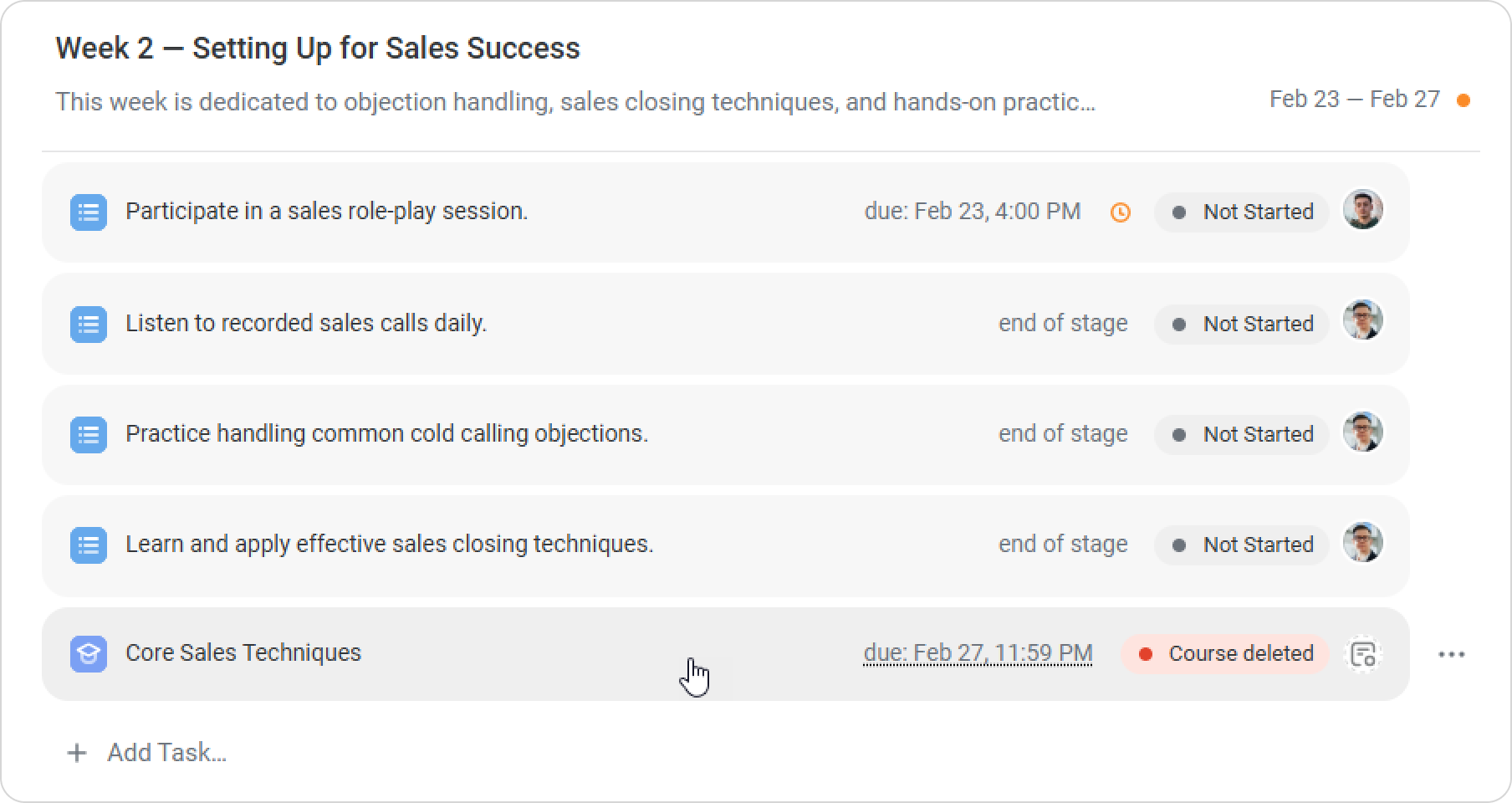
- Open the task and click on Replace сourse.
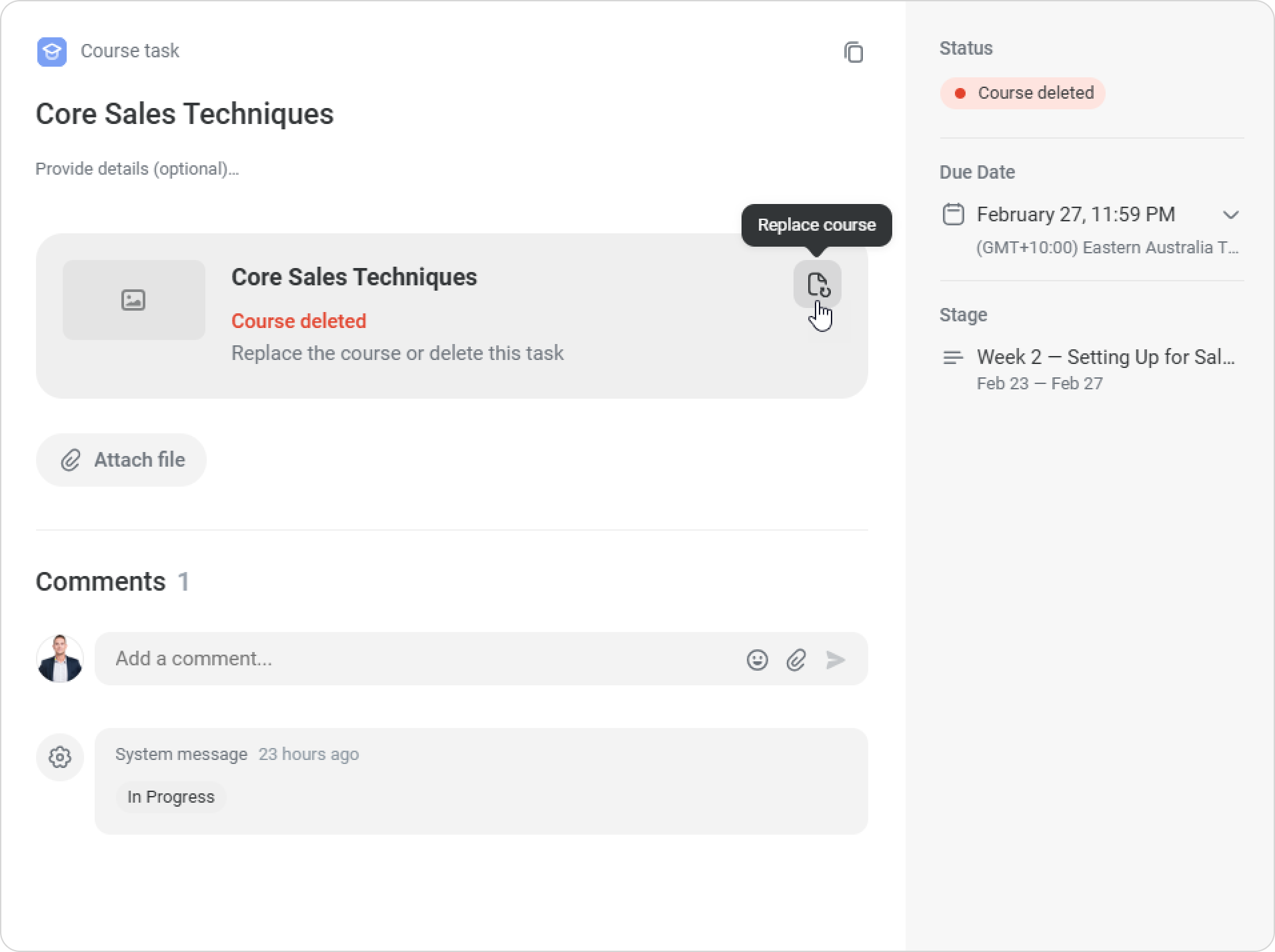
- Select a new course and click on Continue.
You can update the task title, add details to the description, or attach files. When ready, click on Save.
1. The new course will be assigned to the employee immediately, but it will appear in My Courses only on the first day of the stage.
2. The deleted course will be removed from assigned courses, and no reporting data will be preserved.
3. If the course was deleted less than 30 days prior, it can be restored from the trash
How to replace a deleted enrollment
A course can also be replaced if it was previously unassigned.
In this case, the task will show the label Enrollment deleted.
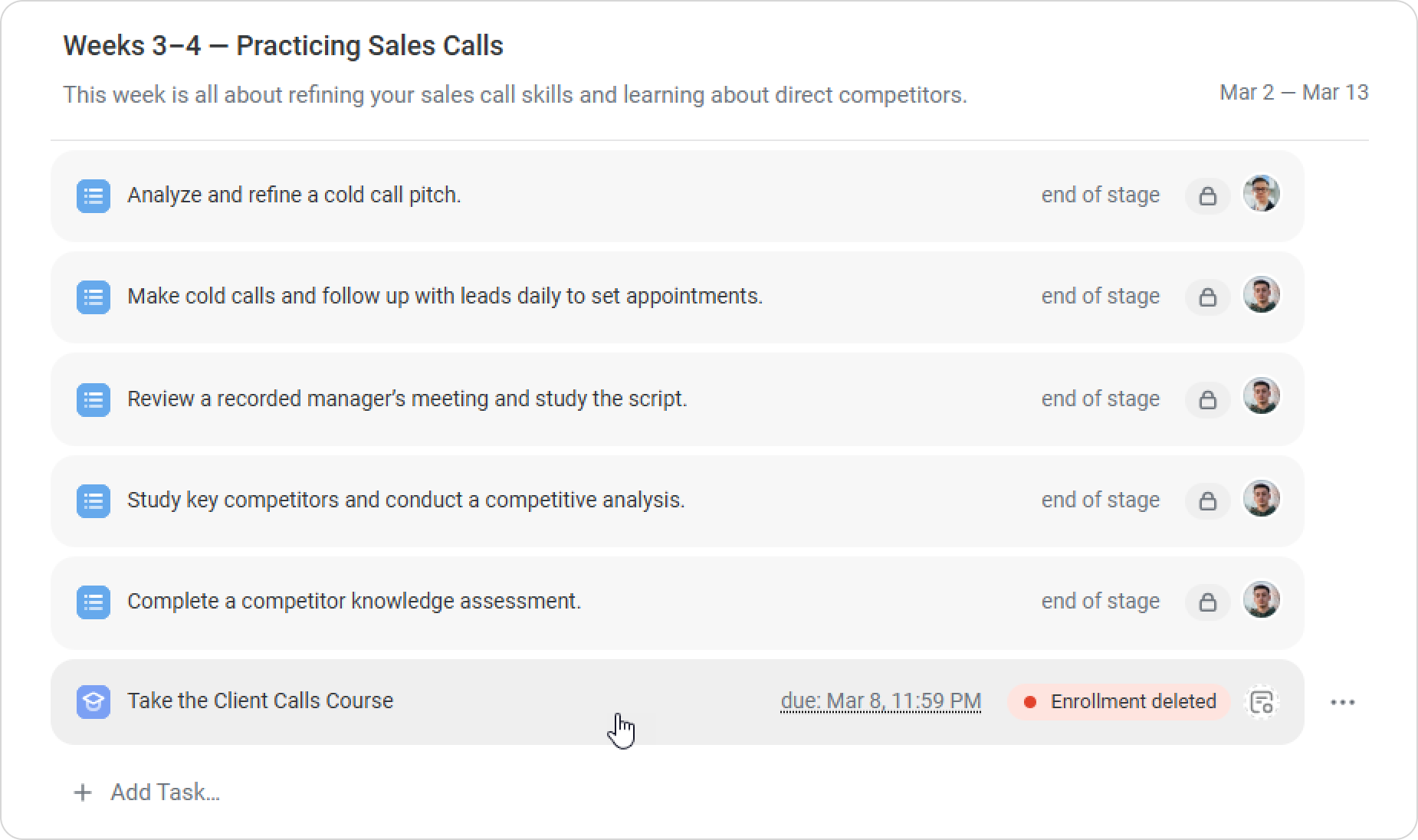
Open the task and click on Replace Course to assign a different course in the employee’s development plan.
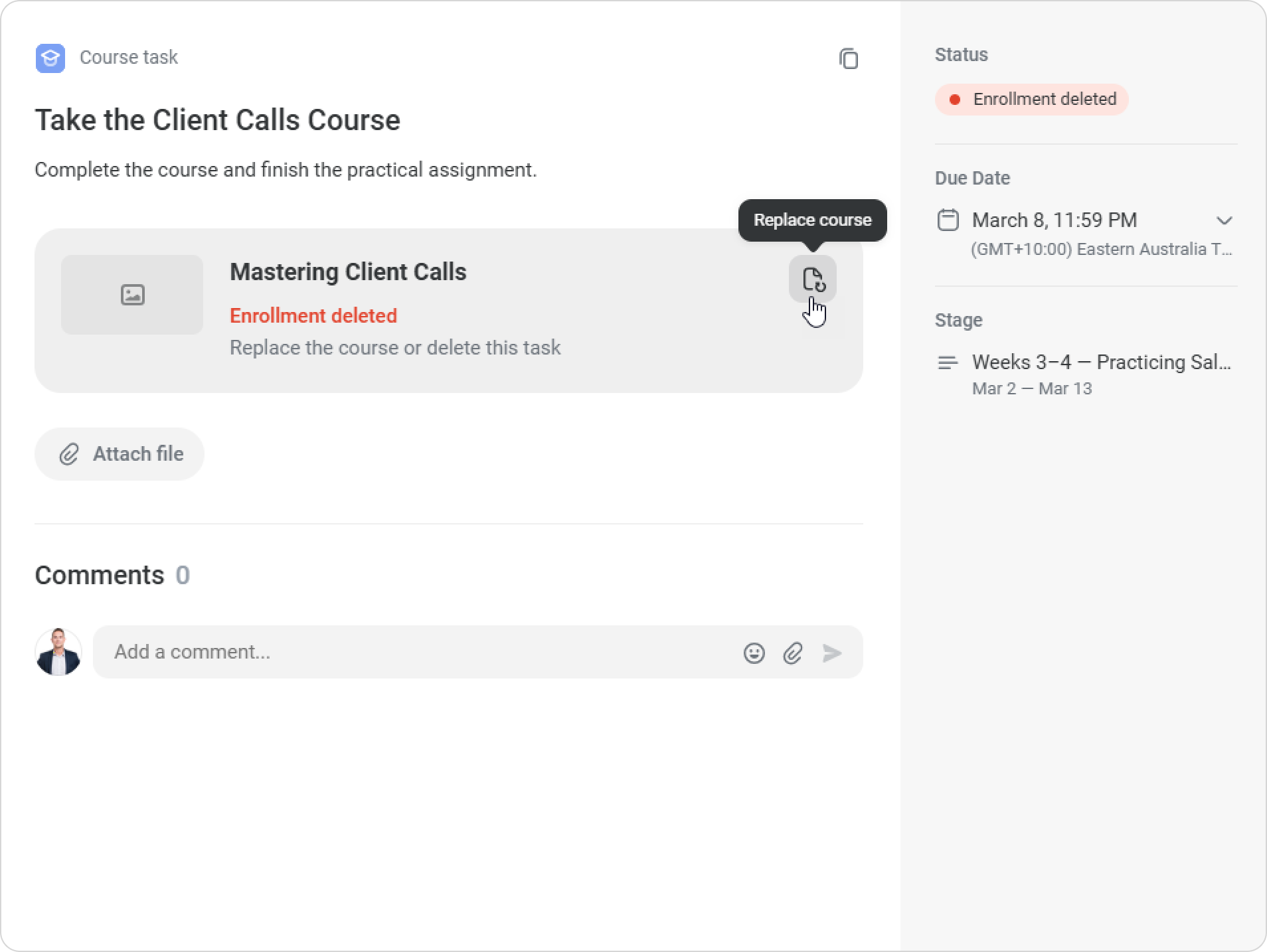
Alternatively, you can delete the task. This will recalculate the progress in the plan. Later, we will explain how deleting a task affects course status.
How to delete a task that includes a course
In most companies, outdated courses are rarely removed from the LMS. If a course is no longer relevant, doesn’t fit the plan, or was added by mistake, it’s important to know how to delete it from the development plan.
Let’s see what happens in different cases when you delete a task with a course:
| Plan / Task Status | What happens if a task is deleted |
|---|---|
| Draft Plan — Not Assigned | Deleting the task has no effect. The course had not been assigned yet. |
| Assigned Plan — Stage Hasn’t Started | The course has been assigned, but the employee doesn’t see it in My Courses yet. If you delete the task, the course assignment remains unchanged. |
| Assigned Plan — Stage Started, Task Not Started | The course has been assigned and is visible in My Courses. If you delete the task, the assignment remains unchanged. The employee will still see the course in My Courses. |
| The Employee Started the Task | The course assignment and progress are preserved. The employee continues to see the course in My Courses. |
| The Employee Completed the Course | The assignment remains. The employee will see the course among the completed courses. |
- Open the plan editor.
- On the Checklist tab, select the task that includes the course.
- Click on ••• > Delete.
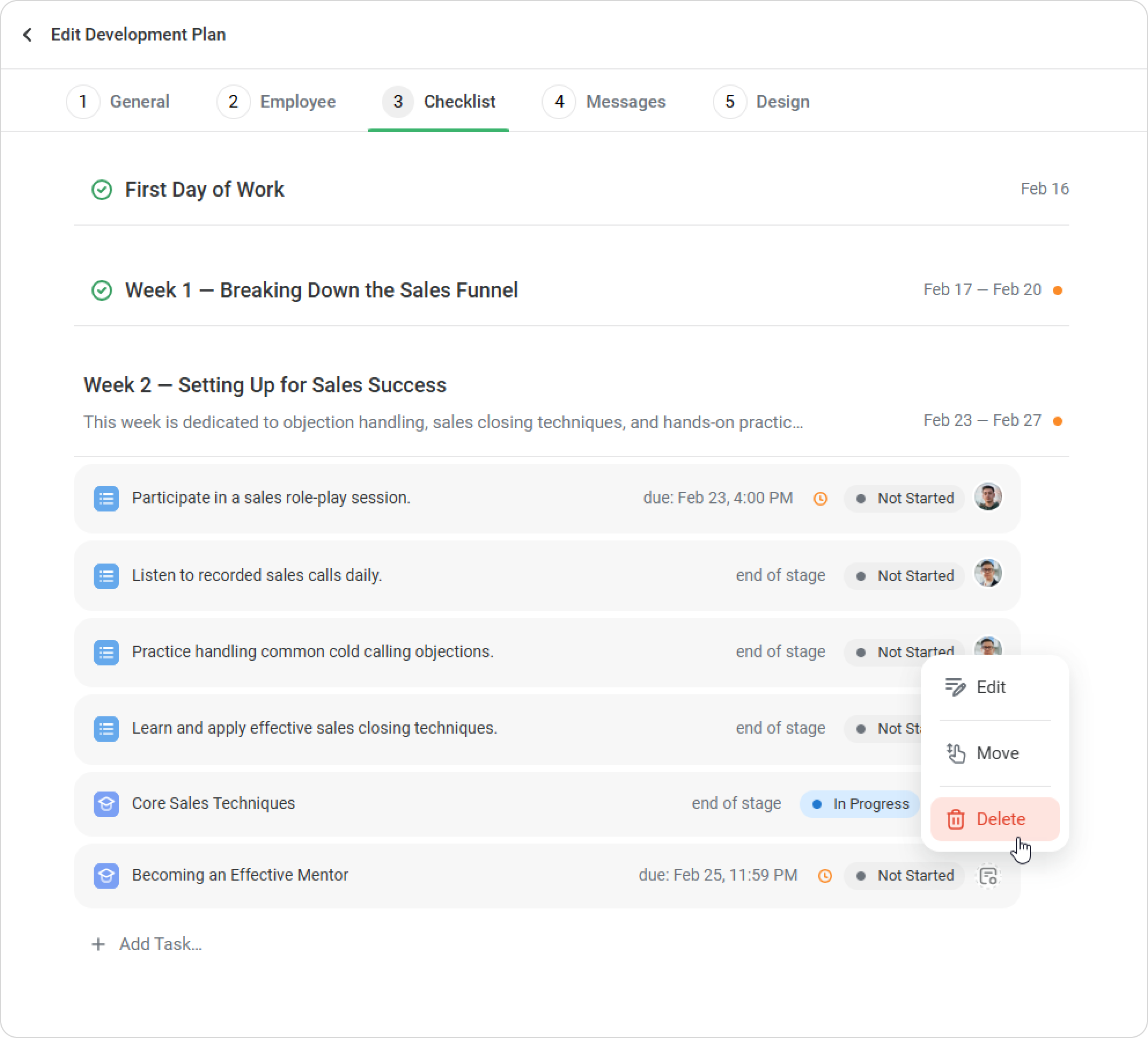
- Confirm the action.
How a supervisor or mentor can replace a deleted course
When you open an employee’s development plan, the platform will highlight tasks where the course or its assignment has been deleted.
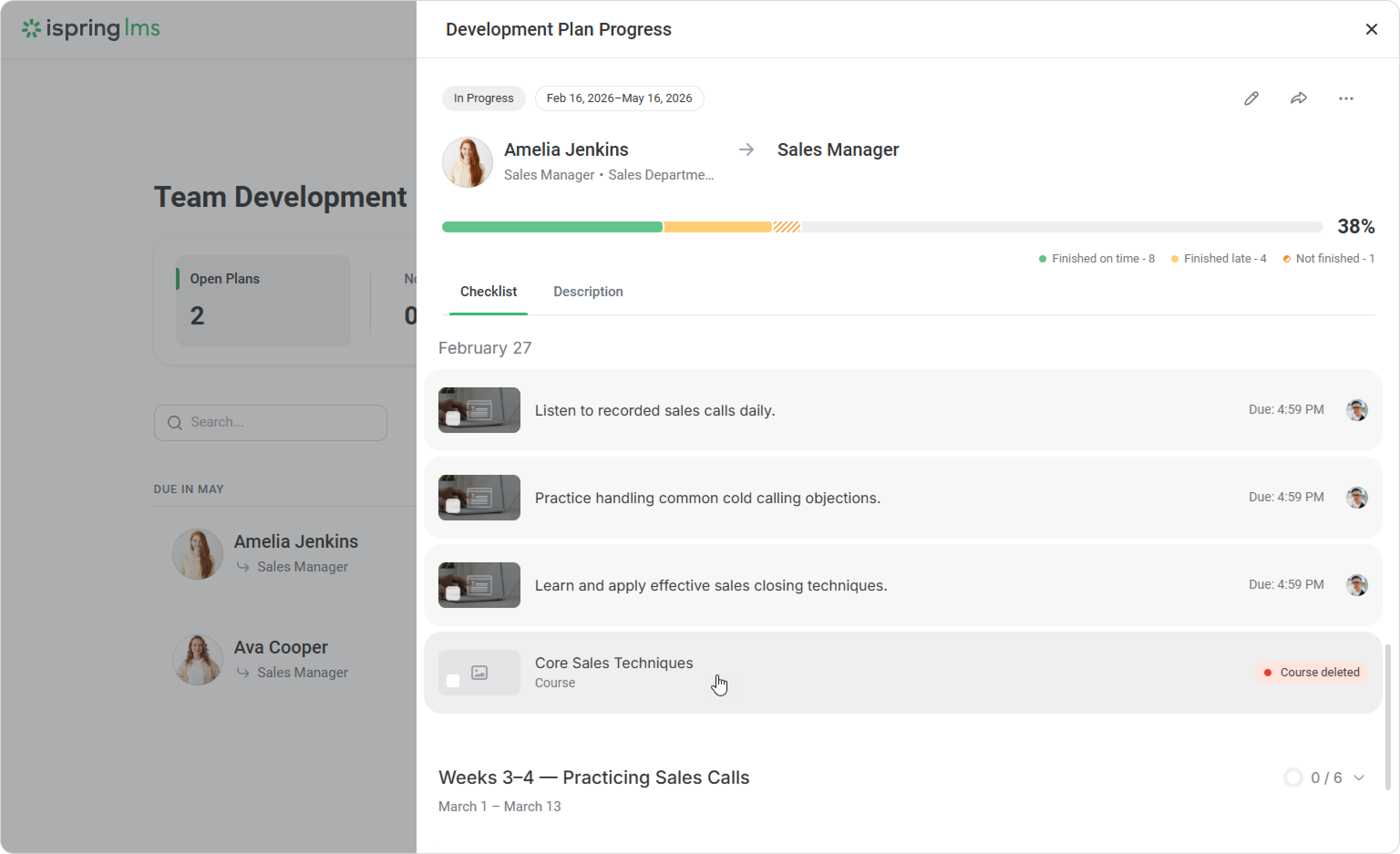
If this is the case, ask your LMS administrator to replace the course so the employee can complete the task.
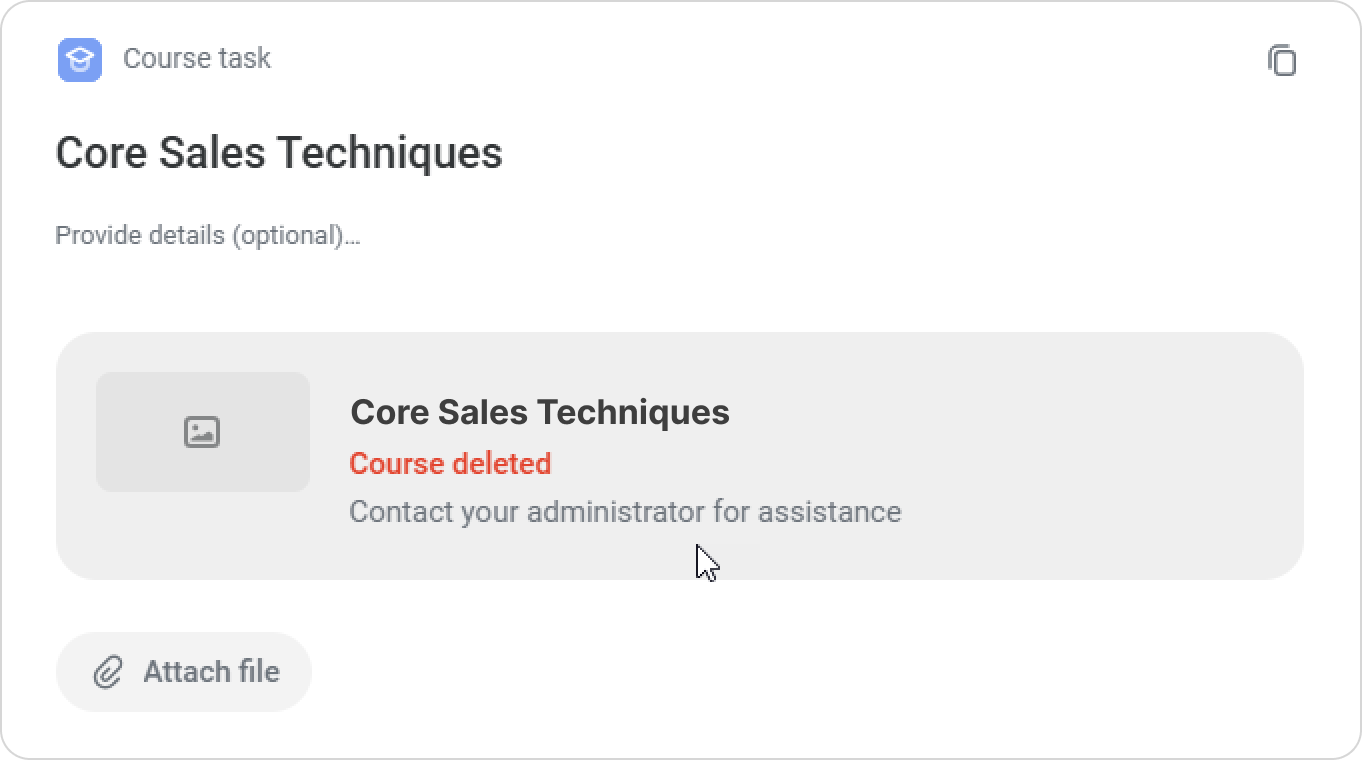
If you have the appropriate permissions, you can replace the course with another one.