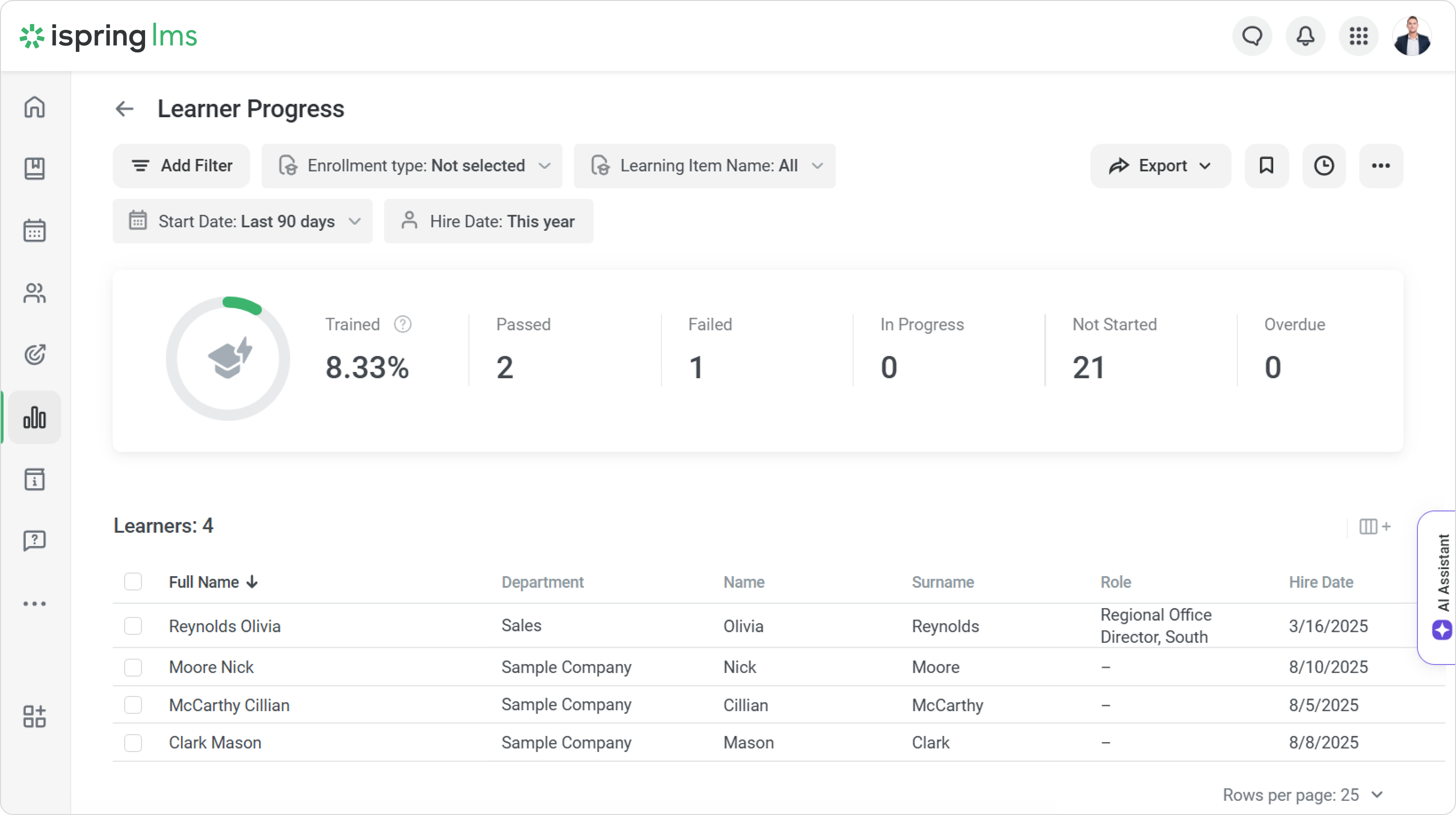
Administrators can use a date field to record key events in an employee’s timeline: hiring, end of probation, vacation, maternity leave, and more.
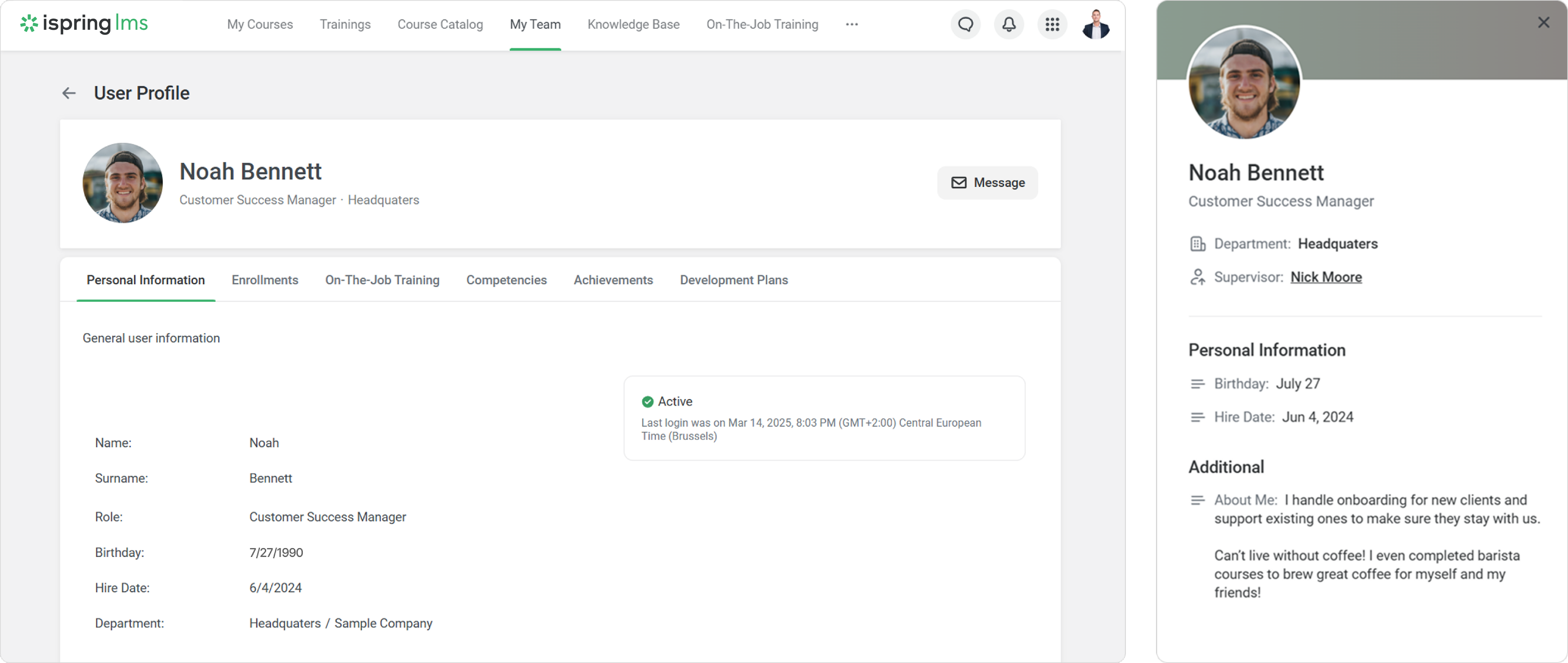
- Dates are supported in reports and user imports. Just enter them in the YYYY-MM-DD format — this works in any language.
- You can add dates starting from 1971. Earlier years, such as 1970, are not supported.
How to add a date to a user profile
Let’s create a date field, for example, Hire Date.
- Go to Settings > Additional Options.

- Open User Profile Settings.
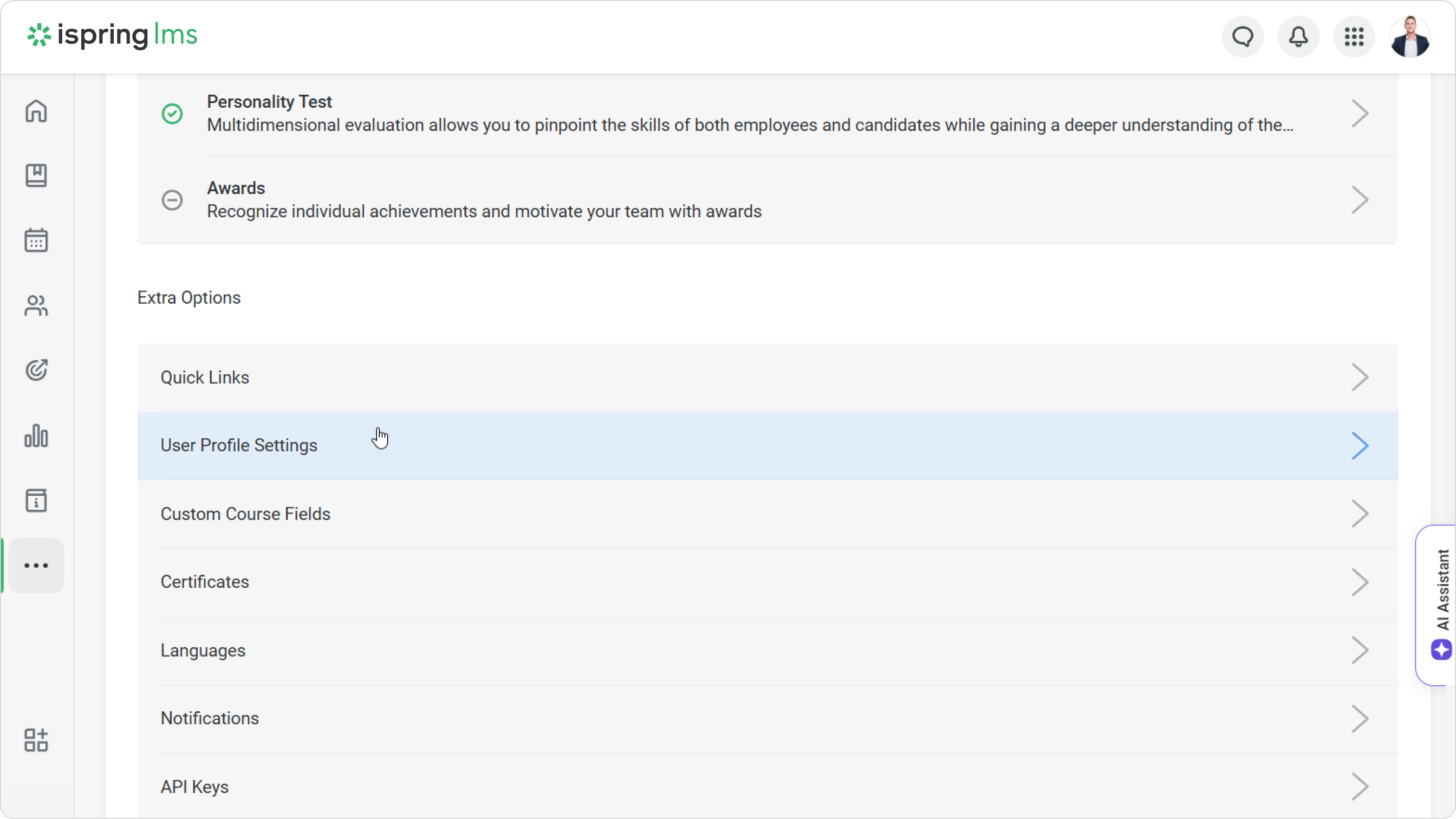
- Then click on Add Field.
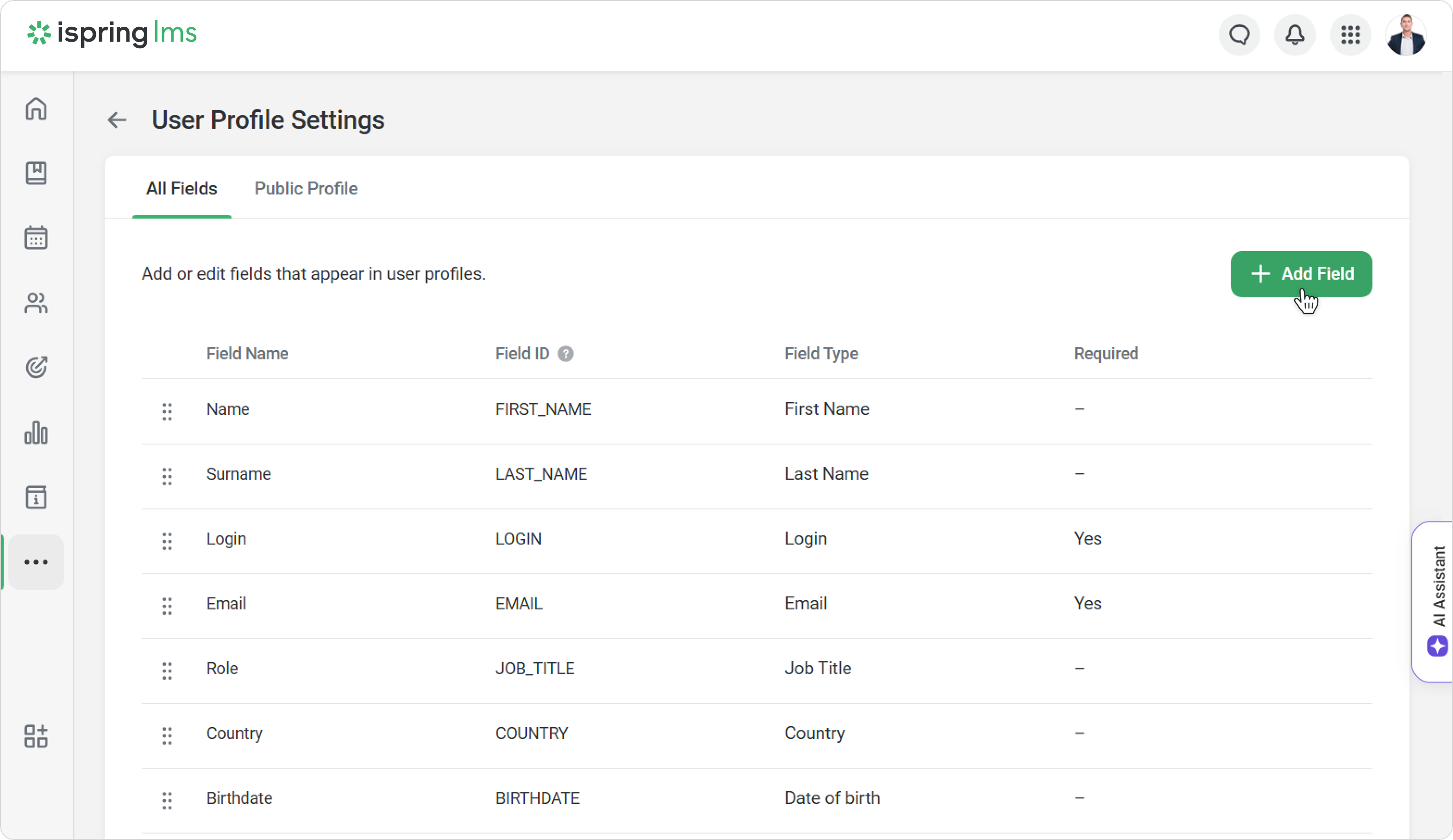
- Enter the field name and ID, and then select Date as the field type.
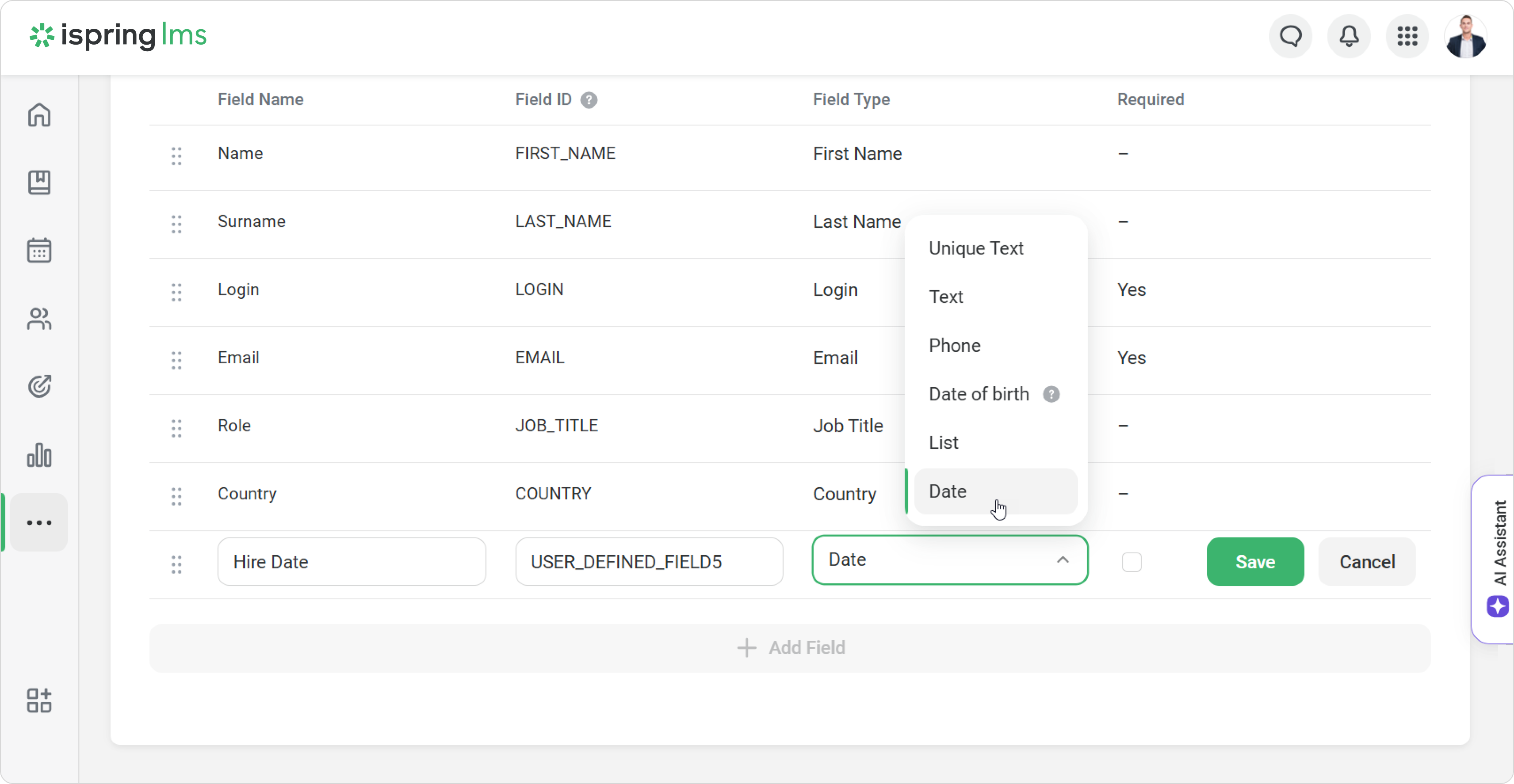
- Check the box to make the field required, then click on Save.
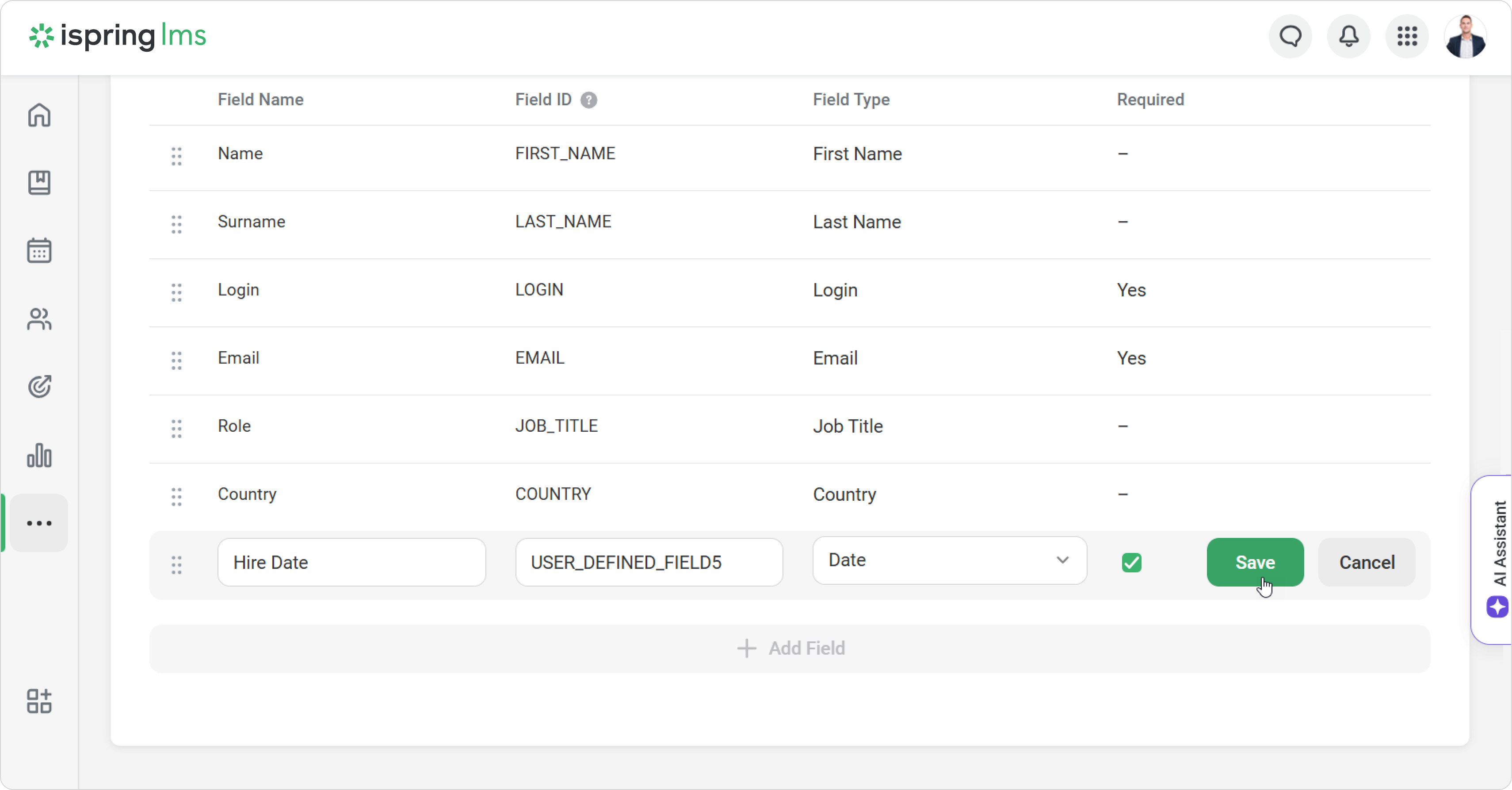
All set!
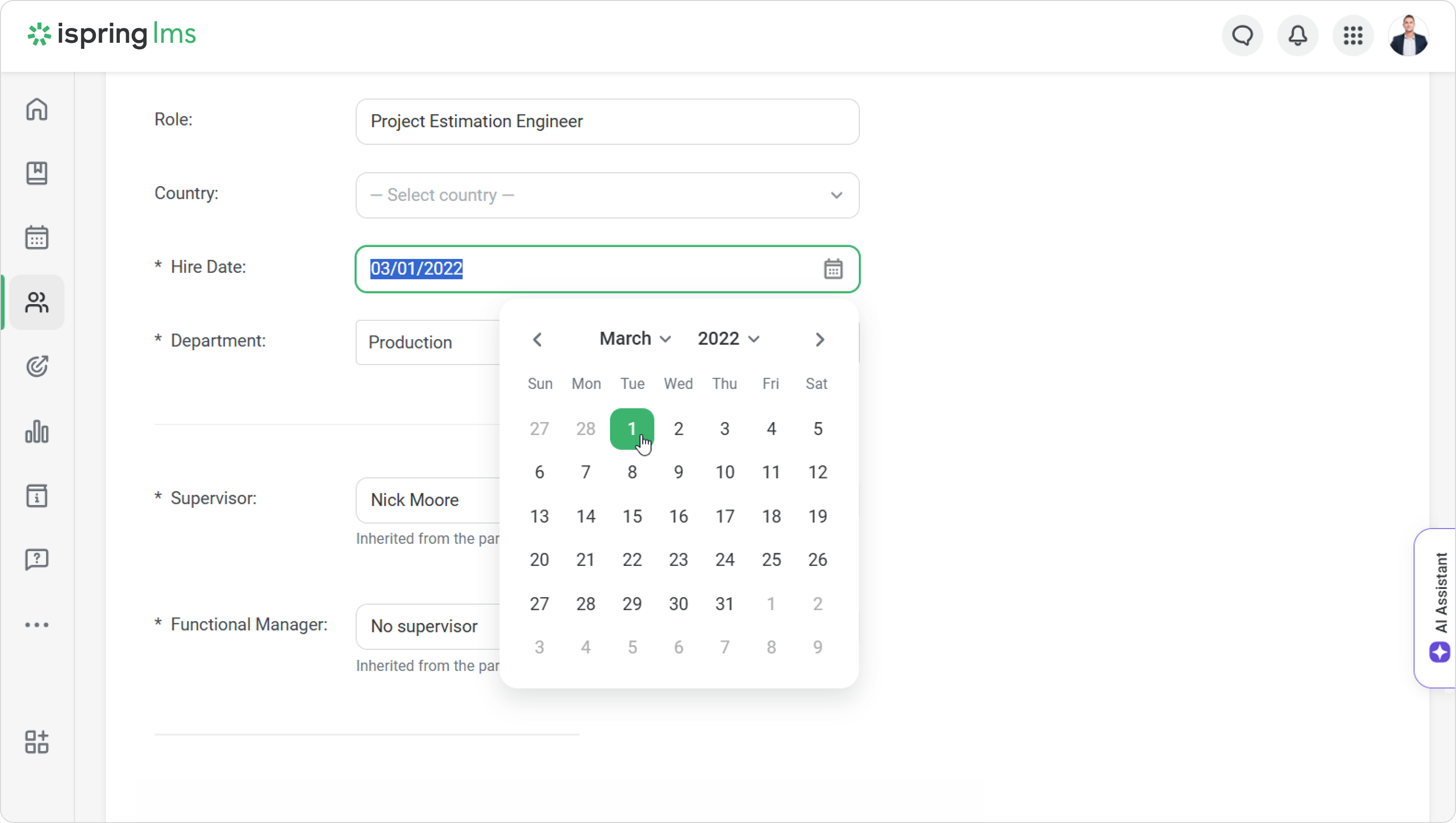
Now you can enter the hire date in the User Profile.
How to sort and filter data by date
- Go to Manage Users > Users > Display Columns. Then add a date column, e.g., Hire Date.

- Click the arrow in the column header to sort employees by tenure.
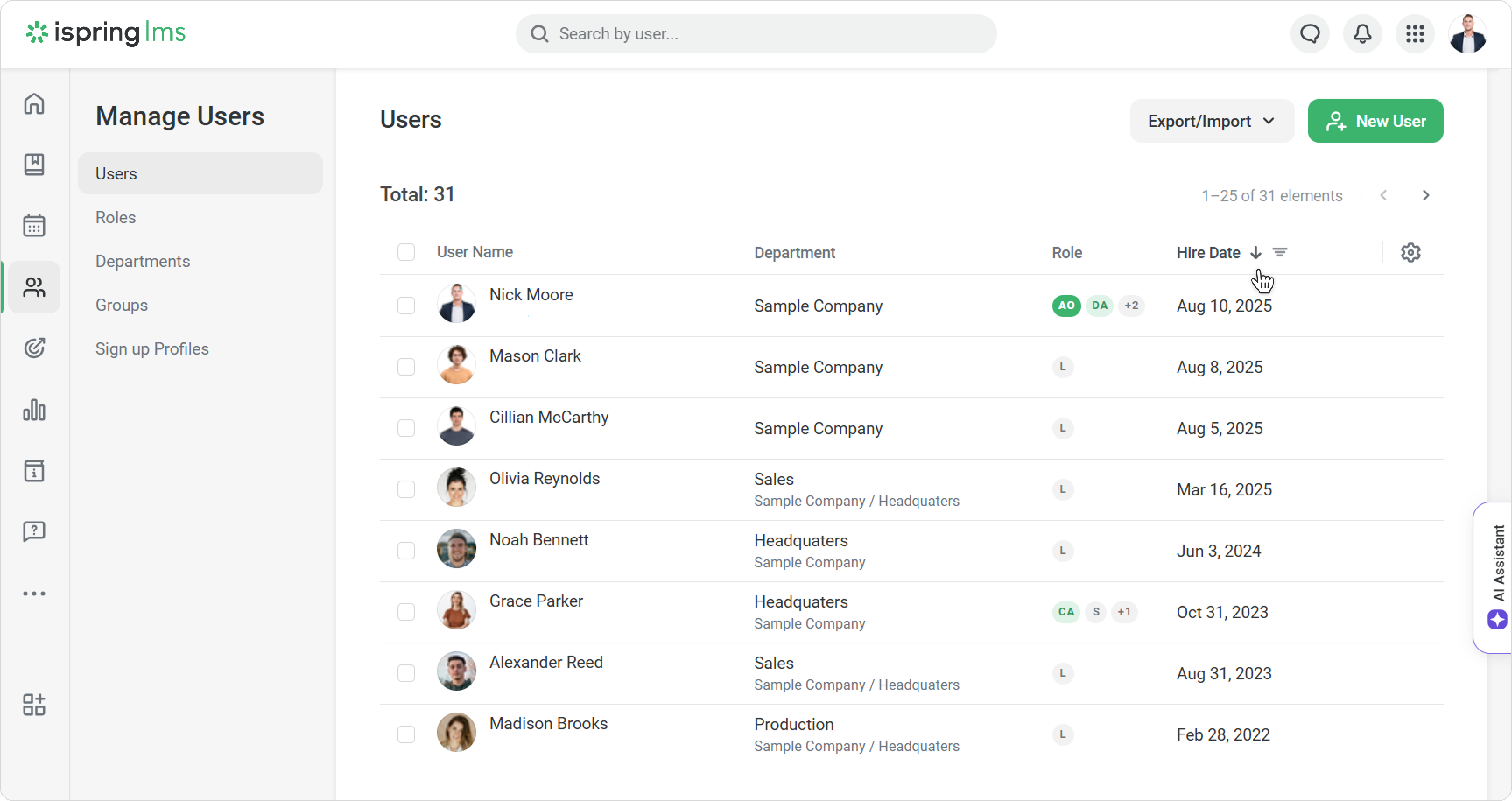
- To filter the list, select a time range and click on Add. This helps you quickly find employees by their hire date.
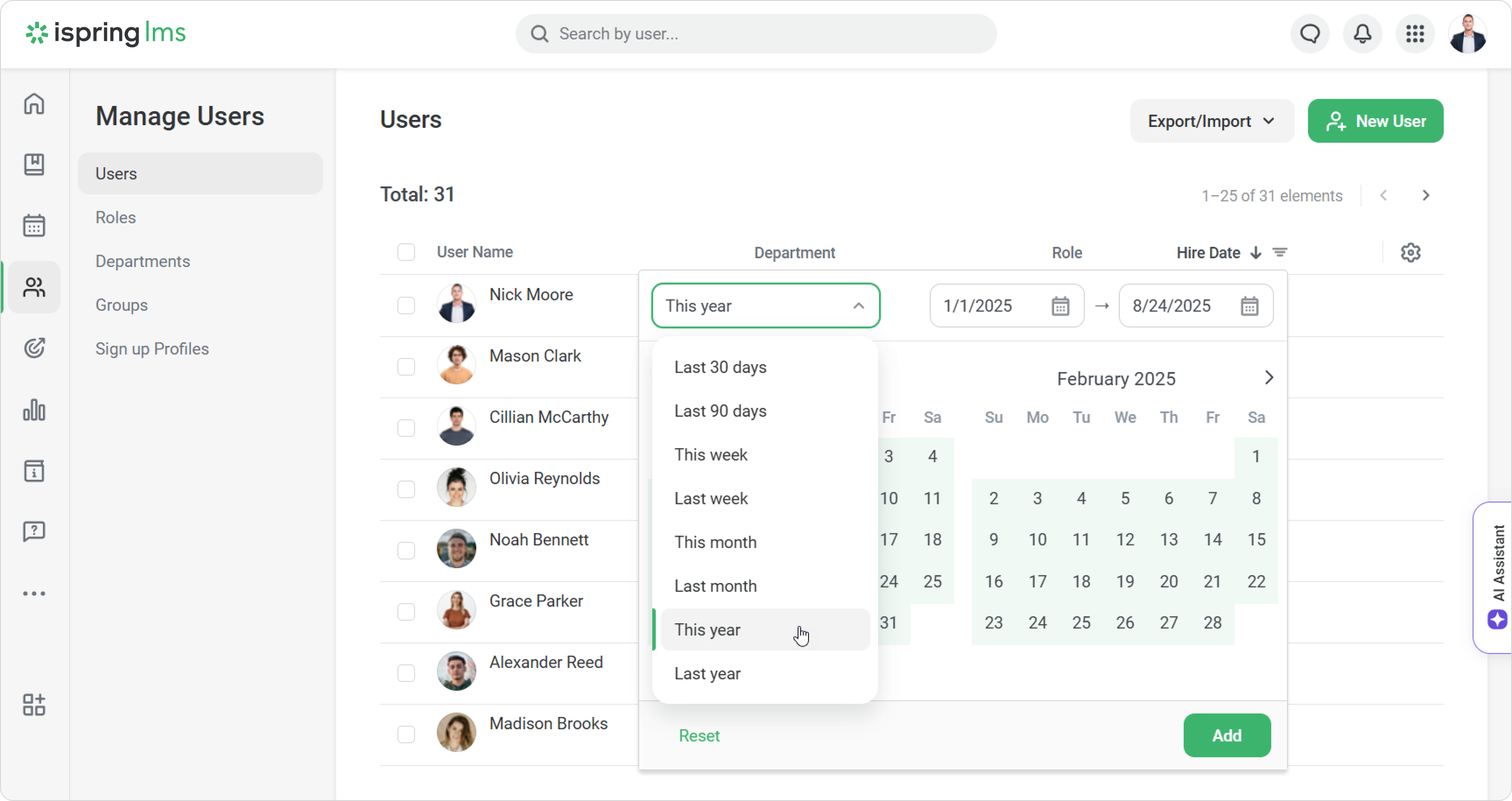
Done! You will see the list of employees who meet the filter criteria.
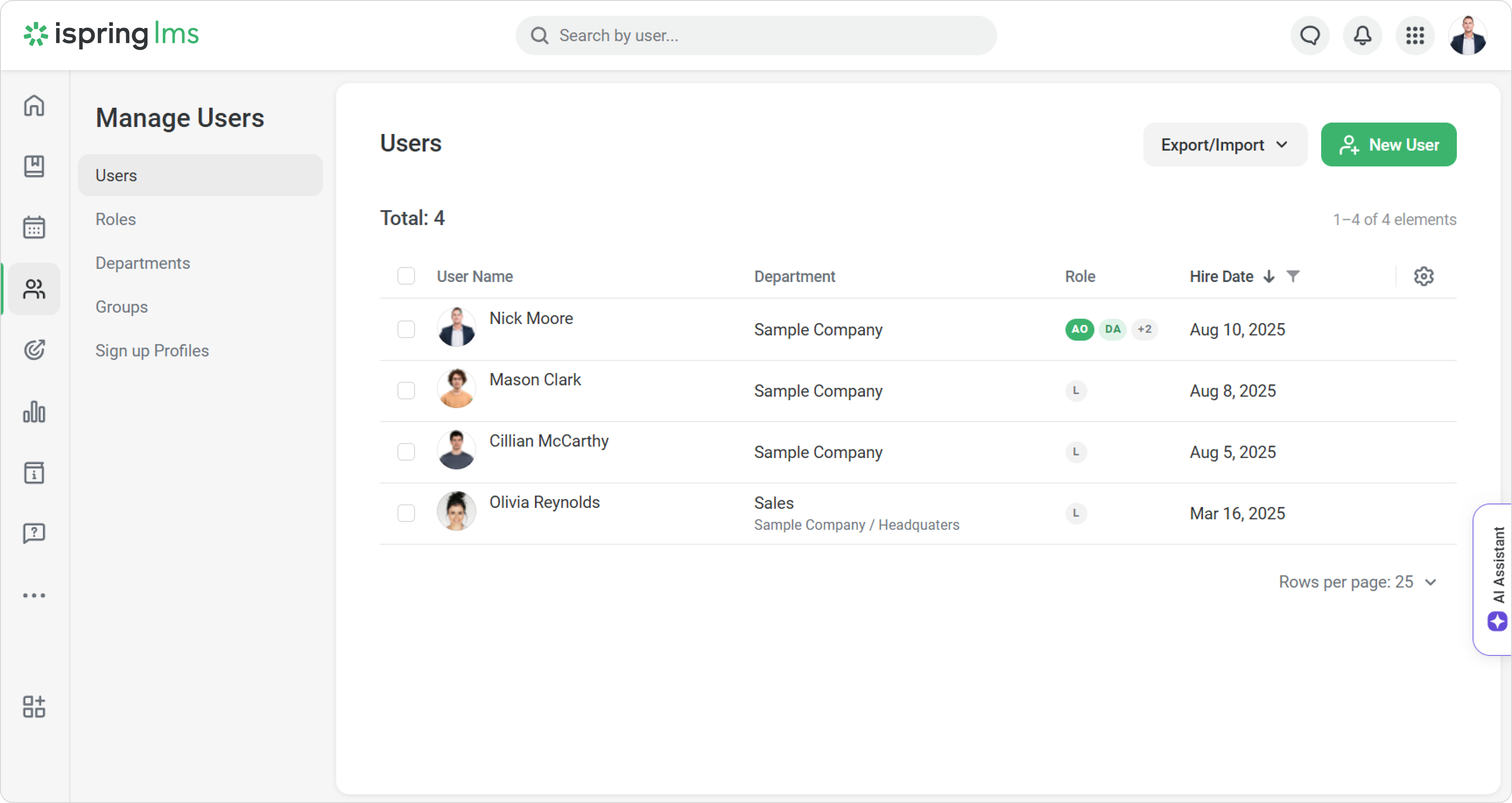
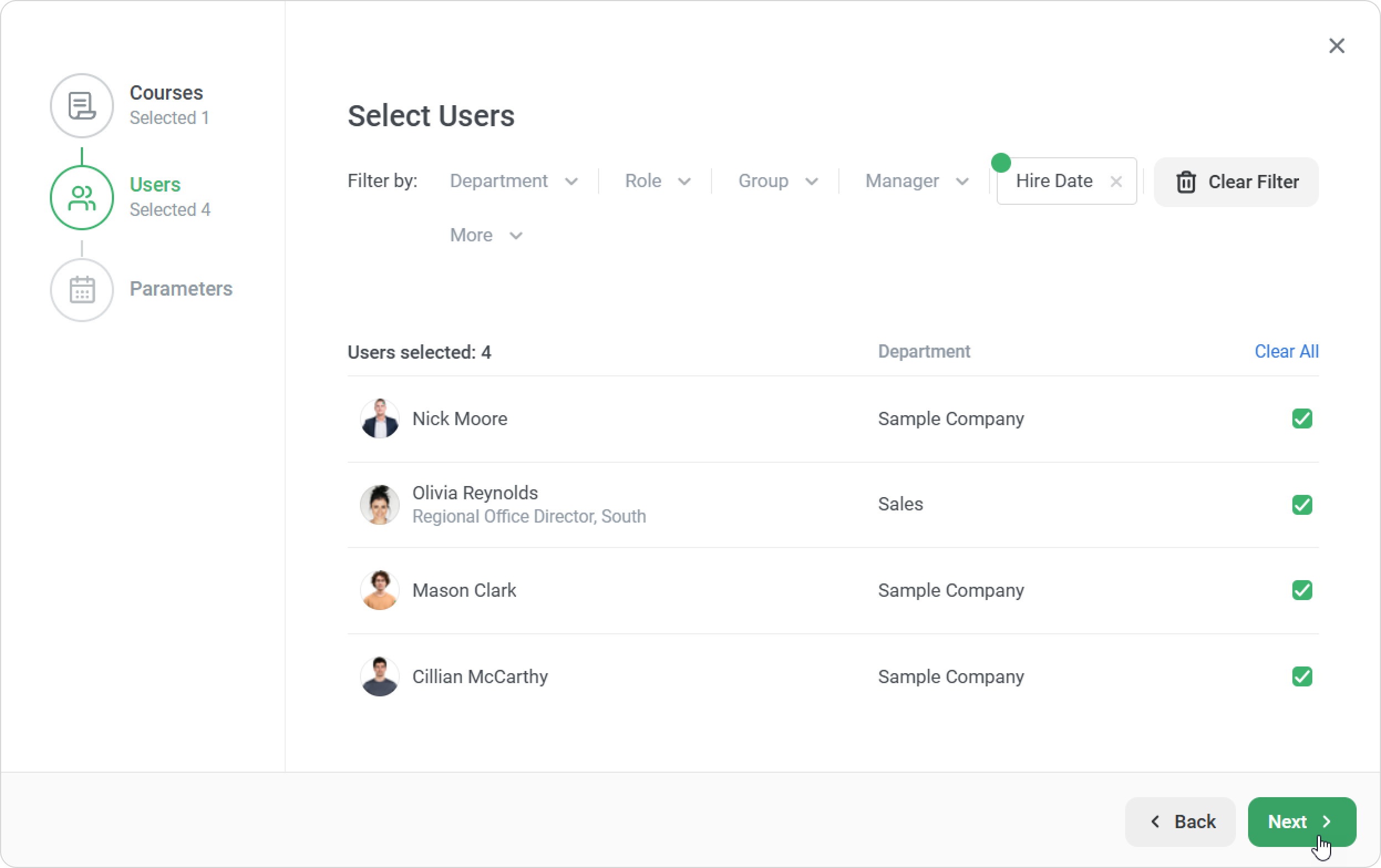
For assigning training
- Select a course and click Enroll users.
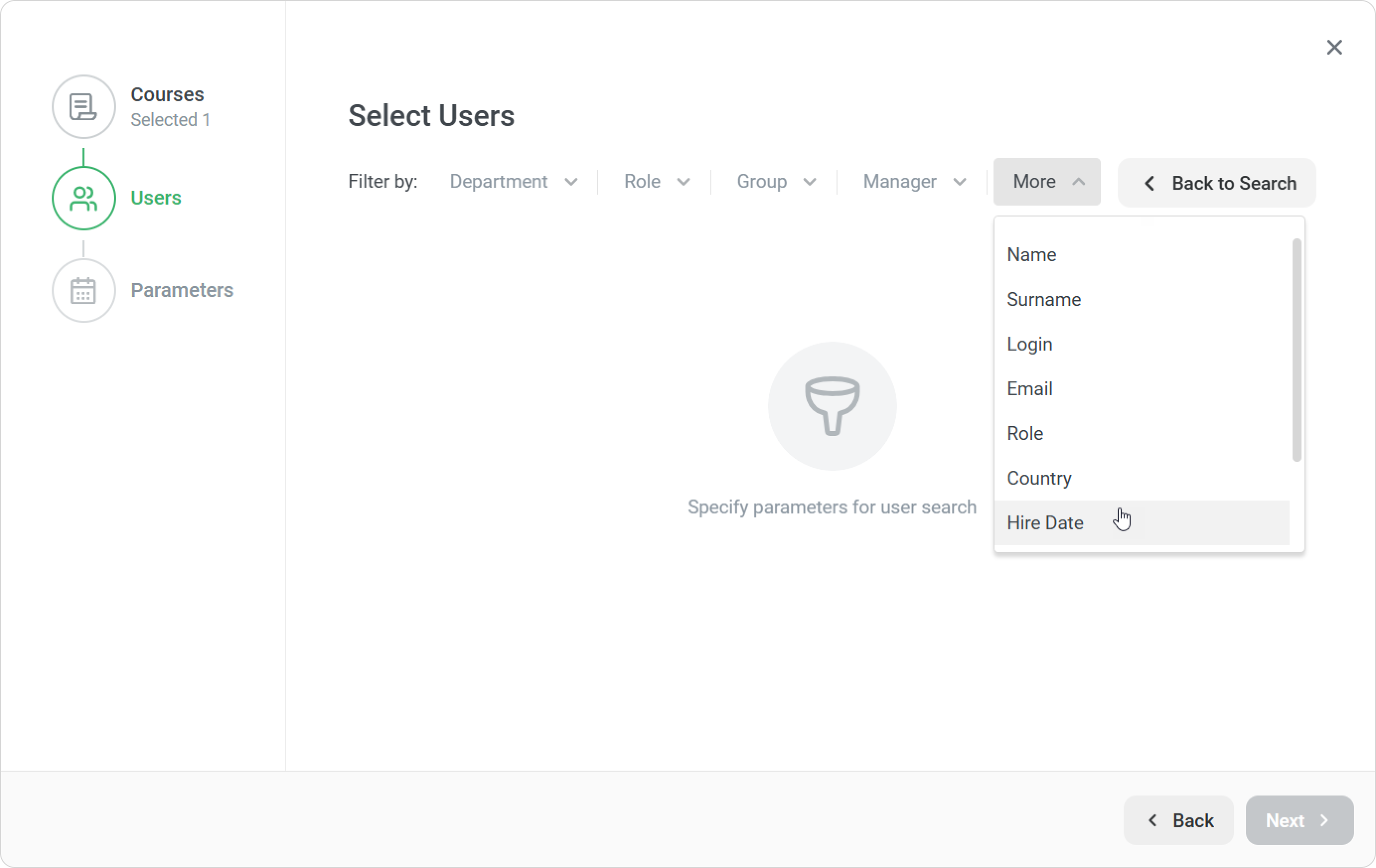
- In the Users tab, apply a filter by clicking Advanced search > More > Hire Date.
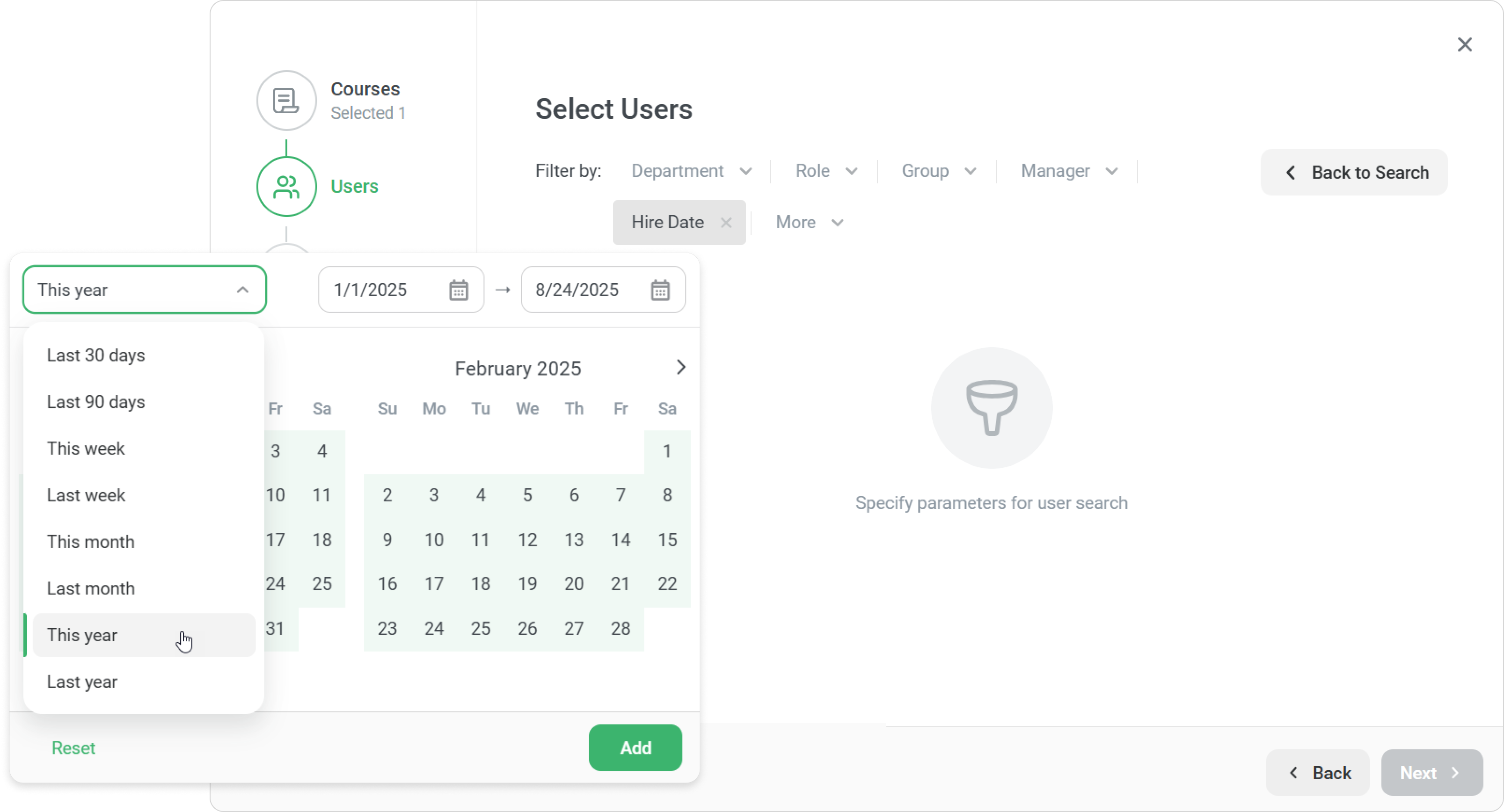
- Select a time period and click on Add.
- A list of employees matching the filter will appear. Click on Next to set the remaining assignment parameters.
How to apply the date filter in reports
Use dates to get deeper insights from reports. For example, compare how employees with 5 years of experience learn versus those who joined the company more recently.
The date filter is available in these reports:
- Learner Progress
- Quizzes, Surveys, Role-Plays
- Active Users
- Certificates
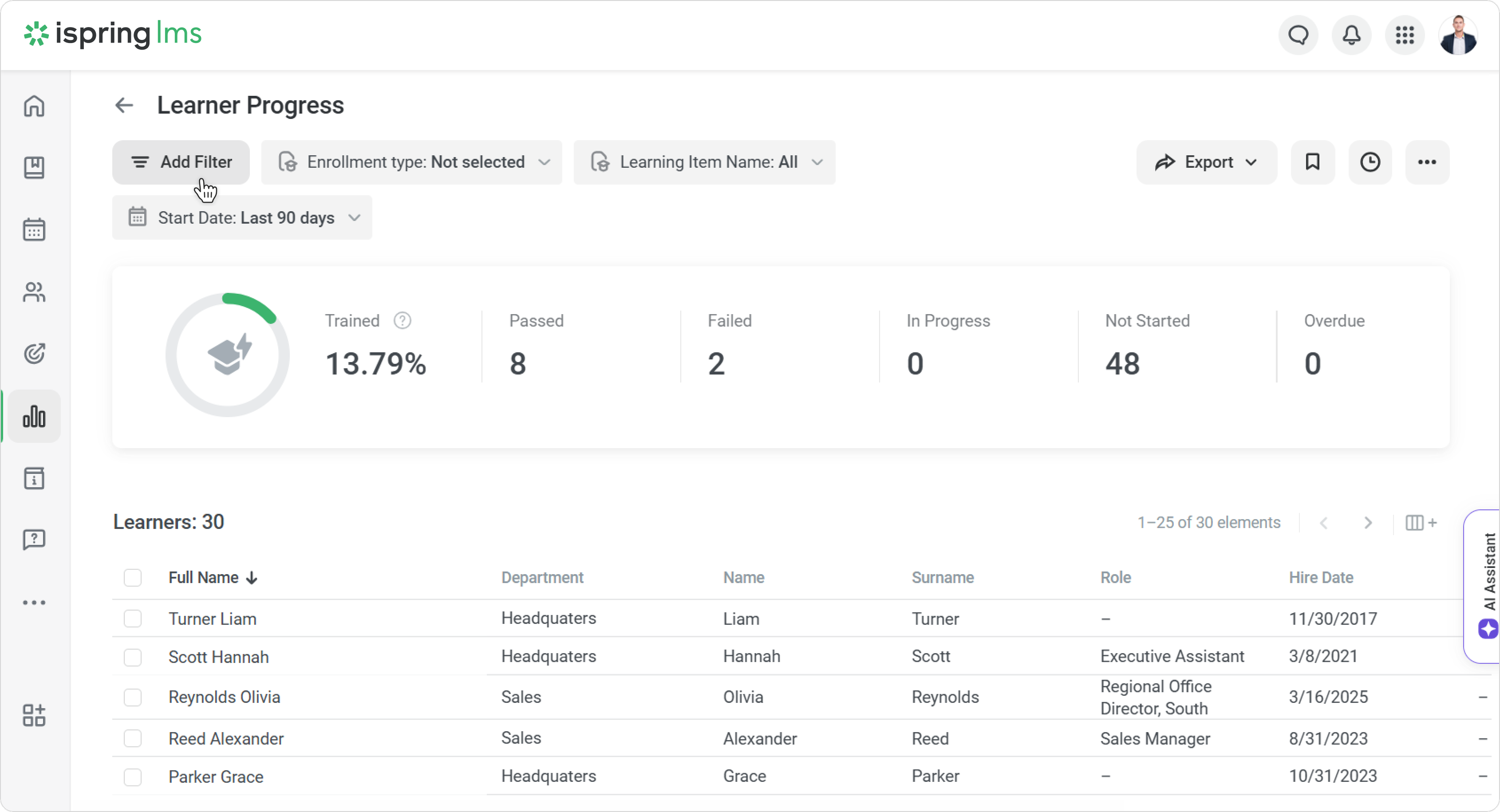
- Open a report, e.g., Learner Progress.
- Click on Add Filter > Hire Date.
- Select a period and click Add.
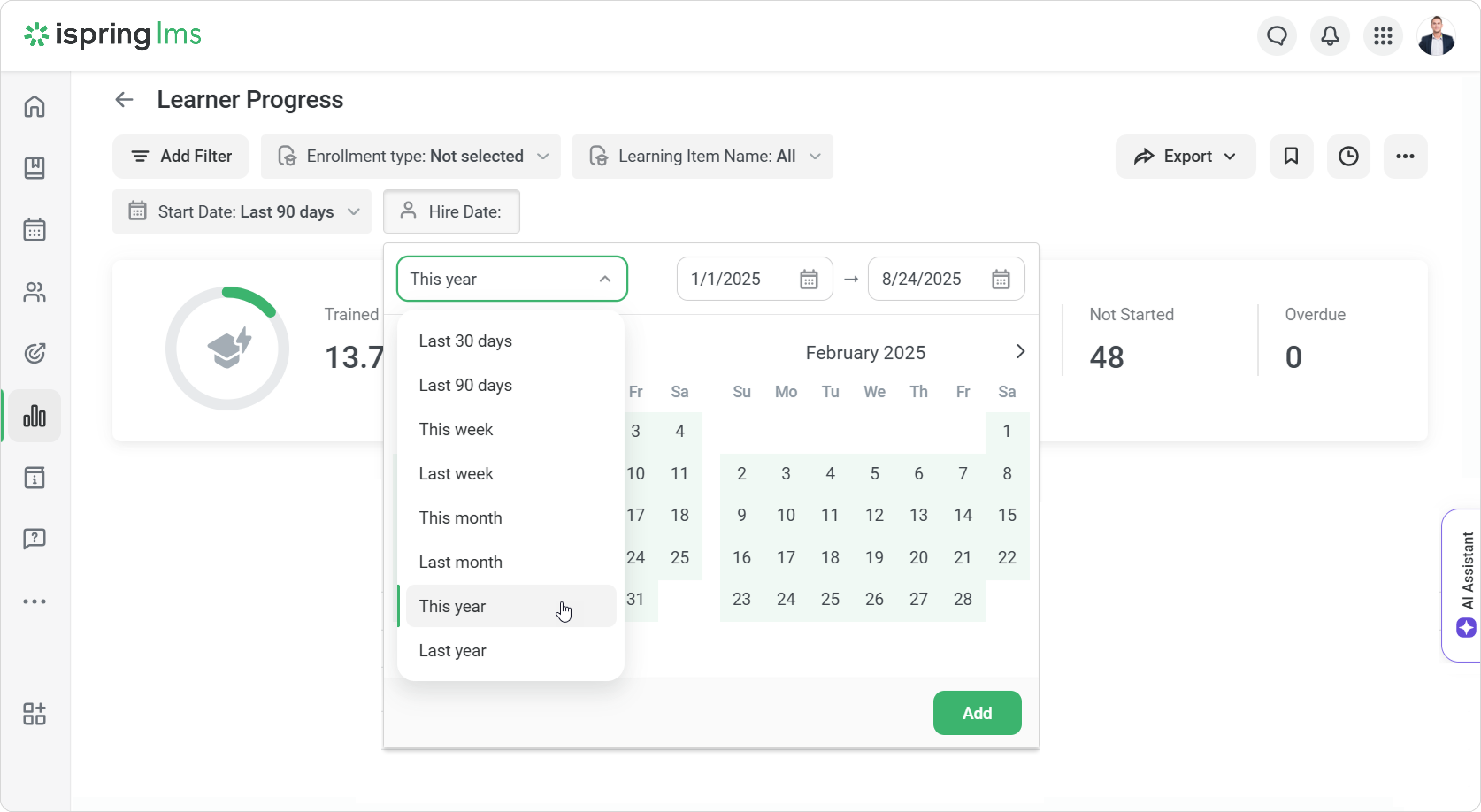
All set! The report will show the progress of employees who joined the company this year.