Here, you set the conditions for assigning the plan.

  • The plan will be assigned to employees when they start meeting the conditions. For example, after their job title, department, or group changes. Auto-assignment will also work when an employee is created or activated. 

  • iSpring LMS will assign the plan 30 minutes after the latest change.

  • Employees who already meet the conditions when you set up auto-assignment will not receive the plan.

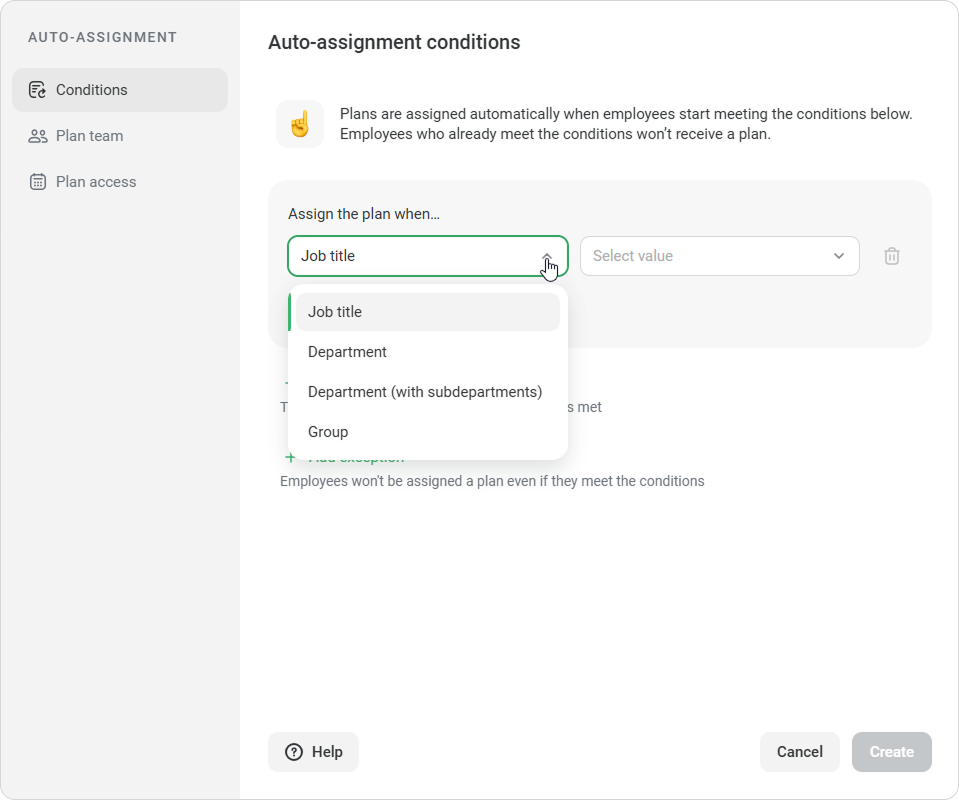
Select who will receive the plan. You can choose a job title, department, department with subdepartments, or group.

How to Combine Multiple Conditions

How to add an “AND” condition

Click Add “AND” condition to add multiple criteria at the same time. The plan will be assigned only to employees who meet all the conditions.

Example

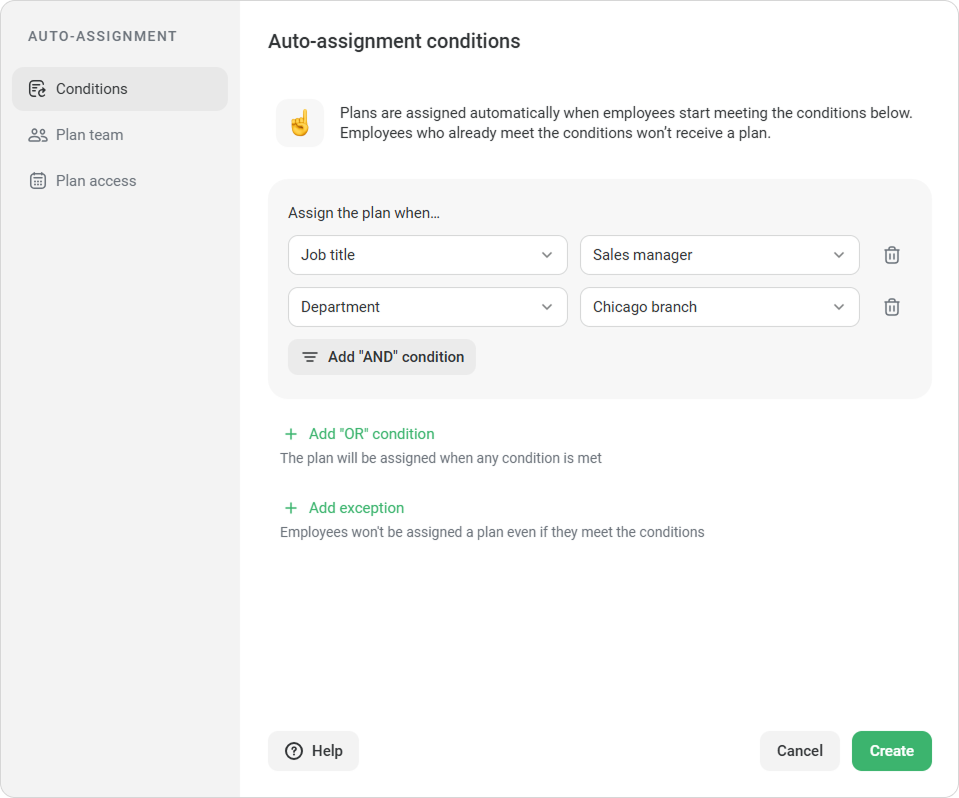
You need to assign a plan to the sales managers in Chicago. Select these conditions:

  • job title “Sales manager”
    AND
  • department “Chicago branch”

    Only sales managers from the Chicago branch will be assigned the plan when they meet the condition.

How to add an “OR” condition

Click Add “OR” condition if the plan needs to be assigned to employees who match one of the conditions.

Example

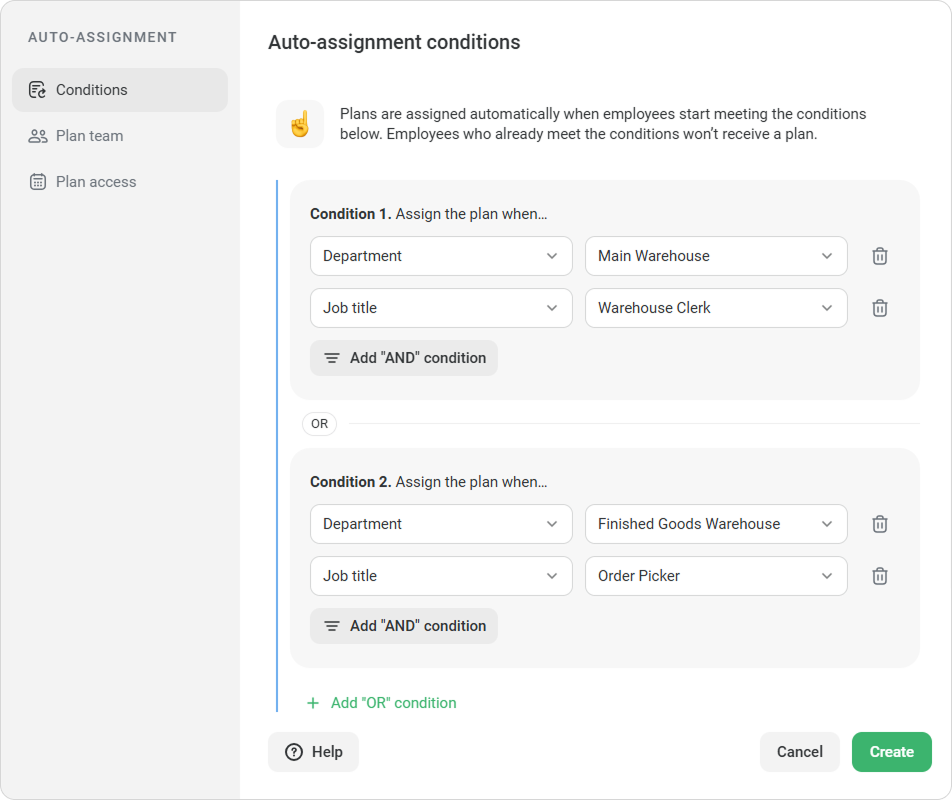
You need to assign a plan to warehouse employees who handle storing and moving goods:

Condition 1: department “Main Warehouse” AND job title “Warehouse Clerk”
OR

Condition 2: department “Finished Goods Warehouse“ AND job title “Order Picker“

This way, the plan will be assigned to warehouse clerks in the Main Warehouse and order pickers in the Finished Goods Warehouse.
How to exclude a category of employees

Click Add exception if you need to exclude some employees. The plan will be assigned to everyone who meets the conditions, except for the selected category.

Example

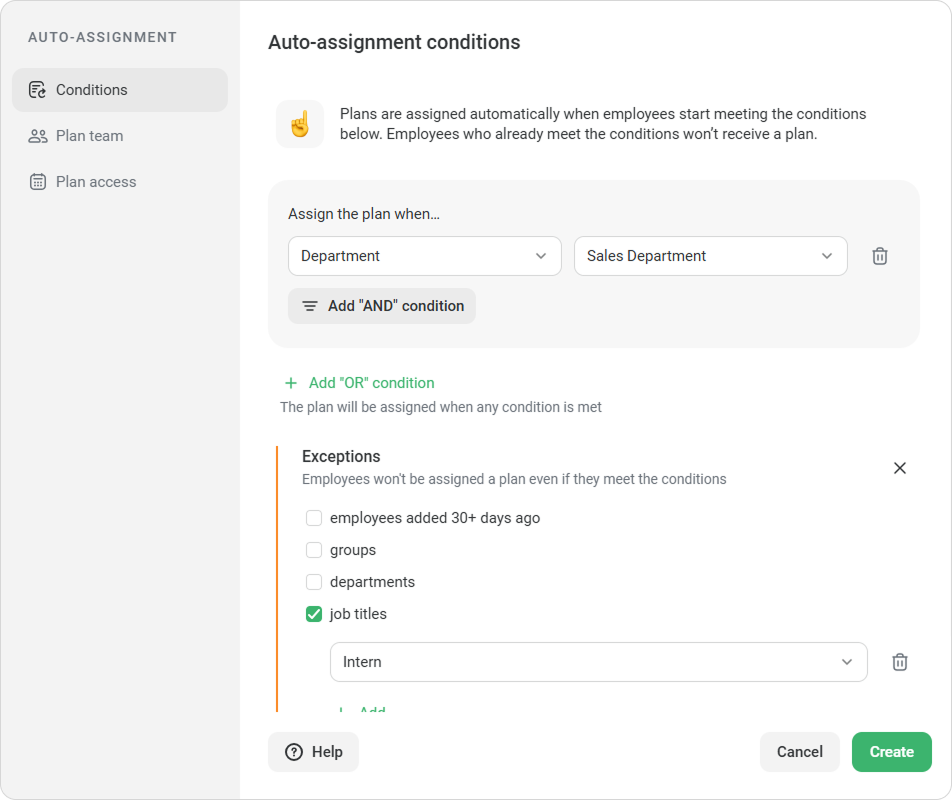
You want to assign a plan to the entire Sales department, but exclude interns.

Select these conditions:

  • department “Sales department”
    except
  • job title “Intern”

All employees in the Sales department will receive the plan, except for interns.