The Account Owner and Account Administrators have access to and can manage all Performance Reviews by default.
How to Grant Access to a Performance Review
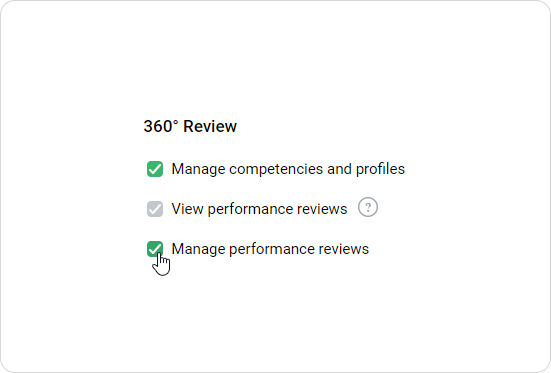
You can grant Performance Review access to a user who has a custom role with permission to either view or manage a Performance Review. Here’s how to do that:
Select a Performance Review.
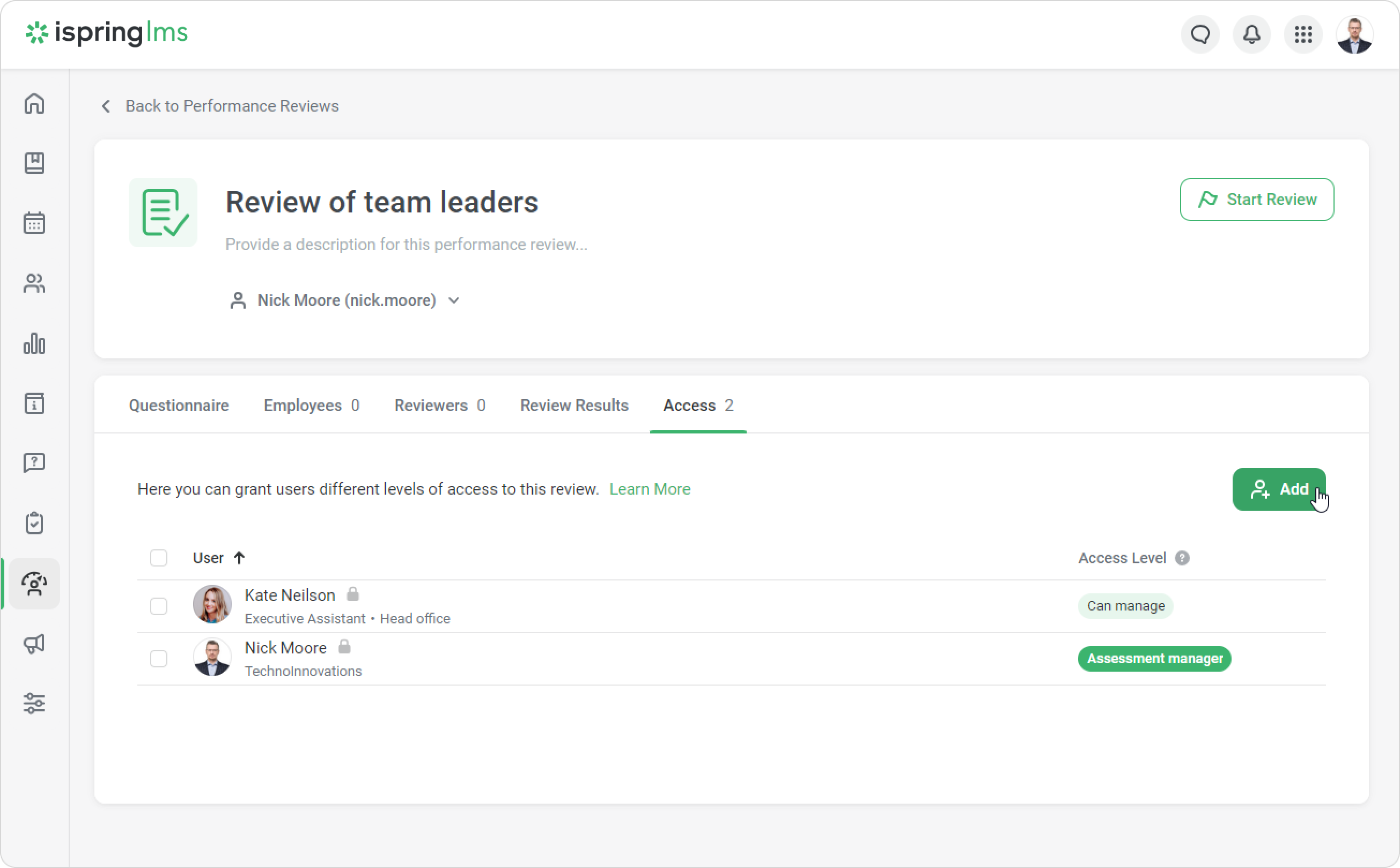
Go to the Access tab and click on Add.
The Account Owner and Account Administrators have access to Performance Reviews by default.
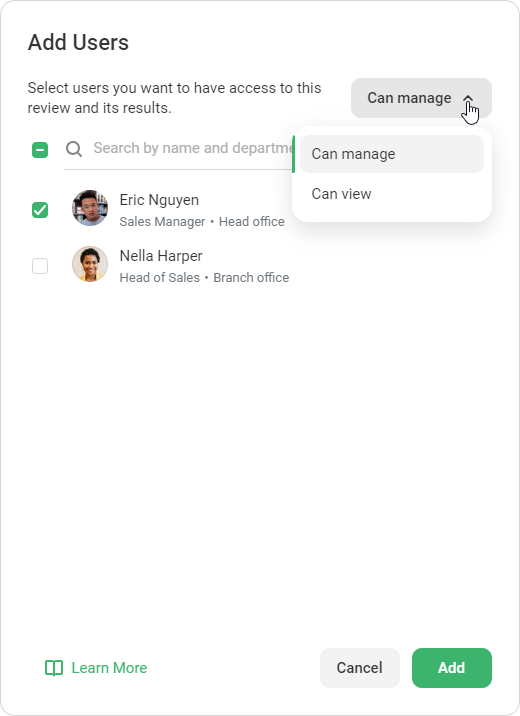
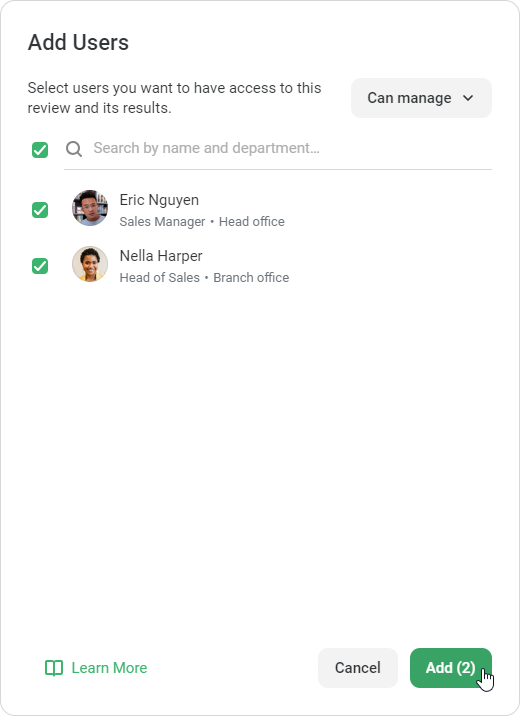
Then, filter users according to their access level. Tick the boxes next to the users who you want to grant access to.
Access Level
Actions
View
The user can view the assessment session.
Manage
The user can:
Start, complete, resume, or delete a session.
Allow other users to have access to the session and/or change the assessment manager.
Configure a user’s access level when creating a custom role.
Then, click on Add.
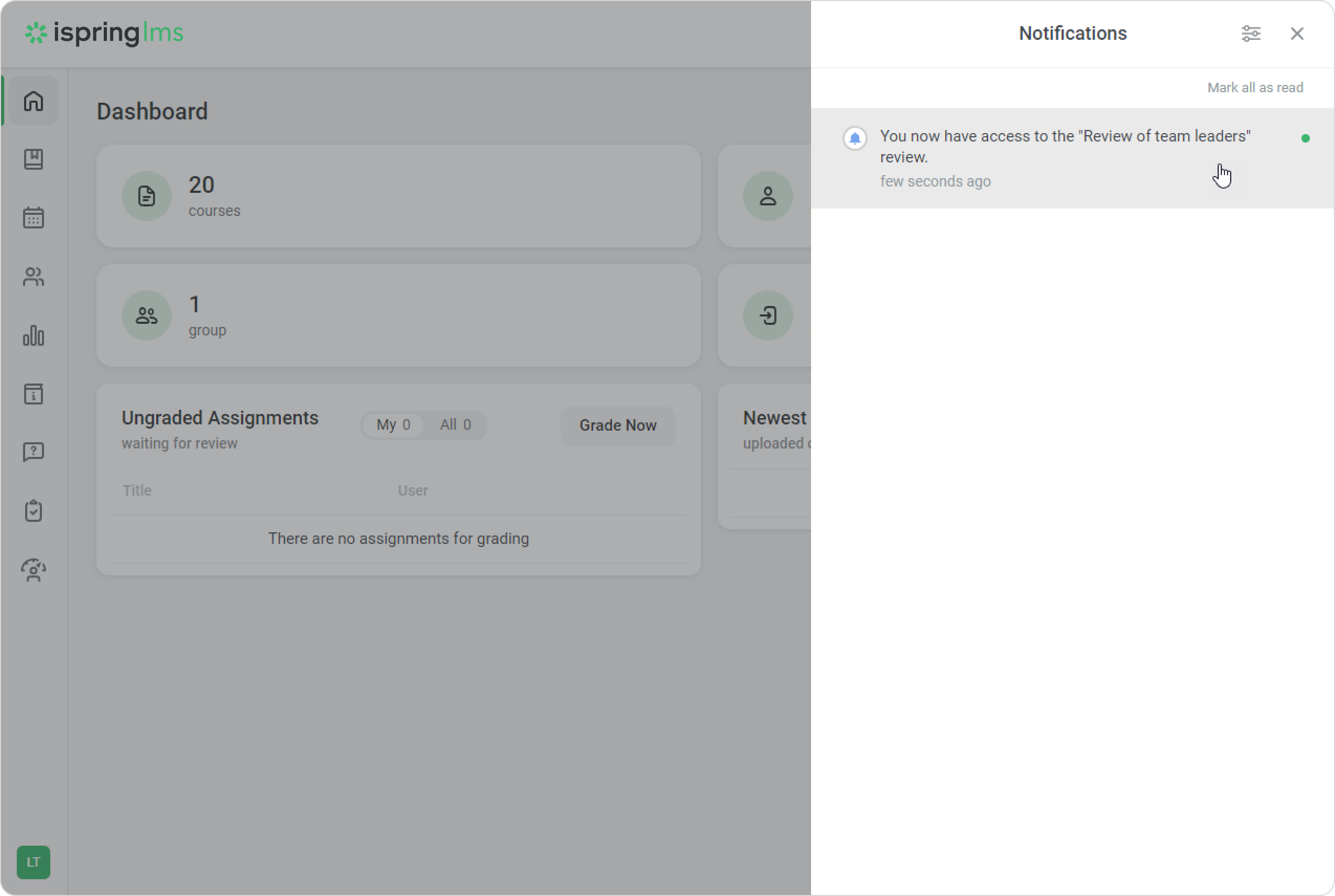
Done! Employees will now receive a notification via email and on the LMS.
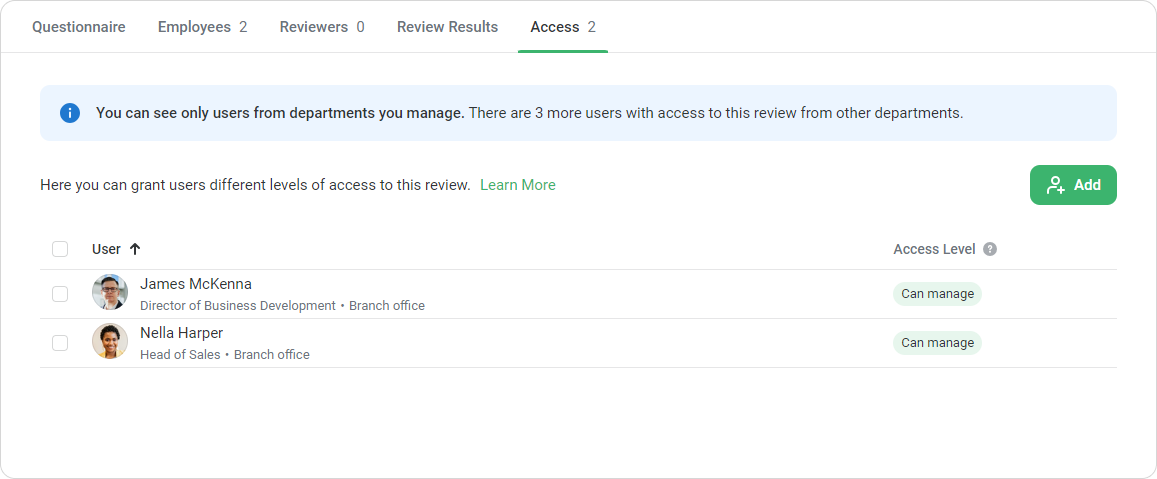
Users with access to a Performance Review can only view employees who are in the departments they manage. The system will notify them of this:
When viewing an assessment session and its results.
When trying to close a review, if reviewers from departments they aren’t allowed to view haven't completed forms.
How to Revoke Access to a Performance Review
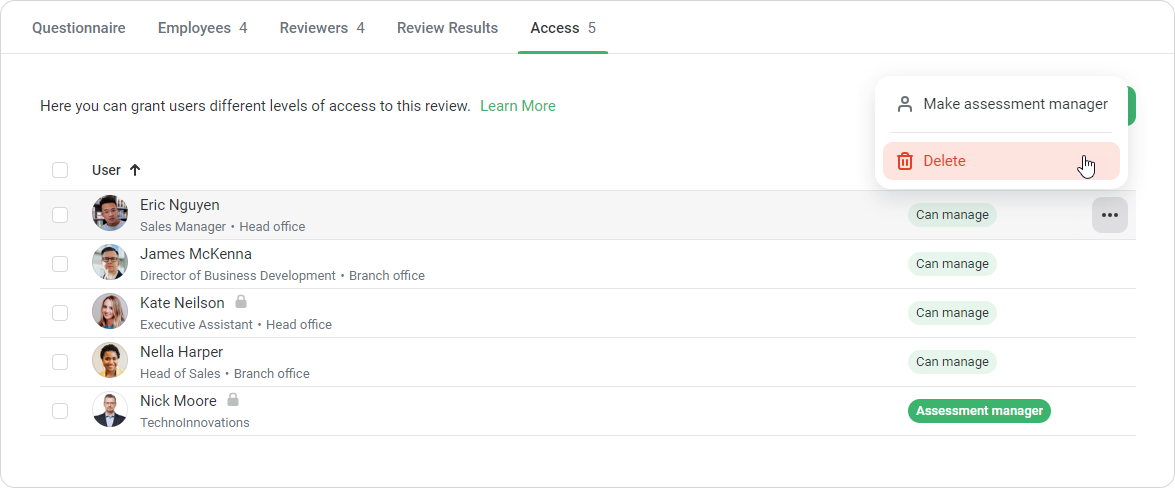
Open the Performance Review and go to the Access tab.
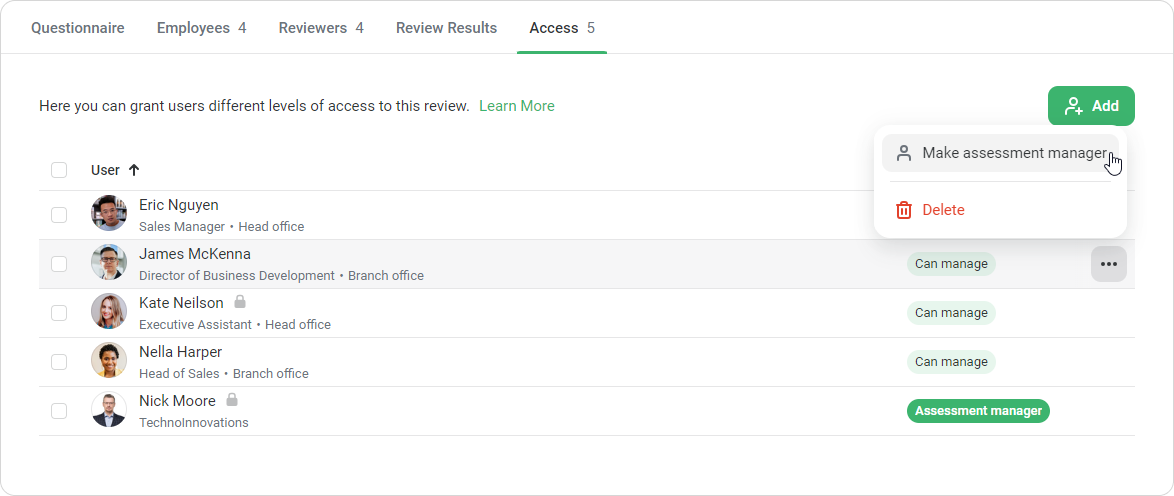
Next to a user's name, click on and select Delete.
You cannot delete the Account Owner or Account Administrator.
How to Select an Assessment Manager
The assessment manager is the go-to person in a Performance Review. They receive notifications related to the review. By default, the assessment manager is the person who created the Performance Review.
To choose an assessment manager:
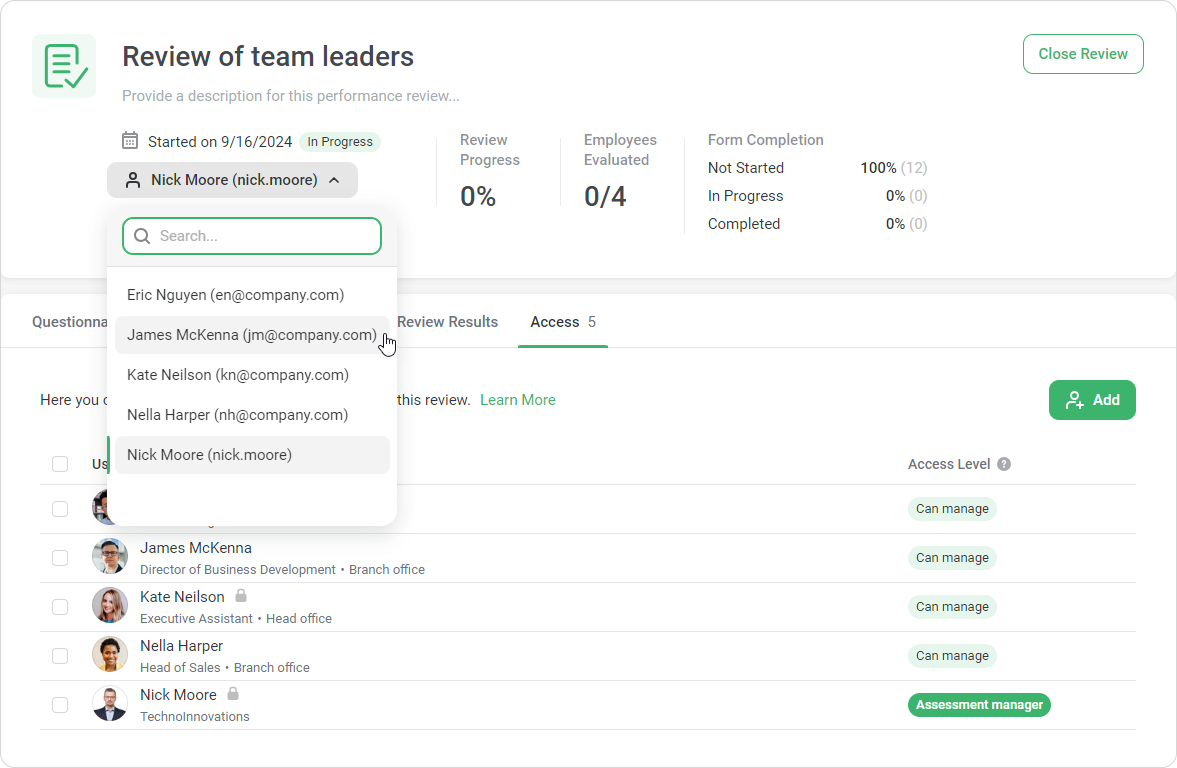
Open the Performance Review.
Click on the drop-down list and select an employee.
Or click on next to the user's name and select Make assessment manager.
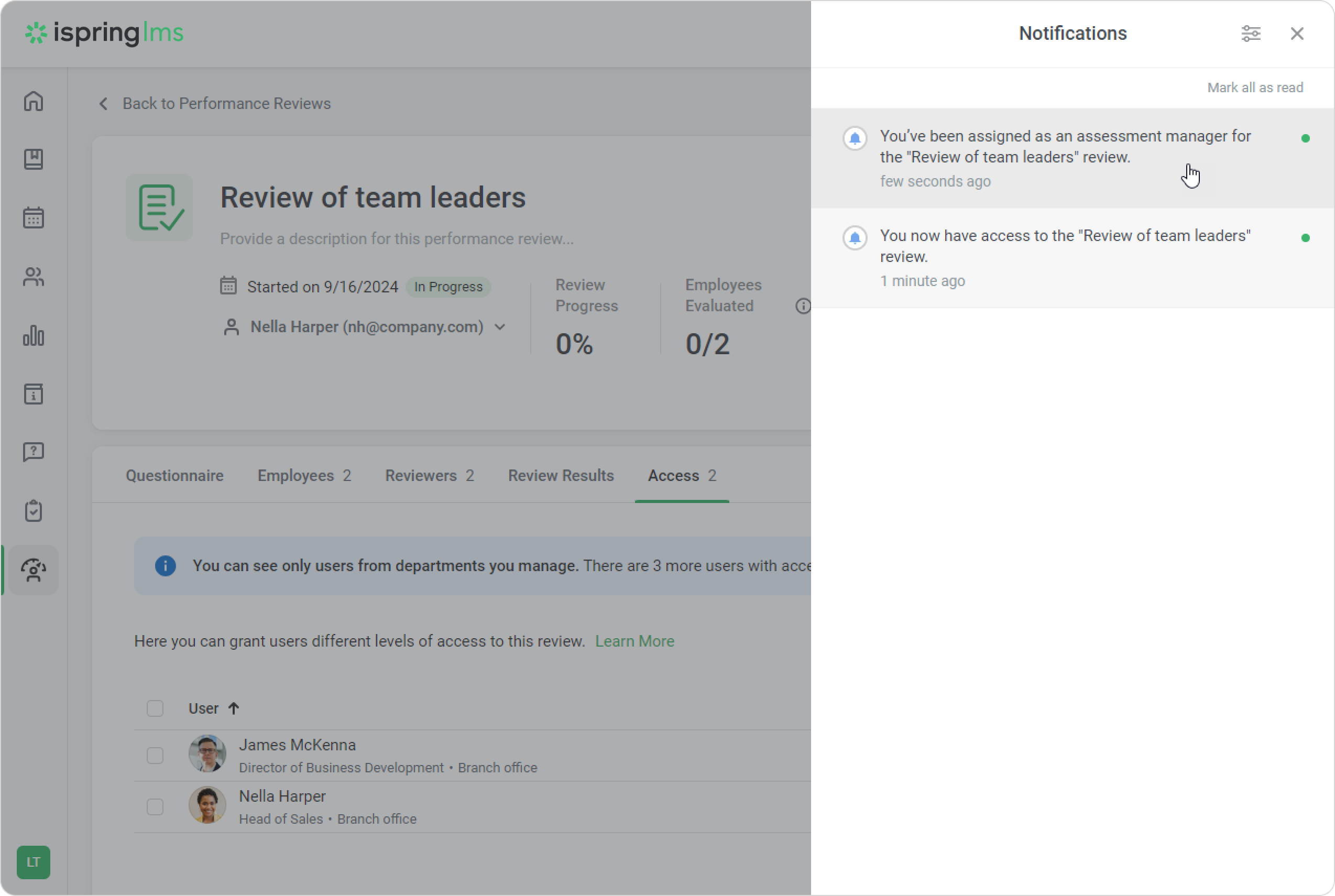
The person assigned as the assessment manager will be notified by email and on the LMS.