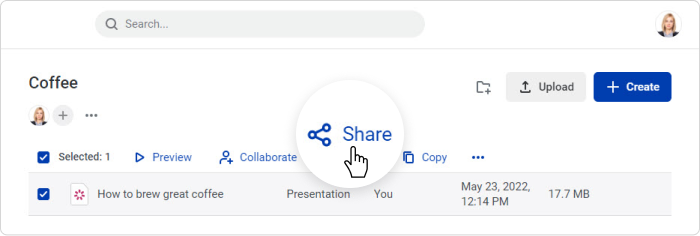
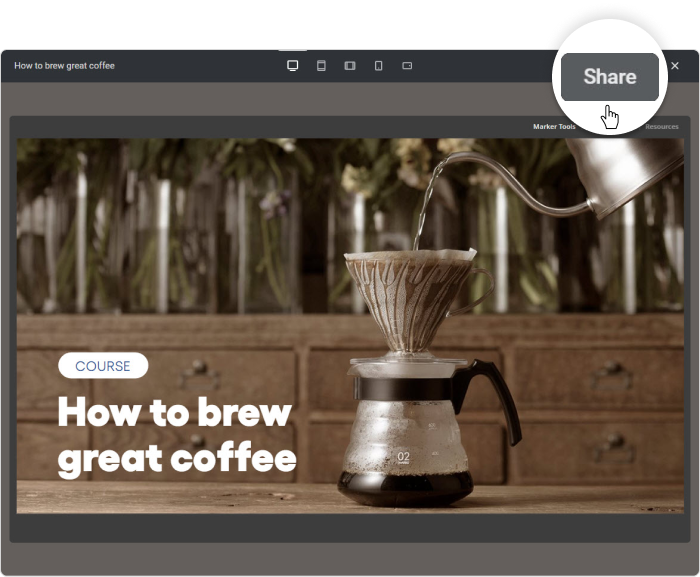
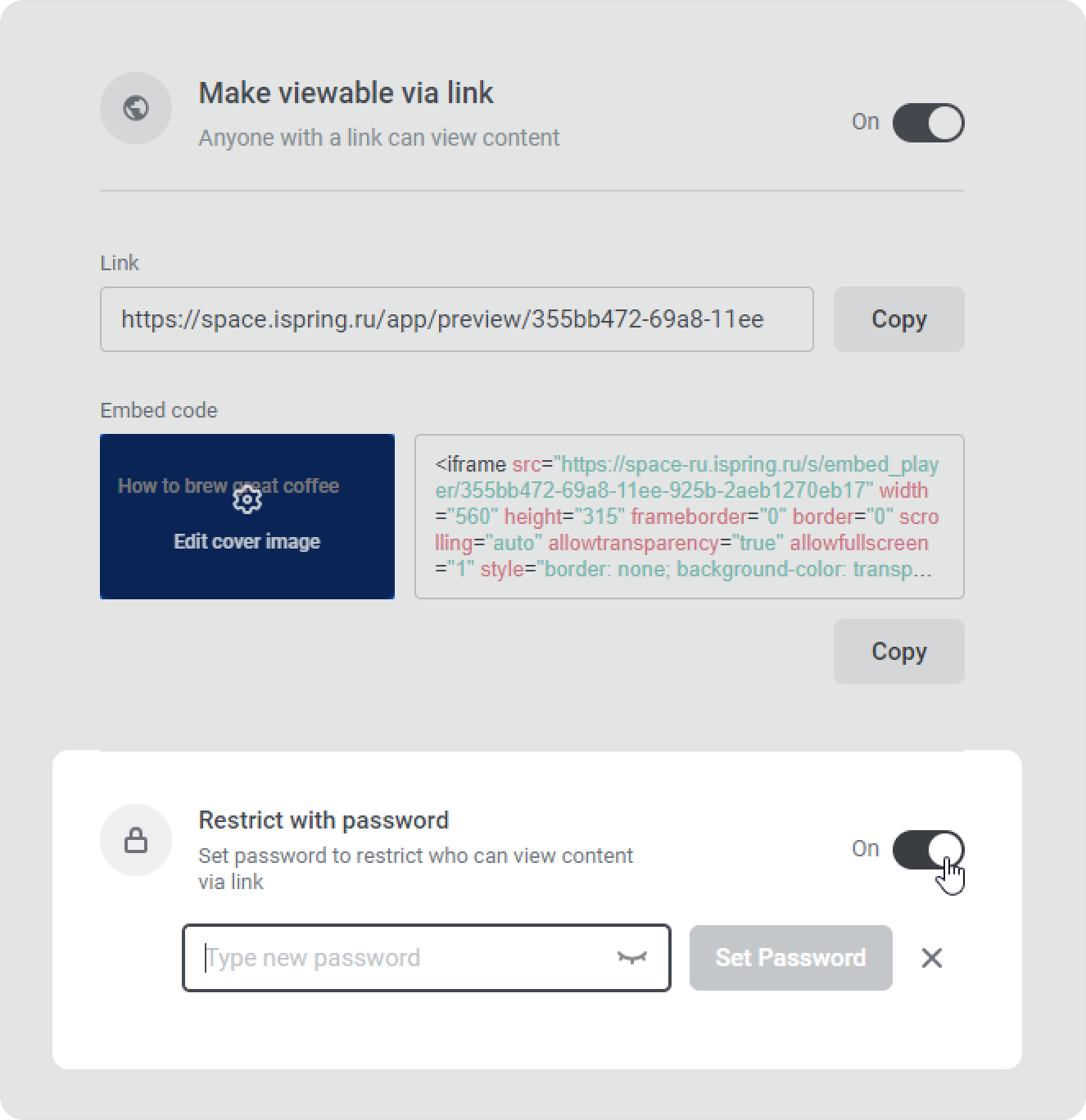
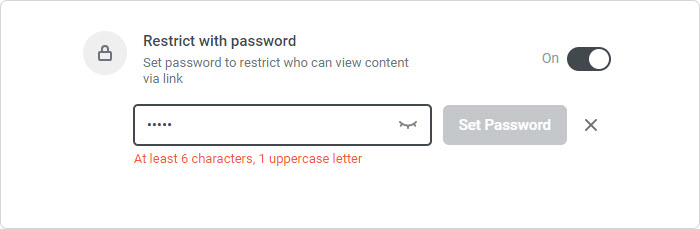
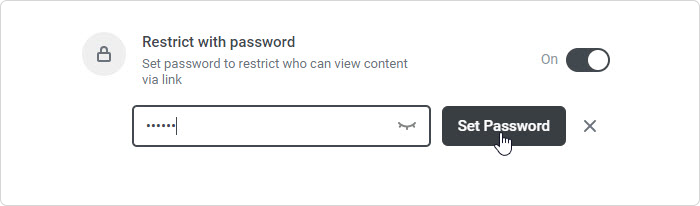
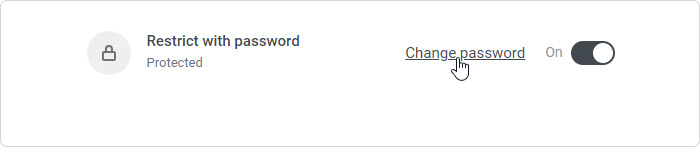
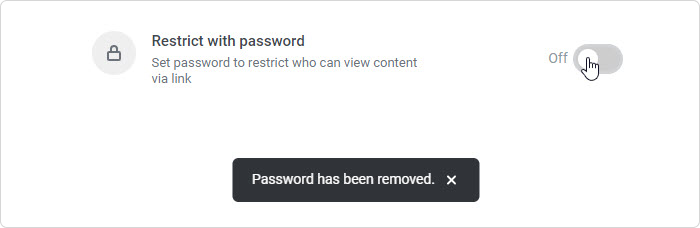
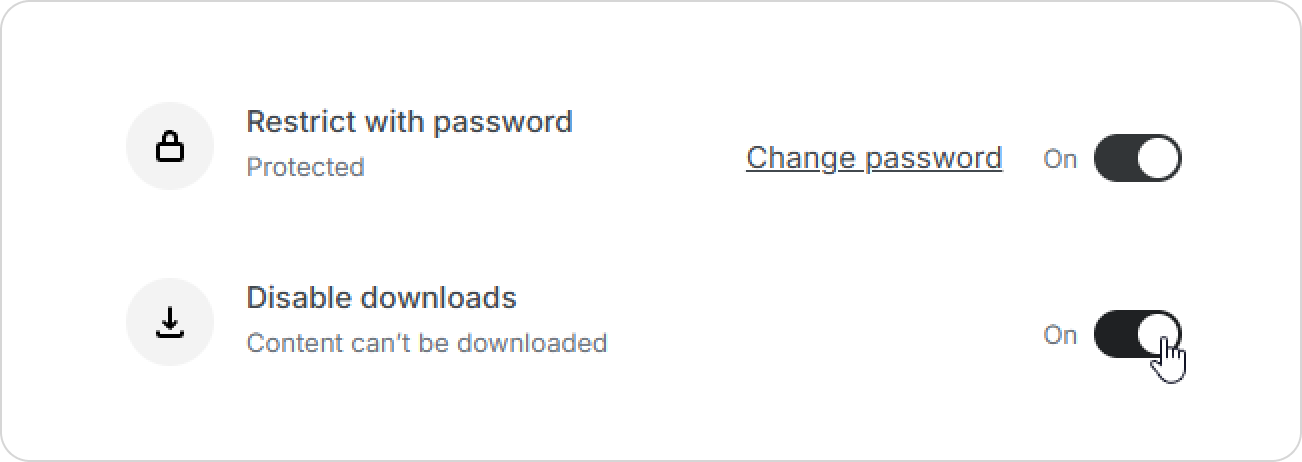
iSpring Cloud Learning Content Access to Content How to Make Content Viewable Current: Content Protection Content Protection How to Protect Your Content with PasswordSelect content and click Share.Or click Share on the preview page.In the Share window, turn on Restrict with password. Make sure that your content is viewable via link. Type in your password. Make sure it consists of at least 6 characters,1 uppercase letter and 1 digit.Click Set Password.To set another password, click on Change password.To remove a password, turn off Restrict with password.How to Disable Content DownloadsSelect content item and click Share.Make sure that your content is viewable via link. Then turn on Disable downloads. ×