How to Create a Quiz with Language Selection
This guide will show you how to create a single quiz that can be taken in two different languages.
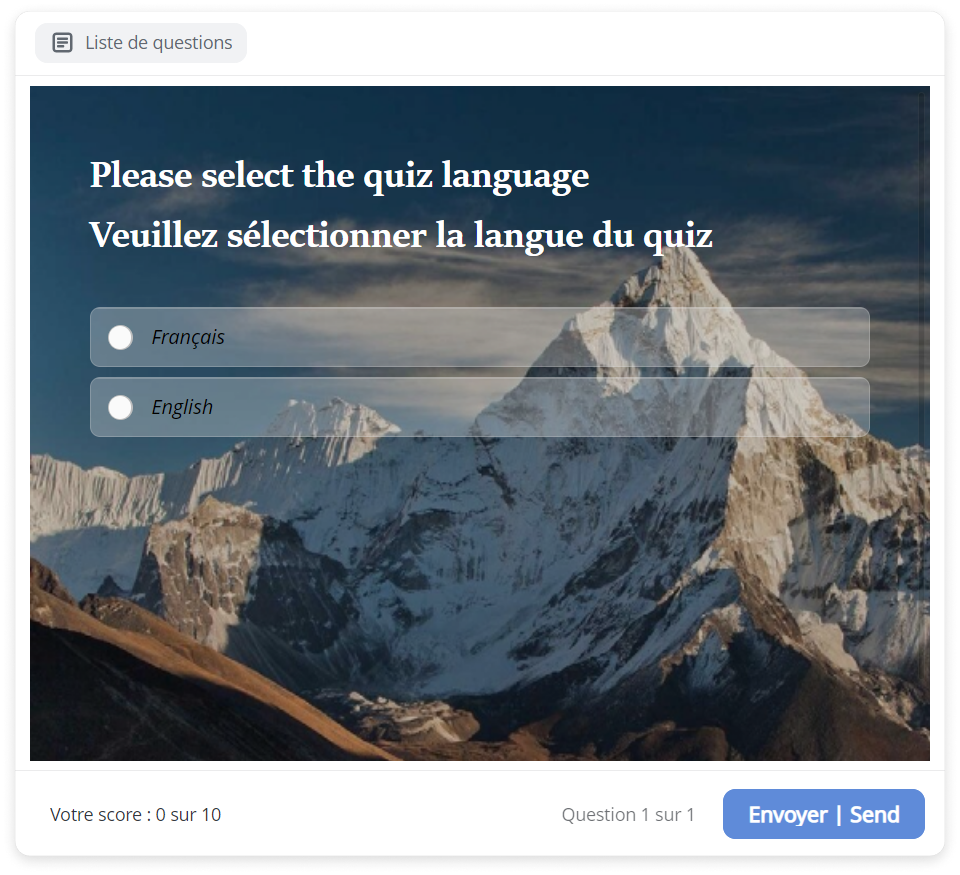
- The player is displayed in one language. But as a workaround, you can add double button text manually. For example: "Envoyer/Send."
- The introductory and results slides are also displayed in one language by default. You can write information in two languages on the slides yourself.
- Questions in another language will not be considered when calculating the total score.
How to add questions
First, create three separate question groups: one for the language selection slide and two for the questions in each language.
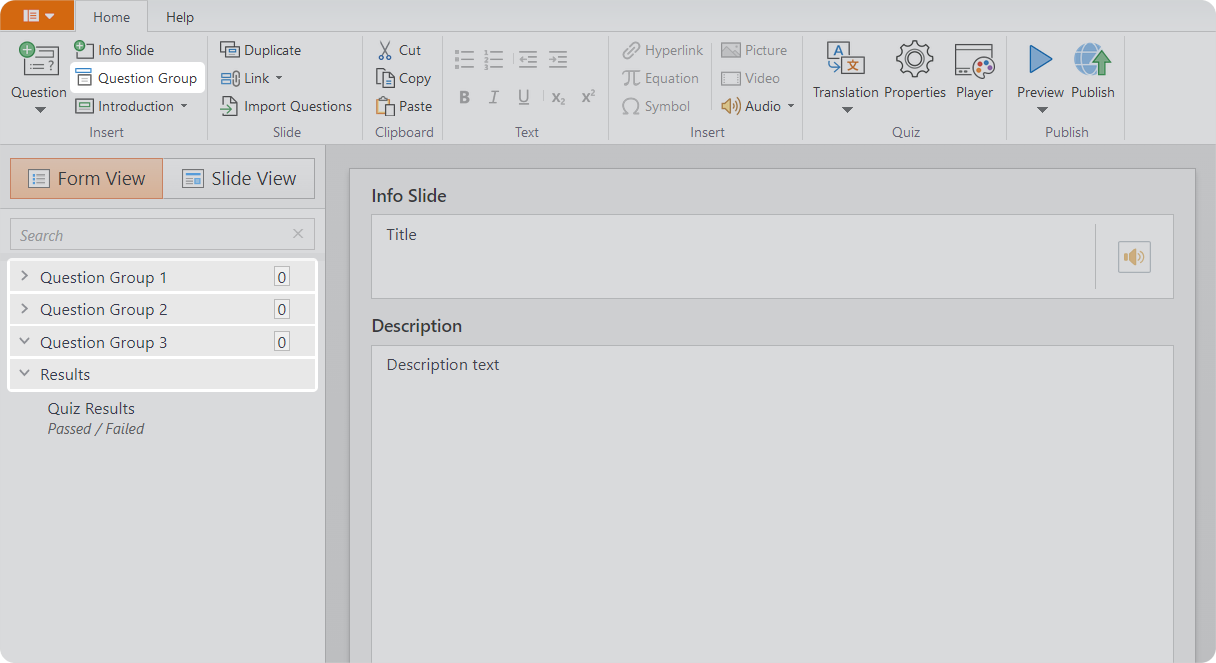
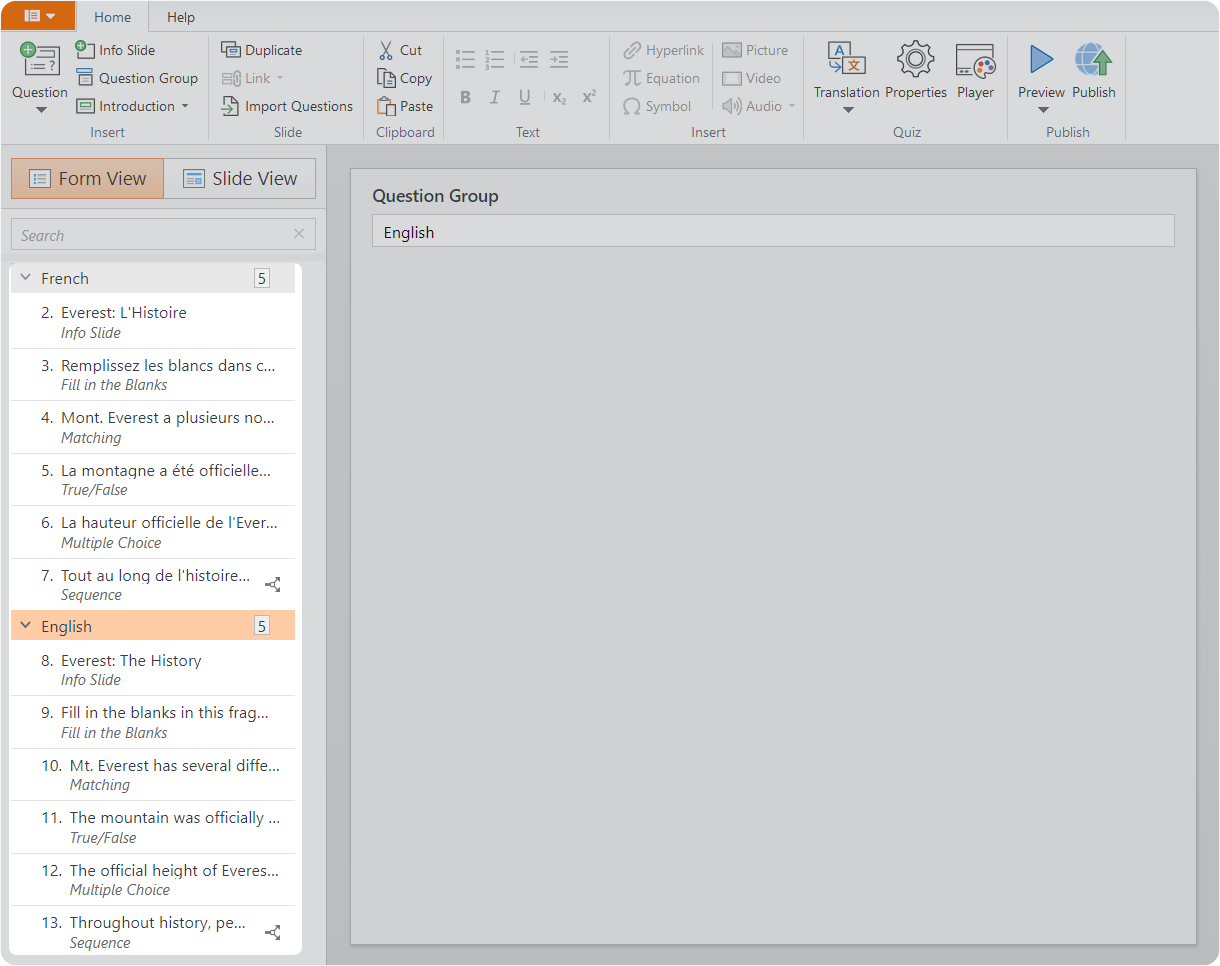
- In the Form View mode, click on Question Group and add three groups.
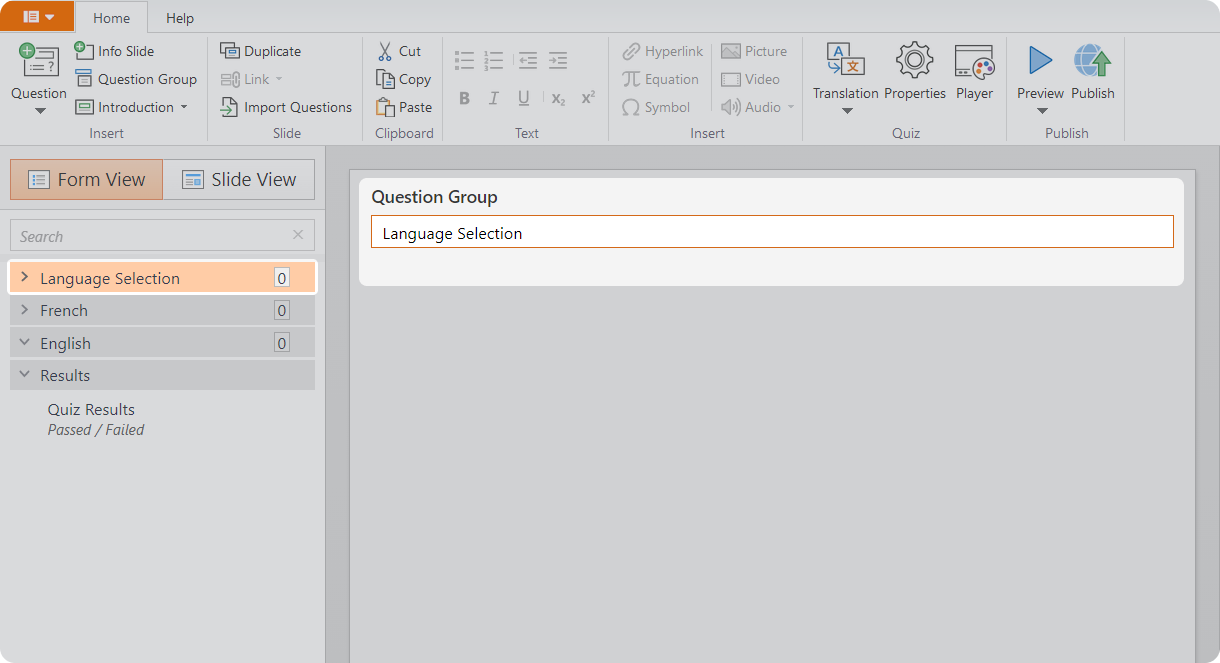
- Rename the question groups. For example: "Language Selection," "French," "English."
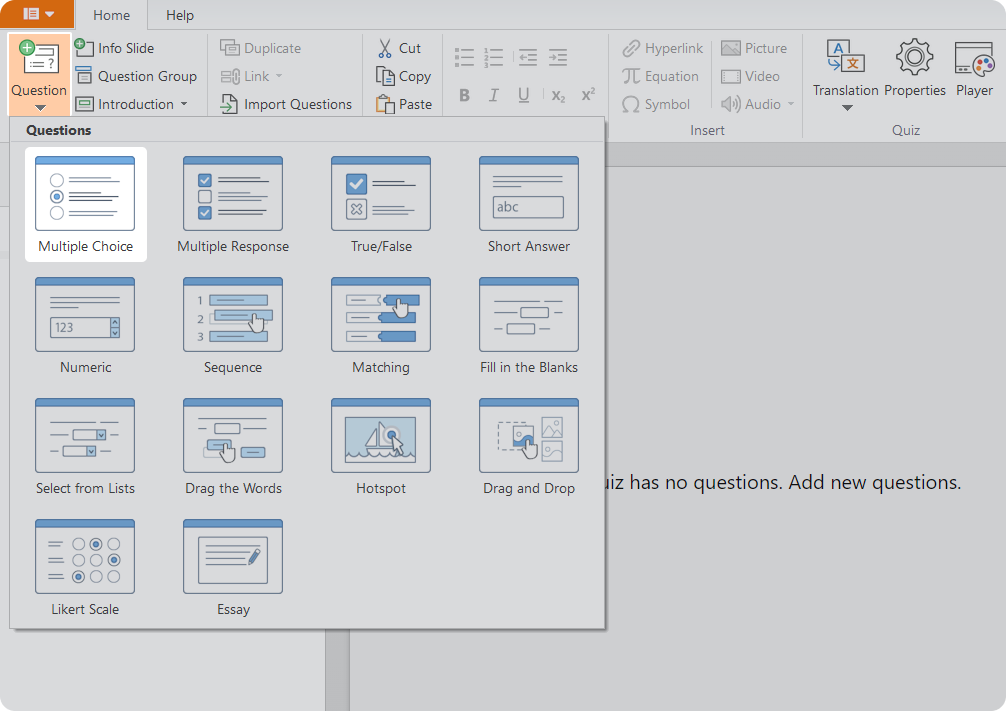
- Go to the "Language Selection" question group. Click on Question > Multiple Choice.
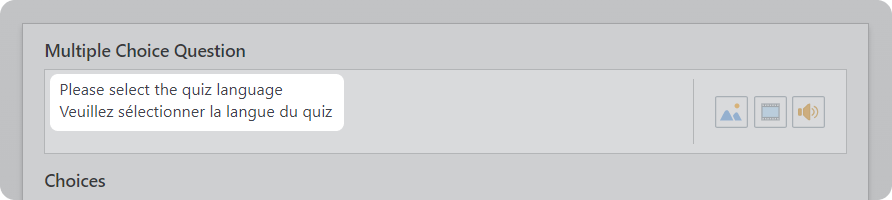
- In the question text field, ask the learner to choose a language.
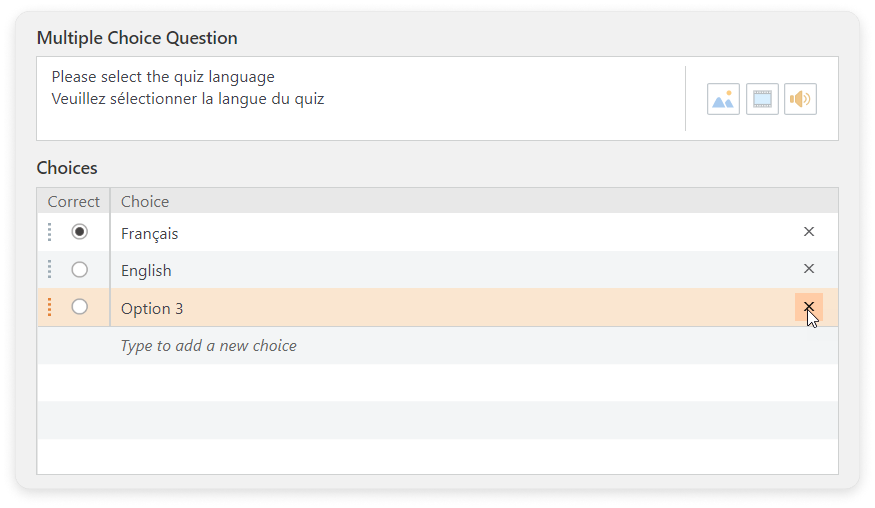
- Enter the available languages into the answer options and delete the extra option.
- Add questions and info slides in both languages.
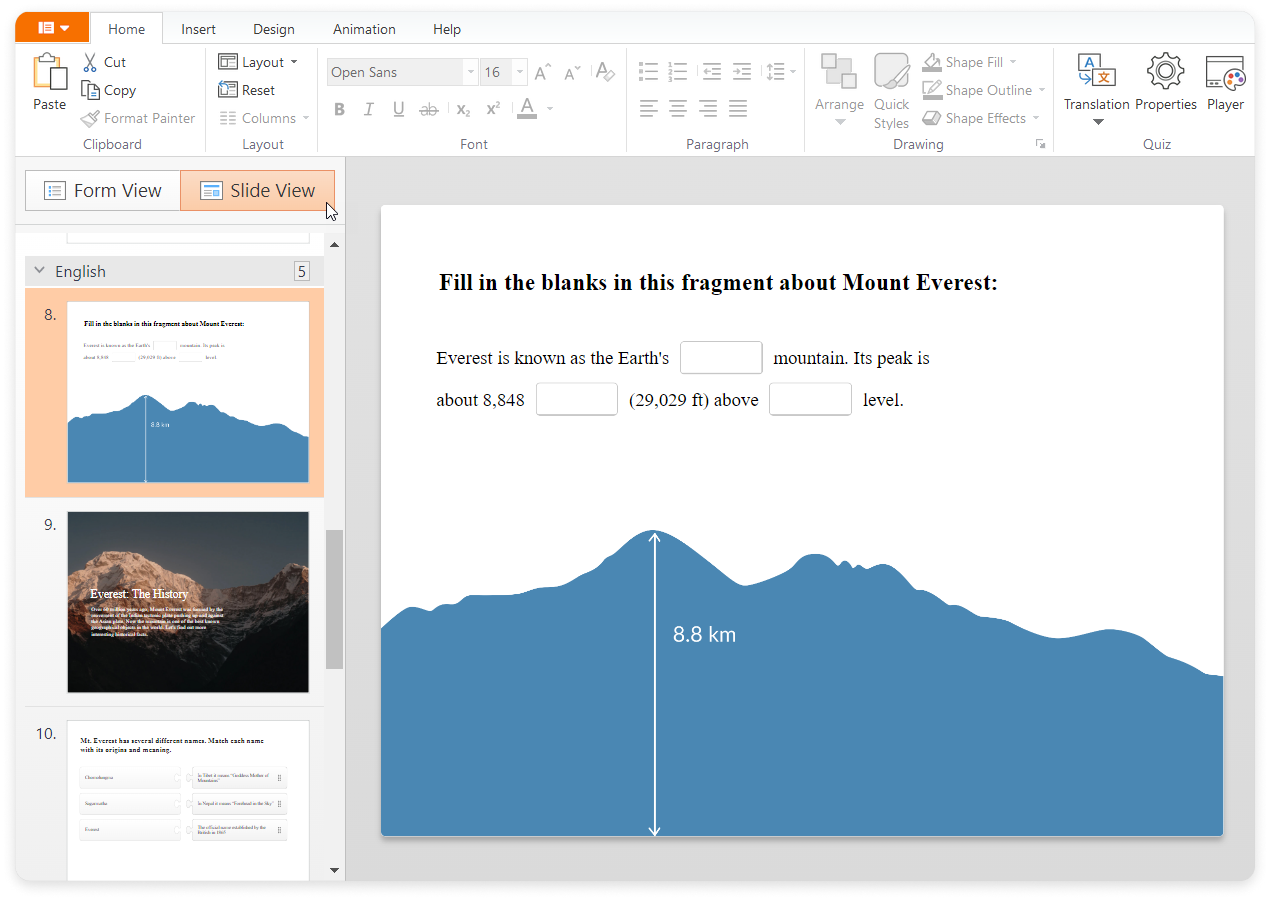
- Change the design in the Slide View mode.
How to set the quiz scoring settings
- For each question, set points for correct and incorrect answers.

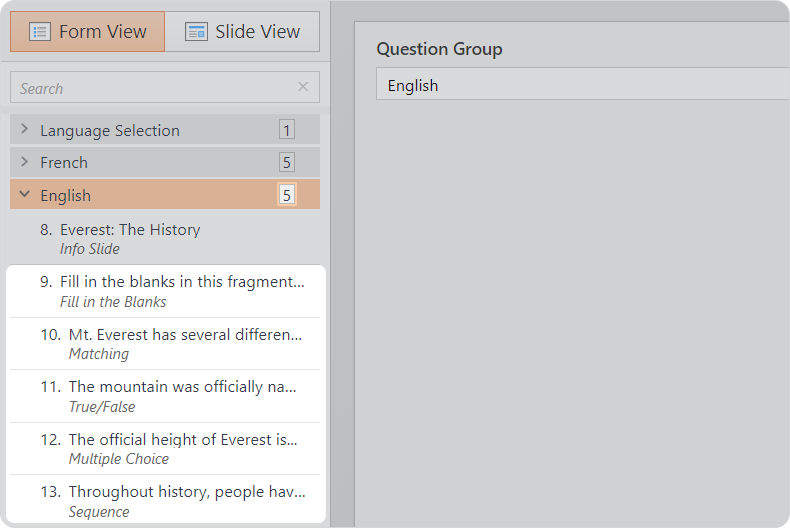
- Calculate the highest number of points that can be awarded for the questions in each language. For instance, 10 points are awarded for each correct answer. In the "English" group, there are 5 questions. So, the highest score is 50.
- On the toolbar, click on Properties.

Go to the Quiz Scoring tab. Select Score in > Points.
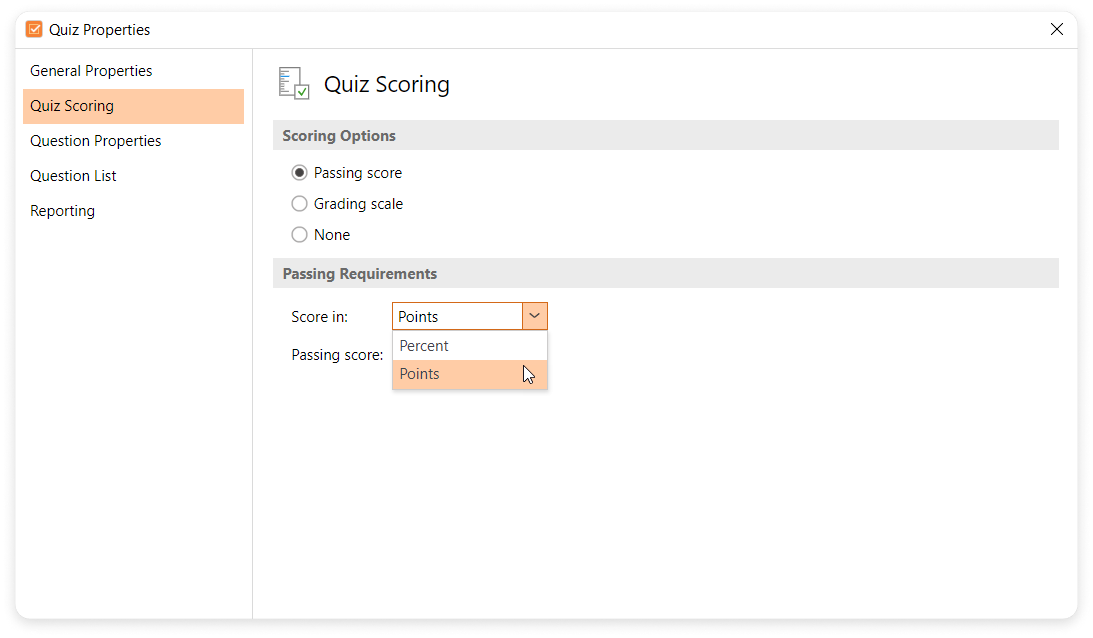
If you set quiz scoring to Percent, then the questions in another language will also be considered when calculating the total score.
Type in the passing score.
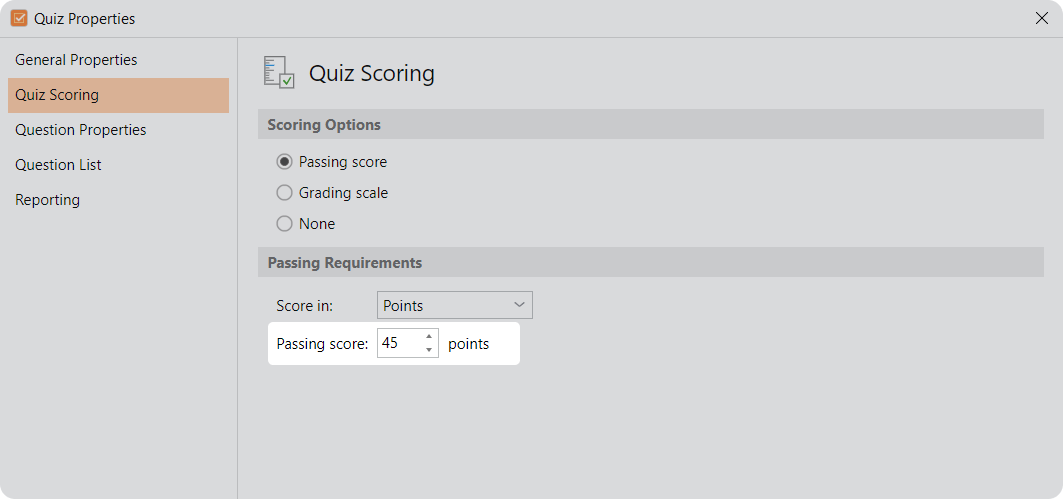
If you want the quiz to be considered passed when a certain percentage of correct answers is achieved, then calculate the points manually. For example, if you want to make the passing score 80%, then 80% of the maximum 50 points is 40.
How to set up the transition to questions in a specific language
- Click on the slide that offers a language selection.
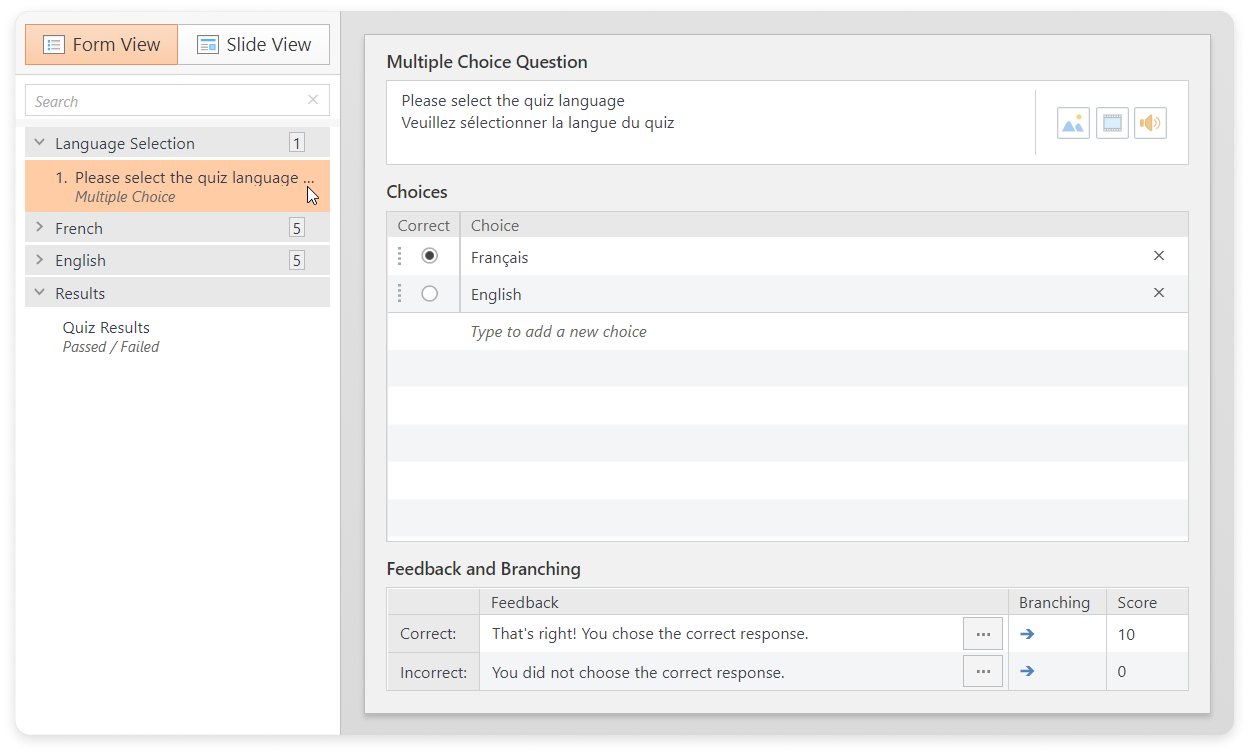
- On the Slide Options sidebar, select Question Type > Survey, Feedback > None, and Branching > By Choice.
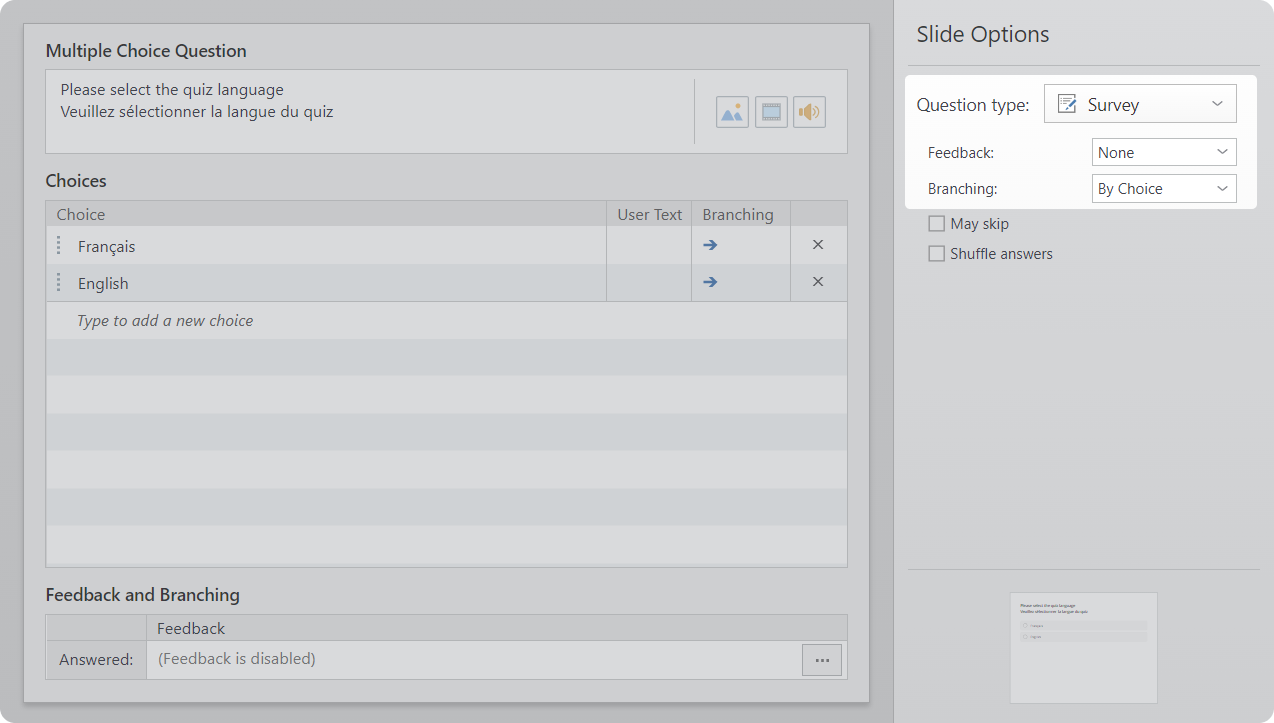
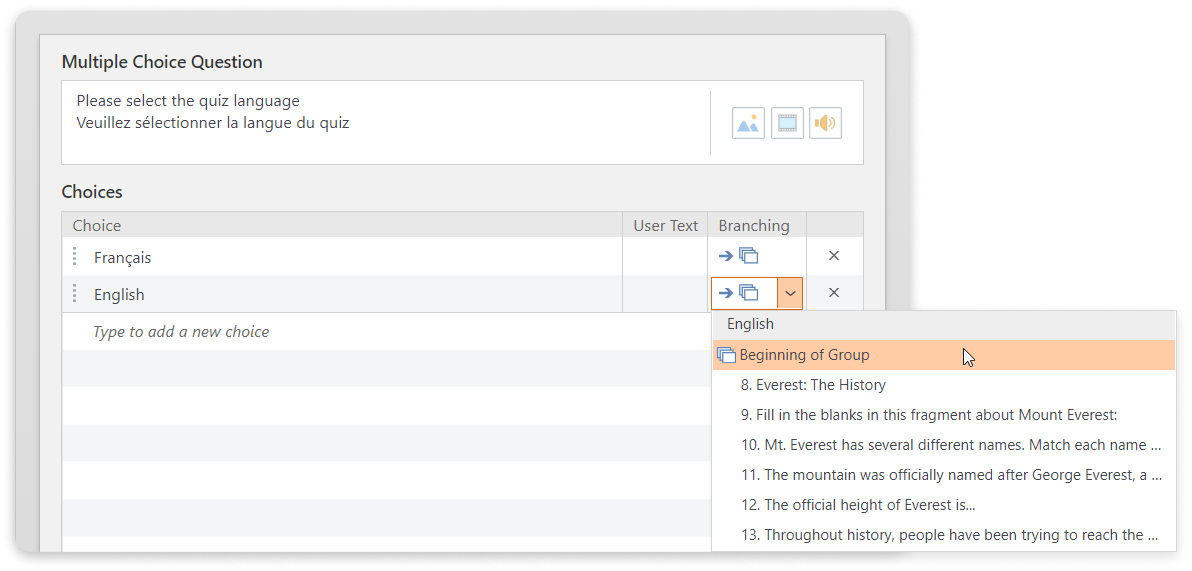
- In the Branching field for each language, select a transition to the Beginning of Group. Make sure you have selected the group that corresponds to the language.
How to set up test completion
- Go to the last question of each group.
In the Branching field, select Finish Quiz for both feedback options.
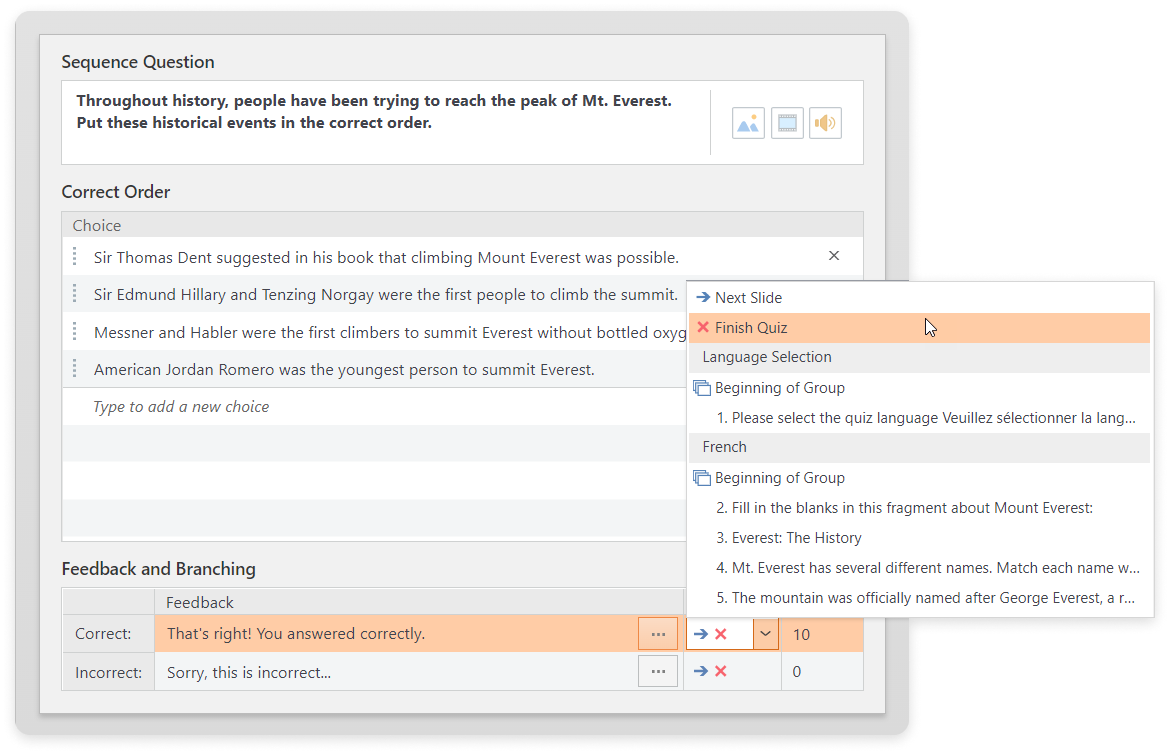
You can add branching within a group of questions, but make sure it always leads to the same last slide of the group.
How to set up the randomization of questions
You can add question randomization or question shuffling. To ensure that the learner will be redirected to the last slide of the group after the random selection:
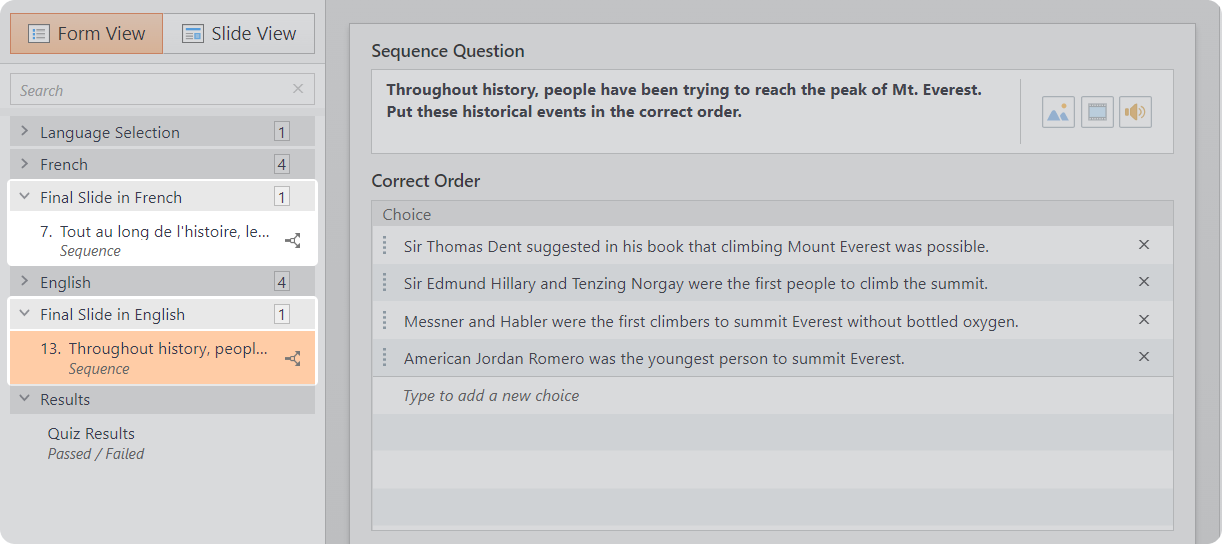
- Add one more group for each language. For example, "Final Slide."
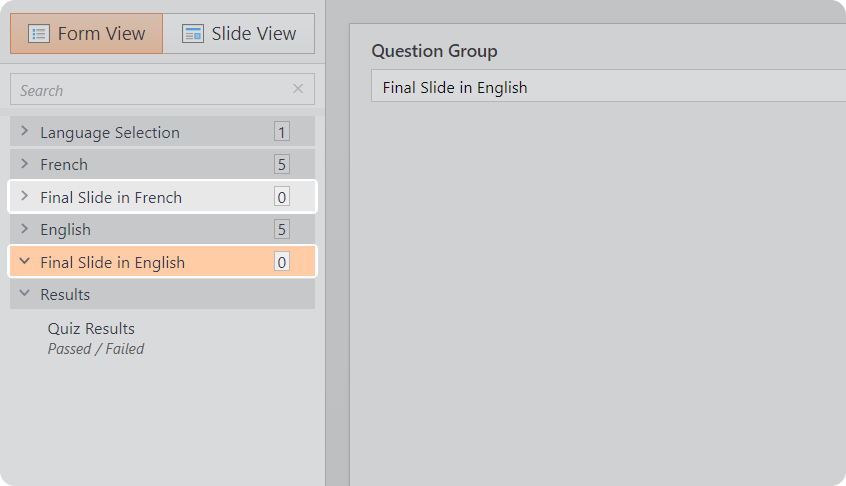
- Move the last question into this group.
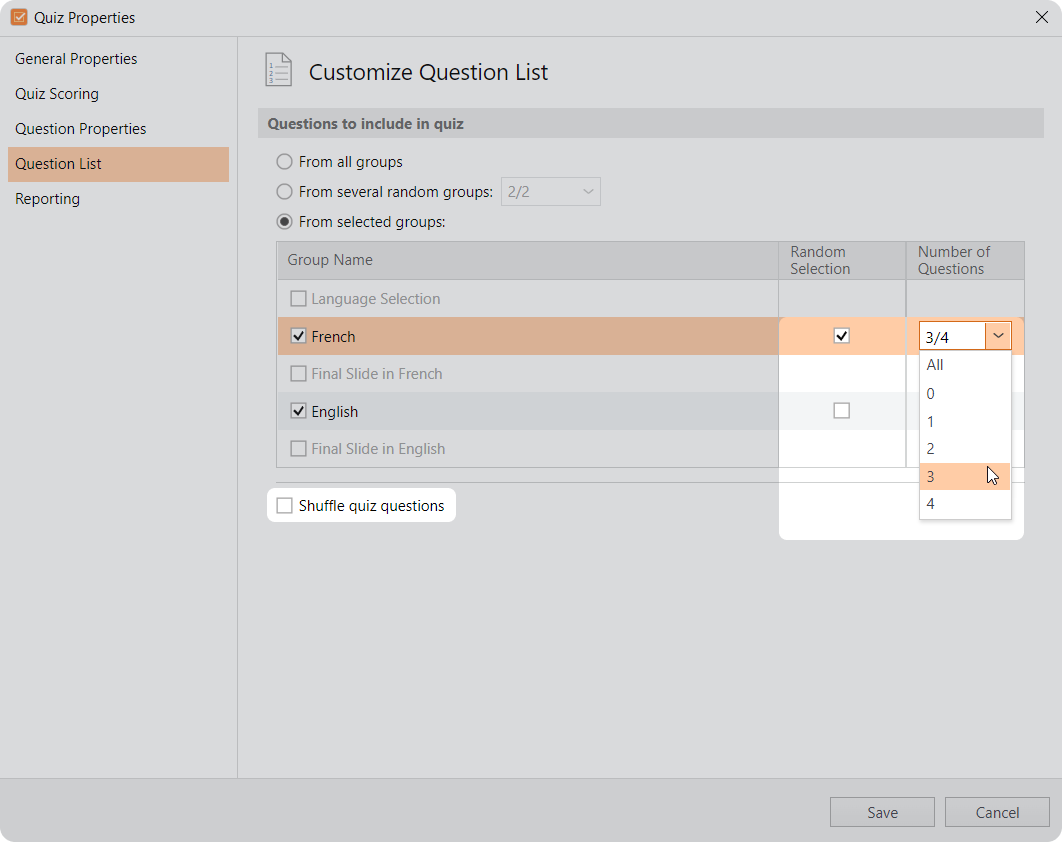
- Go to Properties.
- Then, click on Question List. Check the groups without the final question and set them to Random Selection or select Shuffle quiz questions.
- Save the settings.
Done! Now, learners can choose the language they are comfortable with for testing.