The updated feedback window gives you more editing options. You can add images or equations to your feedback messages and import or record sound.
Recording Audio
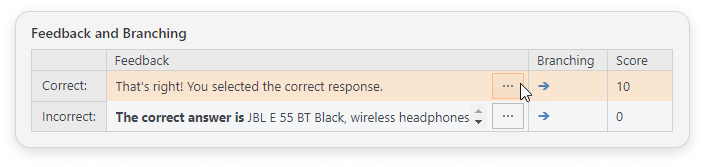
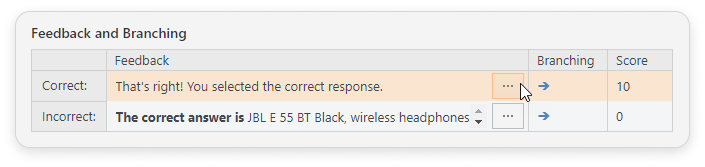
Open theEdit Feedbackwindow by clicking the Edit Feedback button to the right of a feedback message.
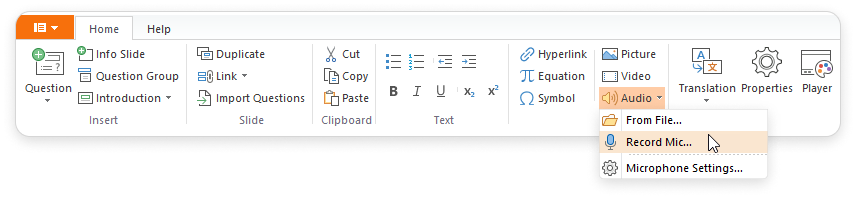
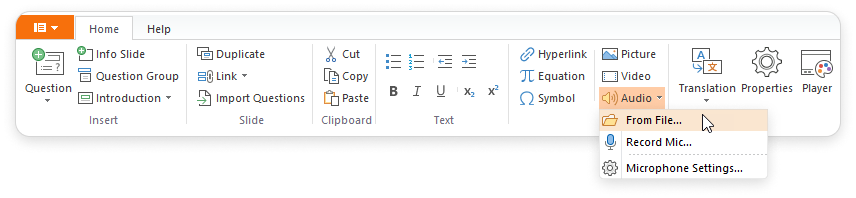
ClickAudioon the toolbar and selectRecord Mic in the menu.
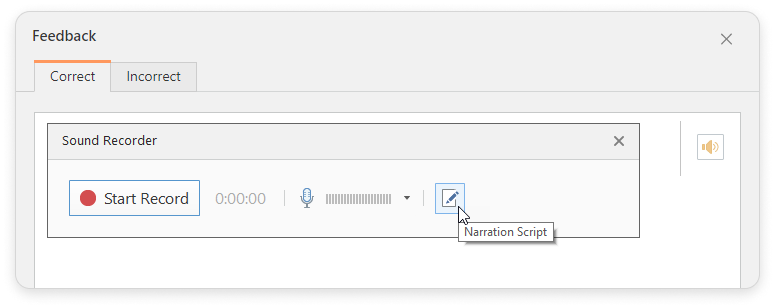
ClickStart Recordin theSound Recorderwindow.
For convenience, you can add the text for recording by clicking on the Narration Script icon.
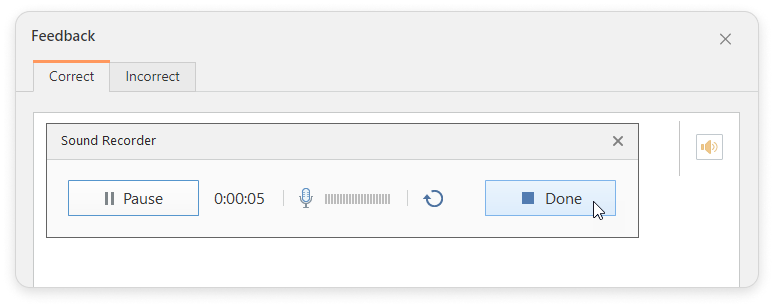
Once you are done recording, click Done.
To delete and record a new audio file, click theCancelicon.
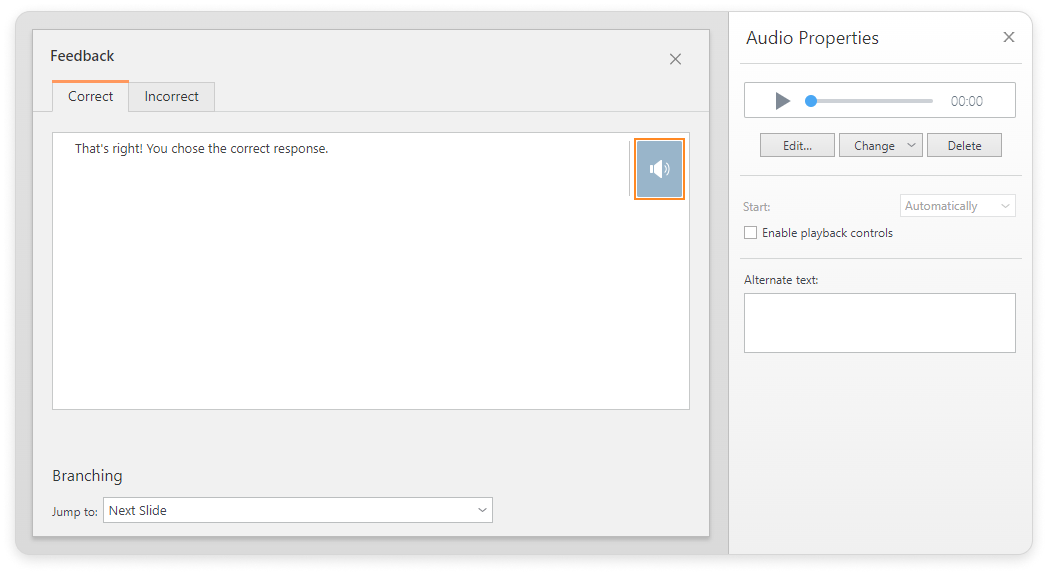
After you insert the recorded audio, you can also manage it in the Audio Properties area.
Inserting Prerecorded Audio
To add an existing audio recording to the feedback message:
Open the Edit Feedback window by clicking the Edit Feedback button to the right of a feedback message.
ClickAudioon the toolbar and selectFrom File.
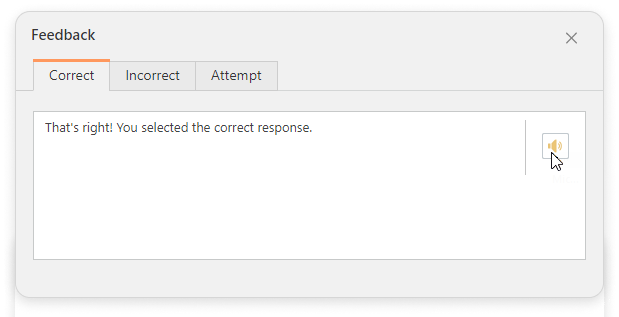
Or click the Add Audio icon to the right of the feedback text.
In the opened window, select the path to the saved audio file on your computer. After the audio is inserted, the Audio Properties will appear on the right. There, you can delete the audio recording, replace it with another one, and edit it.