Knowledge Base Search
A search performed in the Knowledge Base lets learners and administrators find information across articles, spaces, and folders quickly.
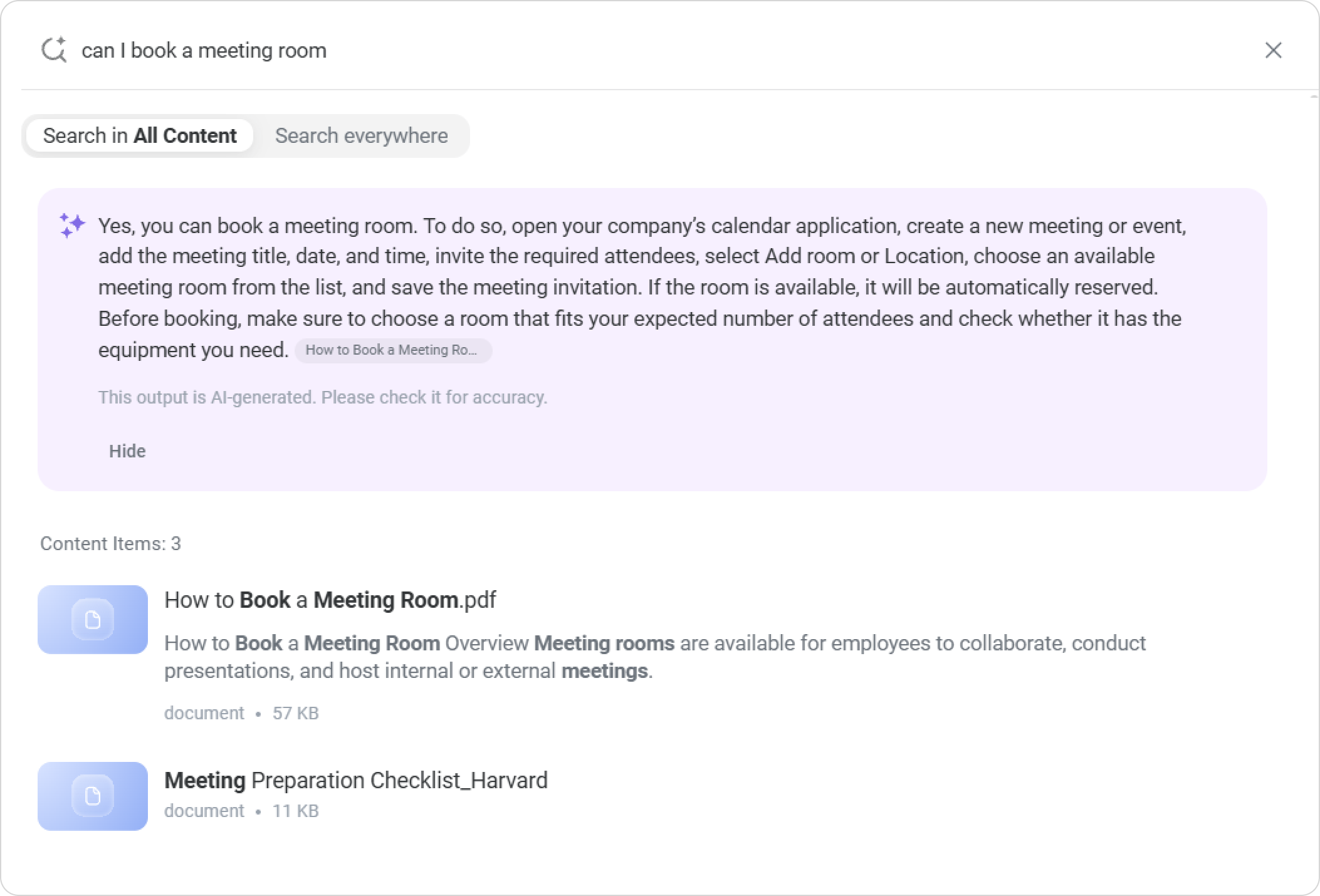
You can enter keywords or ask a question in free form. In response, the search will show an AI-generated answer at the top of the results, followed by relevant articles, folders, and spaces with matching content.
Results are limited to spaces accessible to the user.
AI Answers in Search Results
When you enter a search query, the Knowledge Base displays an AI-generated answer at the top of the search results.
The AI analyzes articles, as well as DOC and PDF documents, in the Knowledge Base and generates a clear, comprehensive answer based on the available information. This helps you quickly understand the topic before opening individual articles or documents.
Below the AI-generated answer, you'll find matching articles, folders, and spaces related to your search query.
Searching in the Entire Knowledge Base
To search for information in the Knowledge Base, follow these steps:
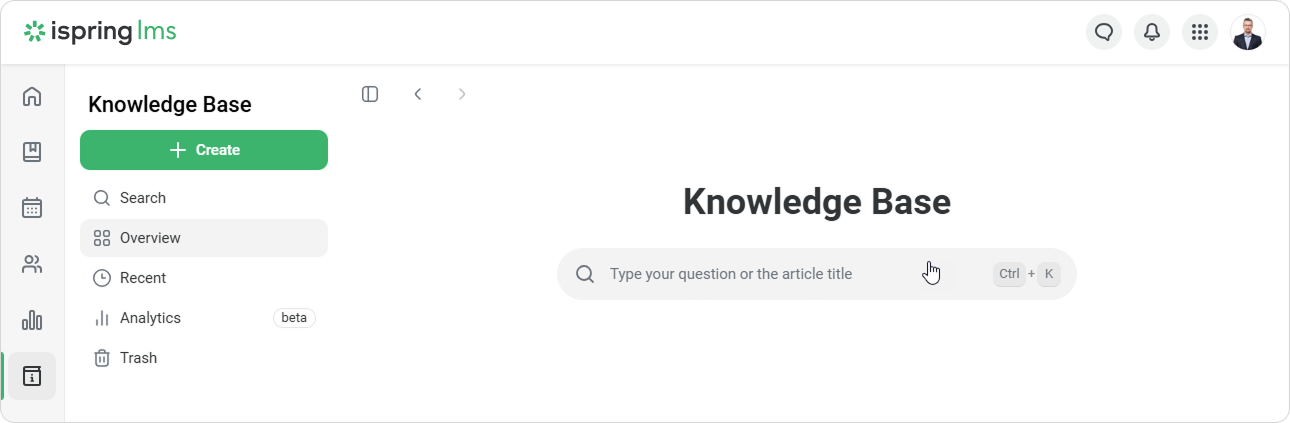
- Open the Knowledge Base.
- Use the search bar or click on Search on the left sidebar menu.
Searching in a Selected Space of the Knowledge Base
If you want to narrow your search to a specific space, do the following:
- Open the desired space.
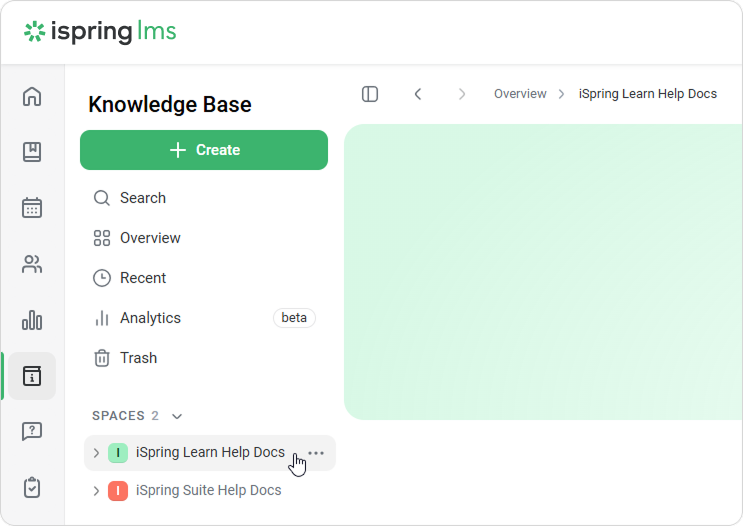
- Type what you want to find in the search bar or click on Search on the left sidebar menu.
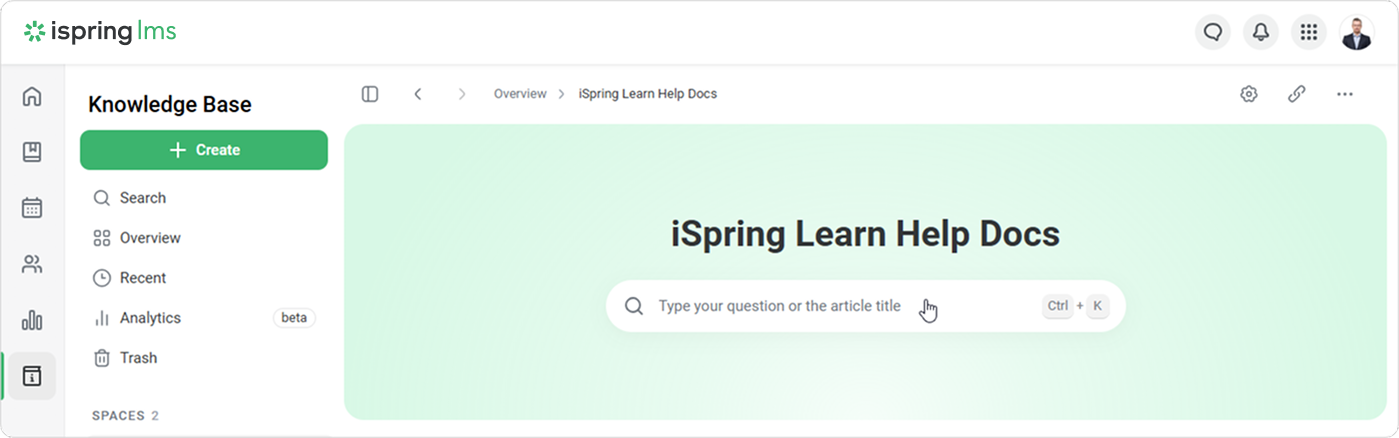
- Your search will show the results within the selected space.
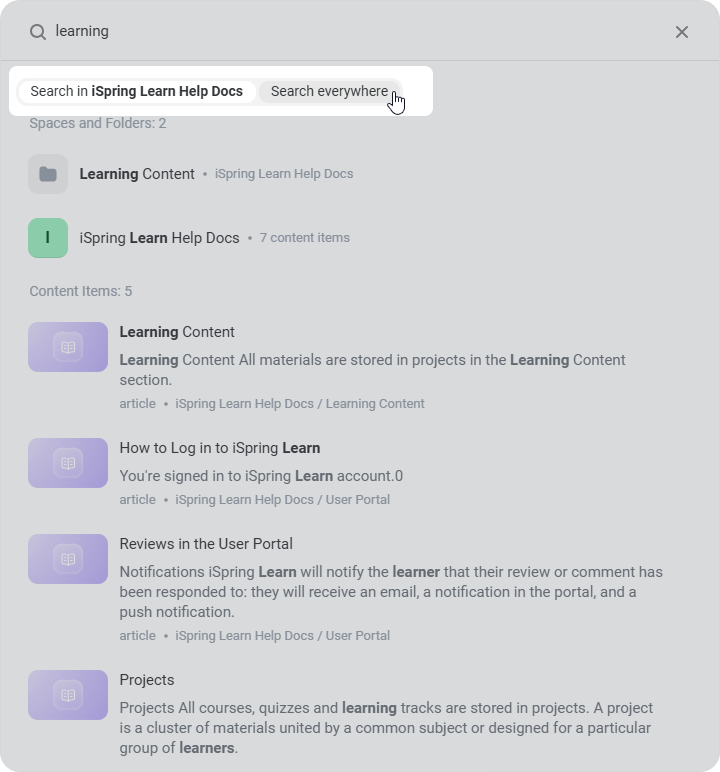
If you want to expand your search to all spaces and folders, switch to Search everywhere.
Searching in a Selected Folder of the Knowledge Base
You can also search for information in a specific folder by following these steps:
- Select the desired folder.
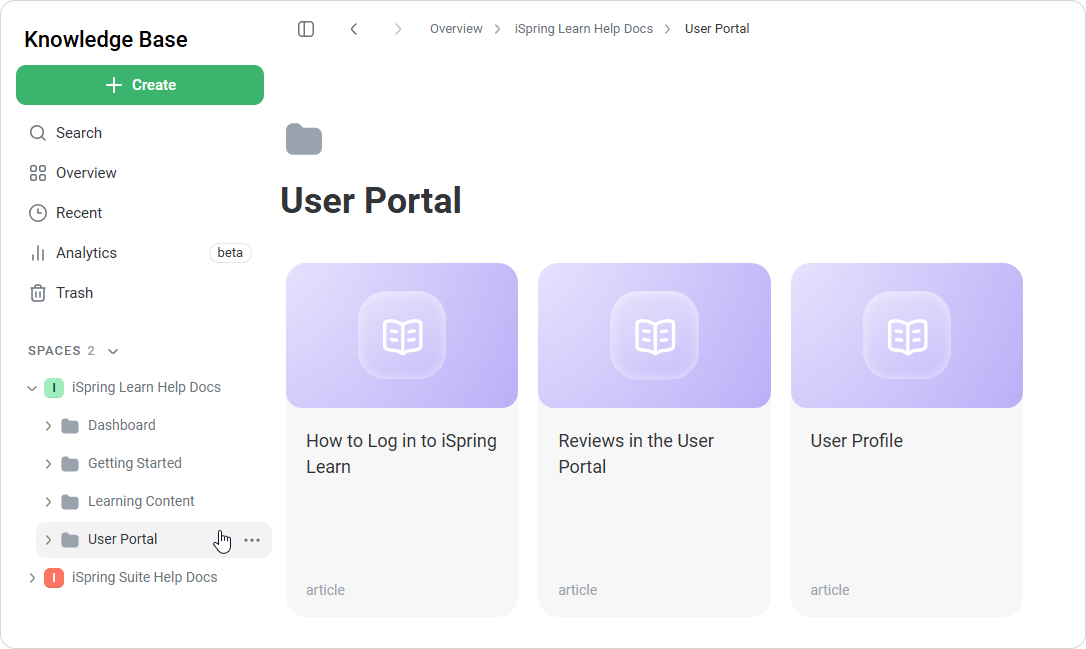
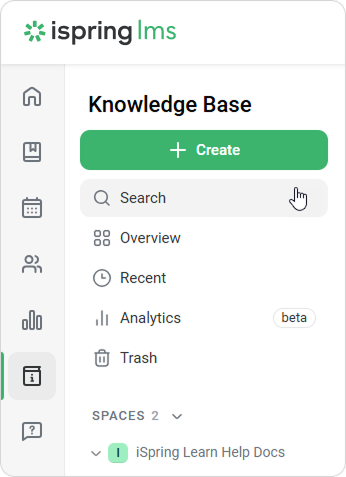
- Click on Search on the left sidebar or use the Ctrl+K keyboard shortcut.
- Type what you want to find in the search bar.
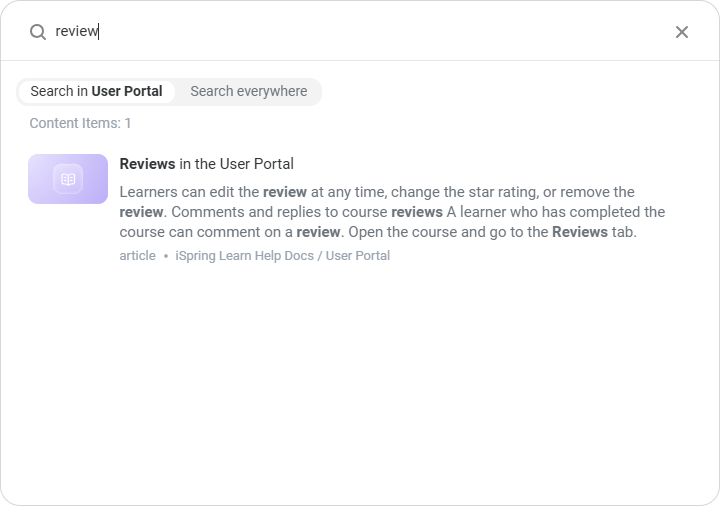
- The search function will show the results from the folder you selected.
If you want to see results in all spaces and folders, switch the search to Search everywhere.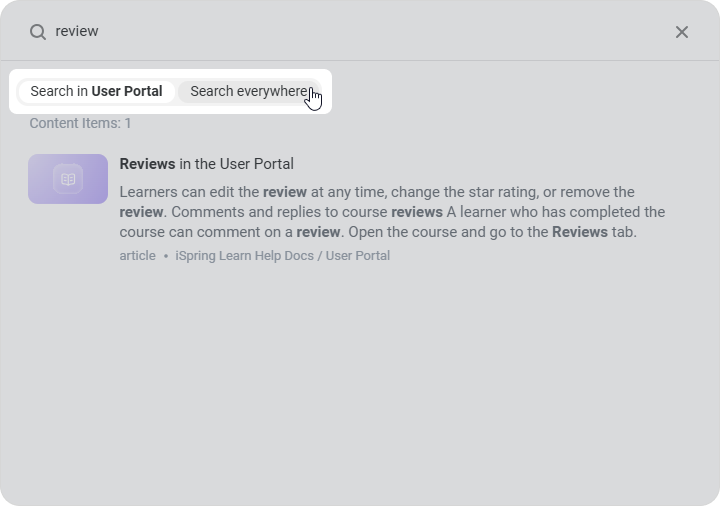
How the Search Results Are Prioritized
Here's a breakdown of how the search results are prioritized:
Title Matches
The search function first looks for matches in titles in spaces, folders, and articles.
The closer the match is to the beginning of a title, the higher it will appear in the search results.
- If some titles match your search exactly, the articles with more matches in the text appear higher in the results.
- If two or more articles have the same title and number of text matches, the article in which the matches appear closer to the beginning will be listed first.

- Content Matches
Next, the search function prioritizes matches found within the content of the articles.
- Again, articles with more matches within the text appear higher in the results.
- When multiple articles have the same number of matches, the article in which the matches appear closer to the beginning will be listed first.