How to Import an Audio for a Scene or the Entire Role-Play
You can import files individually by clicking the Import icon on the respective messages.
If you want to send the script for professional audio recording, or record all audios in a third-party application, you may want to use the Export Script and Bulk Import options. Follow these steps:
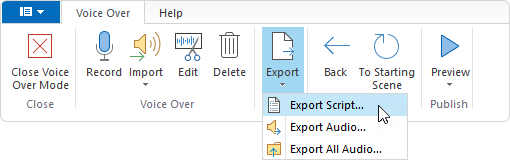
Click the Export button on the toolbar and select Export Script.
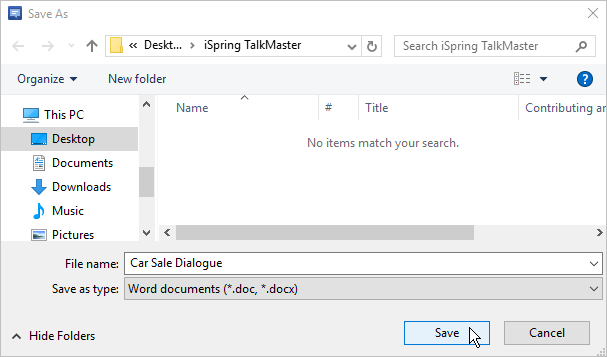
Save it to a .doc file on your computer and then send to a voiceover actor. You can find one on voices.com.
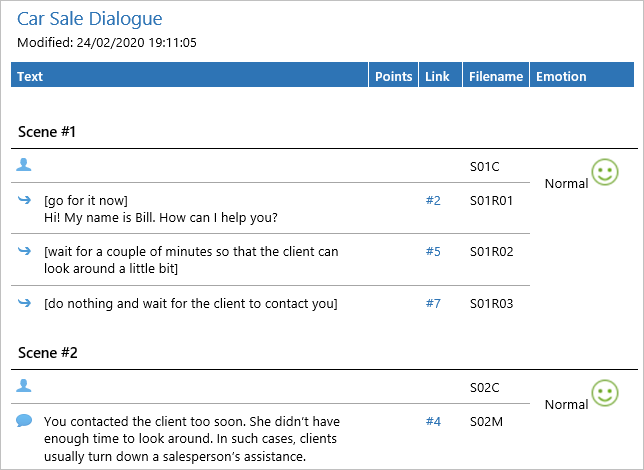
If you open the script file, you will see the script text and the file names, needed for bulk import. Make sure that you match the particular recording with the respective filename (inform your voice actor about that).
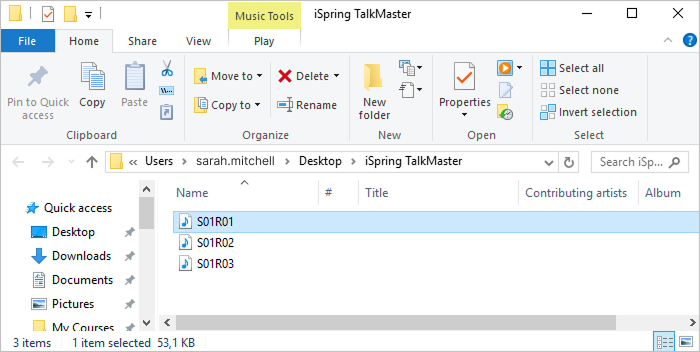
The recorded audio folder for this project will look like this.
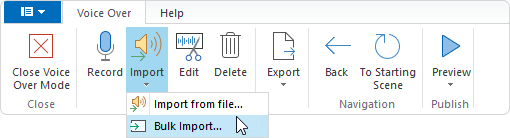
Click the Import button on the toolbar and select Bulk Import.
Select all files in the folder with the voiceover (Ctrl+ A) and click Open. You can import .wav, .mp3, and .wma audio files.
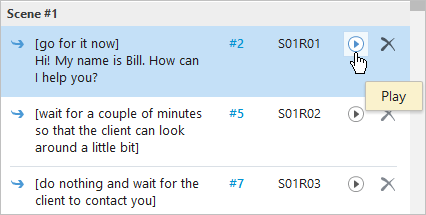
After import is finished, you will see play buttons opposite the messages to which audios were successfully imported. You can preview them from here.
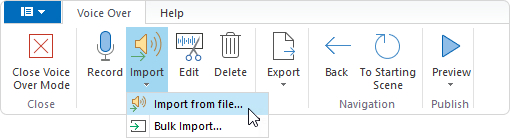
If some messages were not imported automatically, double-check that their file names are correct and do bulk import again. You can also import a single file audio file with any filename using the Import from file option.