When is a license key required?

There are different subscriptions to iSpring Suite. Whether you need a license key depends on your iSpring Suite subscription:

  • iSpring Suite (no iSpring Cloud)
    You need a license key to activate iSpring Suite. Follow the instructions below.

  • iSpring Suite AI or iSpring Suite + iSpring Cloud
    We recommend signing in to iSpring Suite instead of using a license key.
    If you activate iSpring Suite with a license key, you won't have access to iSpring Cloud, and all AI features in iSpring Suite will be disabled.
    If you don't need iSpring Cloud or can't sign in to your account, you can use a license key as a temporary solution.

To find out which subscription you have, contact your iSpring Suite administrator.

How to activate iSpring Suite with a license key

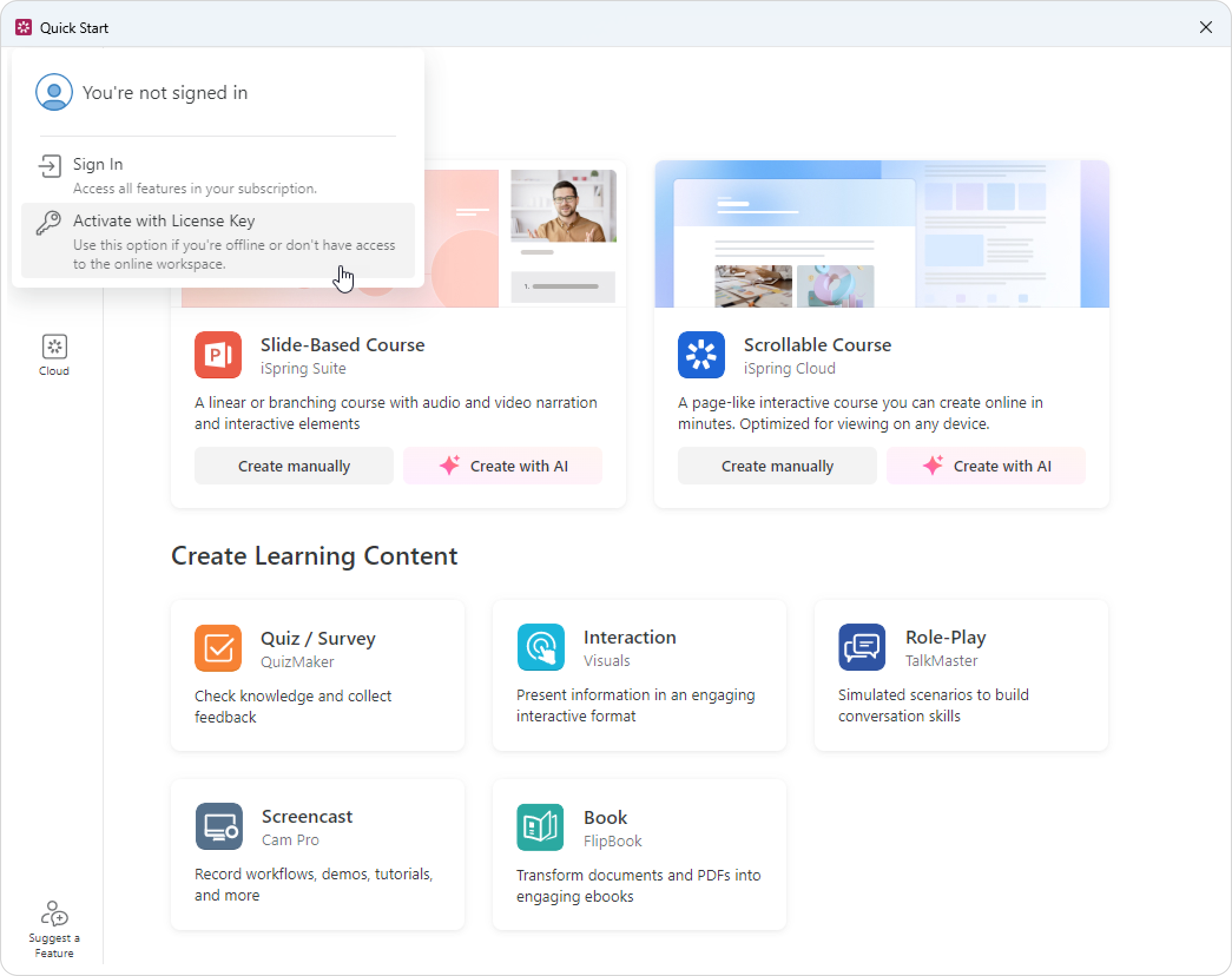
  1. Install iSpring Suite. Open iSpring Suite from your desktop or from PowerPoint, then click Activate with License Key.


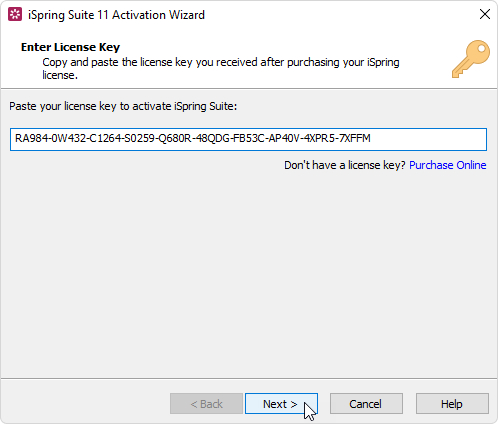
  2. Enter your license key and click Next.


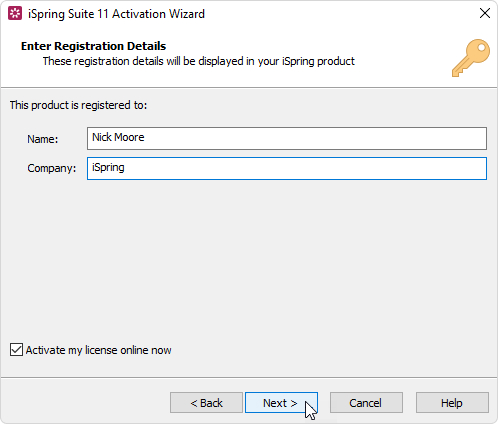
  3. Enter your name and company name, then click Next. These details appear in the About window.


  4. Select one of these methods to activate your license:

Common issues

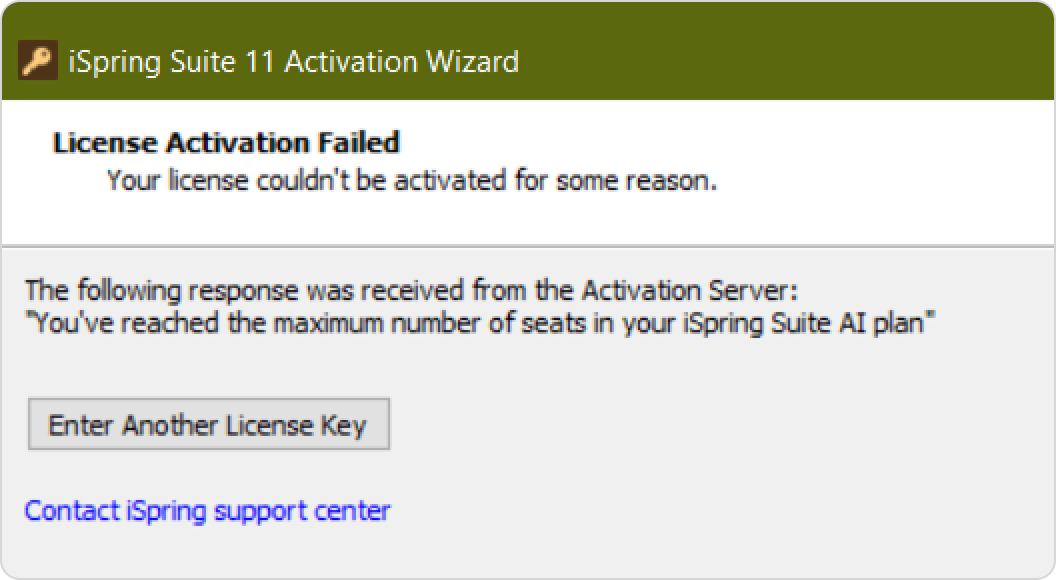
If you see the error "You've reached the maximum number of seats in your iSpring Suite AI plan," it means all author seats in your iSpring Cloud workspace are occupied.

When you activate iSpring Suite with a license key, you still need an available author seat in iSpring Cloud.

Ask your workspace administrator to free up a seat by:

  • Changing an existing author's role to Reviewer.

  • Removing an author who no longer needs access.

If your administrator can't free up a seat, they can contact iSpring technical support for help.

Maximum number of seats reached

If you've reached the maximum number of seats allowed by your license, contact your license owner or iSpring technical support for help.