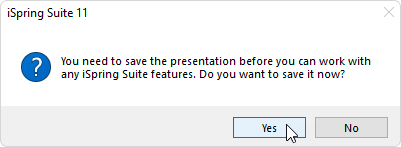
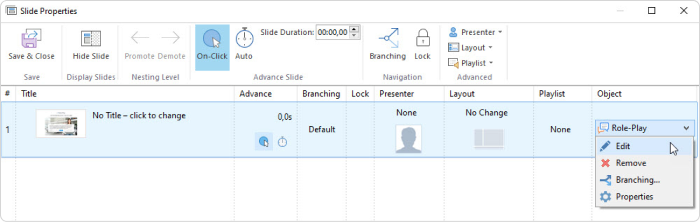
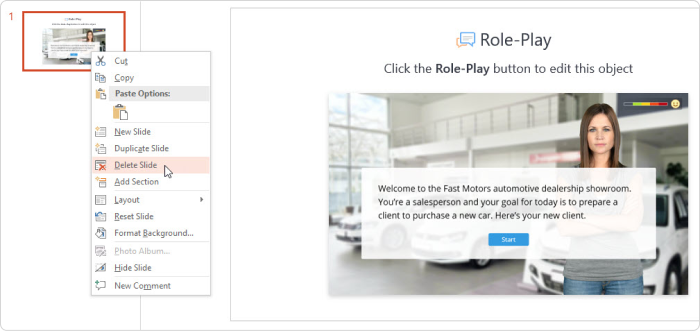
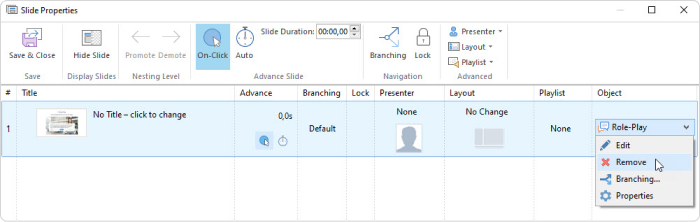
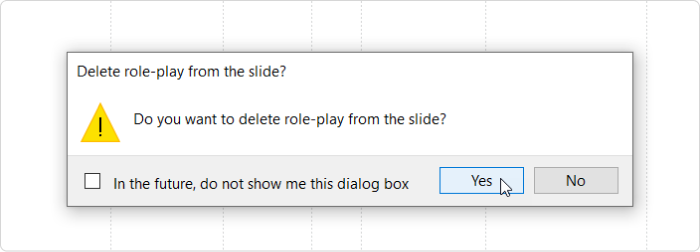
iSpring Suite 11 Adding Content to Courses Current: Inserting a Role-Play Inserting a Role-Play A role-play is a learning practice intended to reproduce actual situations your employees may encounter. Arrange car sales training or recreate a situation when a customer asks for a refund for goods that have been undoubtedly used and damaged. A dialog can be easily built with the iSpring TalkMaster program that is included in iSpring Suite.To add a role-play to a course:Click the Role-Play button on the toolbar. Create a new role-play or select a role-play that was previously created with iSpring TalkMaster.Before you insert the role-play, save the course on your computer if you haven't done so already.After you finish working on the role-play, click Save and Return to Course on the toolbar.Your role-play will be added to the specified slide of your presentation.Editing a Role-PlayThere are two ways to edit a role-play that has been inserted into a presentation:Select the slide with the role-play and click on Role-Play > Edit on the toolbar.Open the slide with the role-play and click the Slide Properties button on the toolbar.Under the Object column, open the Role-Play menu and click Edit.Edit the role-play as you wish and click Save and Return to Course on the toolbar.Deleting a Role-PlayThere are two ways to delete a role-play from the presentation:Delete the entire slide from the presentation.Open the slide with the role-play and click the Slide Properties button on the toolbar.Under the Object column, open the Role-Play menu and click Remove.Next, confirm your choice.Click Save and Close on the toolbar.Learn how to create role-plays in iSpring TalkMaster by browsing the User Guide and watching the following video: ×