Getting started with iSpring Suite is simple — no matter how you prefer to work. Whether you launch the standalone app or start directly from PowerPoint, iSpring Suite fits naturally into your workflow.
Start from iSpring Suite
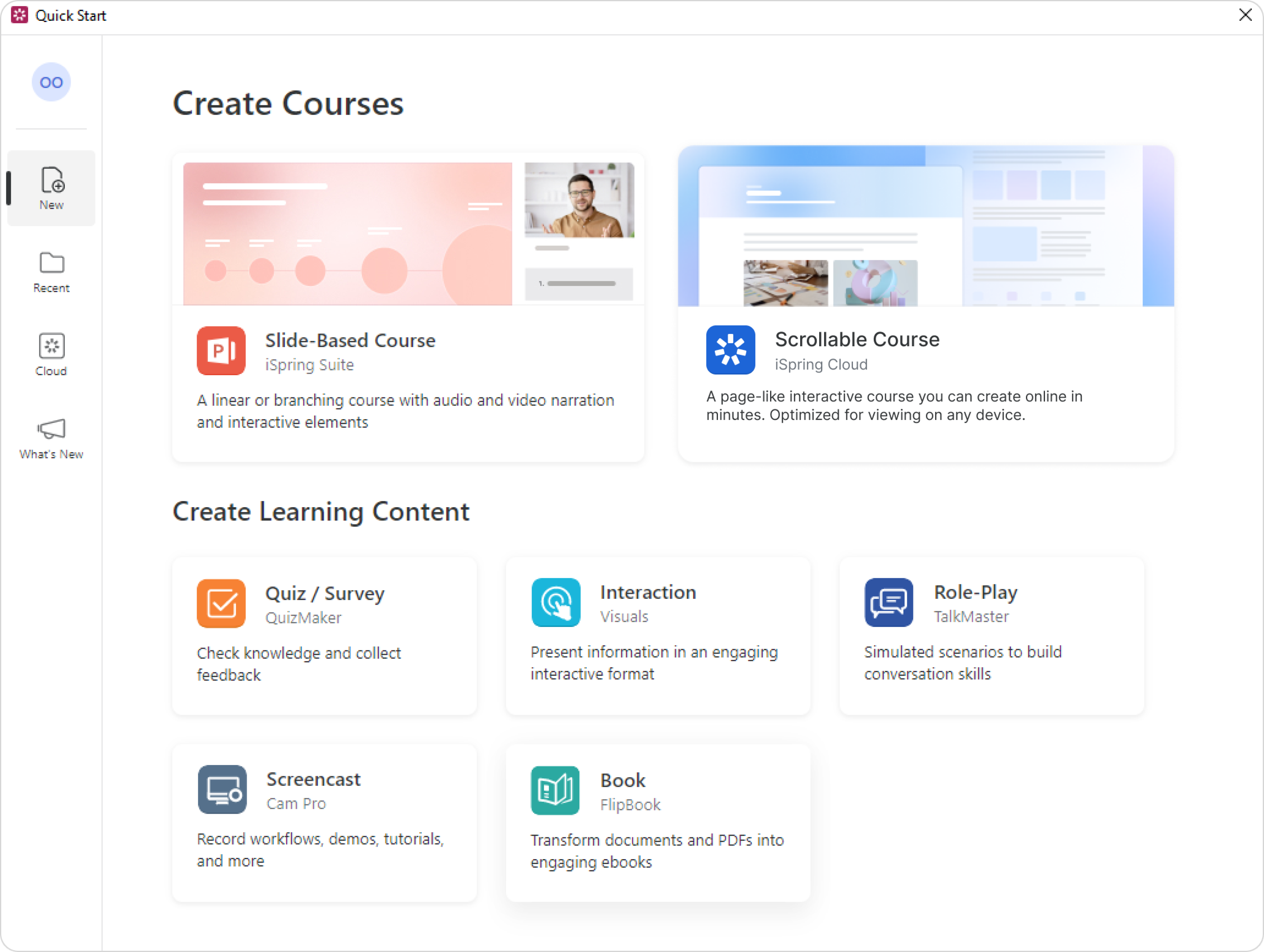
When you open iSpring Suite, the Quick Start menu will appear. It’s your go-to place for creating content and accessing your account. Explore the options — each format shows what you can create.
Start from PowerPoint
If you usually work in PowerPoint, you can access iSpring Suite directly from there.
- Open PowerPoint as you normally would.
- Go to the iSpring Suite tab and click on Create.

The Quick Start menu will open. Choose the type of content you want to create, for example, a simple slide-based course.
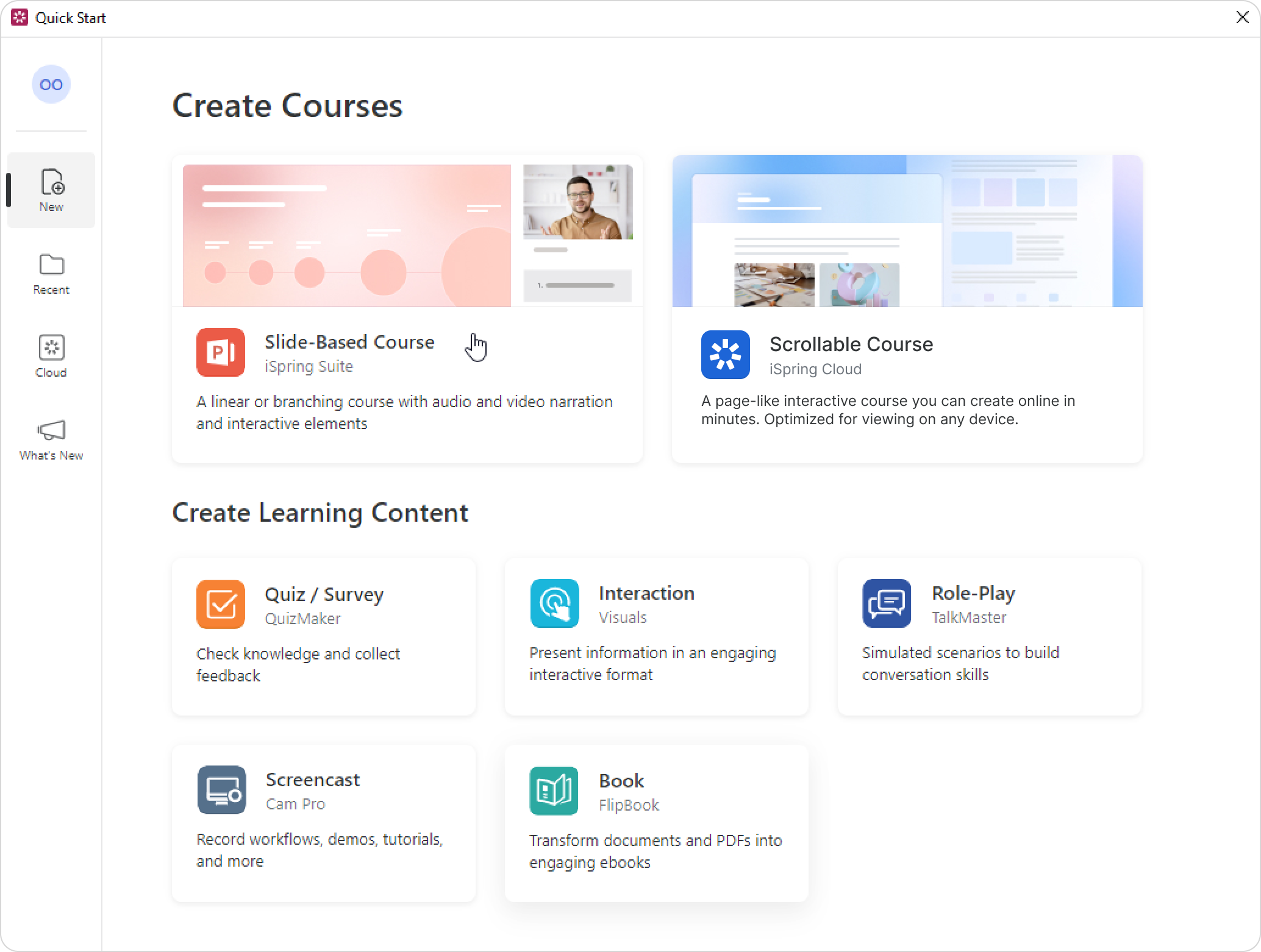
After you’ve had a chance to explore, you can add content directly from the PowerPoint ribbon:
- As soon as the course is ready, publish it.
Create interactive page-like courses and online quizzes in iSpring Cloud, a portal for creating and storing content, that’s embedded in iSpring Suite AI.
- Launch iSpring Suite AI or open the iSpring Suite tab in PowerPoint and click on Create.
- Сlick on Scrollable Course.
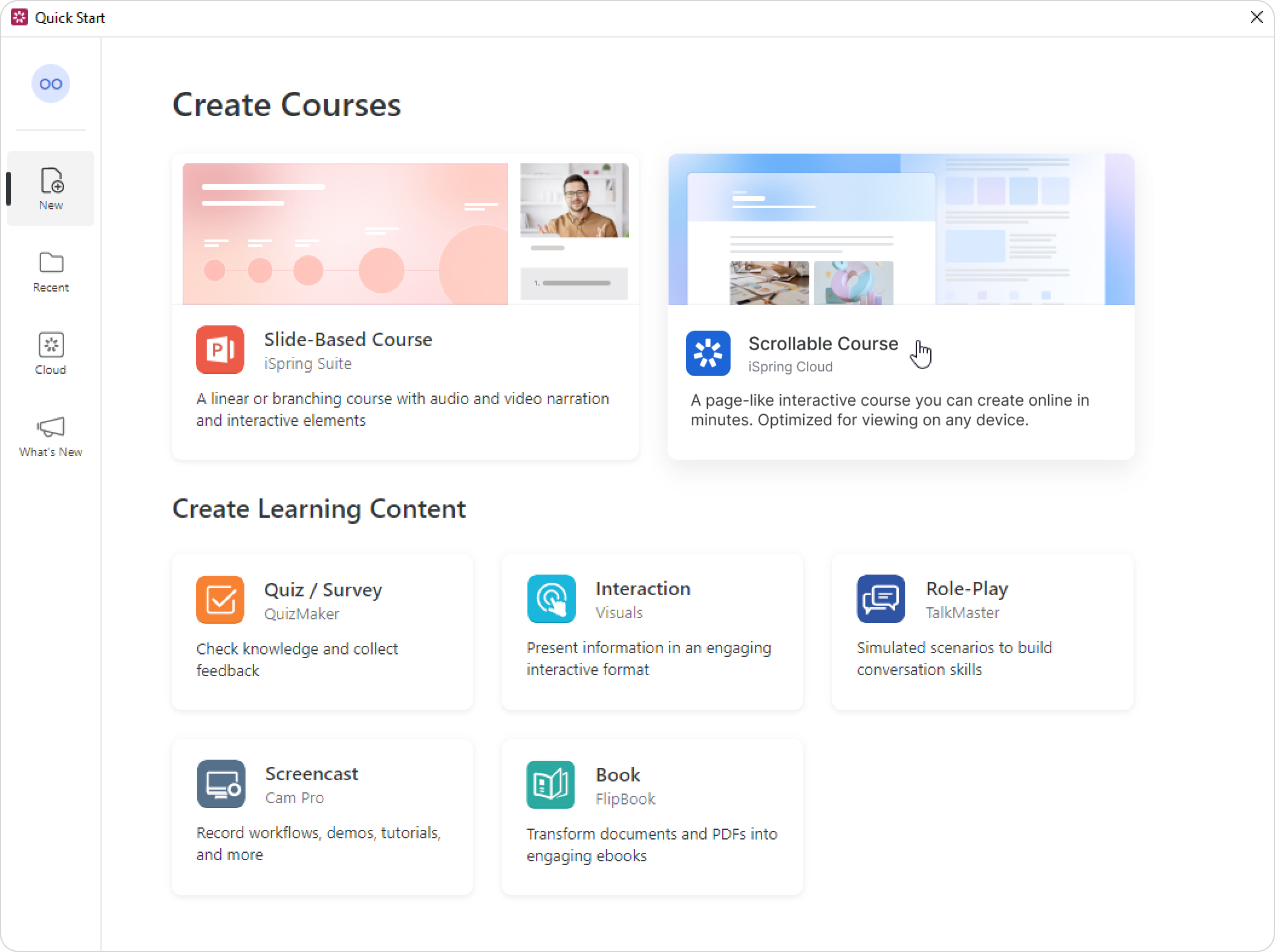
- The editor window will open so you can begin.
• Creating a Scrollable Page
• Creating a Quiz
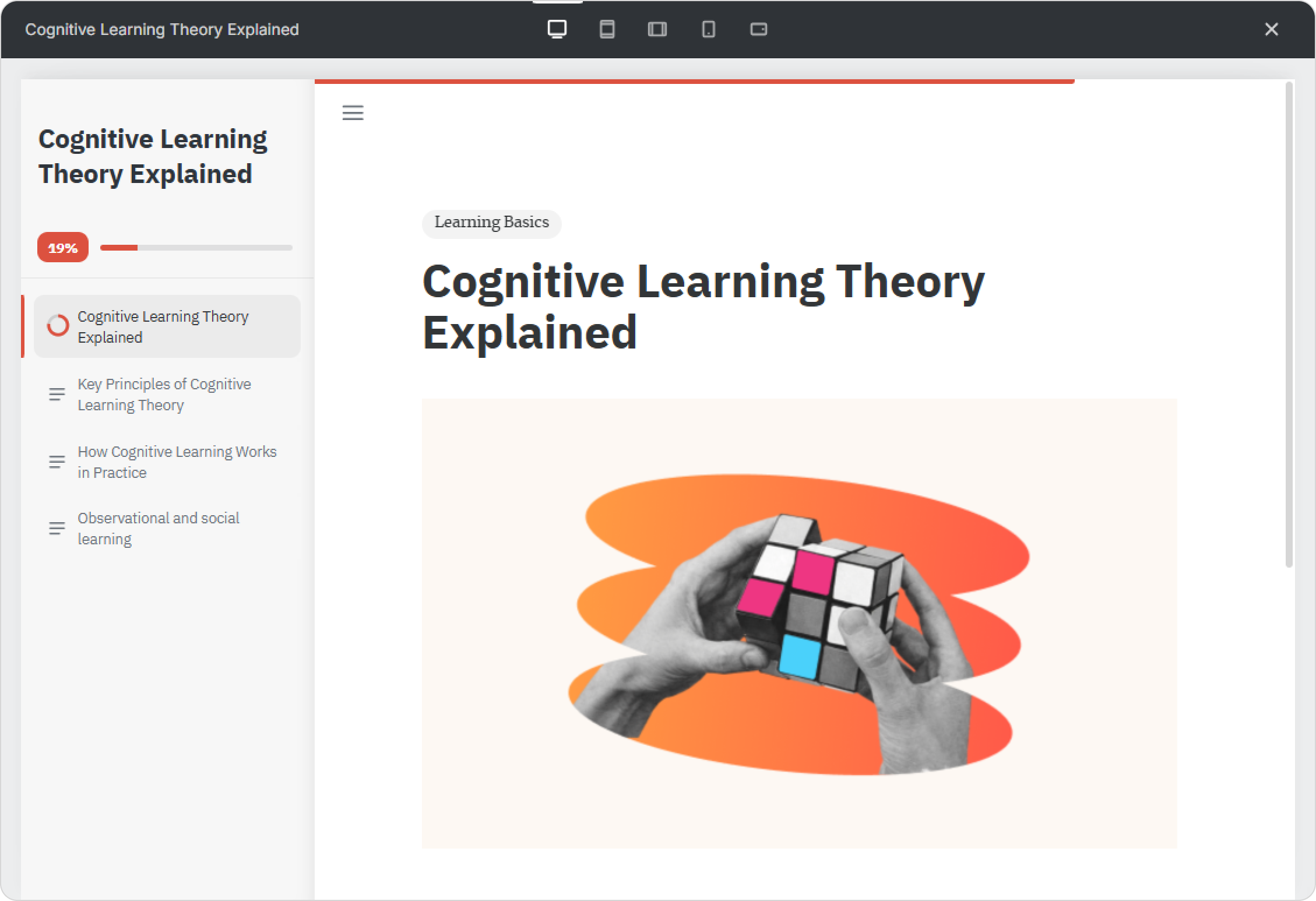
- After you finish working on the page, export it for uploading to an LMS or share a link to it.
For more information on the components of iSpring Suite and iSpring Suite AI, check out these dedicated help docs.