Converting Text to Speech
Text to Speech in iSpring Suite AI allows you to convert text to speech in 66 languages and insert pre-prepared audio into a video project. With AI voices powered by ElevenLabs, narration sounds natural, expressive, and close to human speech.
The text to speech function is available only with the iSpring Suite AI subscription.
- iSpring Suite includes a trial allowance of 10,000 characters for 30 days for one author.
- Text-to-speech is also unavailable in the standalone iSpring Cam Pro 9 app purchased without the Suite AI package.
Only team members with the Author role can convert text to speech. Roles are assigned in the iSpring Cloud account.
Learn more about Text-to-Speech, the Voice Library, and how to access legacy Google voices in this article.
Converting Text to Speech
To convert text to speech in iSpring Cam Pro:
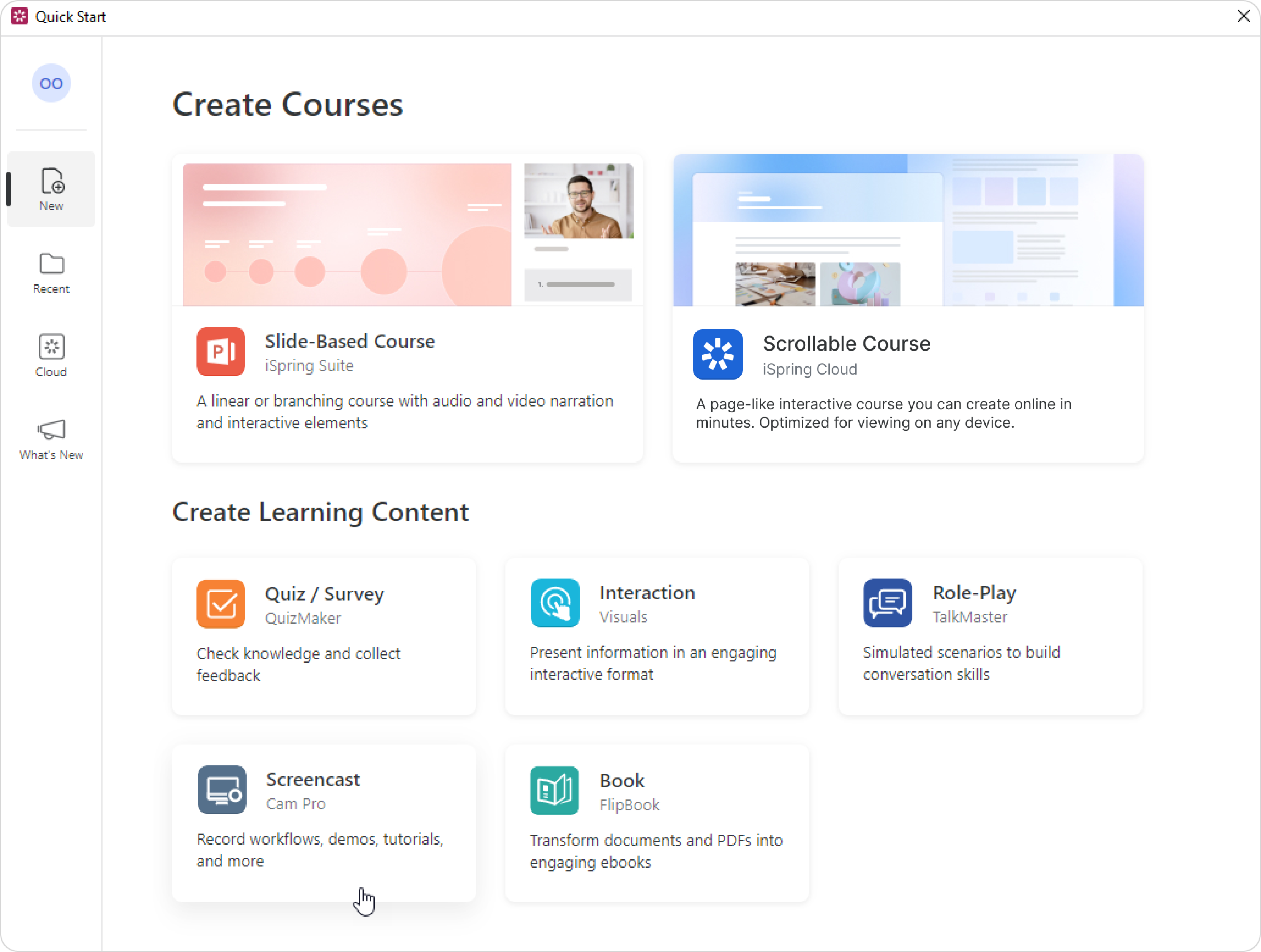
- Launch iSpring Suite AI and click on the Screencast tab. Next, create a new project or open one that you created previously.
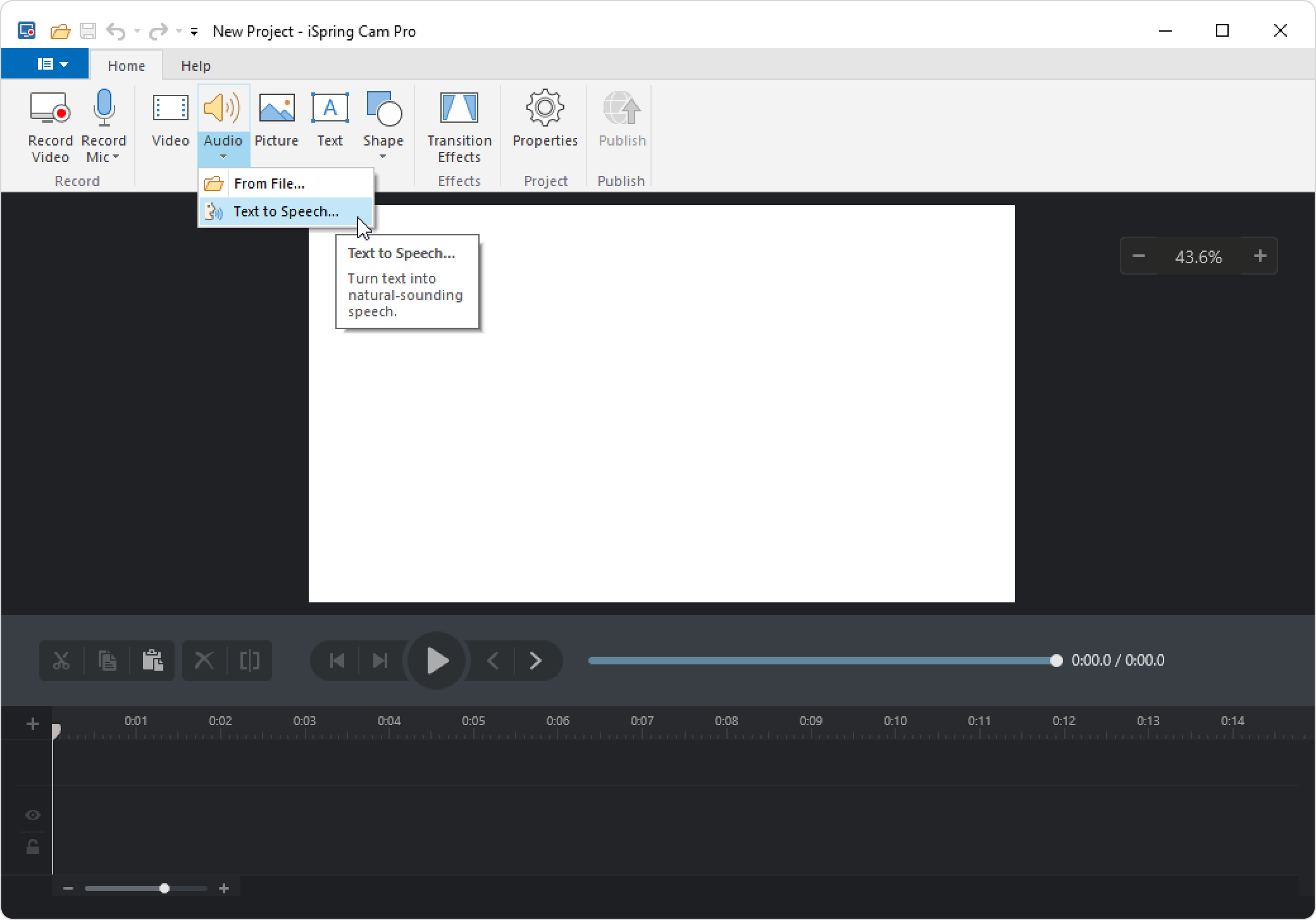
- Click the Audio button on the toolbar and select the Text to Speech option.
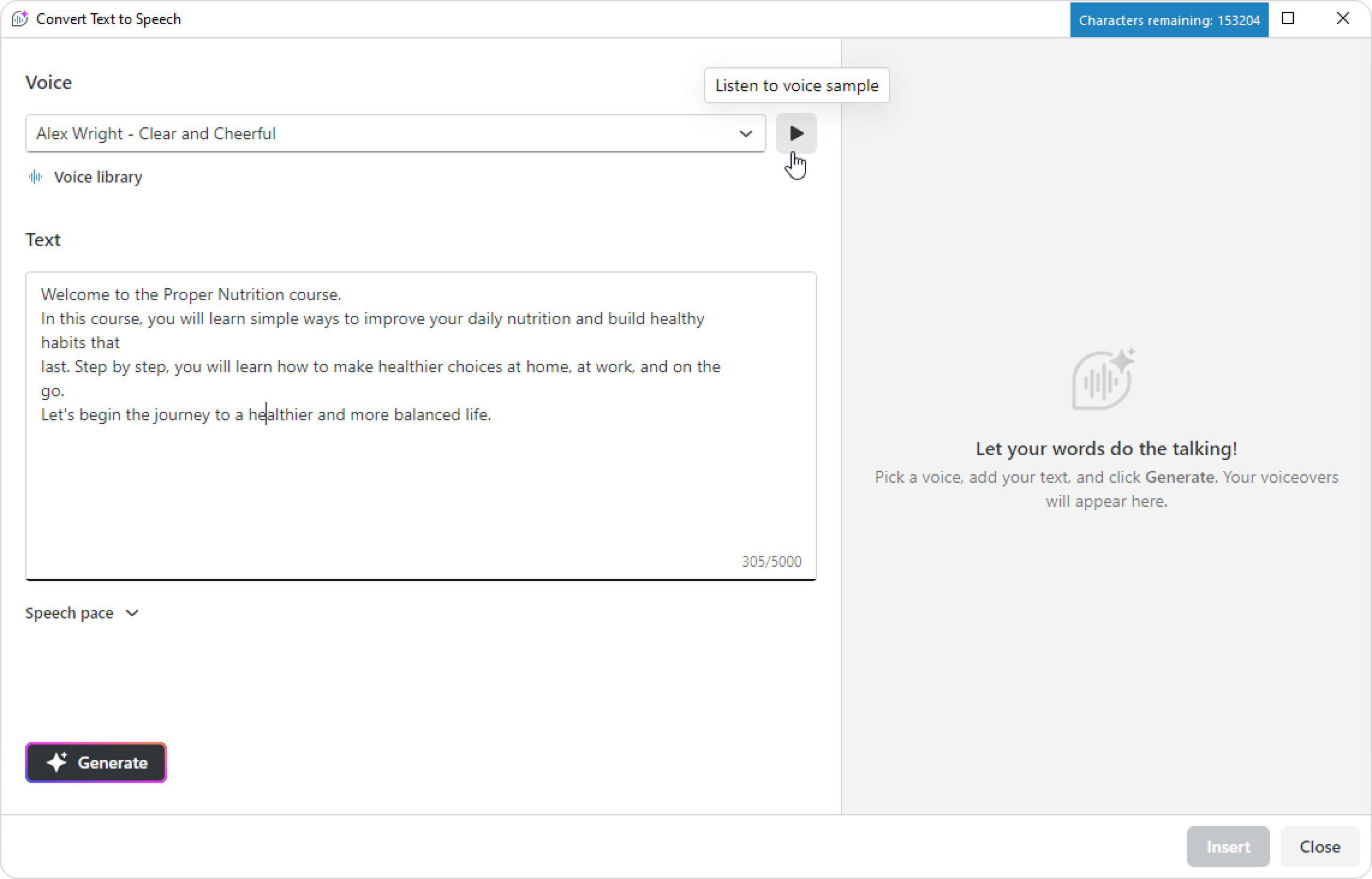
- Paste in the text you want to narrate. The text can have up to 5,000 characters.
- Select the language and voice. Click on the player icon to preview the voice.
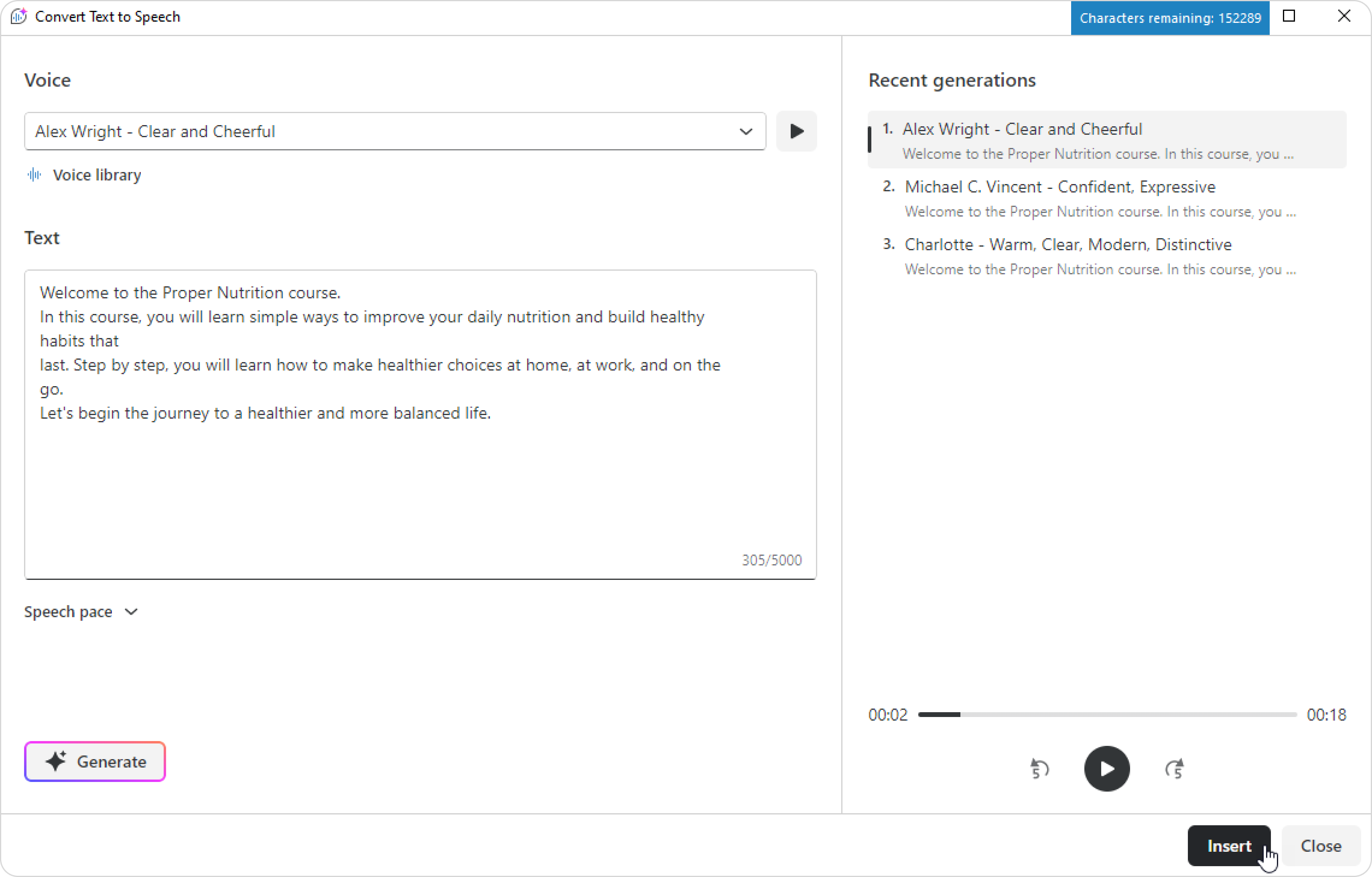
- Click on Generate. The generated result will appear on the right.
If you need to stop the generation process, click on Stop. Preview the generated voiceover using the player.
To generate several versions, repeat steps 4 and 5 with different voices. Compare the generated results on the right.After each generation, the number of available characters decreases.
- When you’re satisfied with the result, select the voiceover and click on Insert.
Character limits
- Text to speech is available if your plan includes iSpring Suite AI.
- iSpring Suite users get a trial limit of 10,000 characters for 30 days per author.
- ElevenLabs voices have a voiceover limit of 200,000 characters every 30 days.
- Google voices have a limit of 1,000,000 characters per author every 30 days.
- You can generate up to 5,000 characters at a time with an ElevenLabs voice.
- iSpring Cloud AI and iSpring Suite AI share the same 200,000-character limit for pages and presentations. For example, if a user spends 100,000 characters on a course in Suite AI, they will have 100,000 characters left for pages.
- Additional characters can be purchased separately.
Google voices have the following character limits:
- Neural2 voices support up to 300 characters per sentence.
- Chirp3-HD voices support up to 400 characters per sentence.
- For these limits, sentences are separated by periods (.), commas (,), exclamation points (!), question marks (?), and line breaks.
- You can generate up to 4,000 characters at a time with Google voices, except for Studio voices.
- Studio voices support up to 800 characters per generation.
If a sentence exceeds the character limit, split it into shorter sentences or add a line break.
- The number of characters remaining is calculated according to the following rules:
- The number of characters used for the last 30 days (including the current day) is deducted from the entire limit of characters that have been allowed for the author (1 million characters).
- If the result is greater than zero, you can convert the remaining number of characters to speech.
- If the result is equal to or less than zero, you won't be able to convert text to speech but will see the data when the converting will be available again.
- The number of characters used for the last 30 days (including the current day) is deducted from the entire limit of characters that have been allowed for the author (1 million characters).
- Even if you are only 100 characters away from the limit, you can still enter up to 5,000 characters if you use Eleven Labs voices, or up to 4,000 characters if you use Google voices, in the Convert Text to Speech function and convert them to speech. This excess will be deducted from the total in the next 30-day period.
- If you are using an iSpring Suite AI trial version, every author will be provided with 10,000 characters until the trial period expires. If you prolong the trial version for a few months more, however, the authors will not get a new package of characters to convert text to speech.
- Converting text to speech is not available in the standalone iSpring Cam Pro 9 app that is purchased without the iSpring Suite AI package.
- Only team members assigned with the Author role can convert text to speech. The roles are assigned to team members in the iSpring Cloud.
- The audio with the converted text can be sped up or slowed down, overwritten, replaced, or saved to your computer.
- Converting text to speech is currently functioning in a beta testing mode. If you have any questions or ideas, feel free to send an email to the iSpring technical support team.
You can exceed your 30-day limit, but only for one conversion.
If you use Google voices and have fewer than 4,000 but one or more characters left in your 30-day balance, the system will still allow you to complete one full text to speech conversion of up to 4,000 characters.
If you use ElevenLabs voices and have fewer than 5,000 but one or more characters left in your 30-day balance, you can still generate one conversion with up to 5,000 characters.
How the сharacter limit works
Each author has a rolling 30-day character limit.
It’s not based on calendar months — your balance updates day by day according to how many characters you used exactly 30 days earlier.
For example, if you used 2,000 characters on November 6, those 2,000 characters will be added back to your balance on December 6. (Dates may vary slightly depending on days per calendar month.)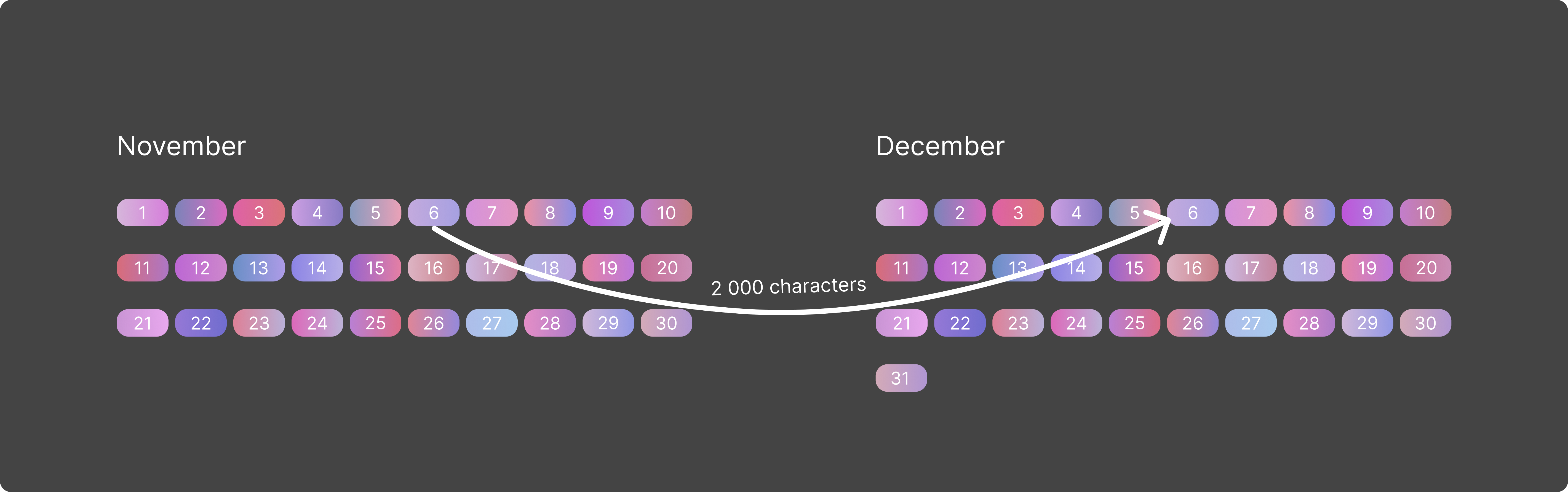
In short, your limit replenishes gradually each day, not all at once at the start of the month.
If you run out of characters, the Text to Speech feature will be temporarily unavailable until your balance begins to replenish again.
The system will show the exact date when your characters will start to return.
This applies to both ElevenLabs and Google voices.
ElevenLabs voices have a limit of 200,000 characters per author every 30 days, while Google voices have a limit of 1,000,000 characters per author every 30 days. These are completely separate limits. Using ElevenLabs voices, consumes characters only from the ElevenLabs limit, while using Google voices consumes characters only from the Google limit.
Additionally, these limits cannot be combined. For example, if an author has used up their ElevenLabs limit, they cannot then use characters from the Google limit to generate more audio with ElevenLabs voices, and vice versa.
Characters are deducted for every generation, not just for the final inserted audio. For example, if an author generates several audio files with different voices before picking one to insert it, characters are consumed for each generated characters will be used for each audio file.
Editing a Text to Speech clip
To change the text to be converted to speech, or select a different language, speaker, or voice profile:
- Click on the track with the text to speech clip and hit the Edit Text to Speech button on the toolbar.
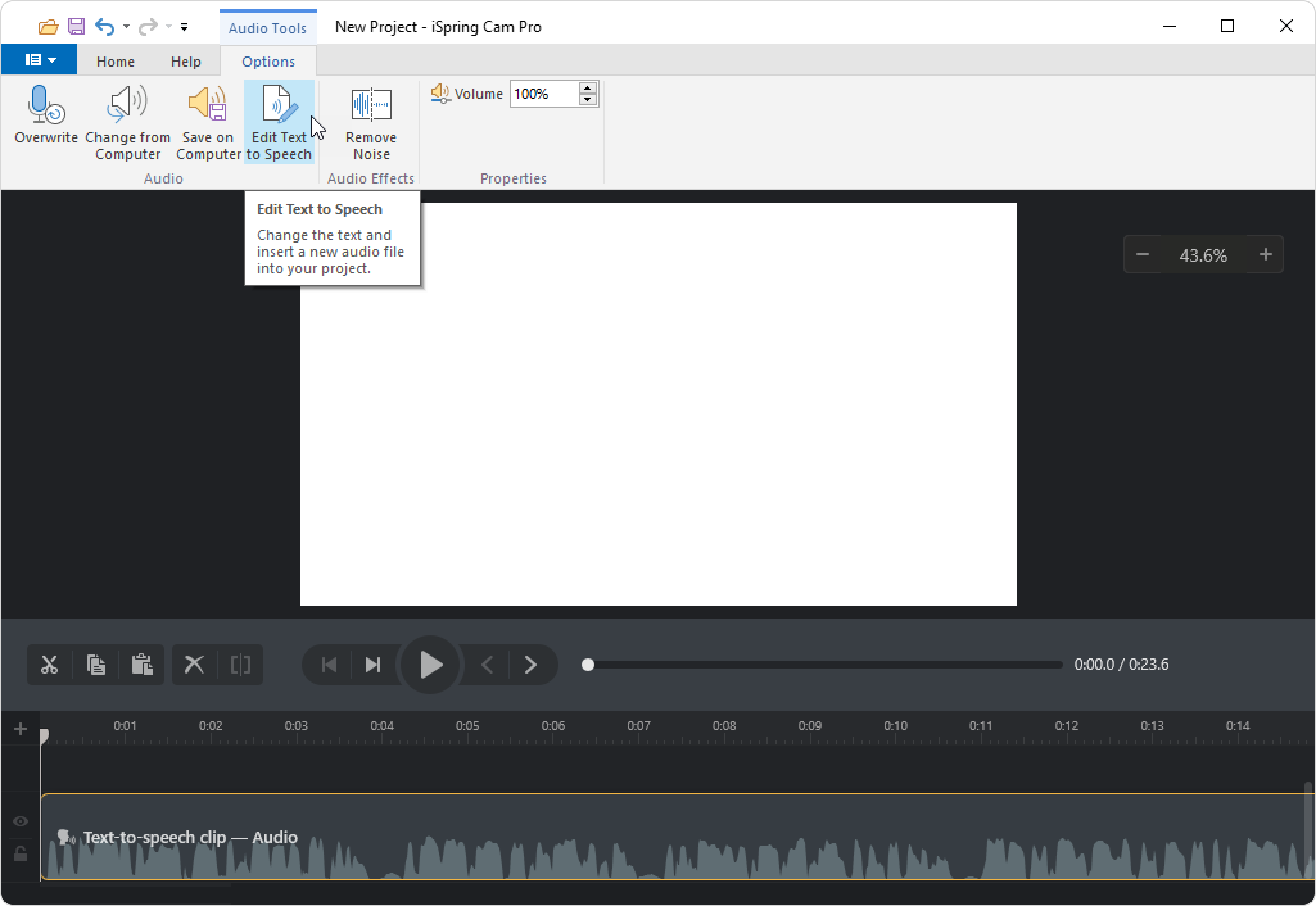
The other way is to right-click on the track and select the Edit Text to Speech option.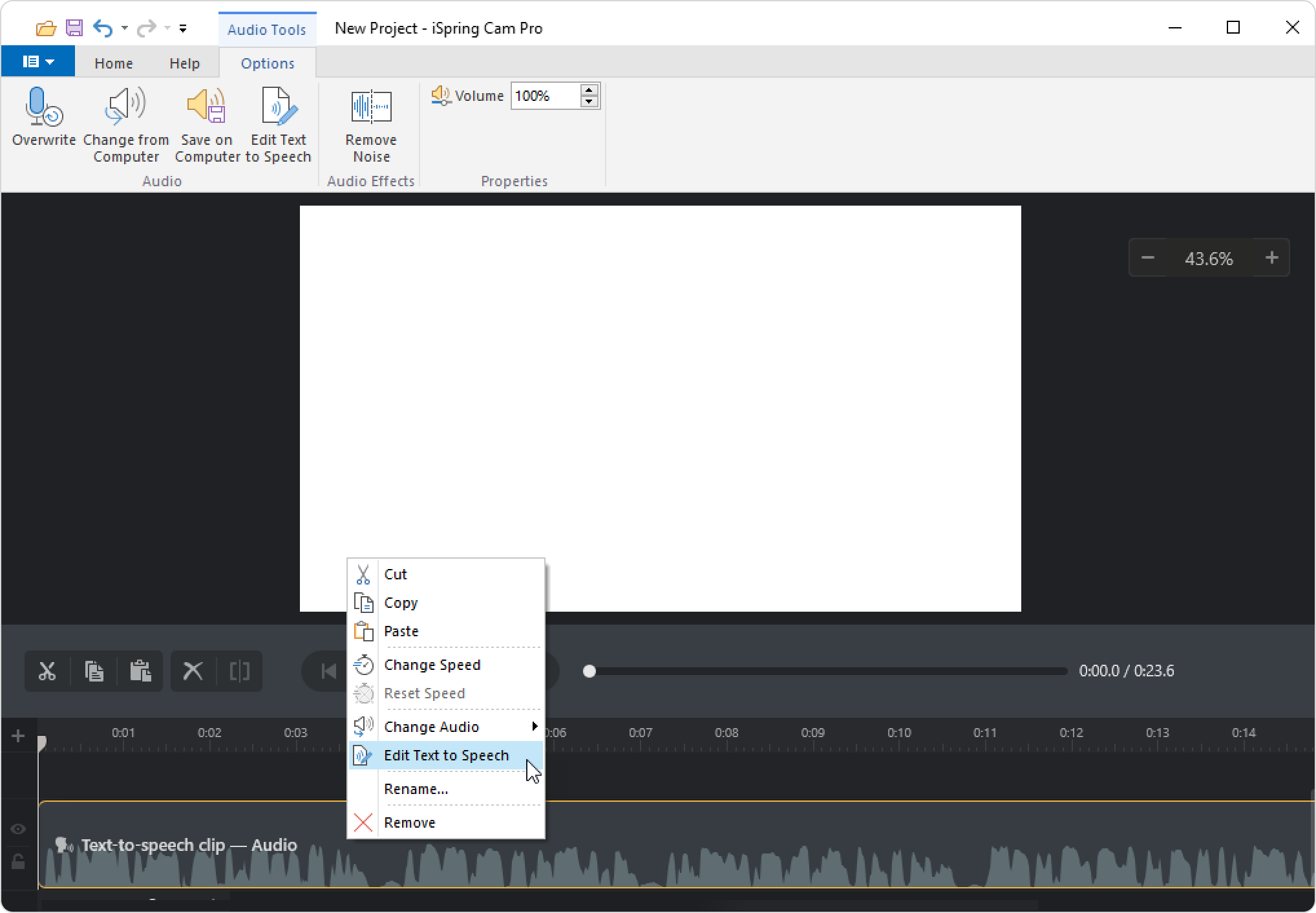
- Make changes in the opened window and click Update.
- The text to speech clip in your iSpring Cam Pro project has now been updated.
- Let's say you made changes to the text to speech clip (removed noise, for instance), and later decided to edit the text to be converted. After the text editing is done, all changes that you made previously (noise removal) will be lost.
- If you made changes to the text to speech clip (increased the volume, for instance) and then divided the clip into multiple fragments and edited one of the fragments, the changes that you made earlier (increased volume) will be lost only in that fragment of the clip that you edited.
Why the voice I used is no longer available
The iSpring Voice Library includes ElevenLabs voices and Google voices. These voices are managed by the provider.
The ElevenLabs Voice Library consists of user-generated content — ElevenLabs users from all over the world upload voices to it. Authors can hide or remove their voices at any time, making them unavailable in the ElevenLabs Voice Library and, consequently, in the iSpring Voice Library.