EXE files are useful when you need to run a course offline, conduct training or exams in a classroom, or share a course without giving access to its source files.

To make this possible, iSpring provides EXE Packager — a free utility that converts a published HTML5 course into a single executable (.EXE) file.

How to Convert a Course to an EXE File

The course must be published in HTML5 format before it can be converted.
  1. Download EXE Packager.
  2. Open your course in PowerPoint, go to the iSpring Suite tab, and click Publish.
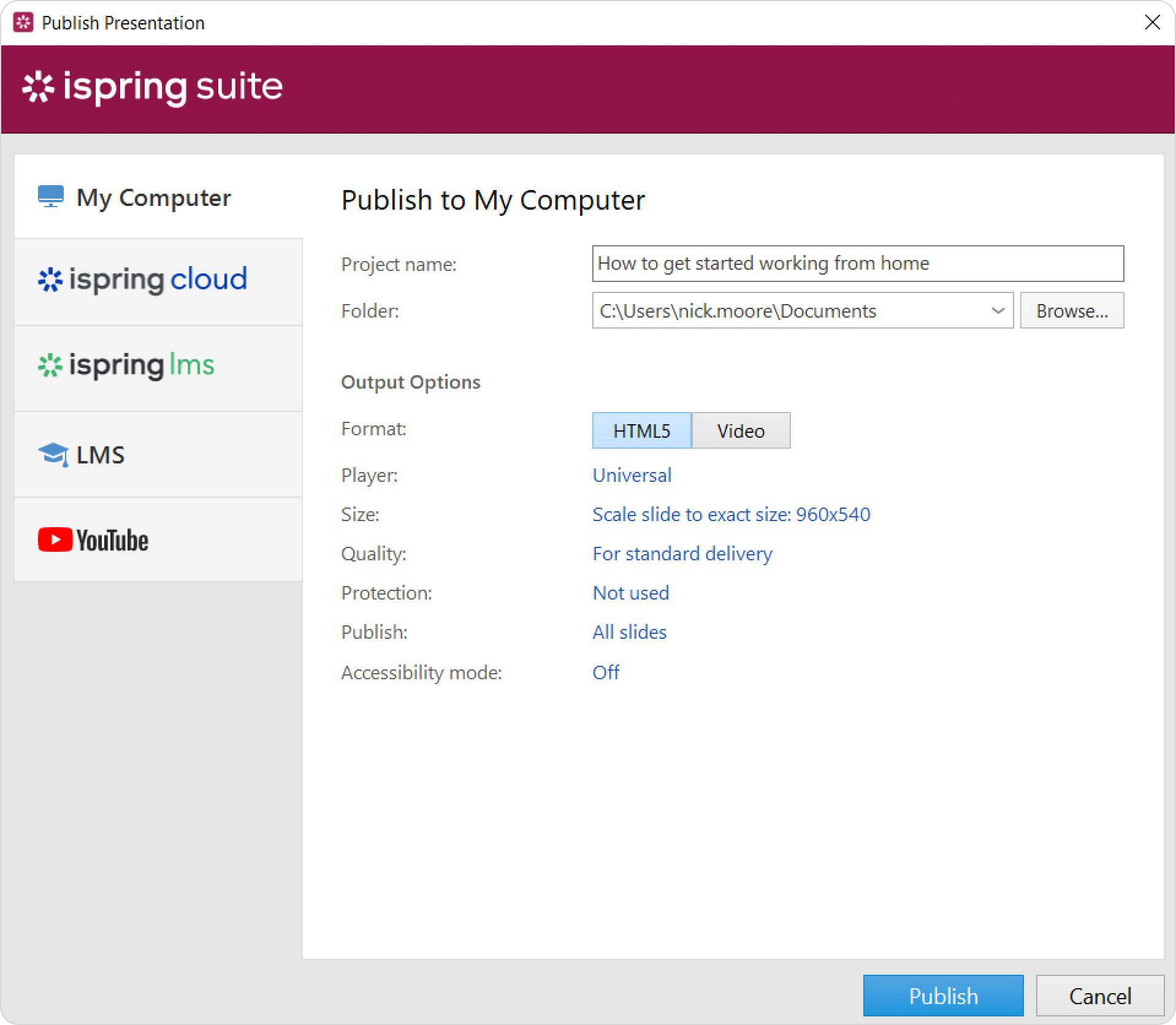
  3. In the left panel, select My Computer, configure the publishing settings, and click Publish.


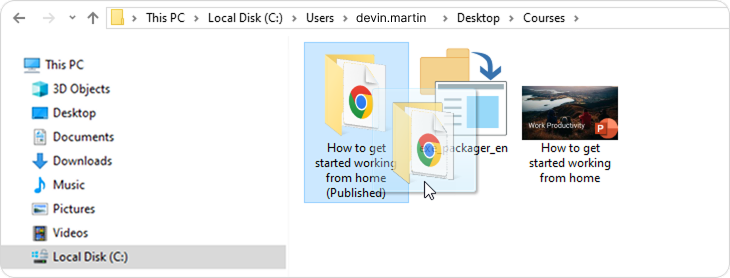
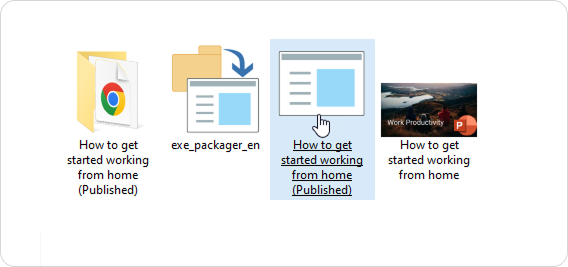
  4. Locate the published folder and drag it onto the EXE Packager icon. Make sure the folder has an index.HTML file inside.


    The conversion starts automatically. After the conversion is complete, launch the .EXE file to verify that the course plays correctly.

  • The course remains in HTML5 format but is packaged into a single executable file.

  • The .EXE file plays the course regardless of the browser installed on the computer.

Sending an EXE File by Email

Many email services, e.g., Gmail, block .EXE attachments. To send the file by email:

  1. Rename the file and change the extension from .EXE to .TXT.

  2. Send the file.

Before opening the file, the recipient must rename it again and restore the .EXE extension.