Inserting a Quiz
Add an interactive quiz or a survey created with iSpring QuizMaker into your course.
When you open a quiz from your presentation, PowerPoint remains accessible. Switch between PowerPoint and QuizMaker just as you would switch between any other Windows applications.
While working in QuizMaker, you can’t:
- Open or create another quiz, interaction, or role-play
- Change slide properties
- Publish, translate, or export the presentation
- Open the player settings or editor
- Preview the course in iSpring Suite
- Open presentation resources
- Use most tools in the Insert and Narration sections
These restrictions help protect your quiz and presentation from changes that could result in data loss.
- Click the Quiz button on the toolbar. Create a new quiz or survey or select a quiz or survey that was previously created with iSpring QuizMaker.

- Before you insert the quiz, save the course on your computer if you haven't done so already.
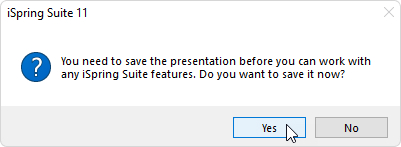
- After you finish working on the quiz, click Save and Return to Course on the toolbar.

Your quiz will be added to the specified slide of your presentation.
In iSpring QuizMaker, you can specify the URL a user will be redirected to once he or she clicks the Close button.
In a quiz that has been inserted into the presentation, URL forwarding will not function.
Editing a Quiz
There are two ways to edit a quiz that has been inserted into a presentation:
- Select the slide with the quiz and click on Quiz > Edit on the toolbar.

- Open the slide with the quiz and click the Slide Properties button on the toolbar.

Under the Object column, open the Quiz menu and click Edit.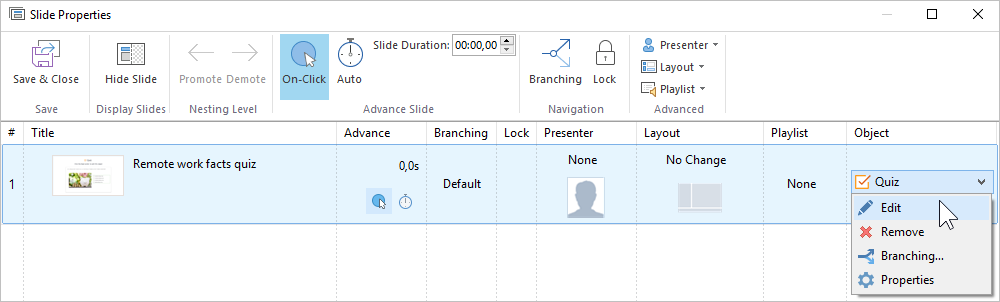
Edit the quiz and click Save and Return to Course on the toolbar.
Deleting a Quiz
There are two ways to delete a quiz from the presentation:
- Delete the entire slide from the presentation.
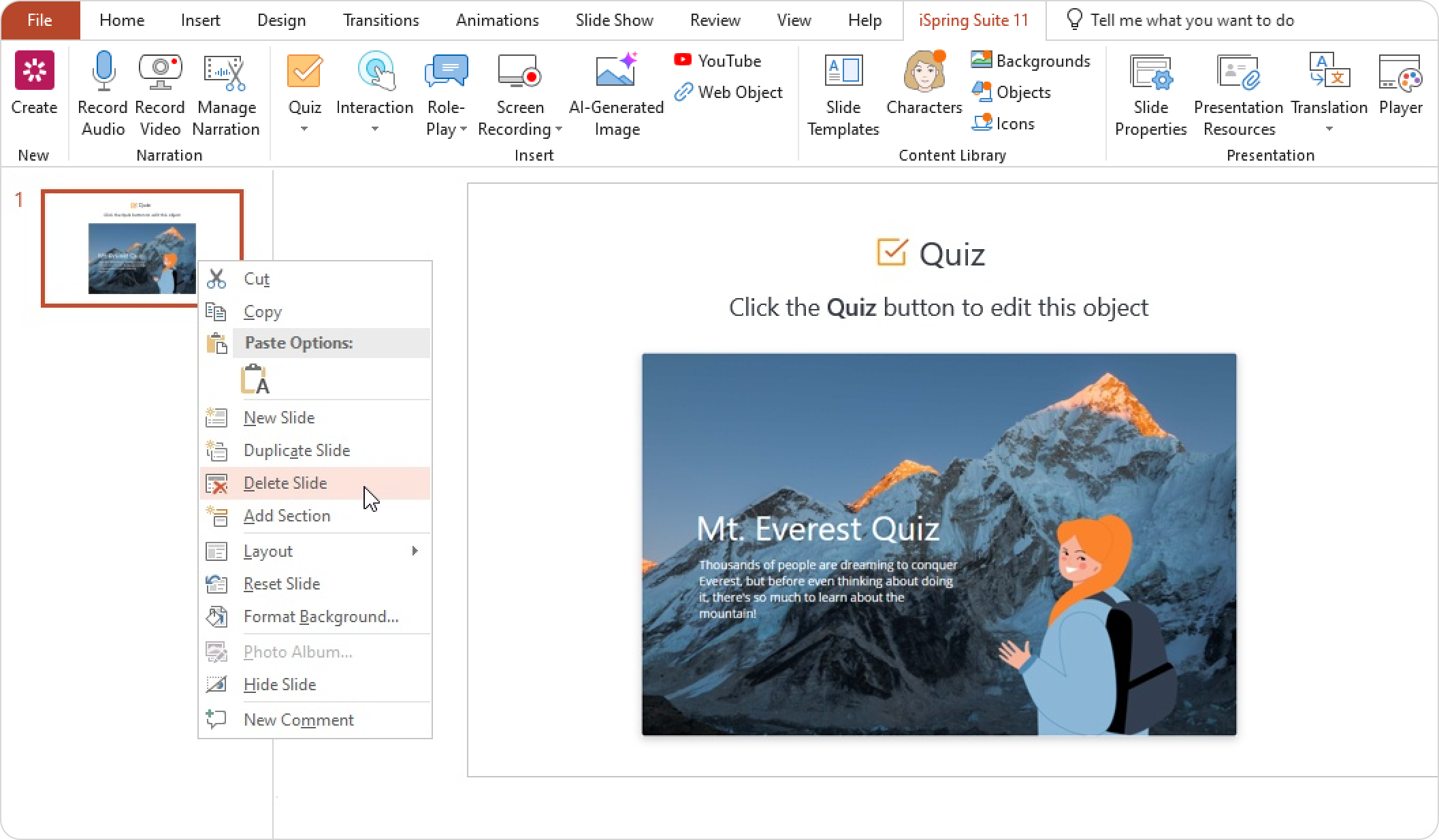
- Open the slide with the quiz and click the Slide Properties button on the toolbar.
Under the Object column, open the Quiz menu and click Remove.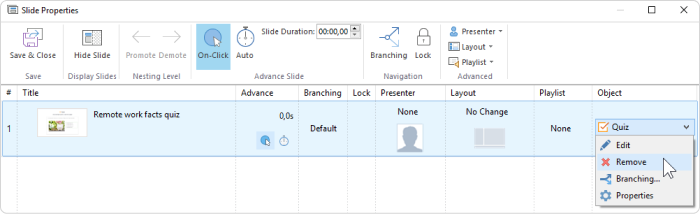
Next, confirm your choice.
Click Save and Close on the toolbar.
Quiz Background
To keep your course design consistent, you can use the presentation slide background for quizzes.
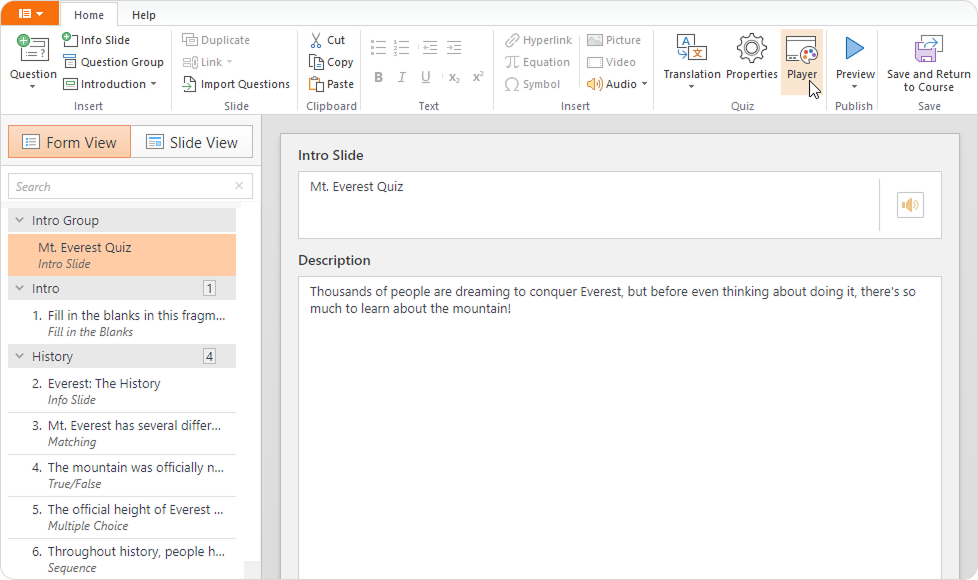
Open the quiz in your presentation.
Go to Player > Layout.
Select Use presentation slide as quiz background.
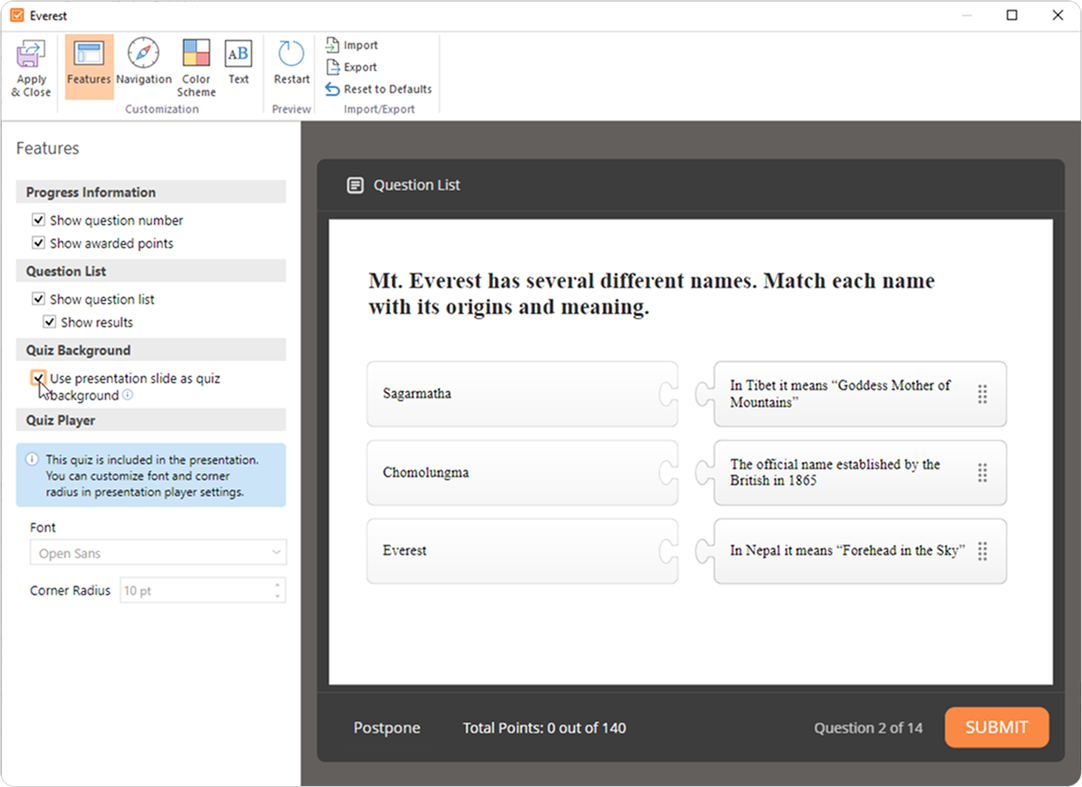
Click Apply & Close.
The background of the current slide will be automatically applied and displayed in the quiz.
Learn how to create quizzes in iSpring QuizMaker by browsing the User Guide and watching the following video.