Zapier
Zapier is an automation platform that connects iSpring LMS with thousands of business applications. It helps you automate routine tasks and exchange data between systems without building a custom integration.
For example, when a new employee is added to your HR system, Zapier can automatically create their account in iSpring LMS and enroll them in the required training.
The integration is only supported on cloud versions of iSpring LMS and doesn't work with on-premise iSpring LMS.
How Zapier works
A workflow in Zapier is called a Zap.
Each Zap consists of two parts:
- a trigger — an event that happens in one application
- an action — a task Zapier performs in another application after the trigger occurs
Here are a few examples:
| Trigger | Action |
|---|---|
| A learner signs up for training through a Google Form. | Zapier creates the learner in iSpring LMS and enrolls them in a course. |
| A learner completes a mandatory course in iSpring LMS. | Zapier updates the Demo Access field in your CRM and sends an email with instructions and helpful links. |
| A new employee is added to your HR system. | Zapier creates the user in iSpring LMS and imports their profile information. |
How to create a Zap
You don't need to enable the integration in iSpring LMS. Set everything up in your Zapier account.
The example below shows how to automatically create a user in iSpring LMS when a new employee is added to an HR system.
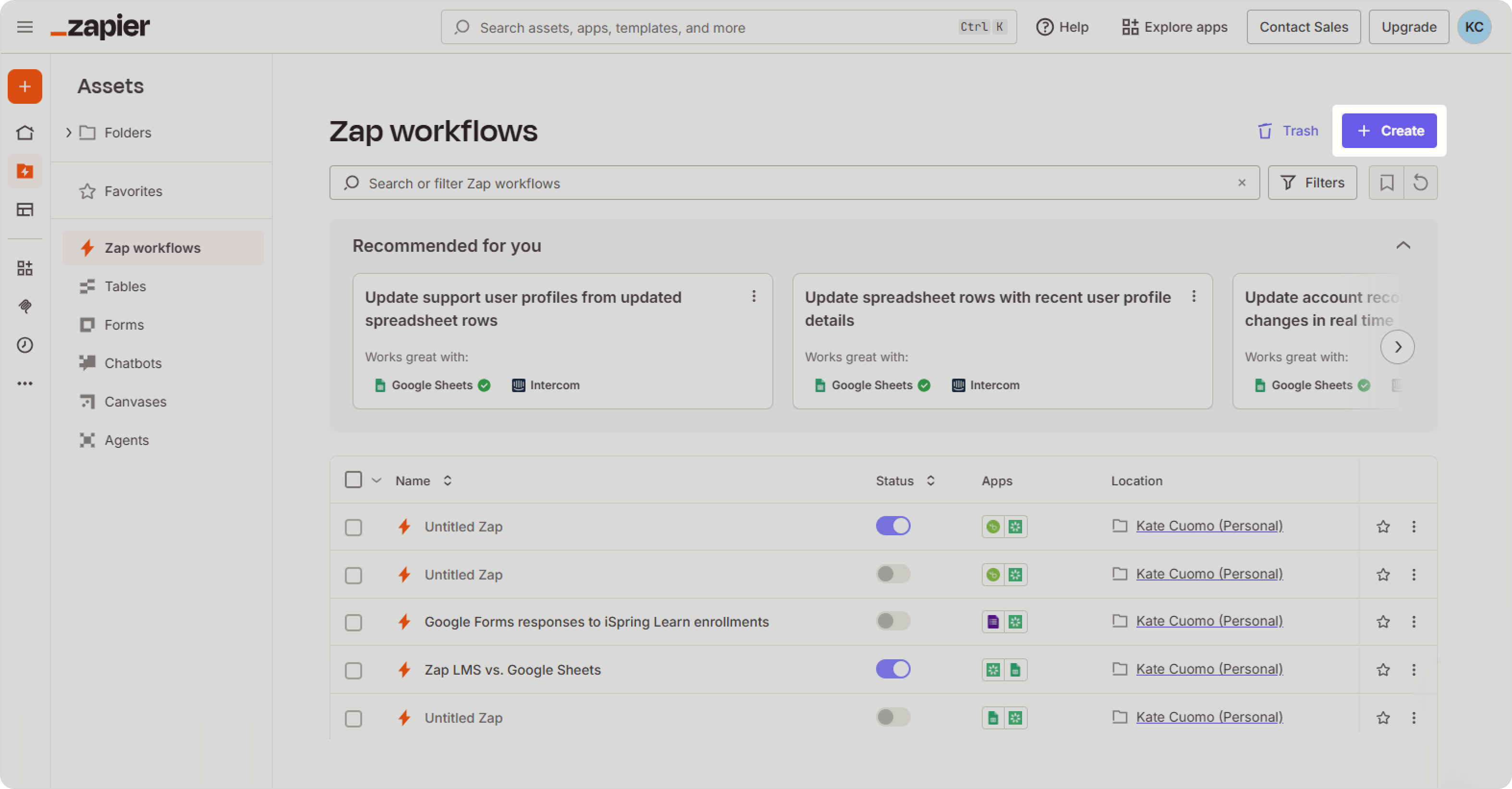
- Open Zapier and go to Zap workflows. Then, click on Create.
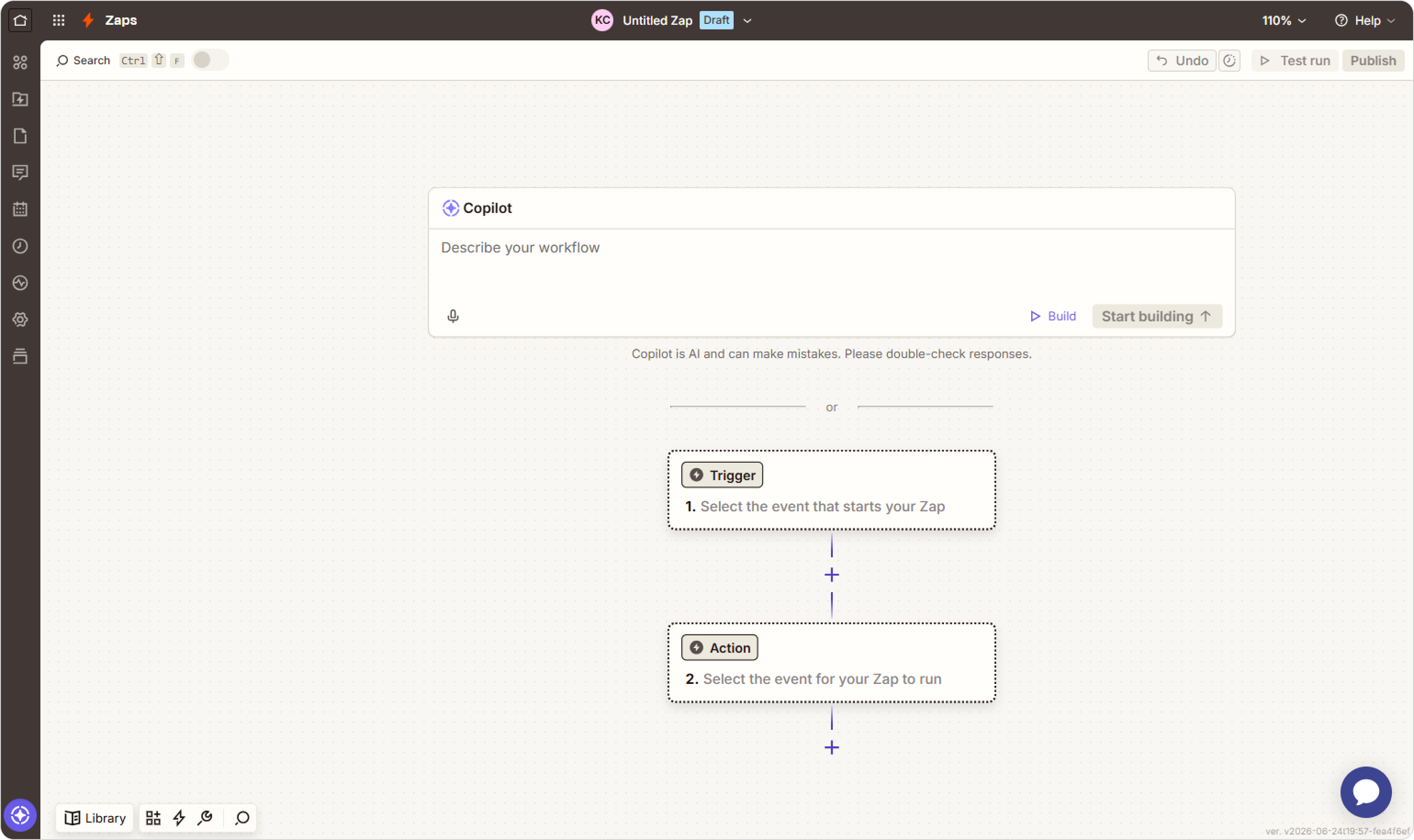
- Choose how you'd like to build your workflow:
- Create it manually
- Describe your scenario to the AI assistant, and it will suggest the appropriate trigger and actions
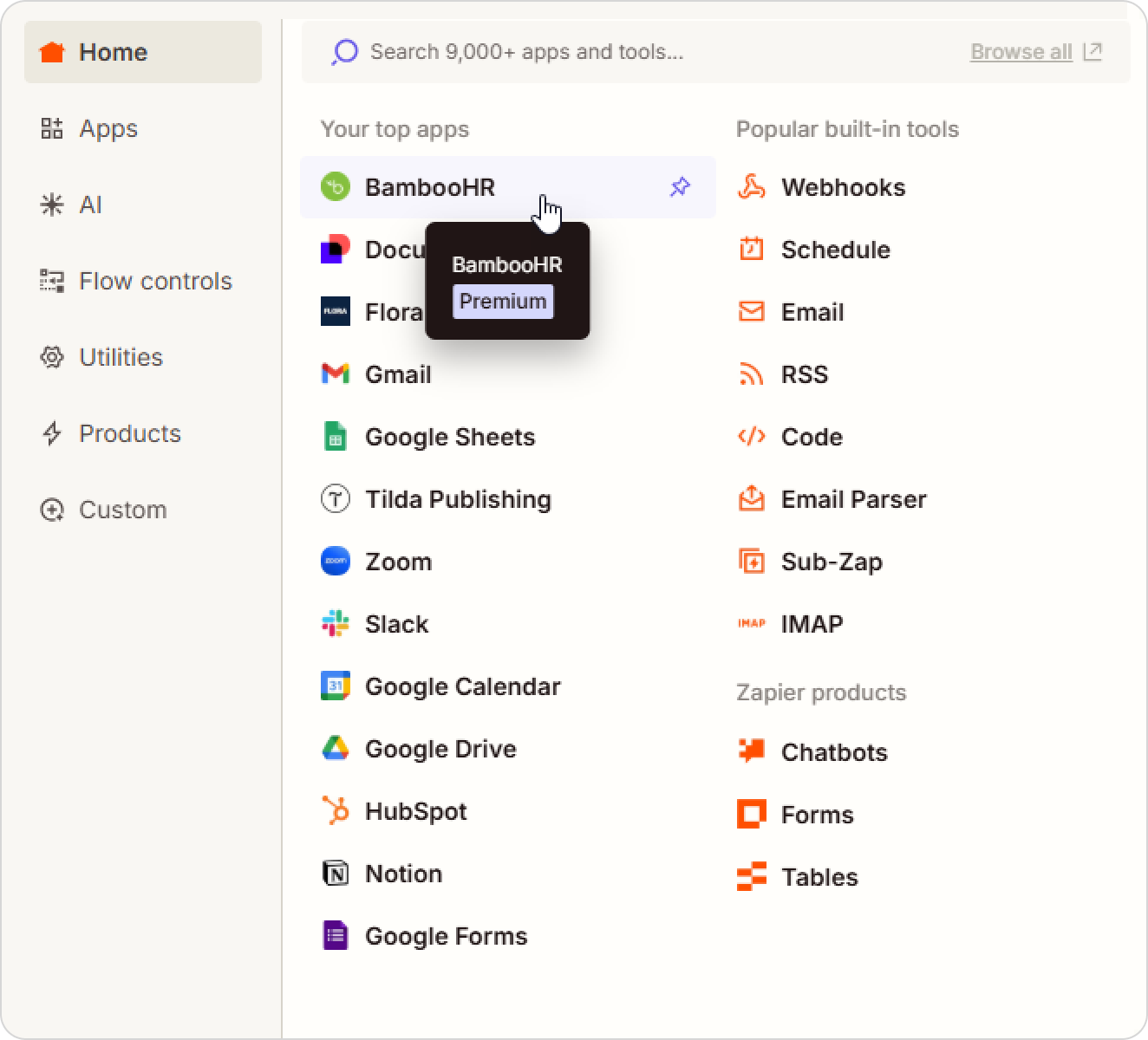
- In the Trigger section, select your HR system.
- Connect your HR account or choose an existing connection.
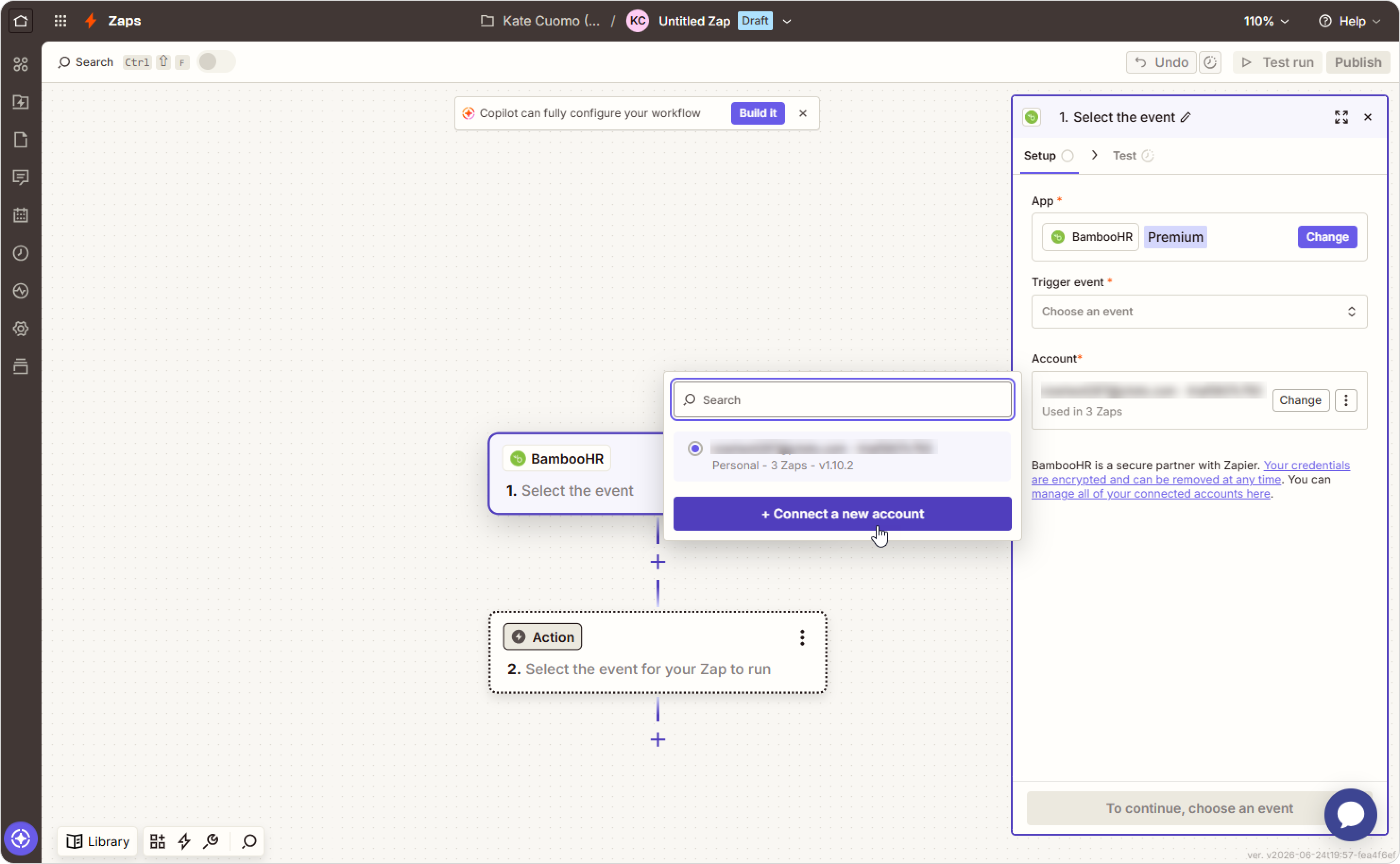
- Select the trigger event, such as New Employee.
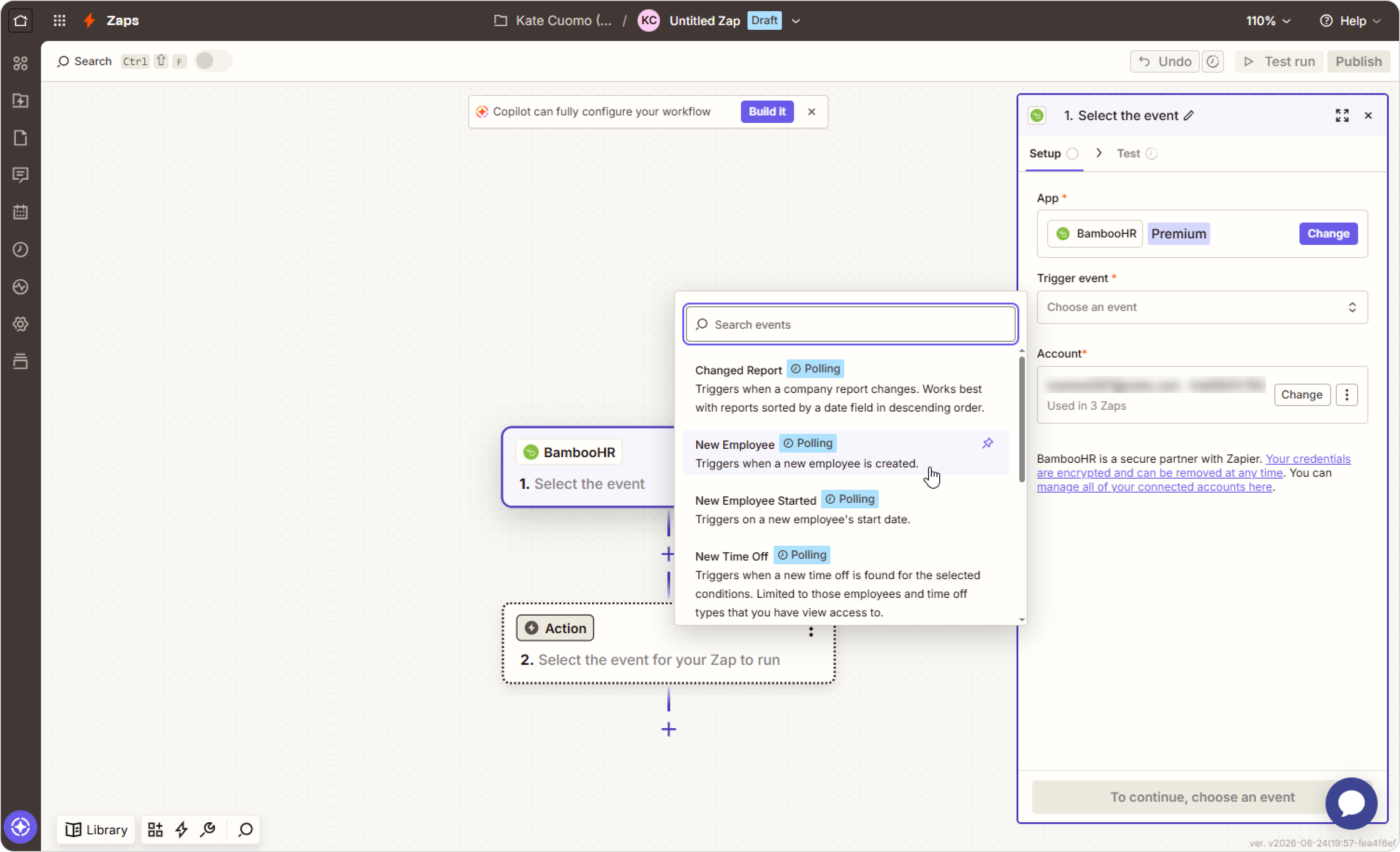
- Test the trigger. If the test succeeds, select the employee record and click on Continue with selected record. To load newer records, click on Find new records.
- In the Action section, select iSpring LMS (iSpring Learn). Then, choose the Create User action.
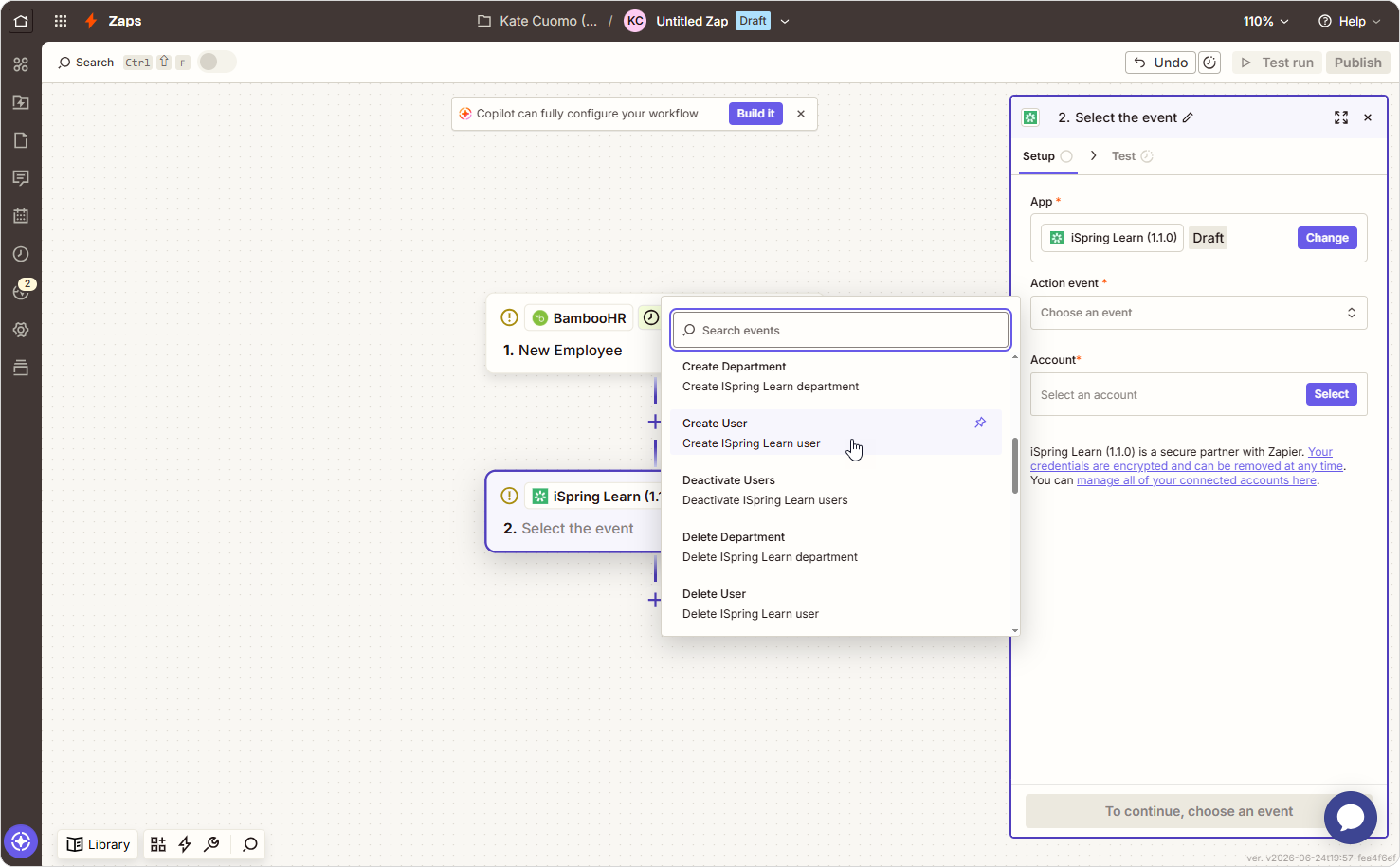
Connect your iSpring LMS account.
You'll need your Client ID and Client Secret. Find out how to get them in this article.
- Enter the department ID where new users should be created. Next, map the employee fields from your HR system to the corresponding user profile fields in iSpring LMS.
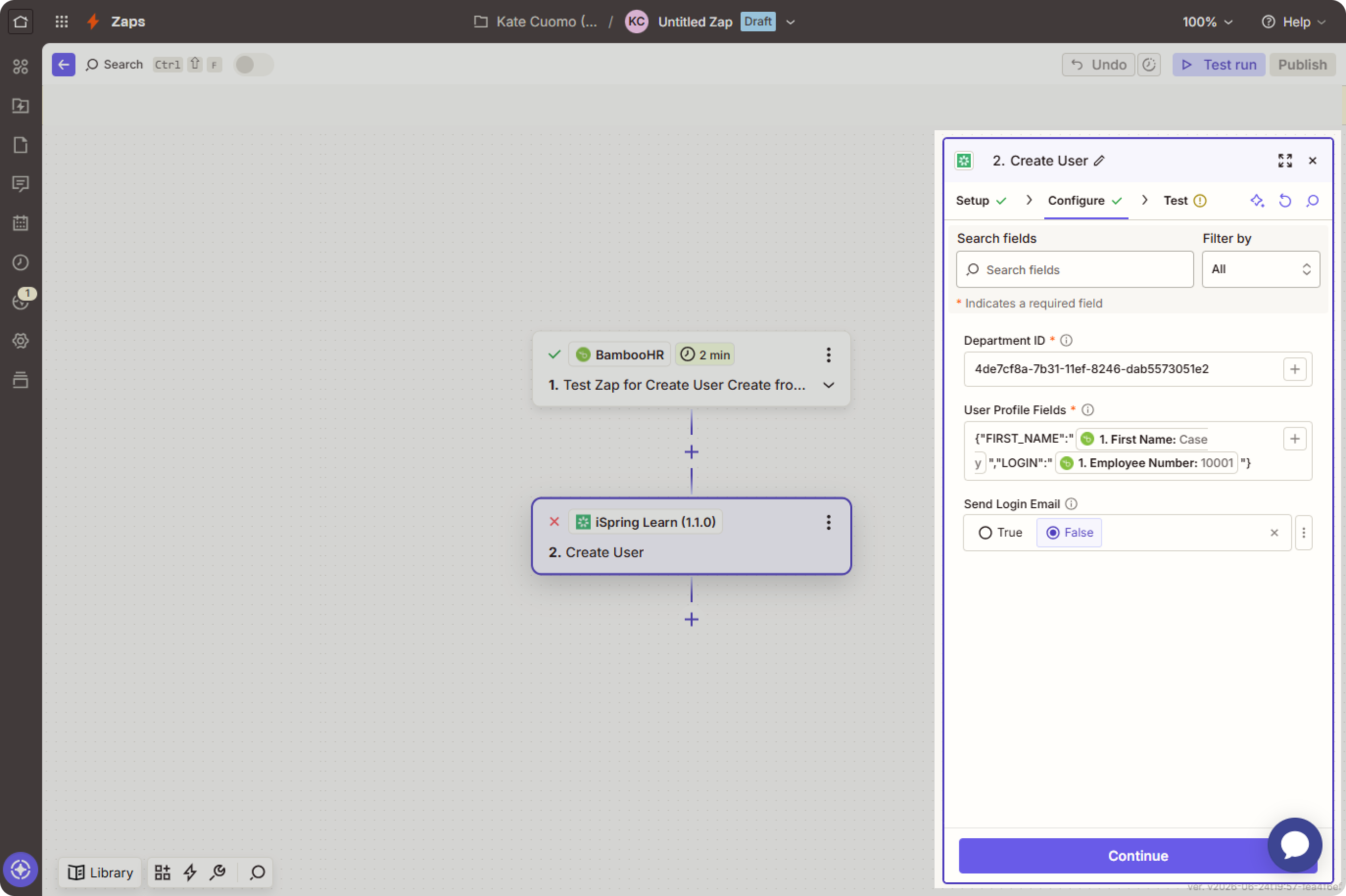
- Run a test. If the test is successful, click on Publish.
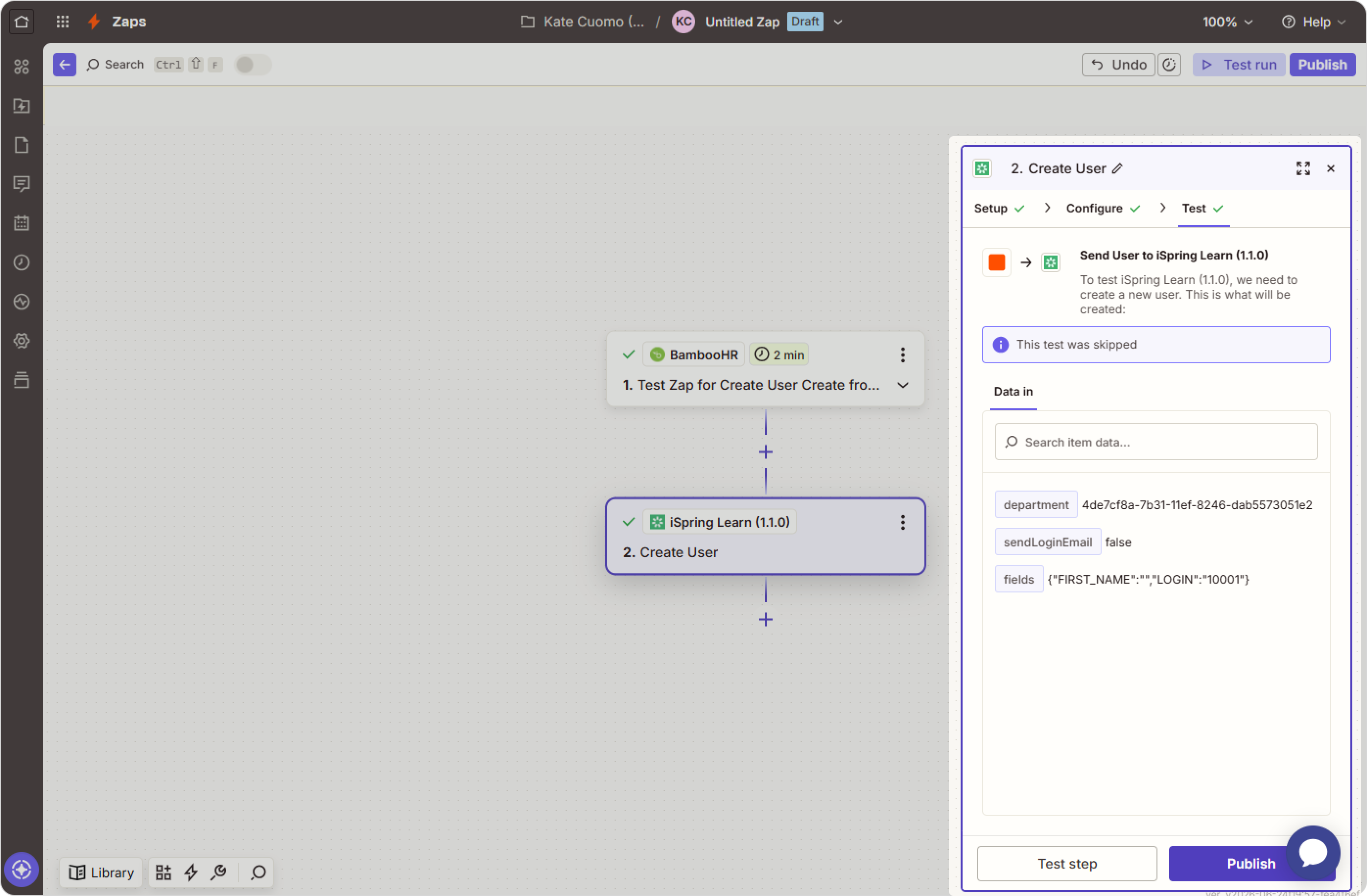
Done! You've set up a Zap between your HR system and iSpring LMS.
How to run the workflow again
Whenever you want to sync new data, open your Zap and click on Run.
Zapier will execute the workflow again and transfer any new data between iSpring LMS and the connected application.
Supported iSpring LMS actions
Zapier currently supports the following actions for iSpring LMS:
- Update User
- Enroll Users in Courses
- Create User
- Delete User
- Create Department
- Delete Department
- Update Department
- Activate Users
- Deactivate Users
- Terminate Users
- Change User Subordination
- Change User Co Subordination
- Change Department Subordination
- Change Department Co Subordination
- Change User Work Leave Status
- Delete User Work Leave Status
- List Users
- List Courses
- List Enrollments
- Get Department
- List Departments
- Get Root Department