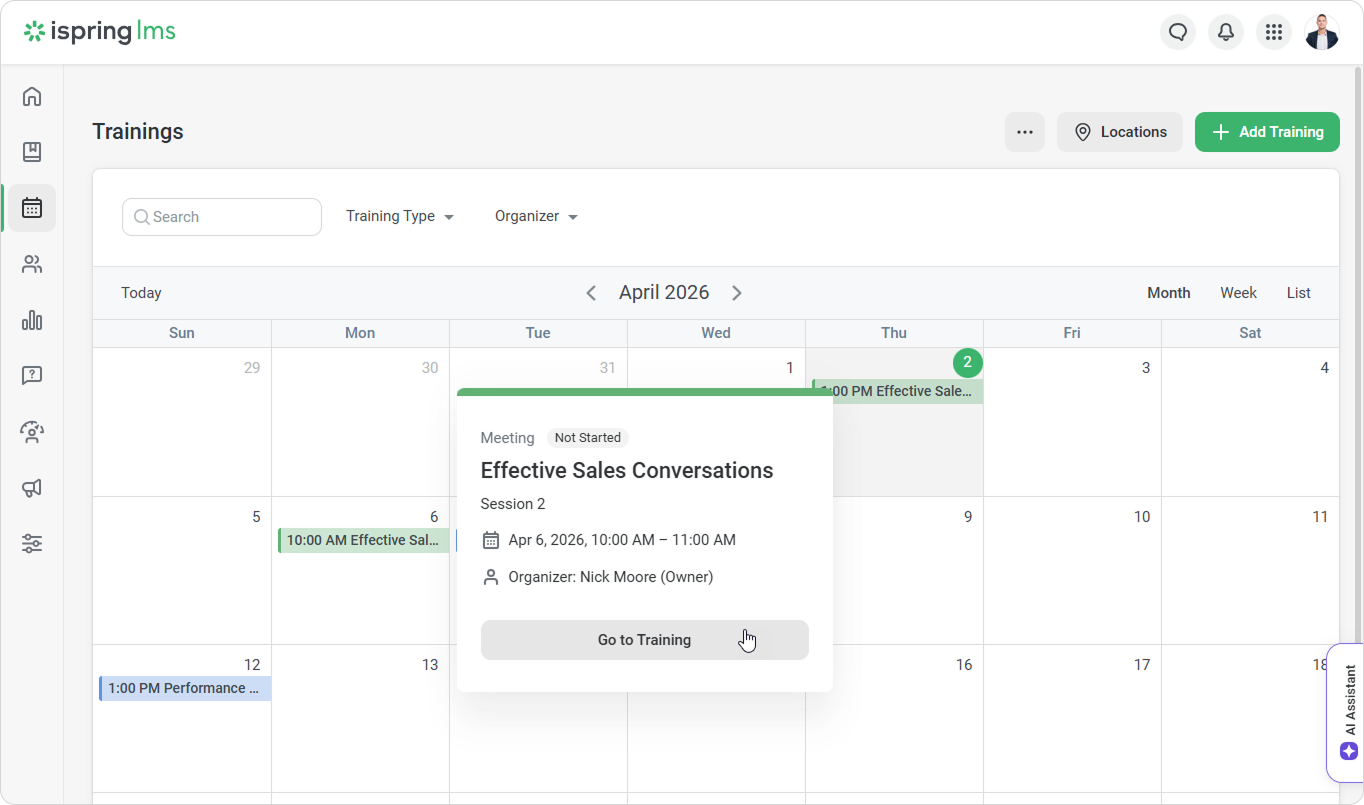
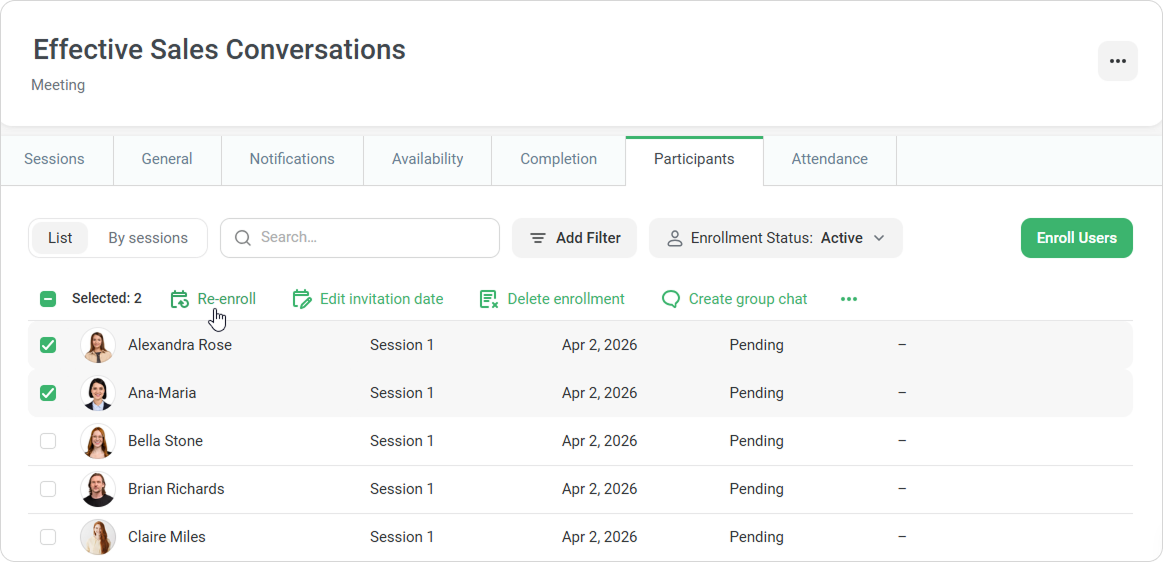
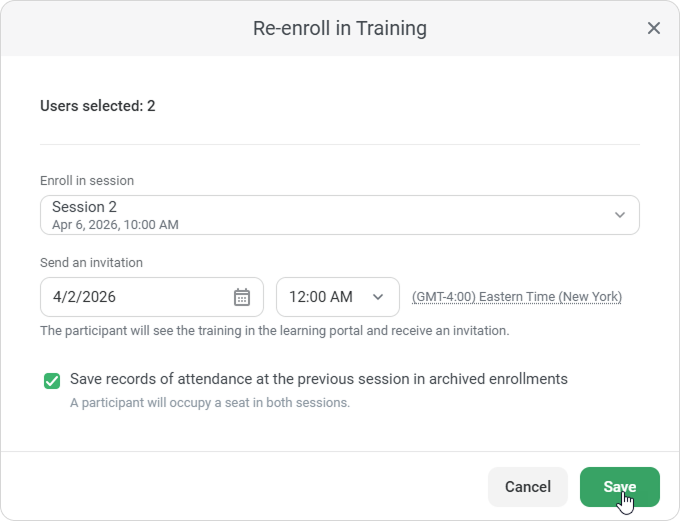
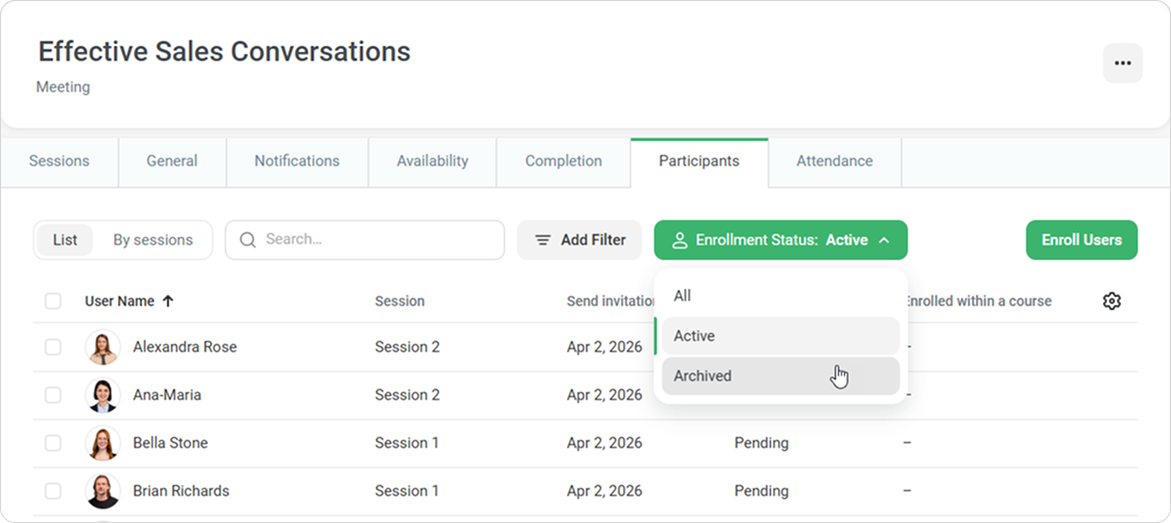
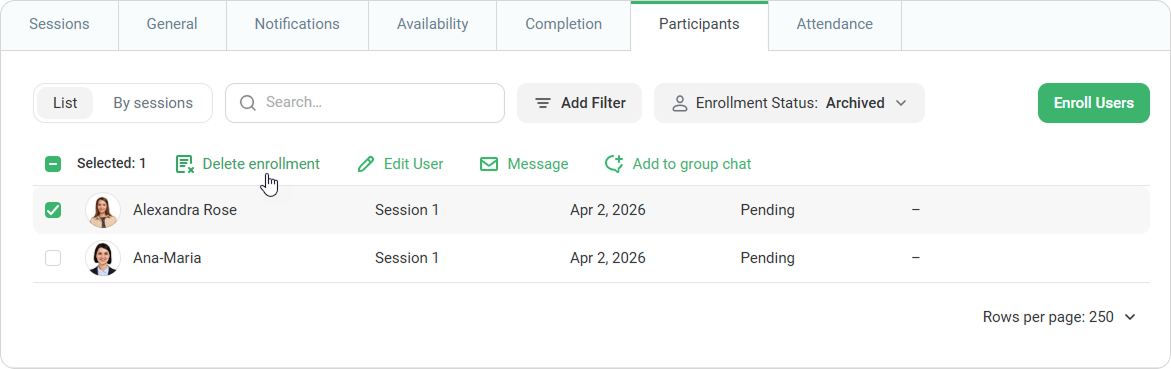
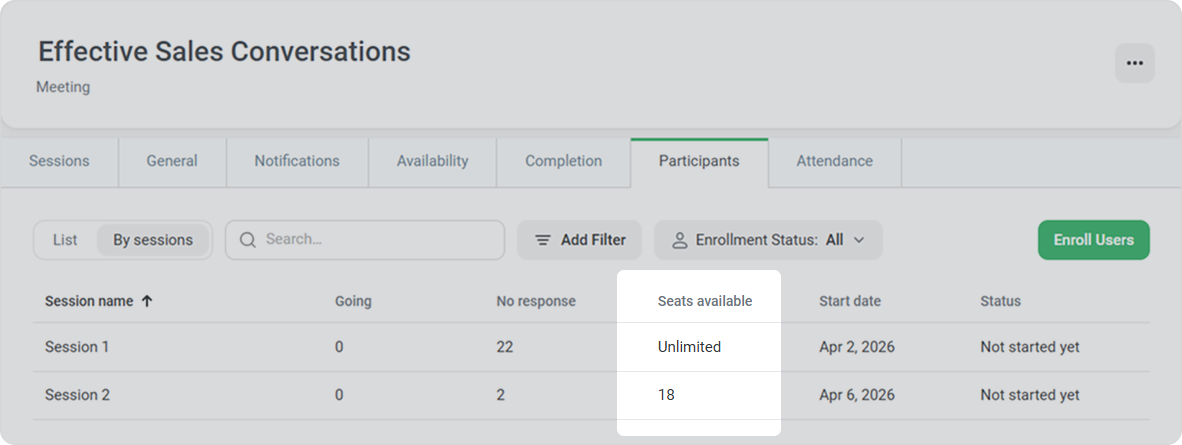
iSpring LMS Trainings Current: Tracking the History of Training Participation Tracking the History of Training Participation Now you can re-enroll users in training and track the history of their participation.To re-enroll an employee:In the Trainings section, select a training and click Go to Training.Go to the Participants section.Select the user and click Re-enroll.In the Re-enroll in Training window, select a session and set the invitation date and time.Check the Save records of attendance at the previous session in archived enrollments option and click Save. If the option is enabled, a new session enrollment will be created, and the previous enrollment will be archived. If the option is disabled, the current enrollment will be edited. Done! You have reenrolled an employee in a training.Archived EnrollmentsTo view archived enrollments, click Enrollment Status and select Archived.Delete EnrollmentYou can delete an archived enrollment. To do this, select the user and click Delete enrollment.Seats AvailableClick By session tab to see the number of seats available for the training. ×