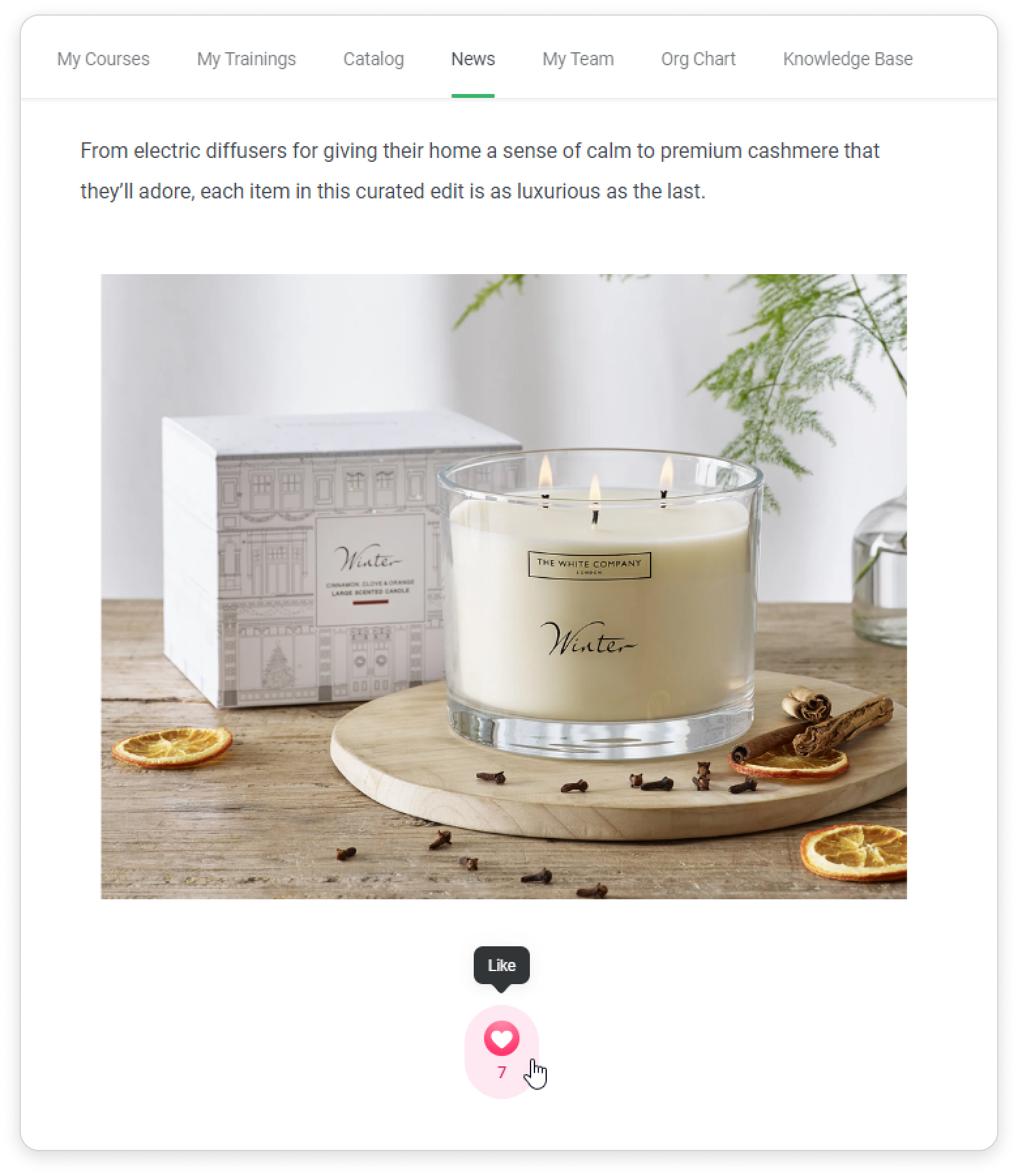
Now readers can react to your post with emojis! Find out how your employees react to company news. This feedback function will help you involve employees in the company's processes and enhance corporate culture.

How to Enable Reactions
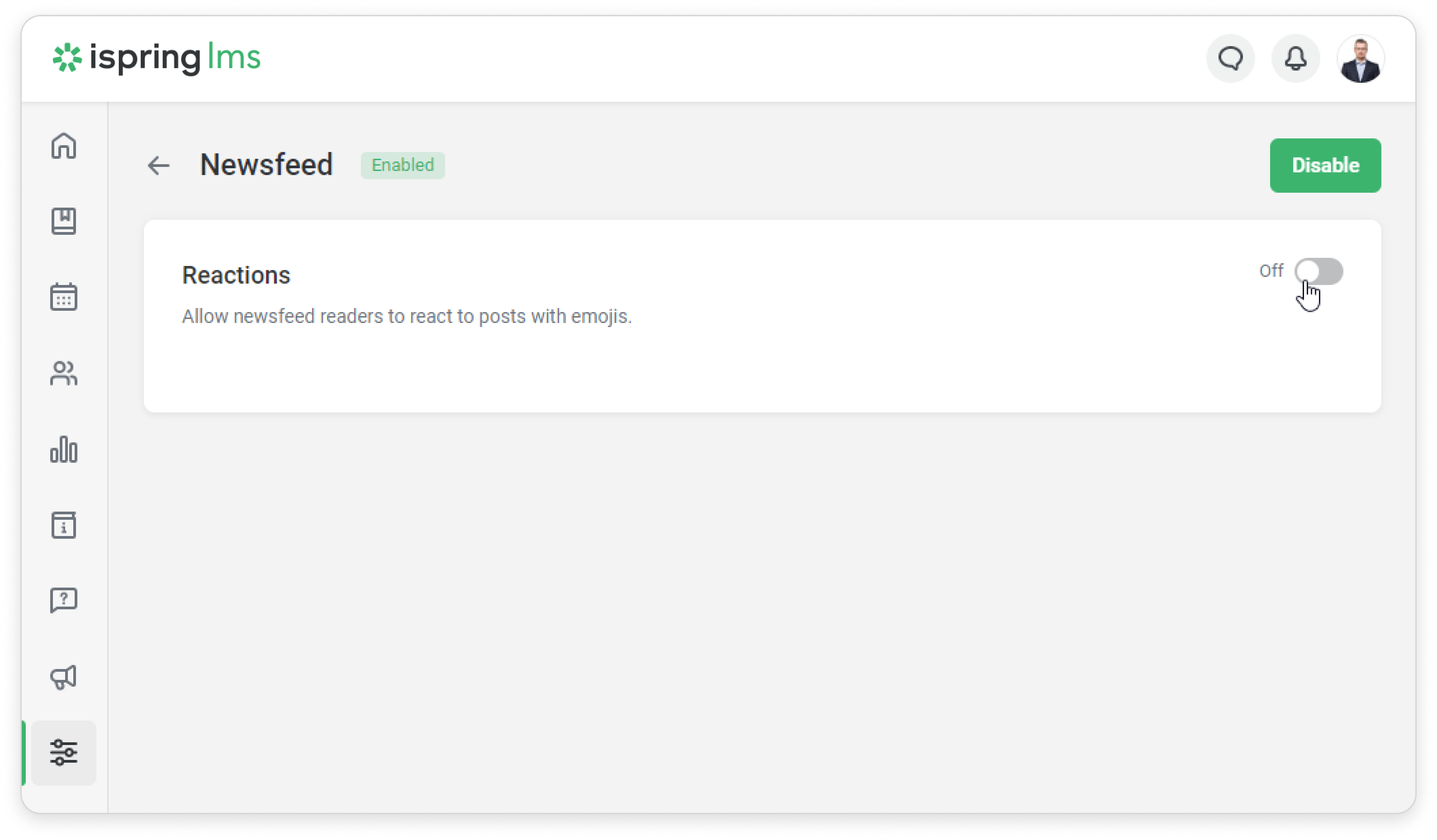
- Go to Settings → Additional Options → Newsfeed.
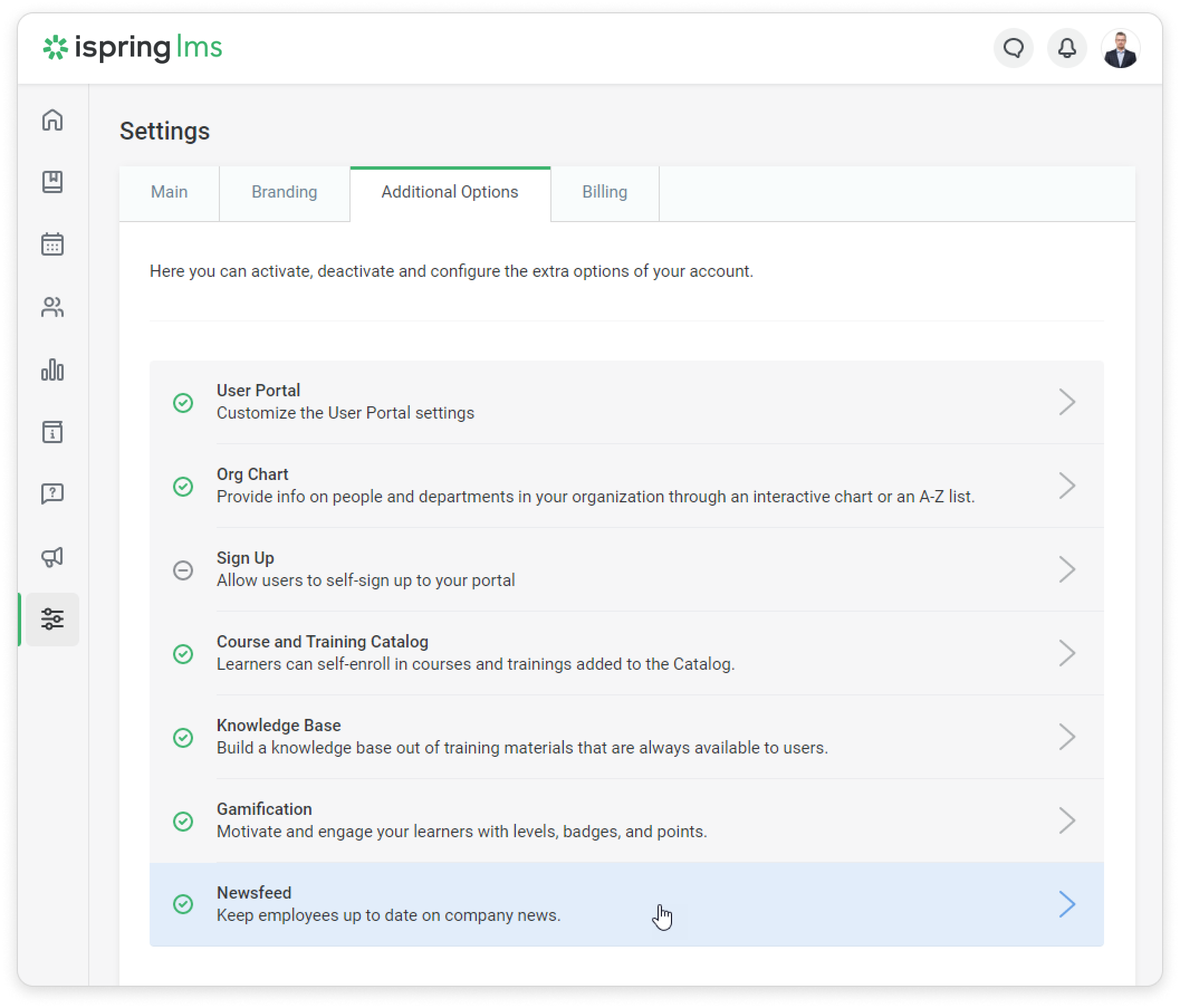
- Then enable Newsfeed.
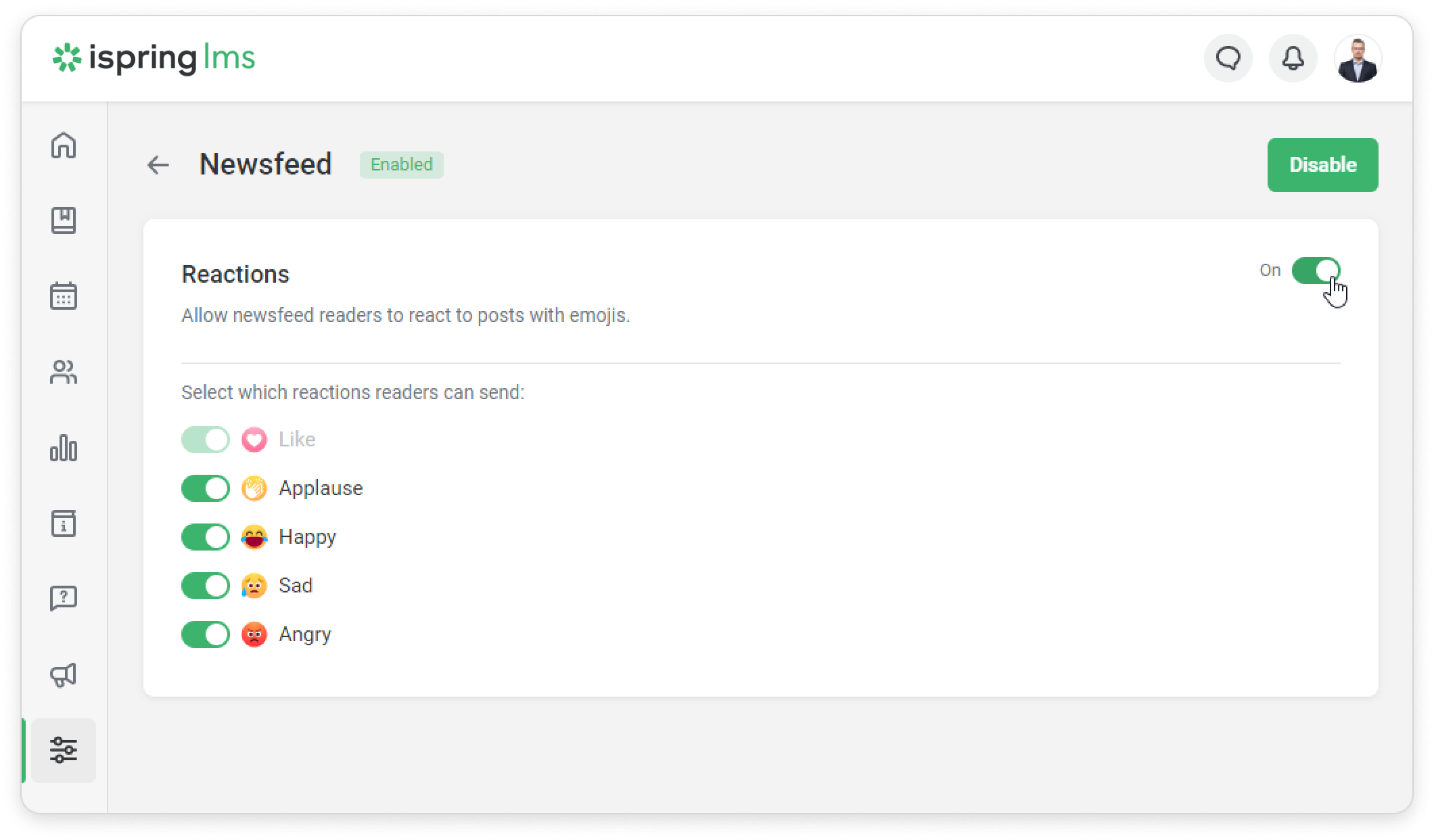
- Now, choose what reactions employees will see. The Like reaction is always on by default.
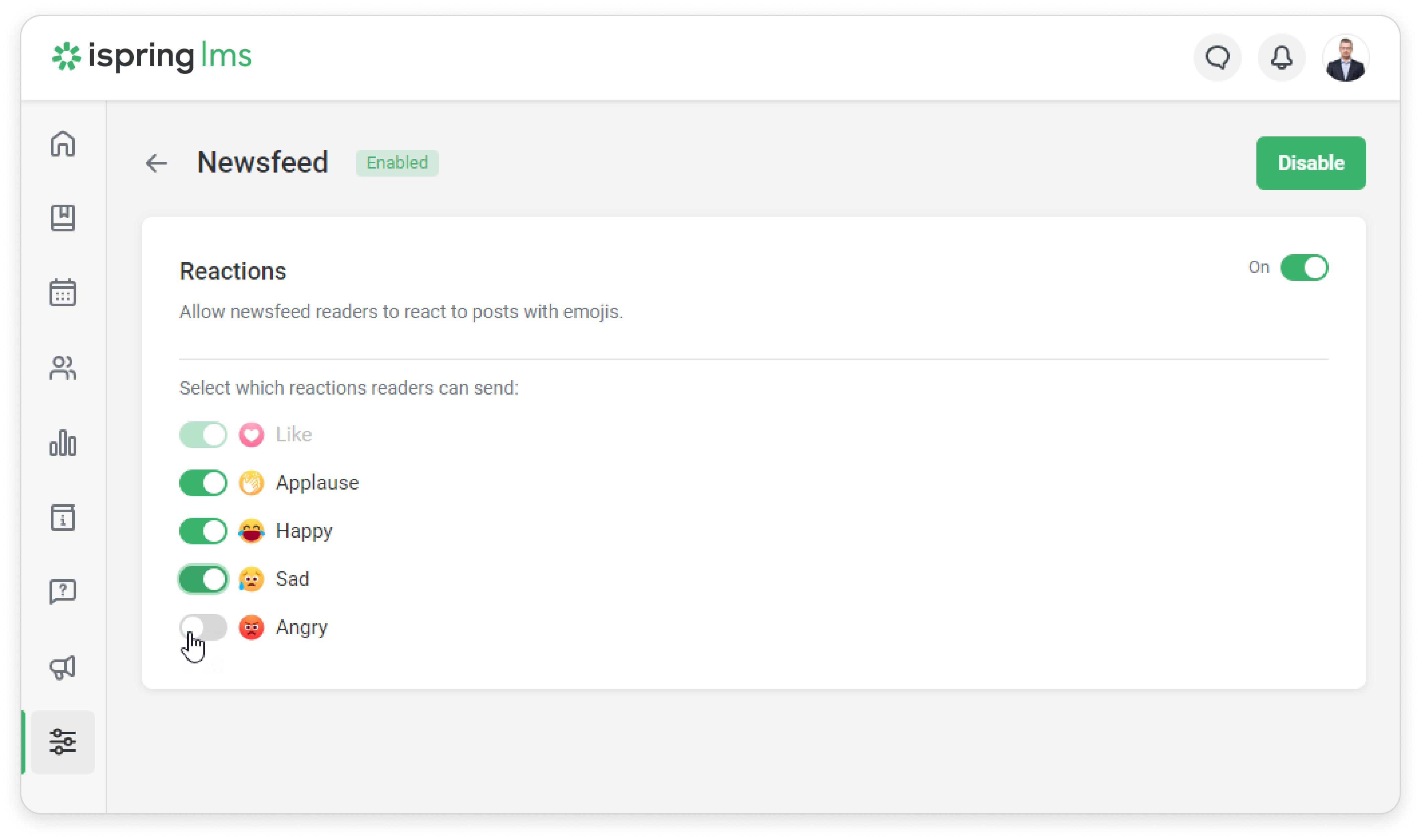
Awesome! Now employees can react to your posts with emojis.
How to View Employee Reactions
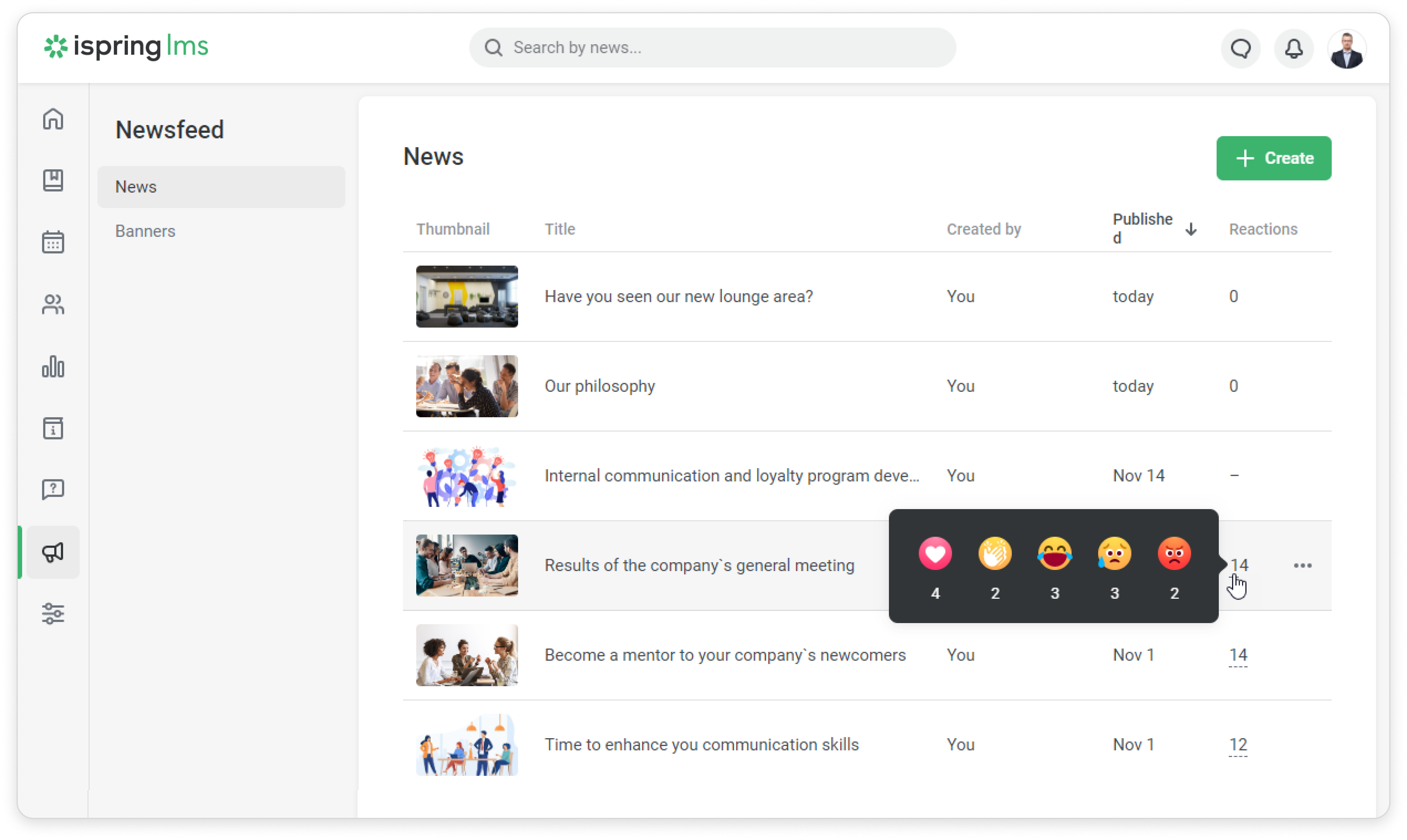
You can see how users reacted to posts in Newsfeed in the administrator portal. Hover over the number in the Reactions column to see the total number of reactions to the news.
How to Disable Reactions
You can disable reactions for all news.
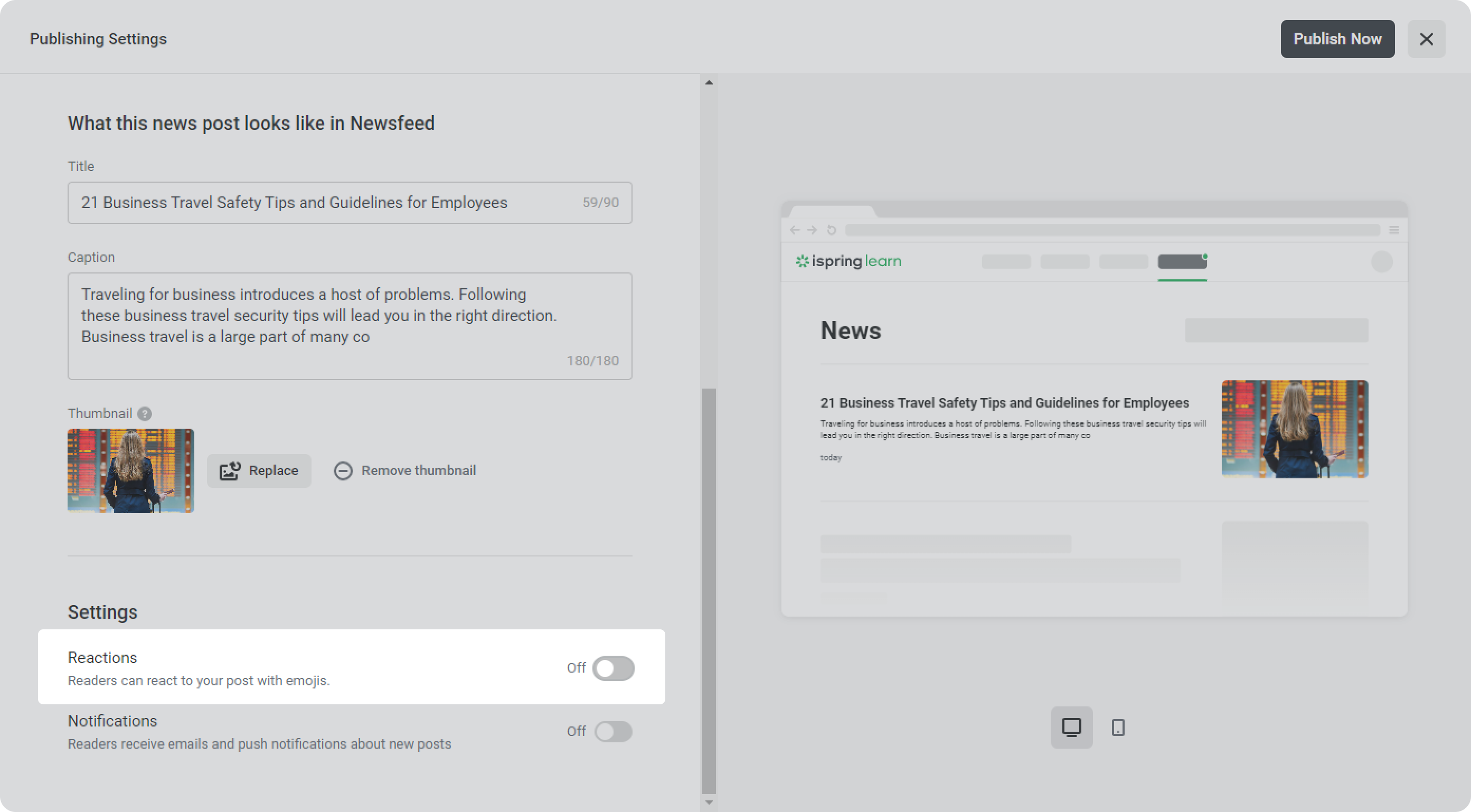
To prevent employees from leaving a reaction to a particular piece of news, disable Reactions in Publish Settings.
How to Leave a Reaction
Employees will see the total number of reactions for each news item in the user portal.

To leave a reaction, open the news and click on the Like sign. In the reaction palette, select an emotion, from Like to Angry.
You can also leave a reaction at the end of the news item. Here you will see how your colleagues reacted to the news.
If the admin has disabled all reactions except Likes, employees will only see the ❤️ emoji.