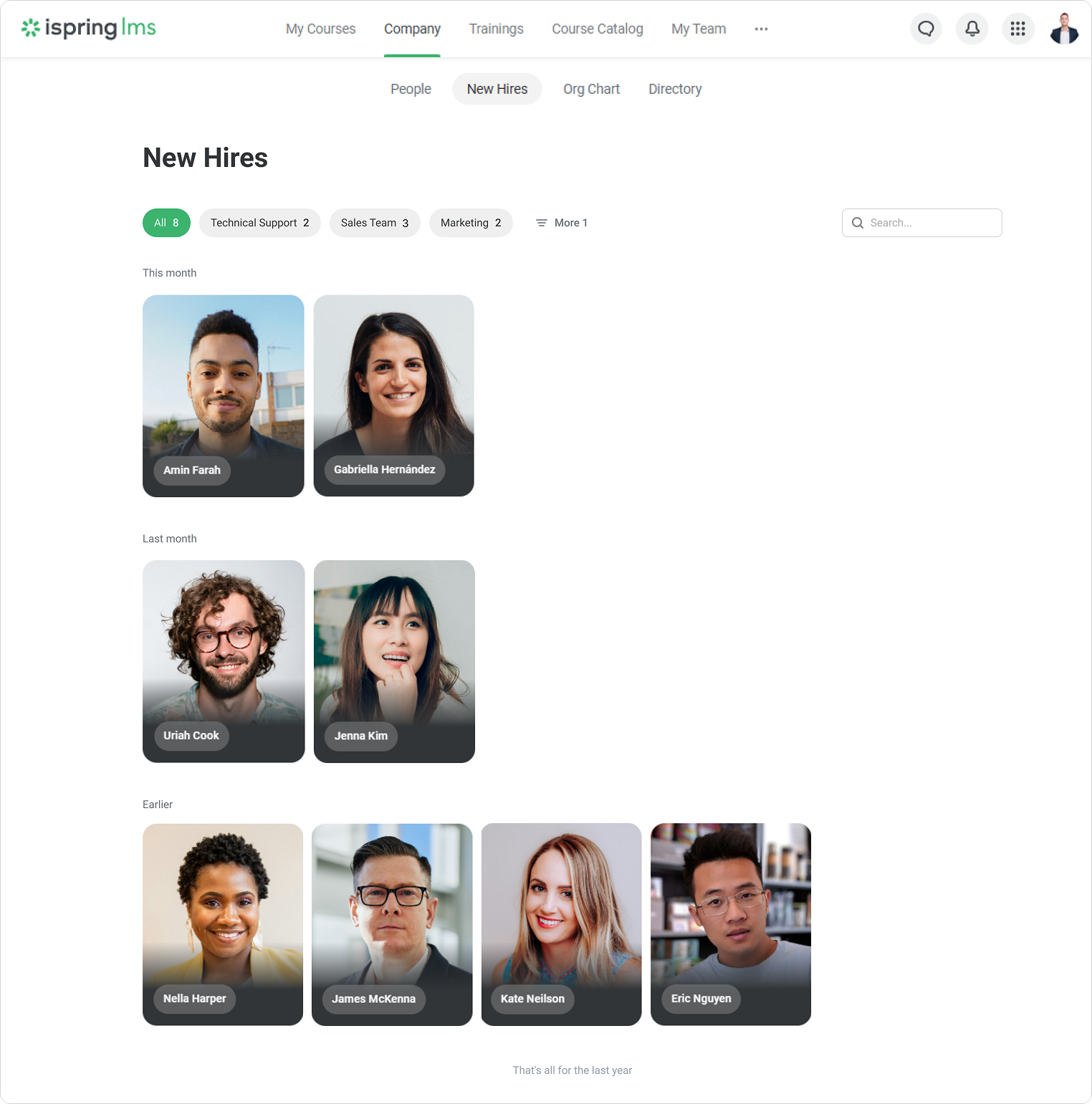
New Hires
The New Hires section is available only with the iSpring LMS Business plan.
How to Enable the New Hires Section
- Go to Settings > Additional Options > Company > New Hires. Enable the New Hires section.
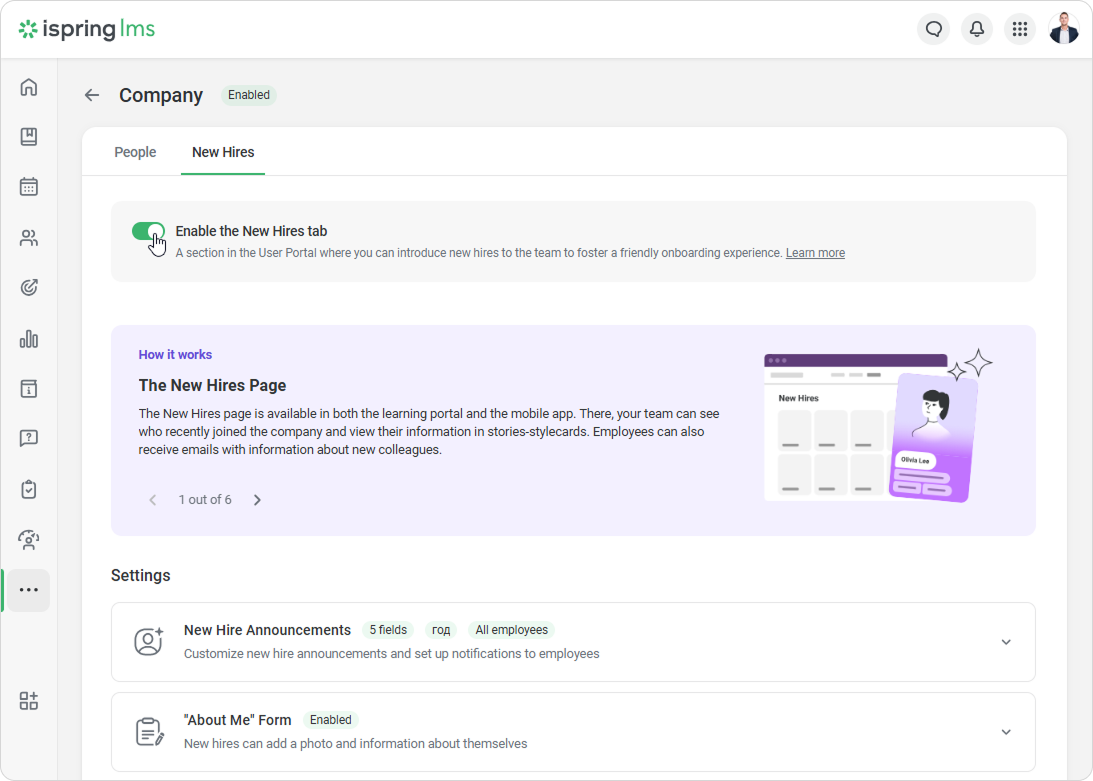
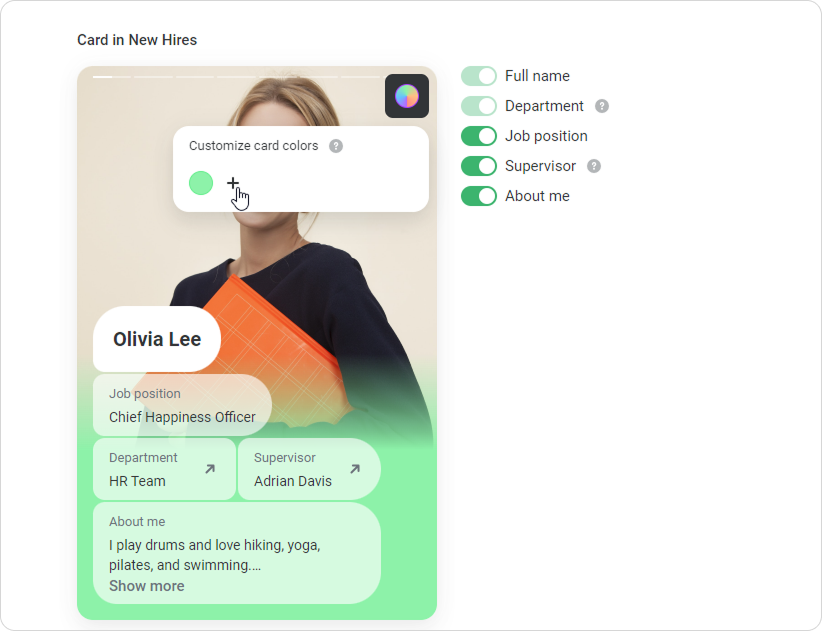
Open New Hire Announcements and select which fields will be shown in the announcement: Job position, Supervisor, and About me. The Full Name and Department fields are added by default, and cannot be disabled.
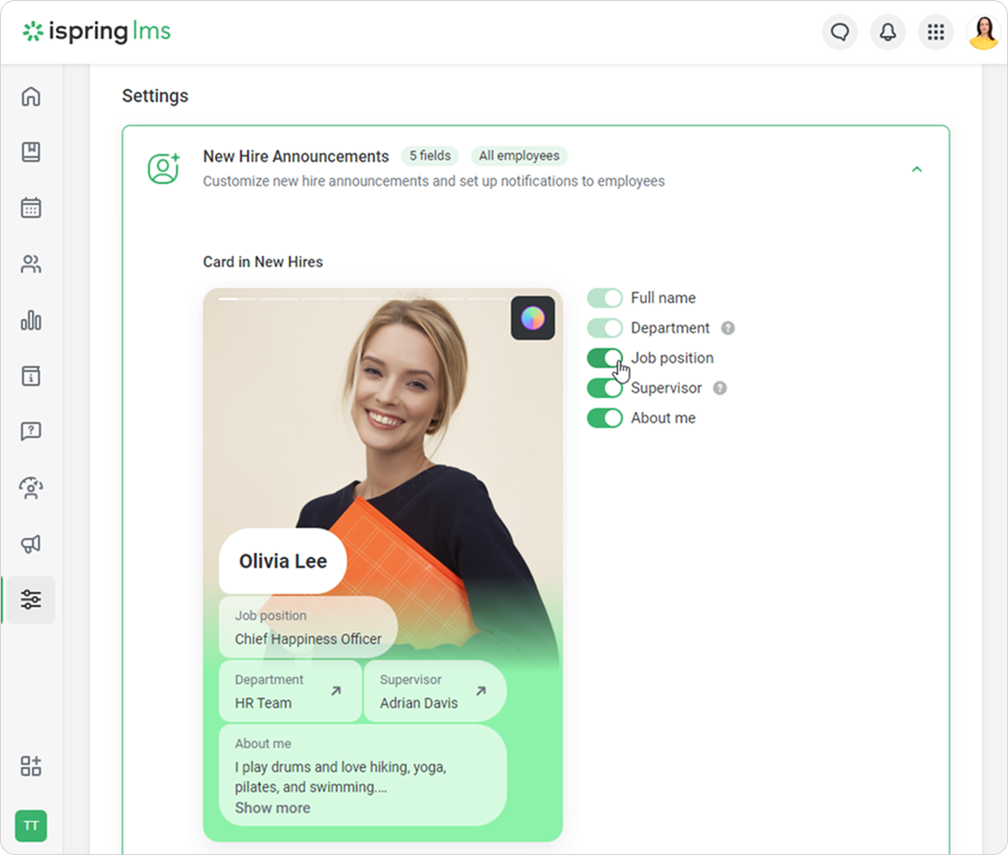
If your Org Chart is enabled, users will be able to view the Department and Supervisor cards.
- Click on Preview to see what the announcement will look like.
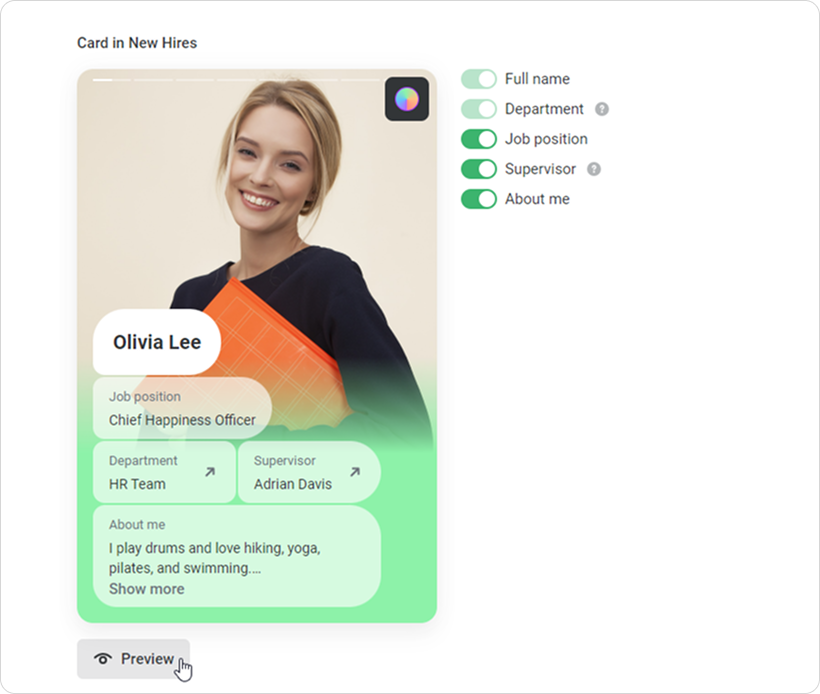
- Customize card colors.
Select Notify users by email and choose who will see new hire announcements: Department of new hire, Department and subdepartments, or All employees.
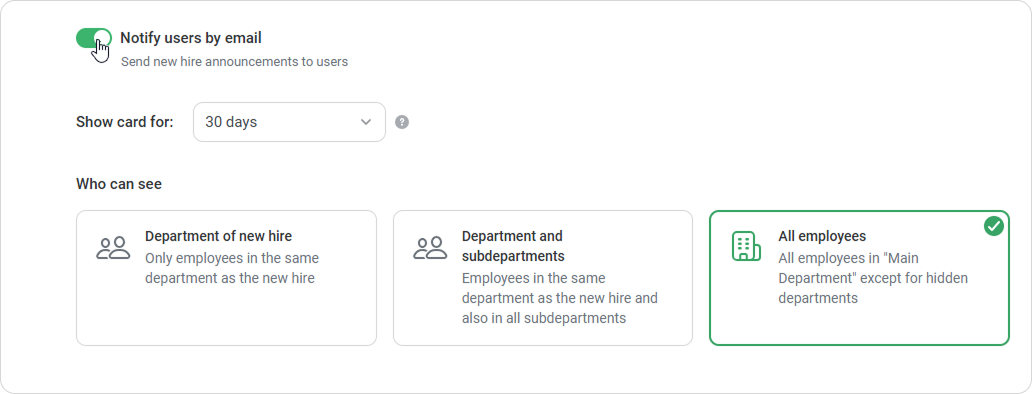
Notifications won't be sent to users in iSpring LMS trial accounts.
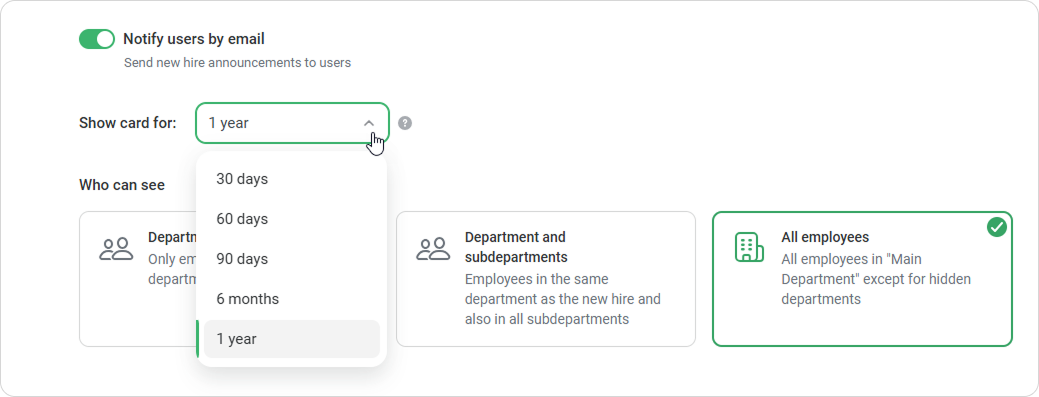
In the Show card for field, select how long new hires will be displayed in the User Portal.
The card displays starting on the date it was published.
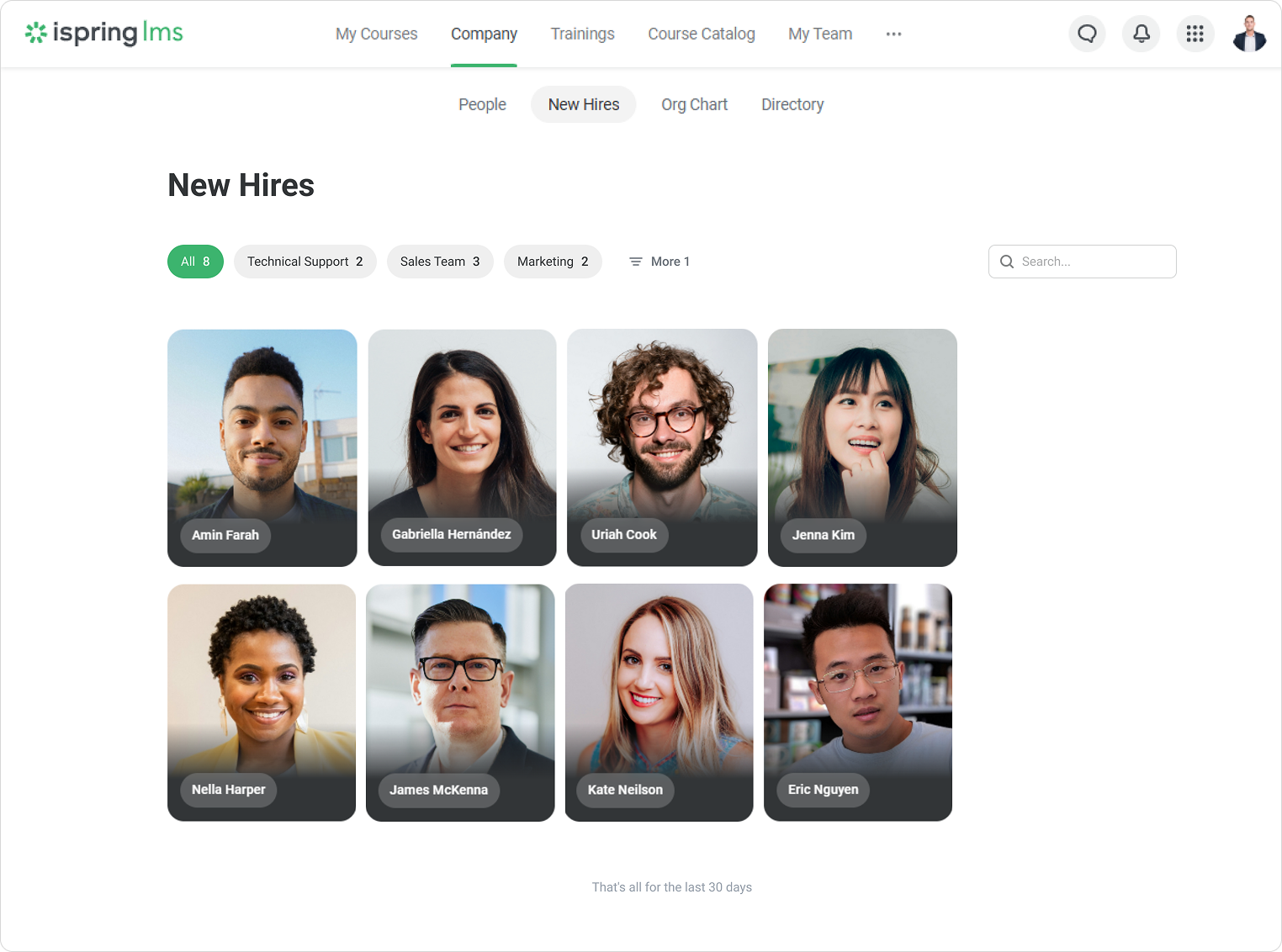
 New Hire Cards in the User Portal
- 30 days
New employee cards are not grouped by periods.
- Other periods
Here's how the cards are grouped:- This month — employees who joined the team in the current month.
- Last month — employees who joined the team last month.
- Earlier — employees who joined the team before last month.
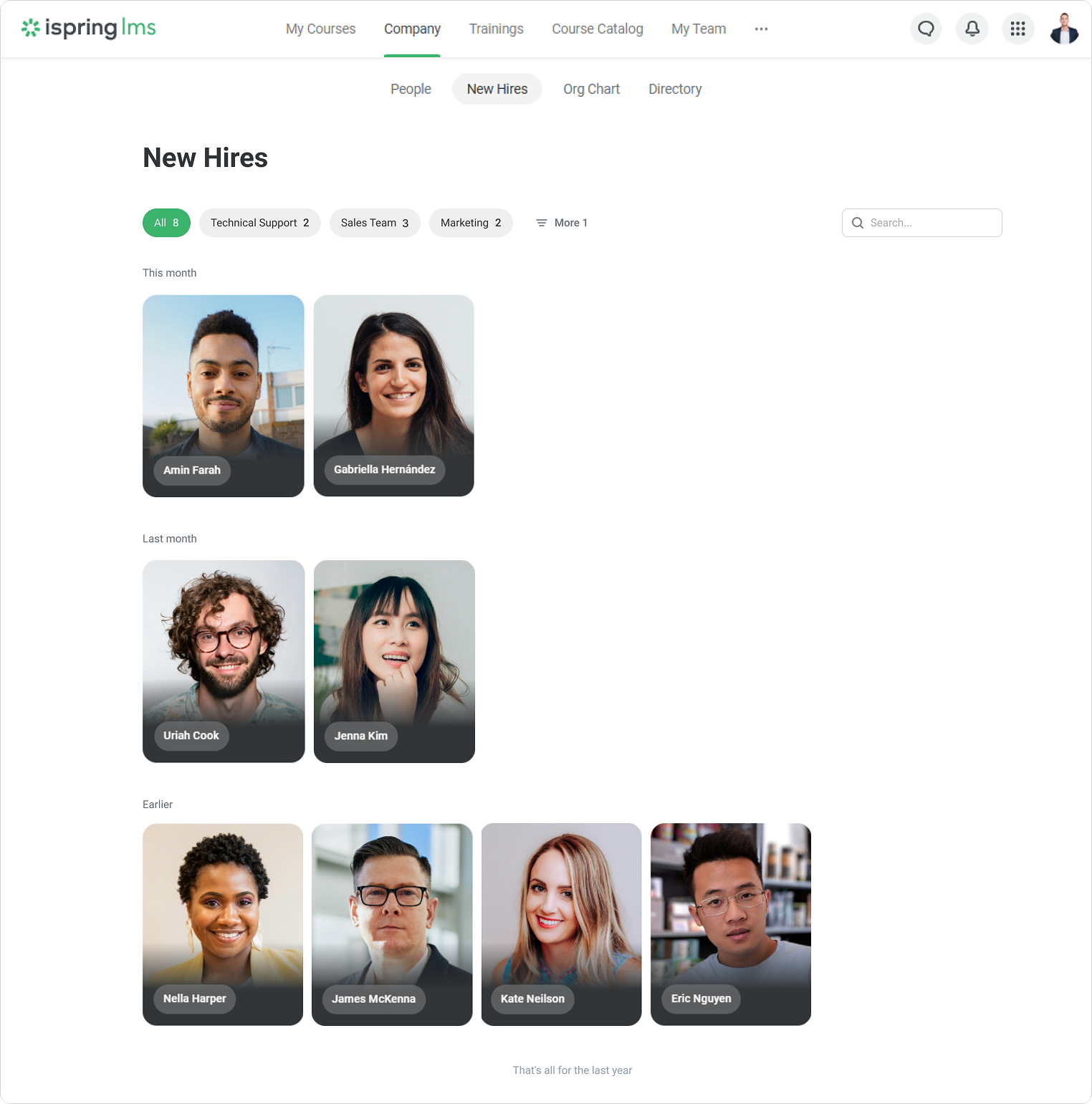
This month and Last month refer to calendar months. For example, an employee was hired on July 25, they will appear over 60 days as follows:
- From July 25 to July 31 — in the This month section.
- From August 1 to August 31 — in the Last month section.
- From September 1 to September 23 — in the Earlier section.
If there are no new hires within the period, that period won't be shown.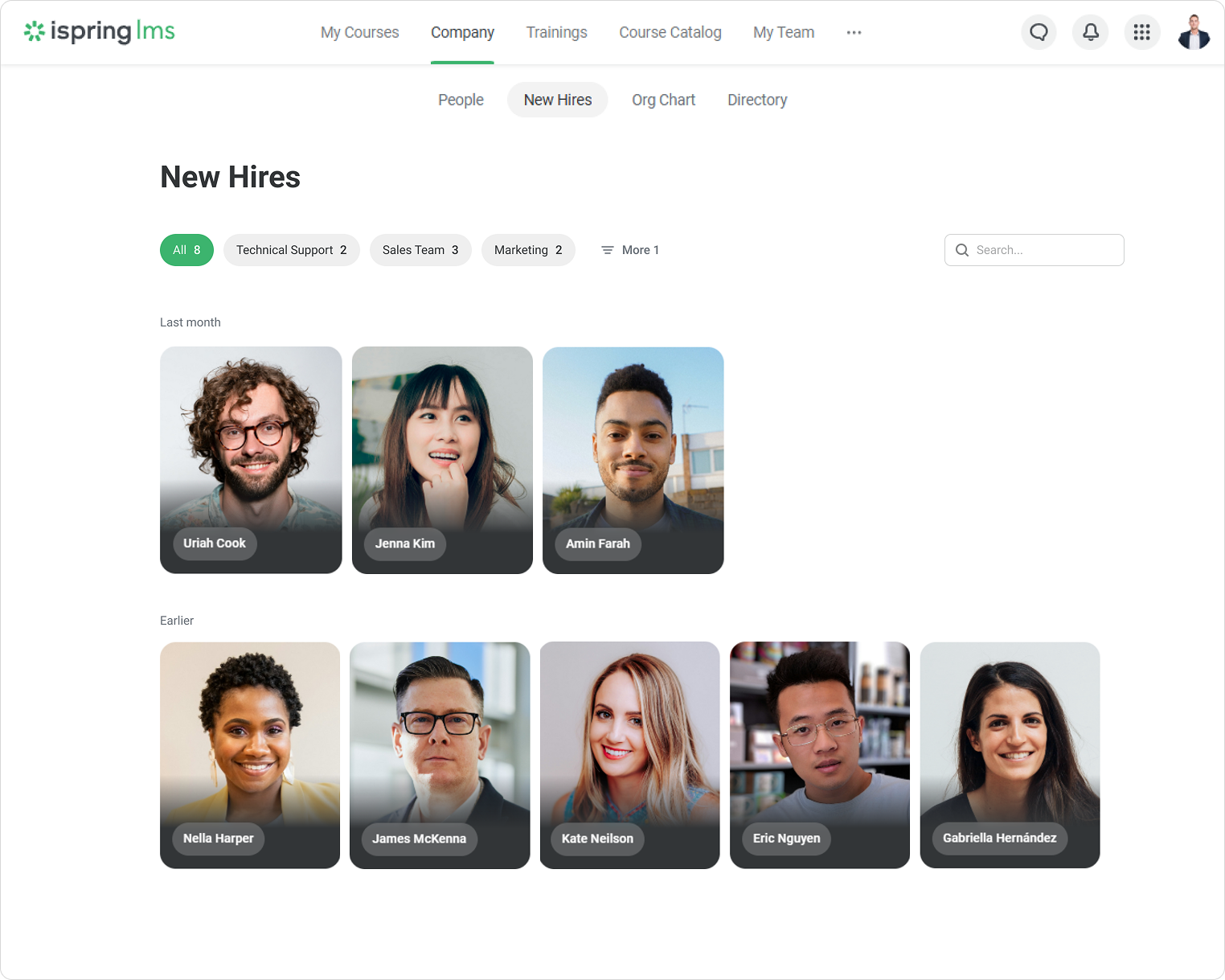
- 30 days
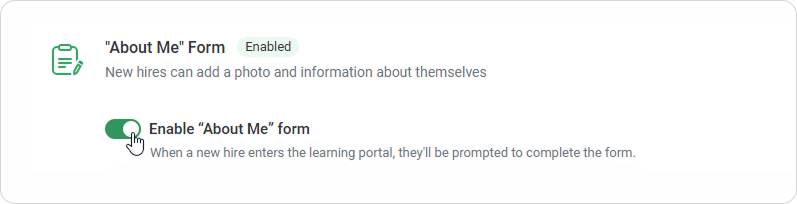
- To prompt a new hire to fill in the form, when they enter the learning portal, select Enable "About Me" form.
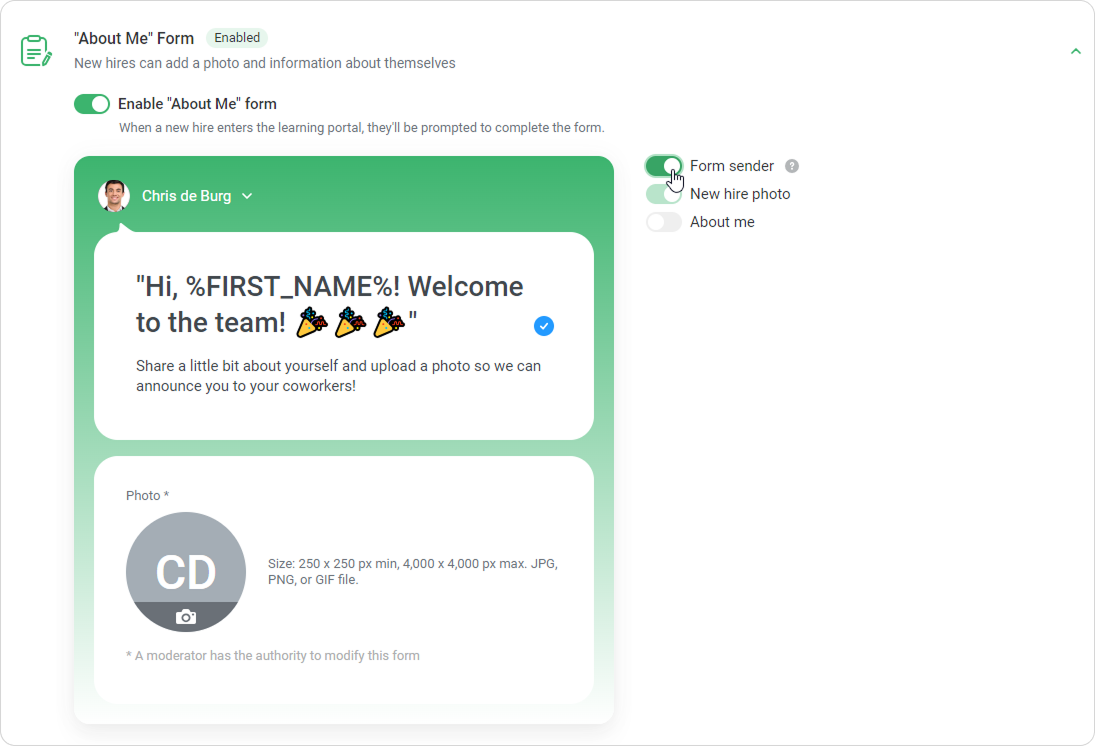
- You can add a Form sender and enable the About me box. New hire photo is selected by default and cannot be deselected.
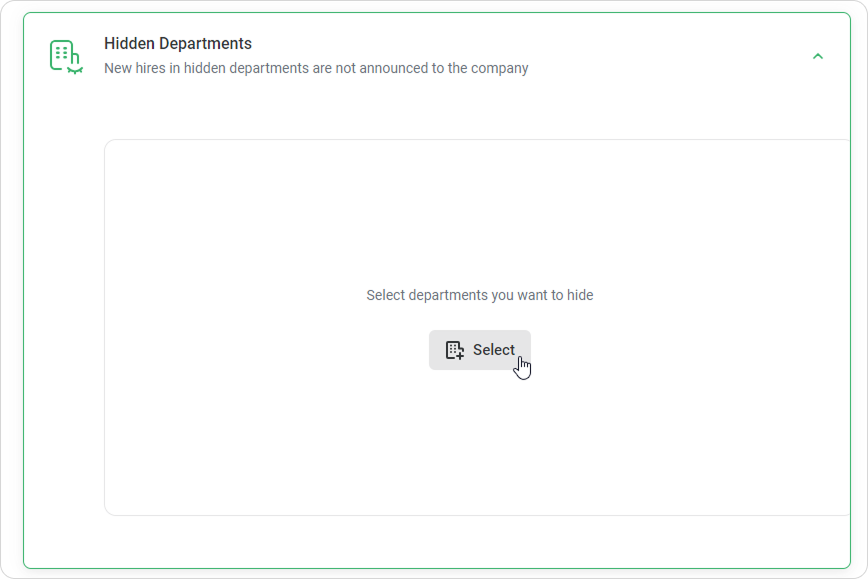
- Select Hidden Departments. New hires of hidden departments are not announced to the company.
How to Add Moderators
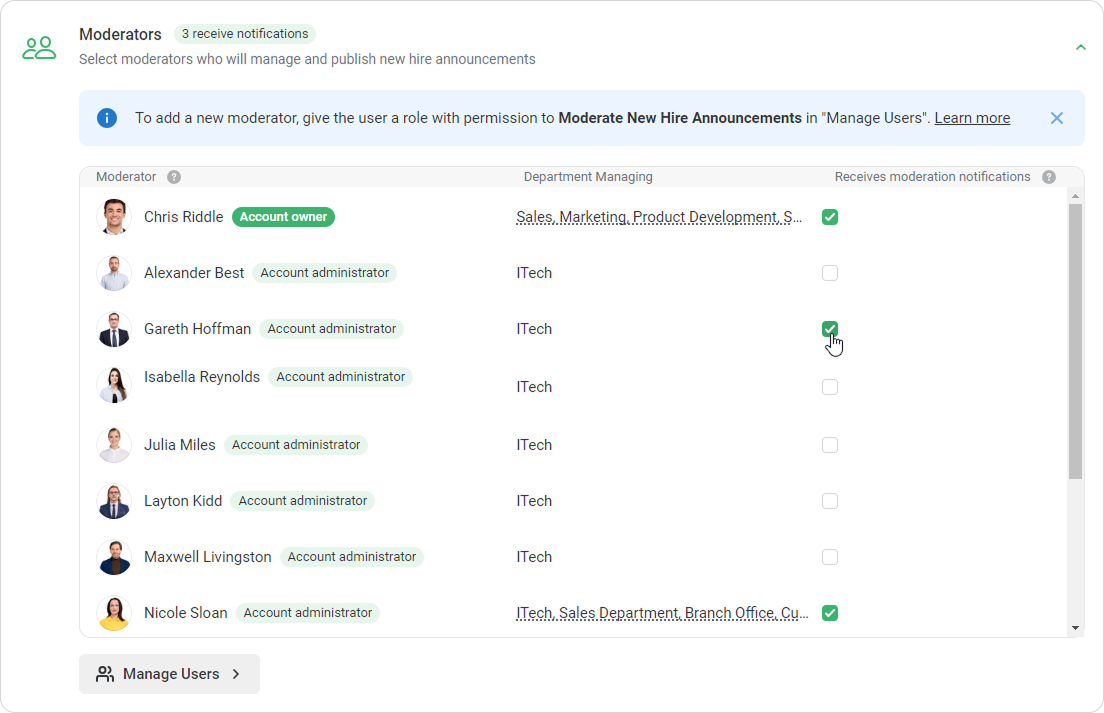
Moderators are administrators who will manage and publish new hire announcements.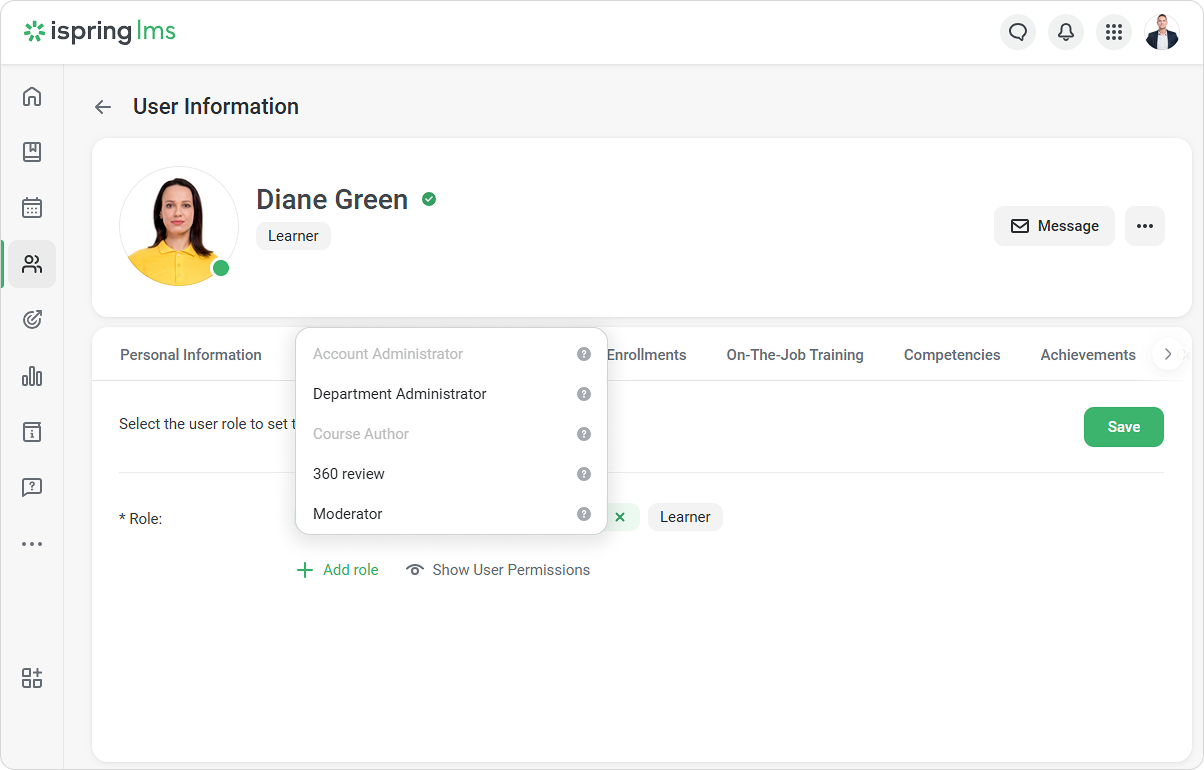
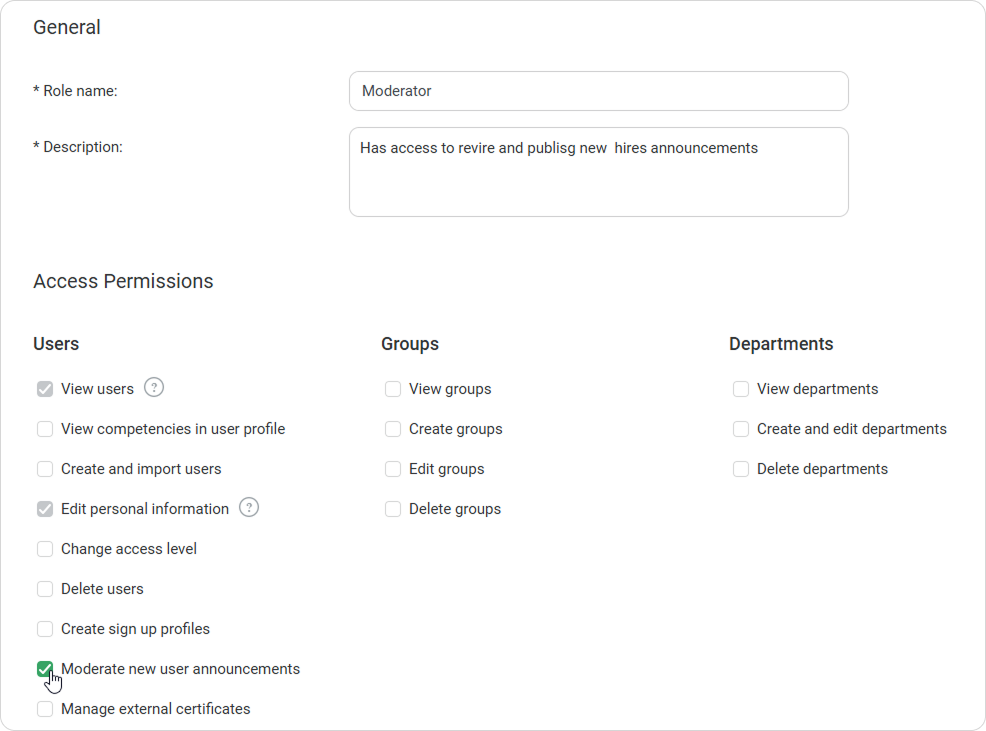
- To add a moderator, go to the Manage Users section and assign the user a role with access permission to Moderate new users announcements.
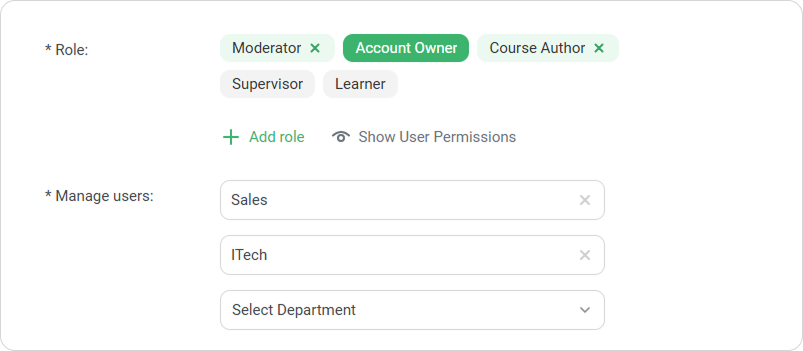
- Select a department that the moderator will manage.
- Go back to the New Hires settings and select which moderators will get notifications.
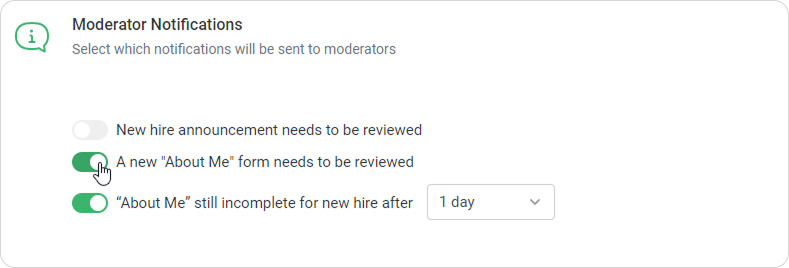
- Set up the Moderator Notifications. Select which notifications will be sent to moderators:
- New hire announcement needs to be reviewed
- A new "About Me" form needs to be reviewed
- "About Me" still incomplete for new hire after X days
How to Review New Hire Announcements
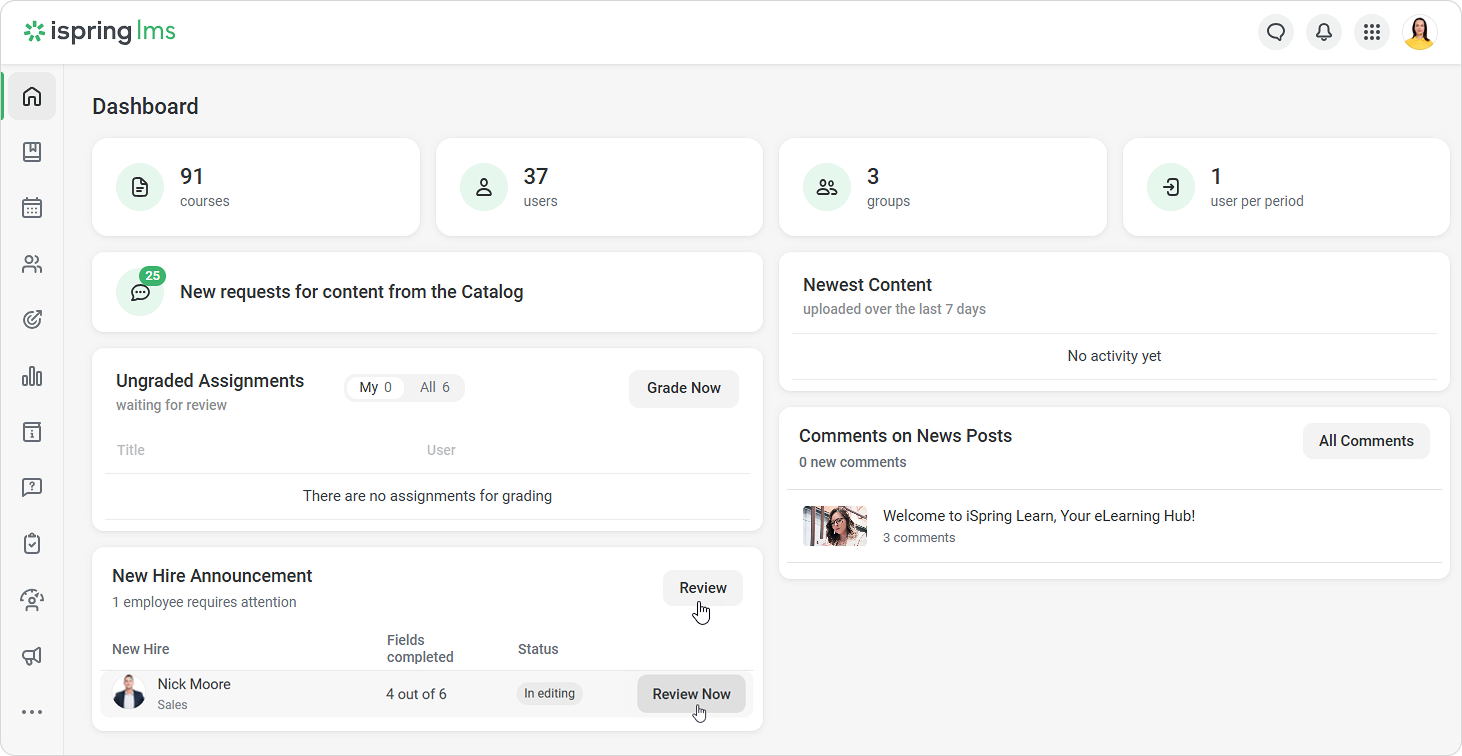
Moderators will see a widget with a list of new hires, fields completed, and status on their Dashboard.
- Click Review Now.
- Select a user whose announcement needs to be reviewed. You can click Review, Publish, Contact employee, or Delete.
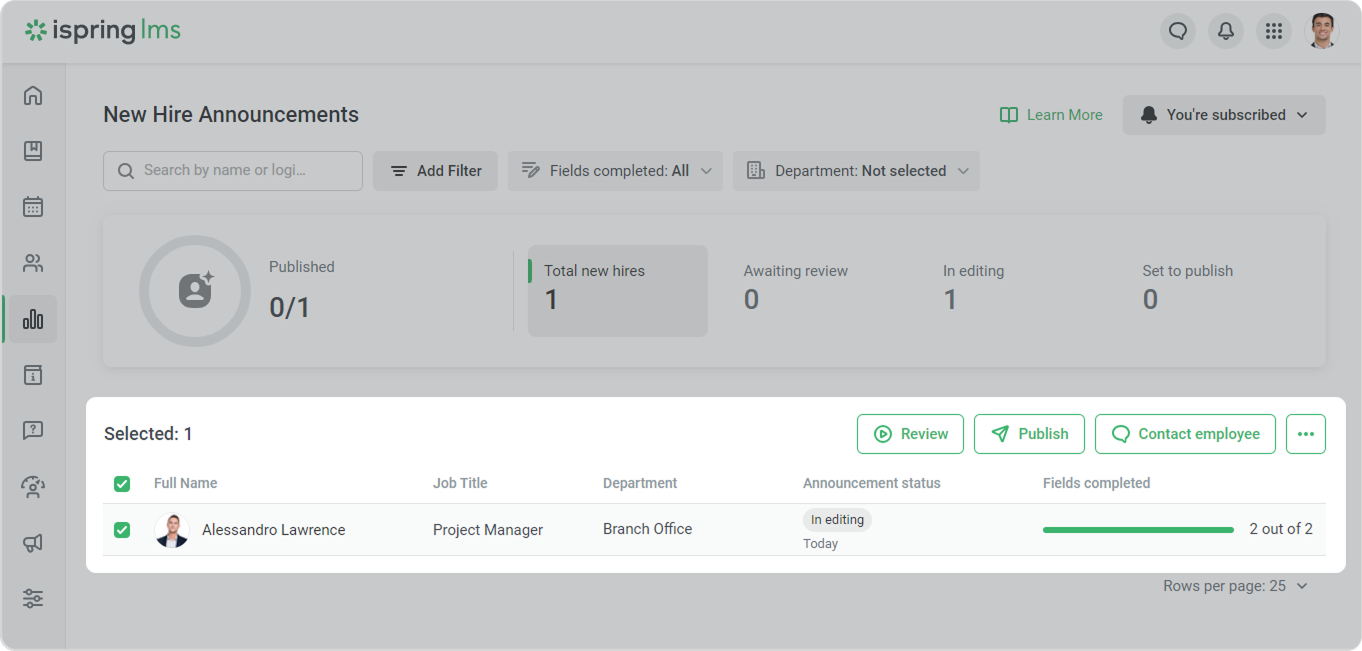
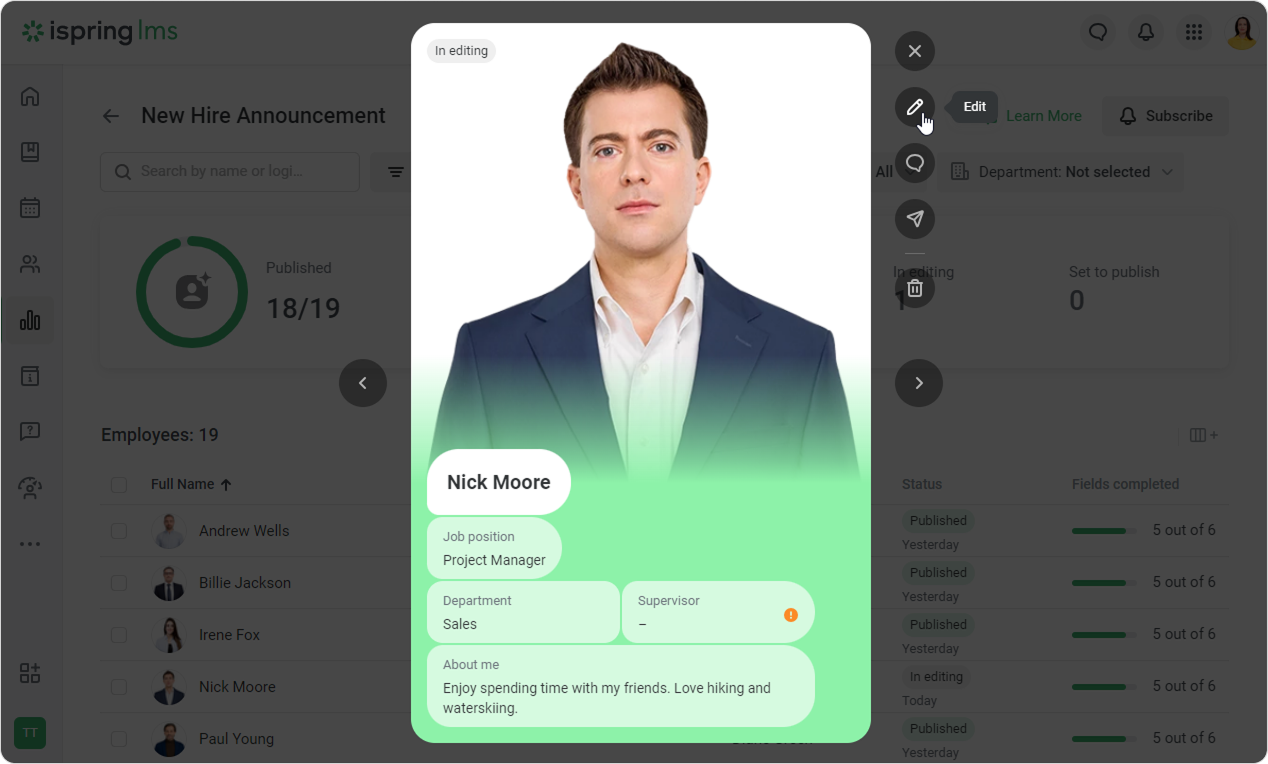
- When you click Review, you'll see a new hire announcement. You can use buttons on the right to edit, publish, or delete an announcement, or contact an employee.
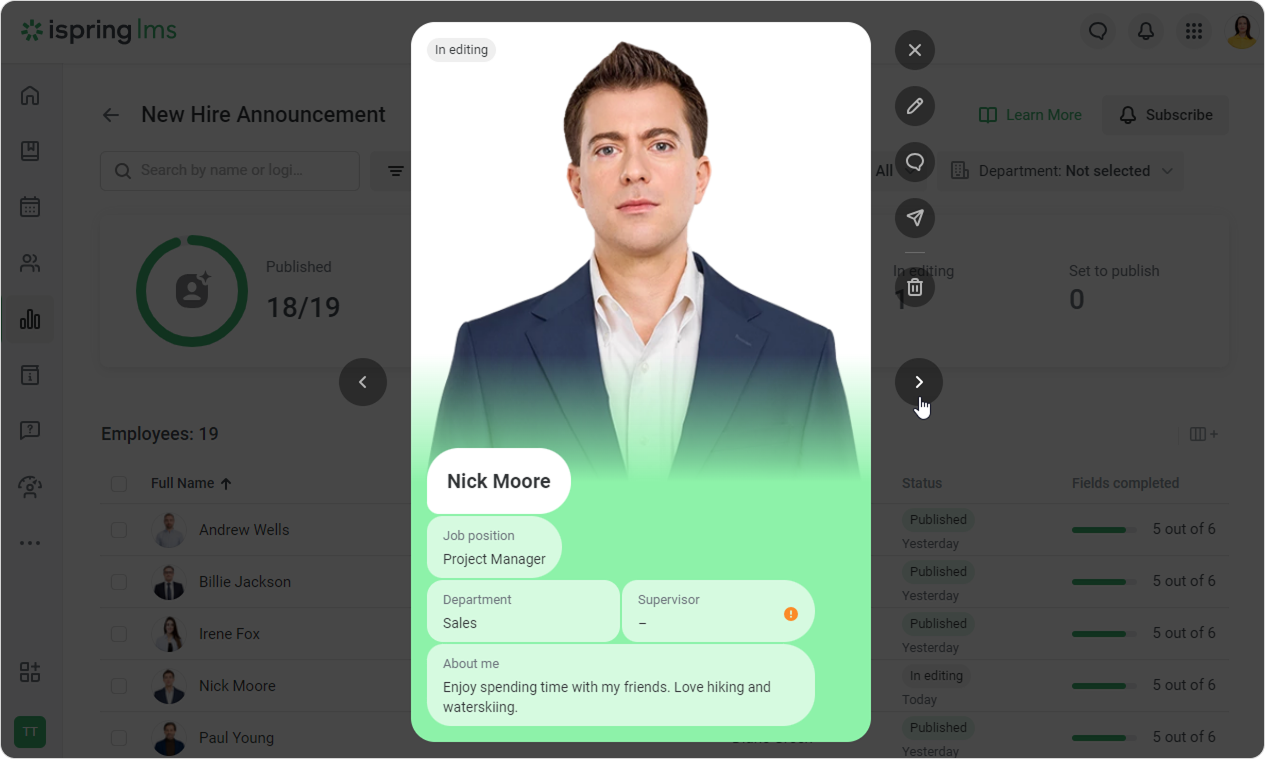
- You can also use arrows to switch from one announcement to another.
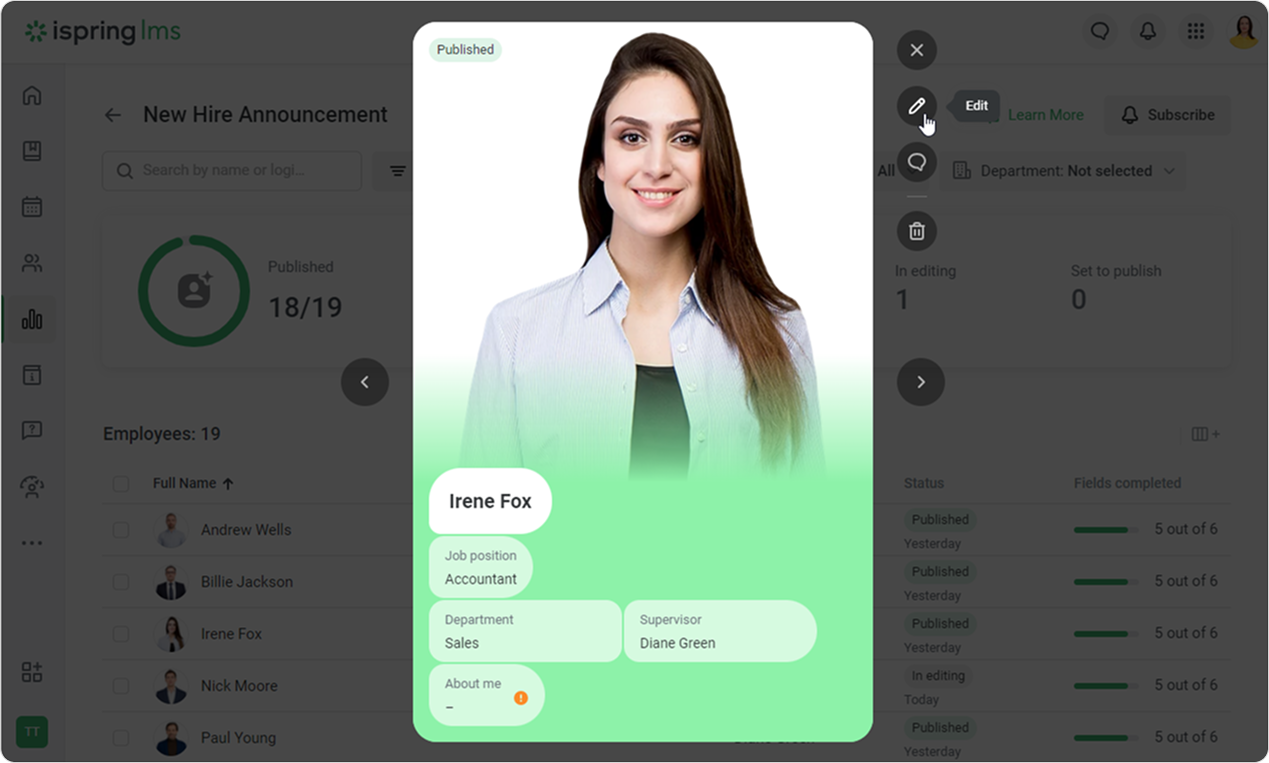
- If a new hire announcement has already been published, you can still edit it.
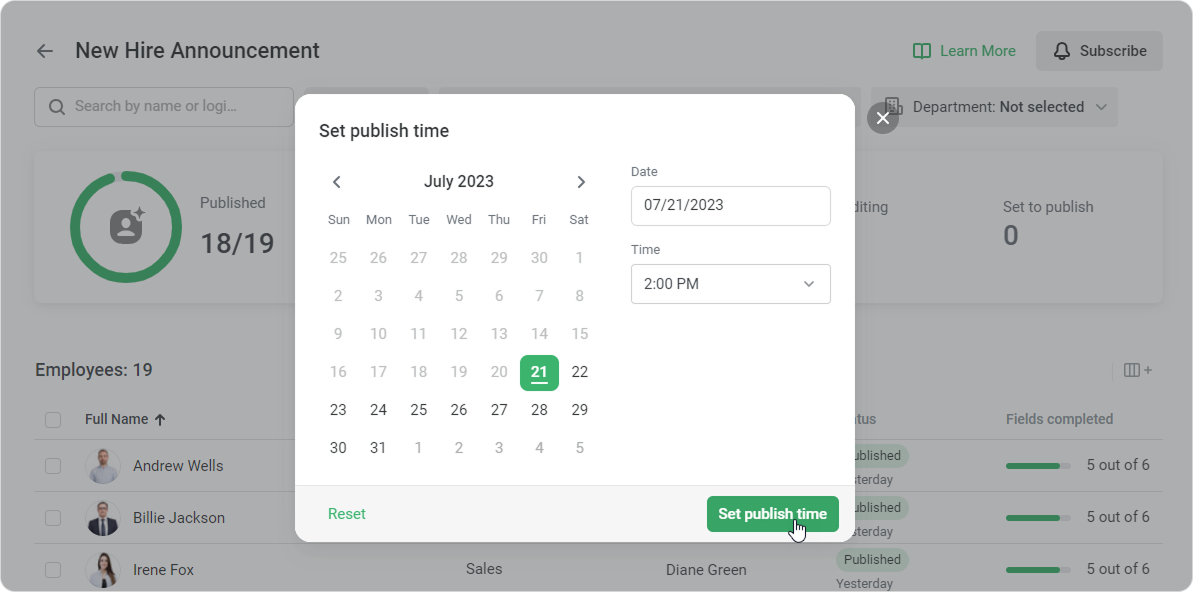
- When you click Publish, you can select the time and date that the announcement will be published.
Done! Now, users will be able to view the new hires cards in the User Portal.