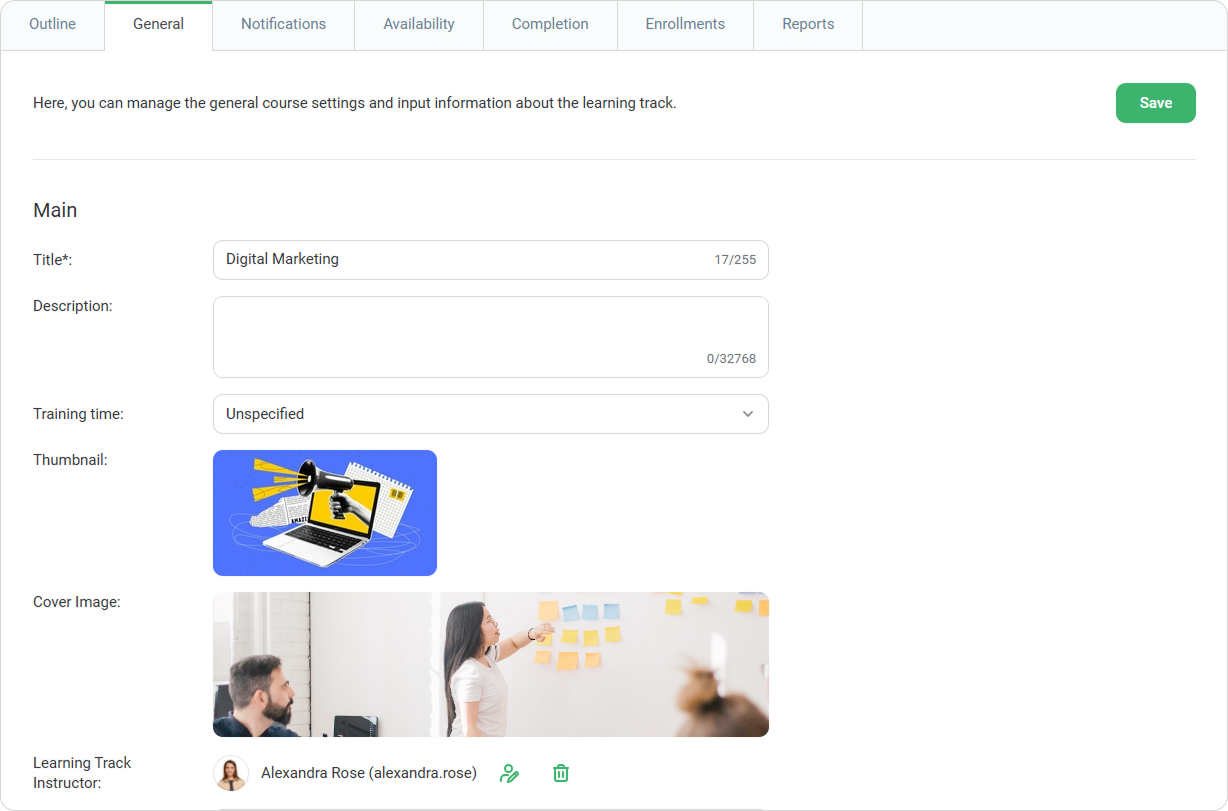
Use the General tab to set up the basic information for a learning track, including its name, description, instructor, and visual assets.
Learning track properties are grouped into Main and Additional fields.
Main Fields
Main fields define the core information learners see when they open a learning track.
| Title and Description | Provide a title for the learning track and add a description if needed.
The description helps learners understand the purpose of the learning track and the skills they will develop. |
|---|
| Training time | Set a recommended duration for completing the learning track.
You can then compare it with the actual time spent. |
|---|
| Thumbnail | The thumbnail is used in the catalog and on the My Courses page. Recommended parameters |
|---|
| Cover Image | The cover image is used on the learning track page. Recommended parameters Size: 1920 × 500 px Formats: PNG, JPG, GIF
|
|---|
| Learning Track Instructor | The instructor answers questions about learning track content. To assign an instructor, start typing a name, username, or email address in the Learning Track Instructor field, and then select a user from the list. Only users with the following roles can be assigned as an instructor: For details, see Instructors. |
|---|
| Tags | Use tags to help users find the learning track when searching for it. |
|---|
| Share Link | Use the share link to open a preview of the learning track or share it with other users. |
|---|
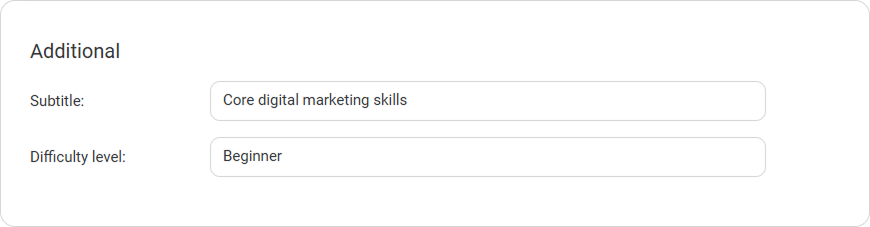
Additional Fields
Additional fields allow you to store extra information about a learning track, such as subtitle, provider, or level of difficulty.
This information can be used in reports and certificates.
Additional fields are configured in account settings and then filled in for individual courses and learning tracks.
For details, see Custom Course Fields.