Knowledge Base articles can be printed or saved as PDFs. Users with editing access can print an article from the editor. Learners can print an article in viewing mode if printing is allowed in the article settings.
How to print an article in editing mode
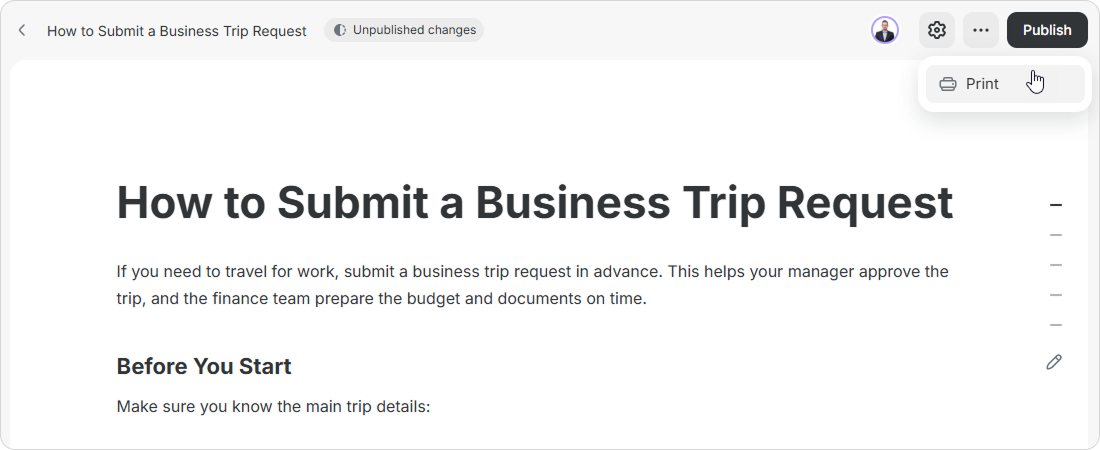
Click on ••• >Printin the top-right corner.
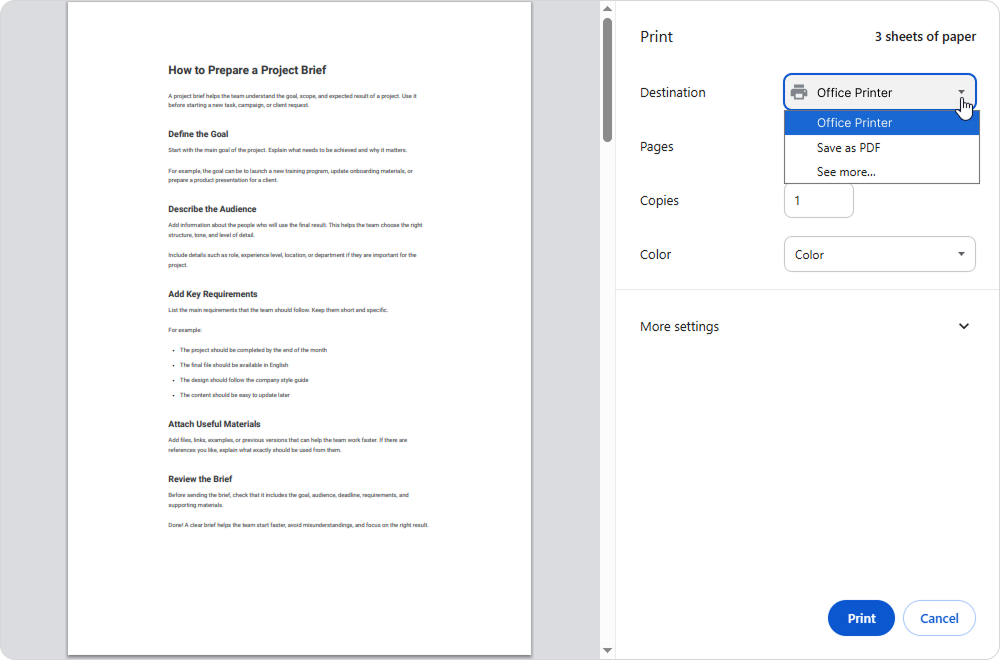
The standard browser print window will open. Select a printer, then click on Print.
To save the article as a PDF, select Save as PDF in the Destination field.
Done! The article is ready to use on paper or as a PDF.
How to print an article in viewing mode
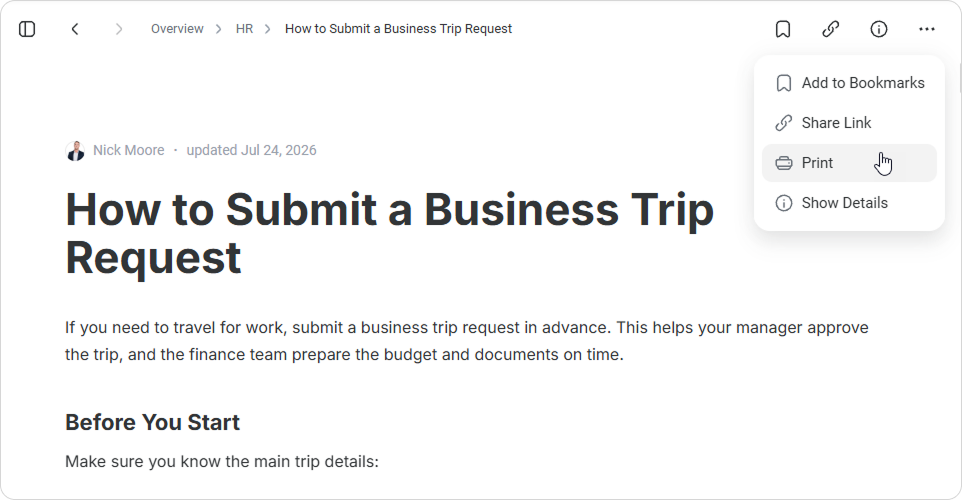
The Print button appears in viewing mode if printing is allowed in the article settings.
Click on •••>Print in the top-right corner.
The standard browser print window will open. Select a printer, and click on Print.
To save the article as a PDF, select Save as PDF in the Printer field.
How to Enable or Disable Printing
Printing in viewing mode is disabled by default.
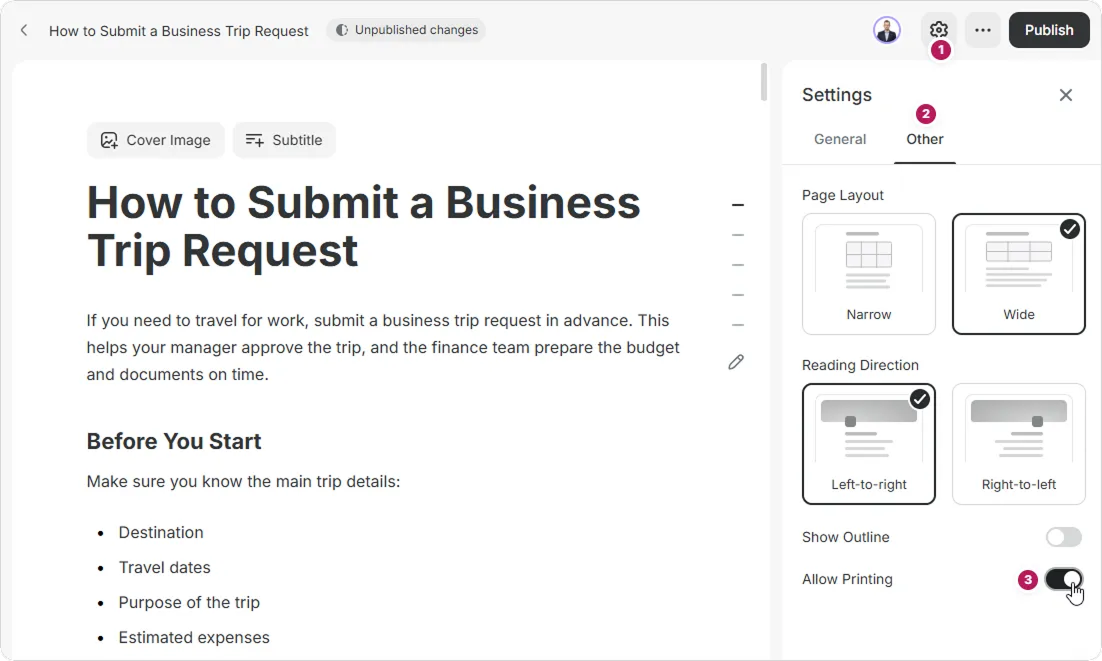
Open the article in editing mode. Click on Settings in the top-right corner.
Go to the Other tab.
Enable or disable Allow Printing.
Click Publish to apply the changes.
If printing is disabled, learners won’t see the Print button in viewing mode.