Once you add the training Issuer to your account, you’ll be able to select it when creating a certificate.
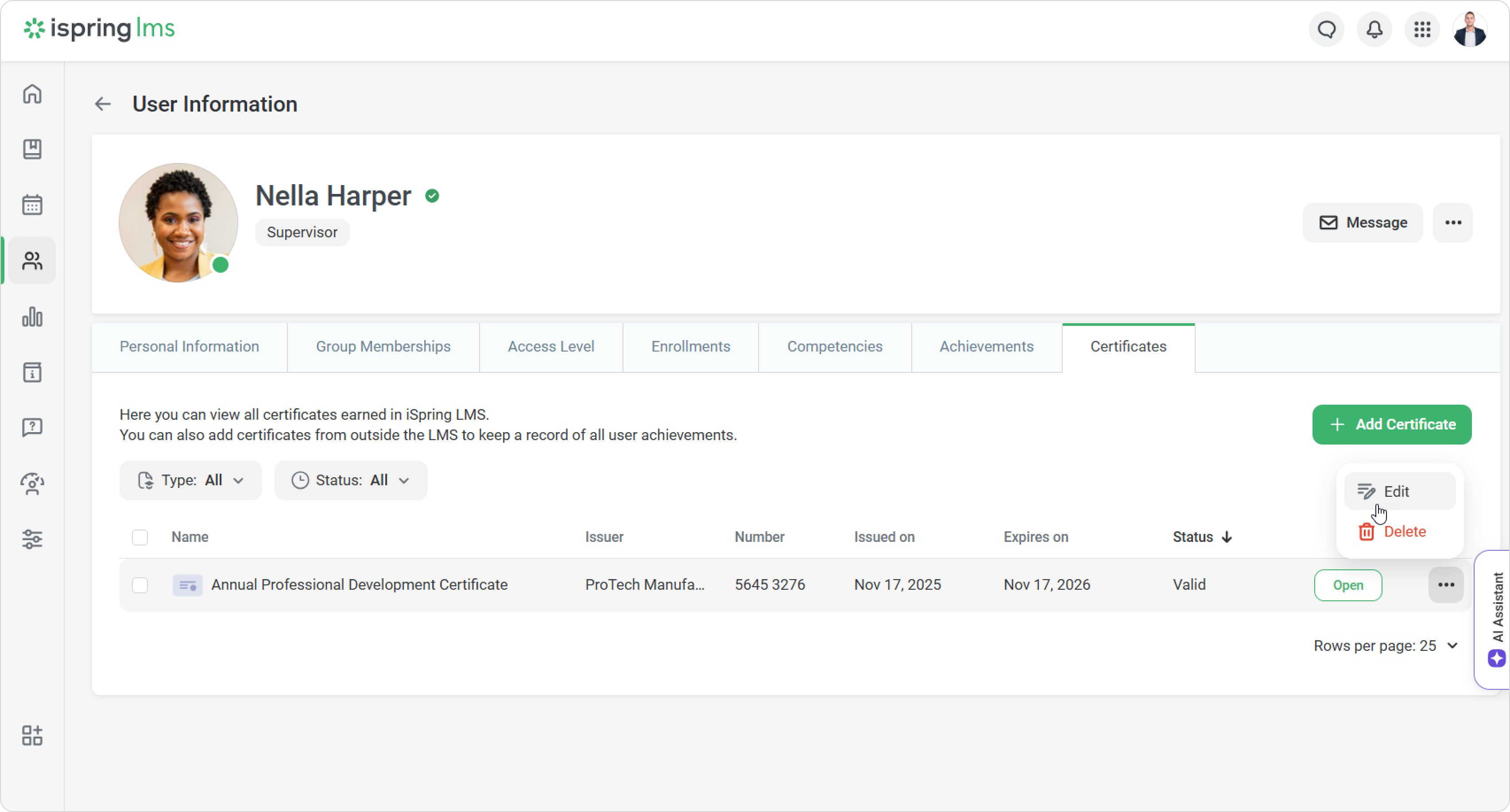
External certificates are added from the employee’s profile.
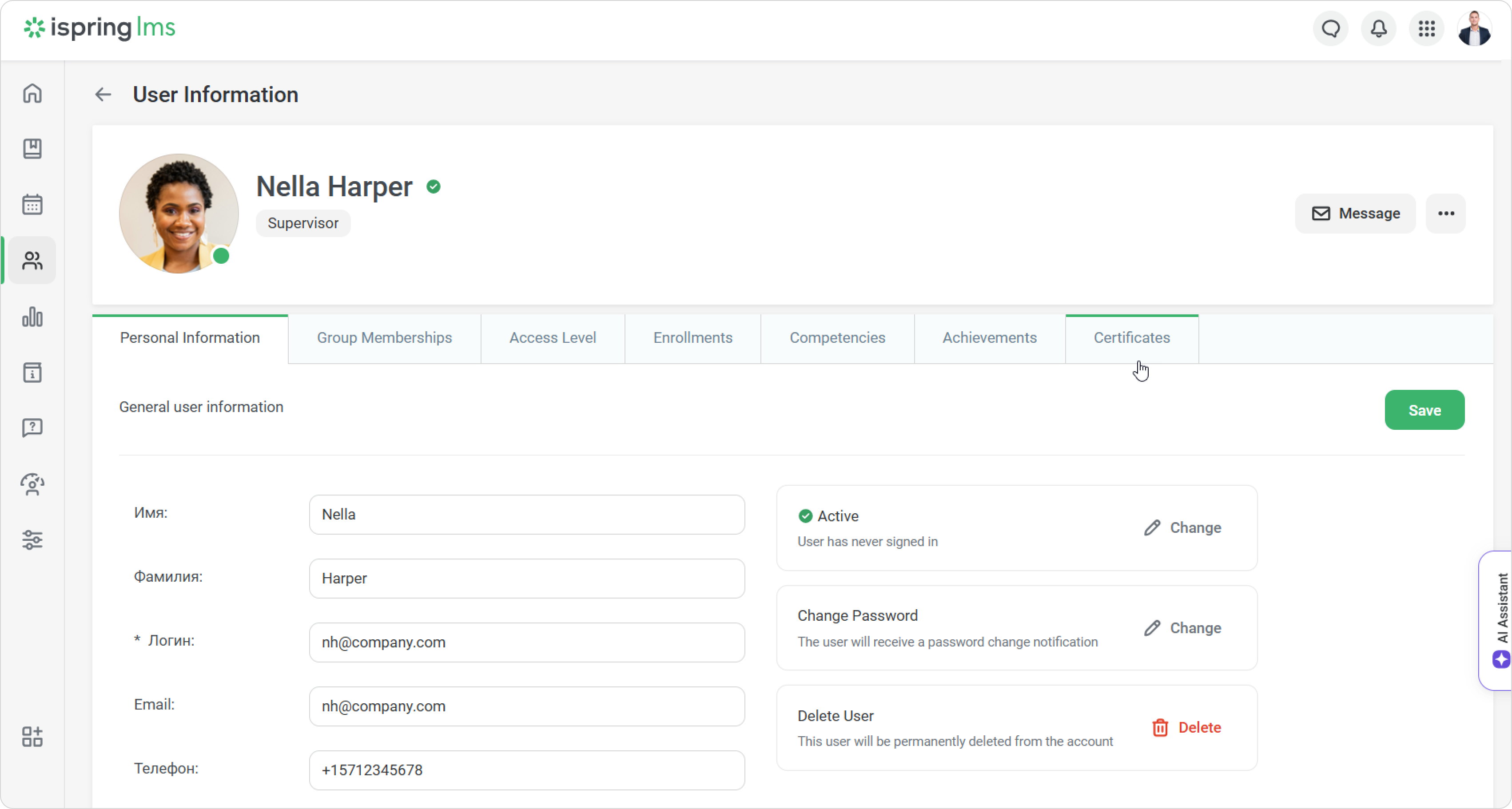
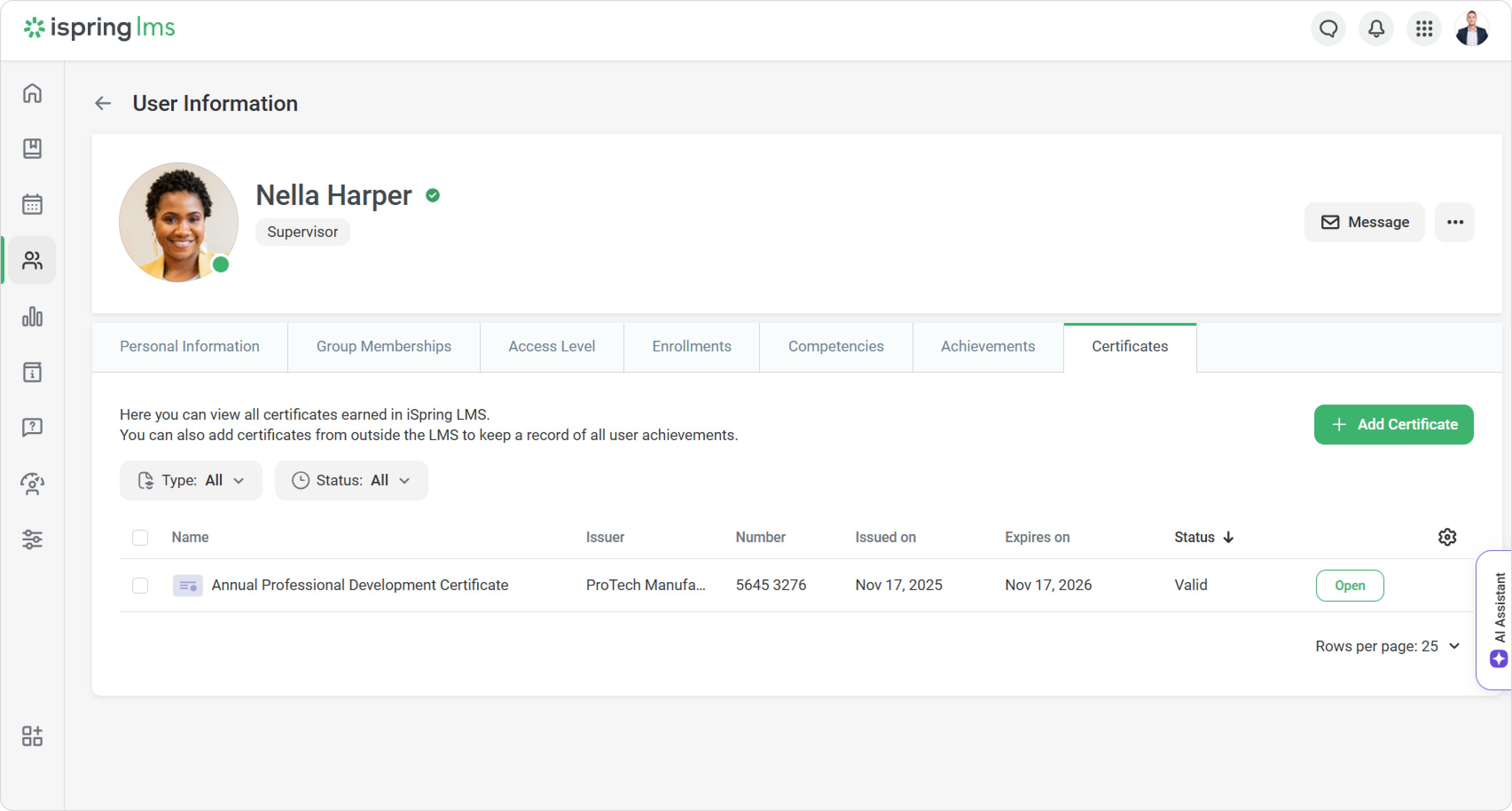
Open the employee’s profile and go to the Certificates tab.
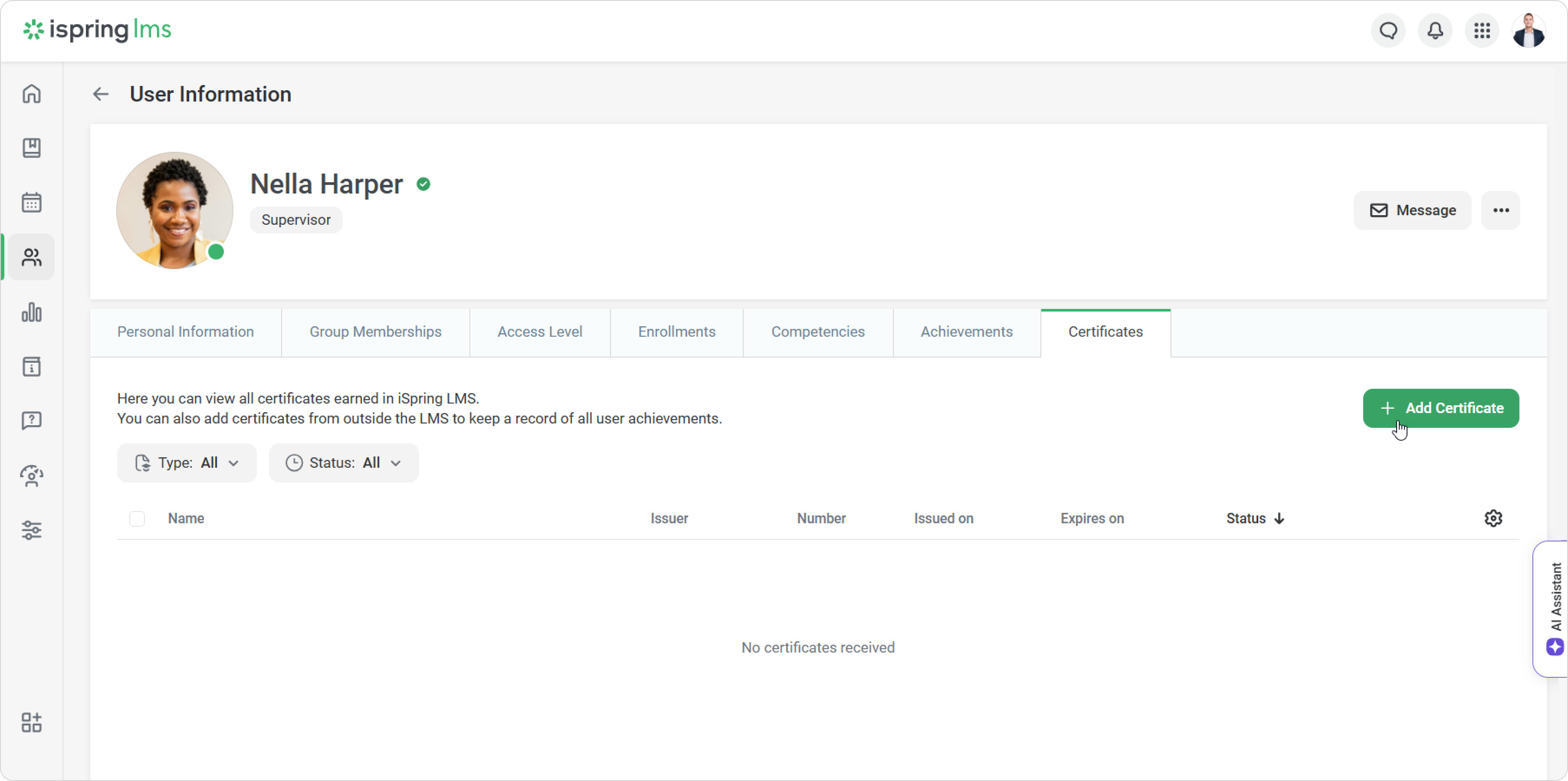
Click on Add Certificate.
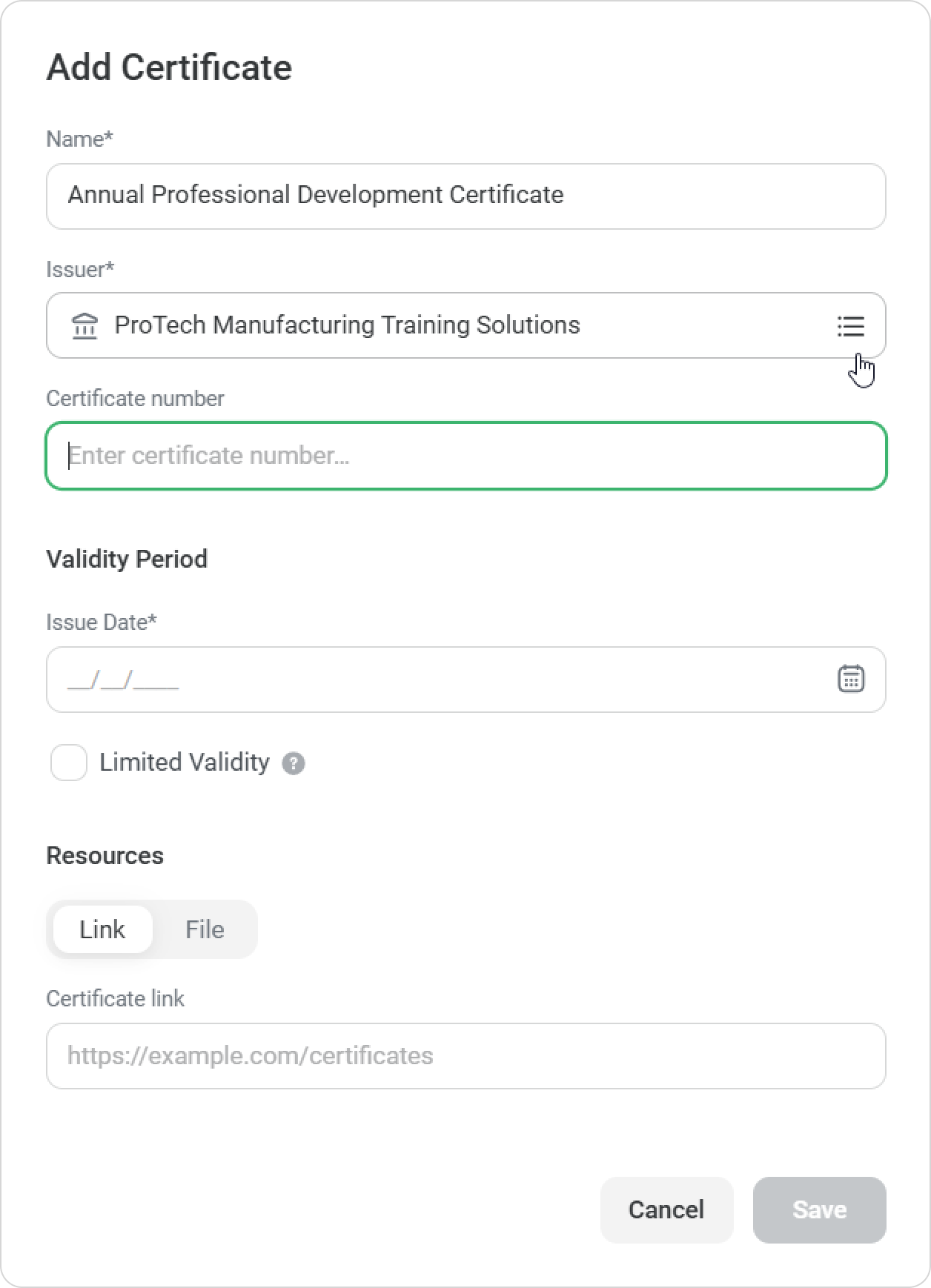
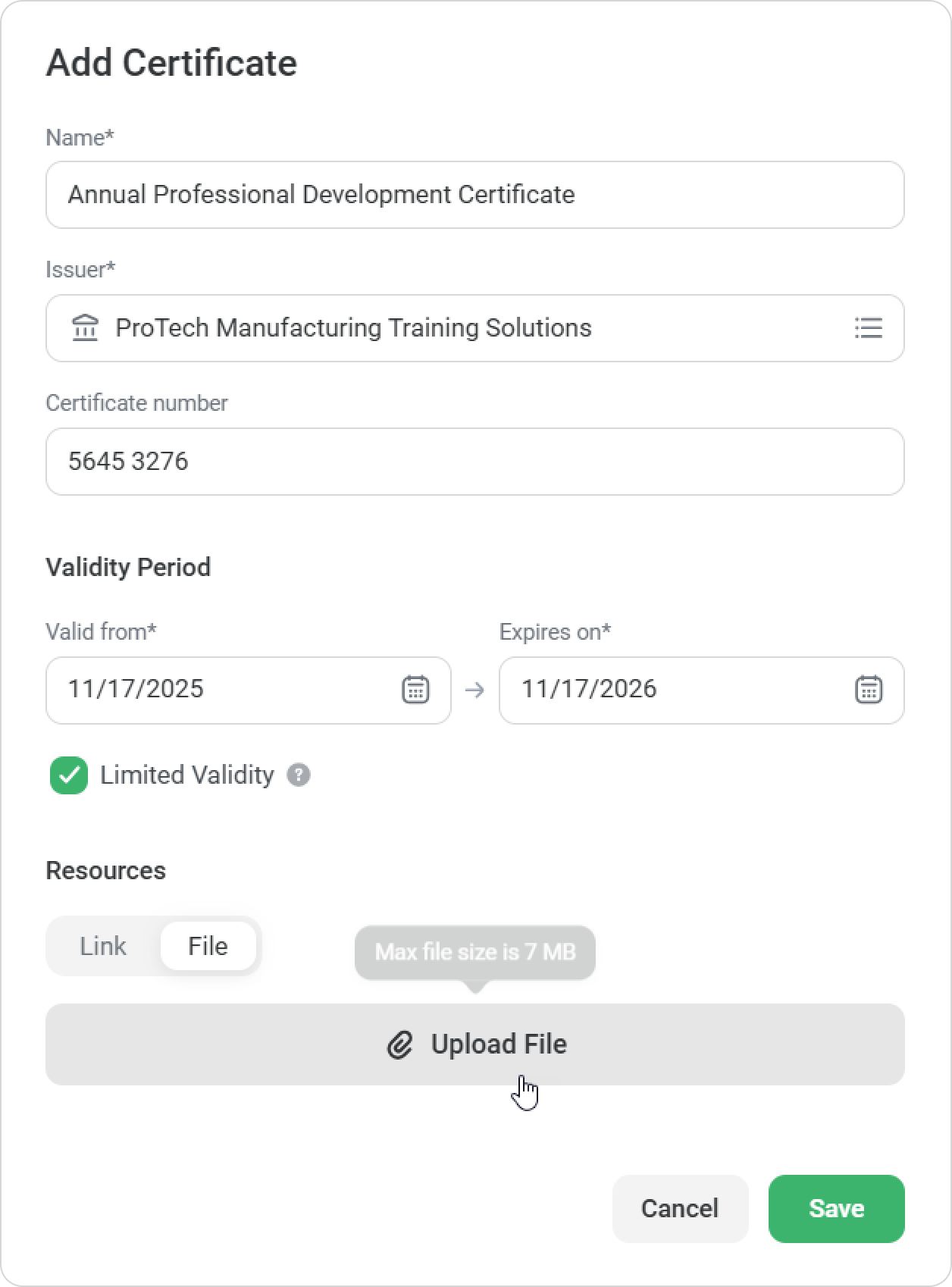
Enter the certificate name.
In the Issuer field, start typing to find the training center, or choose it from the full list.
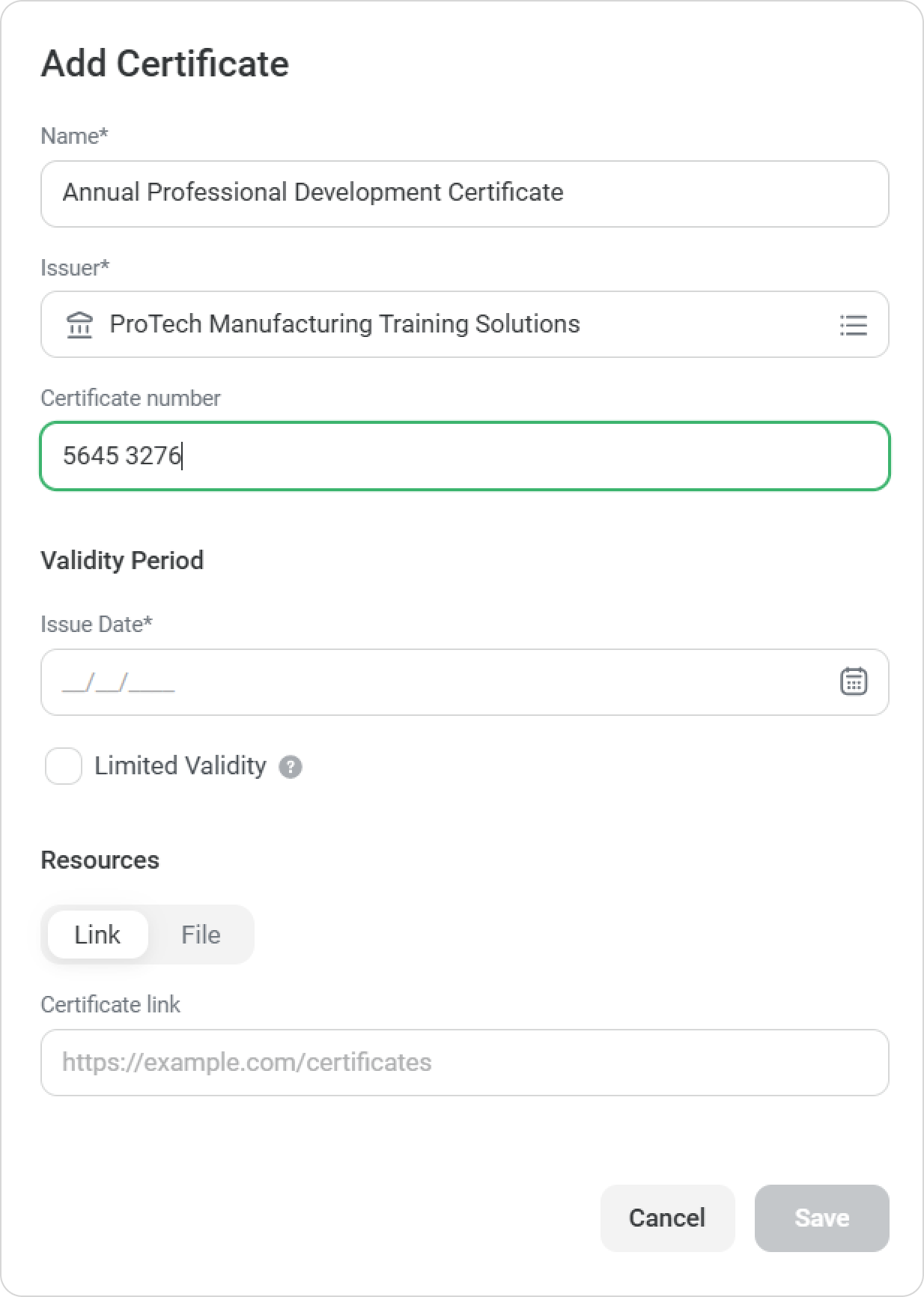
Enter the certificate number.
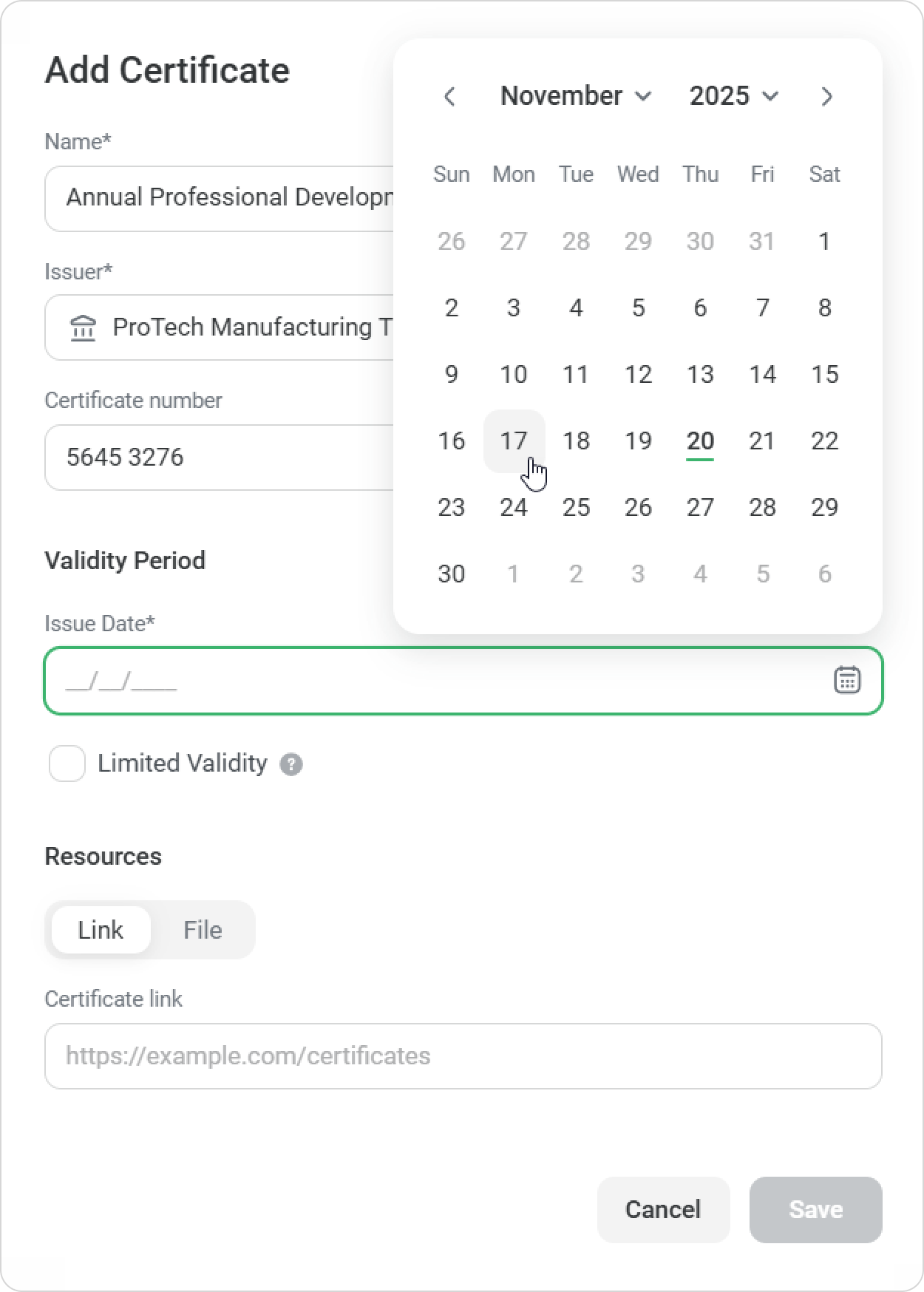
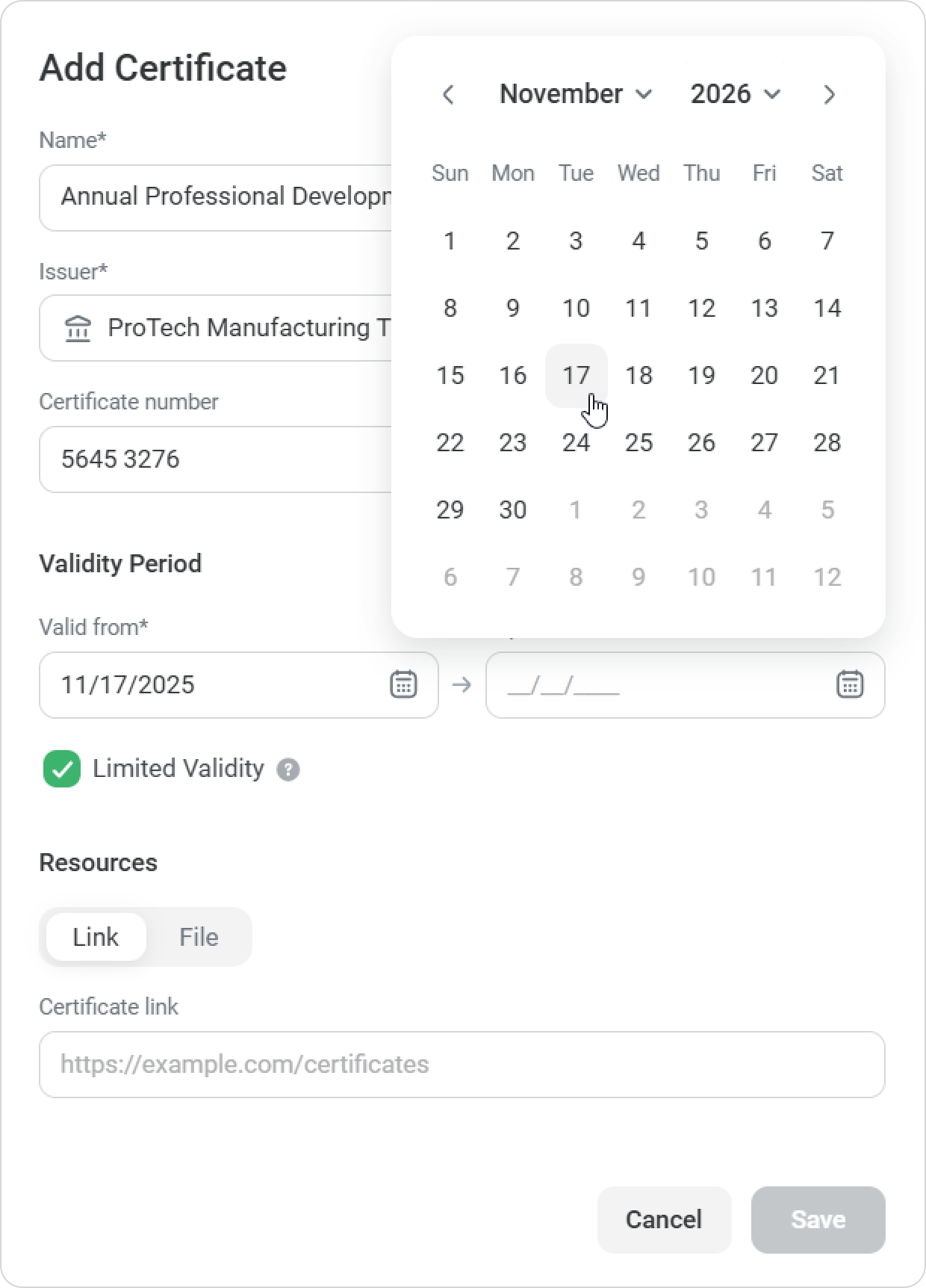
In the Validity Period section, select the issue date — it can be in the past or in the future.
For certificates with an expiration date, enable a limited validity period.
In the Resources section, you can upload a digital copy of the certificate. Add a link if the certificate is stored online, or upload a file from your computer.
Click on Save, and the certificate will appear in the user’s profile.
You can edit certificates at any time — to update the expiration date or change the resource link, for example.