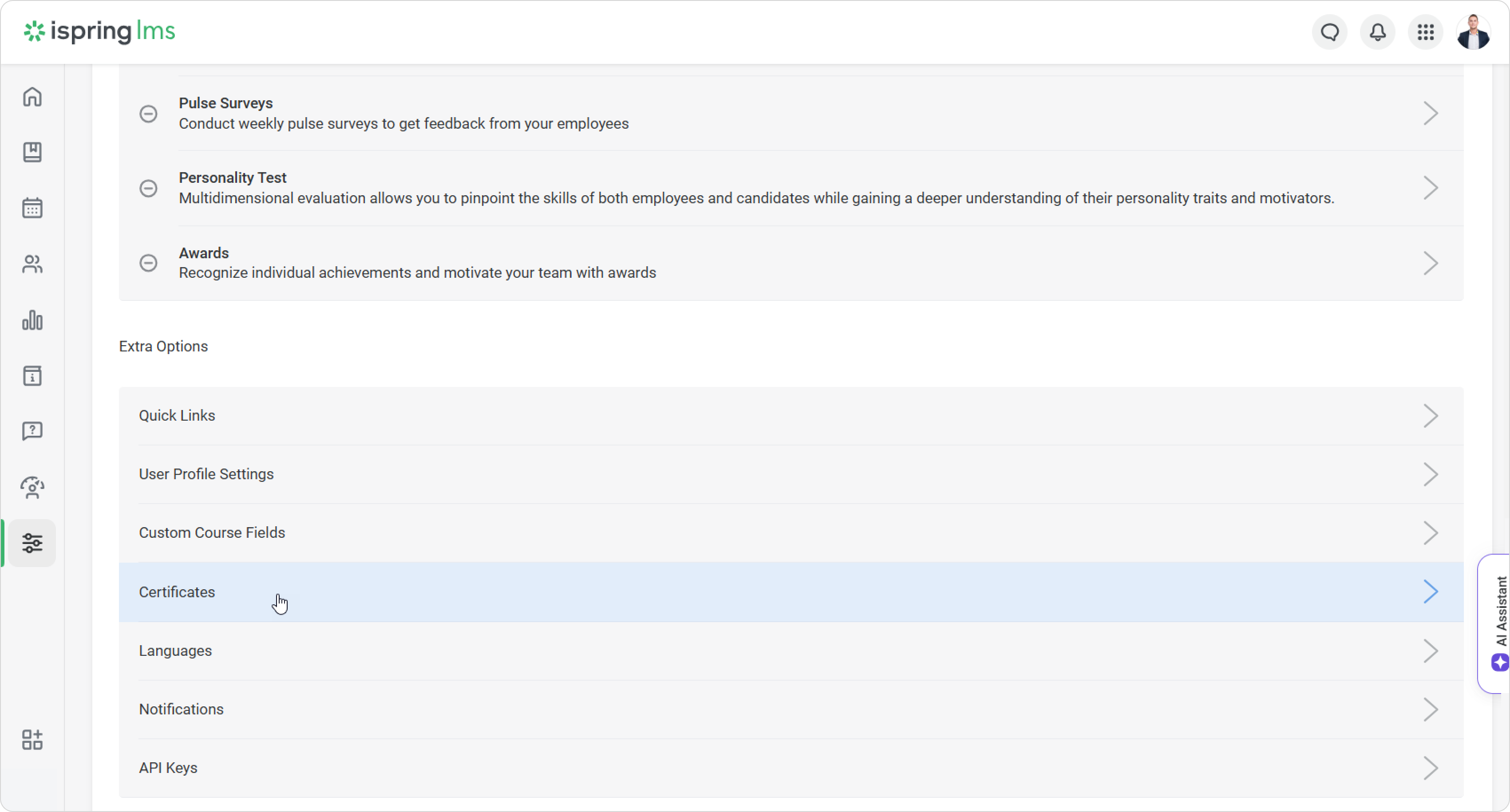
Go to Settings > Additional Options > Certificates.
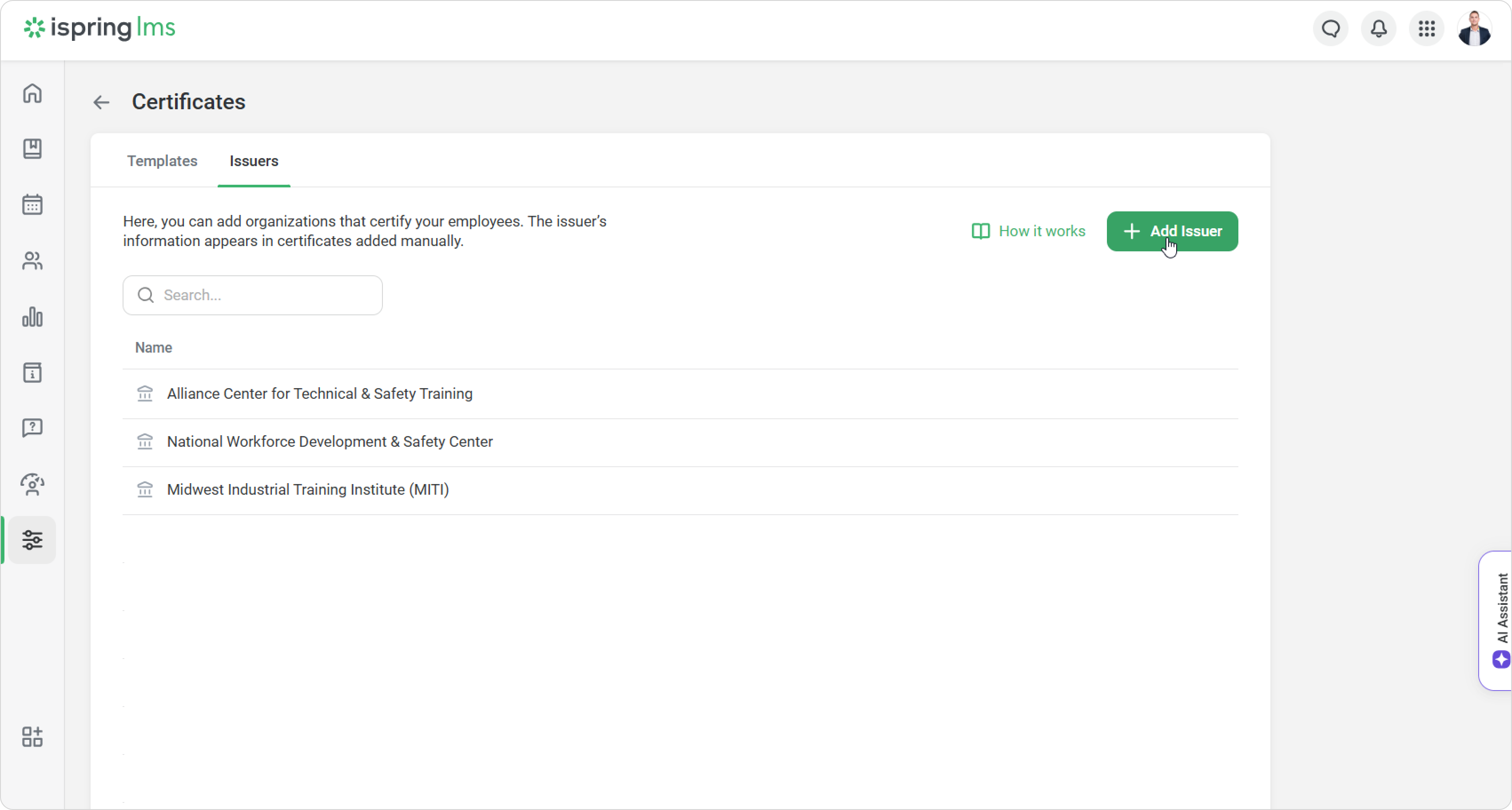
Open the Issuers tab and click on Add Issuer.
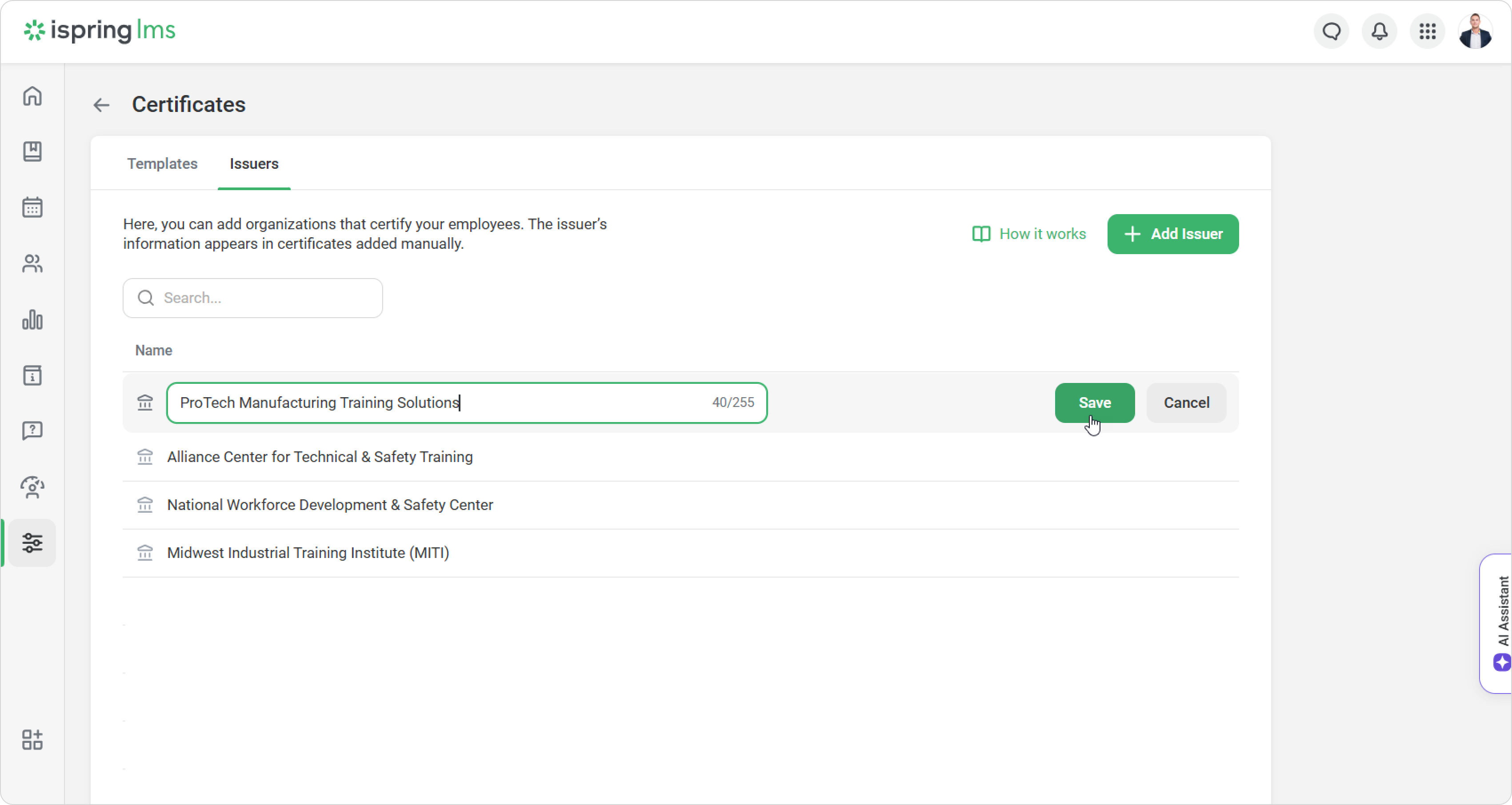
Enter the name and click on Save.
Done! Repeat this step to add the other training providers your company works with.
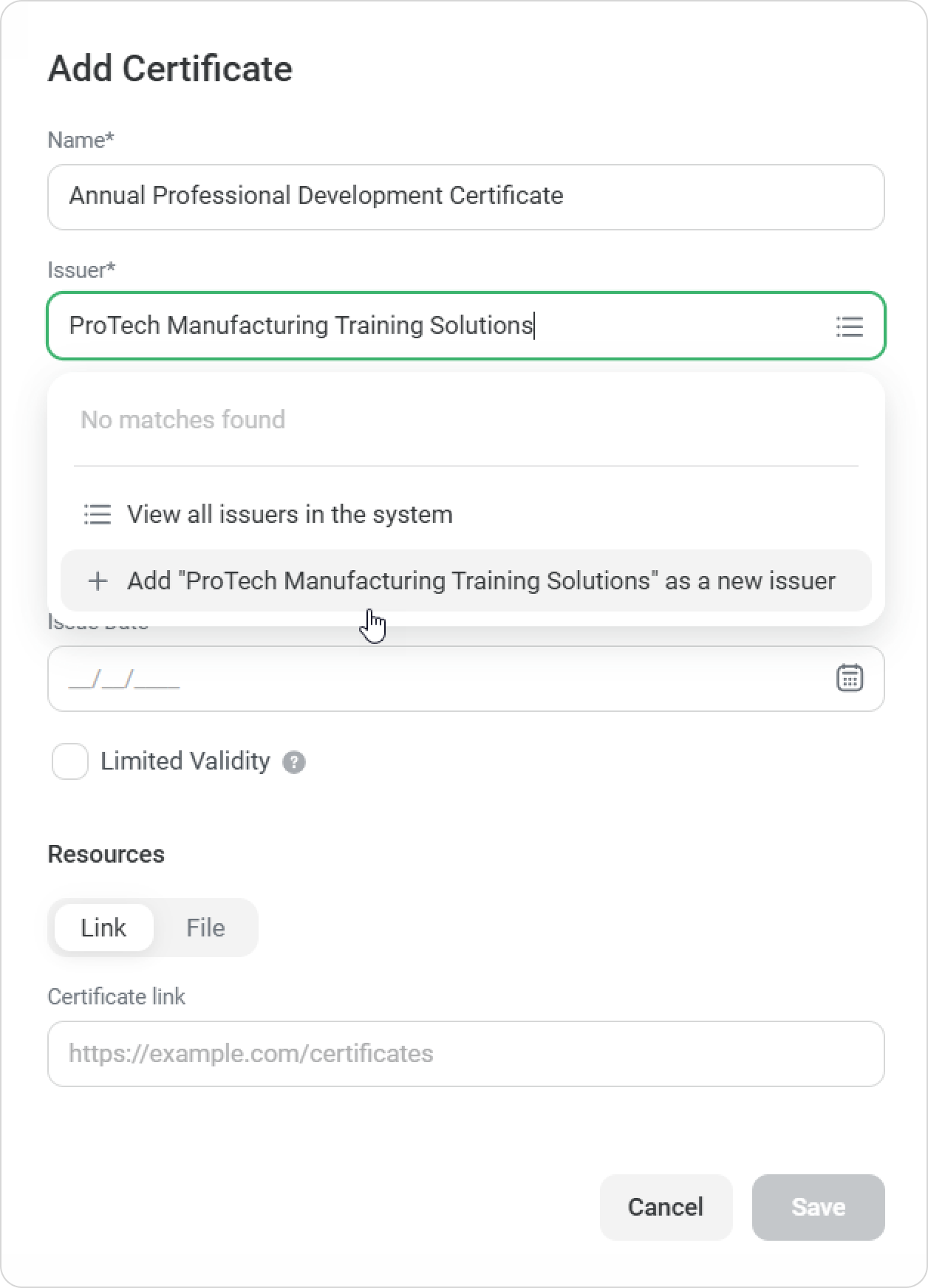
When creating a certificate
You can also add an issuer when creating a certificate.
How to edit or delete an Issuer
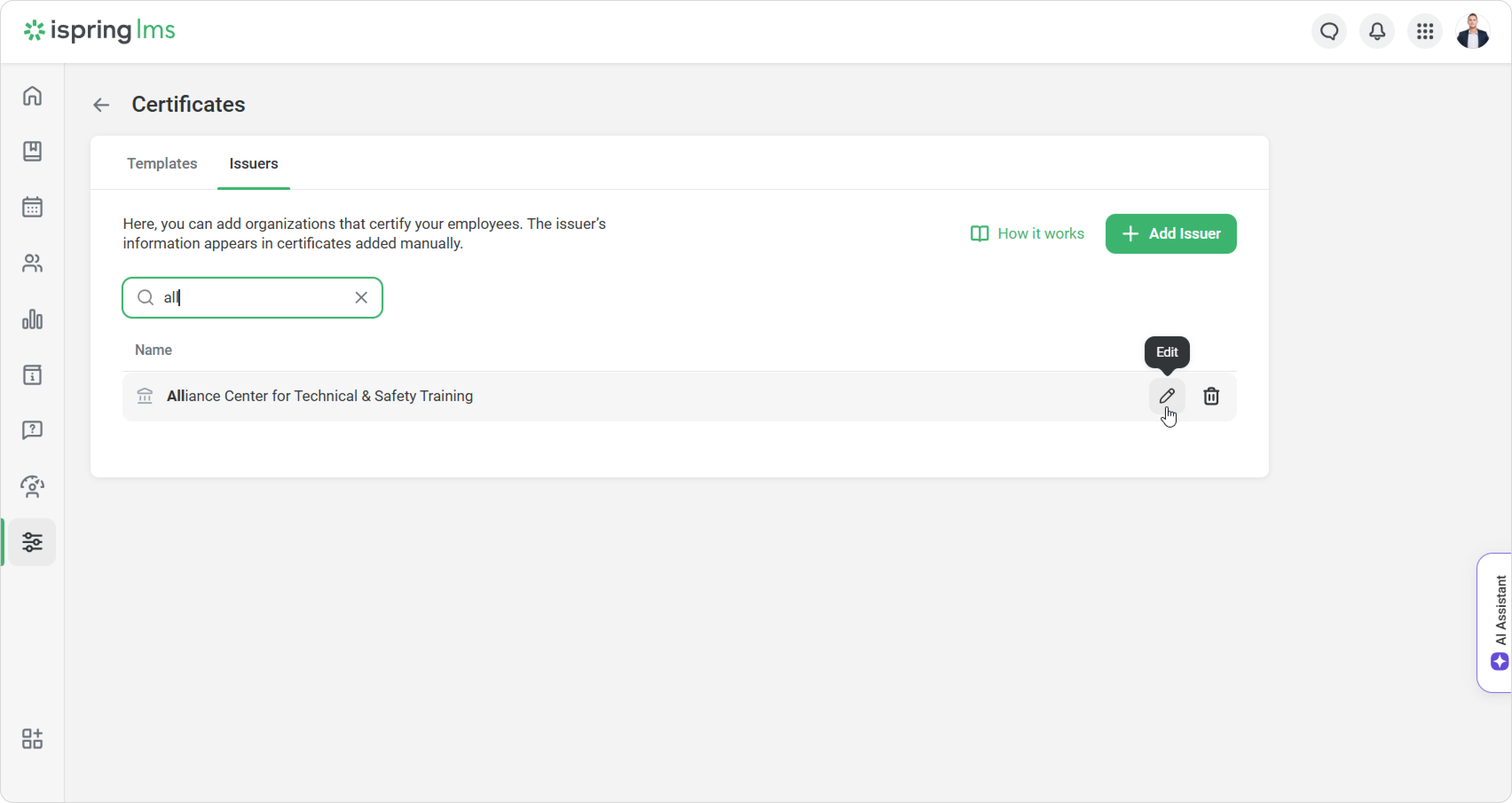
To update an Issuer’s name, click on Edit next to the current name. The new name will also appear on all certificates already issued.
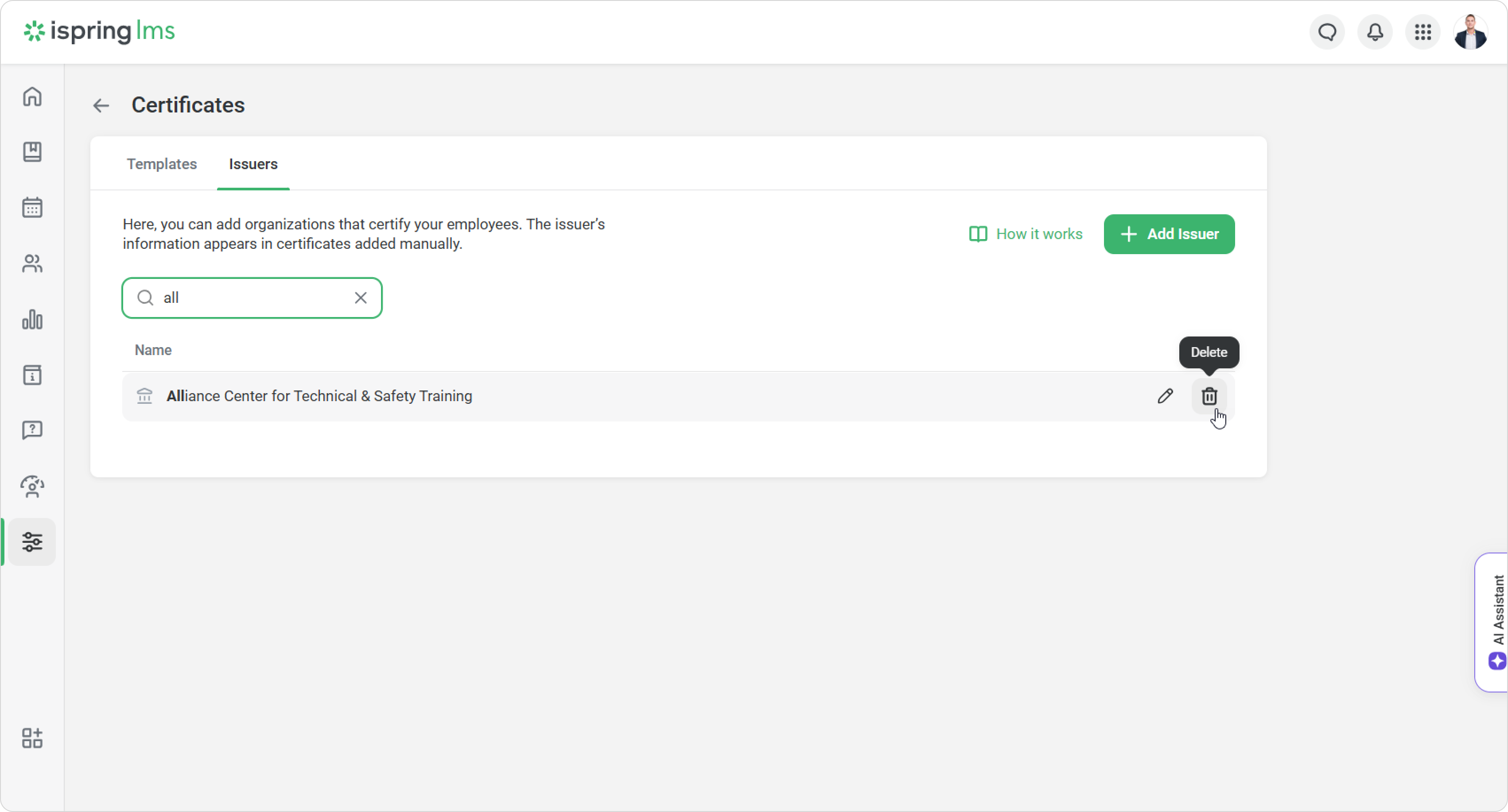
To delete an Issuer, click on the trash-bin icon.
How to remove certificates
If your account already has certificates supplied by this Issuer, you won’t be able to delete it; you’ll need to find and delete the certificates first.
To avoid deleting the certificates, change the Issuer in each one.
Only users with the Delete certificates permission can remove certificates. They also automatically have access to view employee profiles.
Open the Certificates report.
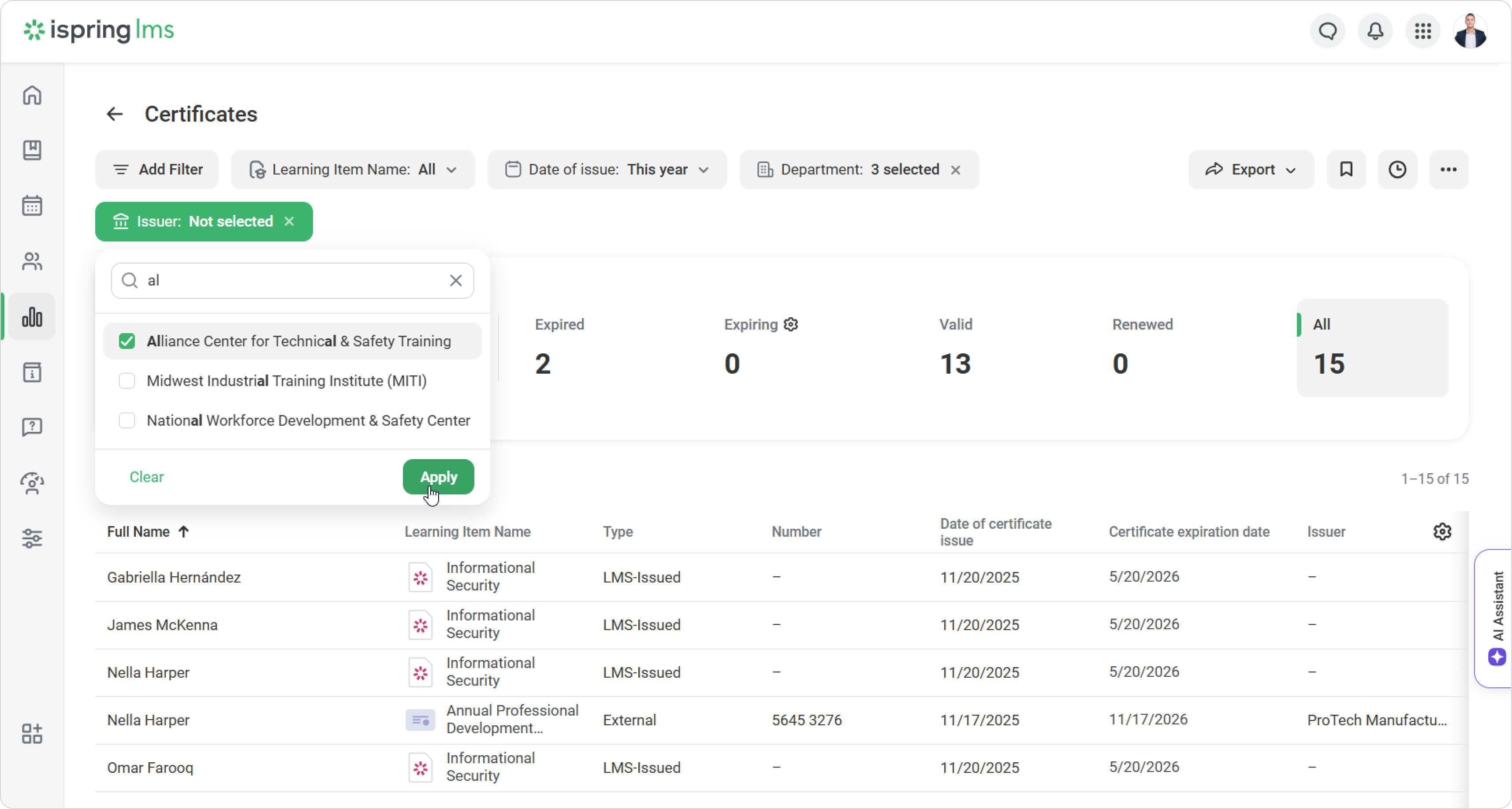
Click Add Filter > Issuer.
Select the Issuer you want to delete.
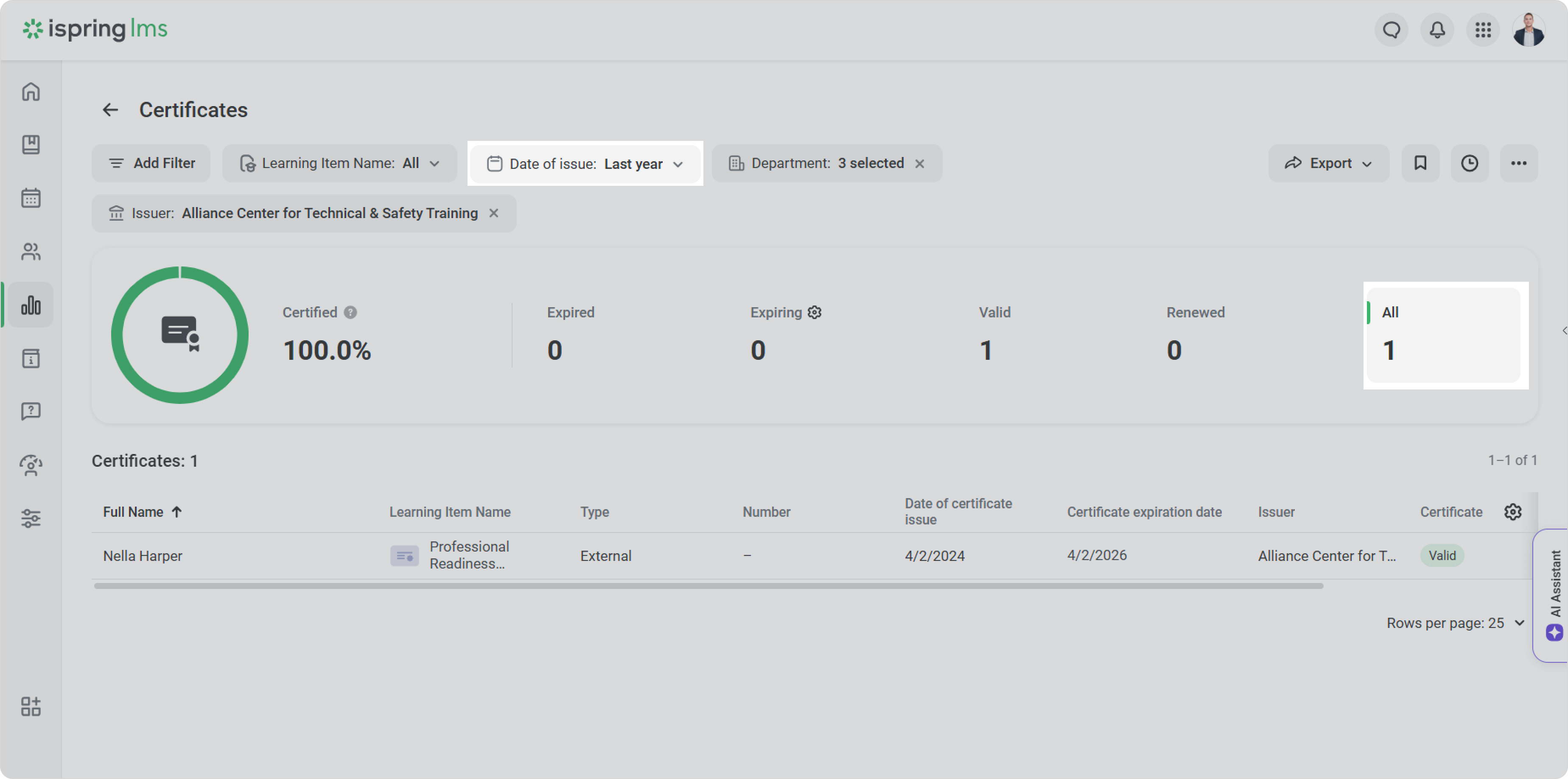
Switch to the All tab to see certificates with any status.
Use the Date of issue filter to quickly find all employees who received certificates from a specific Issuer.
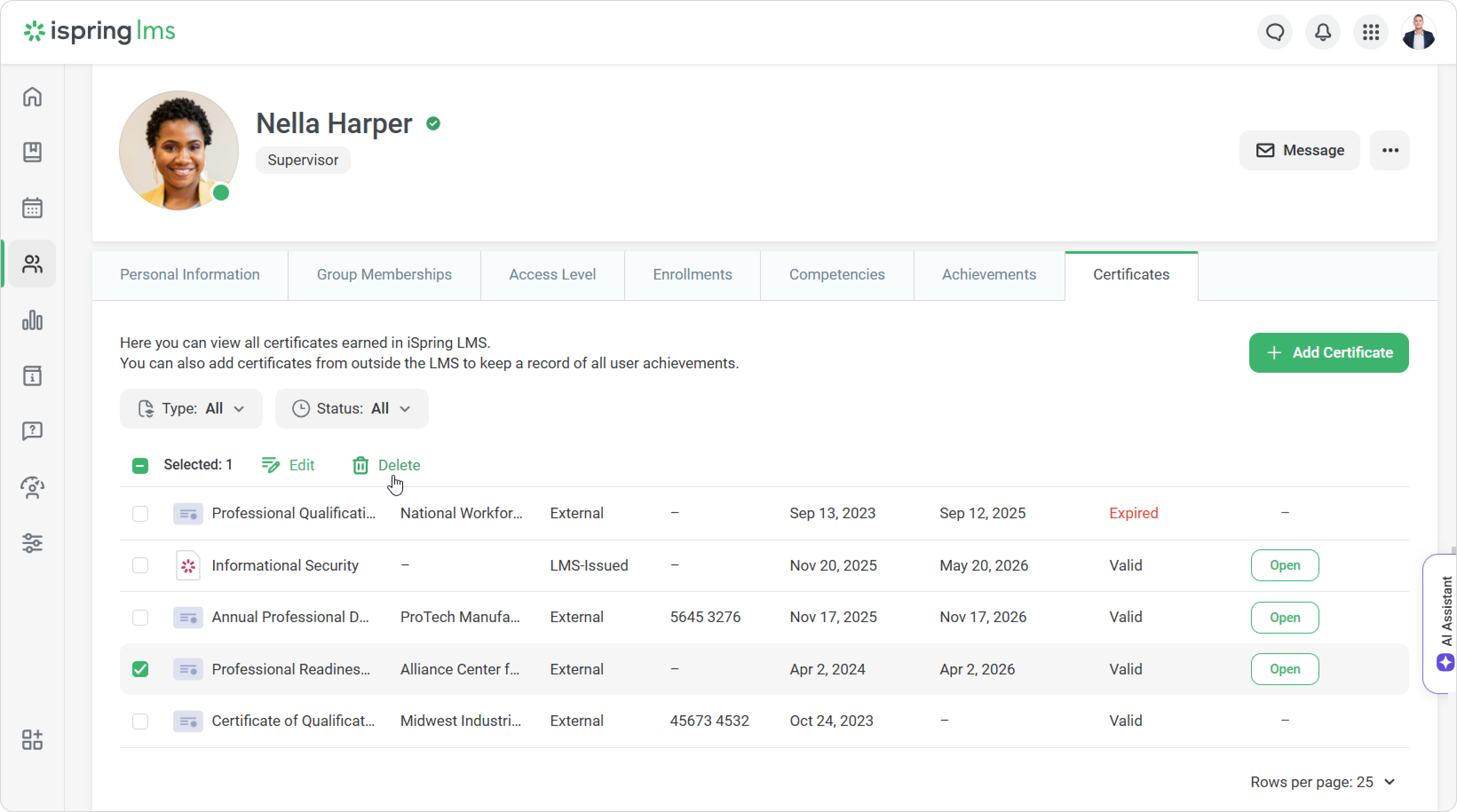
Click Edit User to open the employee’s profile and delete the certificate there.
On the Certificates tab, select the certificate(s) and click Delete.