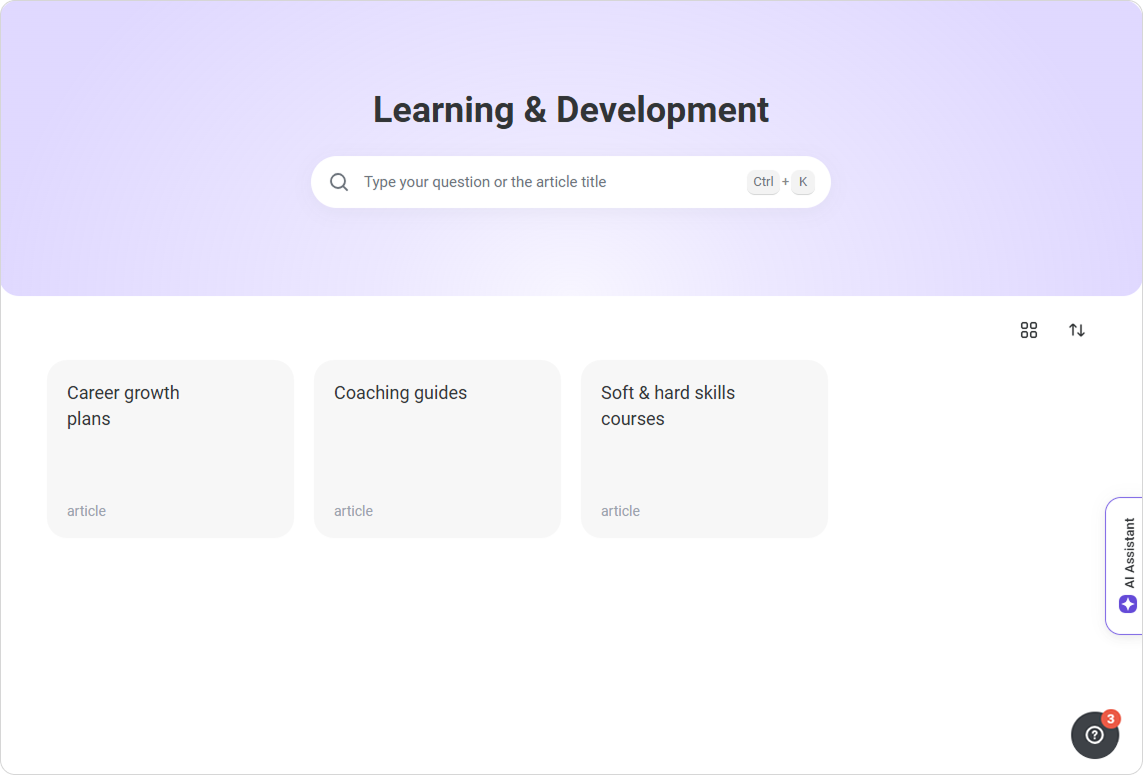
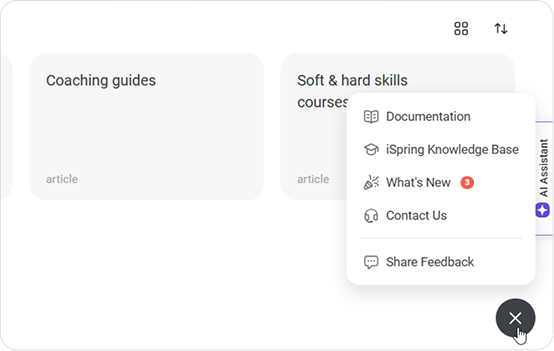
In the bottom-right corner of the Administrator Portal, you’ll find a question mark button. It provides quick access to key resources and lets you:
Open the iSpring LMS documentation
View new features and product updates
Contact tech support
Share feedback
How you’ll know there’s an update
If you see an unread indicator next to the question mark button, it means there are updates you haven't viewed yet.
For important updates, a short headline will also appear next to the button on a purple background, so you can immediately notice that something significant has changed.
When a new module is released or a major update becomes available in iSpring LMS, the What’s New popup opens automatically when an administrator signs in.
What’s on the menu
Click the question mark button to open the menu.
It includes the following sections:
Documentation: These are step-by-step guides on how to use iSpring LMS.
iSpring Knowledge Base: This is a collection of articles, tips, and best practices for creating effective e-Learning content.
What’s New: Clicking this will open a popup in iSpring LMS that shows all recent feature releases, improvements, and product changes in one place.
Contact Us: This redirects users to the support page, where they can reach out to the iSpring tech support team via the iSpring website.
Share Feedback: This page allows users to share their thoughts, suggestions, or ideas to help improve the product.
The question mark button won’t appear in reports, preview mode, when editing content, or on the Privacy Policy page.