Creating a Generic Certificate in Adobe Acrobat Pro DC
To add form fields to your PDF certificate, please install Adobe Acrobat DC, which allows you to edit PDF files.
- Launch Adobe Acrobat DC on your computer.
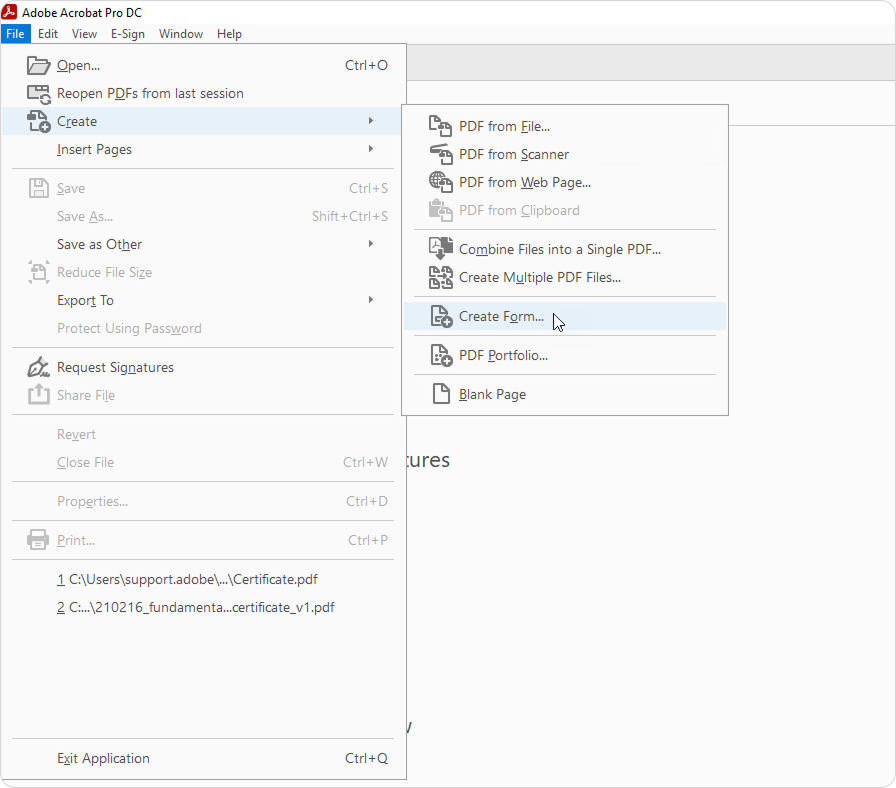
- Click File, then choose the Create option and select Create Form from the menu.
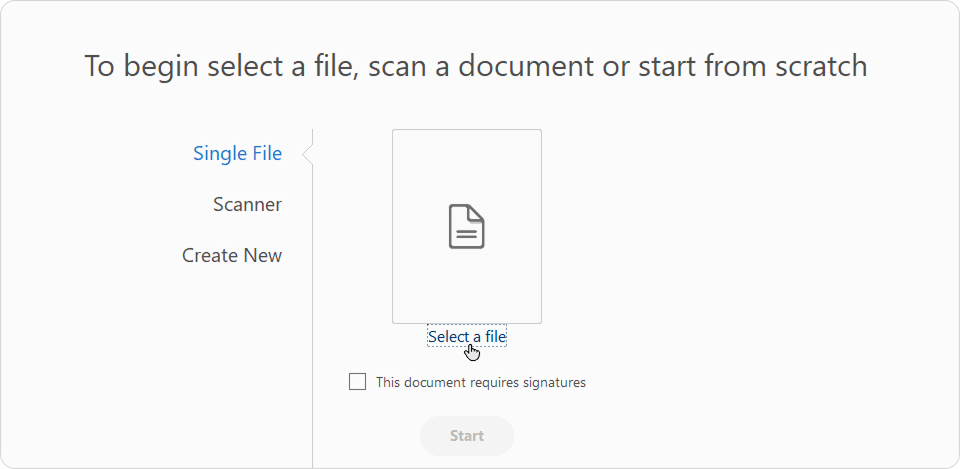
- Next, click Select a file.
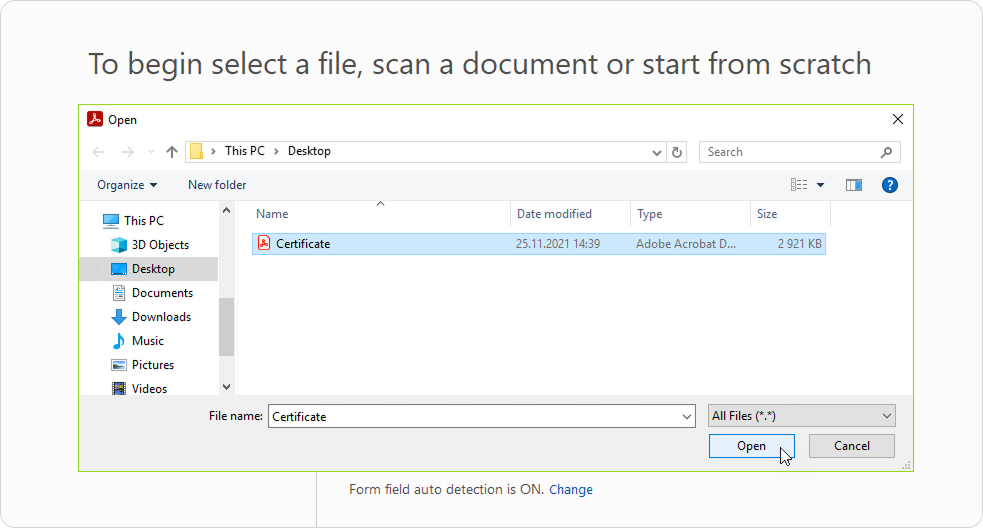
- Locate your static certificate on your computer and hit the Open button.
- Now that you have chosen a certificate to edit, click Start.
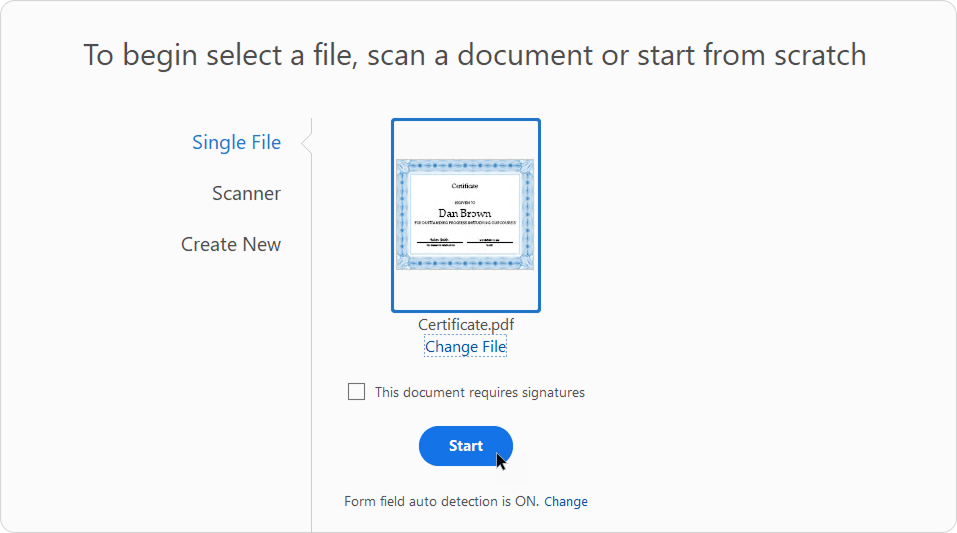
- Your certificate will be opened.
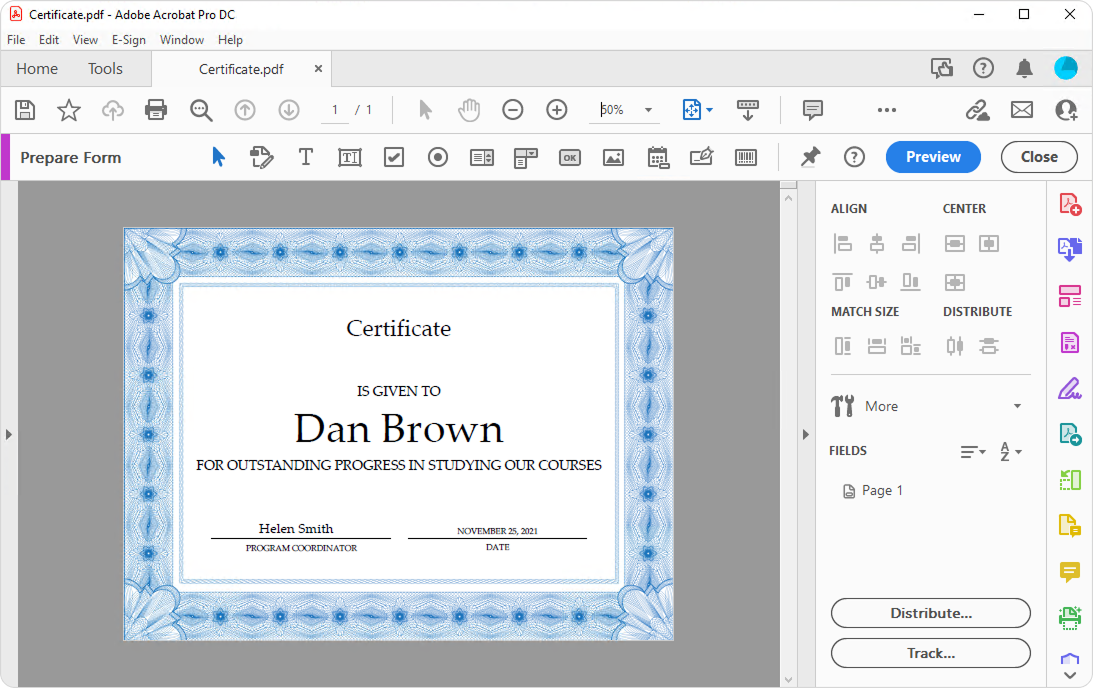
- First, let's edit the placeholders from the original template using the toolbar located on the right pane. In the example below, we have put a static value as the instructor's name (it will be constant, not variable) and used the dynamic DATE value for another field (the date of the course's completion will be inserted there).
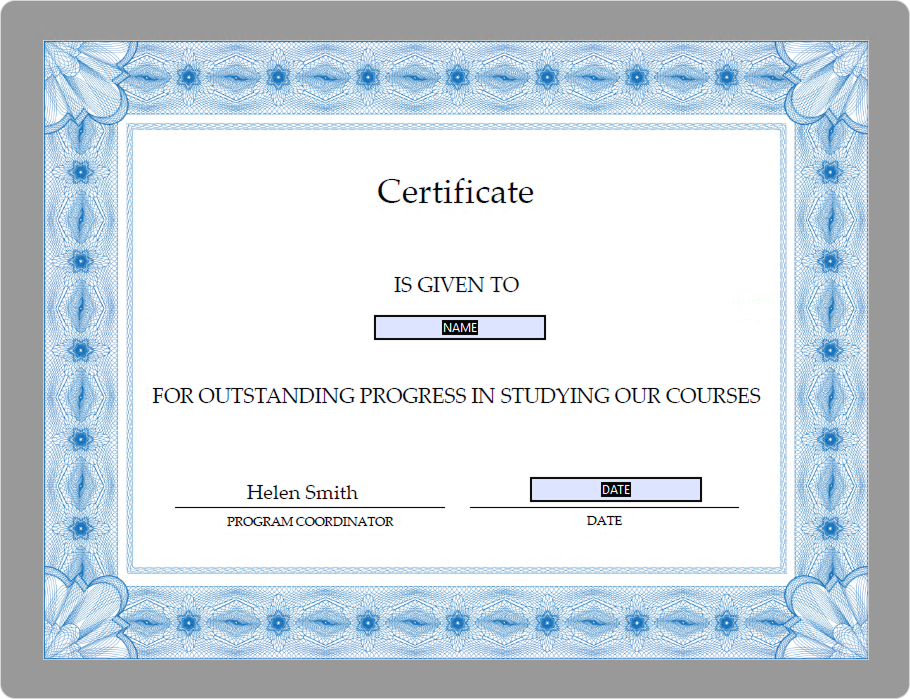
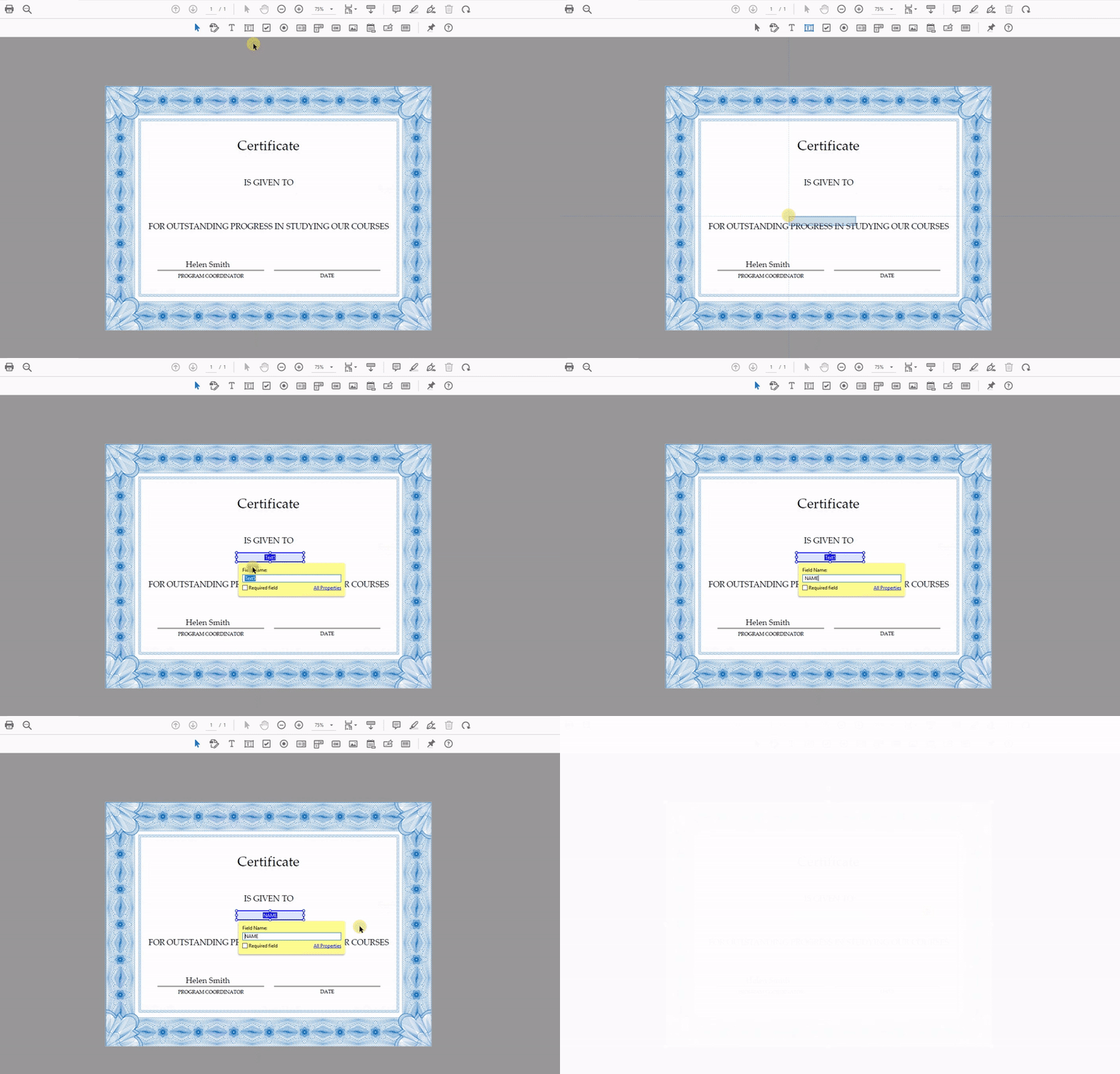
- Second, we will add a new text field that was not previously available in the certificate template. To do this, right-click, choose Text Field, select an area where the field will be located and insert the value. In this example, we have added the NAME form field (the name of the learner who completed the course will appear here).
- Finally, save this dynamic certificate to your device.
- Now upload the new certificate to your iSpring LMS portal and choose to issue it upon course completion. When the certificate is delivered to users, they will see their names, date of completion, and any other custom form fields.
1. For your certificate, select a font that is supported by iSpring LMS. Thus, you will be sure that texts on the certificate will be displayed properly.
In the table below, check fonts that will work for English texts. The list of fonts suitable for Portuguese, German, Spanish, Russian, Chinese, Japanese, and Mongolian can be found in the Fonts for a PDF Certificate article.
| Courier | Courier Std | Algerian |
| Helvetica | Adobe Ming Std L | Arial Unicode MS |
| Times Roman | Adobe Devanagari | Baskerville Old Face |
| Adobe Hebrew | Kozuka Gothic Pr6N M | Bouhous 93 |
| Adobe Gothic Std B Bold | Minion Pro | Arial Narrow |
| Adobe Fan Heiti Std B Bold | Myriad Pro | Arial Rounded MT Bold |
| Adobe Heiti Std R | Adobe Myungjo Std M | Bell MT |
| Adobe Song Std L | Arial | Berlin Sans FB |
| Adobe Thai | Agenay FB | Bernard MT Condensed |
2. To select a font:
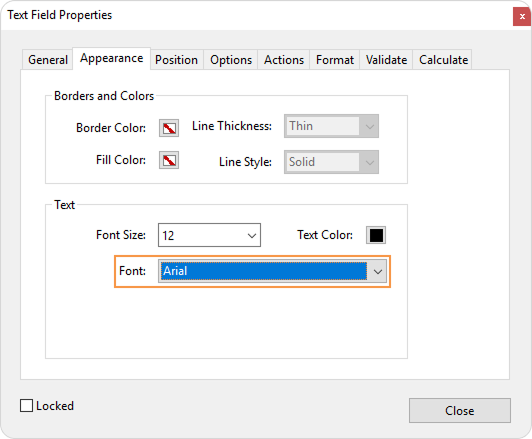
a. Right-click on a custom field and select Properties.
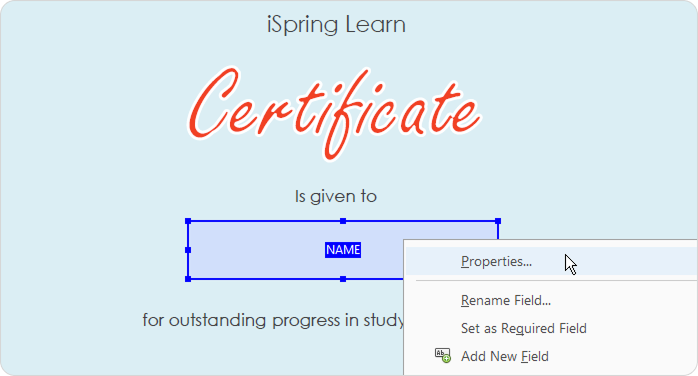
b. In the Text Fields Properties window, open the Appearance tab and choose the font you need in the Font menu.
3. Note that Mac-created certificates use another font encoding that is not always recognized on Windows. To avoid this, change the encoding type to Identity-H when creating your certificate on Mac.